Appearance
Dispatch with Gantt charts and maps
Use a Gantt chart to schedule engineers and planned service times. Use map dispatch to find resources near the service address.
Overview
| Method | Use case | Platform |
|---|---|---|
| Gantt dispatch | Review schedules and assign an engineer and planned service time | Web only |
| Map dispatch | Select a nearby internal engineer or external provider | Web only |
| Engineer distribution map | View engineers with location data and basic information | Web and App |
The engineer distribution map is a resource view. It does not dispatch a pending work order.
Before you begin
IMPORTANT
- Your account has the Dispatcher or Service Group Dispatcher role.
- For Gantt dispatch, an administrator has configured scheduling and the required appointment or planned-time fields.
- For map dispatch, the work order has a complete, locatable service address.
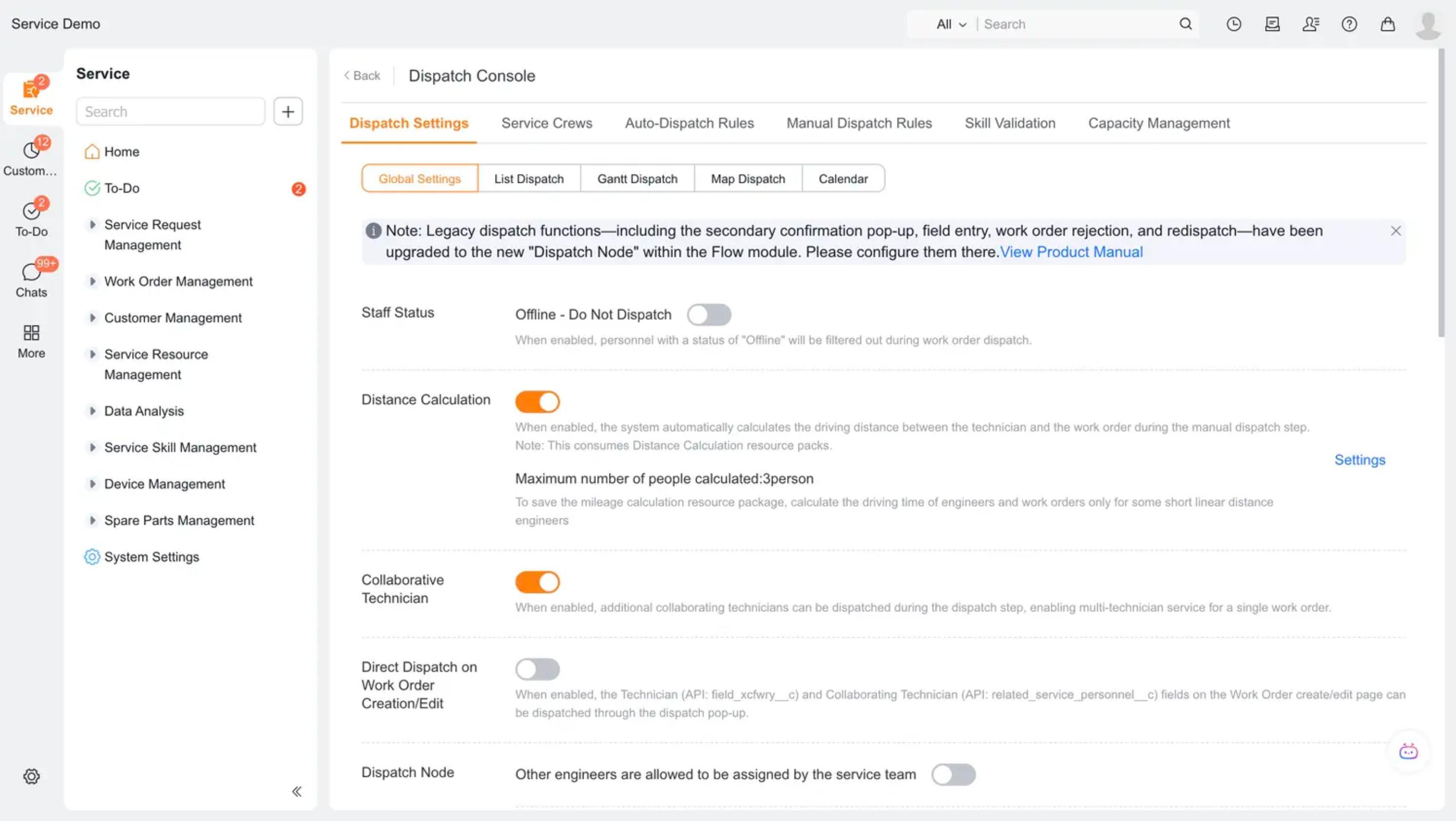
- For traffic-based recommendations, Service Pass > Work Order Assignment > Assignment Settings > Distance Calculation is enabled, with sufficient mileage credits.
- To view engineer distribution, you have service-information access, the feature permission, and access to Service Pass > Engineer Distribution.
Procedure
Use Gantt dispatch
Your administrator selects one of two scheduling methods.
Match the appointment automatically
Use this method when you select only the engineer and the system derives planned times from the appointment.
Confirm that the work order has an appointment time.
Go to Tasks > Work Orders Pending Assignment and switch to Gantt view.
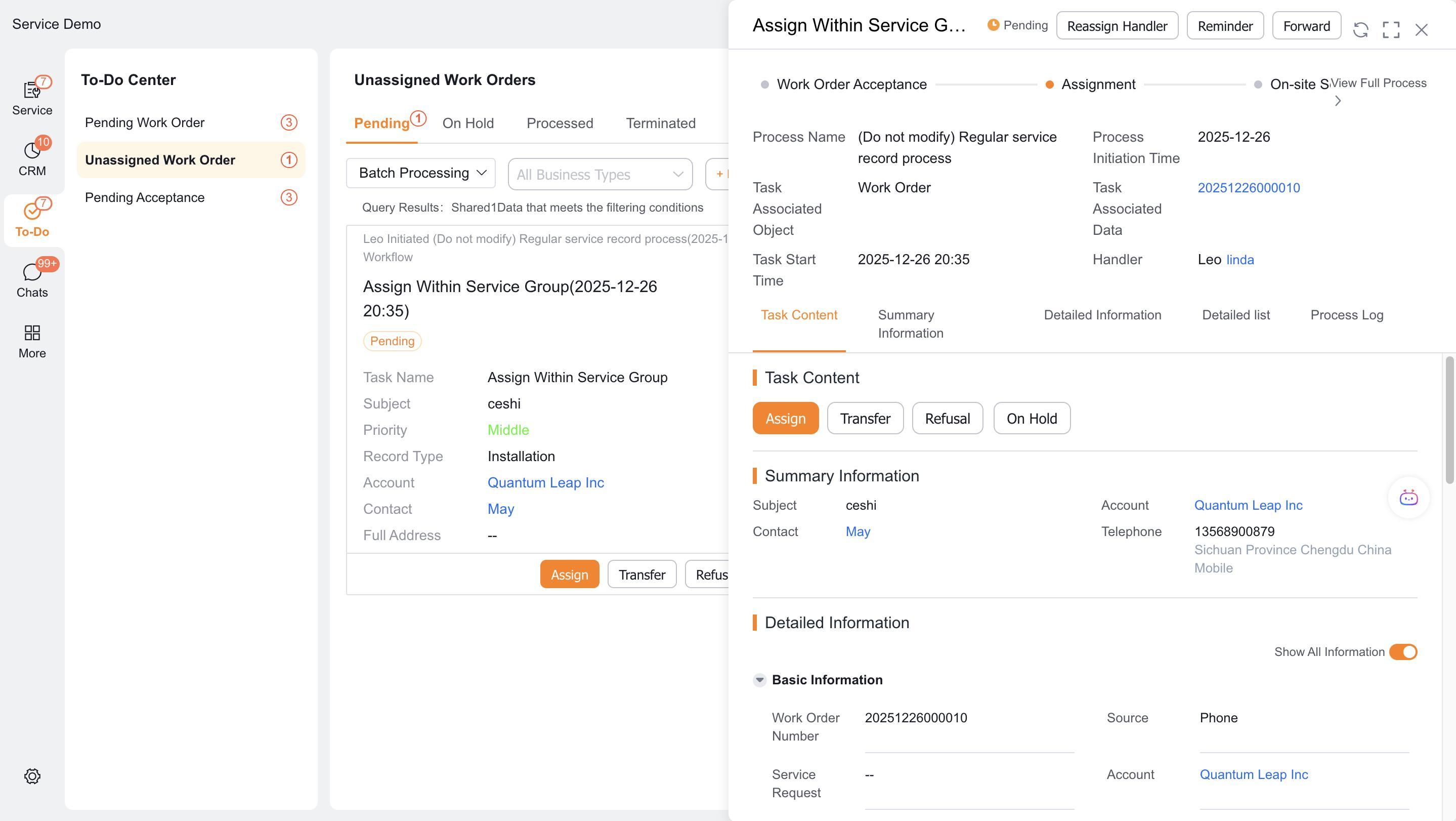
Select the work order and responsible engineer, then complete the assignment.
The system copies the appointment start and end into the planned start and end fields.
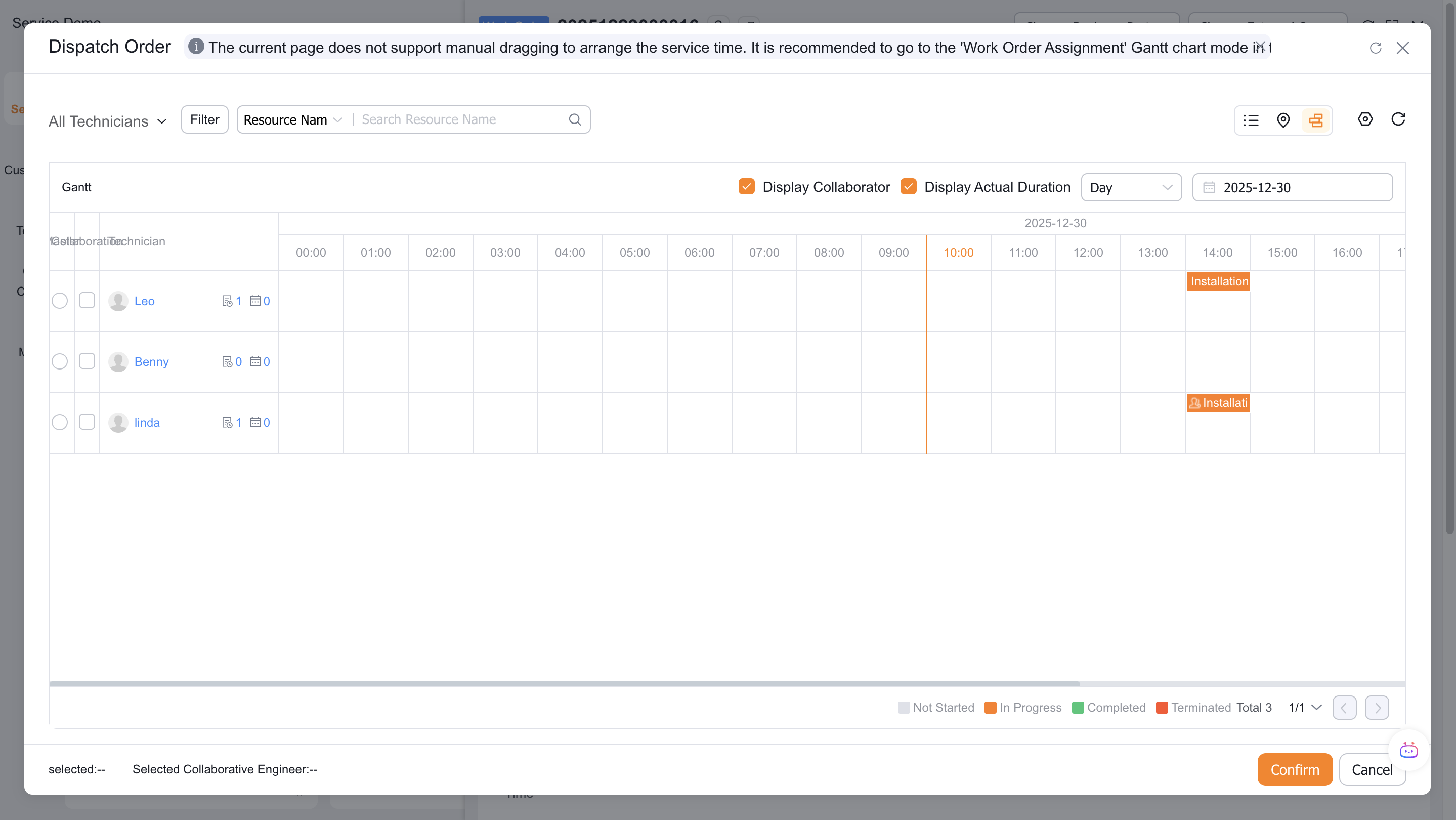
Drag to set a planned service time
Use this method when you must select both the engineer and planned time.
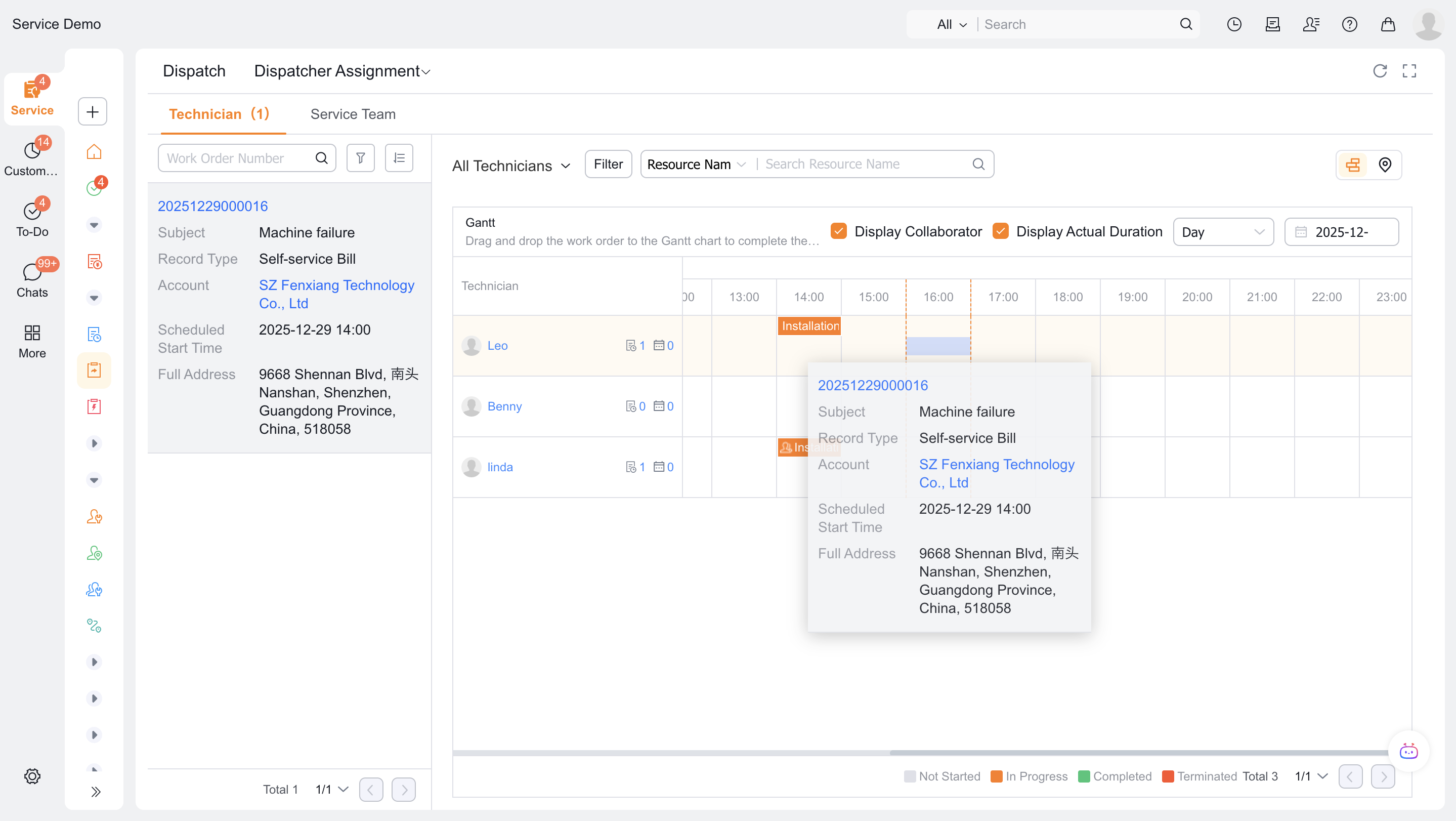
- On the web, go to Service Pass > Work Order Assignment and switch to Gantt view.
- Drag the work order into the target engineer's time range. Set the planned start and end times.
- Complete the assignment. The system writes the selected times to the planned service fields.
Use map dispatch
- On the web, go to Tasks > Work Orders Pending Assignment.
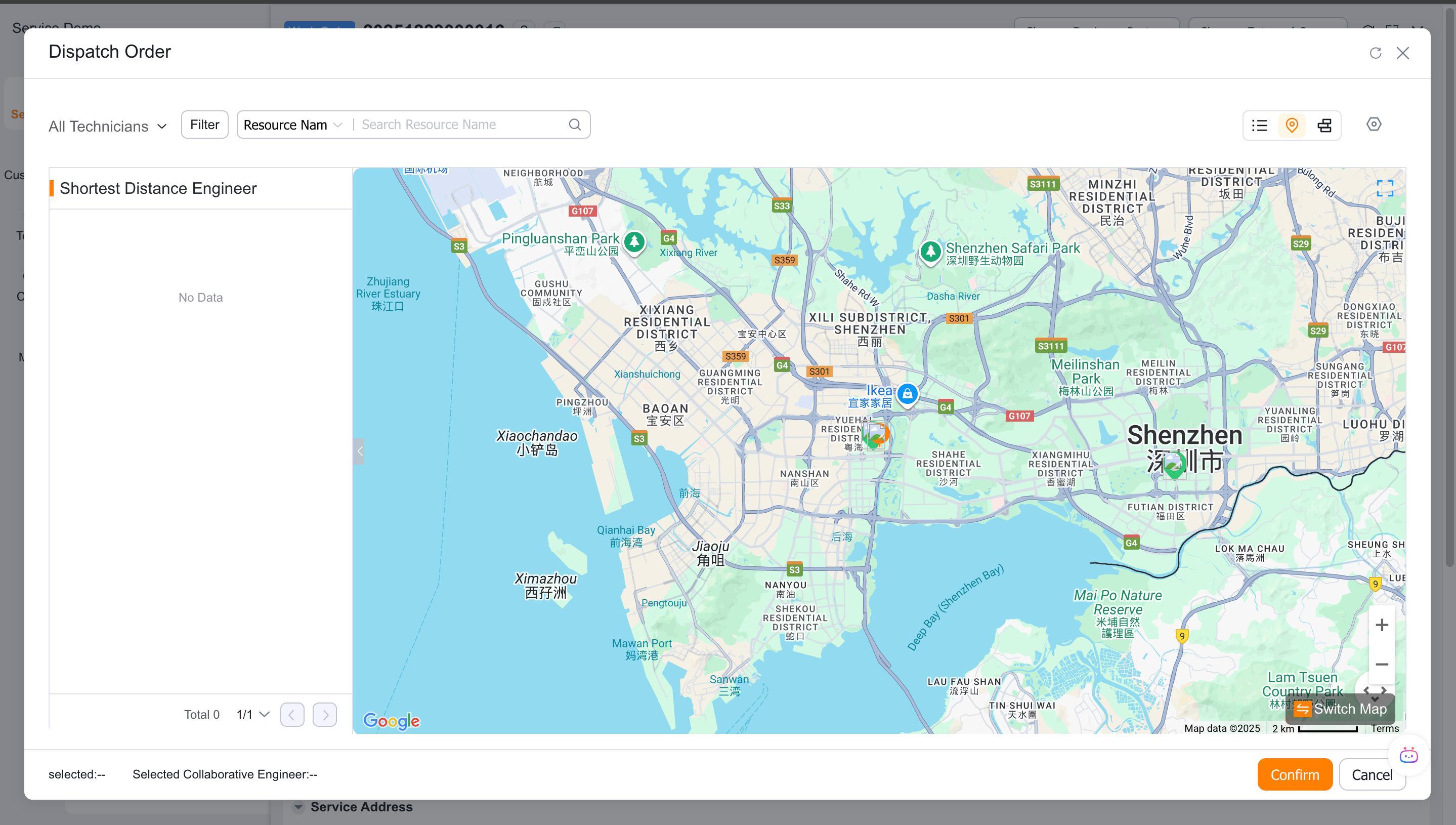
- Select a work order, select Assign Work Order, and switch to map dispatch.
- Review internal engineers or external providers near the detailed service address.
- Select a resource and submit the assignment.
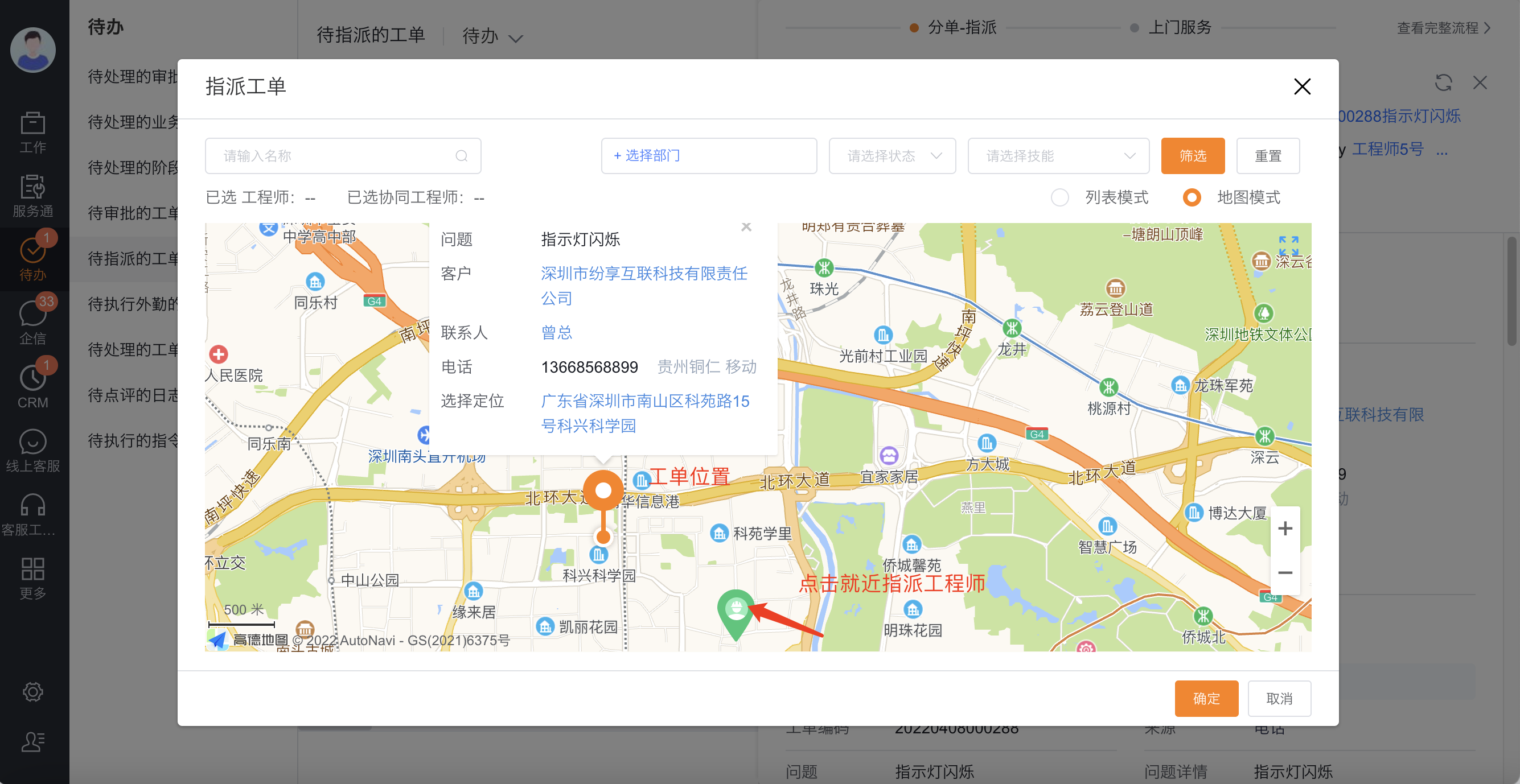
Engineer locations use the latest field or work order check-in data. They support dispatch decisions but do not represent real-time tracking.
WARNING
Map dispatch requires a complete, locatable service address.
Use traffic-based engineer recommendations
This map feature supports manual selection and never dispatches automatically. It calculates driving distance and time with current traffic after distance calculation is enabled.
Administrators can limit the candidates included in each calculation to control mileage-credit usage.
In the map candidate list, compare distance and driving time. Select an appropriate engineer and confirm the assignment.
View the engineer distribution map
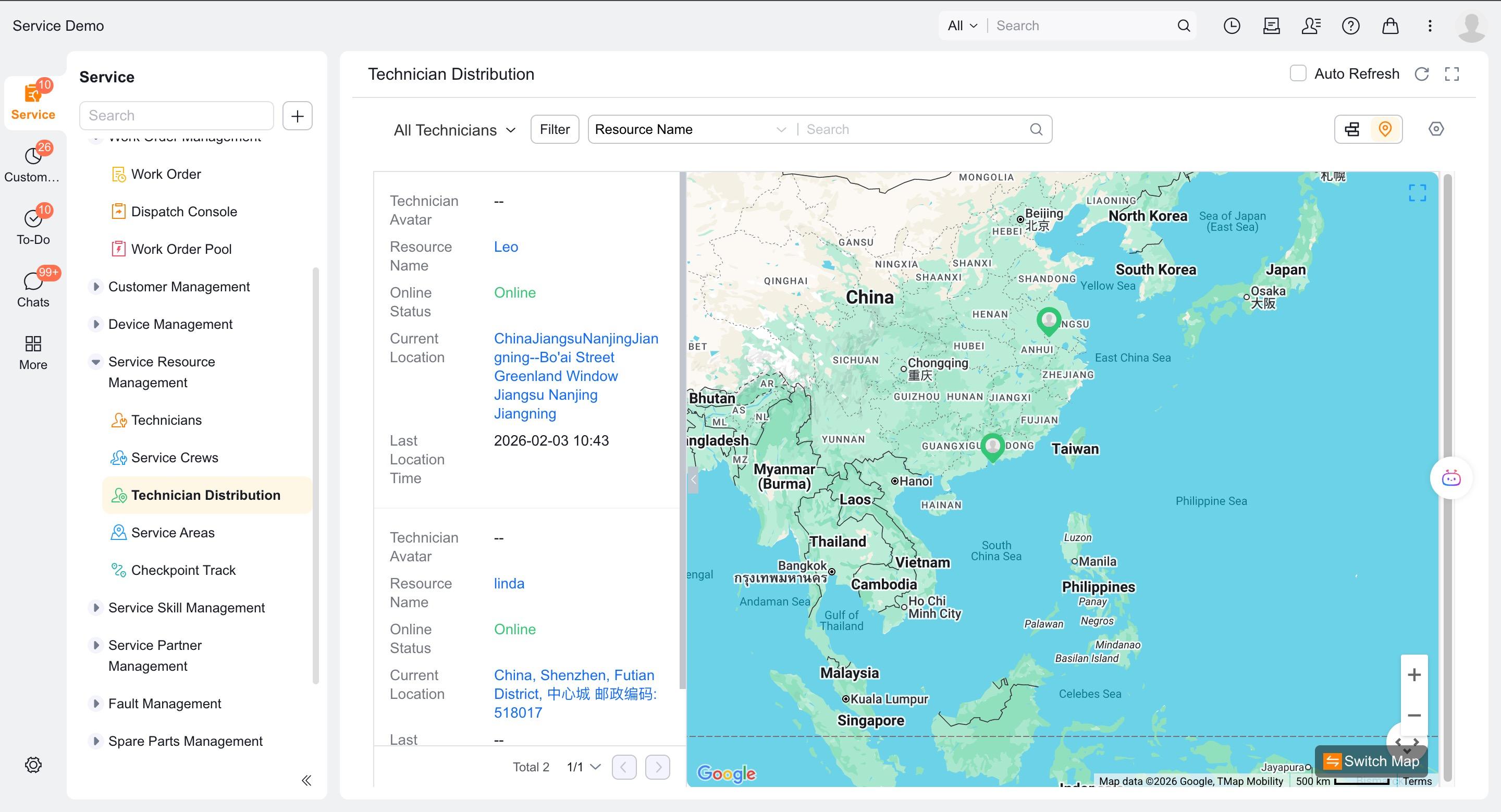
To review resources without assigning a specific work order, go to Service Pass > Engineer Distribution.
- The map shows visible engineers who have location data. Engineers without location data do not appear.
- Engineers maintain their online status in Me > Work Status > Online Status.
- Select an avatar for summary information, or select the engineer's name for details.
Expected result
- Gantt dispatch records the selected engineer and, in drag mode, the planned service time.
- Map dispatch assigns the selected internal engineer or external provider.
- Viewing the engineer distribution map does not assign a work order.
Notes
- Gantt and map dispatch are web-only features.
- Service group dispatchers can normally select only engineers in their group.
- Traffic-based recommendations consume mileage credits. Configure an appropriate candidate limit.
- Engineer distribution follows service-information data permissions.
- Actual service times appear in Gantt only when your process populates the actual start and end fields.