Appearance
Configure roles and permissions
Configure Service Pass roles and permissions to control access, actions, and data scope.
Overview
Service Pass uses platform role permissions to control which features, objects, and fields administrators, dispatchers, and service engineers can access. First assign roles to employees. Then configure management feature permissions, business feature permissions, and field permissions. You must authorize non-object menus in the Service Pass workbench separately.
Before you begin
- Use a Service Pass administrator account or an account with permission to manage platform roles.
- Confirm the employees, roles and service business scope that require authorization.
- If you configure the Web/App workbench at the same time, first list the menus that each role needs to use, and then authorize them according to this guide.
Procedure
Go to Management > Role Permission Management and open Management Function Permissions or Business Function Permissions.
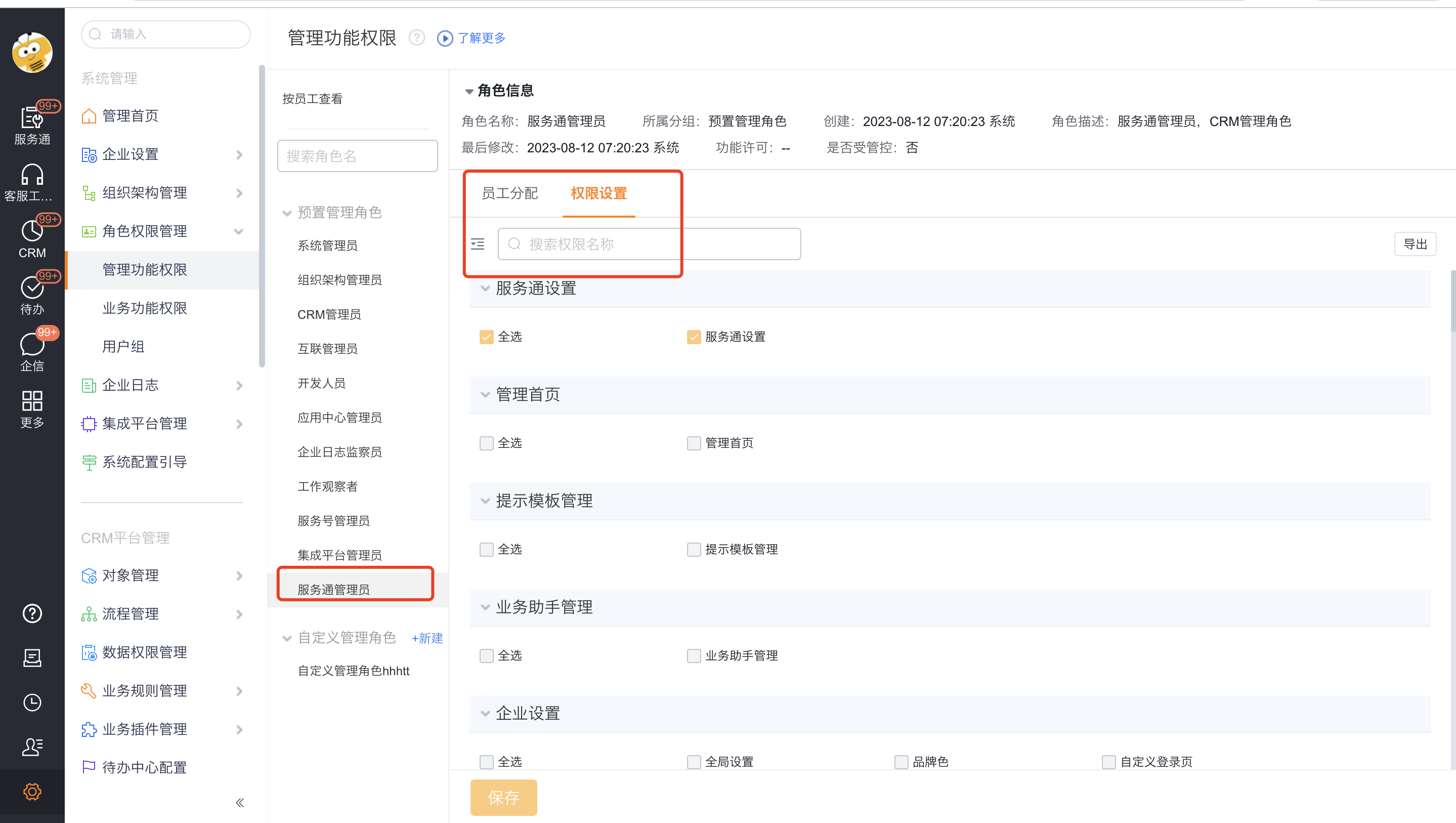
Select an existing role in the role list; if you need independent permission boundaries, create a custom role first. Both platform preset roles and custom roles can be used to access the Service Manager application.
Open Employee Assignment and add the employees who need to use this role to the role. Role assignments determine which set of service access permissions an employee can inherit.
Open Permission Settings and check the function permissions according to role responsibilities. Commonly used role boundaries are as follows:
Role Primary responsibilities Permission considerations Service Pass Administrator Maintain Service Pass business configuration and role permissions Require management configuration portal and related object management permissions Order dispatcher View and assign work orders to be assigned within the company Require work order list, details and assignment related functional permissions Service Engineer Receives and performs assigned field service tasks Requires view/edit permissions for work order processing, field operations, and required fields Customize roles Combine permissions according to company positions Only open the objects, fields and menus actually used by the position 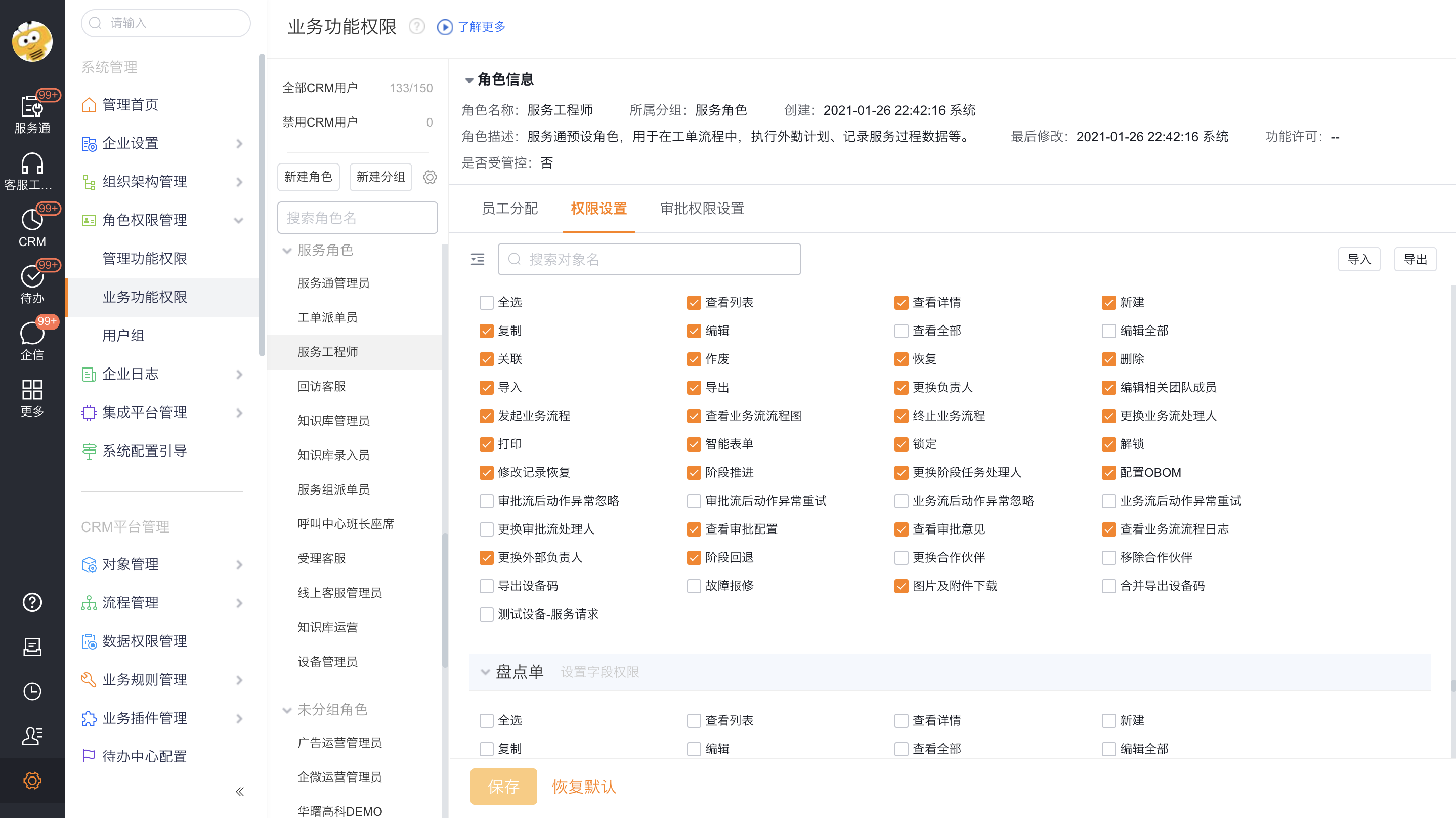
For objects that need to limit the data filling or viewing range, continue to configure field permissions. Function permissions only determine whether object operations can be performed, while field permissions determine whether fields are visible or editable. Both must be satisfied at the same time.
Enter Service Pass in the permission search box to check the Service Pass business permissions and Service Pass menu permissions. Non-object pages such as engineer distribution diagrams do not belong to ordinary object permissions and must be checked separately in the Service Pass menu permissions.
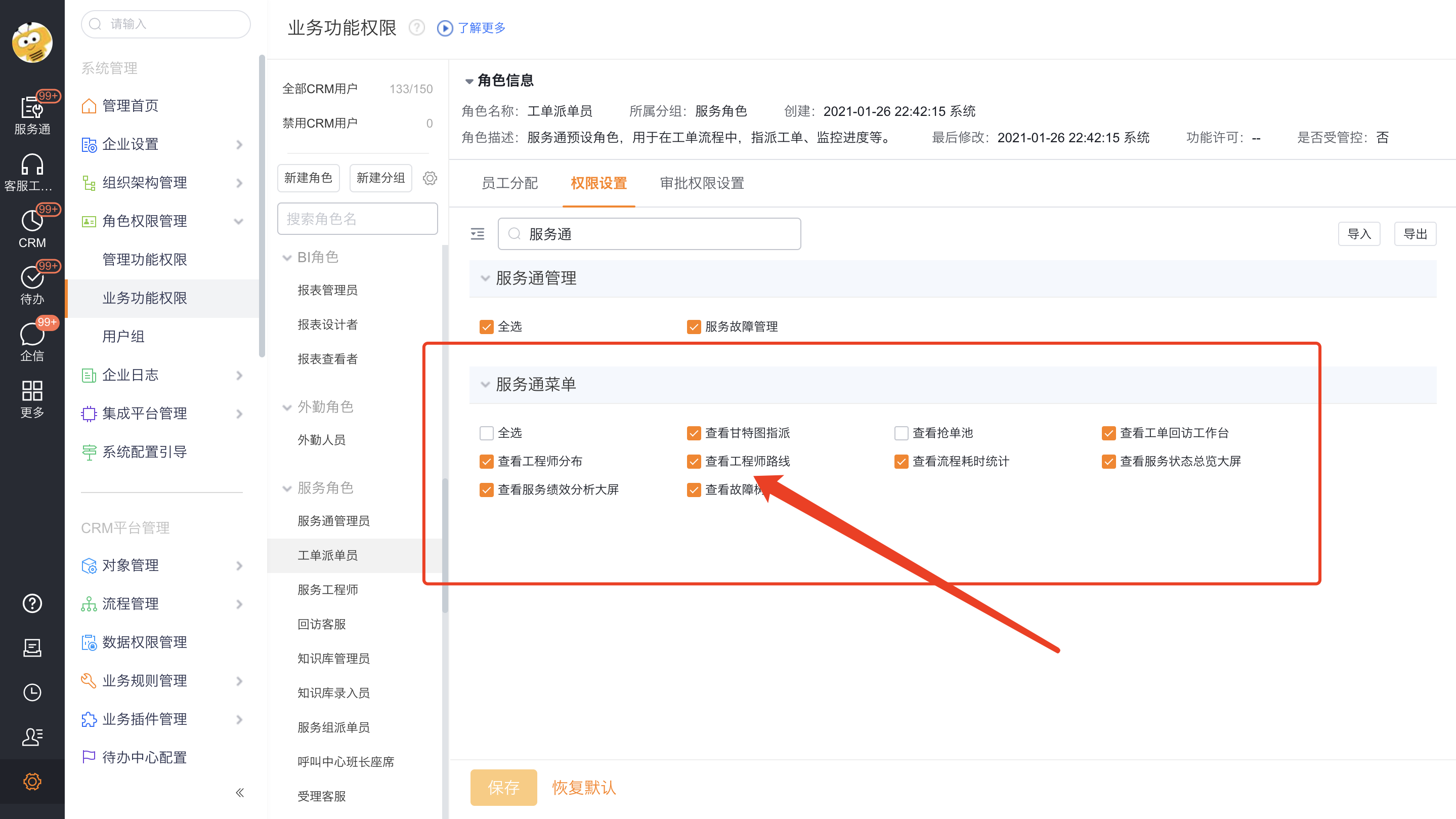
Click Save. Sign out, then sign in with the target employee account. Verify the object menus, non-object menus, and fields.
Expected results and verification
- Target employees can access authorized Service Pass menus.
- The object list, details, operation buttons and field display ranges conform to the role configuration.
- Unauthorized non-object menus (e.g. Engineer Map) do not display or cannot be opened.
Notes
- The permission boundaries of dispatchers and service engineers are different. Do not reuse the same set of permissions because the menu names are similar.
- Role permissions and Web/App workbench templates are two-level configurations: adding a menu to the template does not mean that employees automatically obtain object permissions.
- After modifying field permissions, you need to log in again with your actual employee account to verify the permission results.
- The names and descriptions of the platform's preset roles are based on the current enterprise page; if more detailed responsibilities are needed, use custom roles.
FAQ
Employees cannot see the work order menu
First check whether the role has list/detail permissions on the ticket object, and then check whether the web or app workbench template adds the ticket menu to the applicable scope. If either item is not configured, the menu may not be visible.
Can see menu but cannot perform assignment or editing
Check the business function permissions and corresponding field permissions of the current role. Visibility of an object does not imply assign, edit, or field modification permissions.