Appearance
Generate a service report
Review the report, collect a customer signature, and confirm the result.
Overview
After on-site service, generate a report for a work order or equipment. The report includes configured business data, entered service details, and inspection results. Customers can sign on-site or remotely.
Before you begin
IMPORTANT
- You can access the work order and use Generate Service Report.
- Complete all required actions, inspections, and on-site records.
- An administrator enabled reports and configured a matching template.
- For remote signatures, verify the work order contact and mobile number.
Identify the report type and entry
| Report type | Use case | Content |
|---|---|---|
| Work order service report | Summarize the complete service visit | Data from the work order and related records |
| Equipment service report | Record results for one or more devices | Data from work order equipment or equipment SOPs |
Generate a report from any available entry:
- Run Generate Service Report in an SOP.
- Select Generate Service Report at a service process node.
- Select Generate Service Report from work order actions.
Your process and permissions determine which entry appears.
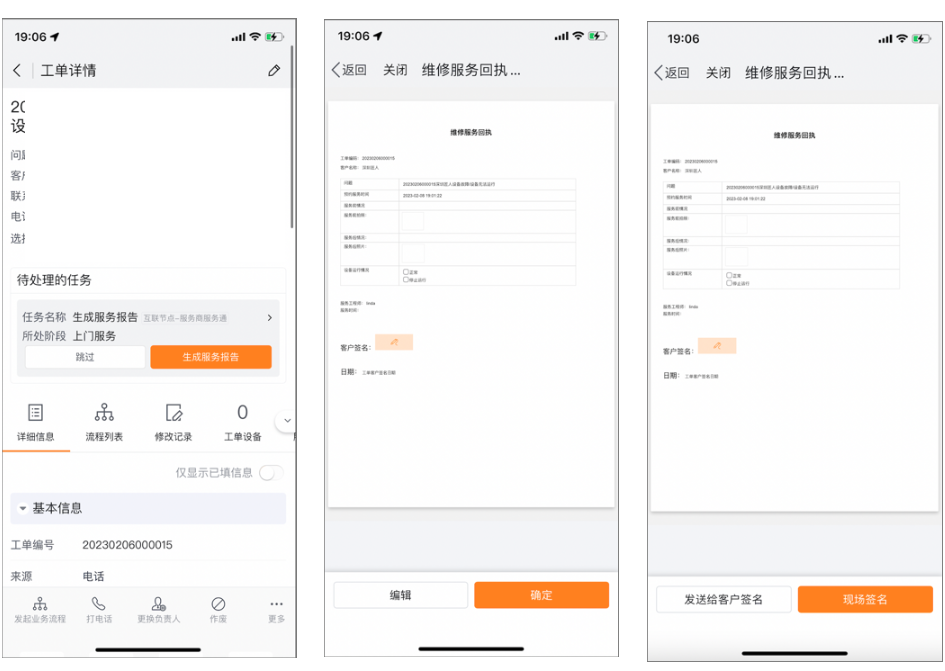
Generate a report in the App
- Open the task or work order from the Service Pass workspace.
- Select Generate Service Report.
- In the preview, verify the work order, customer, service details, and inspection results.
- To add on-site information, select Edit, complete editable items, and save.
- Verify the report, then select OK.
NOTE
You can edit only items configured as editable. The system populates all other content.
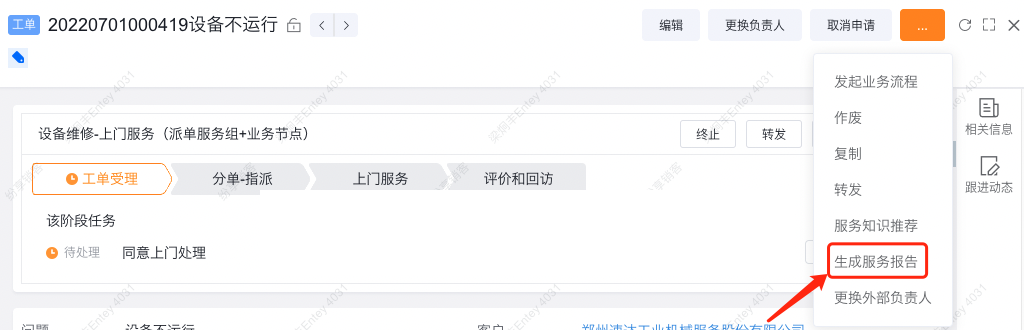
Generate a report on the web
- Open the work order from the Service Pass work order list or tasks.
- At the current node or in work order actions, select Generate Service Report.
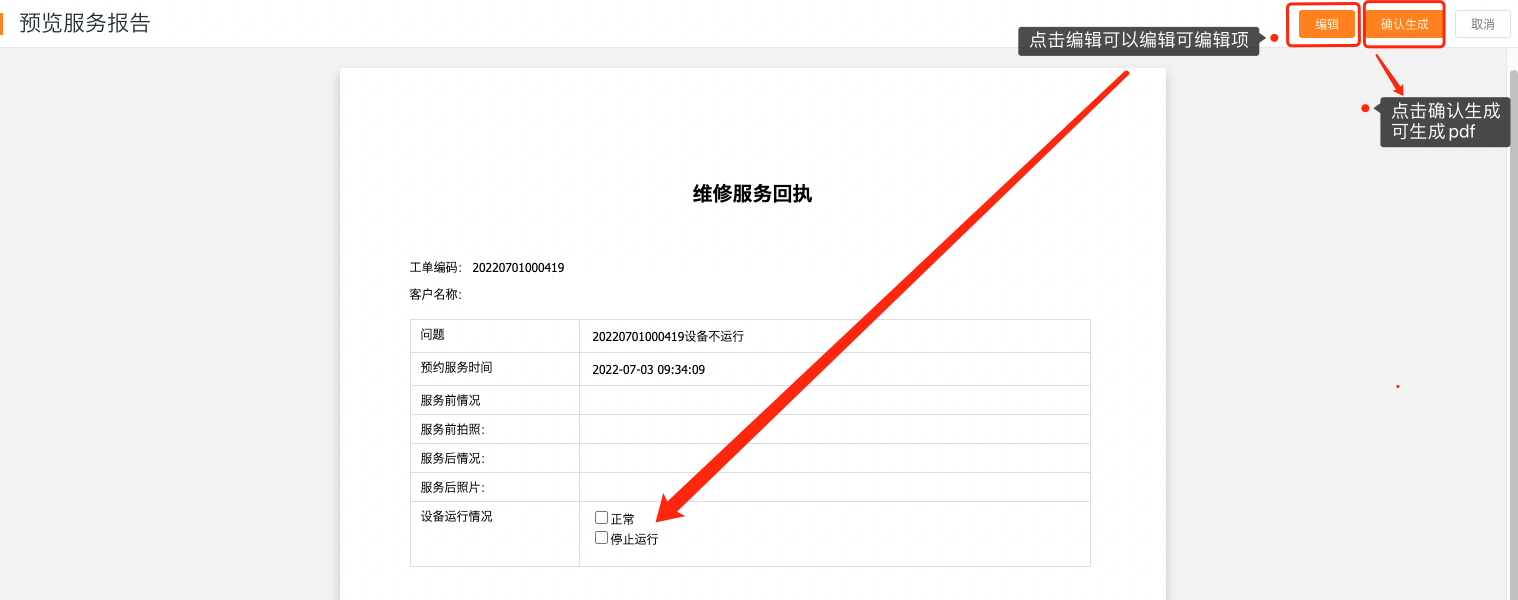
- Verify the report preview.
- Select Edit, complete editable items, and save.
- Select Confirm Generation.
Invite the customer to review and sign
The report template controls whether a signature is required and which methods are available.
On-site signature
- In the report preview, select On-site Signature.
- Give the device to the customer for signing.
- After the customer signs, select Confirm.
The system generates a PDF containing the signature.
Remote signature
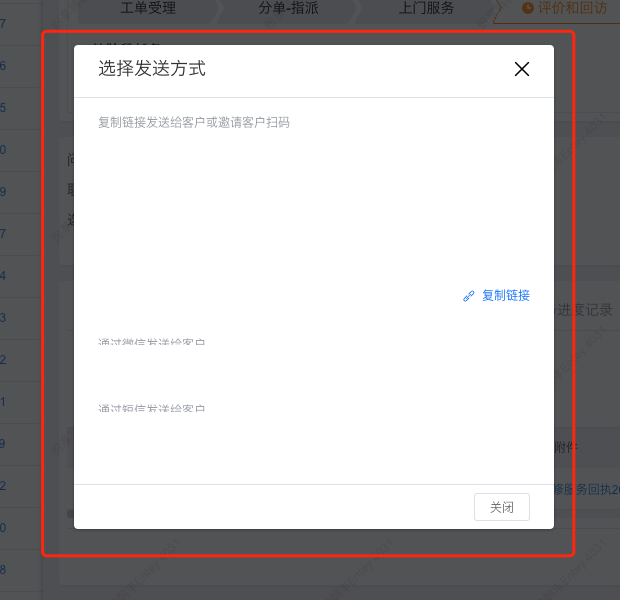
- In the preview, select Send to Customer for Signature.
- Choose an available method:
- Copy and send the link.
- Ask the customer to scan the QR code.
- Send through WeChat.
- Send by SMS.
- After signing, return to the work order and verify the result.
NOTE
WeChat requires the contact to bind the organization's account. SMS requires an available messaging service.
Verify the result
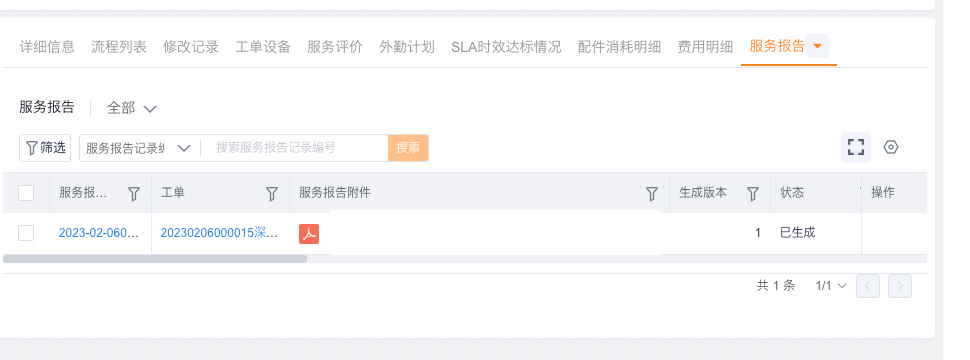
In work order details, confirm that:
- Service Reports contains a new record.
- The record has a PDF attachment and a Generated status.
- Service Report Status on the work order is Completed.
- If signed, the PDF contains the customer signature.
Troubleshooting
Generate Service Report is unavailable
Confirm that the task reached an eligible node and that all required actions are complete. Ask an administrator to check permissions and visibility rules.
The system finds no report template
The work order or equipment might not match a template. Ask an administrator to check template scope and matching rules.
Some report content is read-only
Only configured text, single-choice, and multiple-choice items are editable. The system populates dynamic work order data.
You cannot send a WeChat or SMS signature invitation
- For WeChat, verify that the contact bound the correct official account.
- For SMS, ask an administrator to verify the messaging service.
- Use a copied link or QR code as an alternative.