Appearance
Configure end-user notifications
Overview
End-user notifications are divided into two categories: administrators can add custom external notifications or text messages in the post-completion action of the service process node, or enable the system's preset Official Accounts, Mini Programs, and text message notifications. Whether the message can be delivered depends on the recipient, connected account and channel binding, template status and channel quota.
Before you begin
| Channels | Necessary conditions | Main restrictions |
|---|---|---|
| WeChat Official Account | Bound service account; the end user has followed the Official Account and registered or bound an connected account through this channel | Users who have not followed or are not bound cannot receive Official Account messages |
| WeChat Mini Program | The Mini Program has been enabled; the end user submits a work order from the Mini Program and agrees to subscribe | The Mini Program template cannot be modified; the data indicates that the subscription message can be received up to 3 times |
| SMS | The SMS service has been purchased and activated, a signed and approved template has been configured, and the quota is sufficient | Cannot be sent if there is no mobile phone number, the template fails to be approved, or the quota is insufficient |
The sender usually relies on the external owner of the ticket. When an end user submits a work order themselves, the system will write the current connected user into the external person in charge; when an internal person creates a work order, the system will try to match the external person in charge based on the connected user, mobile phone number or email associated with the contact.
Configure external notification of post-process actions
- Open the service process that needs to send notifications.
- Select the node on which you want to notify end users and enter the After Completion configuration for that node.
- Select Add > External Notification.
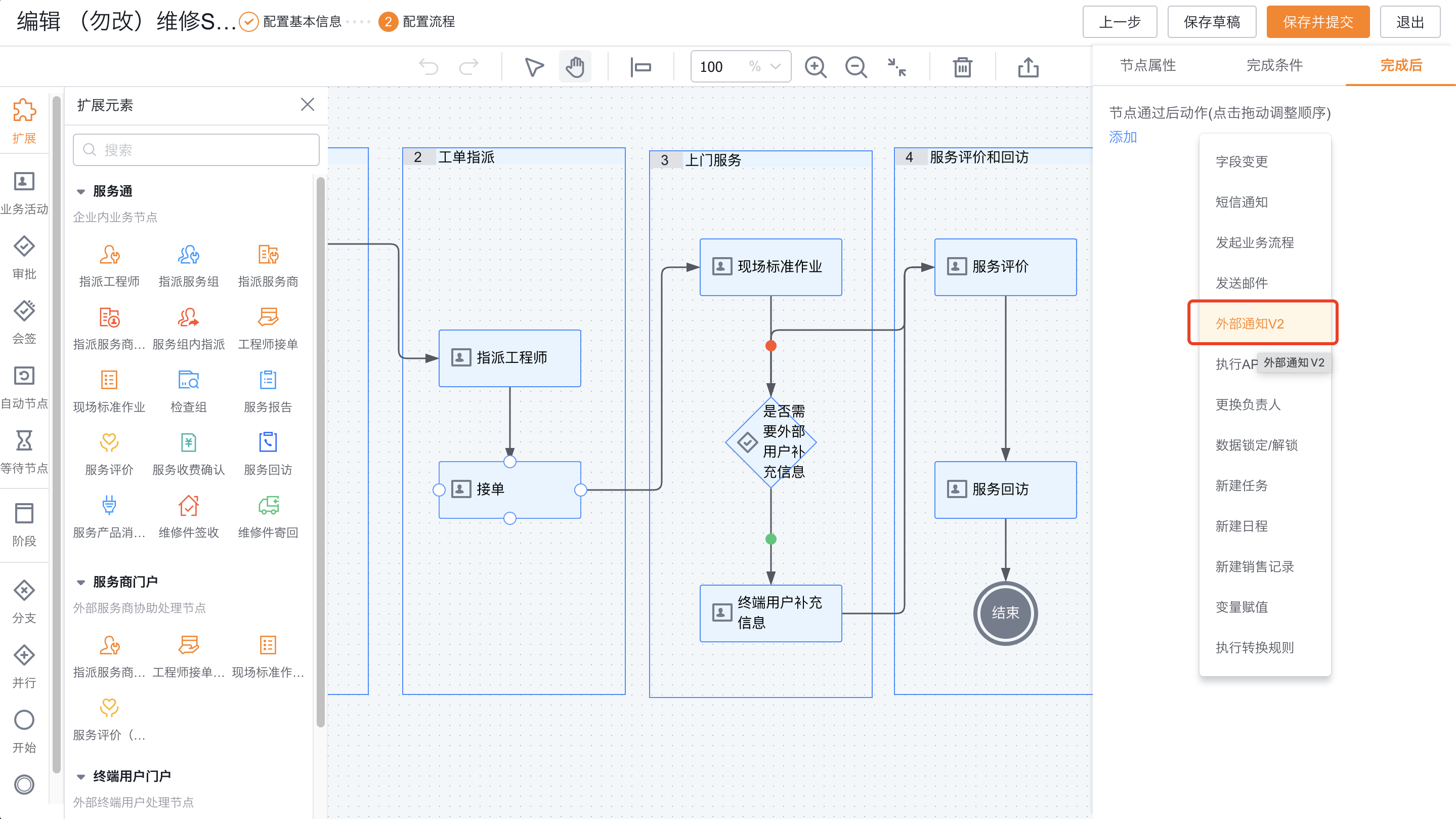
- Set the application as End User Service Pass.
- Select the person to alert, such as an end user role or an external owner.
- Set the jump link to the work order details page, and select the notification template and parameters.
- Save the process configuration.
The types of WeChat Official Account templates are provided by the WeChat platform, and Fenxiangxike cannot extend the template types. Variables that are not allowed by the template message operation rules may cause sending failure; when encountering such problems, you need to delete the variable from the notification content.
Maintain WeChat Official Account template
- If there is no optional template in the service channel, log in to the WeChat public platform.
- Add service categories that match after-sales service in the Official Account template library.
- Add the template you want to use from the template library.
- Return to Service Pass, select the template in the notification configuration and set the summary field and keyword field.
Action SMS after configuration process
- Purchase quotas in the SMS service, apply for SMS signatures and maintain SMS templates.
- Open the After completion configuration of the service process node.
- Add SMS Notification.
- Select an internal person or specify the mobile phone number of an external person as the recipient.
- Select the approved SMS template and save it.
When sending to internal personnel, the mobile phone number must be maintained in the personnel file; internal personnel who have not maintained a mobile phone number will not receive the text message.
Configure default notifications
In the work order process, open Process Notification and check WeChat Official Account Notification, WeChat Mini Program Notification, and SMS Notification. You can enable, disable, or edit default notifications by feature module.
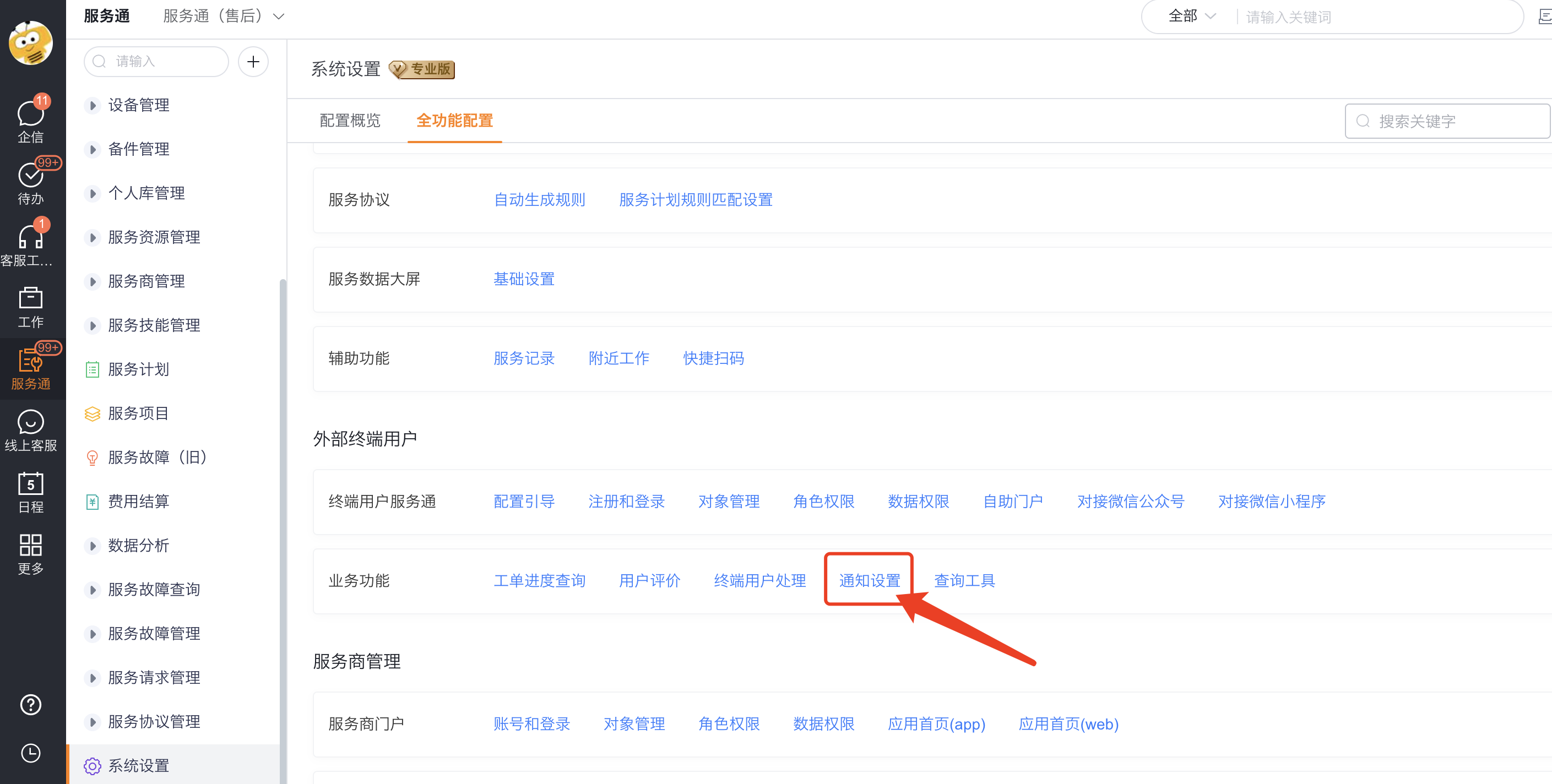
WeChat Official Account notification
Default events for official accounts include:
- Notify the submitter after the work order is submitted.
- Notify the submitter when the work order process status changes to Completed.
- Notify the submitter after the work order process is terminated.
- When the process enters the service review node, the submitter is invited to evaluate.
- Notify the submitter after the review is successfully submitted.
- Notify the service report recipient after the service report is generated.
- After the service report is generated, the invitation signature recipient will be notified.
When editing a notification, you can select a WeChat template and configure the summary field and keyword push field. After deactivating an event, the system will no longer send official account messages for that event.
WeChat Mini Program Notification
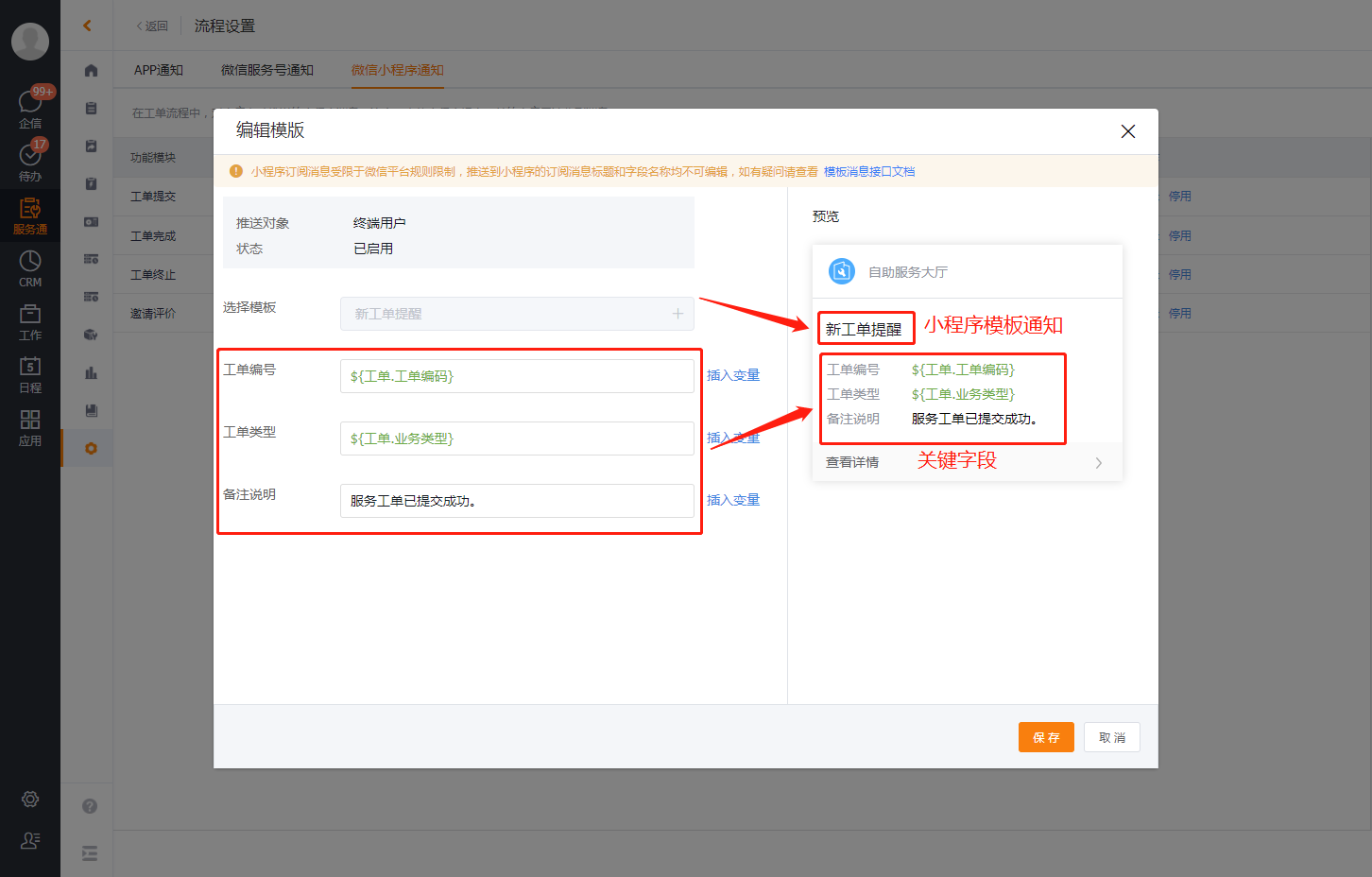
Mini program preset events include work order submission, work order completion, work order termination, and invitation review. End users must submit a work order from the applet and agree to subscribe before they are eligible to receive it.
Mini program template messages do not support modification, and only keyword push fields can be configured. Do not apply the template editability of official accounts to Mini Program notifications.
SMS notification
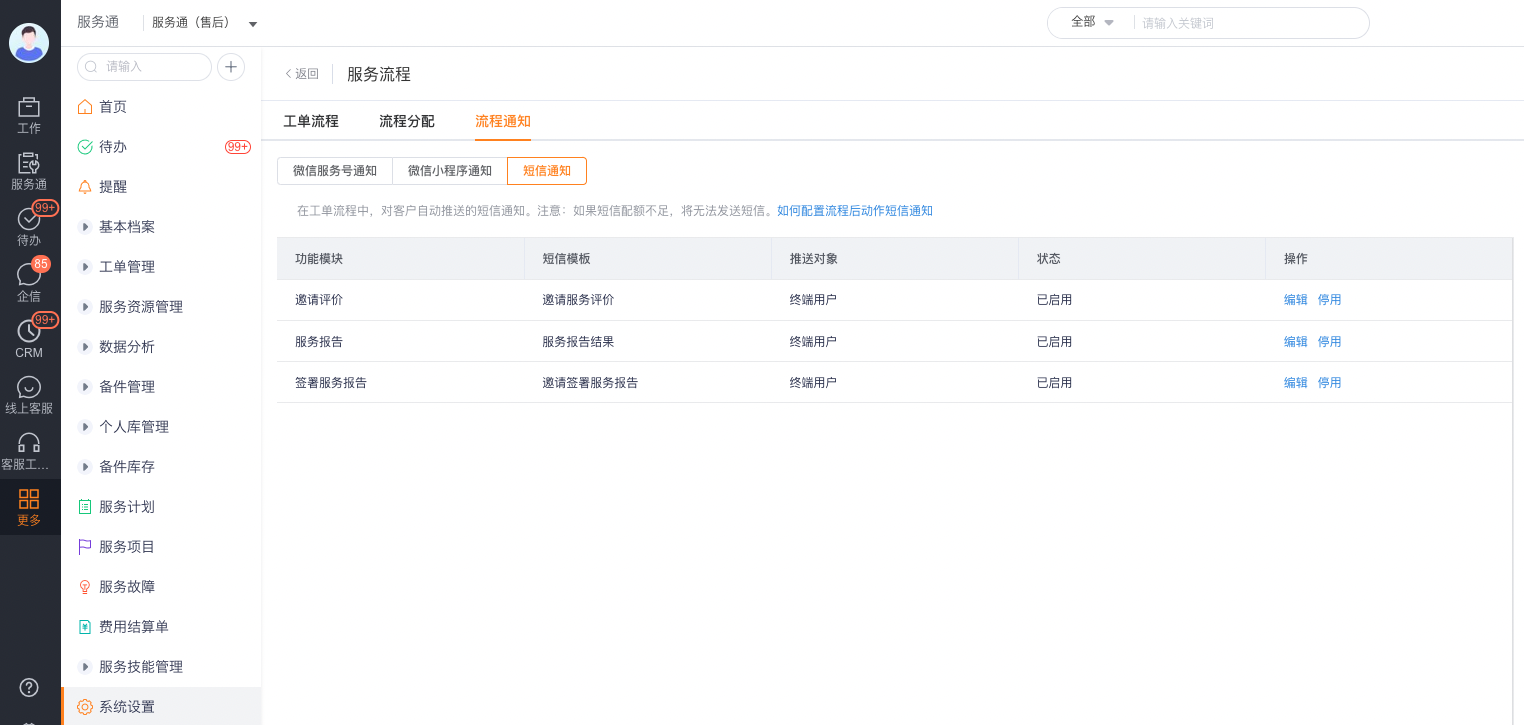
- Check the preset function modules and start and stop status in Process Notification > SMS Notification.
- Select Edit and select an existing template from SMS templates.
- To create a template, select the new-template action beside the template field. You need permission to create SMS templates. Use the template only after approval.
Expected results and verification
- Prepare test accounts that meet the reception conditions for official accounts, Mini Programs, and text messages.
- Trigger target events in work order submission, completion, termination or invitation review.
- Check whether the actual recipient is consistent with the external responsible person or configured role.
- Open the message link and confirm that you can enter the expected work order, review or service report page.
- Test the deactivation event again and confirm that this type of notification will no longer be sent.
FAQ
- Official account message not delivered: Check whether the user follows the official account, whether the connected account is bound to the official account, and whether the external person in charge of the work order is correct.
- Mini program message not delivered: Confirm that the work order is submitted from the Mini Program, the user has agreed to subscribe, and check the subscription limit.
- SMS Not Delivered: Check mobile phone number, SMS quota, signature and template review status.
- The template selection list is empty: First maintain the template in the WeChat public platform or SMS service.
- Message received but link without permission: Check the object details permission and data range of the end user role; notification will not bypass permission verification.
- Notify the wrong person when creating a work order internally: Check the connected user, mobile phone number, email and external person in charge of the work order associated with the contact.