Appearance
Configure work order objects
Overview
The work order is a standard Service Pass object with the API name CasesObj. You can configure business types for repair, installation, maintenance, and other scenarios. Each type can have its own fields, page layouts, and visible roles. After you enable equipment management, you can also configure single-equipment or multiple-equipment work orders.
Before you begin
- Use a service pass administrator or an account with permission to configure work order objects.
- Sort out the work order scenarios that need to be distinguished, the required fields and visible roles of each type of work order.
- If a device ticket is required, first enable device management and prepare the mapping fields on the device object.
Create a new work order business type
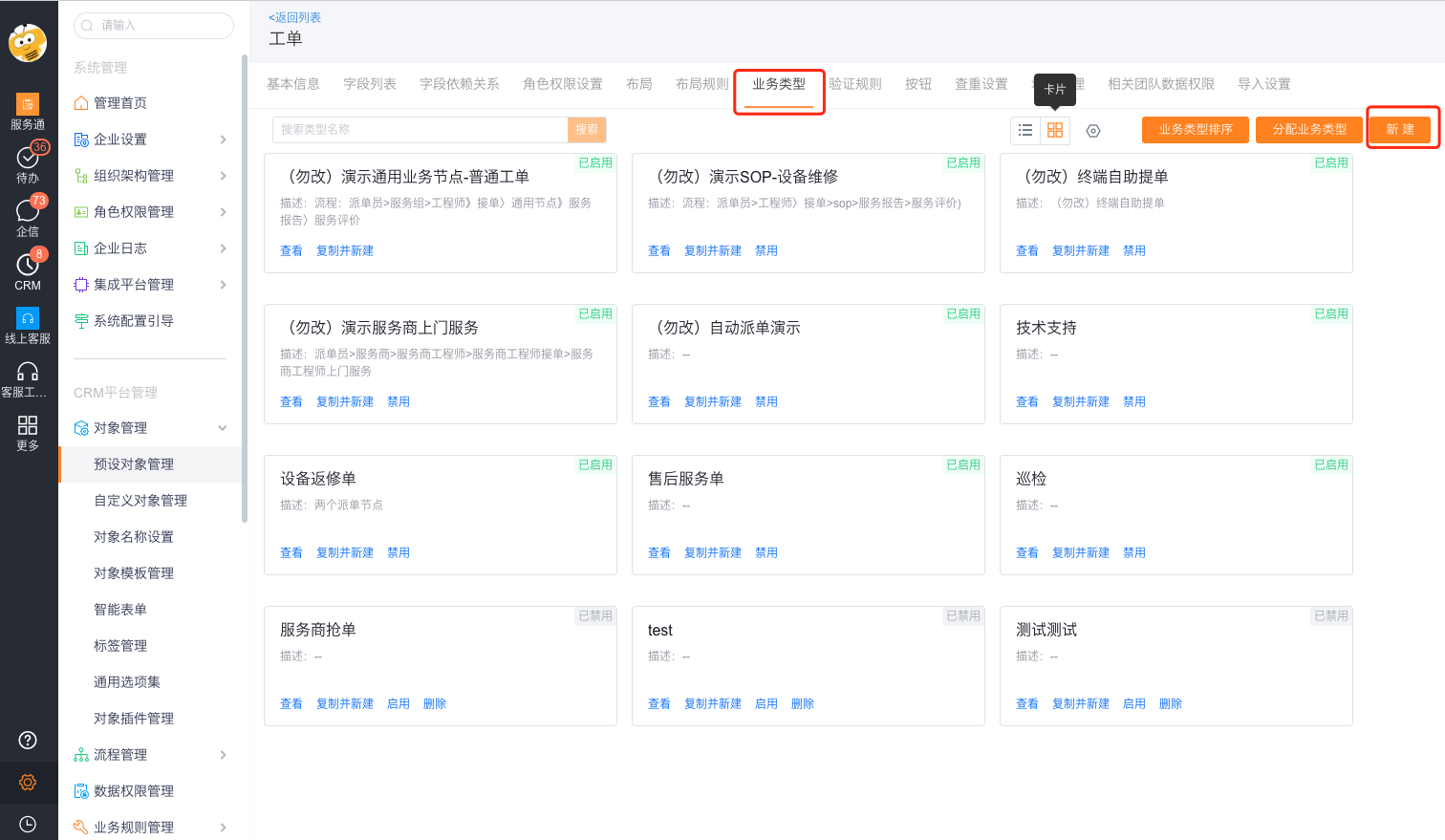
Enter Work Order > Business Type and switch to card mode.
Click New.
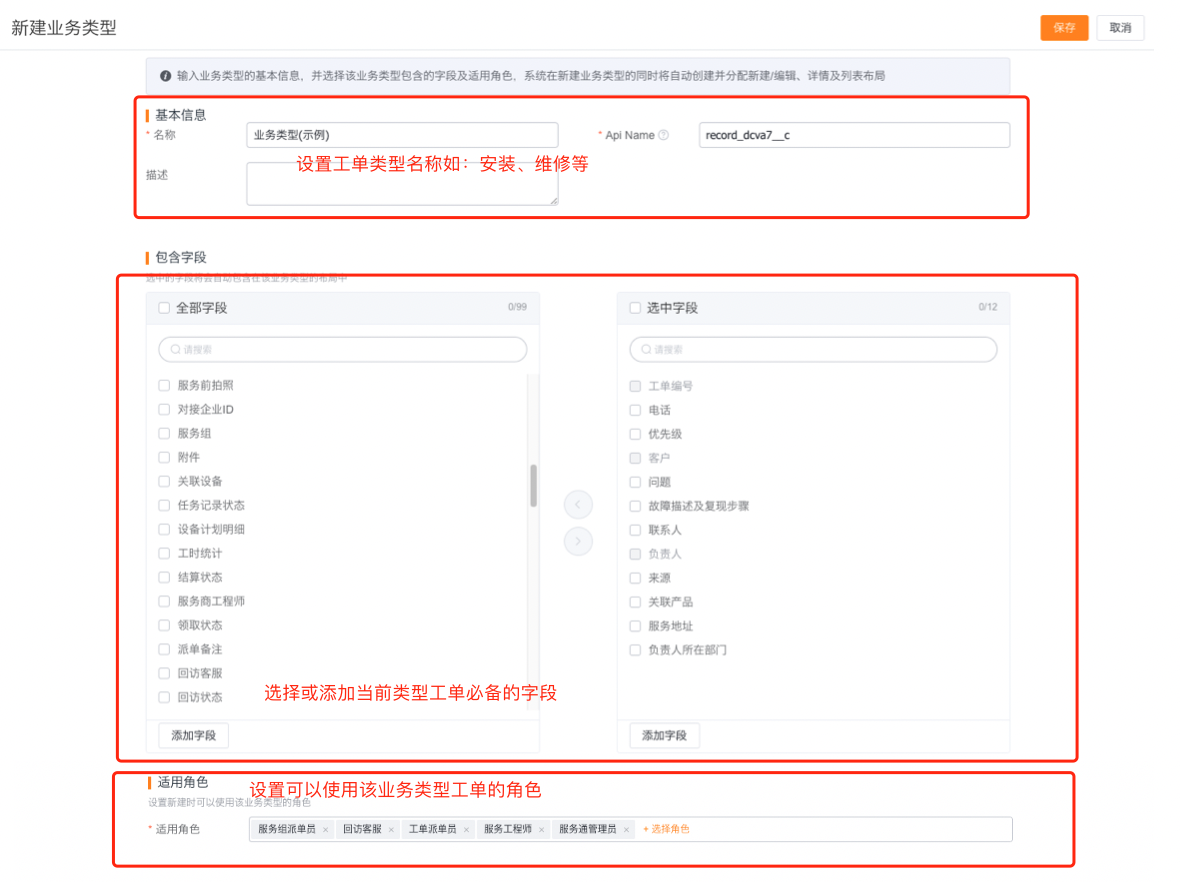
Set the work order type, the fields that need to be filled in, and the visible roles for this type of work order.
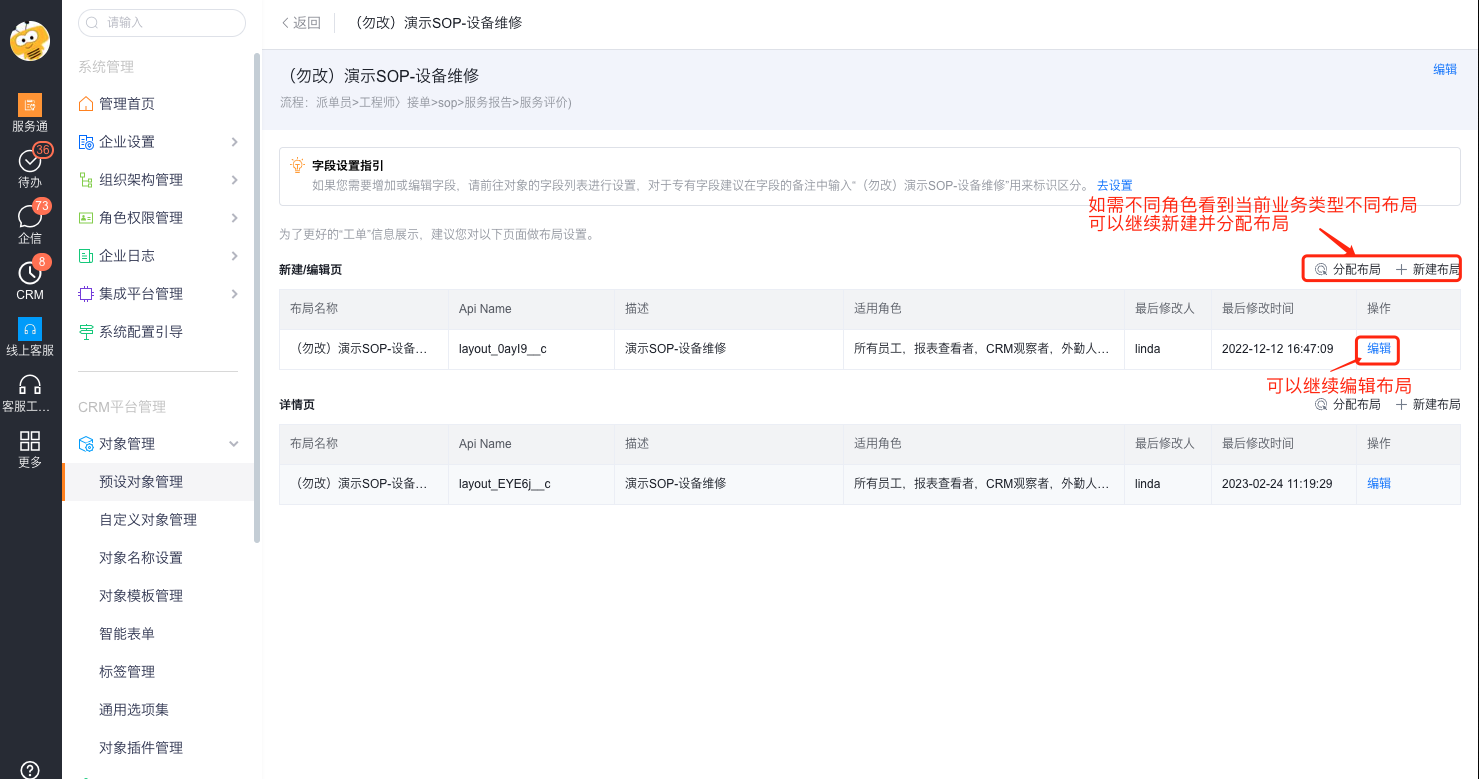
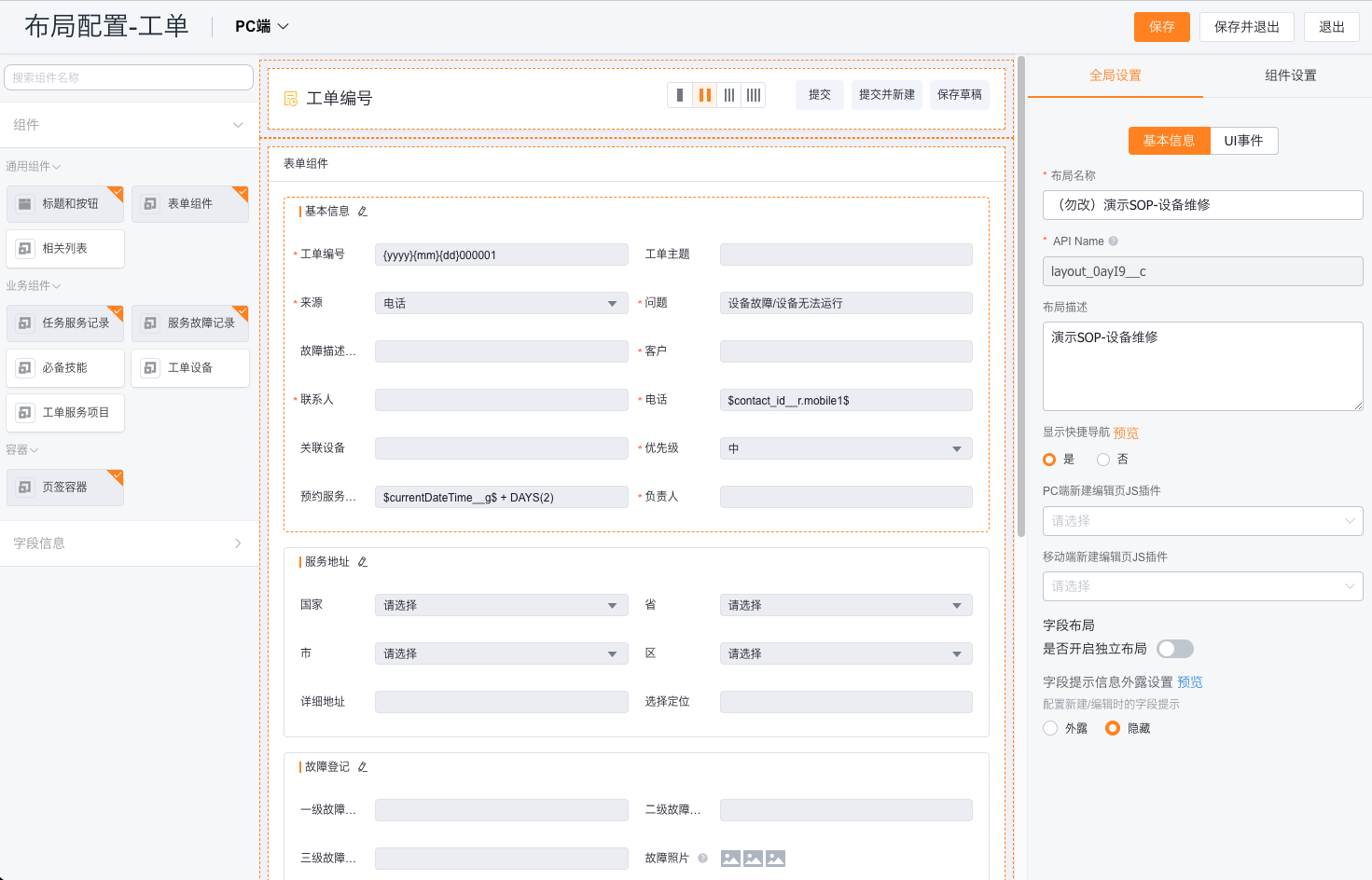
Click Save. The system initializes the new/edit page layout and detail page layout of the business type based on the selected fields.
Copy and create a new work order business type
When the existing business type is close to the new scenario, you can copy its layout and then adjust it.
- Enter Work Order > Business Type and switch to card mode.
- Click Copy and New on the target business type.
- Set up the new ticket type and visible roles.
- Select the new/edit page layout and detail page layout that you want to copy, and then save.
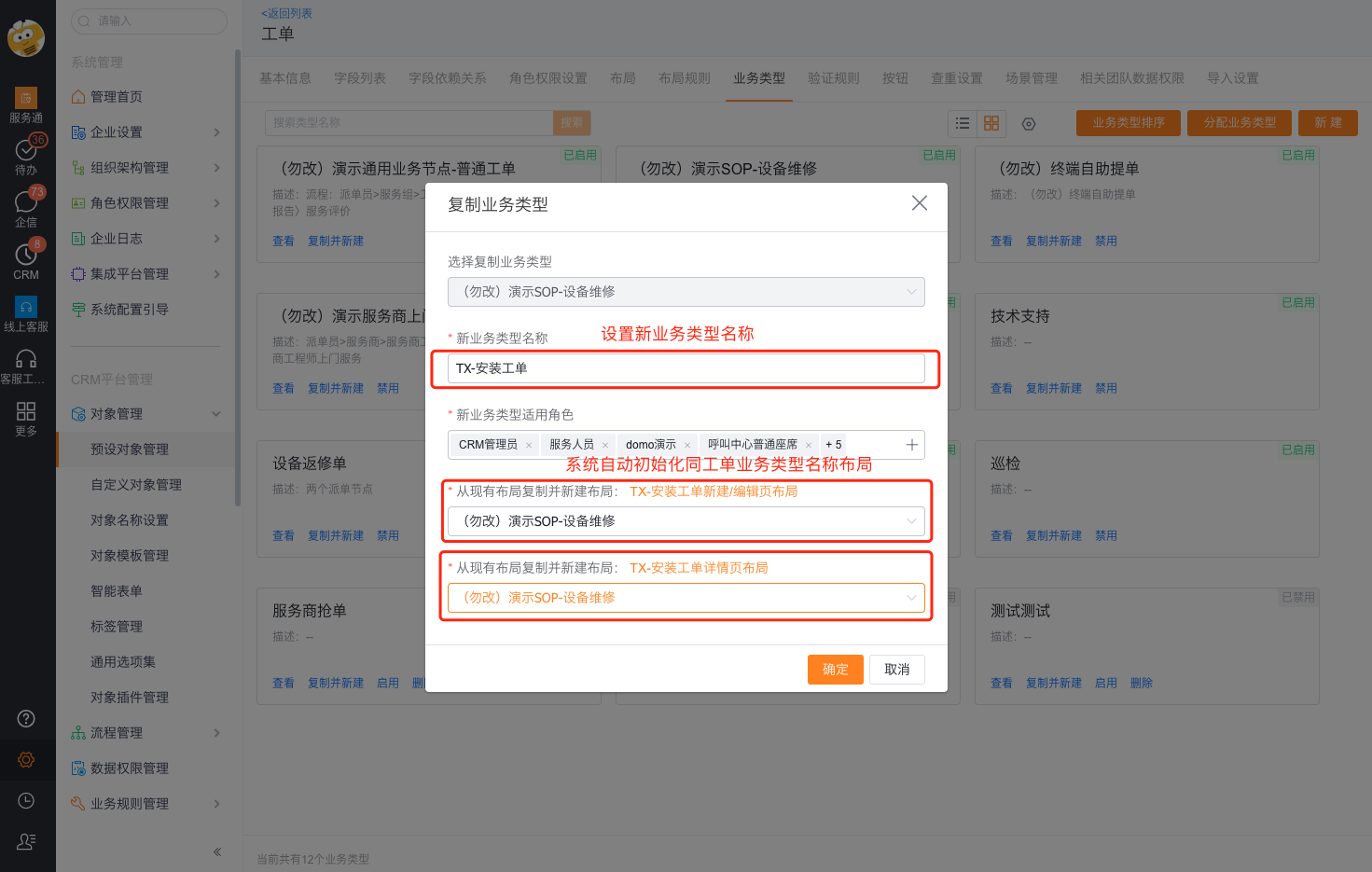
Work order default fields
Acceptance and service information
| Field name | API Name | Field type | Description |
|---|---|---|---|
| Business type | record_type | Business type | |
| Work order number | name | Auto-increment number | |
| Work Order Topic | display_name | Calculated Fields | |
| Question | subject | Single line of text | |
| Problem description | description | Multi-line text | |
| Customer name | account_id | Find association | |
| Contact | contact_id | Lookup relationship | |
| Phone | tel | Mobile phone | |
| Priority | priority | Single choice | |
| Source | resources | Single choice | |
| External source | out_resources | Single choice | The system obtains and backfills by default |
| Category | catalog | Single choice | |
| Related products | field_glcp__c | Find related products | |
| Associated devices | field_glsb__c | Find associations | |
| Appointment service time | booking_time_range__c | Appointment time period | |
| Service positioning | field_serviceAddress__c | Positioning | |
| Condition before service | field_gcjl__c | Multi-line text | |
| Taking photos before service | field_xcpz__c | Pictures | |
| After service photos | field_photos_after_service__c | Pictures | |
| Situation after service | field_situation_after_service__c | Multi-line text |
Process and assignment information
| Field name | API Name | Field type | Description |
|---|---|---|---|
| Work order status | cases_state | Single choice | Can be changed by an application node or a post-process action. |
| Work order status transfer | cases_state_log | Multi-line text | System automatically backfills, development parameters |
| Current node start time | field_currentTaskStartTime__c | Date and time | The system automatically obtains the current business process node start time |
| Work order process progress | field_workflowProgressName__c | Single line text | The system automatically obtains the current business process node name |
| Work order process status | field_workflowStatus__c | Single choice | The system automatically changes, which can be in progress, completed or terminated |
| Enterprise external process handler | field_downstreamDealedUser__c | Multi-line text | The system automatically obtains the current process node handler |
| Enterprise external process progress | field_workflowPartnerProgressName__c | Single line text | |
| Enterprise external process status | field_workflowPartnerStatus__c | Single choice | |
| Assignment type | field_assignType__c | Single choice | System automatically backfills |
| Dispatch method | assign_way__c | Single choice | Automatically populated by the system. |
| Planned service time | plan_time_range__c | Date range | |
| Actual service time | actual_time_range__c | Date range | |
| Order dispatch time | assign_time__c | Date and time | System automatically backfills |
| Assignment status | field_assignStatus__c | Single choice | System automatically backfills |
| Dispatcher | assign_user | Personnel | |
| Service Engineer | field_xcfwry__c | Personnel | |
| Collaborative Engineer | related_service_personnel__c | Personnel | |
| Reason for transfer | reasons_for_transfer__c | Single choice | |
| Reason for order rejection | reasons_for_rejection__c | Single choice | |
| Service Group | field_serviceGroupName__c | Single Choice | System Automatic Backfill |
| Service group ID | field_serviceGroupId__c | Number | System automatically backfills |
| Service group dispatcher | service_group_assign_user | Personnel | Automatically populated by the system. |
| In-group dispatch time | service_group_assign_time__c | Date and time | Automatically populated by the system. |
| Order dispatch method within the group | service_group_assign_way__c | Single choice | System automatically backfills |
Record management information
| Field name | API Name | Field type | Description |
|---|---|---|---|
| Status | cases_status | Radio selection | |
| Locked status | lock_status | Radio selection | |
| Life status | life_status | Single choice | |
| Person in charge | owner | Personnel | |
| Belonging to the department | data_own_department | Department | |
| Department of the person in charge | owner_department | Single line text | |
| Creation time | create_time | Date time | |
| Created by | created_by | Personnel | |
| External person in charge | out_owner | Personnel | |
| Last modified time | last_modified_time | Date time | |
| Last modified by | last_modified_by | Personnel |
Don't use automatically populated or updated fields as manual input fields. When adjusting business-type layouts, include only the fields users need for work-order intake, processes, and dispatch.
Configure a single device work order
A single device work order is suitable for end users to directly report for repair from the details page of a device and bring the device information into the work order.
- Confirm that device management is enabled.
- Configure the system’s default Fault Report button on the device details page, including button layout and usage permissions.
- Set the rules for mapping equipment fields to work order fields.
- Use the test device to enter the details page, click Fault Repair and check the device information that generated the work order.
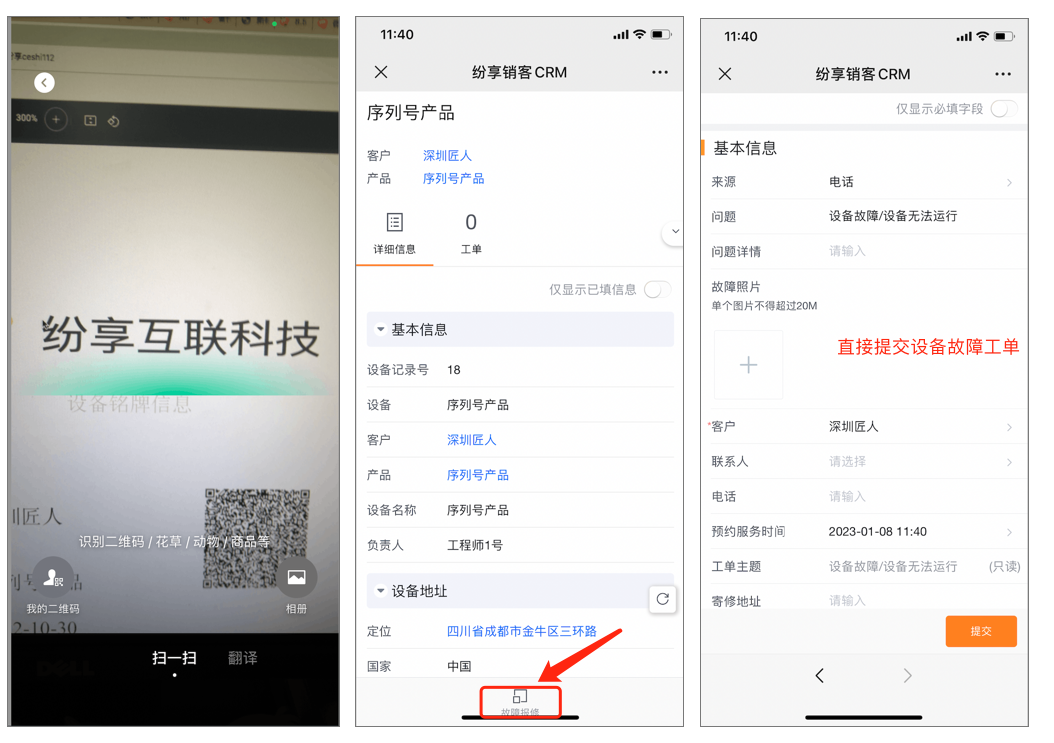
Configure work orders for multiple devices
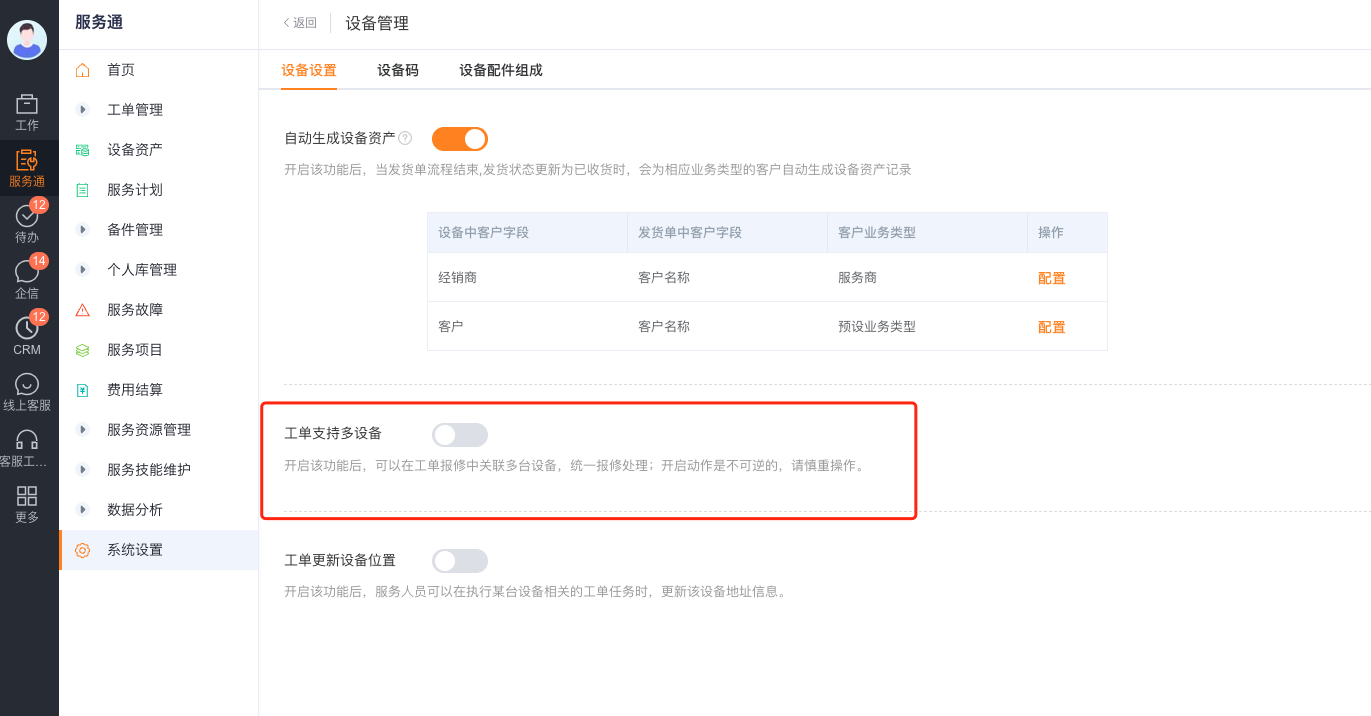
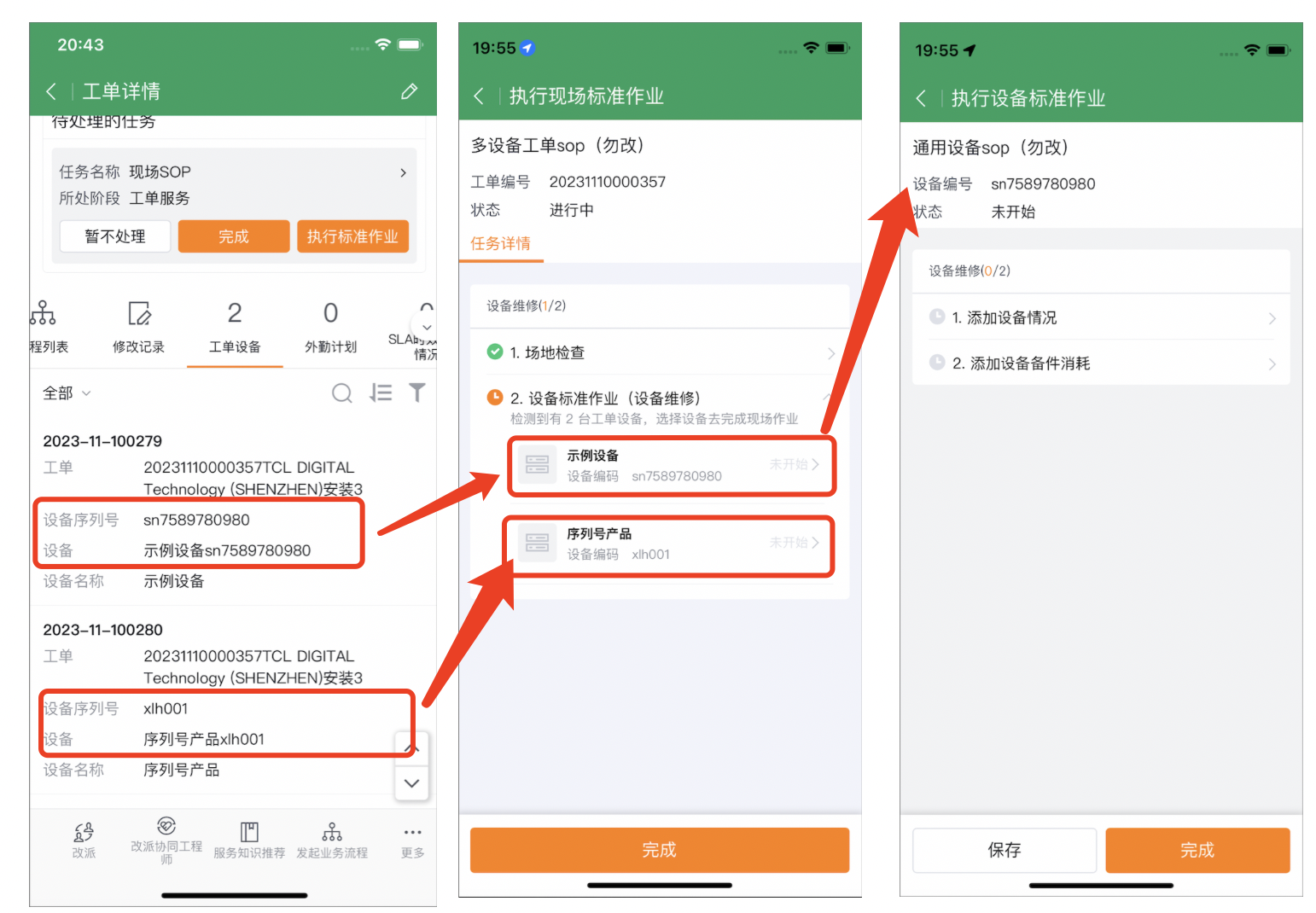
Multiple equipment work orders are suitable for scenarios where one repair request contains multiple faulty or to-be-installed equipment.
Enable multiple work order equipment capabilities.
Add the Work Order Equipment slave object to the Work Order object to record multiple devices in one work order.
Configure the work order device details in the work order page layout, and use the test work order to add multiple devices.
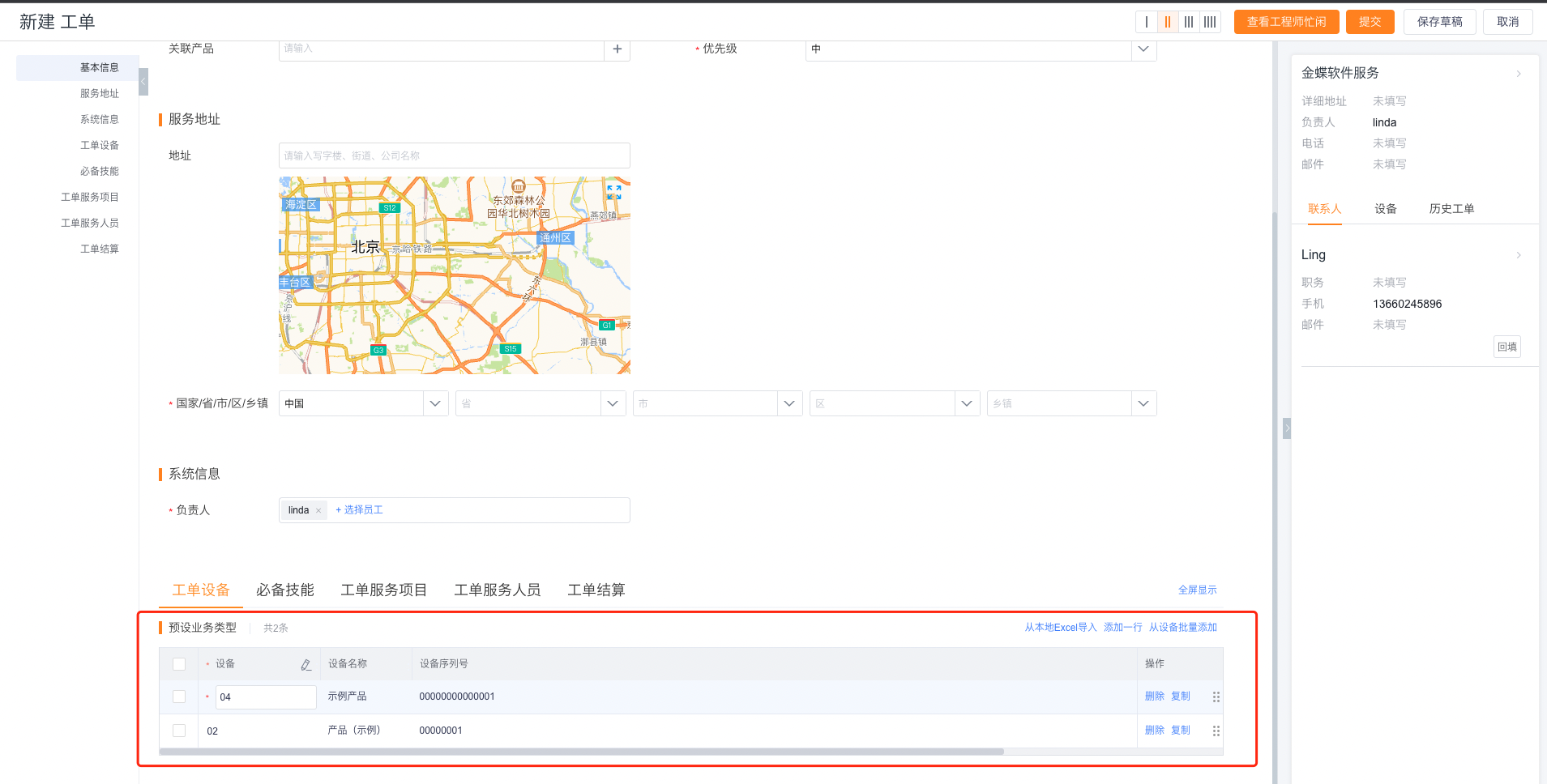
If each device requires different actions after the work order advances, use a multiple-equipment work-order SOP for the subsequent field service tasks.
Expected results and verification
- Use each target role to create a new test work order corresponding to the business type.
- Check whether the role visibility, new/edit page layout, and detail page layout are consistent with the configuration.
- Check whether manually filled fields and system automatically backfilled fields are displayed and updated as expected.
- Check the equipment field mapping for equipment work orders; check the work order equipment details and subsequent task arrangements for multi-equipment work orders.
Notes
- After saving the new business type, the system initializes the page layout according to the selected fields; subsequent field adjustments need to check the relevant layout simultaneously.
- Equipment work orders rely on equipment management. If it is not enabled, you cannot configure the equipment repair portal according to the steps in this article.
- Work orders for a single device are brought into one device through Associated Device and mapping rules; work orders for multiple devices are stored in multiple devices from the object through Work Order Device. Do not mix the two data structures.
- Multiple data in the work order process, assignment and service record fields are automatically backfilled or changed by the system, and the specific results depend on subsequent process configuration.