Appearance
Select work order process mode
Overview
This guide is intended for Service Pass administrators and explains the configuration entry, key configuration items, and verification points of this topic.
Before you begin
- Use the Service Pass administrator or an account with the permission to configure this topic.
- First confirm that the business objects, roles, channels or plug-in dependencies of the scenario corresponding to the text are enabled.
- Prepare test work orders, test accounts or test channels to verify configuration results.
Procedure
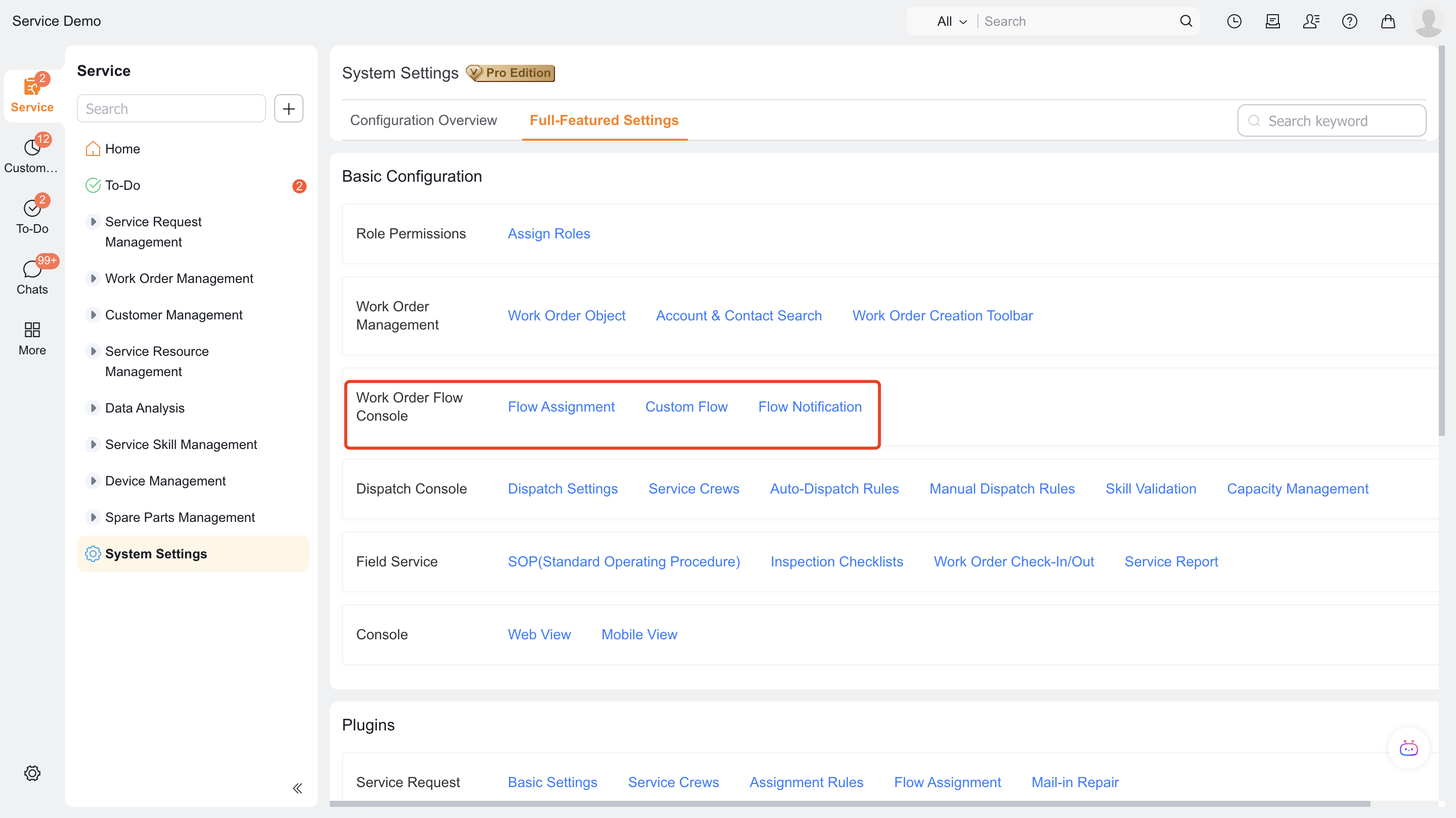
- Enter Service Pass > System Settings > Full Function Settings and open the work order process allocation entrance.
- Compare the simple process and the customized business flow according to the work order business type, select a mode and complete the assignment or create a new one.
- Create a test work order using the corresponding business type to confirm whether the process is automatically initiated and flows by node.
1. Introduction to custom work order process (business flow)
The service process refers to the flow process of configuring work orders for the company's work orders. For example, if the company has different types of work orders, with different work order processes, the Fenxiang after-sales service process can realize the collaborative implementation of tasks by multiple people through standard business flows.
Function entrance: Service Pass > System Settings > Full Function Settings
Work order process assignment: Select an existing process or create one. Each work order business type corresponds to one service process. An empty process value means that no process has been created.
When you create a work order for a business type with an assigned process, the process starts automatically. You don't need to configure a workflow trigger.
Click the "New Work Order Process" button on the upper right to create a new work order process.
2. Create a new work order process (business flow)
2.1 Create new work order process (business flow)
- To create a work order process, select New Work Order Process > Configure Basic Information > Configure Process.
- Note: The process initiator must select a work order
2.2 Process (Business Flow) Node Description
- Business node: usually used to perform object operations such as: editing objects, creating new associated objects, etc.
- Approval and countersigning: used for single or multi-person approval
- Automatic node: used for automatic execution, usually used with functions
- Branch: supports data with different conditions to execute different processes
- Parallel: allows multiple people to perform multiple tasks in parallel
For more process-node operations, see Configure a custom work order process.
Business development node
- Assigned engineer:
- Assign service group
- Assign service provider
- Assignment within the service group
- Take orders
- On-site standard operations
- Inspection team
- Service reports
- Service evaluation
- Service return visit
- Service provider standard operations
- Terminal handling
Expected results and verification
- After saving the configuration, use the role, channel or test ticket corresponding to the scenario in this article to verify the entry and results.
- If configured as a process, notification or automated task, both the trigger condition and the next responsible role should be verified.
Notes
- The visible menus, fields, buttons, and channels depend on role permissions, business type, and prerequisite plugins.
- For grayscale, optional or ability to rely on external channels, first confirm that the dependency is enabled, and then verify it on the test record.