Appearance
Use video customer service
Overview
Customer service agents can start Tencent Meetings from the customer service workbench. Service engineers can start immediate or scheduled meetings from work orders and service requests. End users request video support through a configured Tencent Cloud TRTC entry point.
Before you begin
- Customer Service: Enter the customer service workbench and open the customer session being processed. If the Tencent conference account has not yet been bound, prepare to follow the page prompts to complete the personal account binding.
- Service Engineer: Prepare a work order or service request that requires remote communication and can be viewed by the person, and confirm that the object details page displays Initiate a meeting.
- End user: Use an online consultation, equipment, or service request entry point where video support is enabled.
- This guide covers the web. The source does not confirm equivalent app entry points.
Customer service personnel initiate a meeting from the customer service workbench
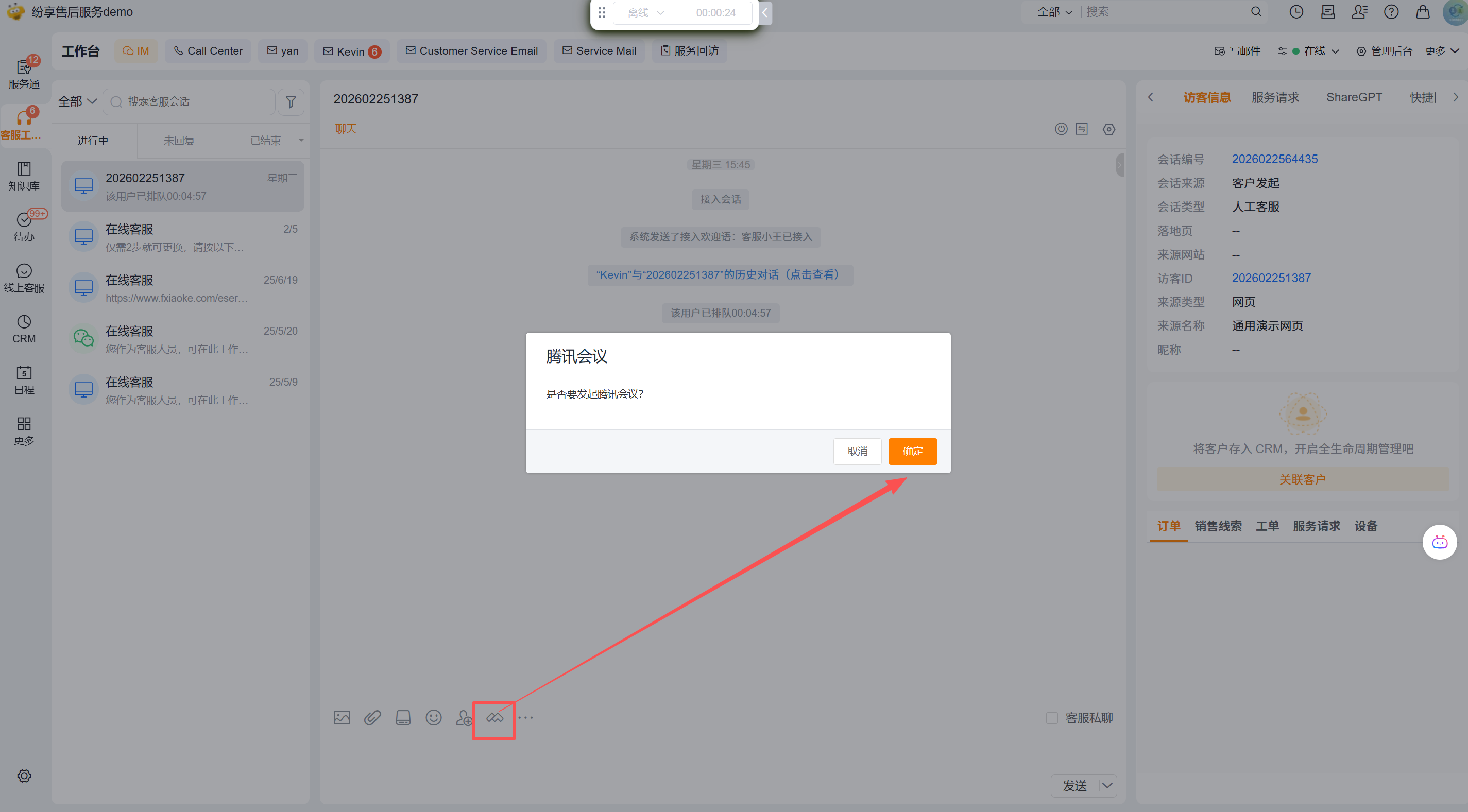
- Enter the Customer Service Workbench and open a customer session that requires video communication.
- In the toolbar below the chat input box, click Tencent Meeting Tools.
- If the page prompts you to bind a Tencent conference account, follow the prompts to complete the binding of your personal account and then initiate again.
- In the confirmation window, select OK to start the Tencent Meeting.
NOTE
The source confirms personal Tencent Meeting account binding but does not define how to send invitations. After creating a meeting, use the invitation method provided on the page.
Service engineers initiate a meeting from a work order or service request
Enter the meeting creation process
- Open a work order or service request that requires remote communication.
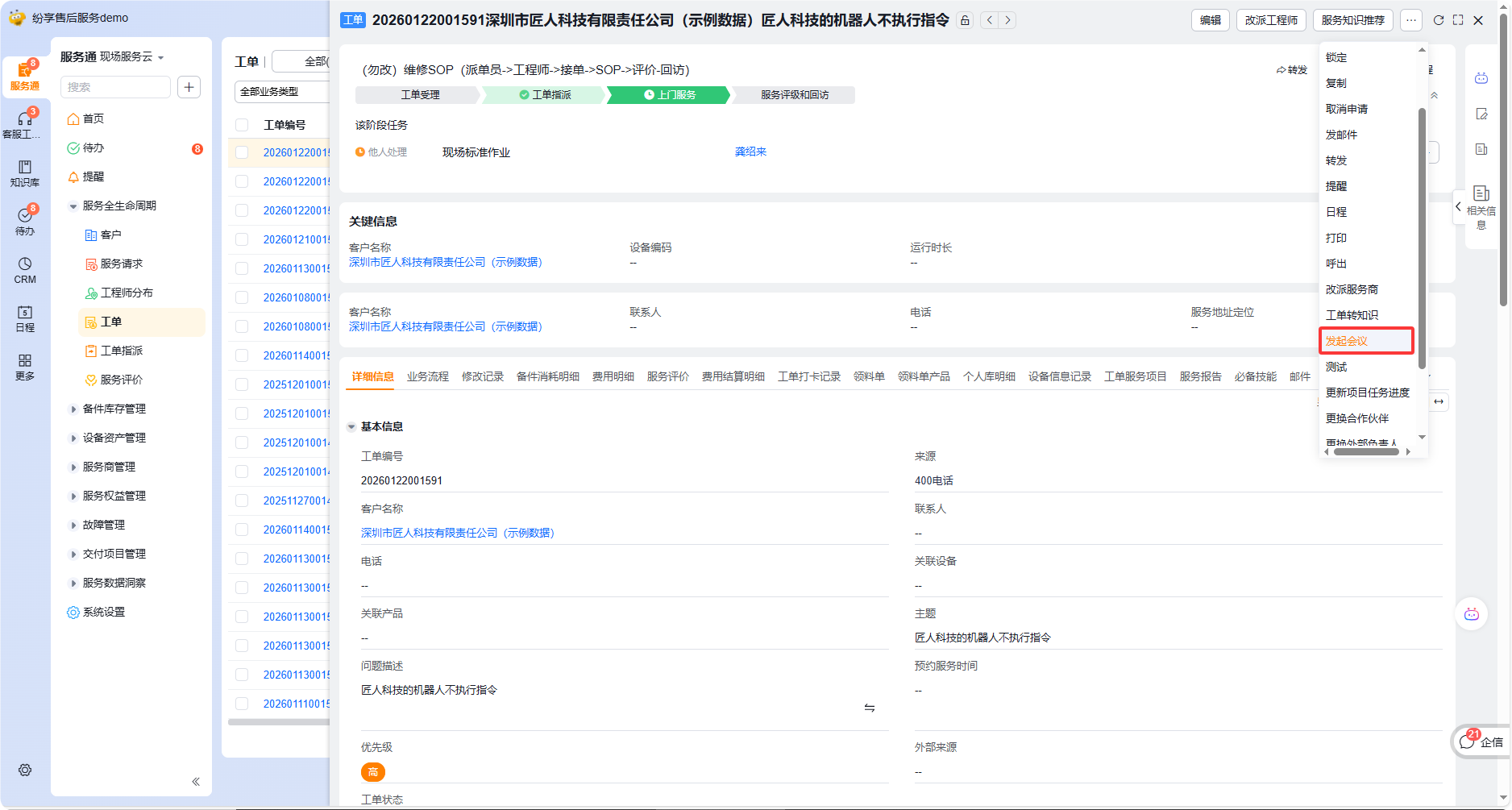
- Expand More in the upper right corner of the object details page and click Start Meeting.
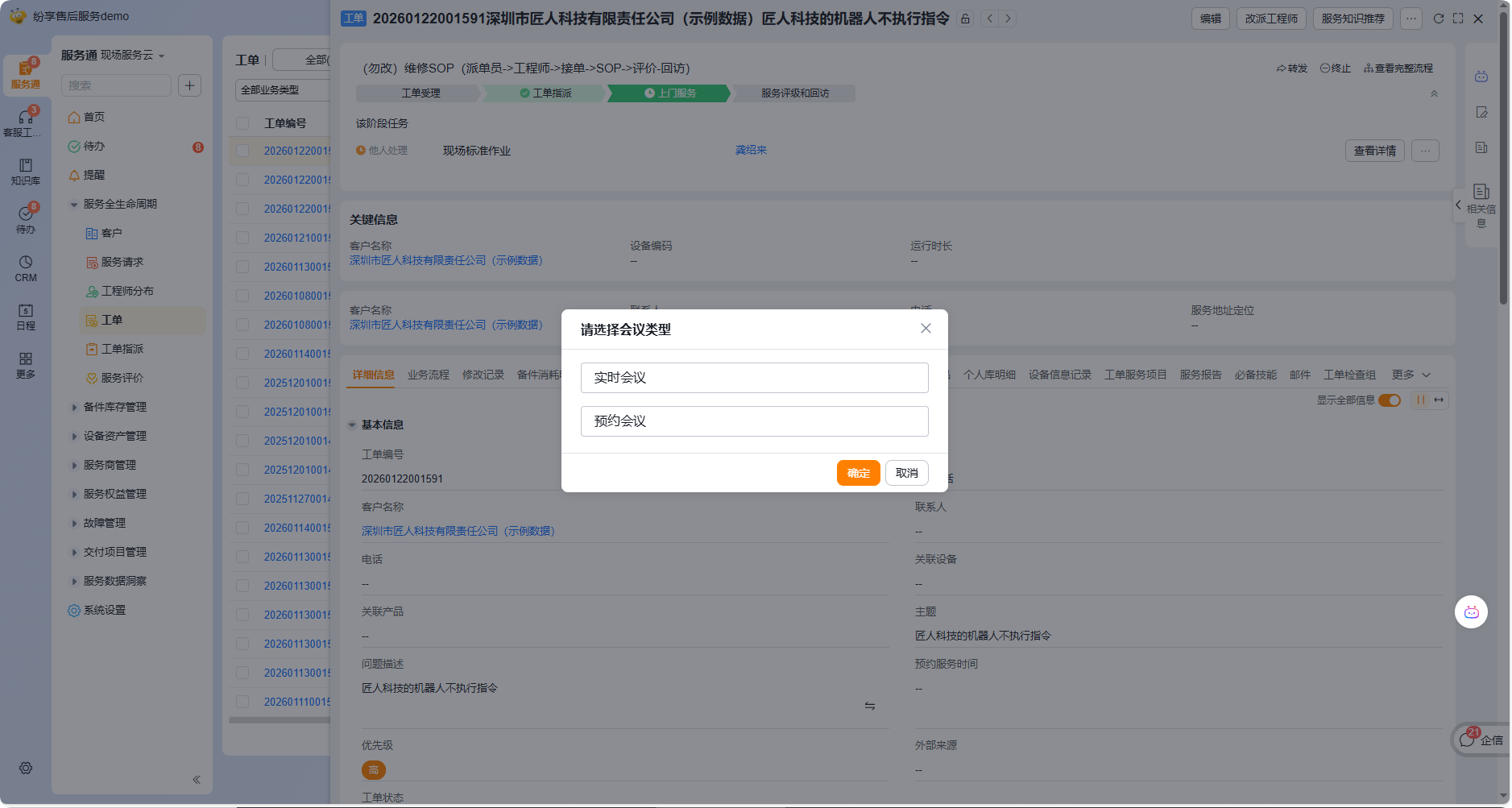
- In the Please select a meeting type window, select Real-time meeting or Scheduled meeting.
Start a real-time meeting now
- Select Live Meeting.
- Click OK and press the subsequent page to enter the meeting.
Real-time meetings are suitable for scenarios where both parties are already online and need to check the site or equipment situation immediately. The original information does not show the follow-up page and invitation method of the real-time meeting. Please refer to the actual page.
Create a scheduled meeting
Select Schedule a meeting and click OK.
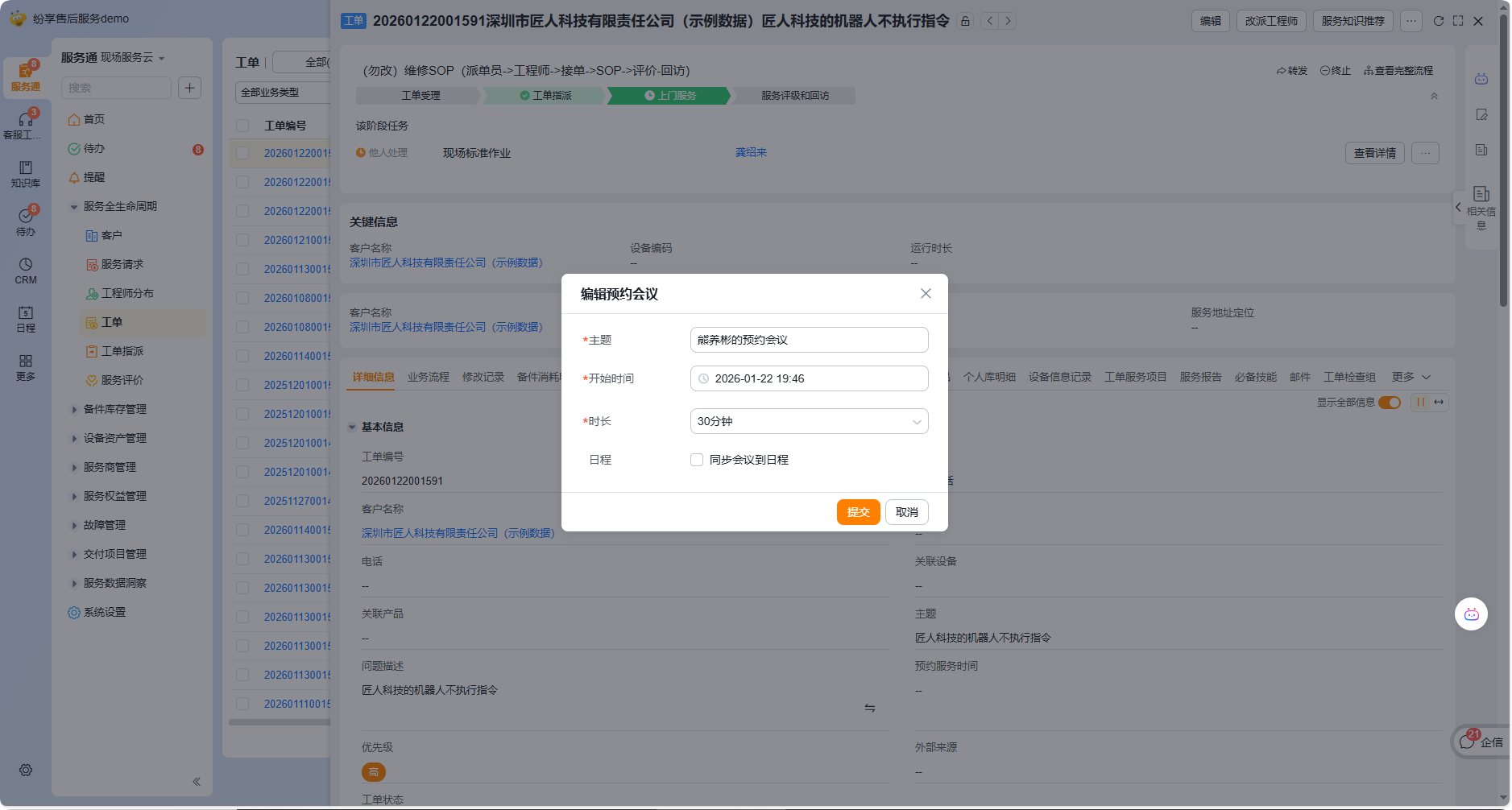
Fill in the following information in the Edit Reservation Meeting window:
Field Is it required Description
| Topic | Yes | Fill in the meeting topic that is easy for participants to identify | | Start Time | Yes | Select the date and time you plan to start the meeting | | Duration | Yes | Select estimated meeting length | | Synchronize meeting to schedule | No | Check if you need to keep the meeting schedule in the schedule |
- Click Submit after checking the information.
End users request video support
- Open the online customer service consultation window provided by the enterprise, or enter the video customer service portal in the device or service request.
- Click on the video customer service operation provided on the page and initiate a request according to the page prompts.
- There is no need to log in to Tencent Conference when entering video communication.
This path relies on the Tencent Cloud TRTC integration solution implemented by the enterprise. The original data does not show the end customer page, button names and request acceptance process, so the actual entrance and prompts may differ depending on the enterprise plan.
Expected results and verification
- After the customer service staff completes the confirmation, they enter the Tencent conference initiation process.
- The service engineer selects a real-time meeting and enters the instant meeting process; after selecting a scheduled meeting and submitting it, the system creates a scheduled meeting by filling in the information.
- Check Sync meeting to schedule when making an appointment, and check whether the corresponding arrangement appears in the schedule after submission.
- End customers can enter the video customer service process through the enterprise's open entrance without logging in to Tencent Conference.
IMPORTANT
Initiating or reserving a meeting does not mean that the work order or service request has been completed. After the meeting, you still need to return to the original business records and continue to fill in, submit or complete follow-up tasks according to company procedures.
FAQ and troubleshooting
- Cannot see Tencent Meeting Tool or "Initiate Meeting": Confirm that you are currently using the corresponding customer service workbench or business object portal. Specific activation, permissions and object operation configurations need to be checked by the administrator, and the existing data does not provide a fixed configuration path.
- First click requires account binding: Follow the page prompts to bind the customer service staff's own Tencent conference account. The original information does not explain how the administrator binds the conference number on behalf of the administrator or how multiple people share the conference number.
- I don’t know whether to choose real-time or scheduled: Choose real-time meeting when you need to communicate immediately; choose scheduled meeting when you need to agree on a follow-up time.
- The scheduled meeting does not appear in the schedule: First confirm whether Synchronize the meeting to the schedule is checked when creating it. This option is not required.
- I hope customers can initiate Tencent Meetings without logging in: You need to use the TRTC video customer service portal implemented by the enterprise instead of the Tencent Meeting quick initiation capability on the customer service workbench or work order.
- The meeting must start in the app: The source shows only the web and does not confirm an app entry point.