Appearance
Enable the customer self-service portal
Enable customer self-service portal to provide self-service entrance for end users.
Overview
The customer self-service portal is used to open service applications, work order inquiries, equipment inquiries, etc. to external end users. Administrators need to enable End User Service Pass first, and then configure the mobile portal page and access channels; the account number, object permissions, and channel access are determined by subsequent configurations.
Before you begin
- Confirm that the enterprise has purchased the required number of end users; if it has not been purchased, it needs to contact the account manager.
- Use an administrator account that can enter the Service Pass system settings and maintain end-user Service Pass.
- Determine in advance whether the end user will access through WeChat official account, WeChat Mini Program, H5 link or grayscale website.
- If you plan to open guest access, self-registration or designated business objects, record the required account mode and role scope first, and then configure them separately.
Enable end user service pass
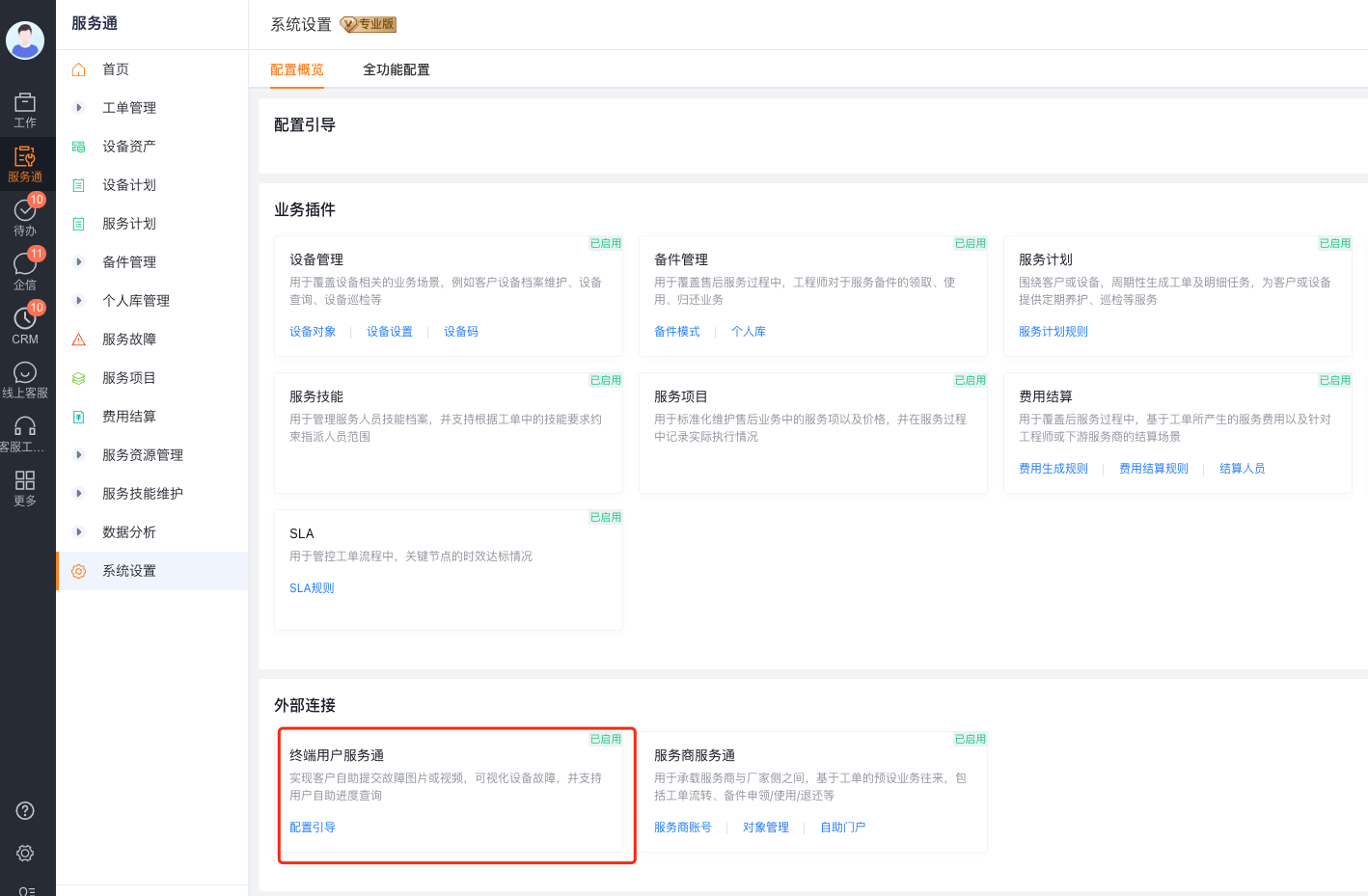
- Enter Service Pass > System Settings > Configuration Overview on the web side.
- Find End User Service Pass in the External Connections area and confirm that the product has been purchased and is in an enableable state.
- Select Configuration Boot and follow the page prompts to complete initialization.
Configure mobile portal page
- Go to Service Pass > System Settings > Full Function Configuration > End User Service Pass > Mobile View. You can also use Connected Management > Connected Applications > End User Service Pass.
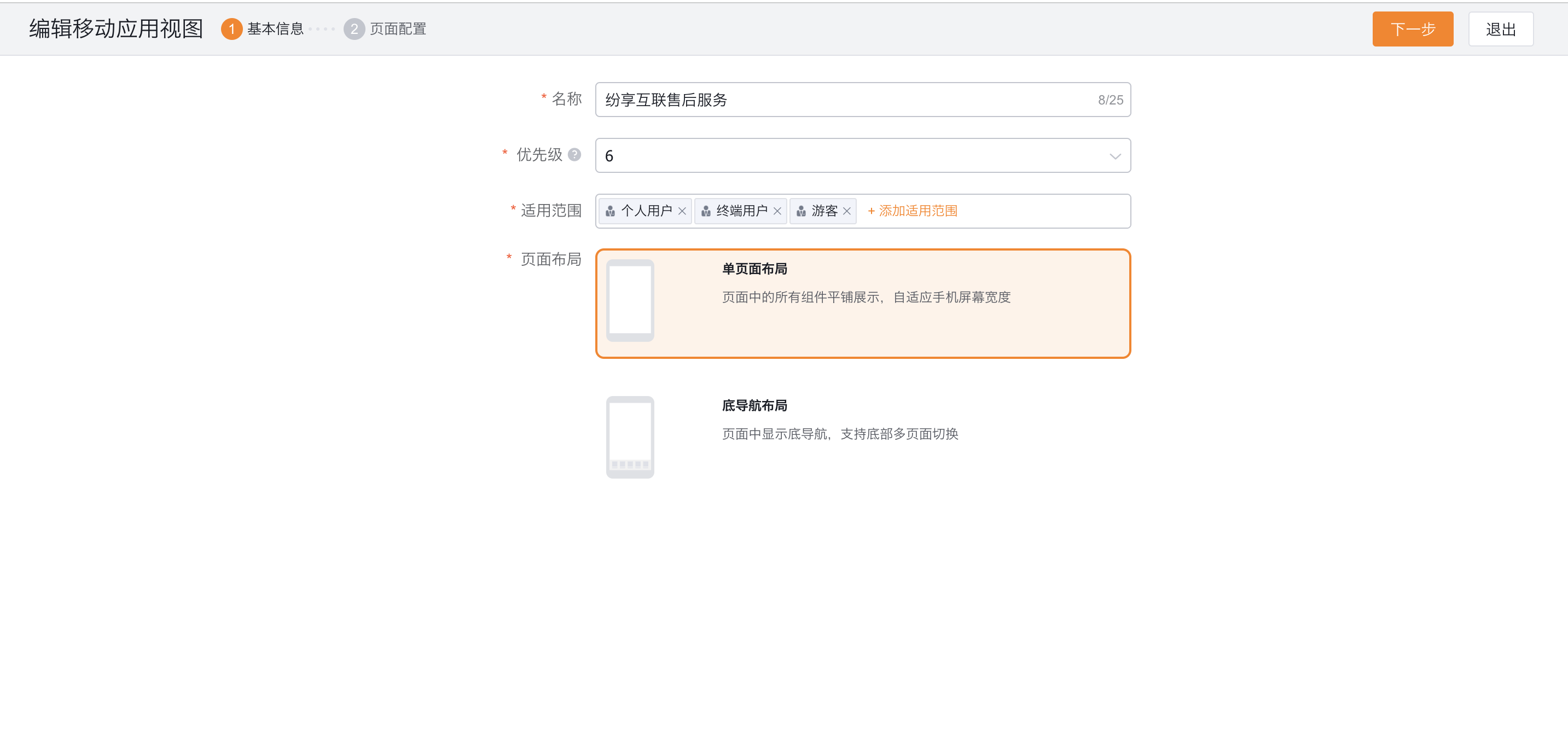
- Edit the default page or create a mobile view template.
- Configure the template name, priority, and applicable roles. The priority is used to determine the order of use when multiple templates are matched at the same time, and the applicable roles determine which end users use the page.
- Select the page layout and enter the page configuration, drag the components, menus or object entries required for the business into the page.
- Save the page configuration and confirm that the corresponding template is enabled.
Select access channel
| Channels | Configurations that administrators need to complete | End user access methods | Key limitations |
|---|---|---|---|
| WeChat Official Account | Bind the certified service account and connect to Service Pass-End User in the custom menu | Follow the Official Account and enter through the menu | End users and outsourcing service providers are not recommended to share the same service account |
| WeChat Mini Program | Use public Mini Program QR code, or bind enterprise-specific Mini Program | Scan the code to enter; exclusive Mini Programs can also be searched by name | Exclusive Mini Programs require WeChat certification, authorization and version review |
| H5 link | Copy the link from Mobile View and add it to the company website or another public menu | Select the link | Guest access depends on the account and role permission configuration |
| Web customer service site | Configure a standalone web site for end-user service | Submit work orders or query data on the web | This limited-availability feature is available only to enabled organizations |
After completing channel selection, continue to configure end user accounts, business objects, and role permissions. The channel only provides access and does not automatically grant data viewing or submission permissions.
Expected results and verification
- Open the selected channel using a test account that matches the target role.
- Confirm that the system displays the portal template corresponding to the priority.
- Check whether the menus and object entries on the page are consistent with the design.
- If the entrance is not visible, check the applicable roles of the template, object permissions, and button or component configuration in the layout.
Notes
- The Web customer service site is a grayscale capability. Do not use it as the only access channel when it is not activated.
- H5 links may allow visitors to enter directly; whether data can be viewed or submitted is still determined by the visitor role permissions.
- The portal page is only responsible for organizing the entrance. Account registration, business objects, data scope and field visibility need to be configured separately.
- Mail-to-work orders, equipment code bills of lading, and third-party system integration are not part of the portal activation process in this guide.