Appearance
Configure service report templates
Overview
Service report templates are used to define the report content, PDF file name, customer confirmation method, and delivery method under different work orders or equipment scenarios. When an engineer generates a report, the system uses the corresponding template based on the report subject and applicable scope.
Before you begin
- Use a service pass administrator or an account with service report configuration permissions.
- Confirm that the service reporting function is enabled in Service Pass > System Settings.
- First determine whether the template is used for work orders or equipment, and sort out the fields that need to be automatically brought in, the items filled in by engineers on site, and the customer confirmation method.
- If you need to use WeChat or SMS to invite customers for confirmation, prepare available official account binding relationships or SMS services in advance.
Enable service reporting and enter template settings
Enter Service Pass > System Settings.
Find Service Report in the Field Service area and enable the service report function.
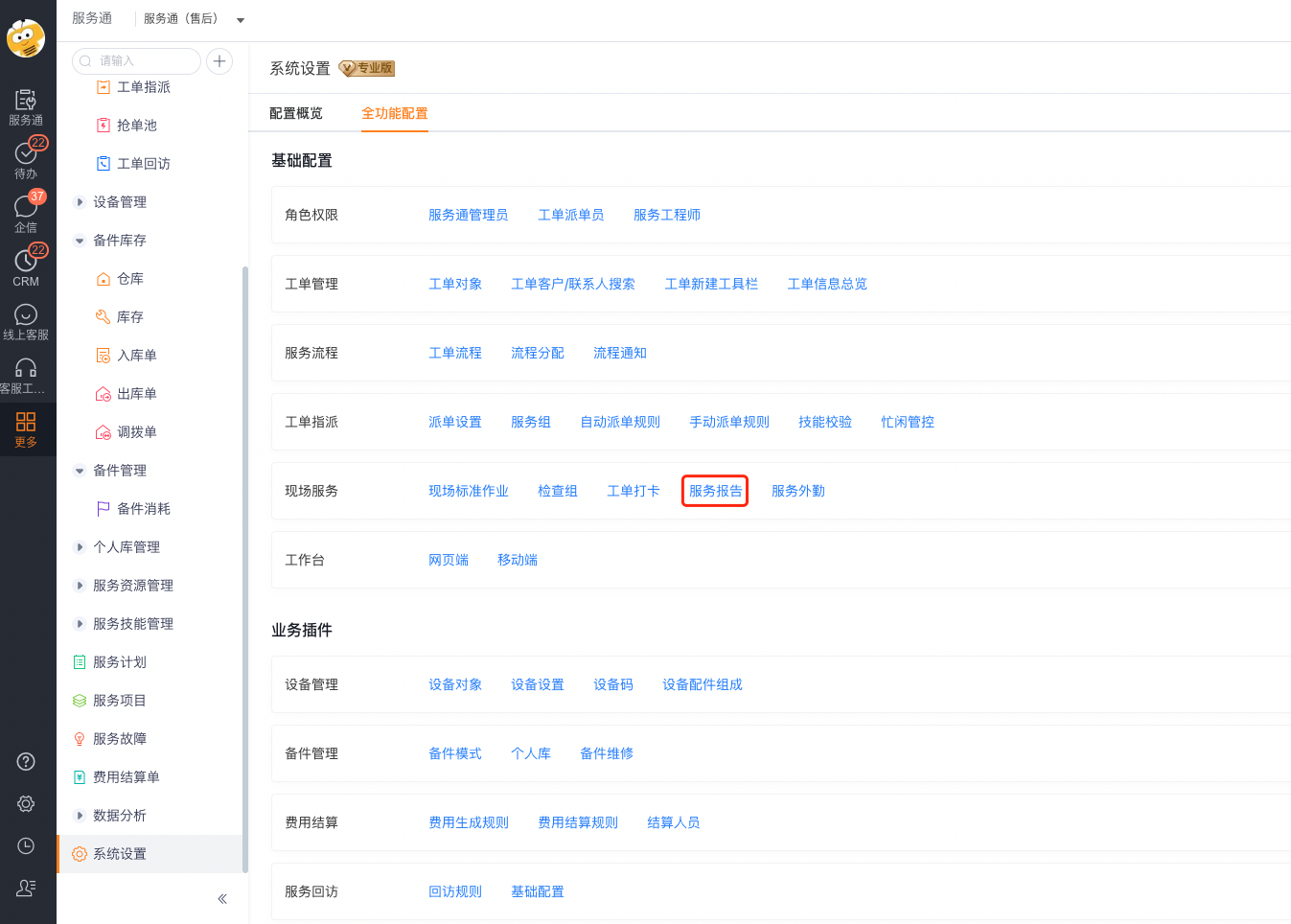
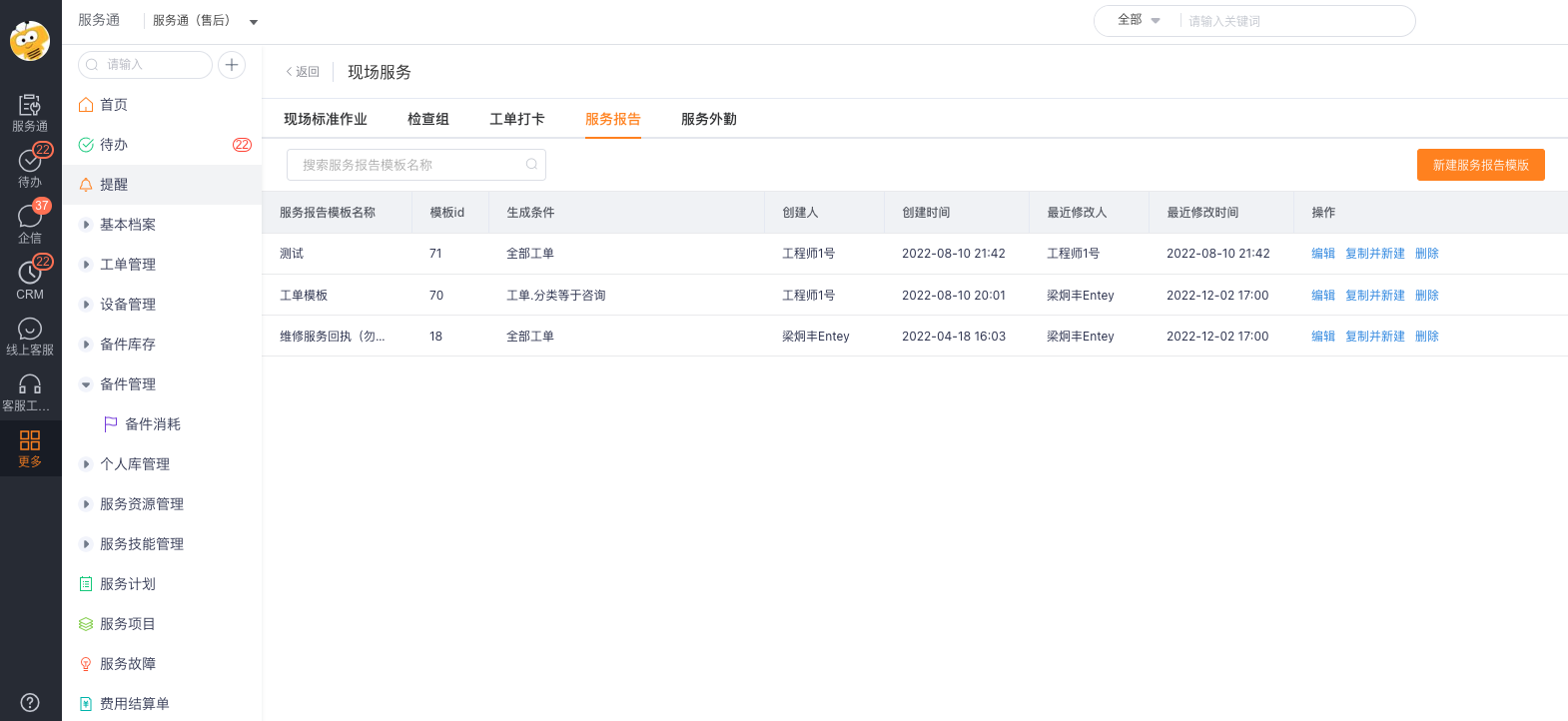
Enter the service report template setting page, view existing templates or click New.
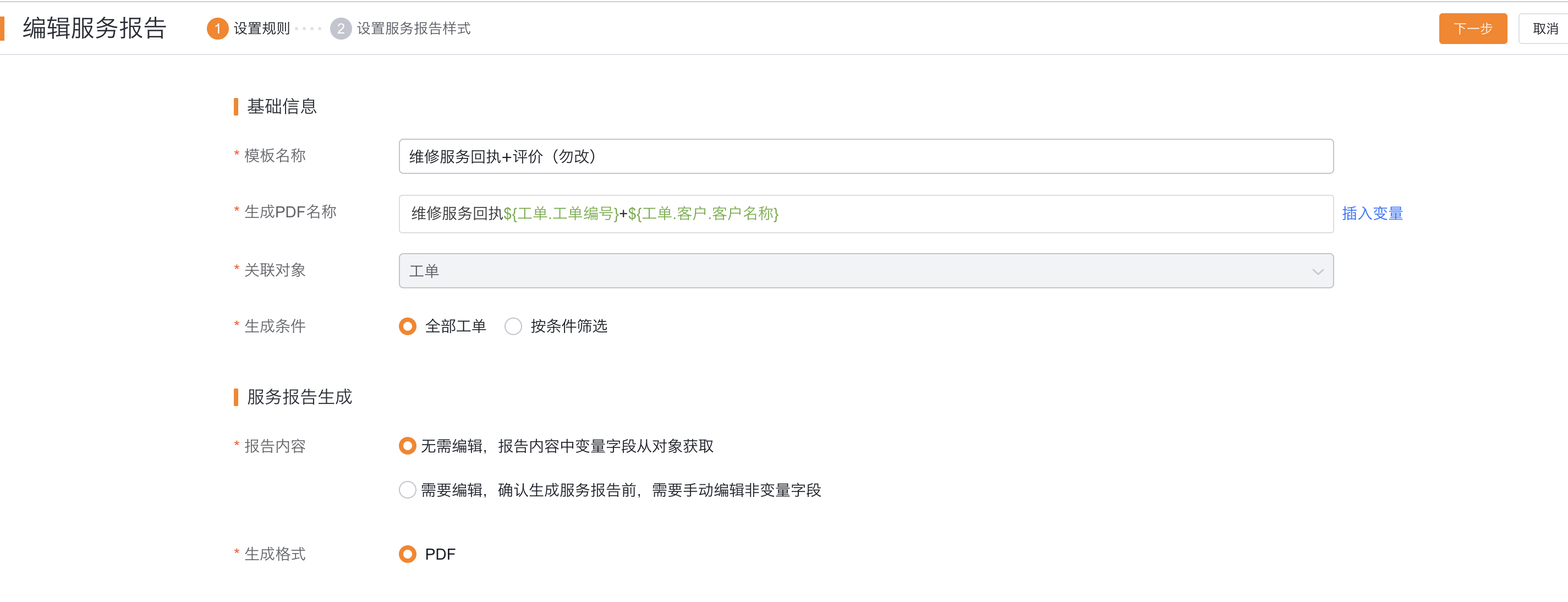
Basic information of new template
Configure the following content in the template basic information:
| Configuration items | Configuration instructions |
|---|---|
| Service report name | Helps engineers and other users distinguish report types, such as "Repair Service Report" and "Installation Service Report" |
| Service report object | Select the report subject as Work Order or Equipment. The subject must be consistent with the subject of subsequent process nodes or SOP actions. |
| Generate PDF name | Set the file name of the generated PDF. Dynamic variables such as work order code and customer name can be inserted to facilitate downloading, querying and archiving. |
| Service report applicable scope | Set the work orders or equipment conditions to which the template applies. When you select Match by rules, the system uses these conditions to filter the template. |
For example, when the work order type is "Fault", it can match the maintenance report, and when the work order type is "Installation", it can match the installation report.
Configure report content
In Service Report Template Content, select the configuration method based on the report data source.
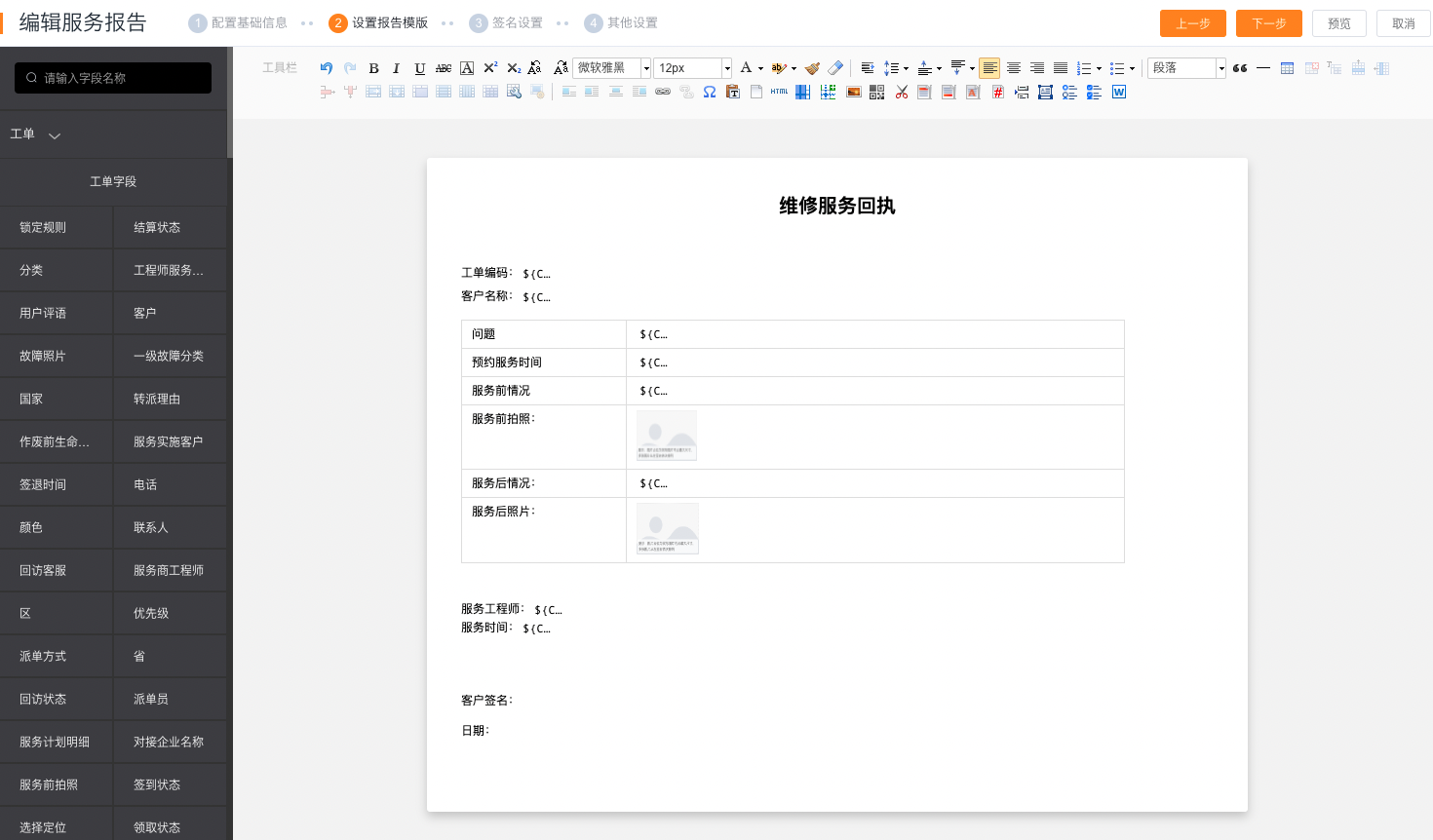
Use object fields to autofill
When report content comes from a work order, equipment, or a related object, insert object-field variables in the layout. The system reads those record values when it generates the report.
Configure editable fields before generation
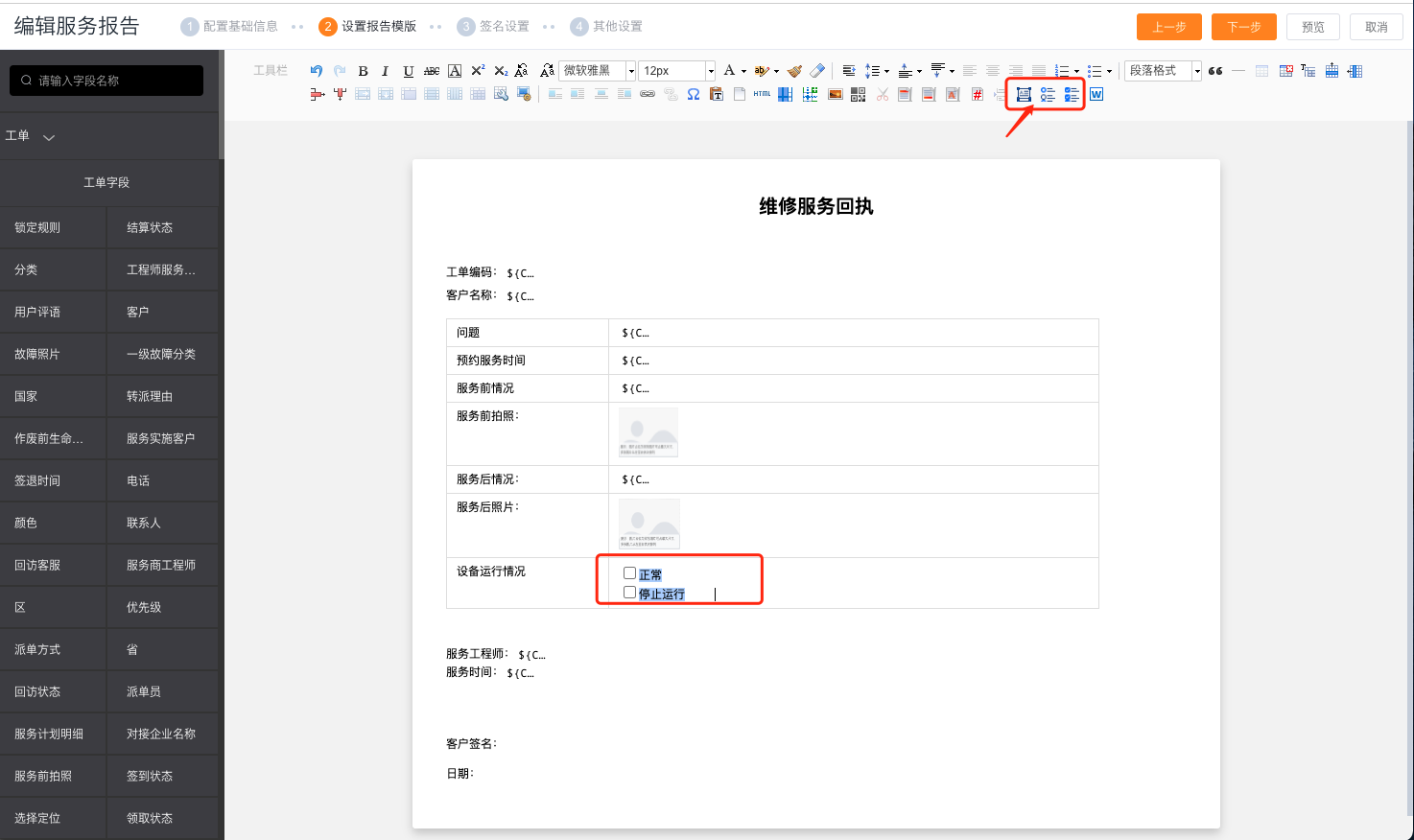
When the report requires engineers to supplement on-site information before generation, select the report content that needs to be edited and insert editable fields. Currently supported:
- text;- single choice;
- Multiple selection.
These fields only provide editing access before generating the report. Other content automatically populated by object fields are not manually maintained here.
Configure customer confirmation
If you need customer confirmation, turn on customer confirmation and set the confirmation method. After the customer's confirmation is completed, the system recovers the confirmation result or signed PDF.
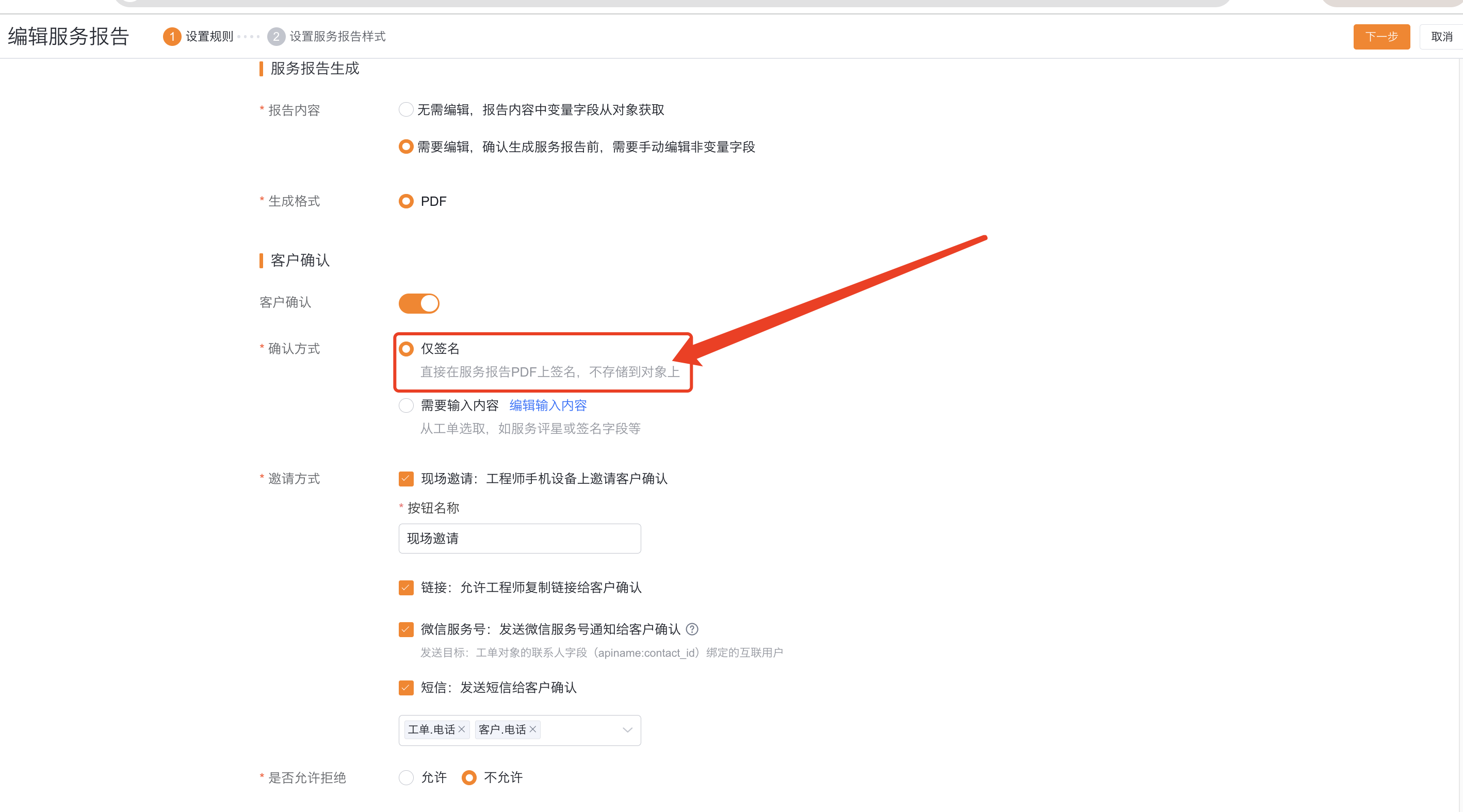
Signature only
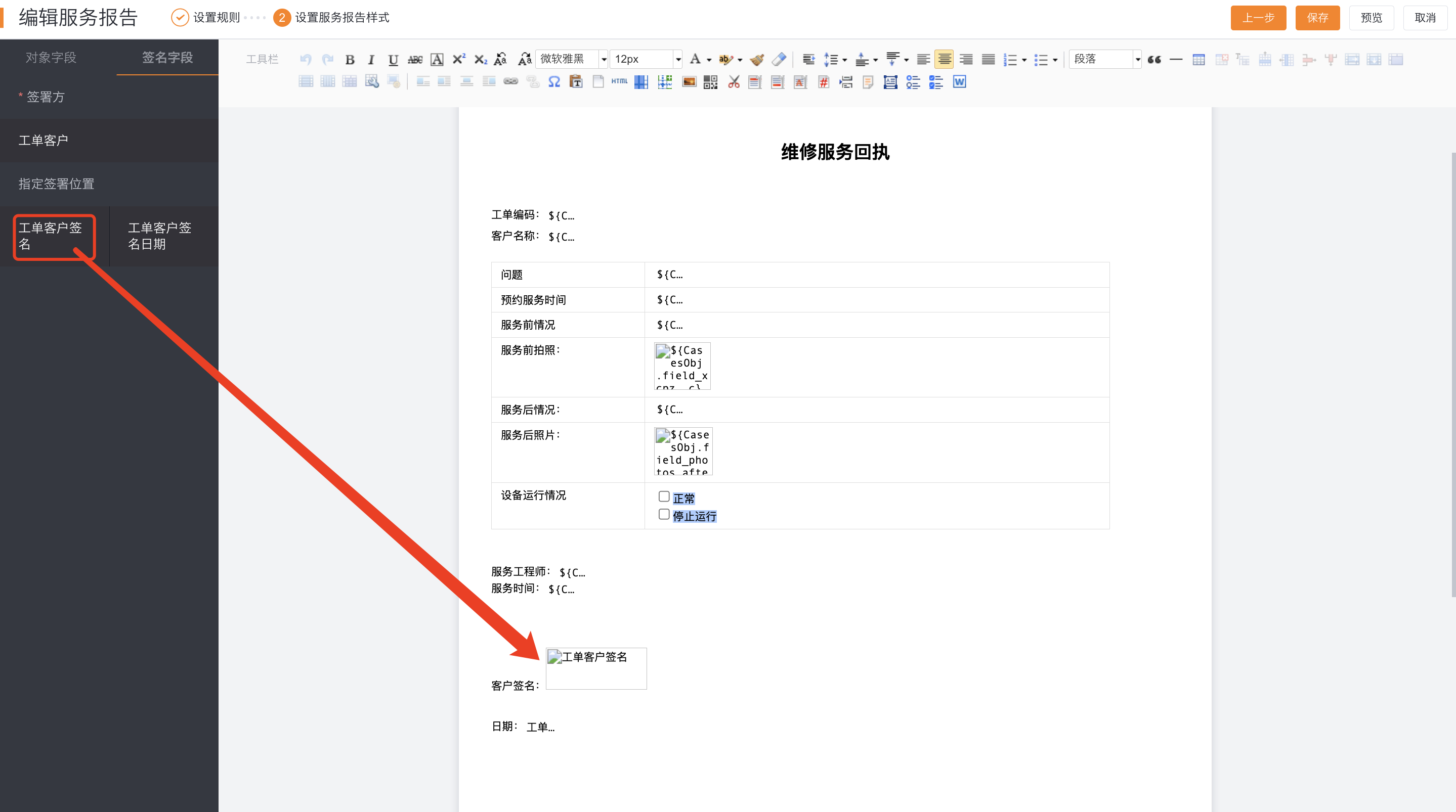
When Sign Only is selected, the customer directly signs in the signature area of the service report PDF, and the signature is written to the PDF and is not stored in the business object field.
- Select Confirmation method > Signature only.
- Select where to place the signature in the report content.
Need to enter content
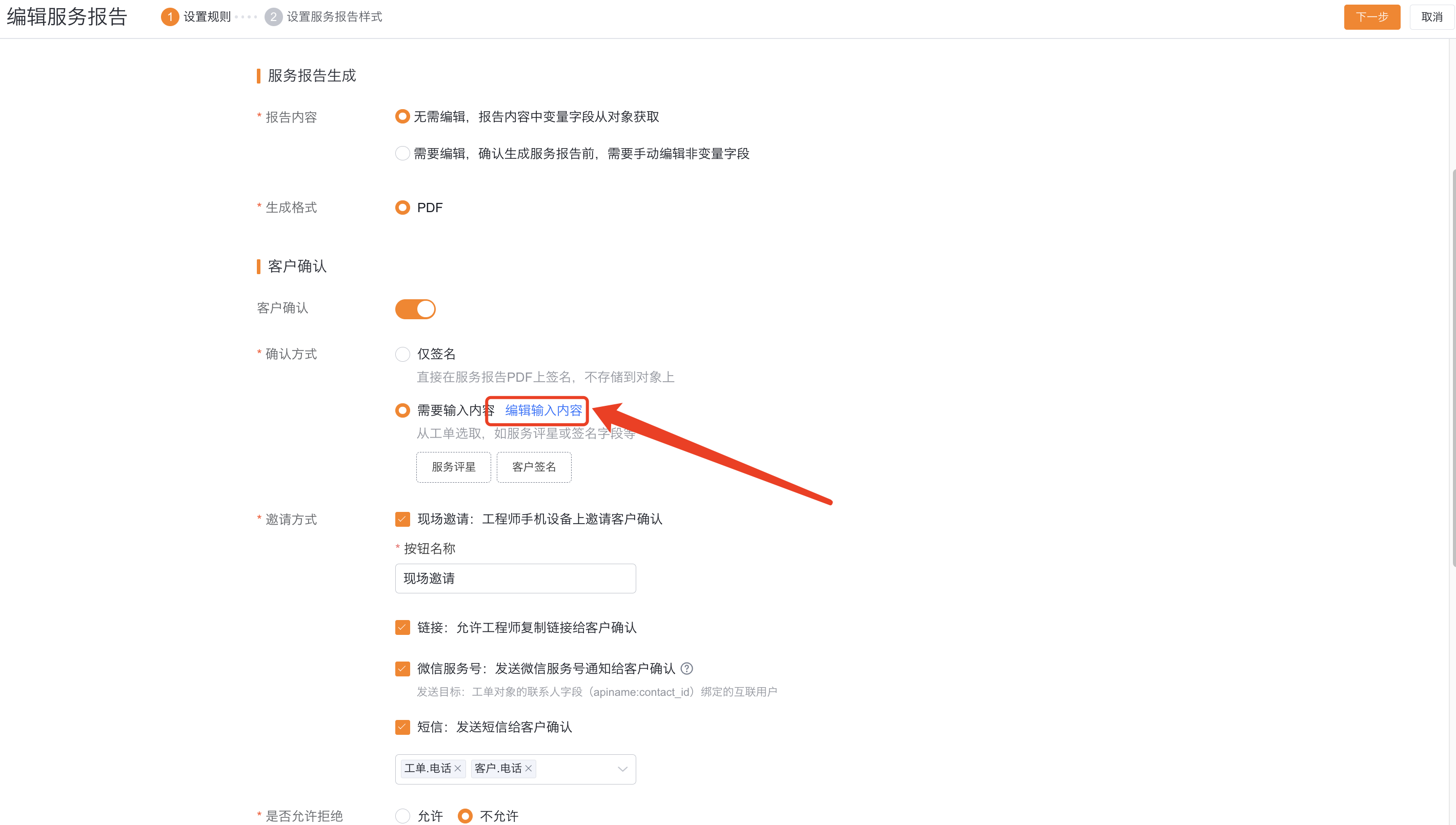
When selecting Input required, in addition to the signature, the customer also needs to fill in the fields selected from the work order, such as service rating or signature fields.
- Select Confirmation method > Require input content.
- Select the content fields that need to be filled in when the customer confirms.
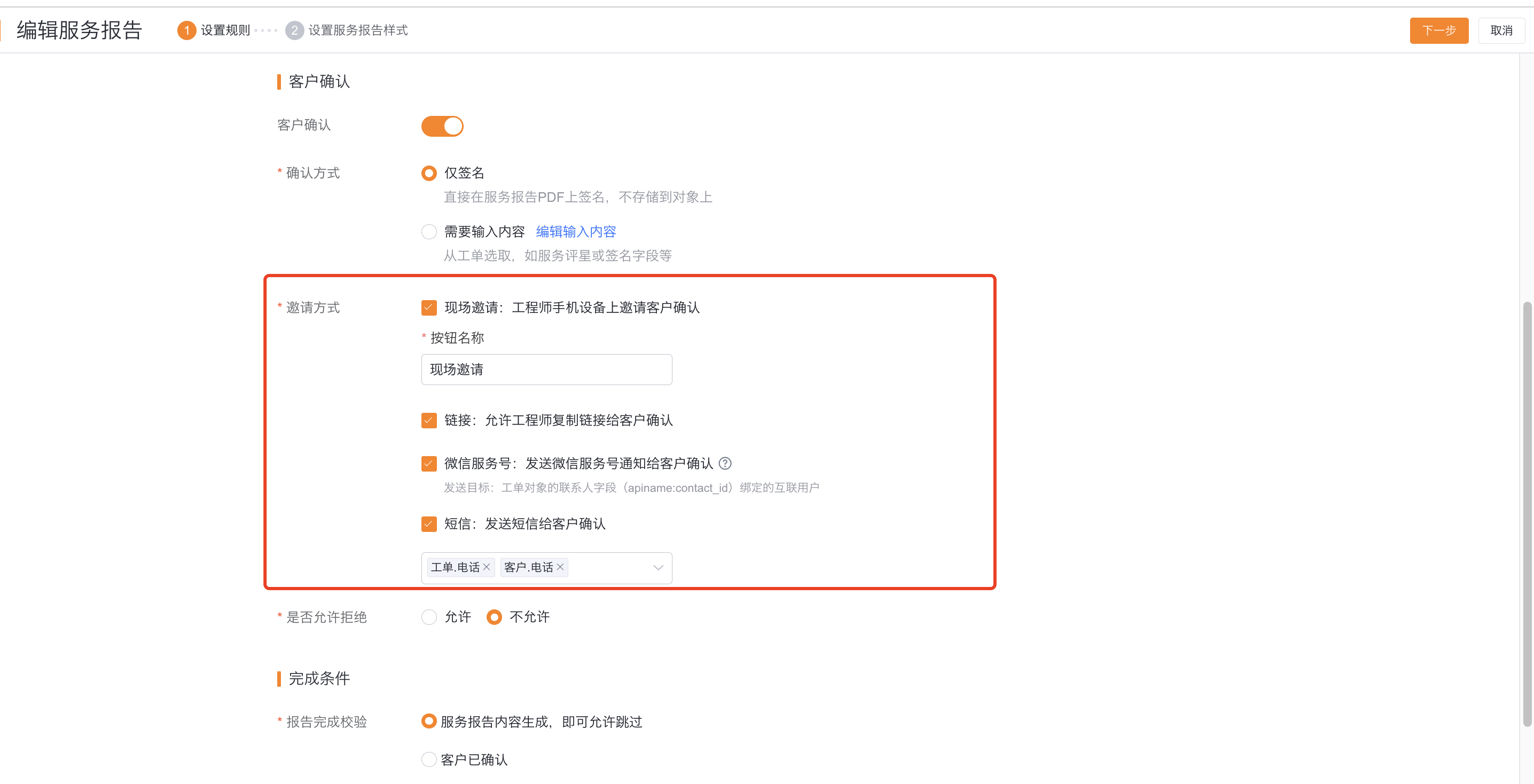
 ### Configure invitation method
Choose one or more invitation methods based on on-site and remote confirmation scenarios:
| Invitation method | Applicable scenarios and dependencies |
|---|---|
| On-site invitation | The engineer directly opens the report on the engineer's equipment at the service site and asks the customer to sign or submit the content. |
| Link | The engineer copies the link and sends it to the customer, or lets the customer scan the QR code to enter the confirmation page. |
| Invite customers to confirm through WeChat service account messages; customers need to bind the WeChat official account used by the enterprise. | |
| SMS | Invite customers to confirm via SMS; businesses need to have SMS service available. |
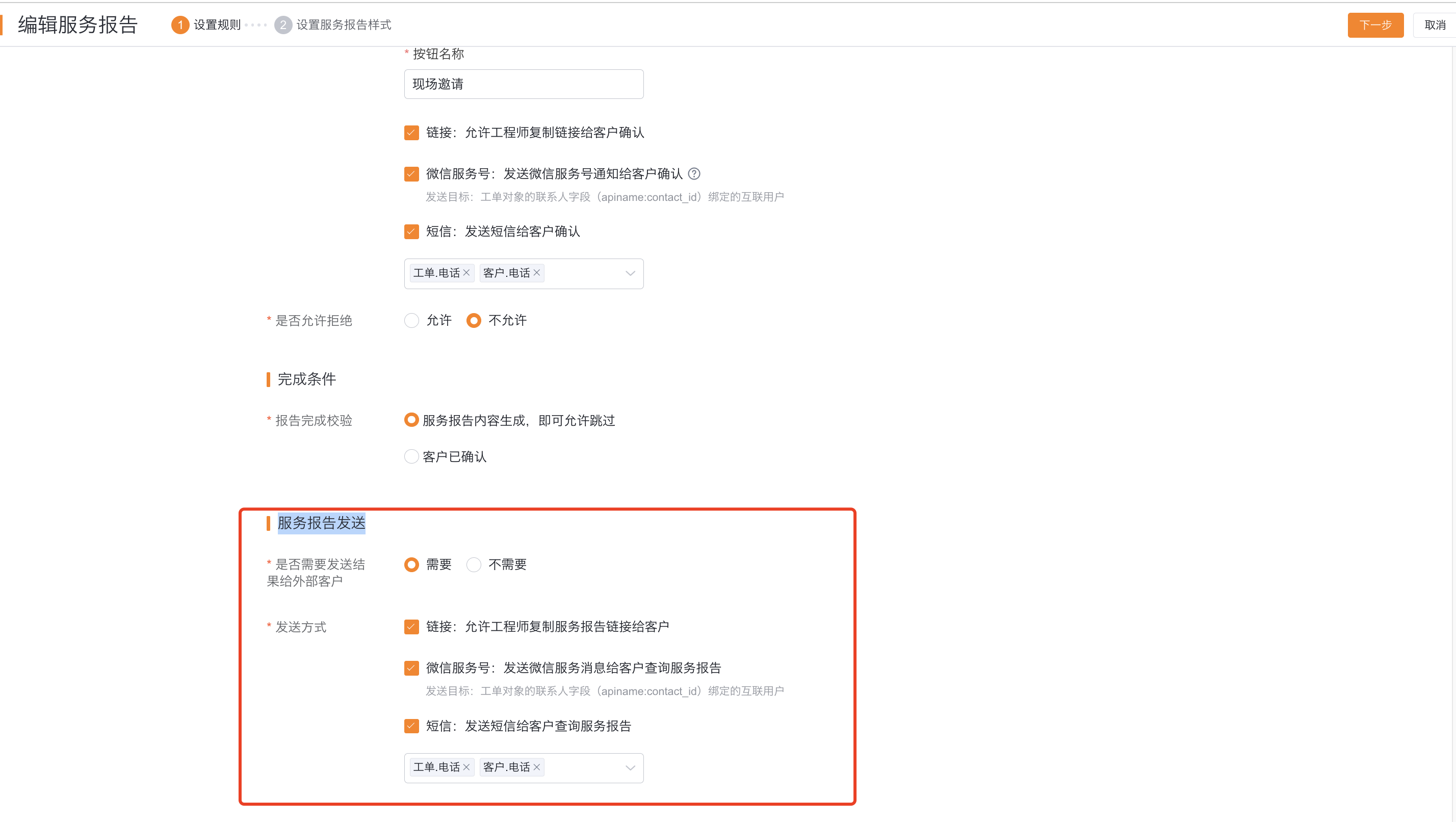
Report sending after configuration is completed
In the service report sending settings, select whether to push the report to end customers after it is completed. WeChat and SMS sending methods depend on the company's WeChat message settings and SMS message settings respectively.
Expected results and verification
- After saving the template, generate a service report using test work orders or equipment that match the applicable scope.
- Check whether the dynamic fields are brought in from the corresponding object and whether the editable fields can be filled in before generation.
- Configure the test site, link, WeChat or SMS invitation method according to the template.
- After the customer confirms, check whether the signature is written to the PDF and whether the completed report is pushed as configured.
Notes- The template body must be consistent with the process node or SOP action body that uses it, and the work order template cannot be used to replace the equipment template.
- Scope of application is used for matching by rules; when configuring multiple templates, you should avoid overlapping conditions and check the template priority in the generated rules.
- Signature only does not store the signature into the object field; when customer input needs to be saved on the object, Require input should be used instead.
- WeChat invitations rely on contacts bound to official accounts, and SMS invitations rely on enterprise SMS services; when dependencies are not met, on-site invitations or links should be used instead.
- The actual visible menus, fields, and buttons depend on account permissions and the feature configurations enabled by the enterprise.