Appearance
Manage service requests
Overview
This guide explains how customer service and intake agents create, claim, complete, close, or convert service requests. For end-user steps, see Submit a service request.
Before you begin
- Customer service agent submission: The current customer service account can enter the customer service workbench of the target web page or WeChat channel, and the service request entry has been configured for the side related information.
- Accepting self-service requests: The current account has the role of accepting customer service, and you can enter the To-Do Center to view service request tasks.
- Prepare or verify the customer, contact person, contact information, problem description and other information requested by the page.
- When it is necessary to transfer a work order, the enterprise has enabled the service request to be transferred to a work order; when it needs to be closed, the current process has provided corresponding completion or closing operations.
Create a service request on behalf of the customer in the customer service workbench
- Open the customer's current session in Customer Service Workbench.
- Find Service Request in the related information area on the right and click the new icon.
- Fill in the subject, problem description, source channel, customer, contact and other required information on the New Service Request page.
- Check the contact information and problem description to avoid recording different customers or different demands into the same request.
- Select an operation based on the current processing purpose:
- Select Submit to create the request and start the intake process.
- If the page provides Save Draft, use it when information is not confirmed. A draft is not a submitted service request.
- Return the customer session or service request details and confirm that the new record is associated with the current customer.
Receive requests submitted by end users
Enter To-Do Center > Pending Business Processes.
Select the Service Request category and open a service request to be assigned or received.
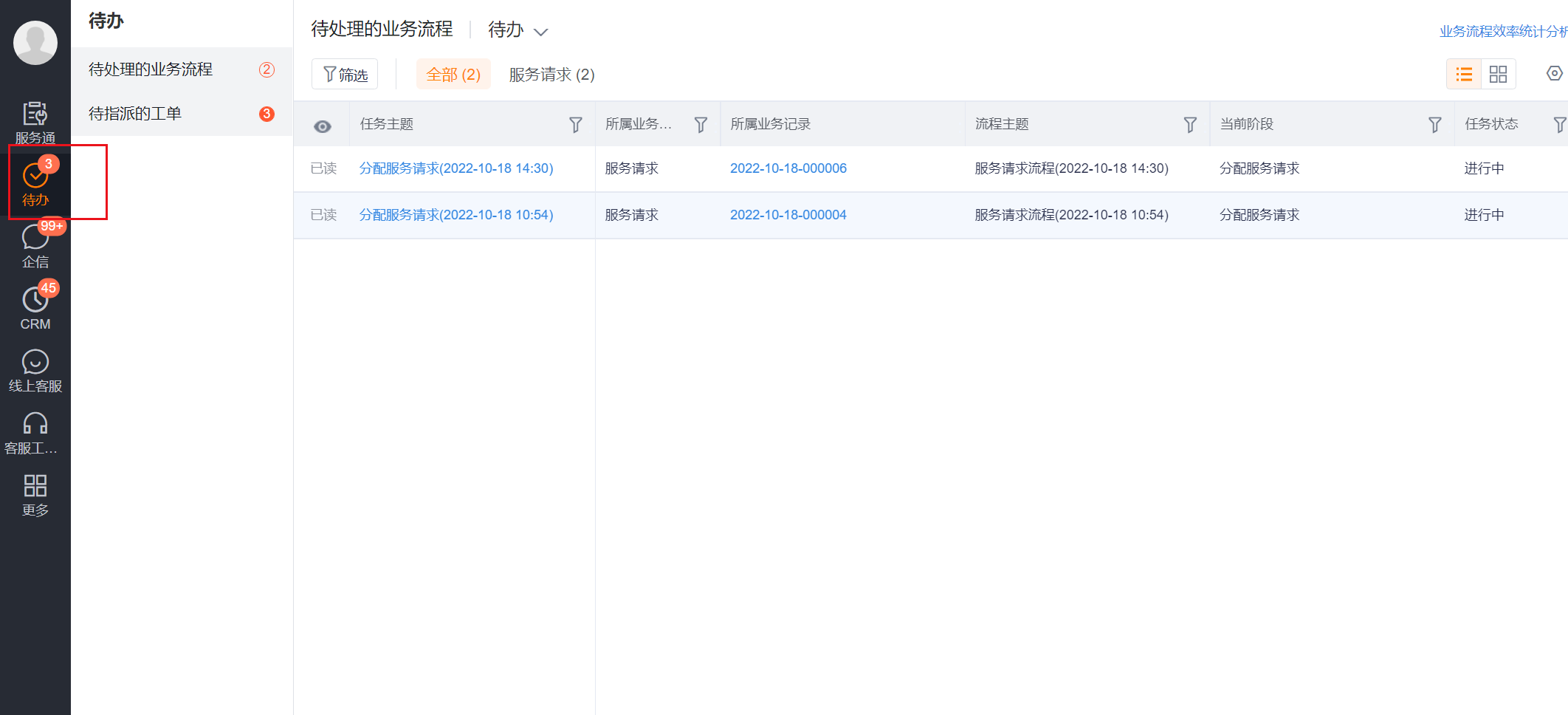
Verify the request number, customer or guest information, problem description, submission channel, and current stage.
Receive the requests that need to be processed; if the page enters the Assign service request stage, complete the assignment of the person in charge according to the current process.
Confirm that the request has entered the processing stage and that the current person in charge and relevant teams comply with the actual division of labor.
NOTE
The destination of requests submitted by self-service is determined by the assignment rules configured by the enterprise, the customer service group, and the service process. Do not accept requests that are beyond the scope of the current customer service group's responsibilities; when an assignment error is found, follow the change person in charge or forwarding operation provided on the page.
Supplement and complete the acceptance information
- Enter the current processing task in the service request process area and click Edit.
- Supplement the topic, problem description, customer, contact, product, priority, or other information required by the page.
- Select the operation after checking this modification:
- Click Save: Save the current input and continue to retain the current processing task.
- Click Save and Complete: Save the input and complete the current process task.
- Return to the detail page. Check the service request status, current stage, and owner.
Whether the page buttons are displayed and the specific fields depend on the enterprise configuration. Do not treat Save as completing the current task, and do not directly use Save and Complete when the information has not been verified.
Close service request
Close a service request after resolving the customer's need when no dispatch or further processing is required.
- Confirm that the problem handling results and necessary records have been added in the service request details.
- Use the Close, Terminate, or Complete action provided by the current process; the actual button name depends on the enterprise process configuration.
- Return to the details page and confirm that the request is no longer pending for collection or processing.
- Check whether the work order is generated by mistake; when on-site service is not required, do not create a work order at the same time.
Convert service request to work order
When you need to dispatch an engineer, arrange on-site service, or enter the work order process, convert the service request into a work order.
- In the service request details, check the customer, contact person, subject, problem description, and other information that needs to be brought into the ticket.
- Click Generate Work Order.
- Check the data brought in by field mapping on the new work order page, and supplement the required fields that cannot be automatically mapped.
- Save or submit the ticket.
- Return to the service request and confirm that the associated work order has appeared in the details.
- Subsequent order dispatch, execution, service reporting and evaluation are handled in the work order process.
IMPORTANT
Generate work order will create a new work order record, not rename the service request itself to the work order. The association between the two should be preserved after conversion, and the same on-site processing process should be avoided to be recorded repeatedly in both objects.
Expected results and validation
- Service requests submitted by an agent are associated with the correct account and contact.
- After the request submitted by self-service is received, the person in charge and the processing stage will change accordingly.
- When using Save, the edited content is retained and the current task can still be processed.
- When using Save and Complete, the current process task is completed and enters the next or end state of the enterprise configuration.
- After closing a request, unnecessary field service tasks will no longer be generated.
- After converting to a work order, you can view the associated work order from the service request. The work order contains field mapping and manual supplementary information.
FAQ
There is no service request entry in the customer service workbench.
Contact the administrator to check the Workbench Expansion Information > Related Information of the current web page or WeChat access channel. Portals may only be configured for certain channels or usage scopes.
There are no requests submitted by end users in the to-do center.
Confirm that the current account is within the customer service scope. Administrators also need to check end-user submission switches, automatic assignments, call service groups, assignment rules, and process assignments.
After generating a work order, the fields are empty.
Service request transfers to work orders will only bring data according to the field mapping configured by the administrator. Complete the service request source field first; if it is still empty, ask the administrator to check the mapping and ticket required fields.
The request information generated by the email is incomplete
The content of the email generation record is determined by email conversion rules and field mapping. Check the title, summary, sender and rule application scope of the precipitation email; configuration issues should be handled by the administrator.
Notes
- Service requests are used to accept and judge appeals, while work orders are used to dispatch and perform service tasks. Do not mix the two.
- A guest request might not include registered account information. After claiming it, verify the contact details and account association first.
- Do not create duplicate service requests or work orders for the same customer need.
- The actual fields, buttons and process stages are affected by the enterprise layout, permissions and process configuration; if you cannot see the operation, first confirm the current role and recording stage.