Appearance
Configure review methods and messages
Configure review methods and messages to guide customers to complete service feedback.
Overview
Service review is triggered through the Service Review node in the work order process. Administrators can directly specify a QR code review template, or they can match review rules based on work order conditions, and combine QR codes, WeChat Official Accounts, WeChat Mini Programs, SMS and email invitations.
The review method, whether it is required, allowing skipping, multiple reviews and timeout automatic completion will jointly determine whether the work order can leave the review node. When configuring, you should first clarify the customer submission requirements, and then select the message channel and node end method.
Before you begin
- End User Service Pass has been enabled and [Service Review Template, Layout and External Role Permissions] completed (01-configure-service-evaluation-template.md).
- Use an administrator account with permissions to configure work order processes, user review rules, and notifications.
- The custom work order process has been created, and the target work order business type has been assigned to the process.
- If you need a WeChat invitation, be prepared to register and bind an connected user corresponding to the WeChat official account or WeChat Mini Program, and the work order should have an available external responsible person.
- If you need a text message or email invitation, prepare a mobile phone number or email address that can receive messages, and confirm the text message quota, email template, and review short link variables.
Select review configuration mode
| Mode | Applicable scenarios | Templates and invitation methods | Main limitations |
|---|---|---|---|
| QR code review | All work orders at the node use the same review template, usually for an on-site invitation from the engineer | The node uses a fixed template and displays its QR code | Cannot switch templates or message combinations based on work order conditions |
| Match by rules | Work orders in the same process need to use different templates and message channels based on type, scope or other conditions | Rules determine templates, QR codes and message channels | Depend on rule priority; nodes are automatically skipped when the template is not matched |
Configure fixed QR code review
- In the target custom work order process, drag the Service Review application node to the location where you need to invite customer review. The service review node can be placed at any business location in the process, but it should be placed after the customer can judge the service results.
- Select the work order and the corresponding execution task in the node properties.
- Set Service Review Method to QR Code Review.
- Select a fixed service review template. After the customer opens the QR code, they will see the service review business type and layout assigned by the administrator to the external role.
- Check the handler. The default handler of this mode is the work order personnel field Service Engineer.
- Customize the name of the main action button as needed, and decide whether to hide the Skip review button in the to-do list.
- When a work order needs to be evaluated by multiple customers, enable Allow submission of multiple reviews. After enabling it, the handler needs to manually complete the node after completing all invitations.
- When you need to limit the waiting time, enable Automatically complete the review node and set the duration. When a customer fails to submit a review within the time limit, the system will forcibly skip this node.
- Save and submit the process.
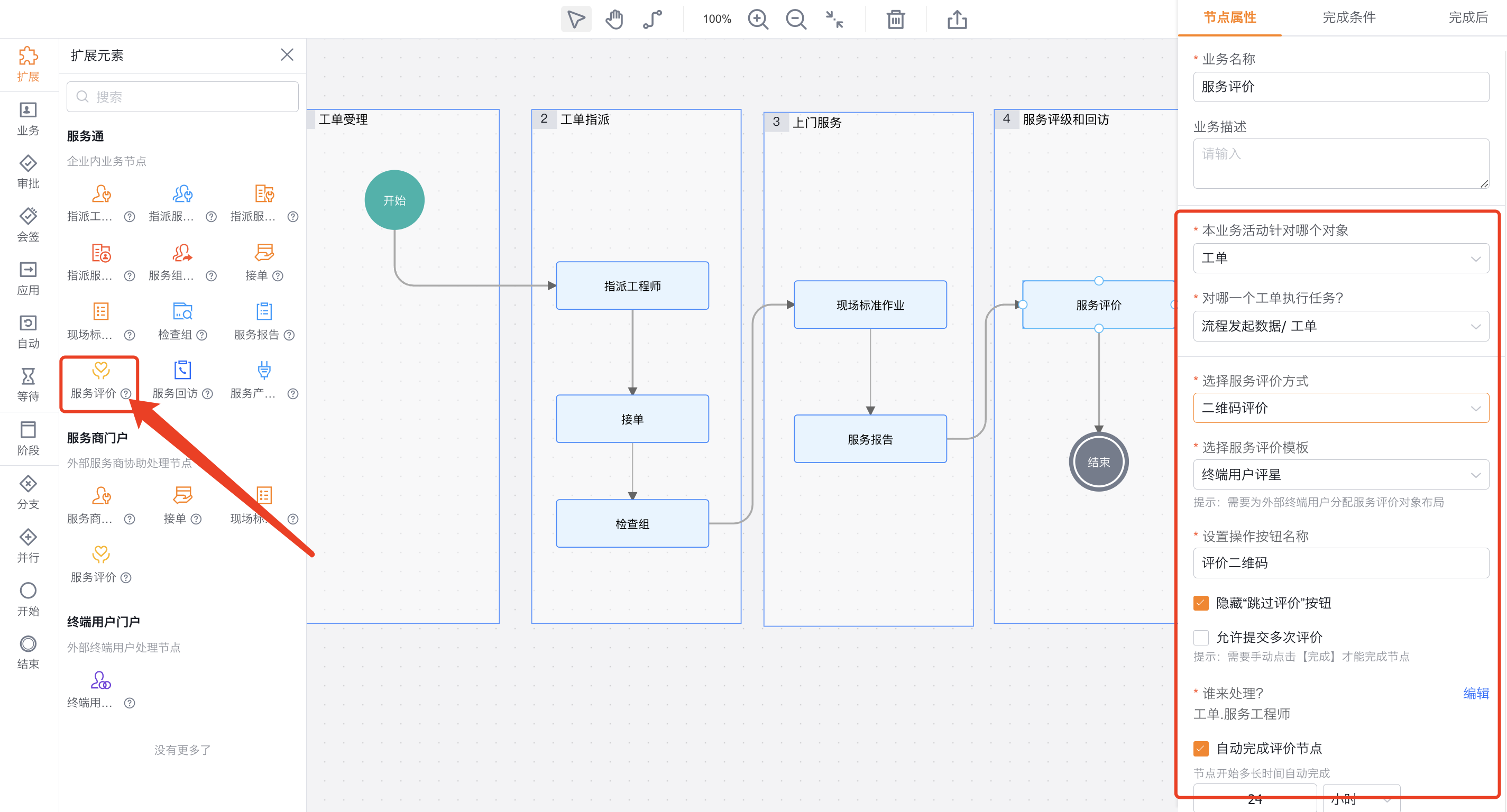
If the service engineer is not filled in the work order, a test work order should be used to verify the actual handler and to-do entry before releasing the process to avoid having no suitable on-site handler for the review task.
Configure matching review according to rules
Enable rule matching in process nodes
- In the service review node, set the service review method to match by rules.
- Configure the automatic timeout completion time according to the business permission level.
- Save and submit the process.
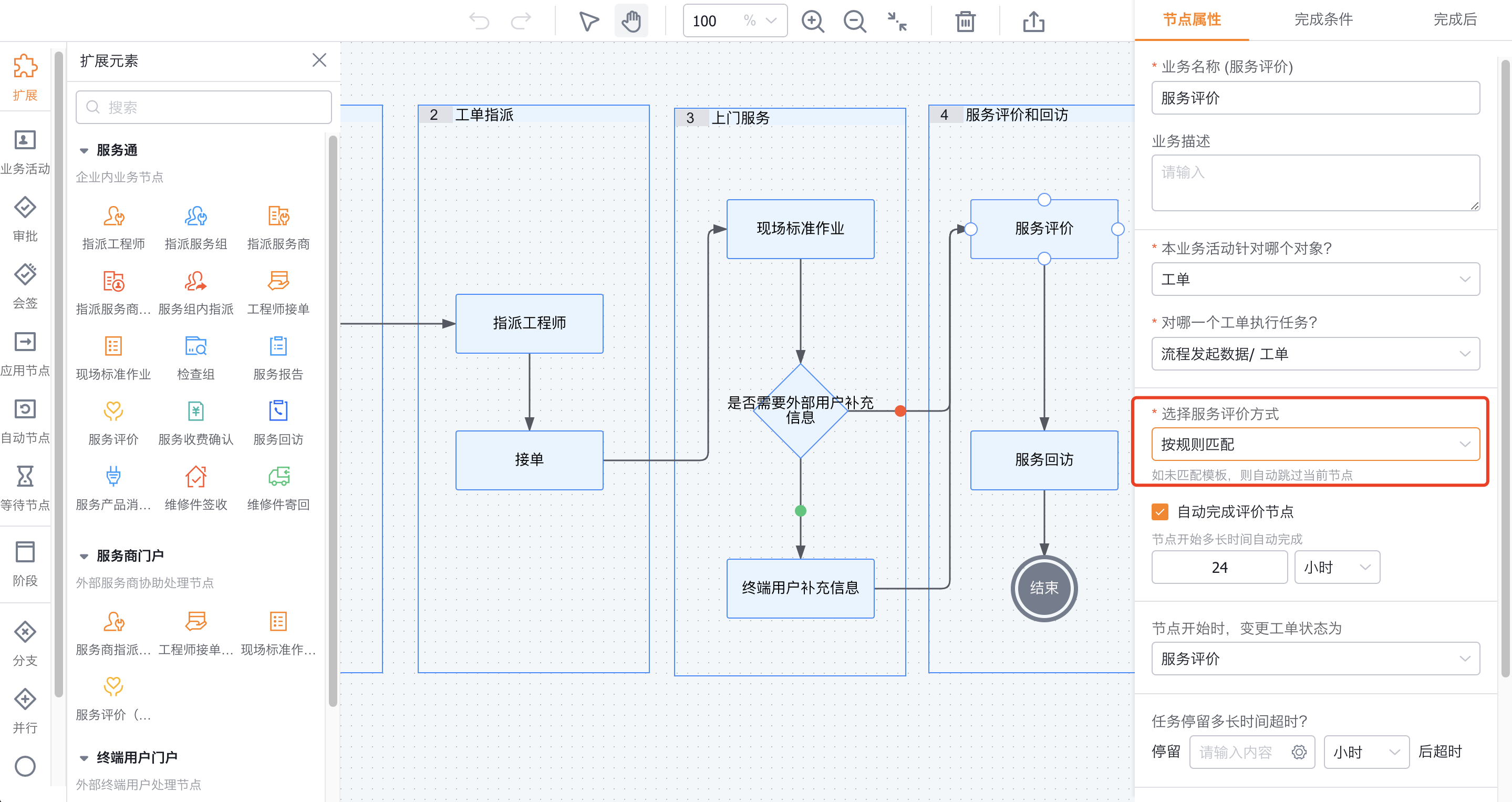
Matching by rules is suitable for scenarios that require multiple sets of review conditions, templates or invitation methods. If all tickets use the same template, the fixed QR code pattern should be used. The original configuration page prompts that the current node will be automatically skipped when matching unhit templates according to rules.
Create a new review rule
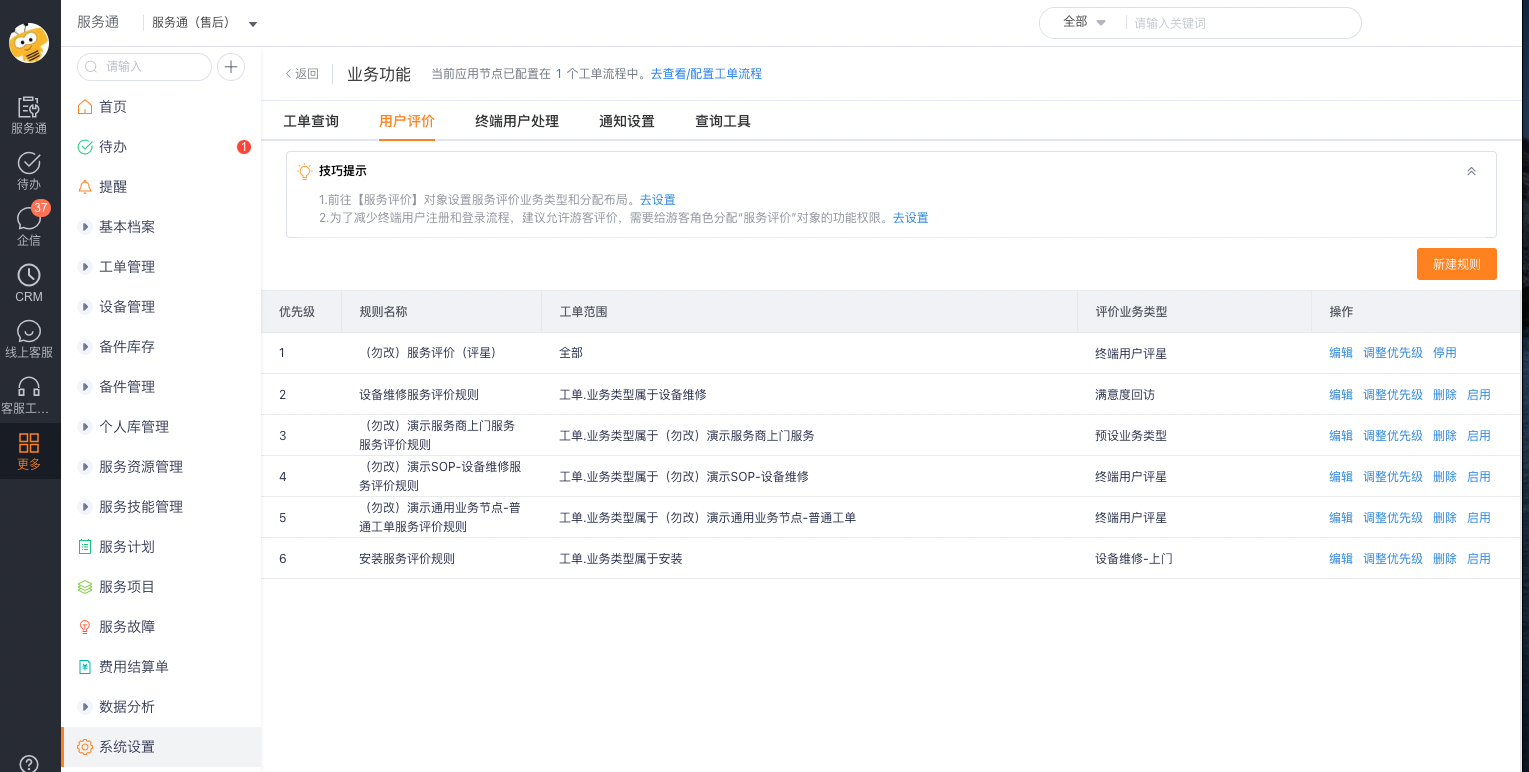
- Go to Service Pass>System Settings>End User Service Pass>User Review.
- Click New Rule in the review rules list.
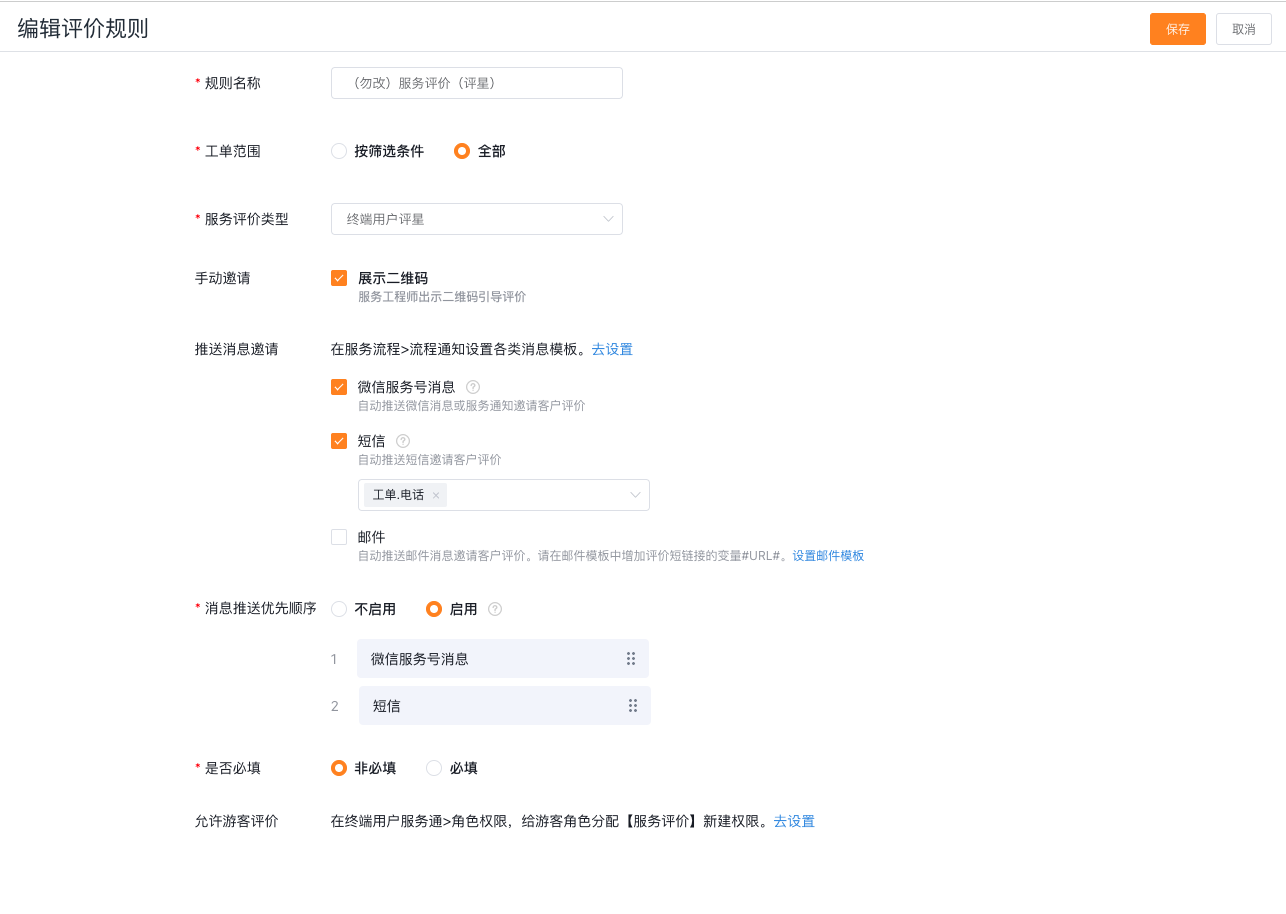
- Fill in the rule name and set the work order scope. You can select all work orders, or configure filter conditions based on work order fields.
- Select the service review business type. This business type determines the final review layout that customers see.
- Select the invitation method such as display QR code, WeChat Official Account/Mini Program message, SMS or email.
- Configure message push priority.
- Configure whether the review is required and save the rules.
- Return to the rule list and select Adjust Priority to set the matching order.
| Rule configuration items | Function | Configuration restrictions |
|---|---|---|
| Rule name | Identification of review rules | Should be able to distinguish work order scope and review scenarios |
| Work order scope | Determine which work orders use the current rule | Match by priority when multiple rule ranges overlap |
| Service review type | Specify service review business type and layout | You need to assign this business type and layout to external roles first |
| Manual invitation | Show the QR code to the processor | The customer needs to scan the code on site or receive a referral from the engineer |
| Message invitation | Automatically send entry via WeChat, SMS or email | Each channel has independent identity, fields or quota conditions |
| Whether the review is required | Control whether the customer must submit before the node can end | Determine the final transfer result together with node automatic completion and skip configuration |
Configure invitation channel
Channel conditions and restrictions
| Channel | Receive Target or Portal | Precondition | Failure or Limitation |
|---|---|---|---|
| Display a QR code | The engineer shows the QR code during the review task | The rule enables manual invitations, and the engineer can process the review node | The customer must scan the code; guest submission depends on guest mode and permissions |
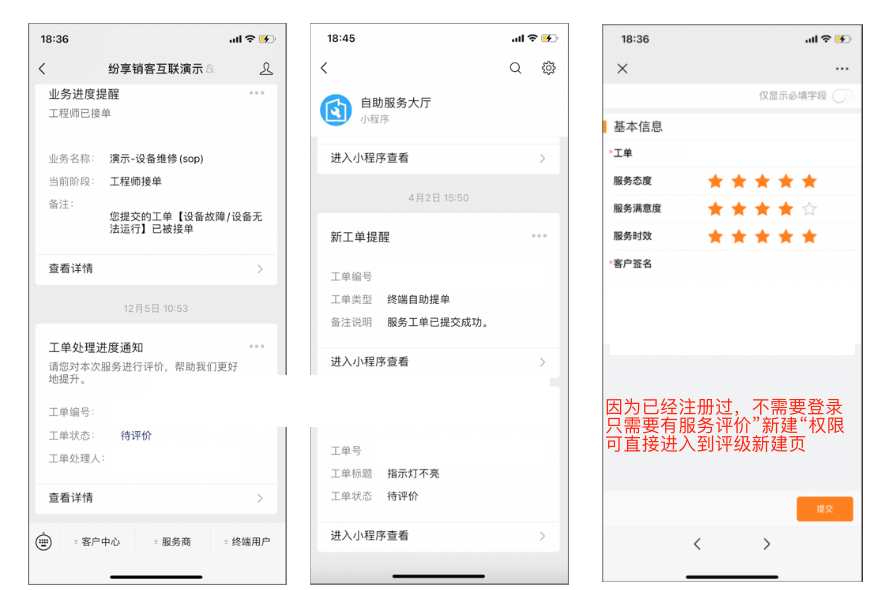
| WeChat Official Account/Mini Program | connected user bound to the work order external person in charge | The user has registered an connected identity and bound to the corresponding channel; the default review notification has been enabled | The external person in charge cannot be received when it is empty, the channel is not bound, or the WeChat subscription conditions are not met |
| SMS | The review rule specifies the mobile phone number of the target object | The target field has a valid mobile phone number and the SMS quota is sufficient | The sending fails when the mobile phone number is empty or the quota is insufficient |
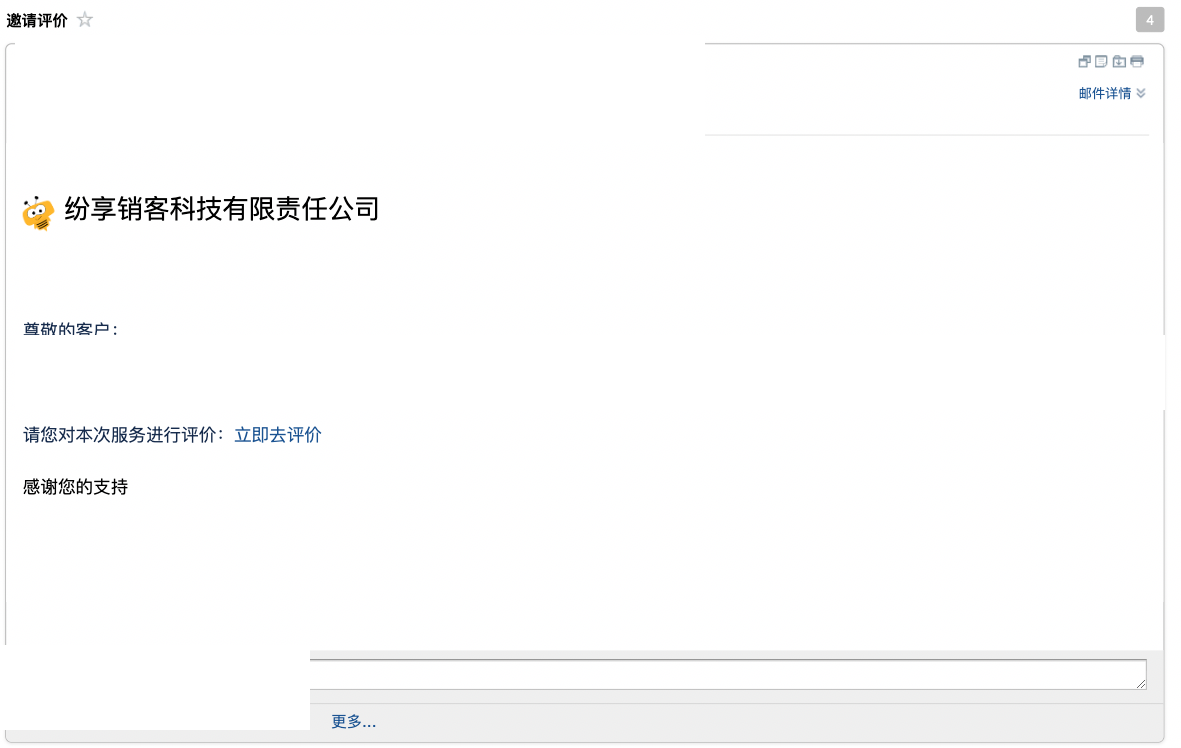
| The email address of the target object specified by the review rule | The email template has maintained the review short link | When the mailbox is empty or the template is missing #URL#, the recipient cannot enter the review page |
The original data is described in the rule configuration as "Send a text message to the mobile phone of the specified target object", and in the end user example, it is described as "Send a text message to the work order phone". Administrators should refer to the actual selected target objects and mobile phone number fields of the current review rules, and use test work orders to check the receiving numbers. Do not infer based on the example page alone.
Configure message push priority
- Prioritization is not enabled: the system pushes all selected message channels in the rule.
- Enable priority order: The system pushes in the configured order; after high-priority channels are successfully sent, low-priority channels will no longer be pushed.
"Sent successfully" only means that the current channel has completed the system sending, but does not mean that the customer will definitely see the message. The reception target, channel binding, SMS quota and actual arrival results should also be checked during verification.
Configure WeChat review invitation
Check the assignment of external responsible personsWeChat review invitations are sent to the connected users bound to the work order external responsible person (API Name: out_owner). External responsible persons are formed in the following order:
| Work order creation scenario | External responsible person assignment logic | Result limitations |
|---|---|---|
| Direct submission by end users | Automatically obtain the current connected user who submitted the work order | The connected user also needs to bind the corresponding WeChat channel |
| Create new internal personnel within the enterprise, the contact has been associated with the connected user | Get the connected user associated with the work order contact | The relationship between the contact and the connected user must be valid |
| The contact is not associated with the connected user, but the mobile phone number can be matched | Query personal type connected users by the contact's mobile phone number and backfill | If the mobile phone number is empty or does not match, it cannot be backfilled through this path |
| The aforementioned path does not match, and the email address is not empty | Query personal type connected users by contact email address and backfill | Backfilling is not possible when the email address is empty or does not match |
| Submitted by visitors | The external person in charge is empty | Visitors cannot receive WeChat review invitations that rely on external persons in charge |
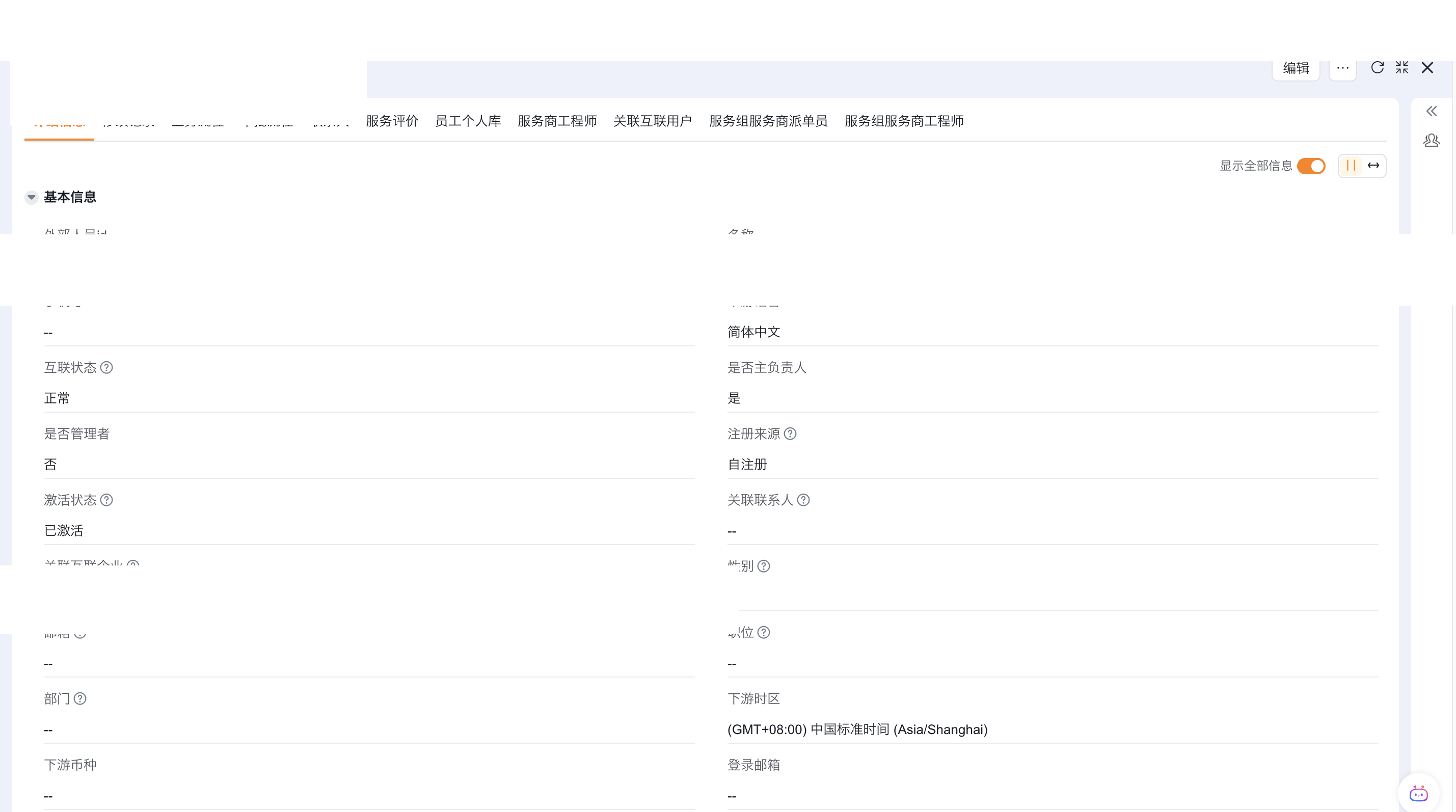
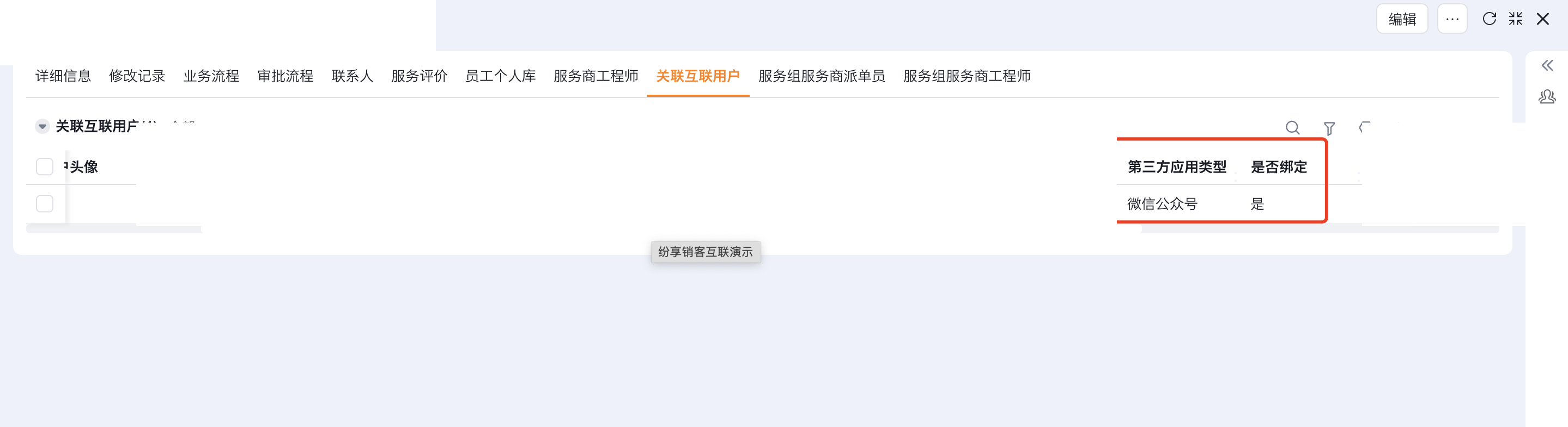
Check WeChat channel binding
Enter the Associated Internet User information of the connected user record, confirm that the third-party application type is WeChat official account or WeChat Mini Program, and the binding status is Yes.
WeChat invitations also depend on the end user's registration path and third-party binding rules. See Configure end-user accounts.
The default WeChat notification must be enabled. See Configure end-user notifications.
Configure review message template
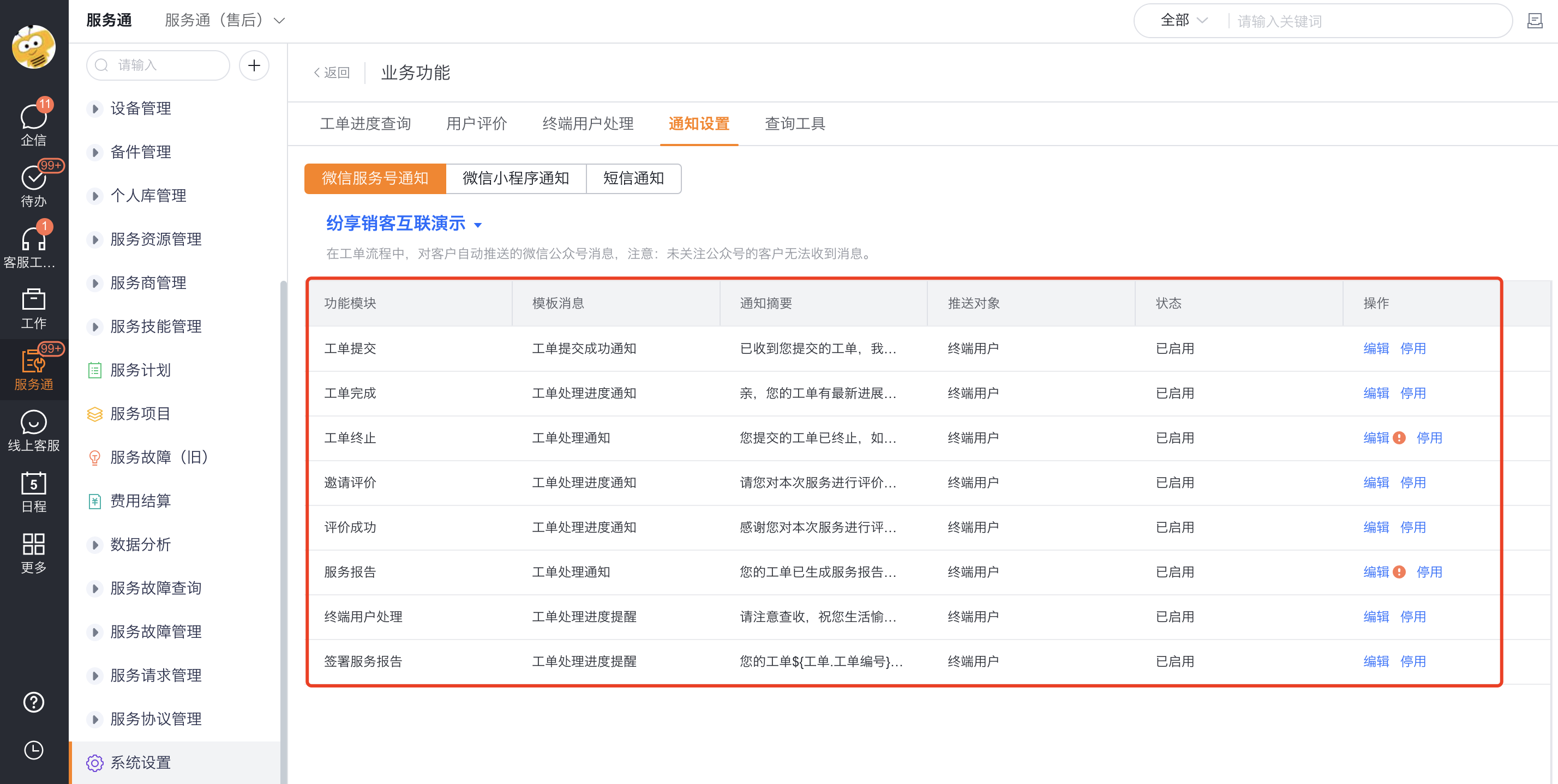
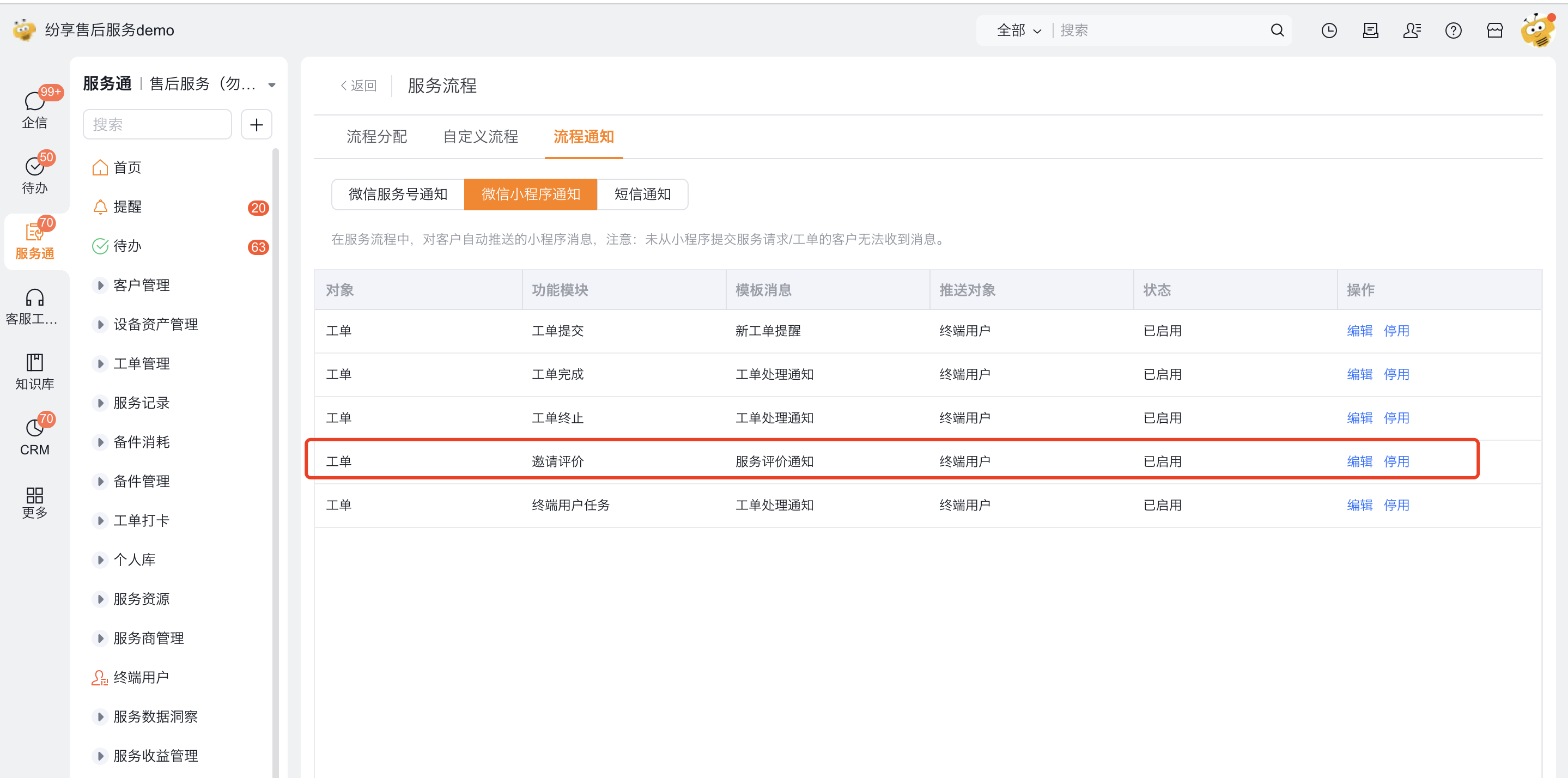
The system has preset notifications related to service review, which can be modified or disabled in the notification settings of the end-user service channel.
- Enter Service Pass > System Settings > End User Service Pass > Notification Settings.
- Check WeChat Official Account notification, WeChat Mini Program notification and SMS notification respectively.
- Find the Invite Review notification, confirm that the status is enabled, and edit the template content according to the channel rules.
- WeChat Official Account messages can adjust the template, summary and keyword fields; WeChat Mini Program notifications are limited by the Mini Program template.
- The SMS notification should retain the review short link variable and confirm that the SMS signature, template and quota are available.
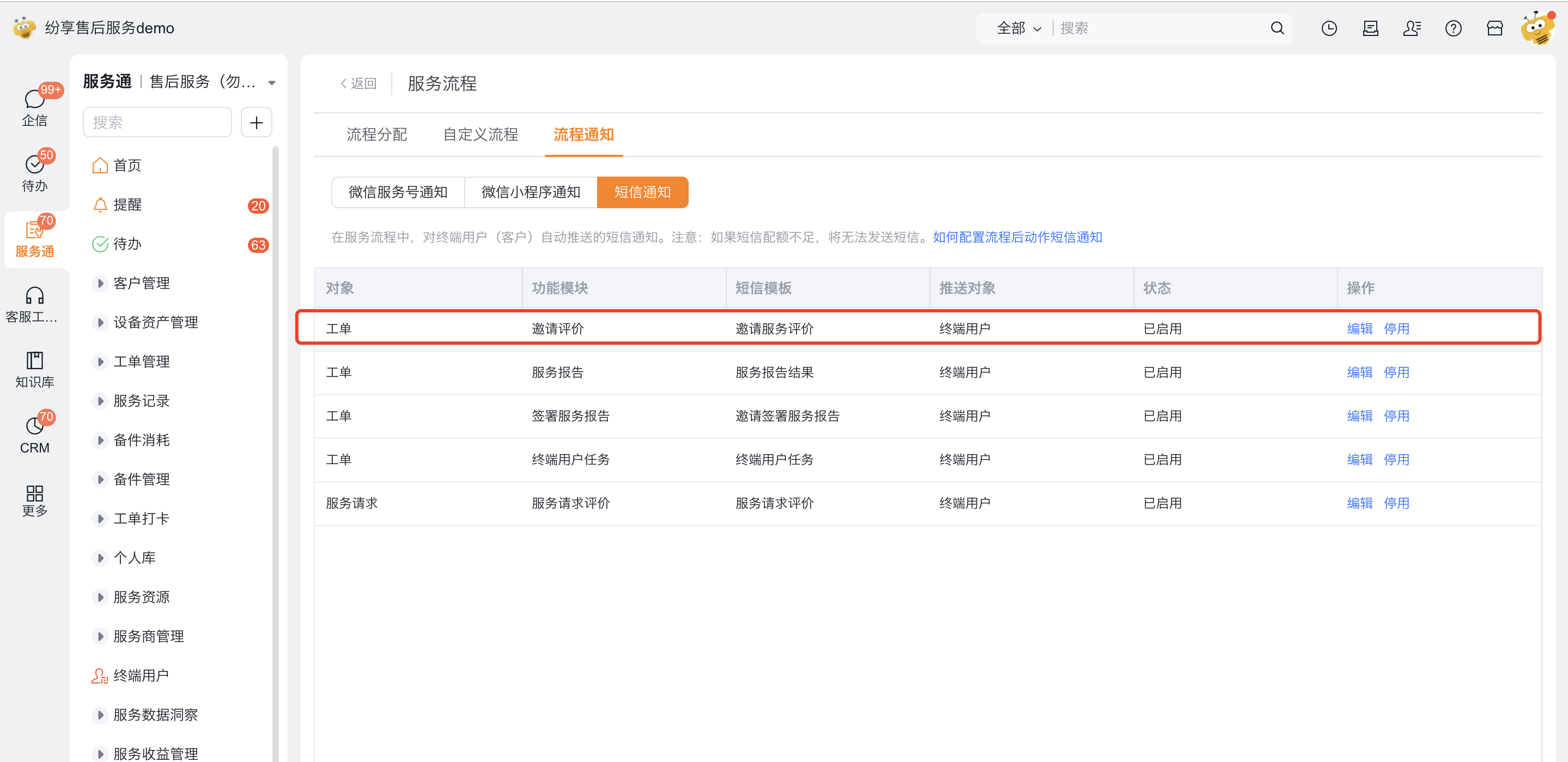
The source material provides this SMS template:
text
Dear customer: Work order #Work Order Number# - #Work Order Subject# is complete. Thank you for your support. Submit a review: #URL#Configure an email template
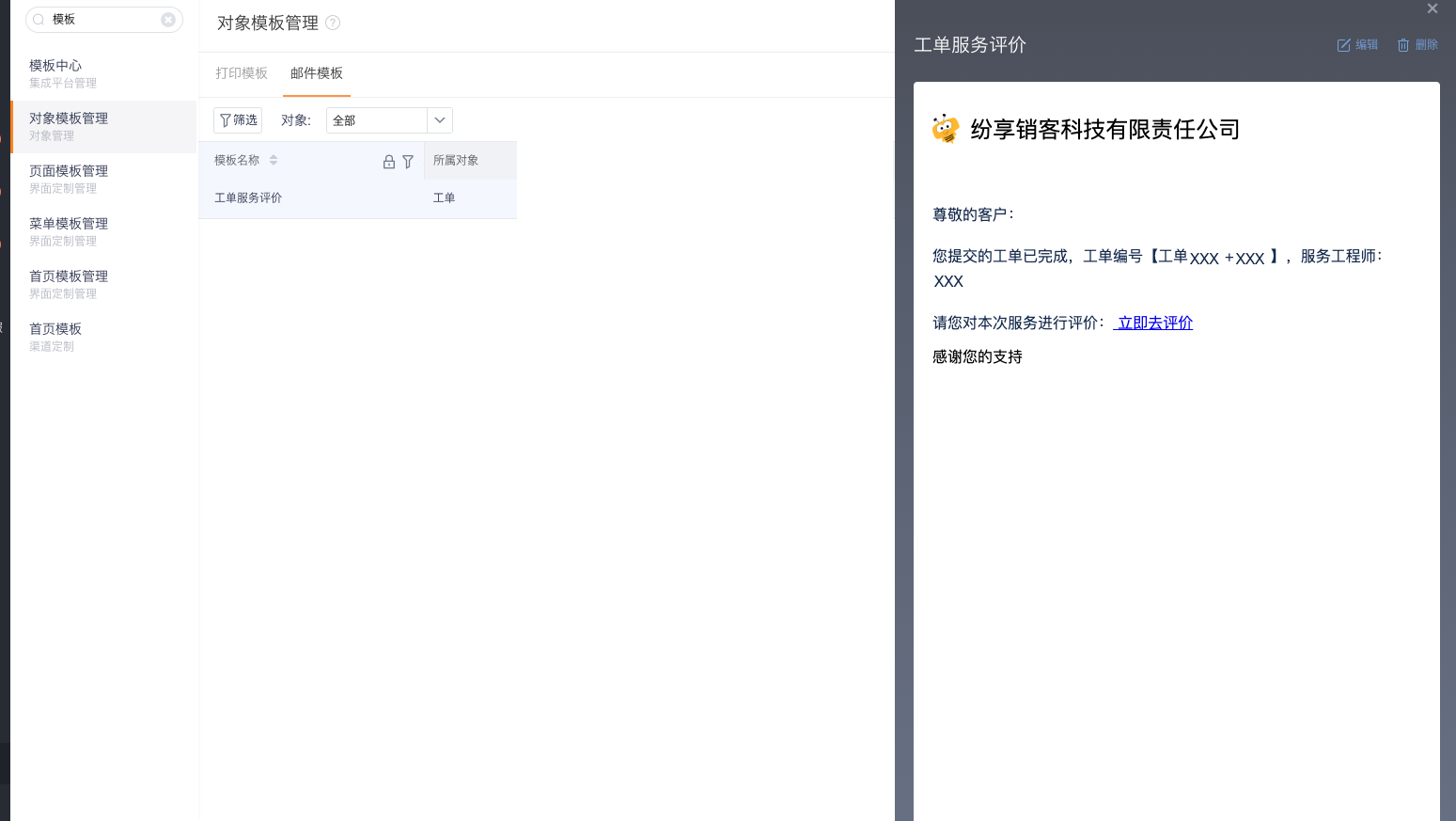
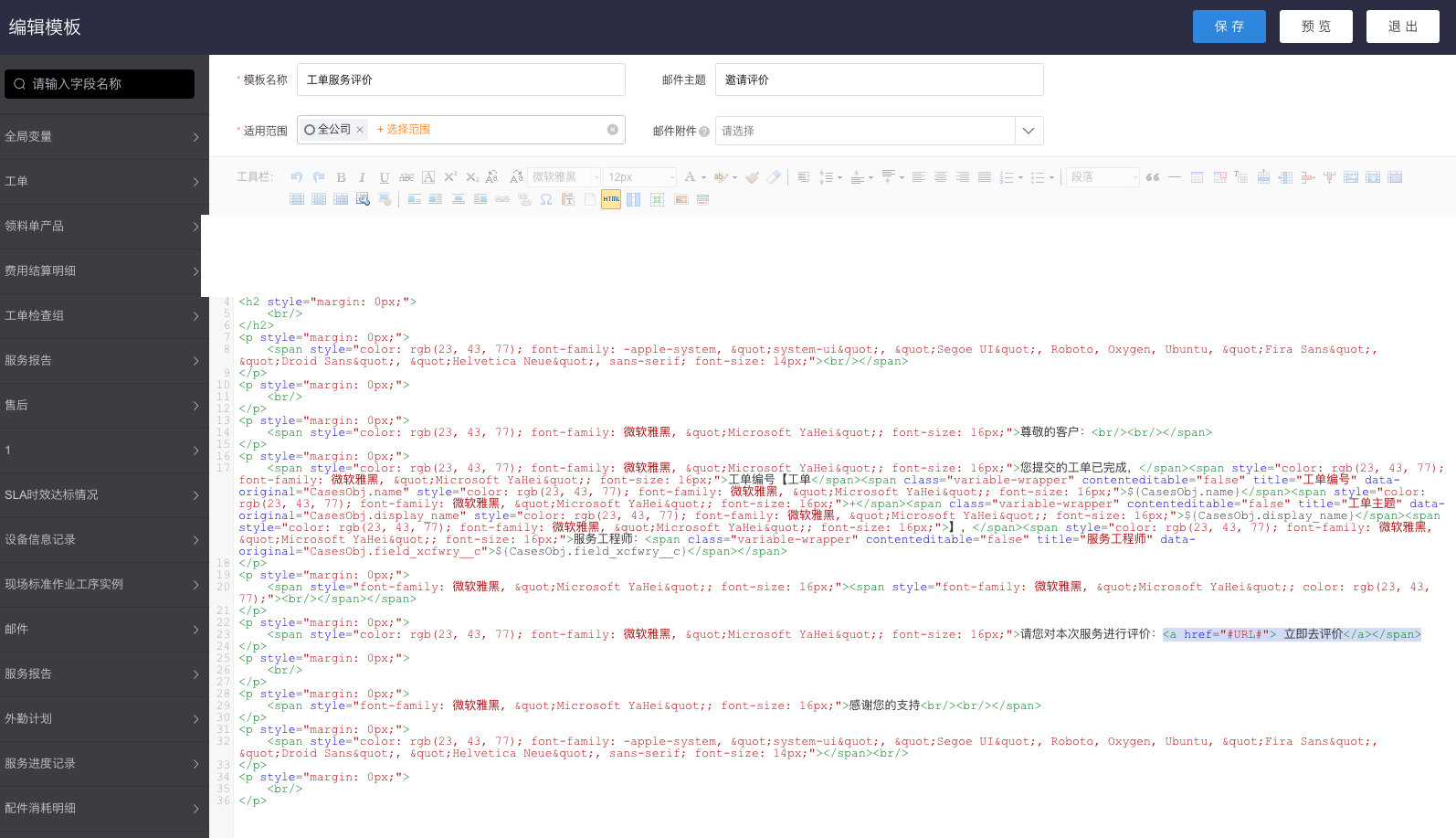
- Enter the Email Template in the object template management and find the work order service review template.
- Check the applicable objects, email title and body content.
- Add the review short chain variable
#URL#to the text. - To display linked text, switch to HTML content and use:
html
<a href="#URL#">Submit a review</a>- Save the template and confirm the link with a test email.
Configure review completion logic
| Configuration items | Impact on process |
|---|---|
| Review is required | Only after the customer submits the review can the review node end and enter the next process node |
| Review is not required | Node does not require customer review, and can be ended by the handler by pressing the node button |
| Hide "Skip review" | Do not show the manual skip entry to the handler in the to-do list |
| Allow multiple reviews | The same work order can receive multiple submissions; the processor needs to manually complete the review node after completing all invitations |
| Automatically complete the review node | After reaching the set time, even if the customer has not evaluated, the system will forcibly skip the node |
If the business requires obtaining customer reviews, do not also configure a timeout policy that will automatically end when there is no review; otherwise, the timeout rule will allow work orders to continue to flow.
Distinguish between save, submit and complete
| Action | Operator | Result |
|---|---|---|
| Save review rules or message templates | Administrator | Save configuration, customer review records will not be generated immediately |
| Save and submit the process | Administrator | Publishes the process-node configuration for subsequent work orders |
| Submit a review | End user or guest | Creates a service review record; the node can finish after required review conditions are met |
| Complete the review node | Engineer or current processor | End the review tasks that are allowed to be completed manually; multiple review scenarios are usually executed after all invitations are completed |
| Automatic completion | System | Forcibly skip the review node after timeout, which does not mean that the customer has submitted the review |
Registered user and visitor scenarios
| Scenario | Login requirements | Permission requirements | QR code review | Impact of WeChat, SMS and email |
|---|---|---|---|---|
| Registered end user | You need to log in if you are not logged in; you can enter directly if you are logged in | The corresponding end user role has ** Service Review > New ** permissions | The system can identify the connected identity and record the matching results | WeChat still requires external person in charge and channel binding; SMS and emails are sent according to the rule target field |
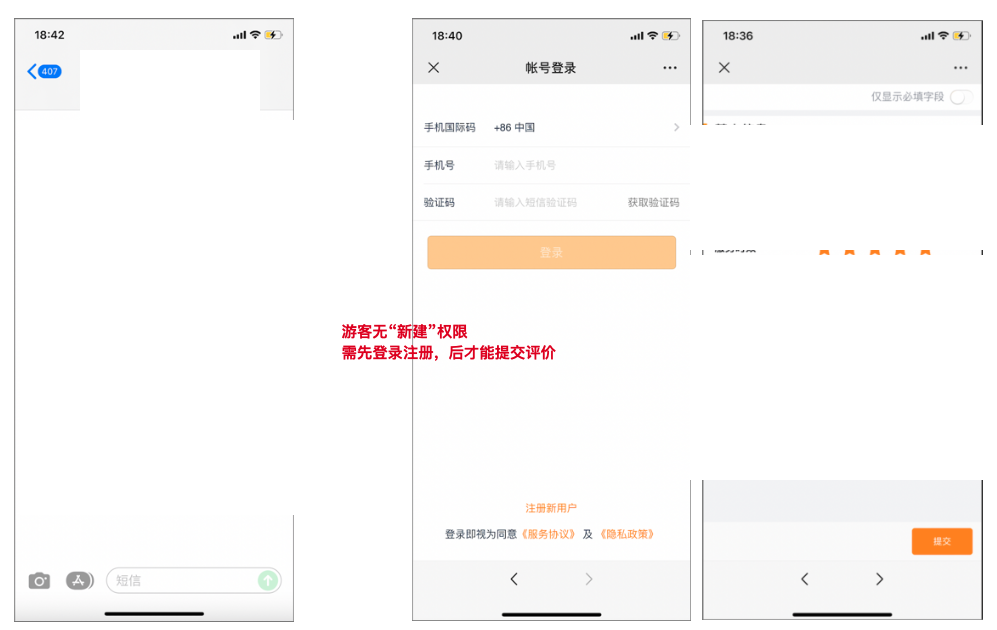
| Visitors | No need to log in when allowing visitors to evaluate | Enable visitor mode, the visitor role has Service Review>New permissions | Can be filled in and submitted directly | The external person in charge is empty, and cannot receive WeChat invitations that rely on the external person in charge; SMS or emails still depend on the rule target field |
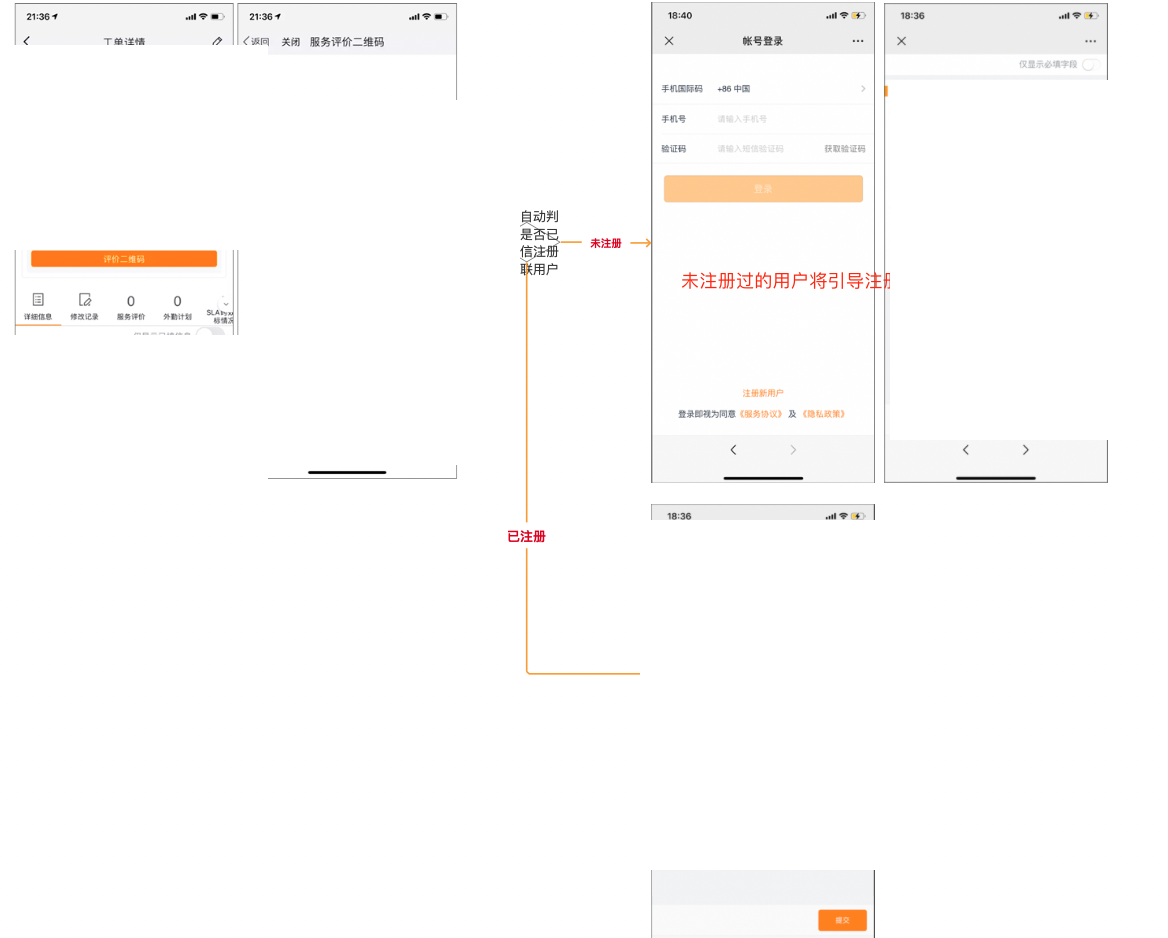
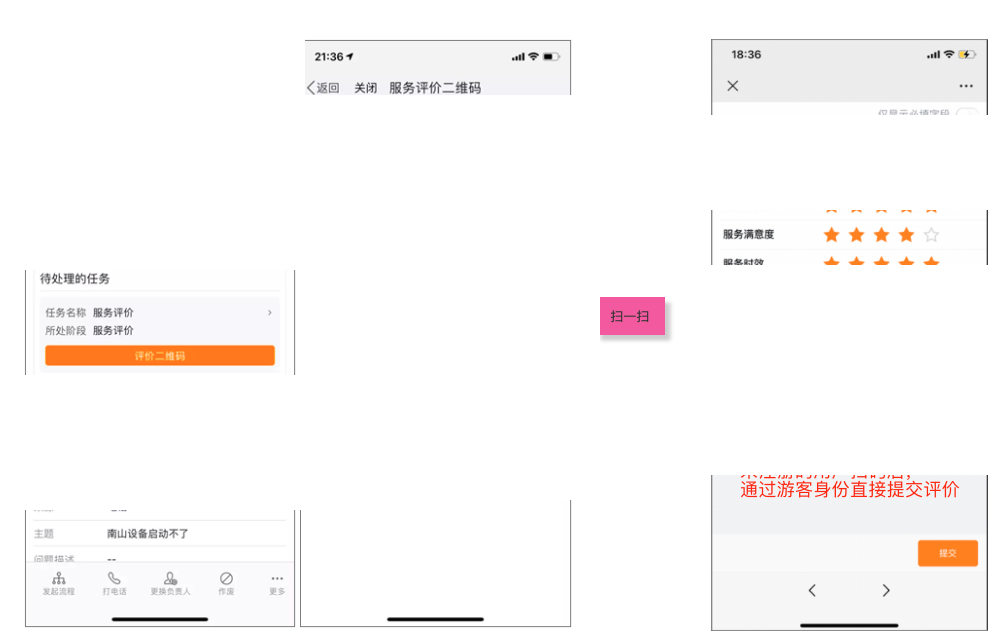
The following diagram helps verify user results by channel. Administrators must still verify recipients and permissions.
Expected results and verification
- Prepare test work orders that hit each review rule respectively, and let the process enter the service review node.
- Check whether the hit review business type, QR code entry and message channel are consistent with the rules.
- Verify that when multiple rules are satisfied at the same time, select the expected rule according to priority; then use a work order that does not match any rules to verify that the node automatically skips the behavior.
- Verify the receiving targets and short link accessibility of the WeChat Official Account, WeChat Mini Program, SMS and email respectively.
- Verify the impact of mandatory review, manual skipping, multiple reviews and automatic timeout completion on the process end conditions.
- Use registered end users and visitors respectively to verify login, permissions, identification and WeChat reception restrictions.
- After submitting the review, confirm that the source of the review, the identity of the creator, and the associated work order are correct in the Service Review object.
FAQ
The customer did not receive the WeChat review invitation
Check the work order's External Owner, the connected user's WeChat Official Account or Mini Program binding, and the default Invite Review notification. Guest-created work orders have no external owner and cannot receive WeChat invitations through this route.
SMS has been configured but not sent
Check the actual selected target object and mobile phone number field of the review rule, SMS template status and remaining quota. Insufficient SMS quota will cause sending failure.
I can receive the email but cannot enter the review page.
Check whether the email template contains #URL#. When there is only text such as "Rate Now" without this variable, an accessible short link for reviews will not be generated.
The work order has not been evaluated and has entered the next node.
Check in turn whether the rule is set to non-required, whether the handler can be skipped, and whether the node has timeout auto-completion enabled. When matching according to the rules but not hitting the template, the node will also be automatically skipped.
Customers are asked to log in after scanning the QR code.
Direct guest review is not enabled for the current role, or the guest does not have the Service Review > New permission. This is expected behavior when the identity of the evaluator needs to be restricted; when direct review by tourists is required, you should return to the End User Service to configure the guest mode and object permissions.