Appearance
Consume and return spare parts
Overview
Spare parts consumption records new parts installed and old parts recovered during a work order. In advanced mode, a return shipment sends requested or stocked parts to a target warehouse. Recovery and return are separate: recovered parts first enter personal inventory or a recovery warehouse.
Before you begin
- Spare parts consumption uses the new version of the function, and the required work orders have been prepared.
- In normal or advanced mode, confirm that there are new parts available in the personal library; when consuming from the spare parts library in advanced mode, confirm that there is available stock in the new parts consumption warehouse.
- Spare parts return orders can only be used in advanced mode and when using the new version of spare parts consumption.
1. Record spare parts consumption
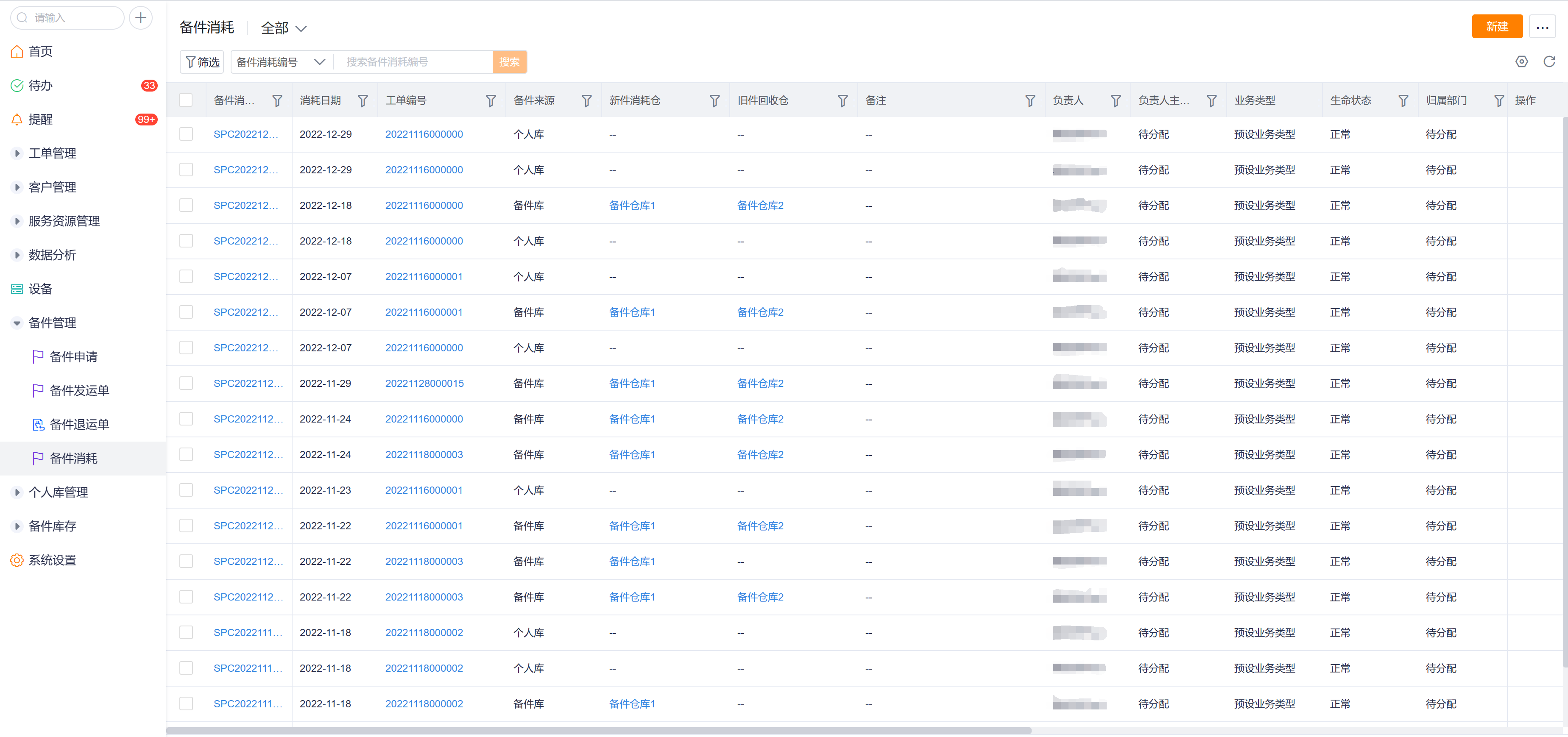
Go to Service Pass > Spare Parts Management > Spare Parts Consumption on the web side.
Click New in the upper right corner of the list and fill in the work order (required) and consumption details.
Fill in the source of spare parts according to the enterprise model:
| Mode | Selection Range | Inventory Impact | Lot/Serial Number |
|---|---|---|---|
| Simple mode | Product scope | No inventory deduction, only work order consumption records saved | Not supported |
| Normal mode | Engineer's personal library details | Deduct new parts from the personal library; recycle old parts and add to the personal library | Not supported |
| Advanced mode - personal inventory | Engineer's personal inventory details | Deduct new parts; add recovered parts | Supported |
| Advanced mode - spare parts warehouse | Selected new-part consumption warehouse | Deduct new-part inventory; add recovered parts to the recovery warehouse | Supported |
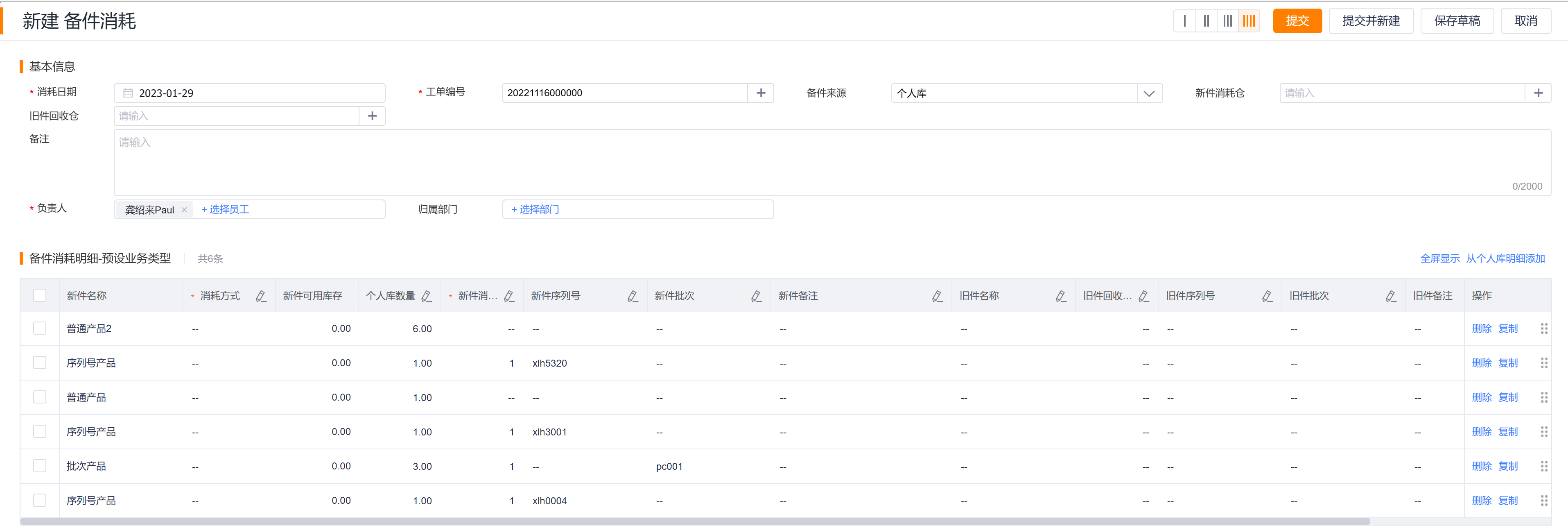
- Fill in the quantity of new parts consumed; if the old parts are dismantled on site, fill in the quantity and source of the old parts recycled.
- Save and submit the spare parts consumption, and return to the work order to check the consumption record.
2. Create spare parts return order in advanced mode
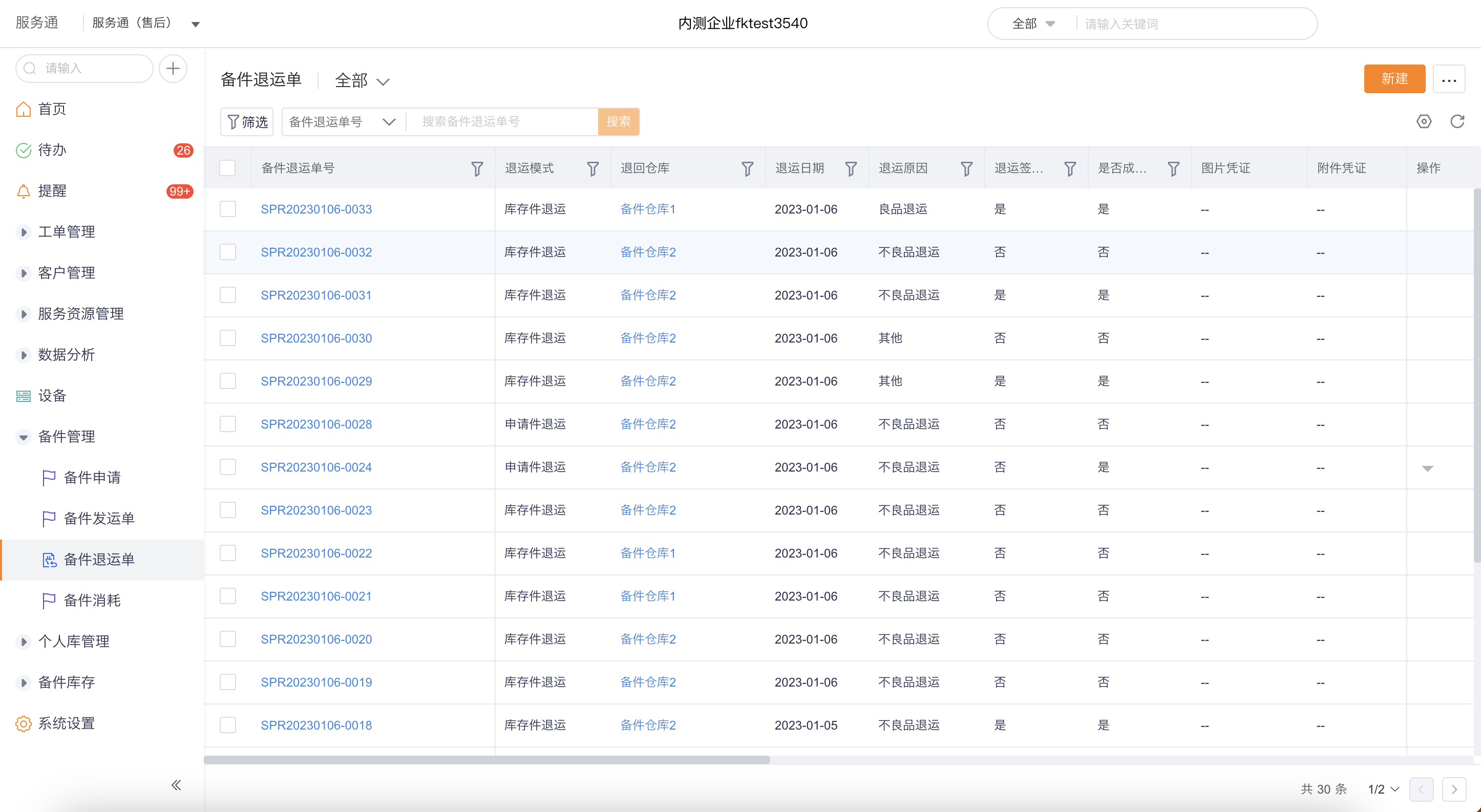
Go to Service > Spare Parts Management > Spare Parts Return Order and click New.
Select return mode:
- Return based on application parts: Select the spare parts to be returned from the spare parts application details;
- Return based on inventory parts: Select the spare parts to be returned from the spare parts library inventory or the engineer's personal library.
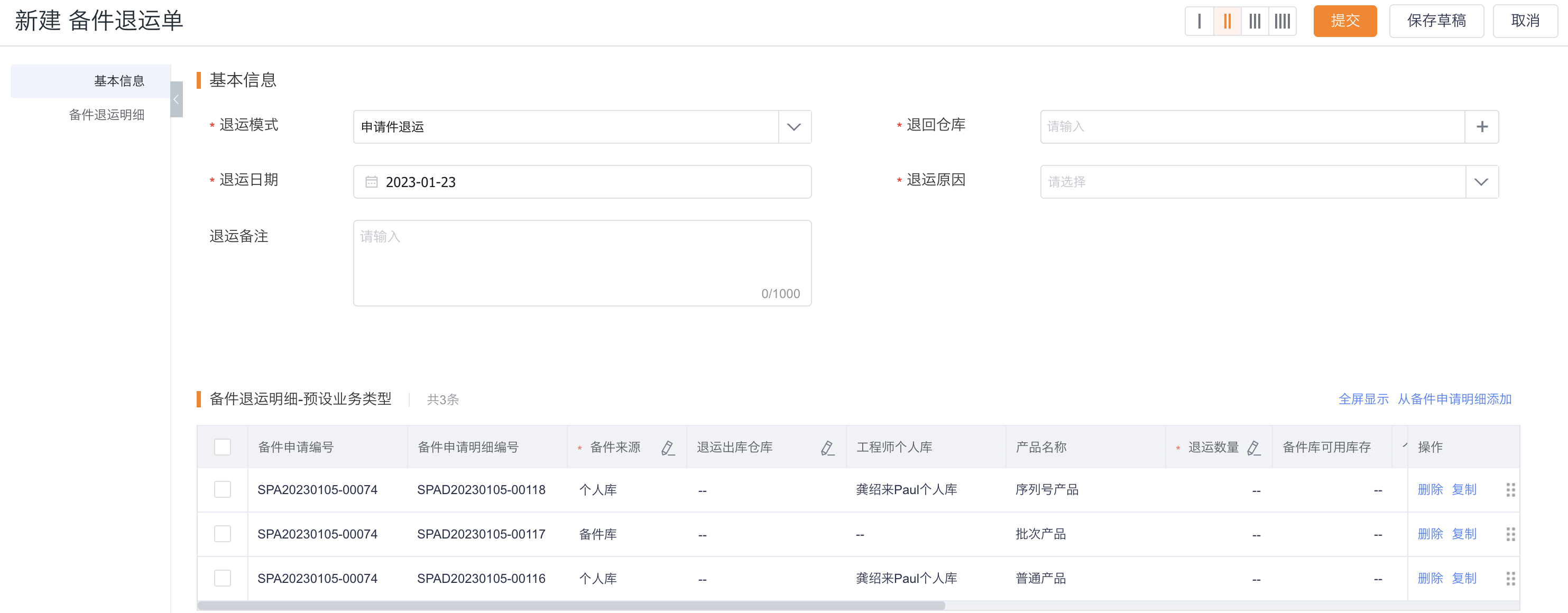
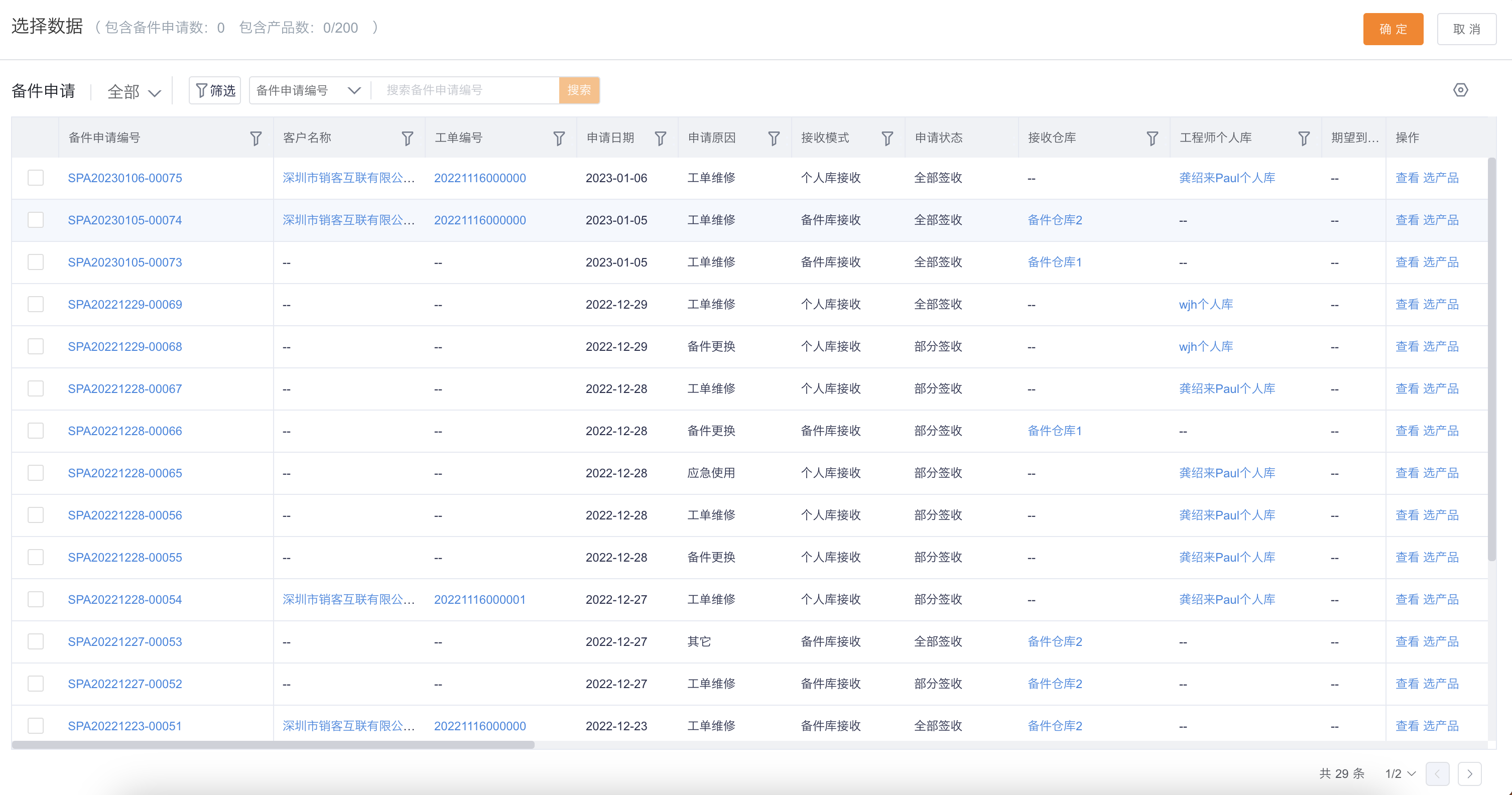
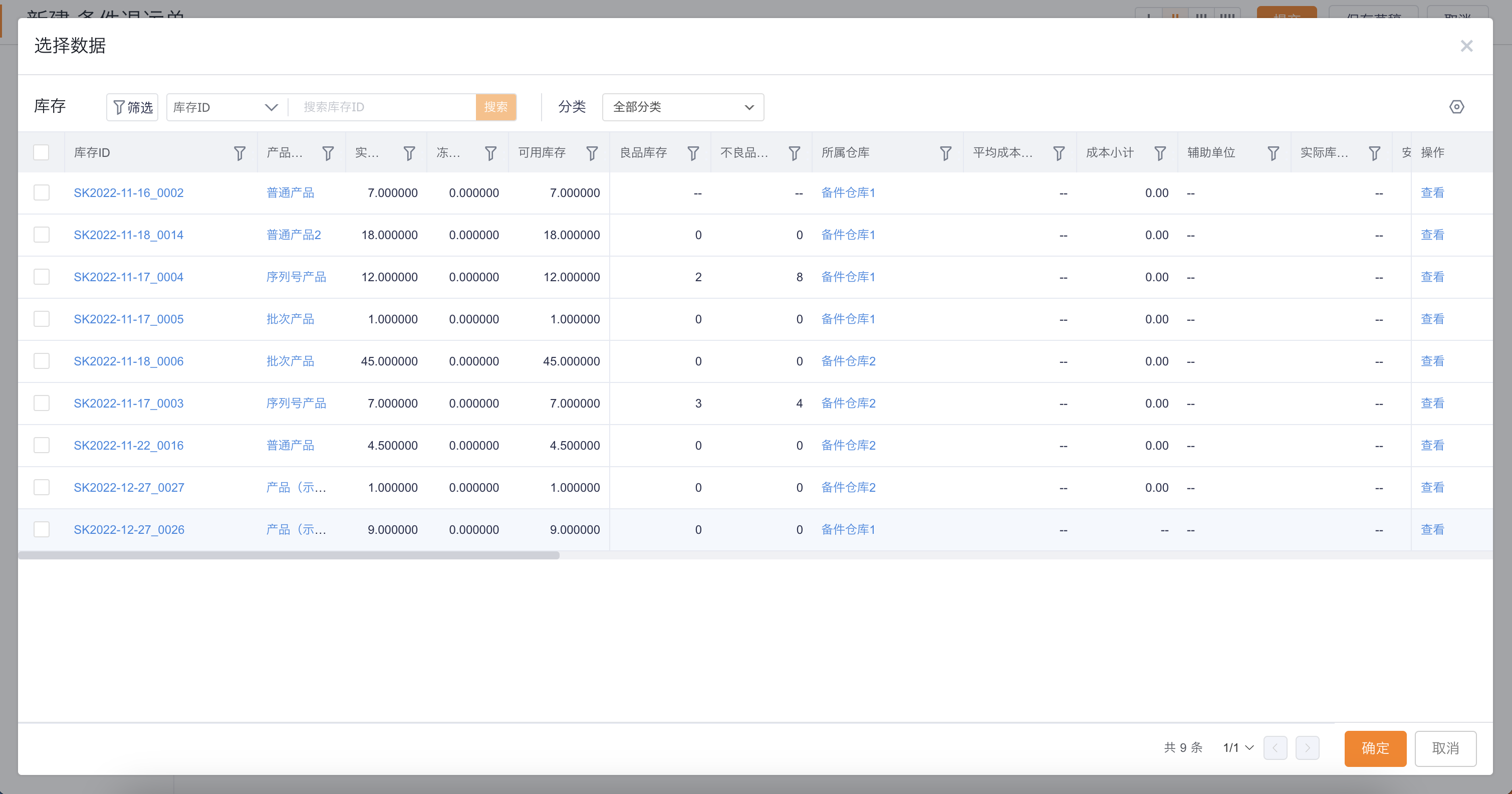
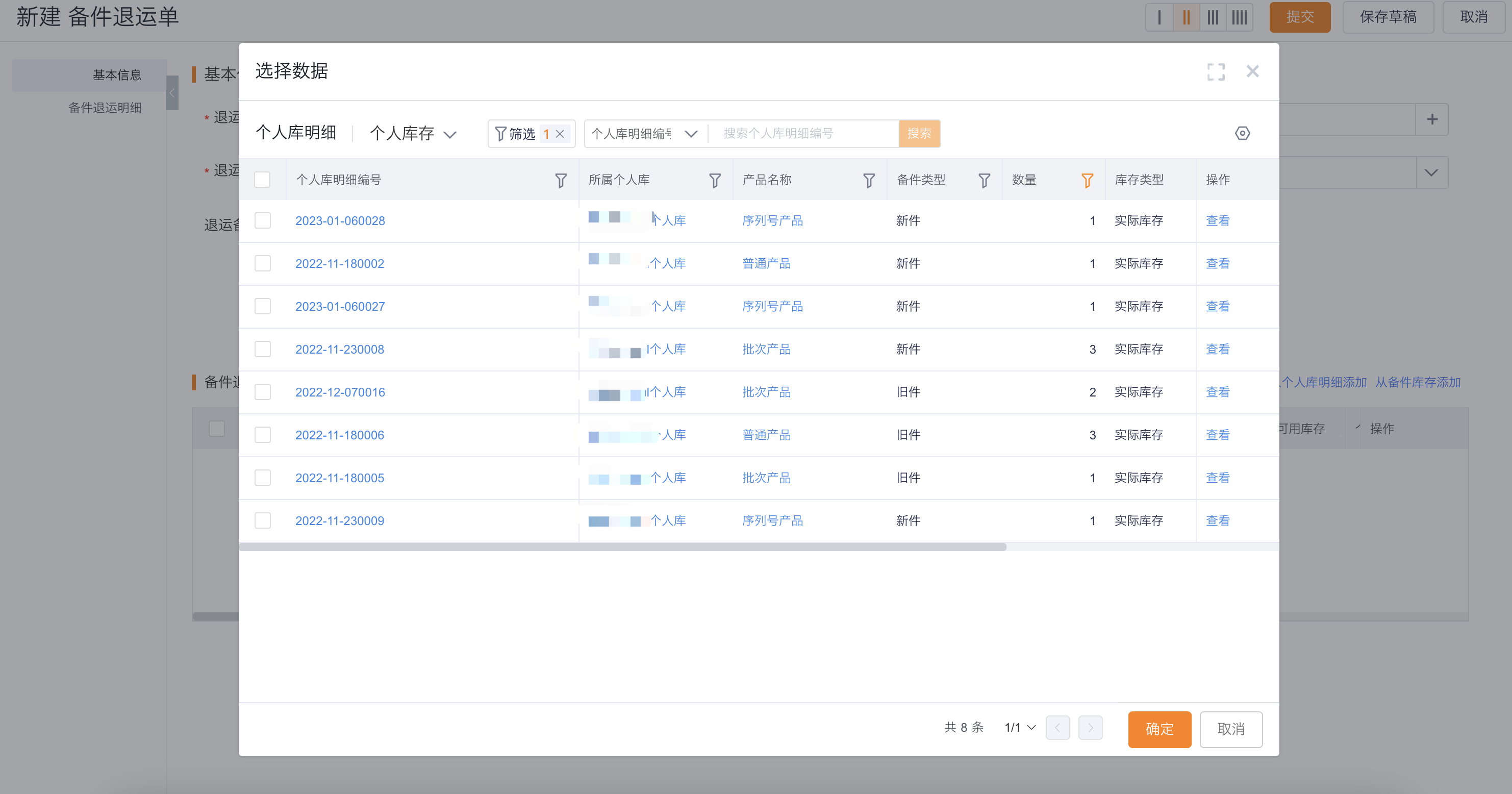
Fill in the return destination warehouse, product and quantity, and confirm the return order.
After confirmation, the system generates an outbound order or return order based on the source, and deducts the spare parts warehouse inventory or personal warehouse detailed quantity.
3. Sign for return shipment
After the target warehouse receives the spare parts, open the corresponding return order and execute sign for receipt.
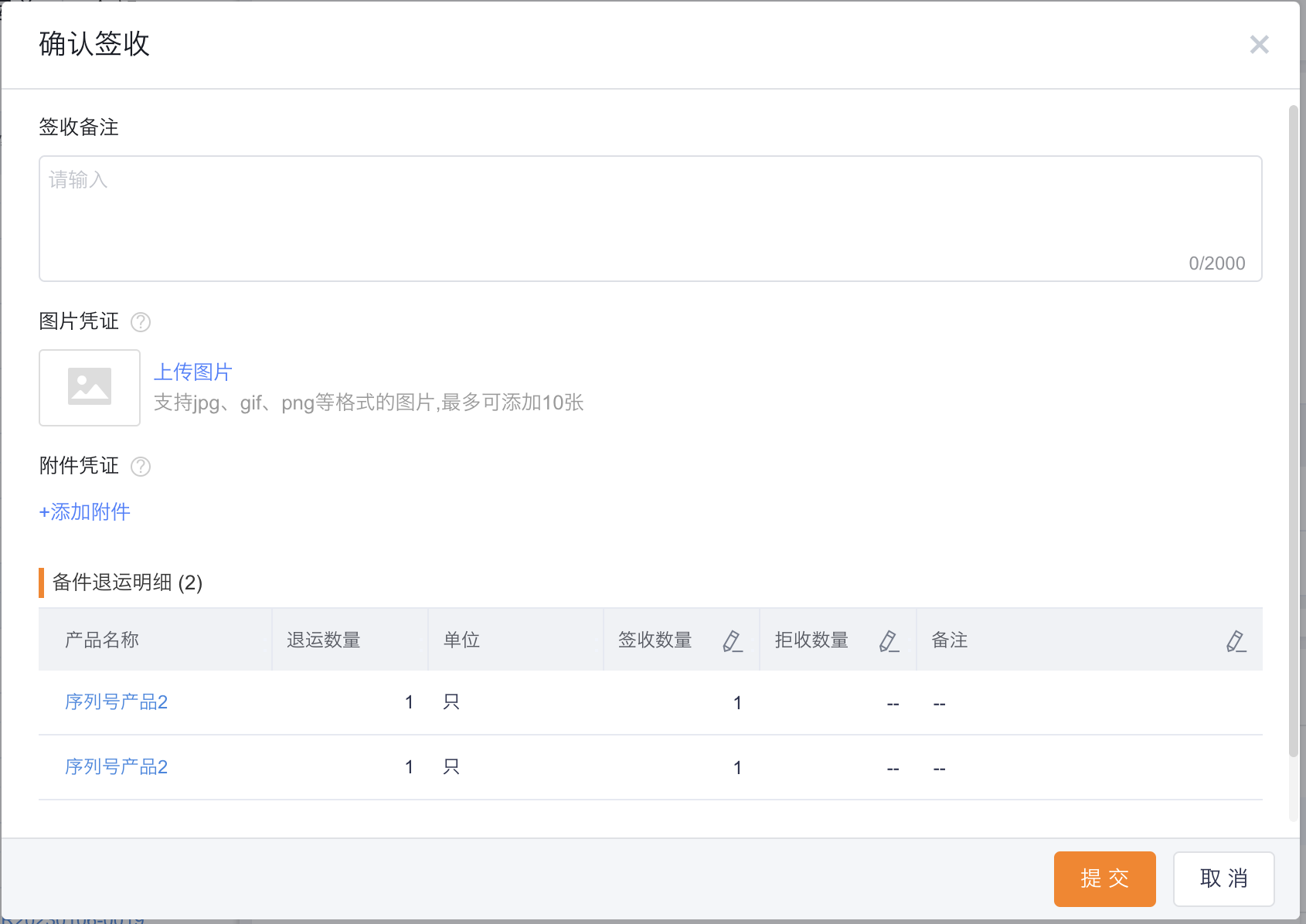
After signing for the goods, the inventory in the target warehouse increases.
Expected results and verification
- The work order can view the current spare parts consumption; in normal/advanced mode, the source inventory quantity is reduced simultaneously.
- After confirming the return order in advanced mode, the corresponding outbound order or return order can be found.
- After the return shipment is signed for, the inventory in the target warehouse increases, and the source inventory is no longer deducted repeatedly.
Notes
- Simple mode only records consumption and does not generate inventory flow.
- The selection ranges for return of application parts and return of inventory parts are different. Do not use personal library details to replace application details.
- When you are in advanced mode but cannot see the return entrance, first confirm that the new version of spare parts consumption is enabled.