Appearance
Configure customer service portals
Configure portals that accept work orders from employees, customer service agents, and external end users.
Overview
Enterprises can provide different work order acceptance portals for internal employees, customer service personnel, and external end users. Administrators need to configure work order object permissions, business types, application menus or customer self-service portals based on usage roles. The permissions and channel configuration of one portal cannot be directly applied to other portals.
| User | Entrance | Main configuration |
|---|---|---|
| Sales representative, general employee, dispatcher | CRM web or app | Work order object permissions, work order business type, and web or mobile menu |
| Online customer service, 400 customer service | Customer service workbench | Work order object permissions, work order business type, access channel expansion column |
| External end users | WeChat service account or WeChat applet | Registration and login, business objects and role permissions, portal page, WeChat channel |
| External end users | H5 links | Mobile portal views and links in public portals |
| External end users | Web client service site portal | Independent web service portal; this capability is a grayscale item |
Before you begin
- Use a service pass administrator or an account with object permissions, application menu, Internet application and channel configuration permissions.
- The work order business types, fields and new/edit page layout that need to be opened have been configured.
- Prepare test accounts for each type of user; for external end-user scenarios, you also need to prepare test contacts and mobile phone numbers.
- The WeChat entrance requires an available WeChat service account or mini program channel.
Configure an intake entry for internal employees
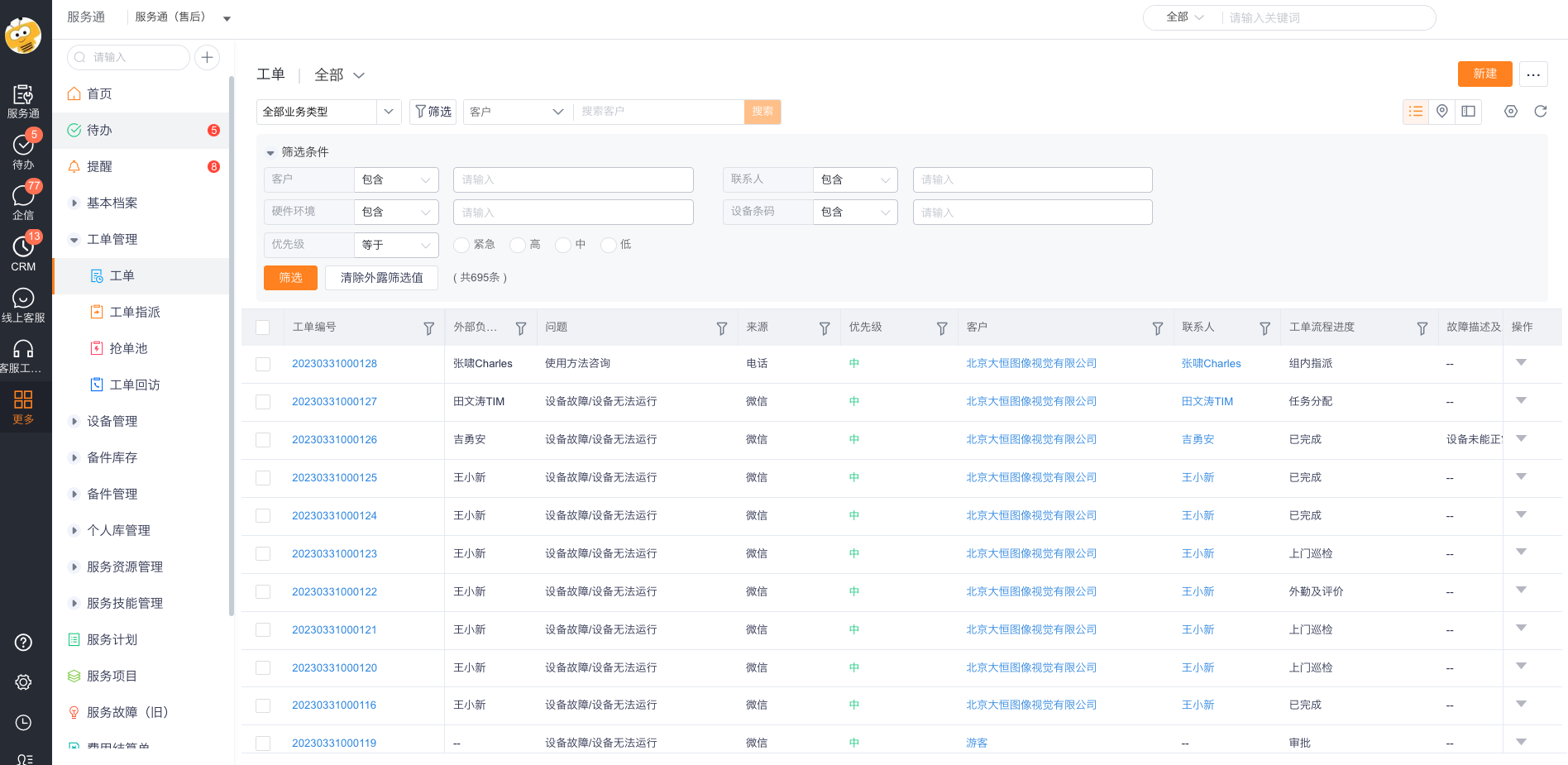
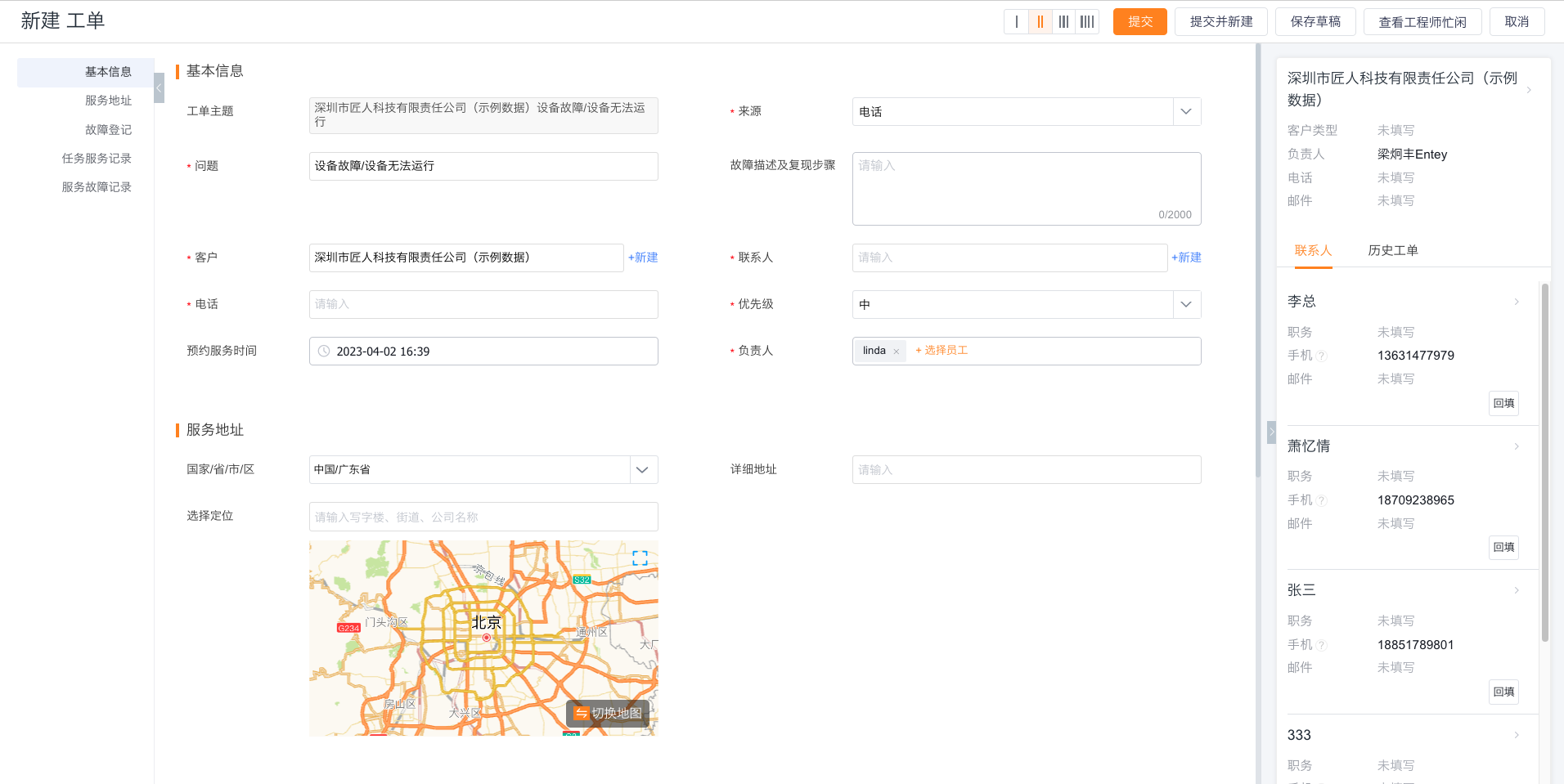
Use this entry when sales representatives, general employees, or dispatchers create work orders for customers in the CRM web client or app.
- Assign necessary permissions to employees or roles to create new work order objects, view lists, etc.
- Assign the work order business types allowed to the role.
- Configure the web and mobile menu entrances in the CRM application or Service Manager application.
- Use the target role to verify the object entrance, business type and page layout respectively.
Configure customer service-assisted intake
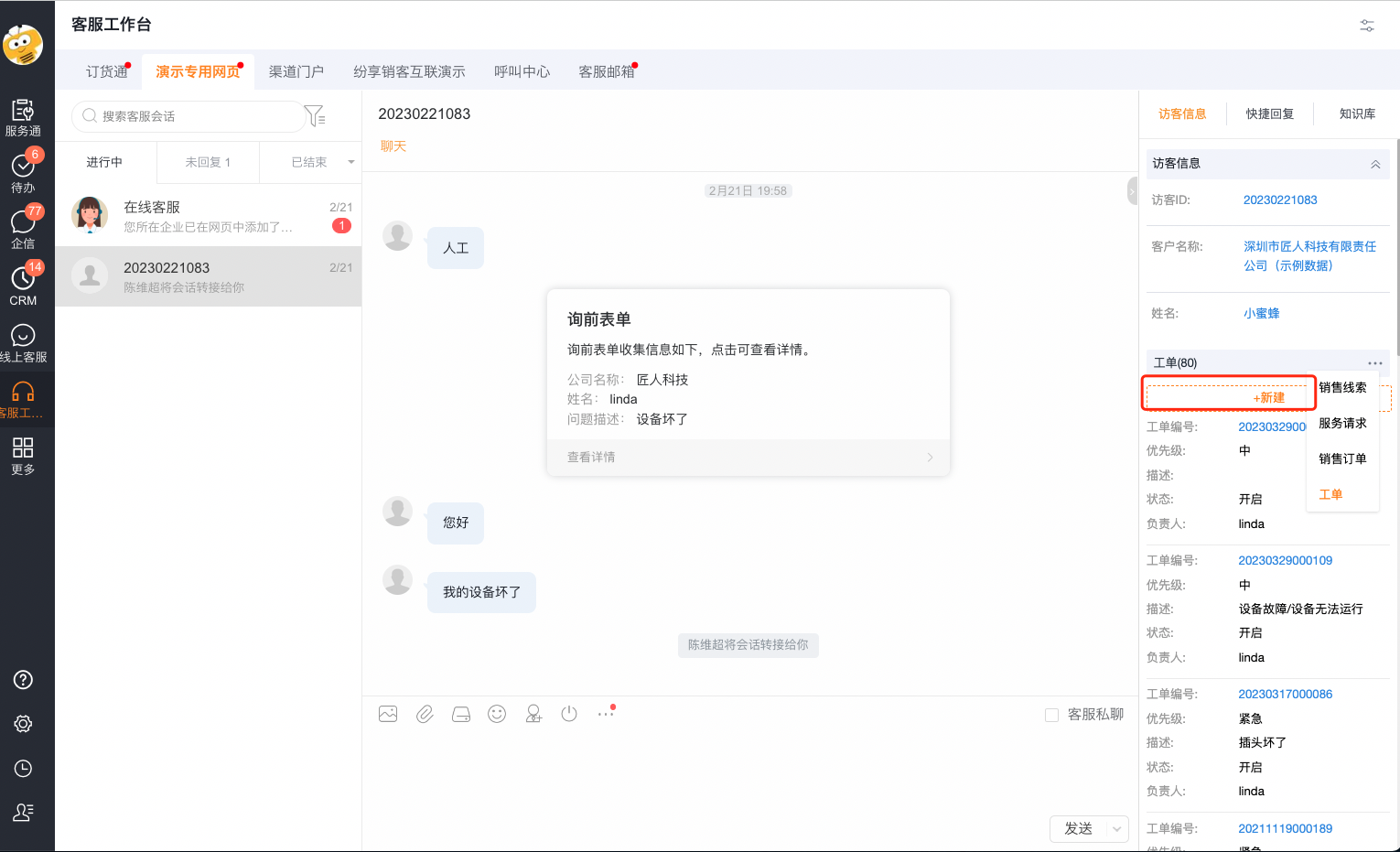
It is suitable for end users to report problems through online consultation or 400 calls, and then customer service staff will submit work orders on their behalf at the customer service workbench.
- Assign necessary permissions to customer service staff or roles to create new work order objects, view lists, etc.
- Assign the allowed work order business types to the customer service role.
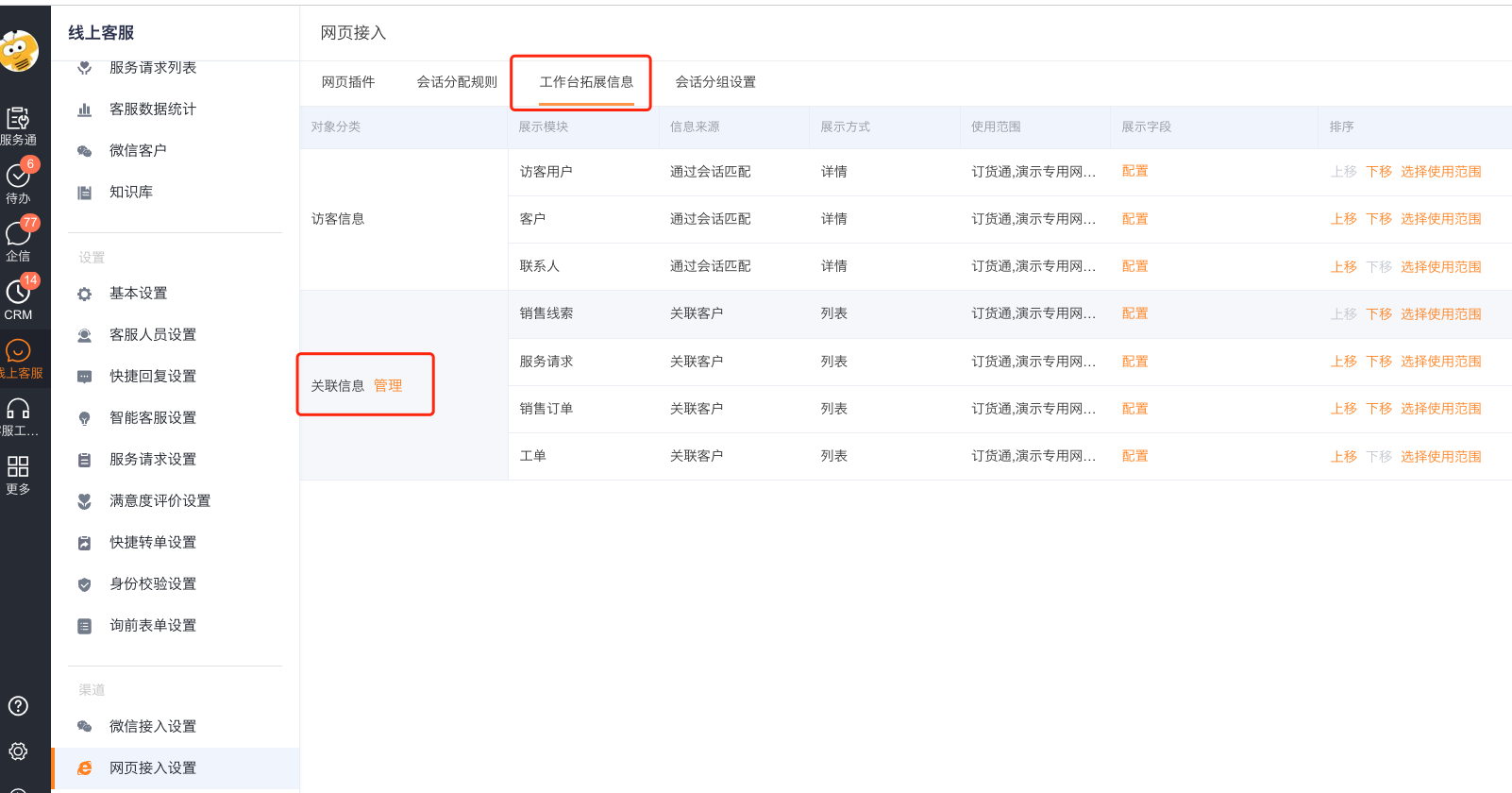
- Enter Online Customer Service > Access Channel Settings > Extension Bar and configure the work order object to the customer service workbench.
- Use the customer service account to enter the workbench from the target access channel and verify whether a work order can be created.
Configure the mobile customer self-service portal
The mobile self-service portal is used to organize entrances such as bills of lading, inquiries, equipment and knowledge base visible to end users. The system has preset portal pages, and administrators can edit or create new portal templates.
Enter the Terminal User Service Channel from any of the following entrances:
- Service Pass > System Settings > Full Function Configuration > End User Service Pass > Application Homepage App.
- Internet Management > Internet Application > End User Service Pass.
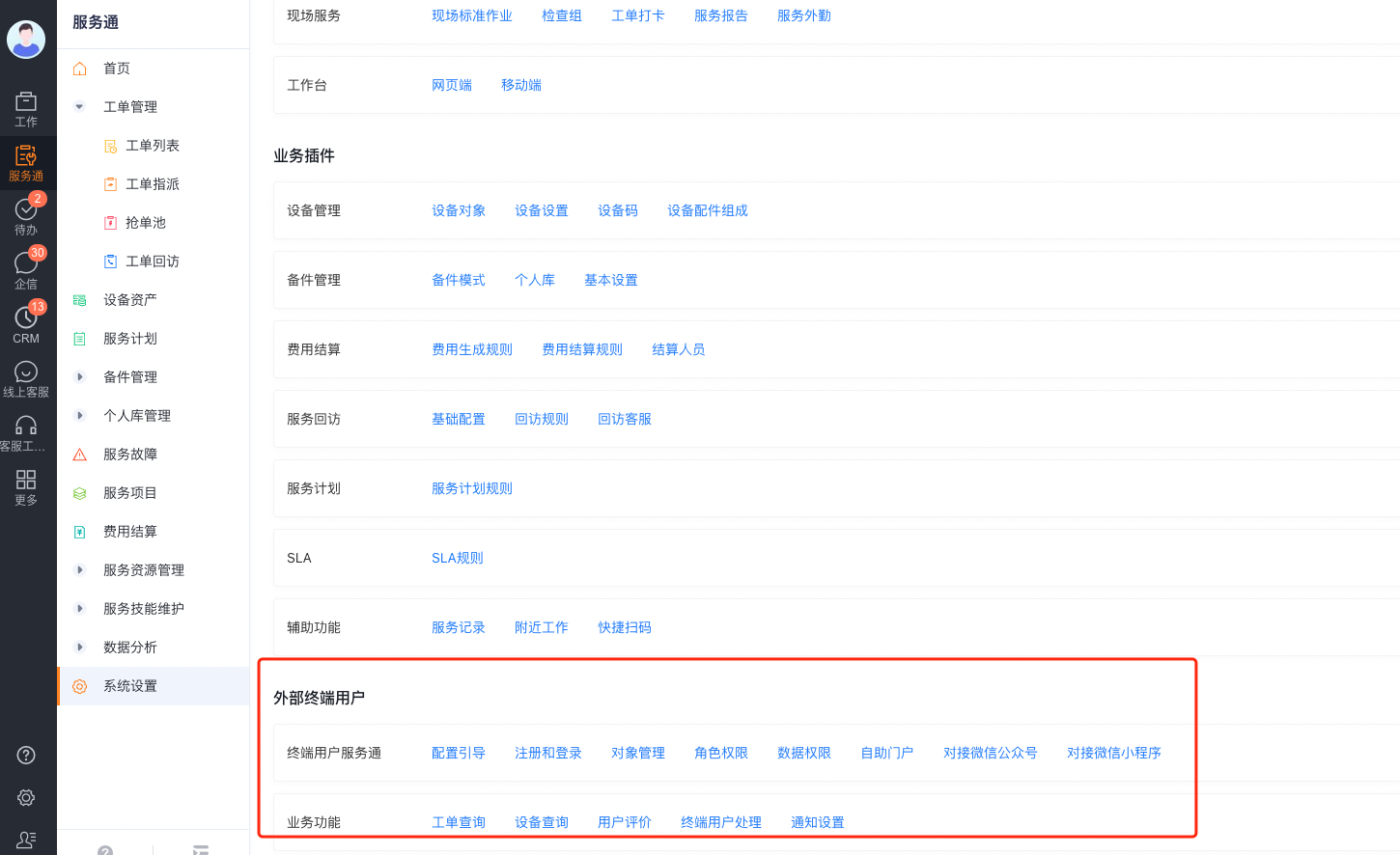
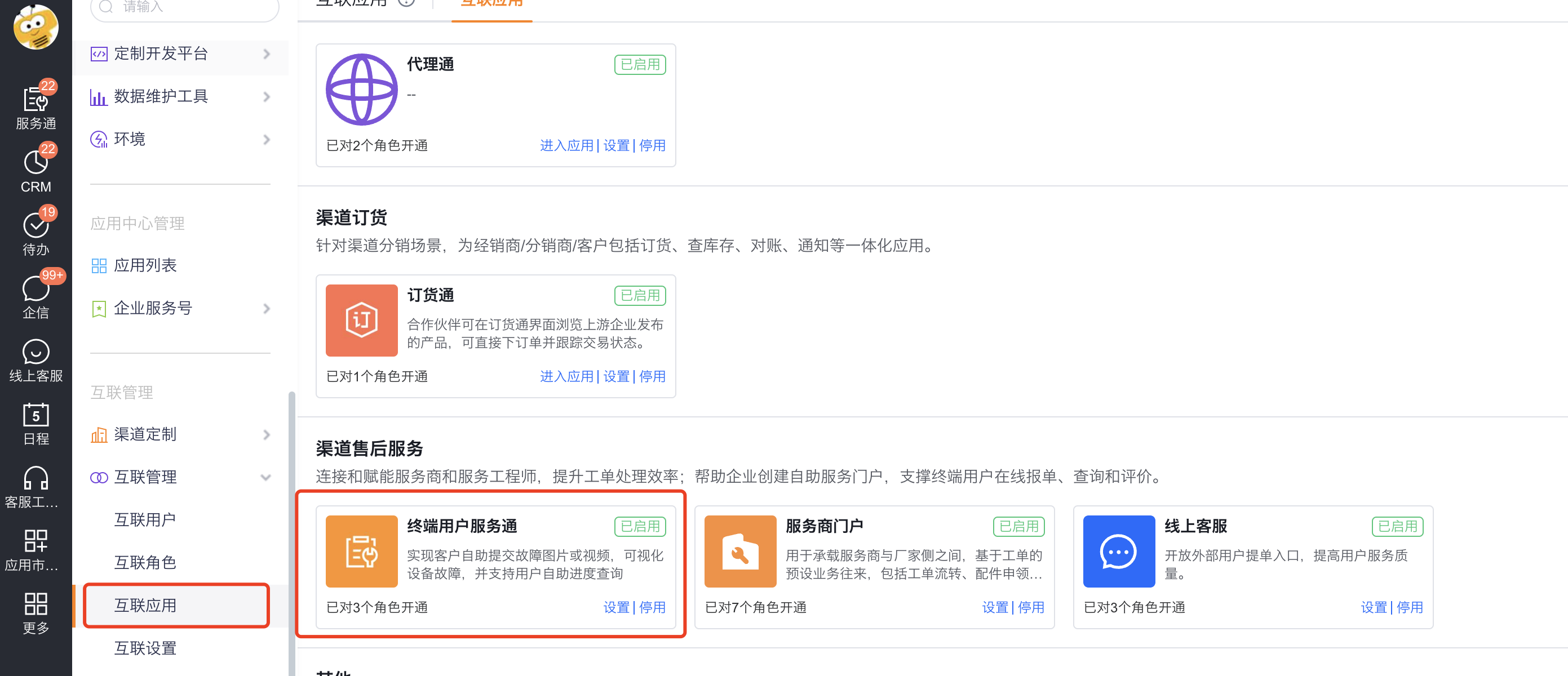
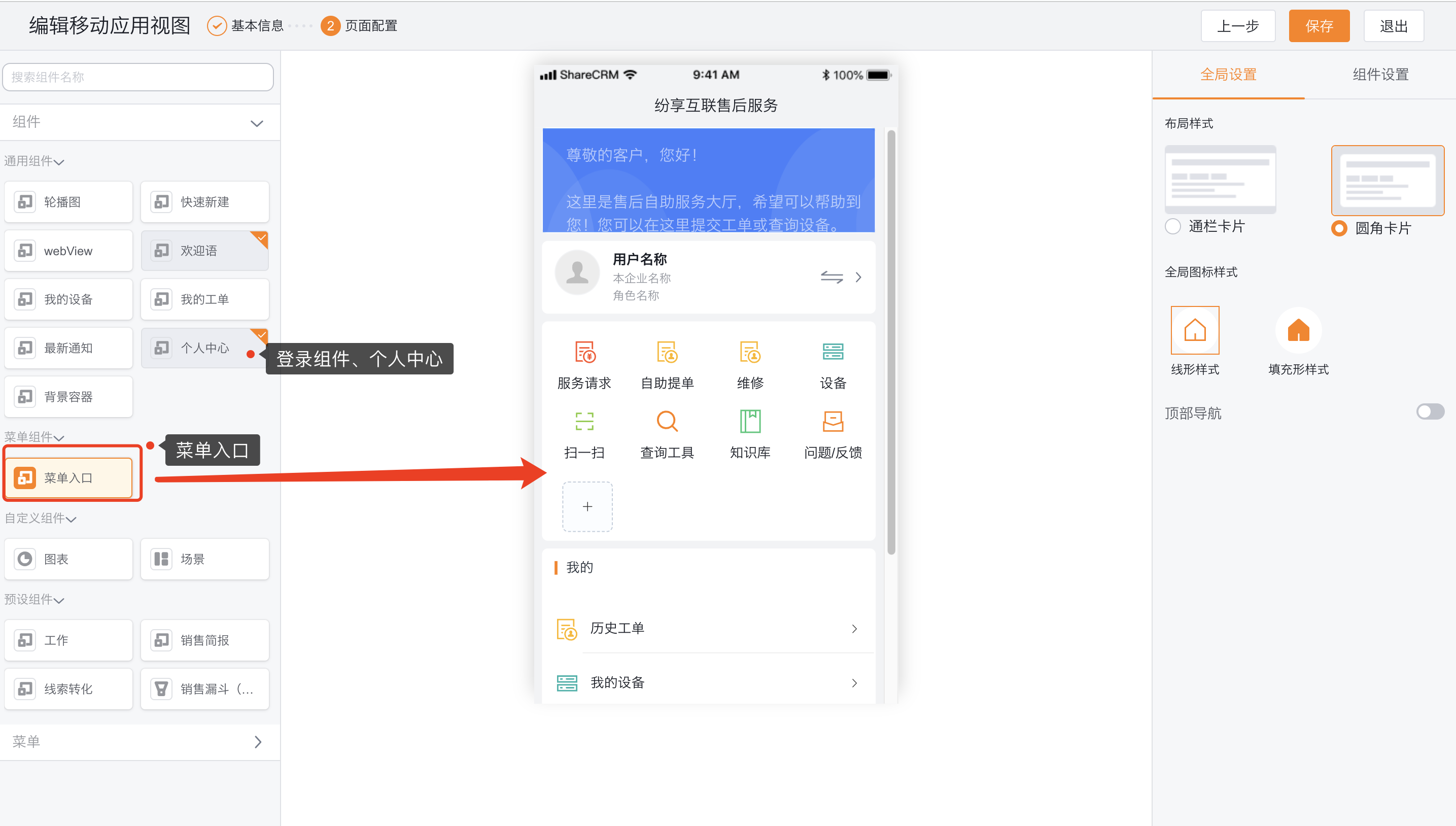
Add or edit portal pages in the mobile view.
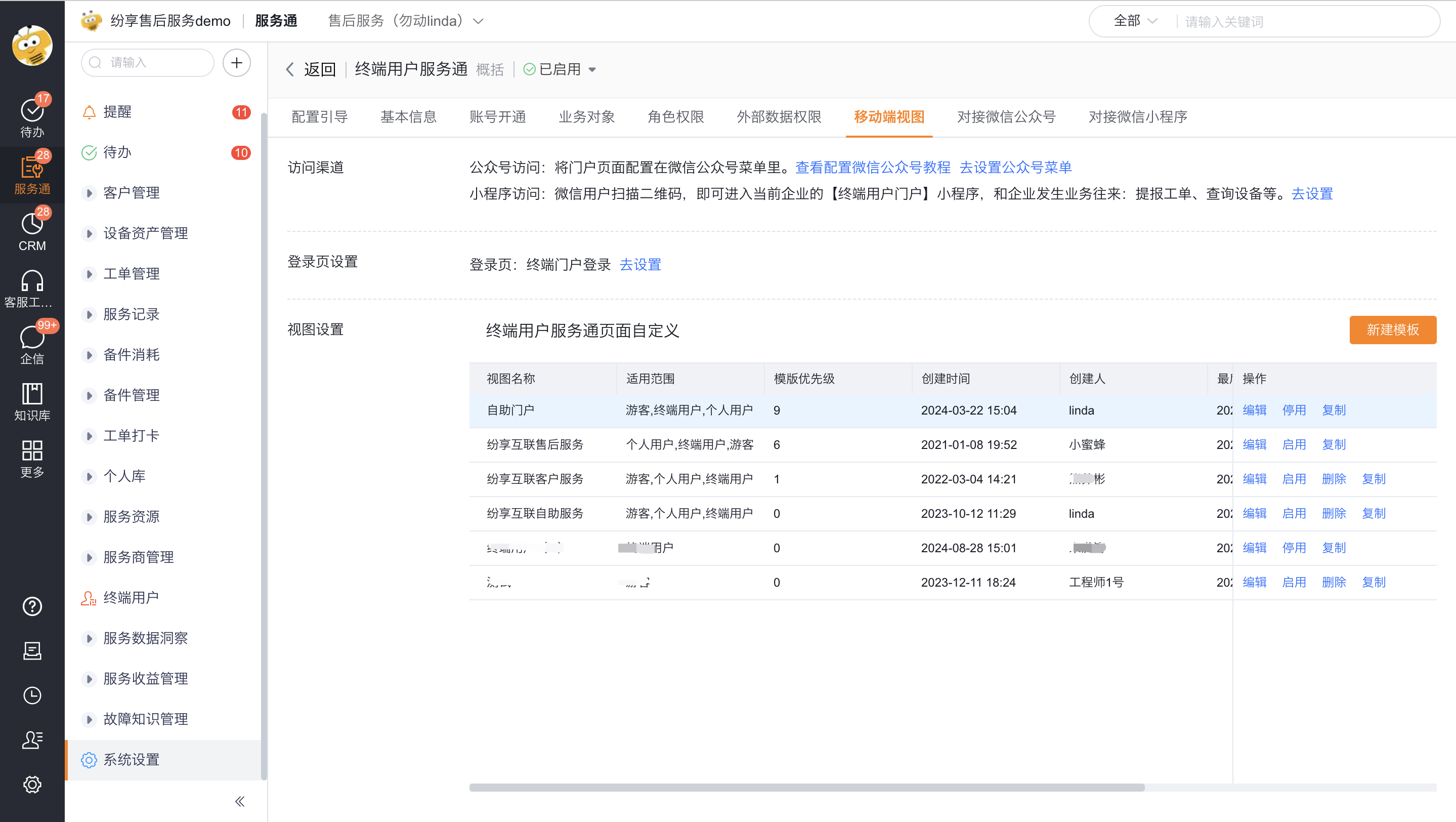
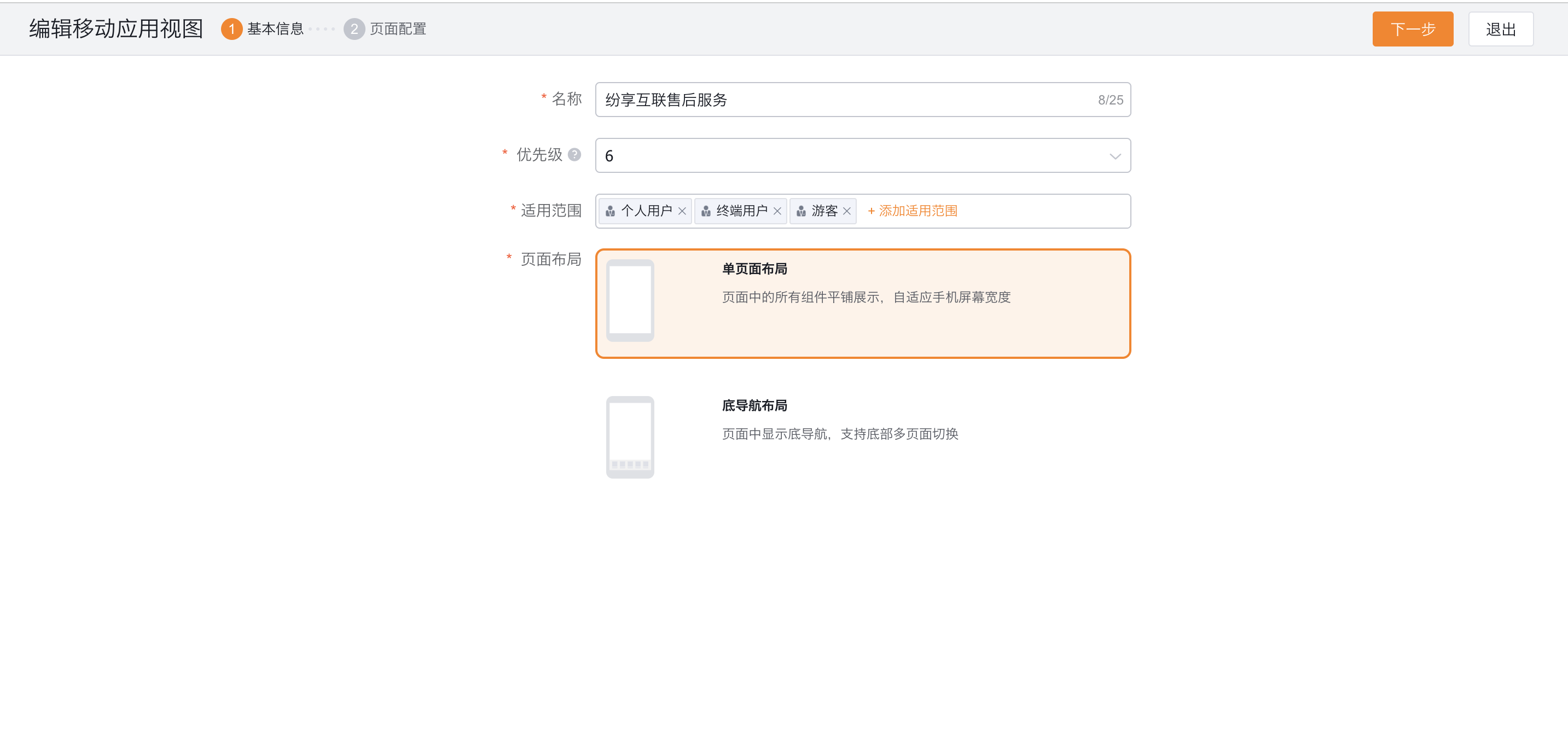
Click Edit to set the template name, priority and applicable roles.
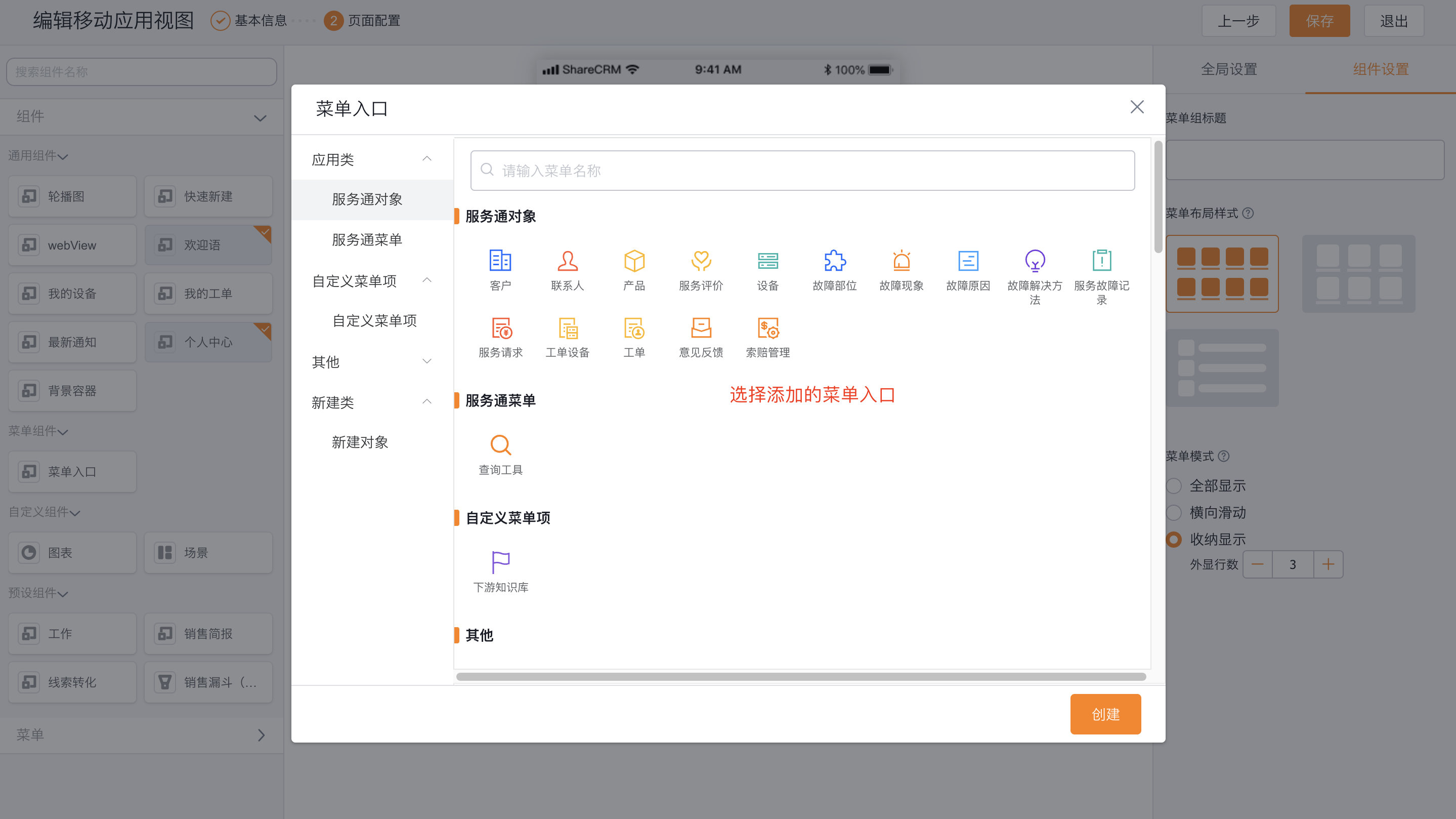
Open the page configuration. Add components, menus, or business-object entries as needed, then save the page.
Configure WeChat service account entrance
End users can enter the self-service portal from the corporate WeChat public account menu or directly submit and query work orders.
Bind at least one WeChat official account.
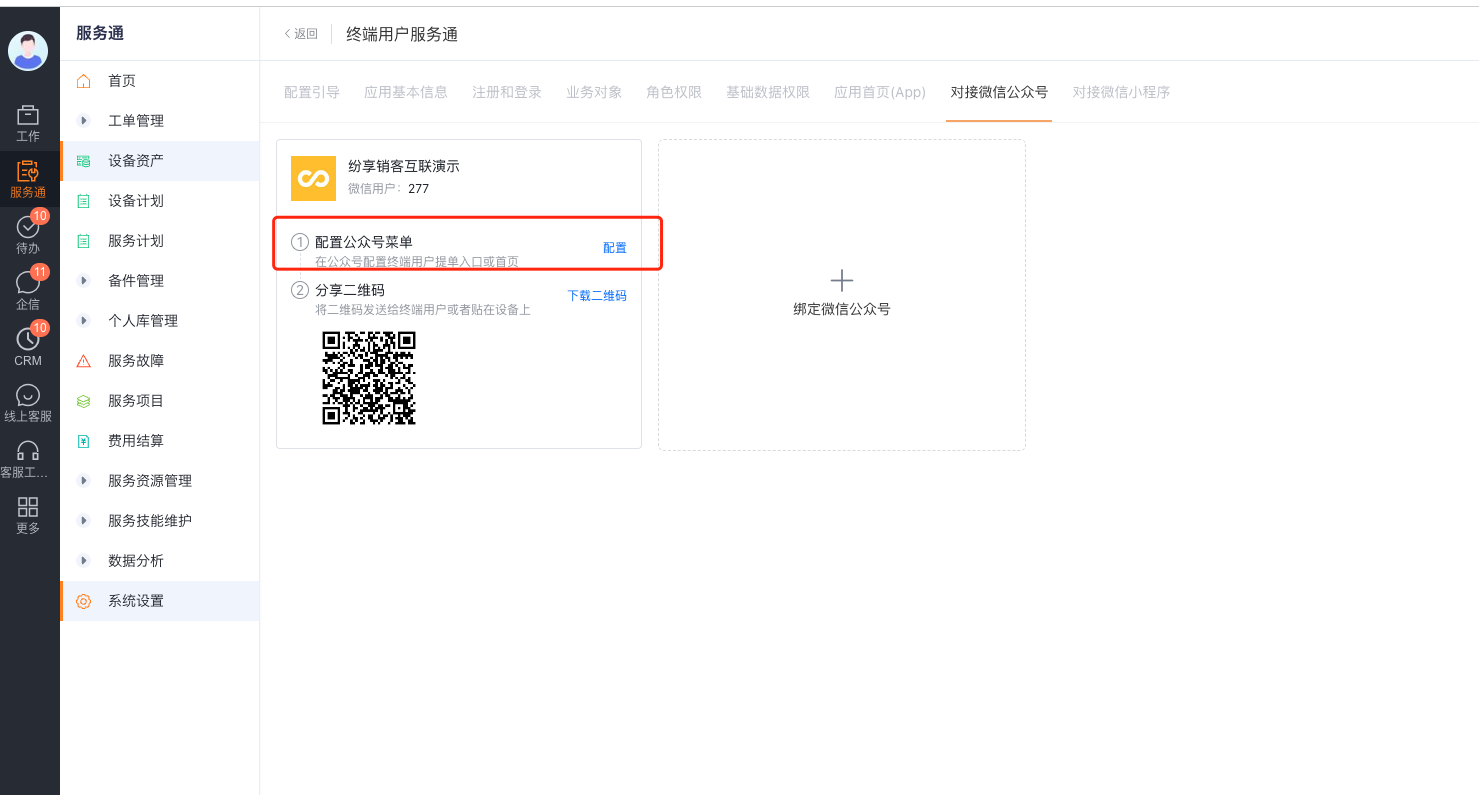
Enter Service Pass > System Settings > Full Function Settings > End User Service Pass > WeChat Service Account.
Configure the entrance in the official account custom menu, select Menu Response > Connect Application, and select Service Pass-End User for the application.
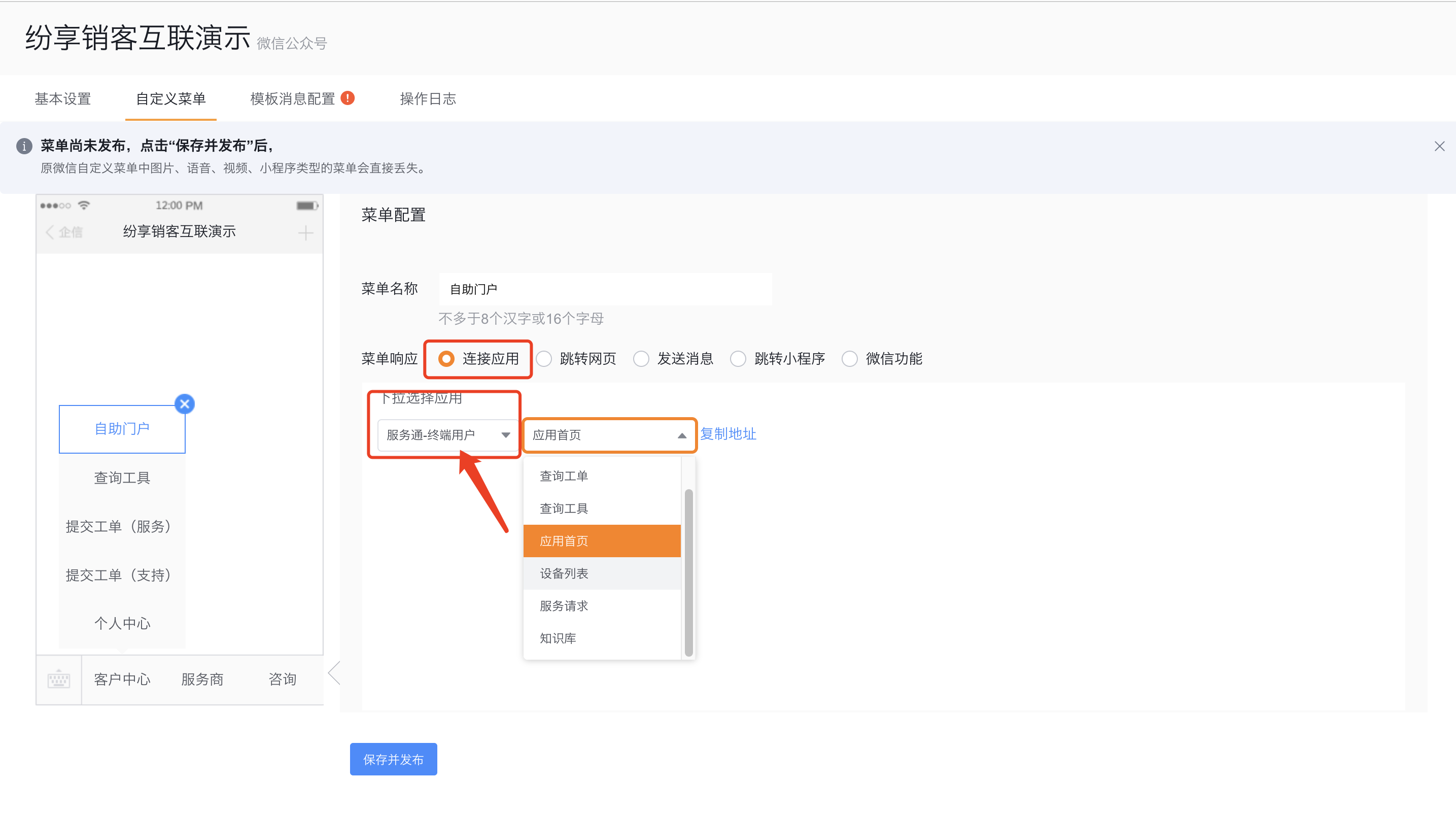
Select the menu according to business needs:
Menu Actions that users can perform Application home page Enter the self-service portal page Query tool Quickly query configured information Submit a work order Create a work order. Query work orders View the work order list. Device List View Device List Service Request New Service Request Knowledge base Query knowledge base content 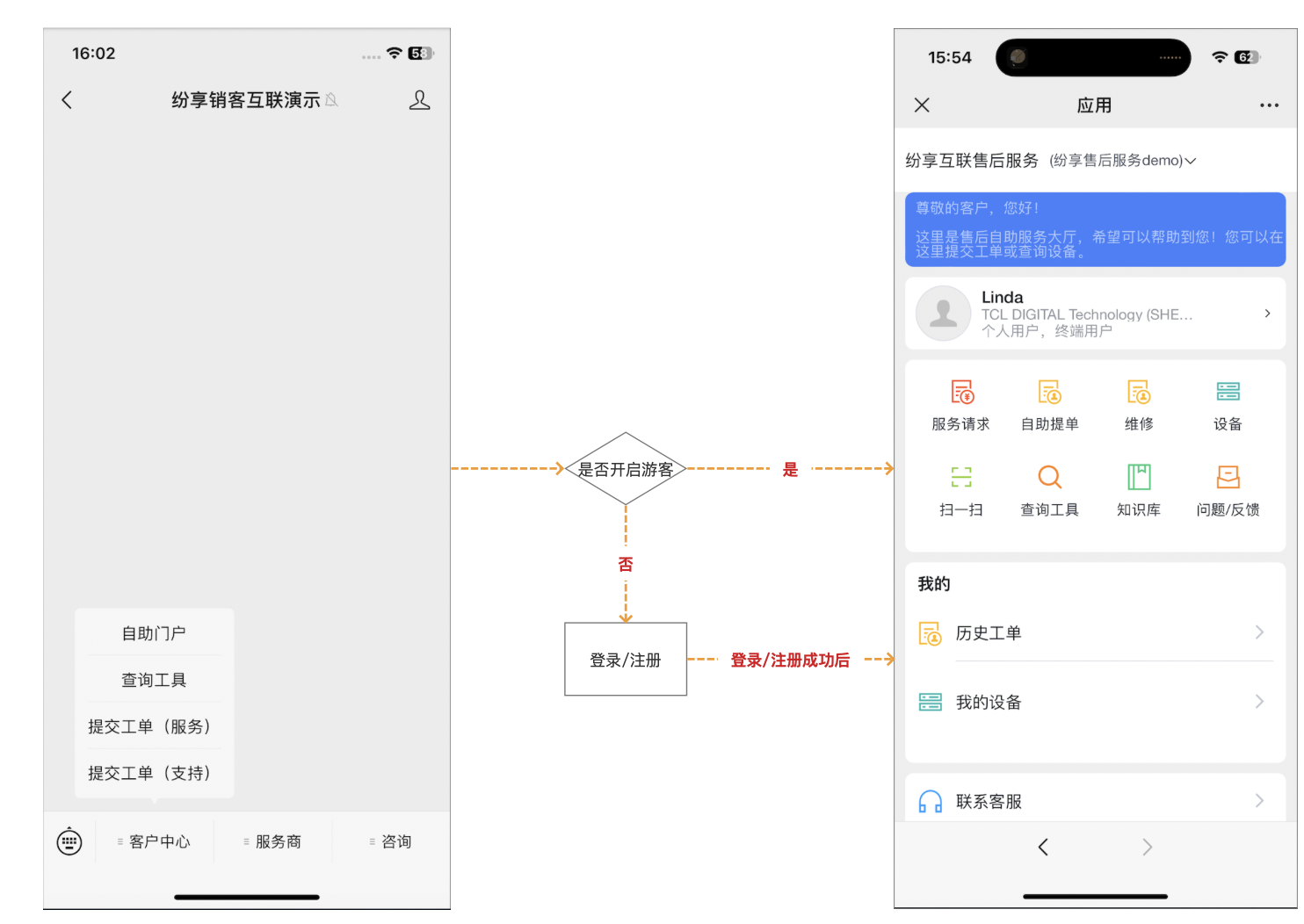
Provide the service number QR code to the end user, and use the test user to complete registration, login and bill of lading verification.
If the outsourcing service provider also needs to submit work orders by itself from the WeChat side, it should use another WeChat service account. It is not recommended to share the same service account with the end user.
Configure a WeChat Mini Program entry
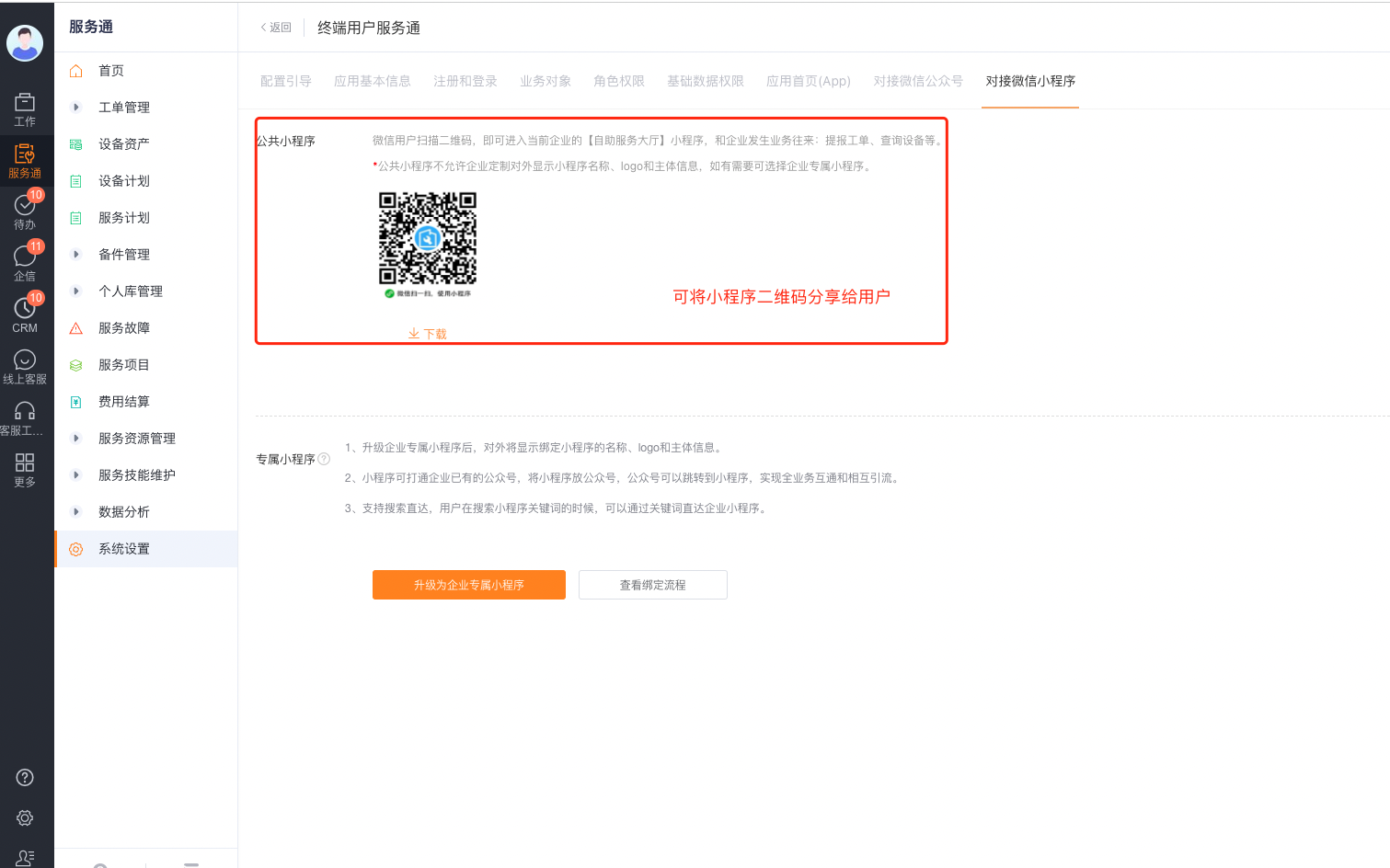
A WeChat Mini Program can open the portal directly. The system provides a public Mini Program, and companies can also use a dedicated Mini Program.
- Complete access to public mini programs or exclusive mini program channels.
- Provide the applet code to the end user or post it near the service equipment.
- Use the end user account to scan the QR code to verify the portal, business type and page layout.
Configure H5 link entrance
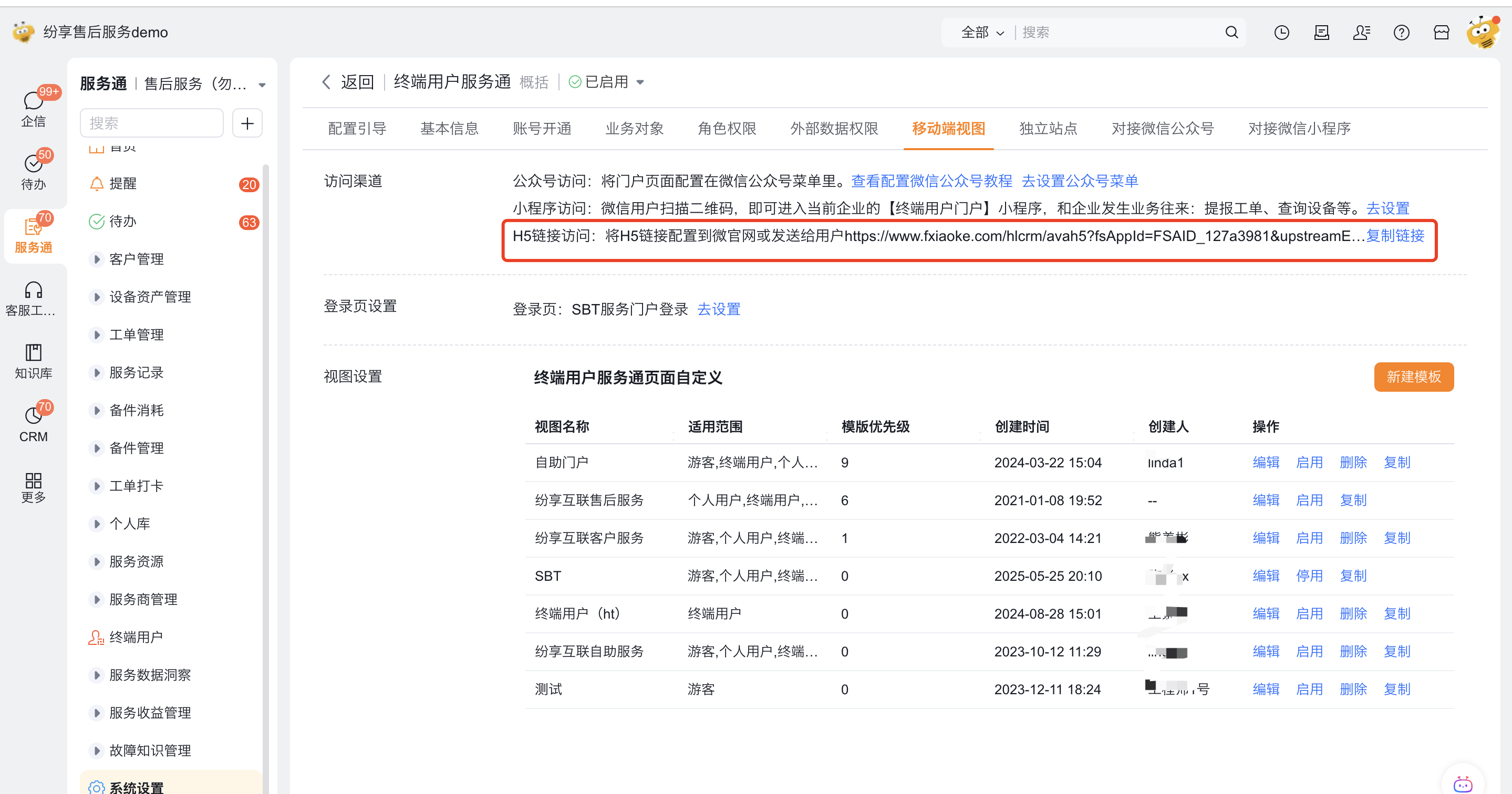
- Enter Service Pass > System Settings > Full Function Settings > End User Service Pass > Mobile View.
- Copy the portal link.
- Configure the link to the official enterprise mobile website or other public menus.
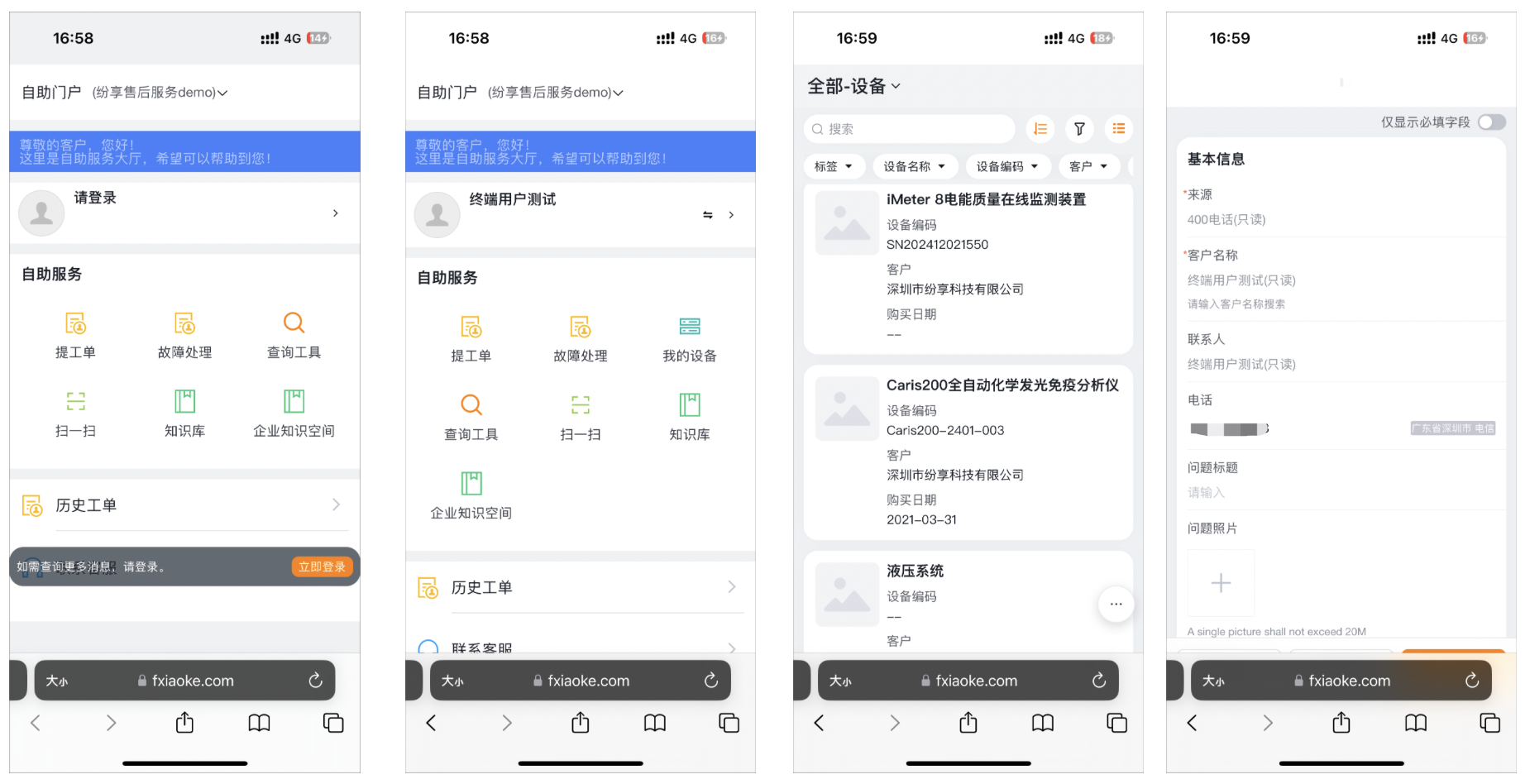
- Use the end user test account to access and submit a work order from the target portal.
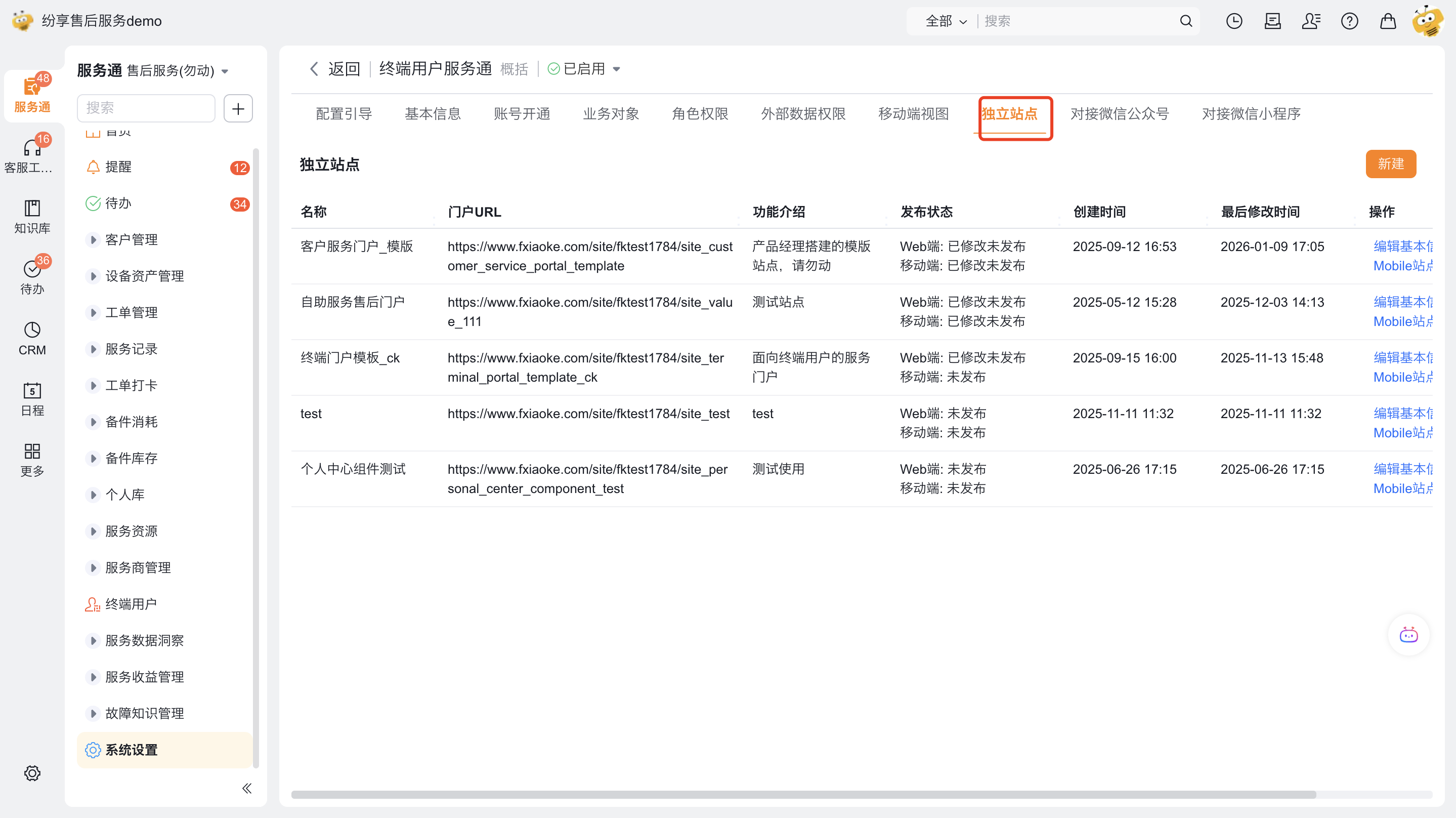
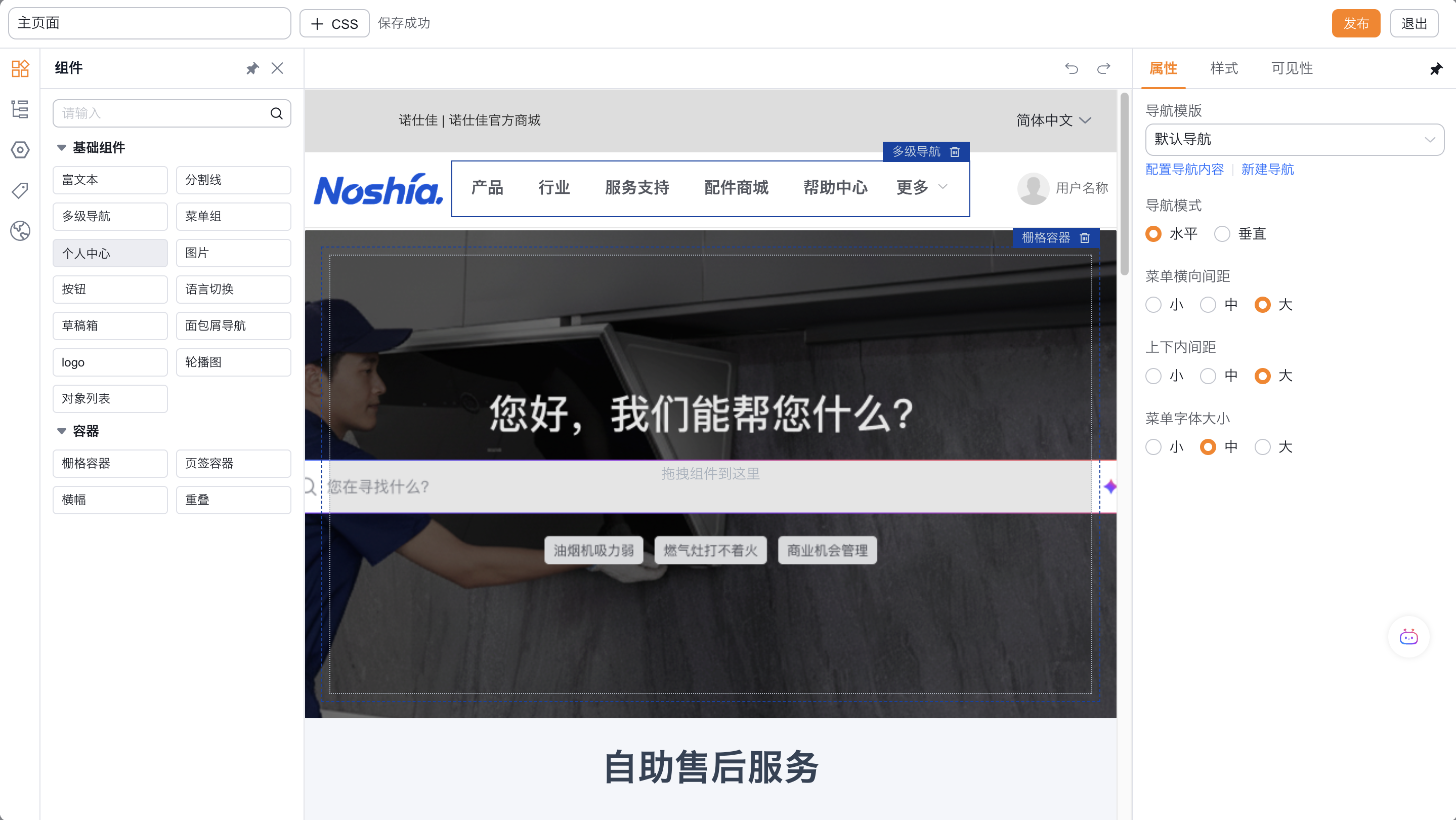
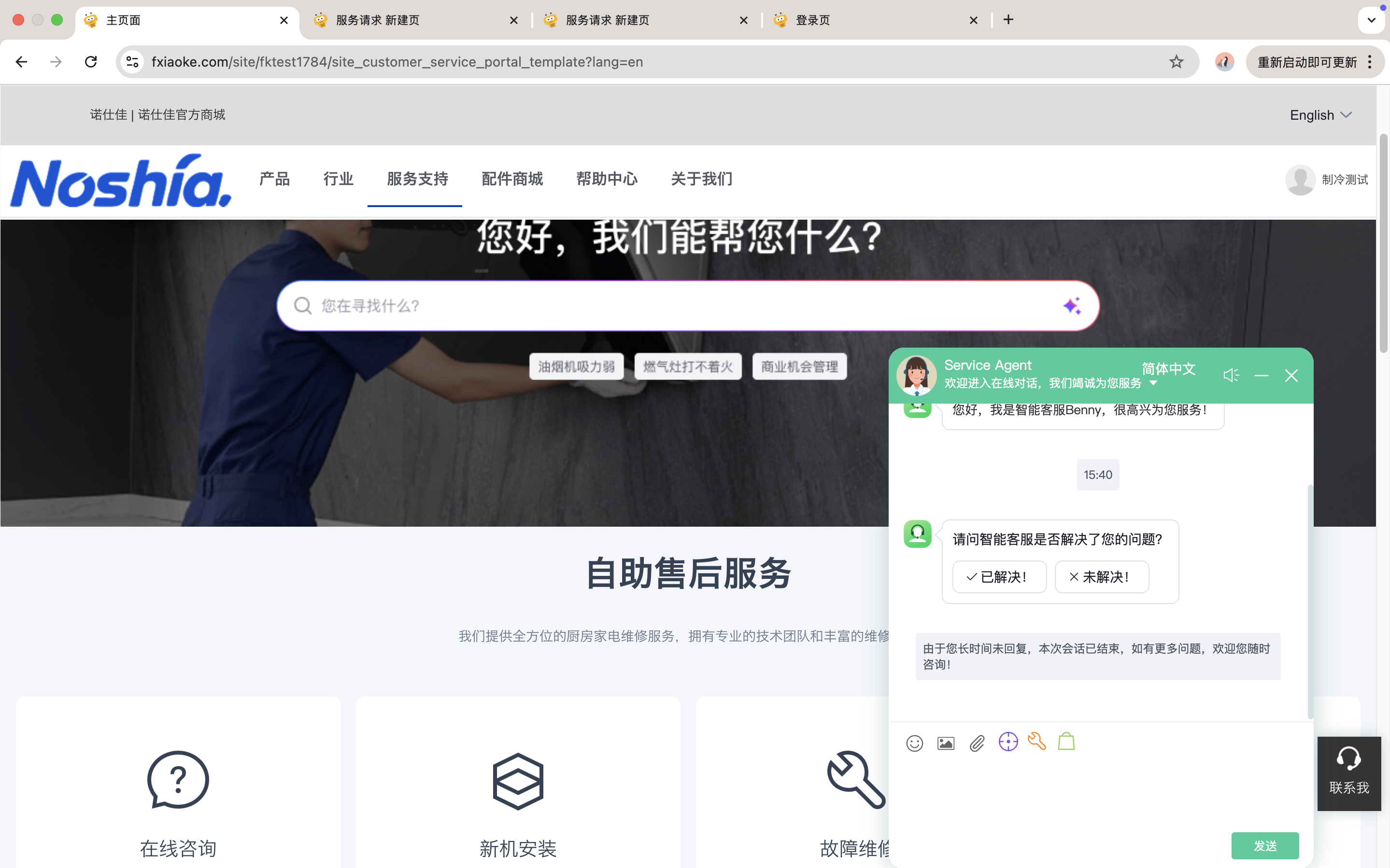
Configure the web client service site portal (grayscale)
The customer service portal supports an independent web site, which can be used to submit work orders and query data on the web. This capability is marked as grayscale in the source material and should not be considered enabled by default for all enterprises.
- First confirm whether the current enterprise has opened a web-based customer service site portal.
- Configure the web portal page and available business entrances in the Terminal User Service Channel.
- Use the end user test account to verify the web page bill of lading and query range.
Expected results and verification
- Use each type of target role to enter the service channel from the corresponding entrance.
- Check whether the visible menu, work order business type, and new page layout comply with the role configuration.
- Create a test work order. Check the account, contact, source, and business type.
- Verify registration, sign-in, submission, and query entries for WeChat, H5, and web portals. Don't assume that all platforms support the same capabilities.
Notes
- When the object permissions, business type, menu and channel configuration are missing, the target role may not be able to see the entrance or be unable to create a new work order.
- External terminal users need to separately configure registration login, business object and role permissions, and cannot directly inherit internal employee permissions.
- The web customer service site portal is a grayscale capability, and you need to confirm that the enterprise has activated it before configuring it.
- H5, QR codes and web portal addresses may contain directly accessible links, and screenshots in public documents need to be desensitized.
- Other channels such as automatic transfer of emails to work orders and equipment codes use independent rules, see related topics.