Appearance
Configure offline work orders
Configure offline work orders to support engineers in processing tasks in a non-network environment.
Overview
Offline rules control which work orders and related data engineers can download, record limits, and included files or images. Service Pass creates a disabled Work Order Offline Data Package rule during initialization. Review it before activation.
Before you begin
- Use an administrator account that can access the System Settings or Management Backend Offline Rules page of Service Pass.
- Confirm that internal personnel who need to use offline work orders are associated with the "Service Engineer" role. The default rules will also filter work orders in which the current logged-in person participates as a service engineer or co-engineer.
- Confirm that the work order process uses on-site standard operations. Even if a work order without an SOP instance is downloaded locally, the Execute Standard Operation button will not be displayed.
- First identify the data that must be viewed or filled in offline, especially pictures and files. The larger the download range, the larger the data package.
Configuration logic
| Configuration items | Rules |
|---|---|
| Rule matching | Match according to the people, departments and roles associated with the current user, and only display the rule with the highest priority to the user |
| Priority | The value ranges from 0 to 9. The larger the number, the higher the priority; if they are the same, the rule with the latest creation time will be used |
| Actual download range | Intersection of offline rule filtering results and current user data access permissions |
| Main object | A rule can only select one main object |
| Single object download limit | Maximum 2000 items; default value is 500 items |
| Data interception | The default is in descending order of creation time. When combined with the download limit, it means downloading the specified number of recently created records |
| Files and pictures | You can select all, none, or just one of the files or pictures |
| Editable range | In the saved rules, except for Applicable Application and Main Object, other configurations can be updated |
IMPORTANT
Offline rules support platform applications and internal users. Connected applications and external users are not supported.
Configuration steps
1. Enter the offline rule list
You can use any of the following entrances:
- Quick entry: Service Pass > System Settings > Full Function Configuration > Auxiliary Functions > Offline Work Order.
- General entry: Admin Console > CRM Platform Management > Object Management > Offline Rules.
Find the system initialized Work Order Offline Data Package in the rule list. This rule is disabled by default.
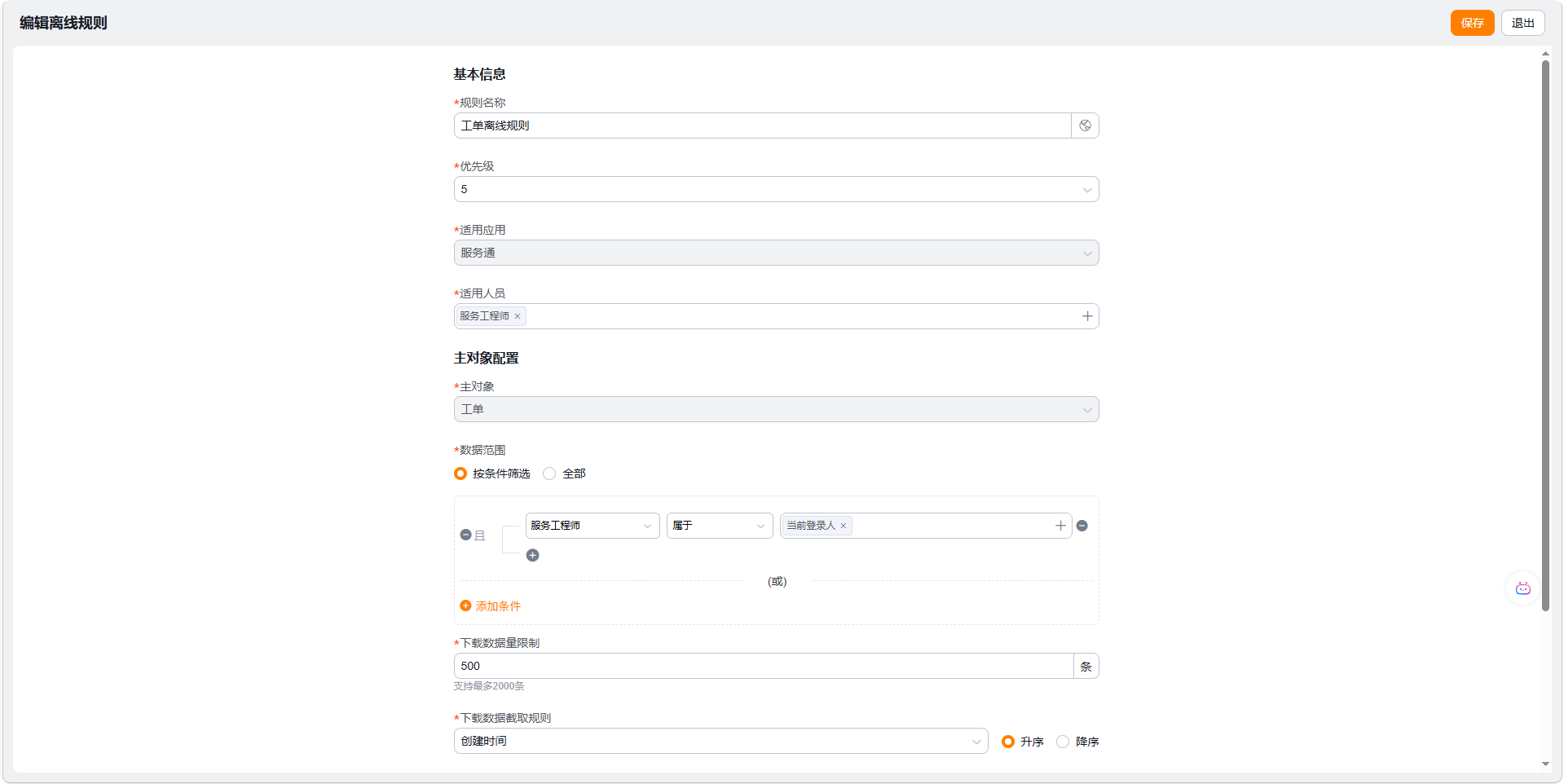
2. Configure basic information and main objects
- In the offline rule list, edit Work Order Offline Data Package, or click New to create a rule.
- In the Basic Information area, fill in the rule name, and set the priority, applicable applications, and applicable personnel.
- In the Main Object Configuration area, select a main object and set the data range. The preset rules of Service Pass use Work Order as the main object.
- Set download data limit. The default is 500, and the maximum number of single objects cannot exceed 2,000.
- Set download data interception rules. The default field is creation time and the sorting is descending.
- According to the needs of offline operations, select whether the download record contains files and pictures.
3. Configure related objects
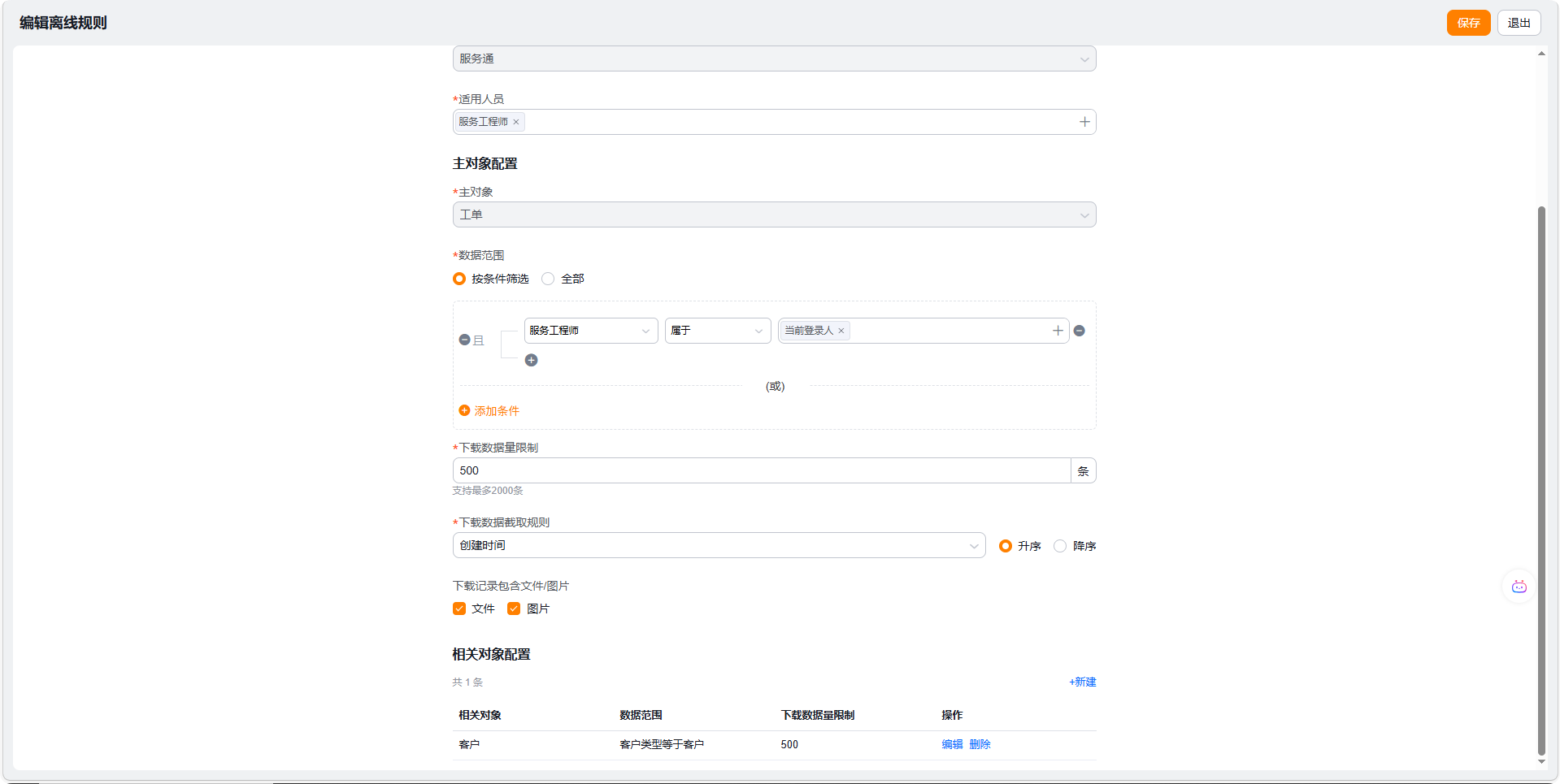
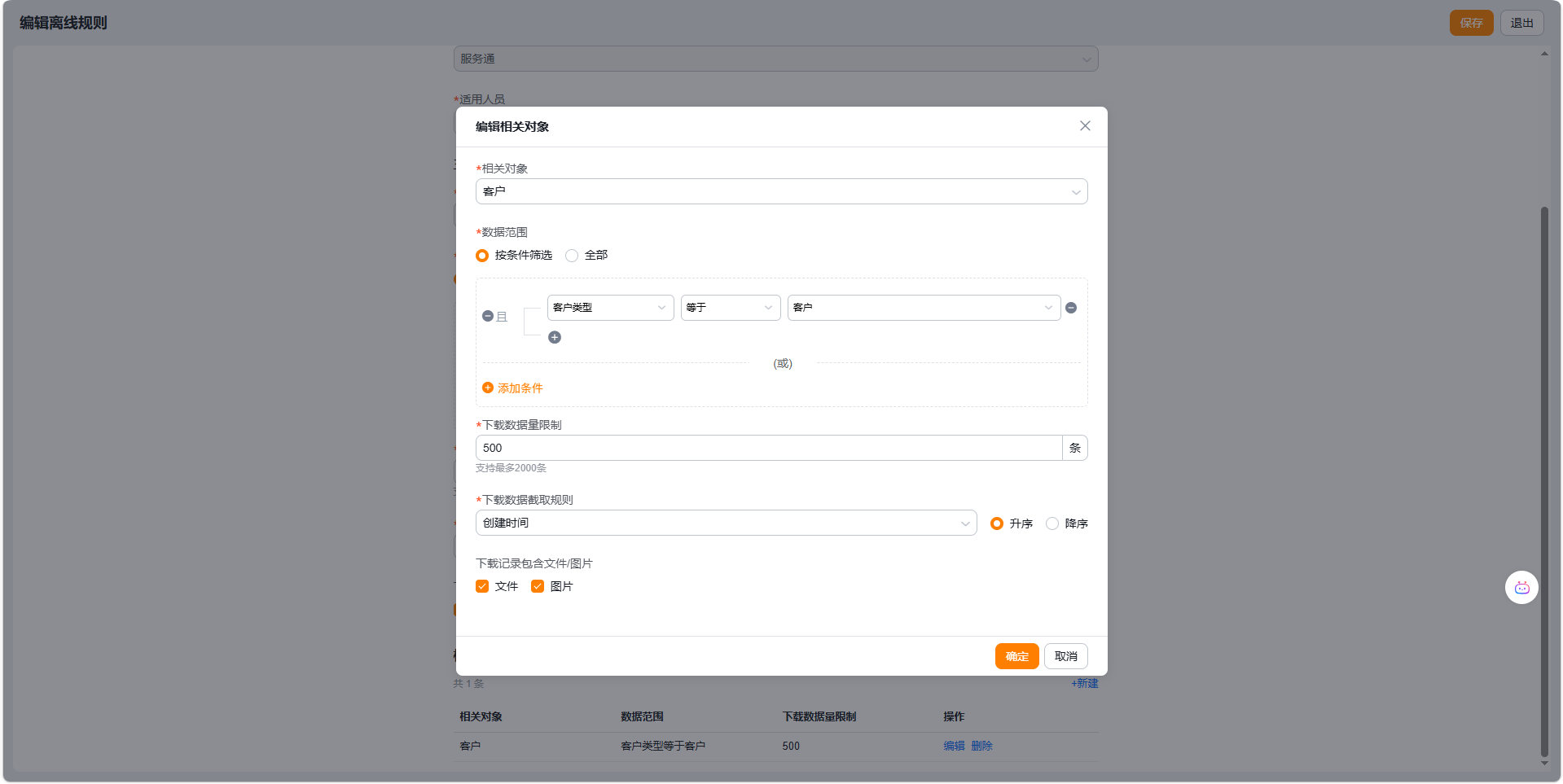
- In the Related Object Configuration area, click New.
- Select the related objects that need to be downloaded with the main object.
- Set the data range, download data limit, data interception rules, and whether to include files or pictures for the object.
- Click OK to return to the rule editing page.
- Repeat the above operations for objects that other offline jobs depend on.
4. Save and enable the rule
- In the upper right corner of the rule editing page, click Save.
- Return to the offline rule list and find the rule that needs to take effect.
- After confirming that the data scope, applicable personnel, and priority of the rule are correct, click Enable.
After the rule is enabled, engineers who meet the applicable personnel range can enter Offline Work Order > Download Offline Data Package on the mobile terminal. If the same user matches multiple rules, the mobile terminal only displays the one with the highest priority.
Preset rule parameters
Service Pass initializes the Work Order Offline Data Package rule with these values:
| Configuration items | Preset values |
|---|---|
| Status | Disabled |
| Rule name | Work order offline data package |
| Priority | 0 |
| Applicable Applications | Service Pass |
| Eligible Personnel | Service Engineer Role |
| Main Object | Work Order |
| Data scope | The service engineer or collaborative engineer is the current logged-in person, and the work order process status is in progress |
| Download data limit | 500 items |
| Download data interception rules | Creation time, descending order |
| The download record contains files or pictures | Both files and pictures are selected |
Preset related objects
| Object | Data range | Download limit | Interception rules | File or picture | Download logic |
|---|---|---|---|---|---|
| Work order equipment | Life status = normal | 2000 | Creation time, descending order | None selected | Also filtered by current user data access rights |
| Customer | Life status = Normal | 2000 | Creation time, descending order | None selected | Also filtered by current user data access rights |
| Equipment | Life status = Normal | 2000 | Creation time, descending order | None selected | Also filtered by current user data access rights |
| Product category | Life status = normal | 2000 | Creation time, descending | None selected | Also filtered by the current user's data access |
| Product | Life status = Normal | 2000 | Creation time, Descending order | None selected | Also filtered by current user data access rights |
| Inventory | Life status = Normal | 2000 | Creation time, descending order | None selected | Also filtered by current user data access rights |
| Employee personal database | Life status = Normal | 2000 | Creation time, descending order | None selected | Also filtered by current user data access rights |
| Personal database details | Life status = Normal | 2000 | Creation time, descending order | None selected | Also filtered by current user data access rights |
| Fault location | Life status = normal | 2000 | Creation time, descending order | None selected | Also filtered by current user data access rights |
| Fault phenomenon | Life status = normal | 2000 | Creation time, descending order | Do not select either | Also filtered by the current user's data access rights |
| Cause of failure | Life status = Normal | 2000 | Creation time, descending order | None selected | Also filtered by current user data access rights |
| Troubleshooting | Life status = Normal | 2000 | Creation time, descending order | None selected | Also filtered by current user data access rights |
| On-site standard operation instance | Life status = normal | 2000 | Creation time, descending | None selected | Download all data associated with the main work order, ignoring this row's limit and selection rules |
| On-site standard operation process example | Life status = normal | 2000 | Creation time, descending order | None selected | Same as above |
| On-site standard operation action example | Life status = normal | 2000 | Creation time, descending order | None selected | Same as above |
| Work order inspection group | Life status = normal | 2000 | Creation time, descending | None selected | Same as above |
| Work order check items | Life status = Normal | 2000 | Creation time, descending order | Pictures only | Same as above |
Expected results and verification
- Use a service engineer account that meets the scope of Applicable Personnel to log in to the Service Pass mobile terminal.
- Enter Offline Work Order > Download Offline Data Package.
- The confirmation page displays the expected rules; if the account matches multiple rules, the one with the highest priority should be displayed.
- Click Download to confirm the system calculates the data volume and displays the download progress.
- After the download is completed, enter Pending Work Orders and confirm that the visible work orders comply with the rules and the account's data access permissions.
Notes
- Check priorities before enabling. Adding new high-priority rules may cause engineers to no longer match the original rules.
- Applicable Application and Main Object cannot be edited after being saved. When adjustments are needed, new rules should be created and applicable personnel and priorities should be rechecked.
- Do not rely solely on the data range in the rule to determine the download result; records that engineers do not have access to will not be downloaded.
- On-site standard operation instances and their processes, actions, inspection groups and inspection items are completely downloaded according to the associated work order, and the download limit and interception rules within the line are not restricted.
- Pictures and files increase packet size. Select only the attachment types that must be viewed or filled out on site.