Appearance
Configure service report generation rules
Overview
Service reports can be triggered by work order SOPs, equipment SOPs, shortcut buttons, service process nodes or scheduled tasks. When configuring, you need to also determine the report subject, template selection method, trigger conditions, processor, and processing strategy when the template does not match.
Before you begin
- The service reporting feature is enabled and at least one service reporting template is created that matches the target principal.
- The applicability and priority of the template have been confirmed; when matching by rules, the system relies on these conditions to filter templates.
- Work orders, equipment and engineer accounts have been prepared for verification.
- For example, when configuring process nodes, confirm the process design permissions; when configuring shortcut buttons, confirm the work order function permissions and business button configuration permissions.
Configure work order service report
Add the action of generating service report in the work order SOP
- Edit the target work order SOP template and add the Generate Service Report action in the process where the report needs to be generated.
- Set the report subject as Work Order.
- Configure a specified template or a template matched by rules.
- Save the SOP template.
The work order service report can only be generated after the engineer completes all required actions in the SOP.
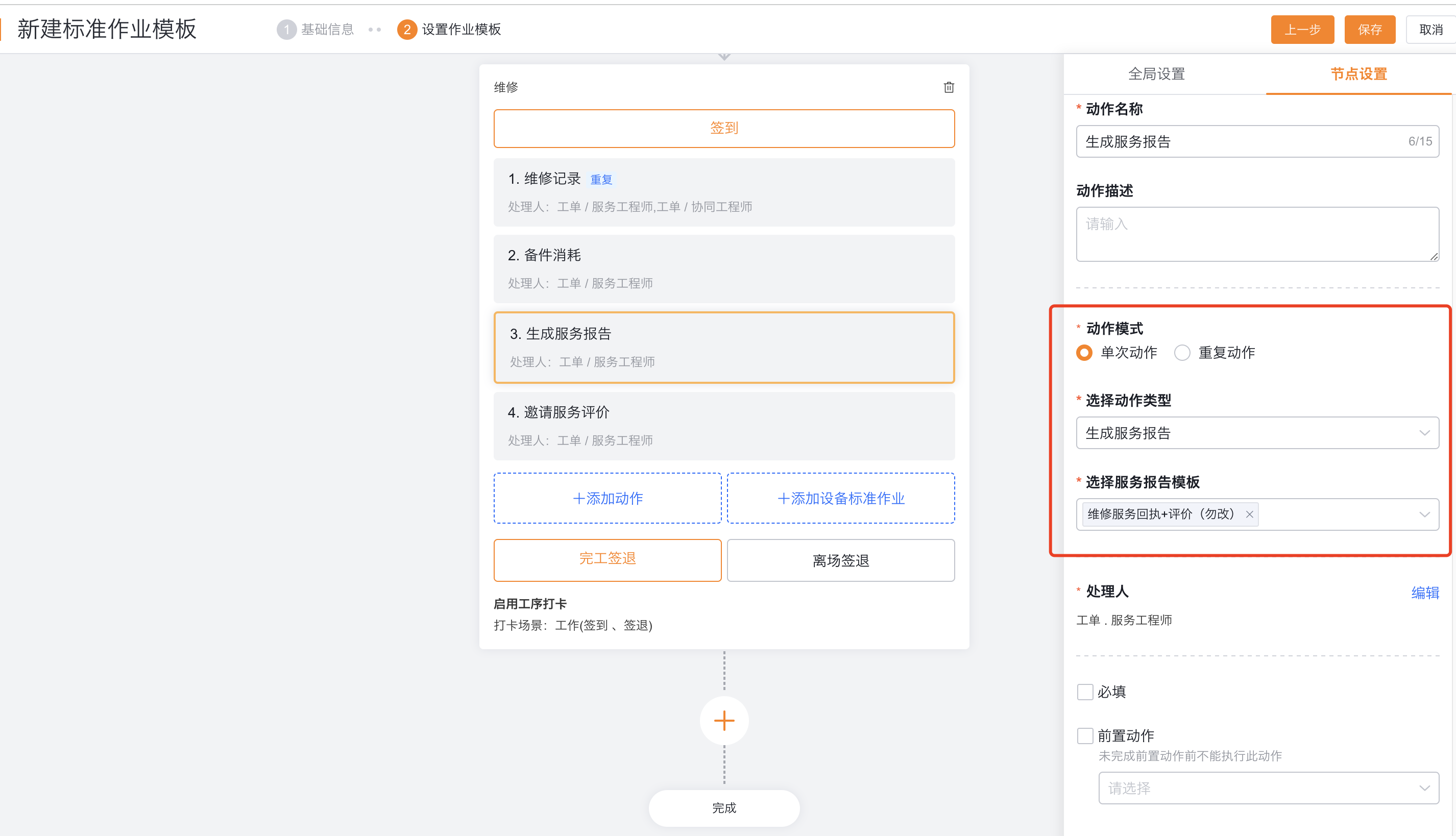
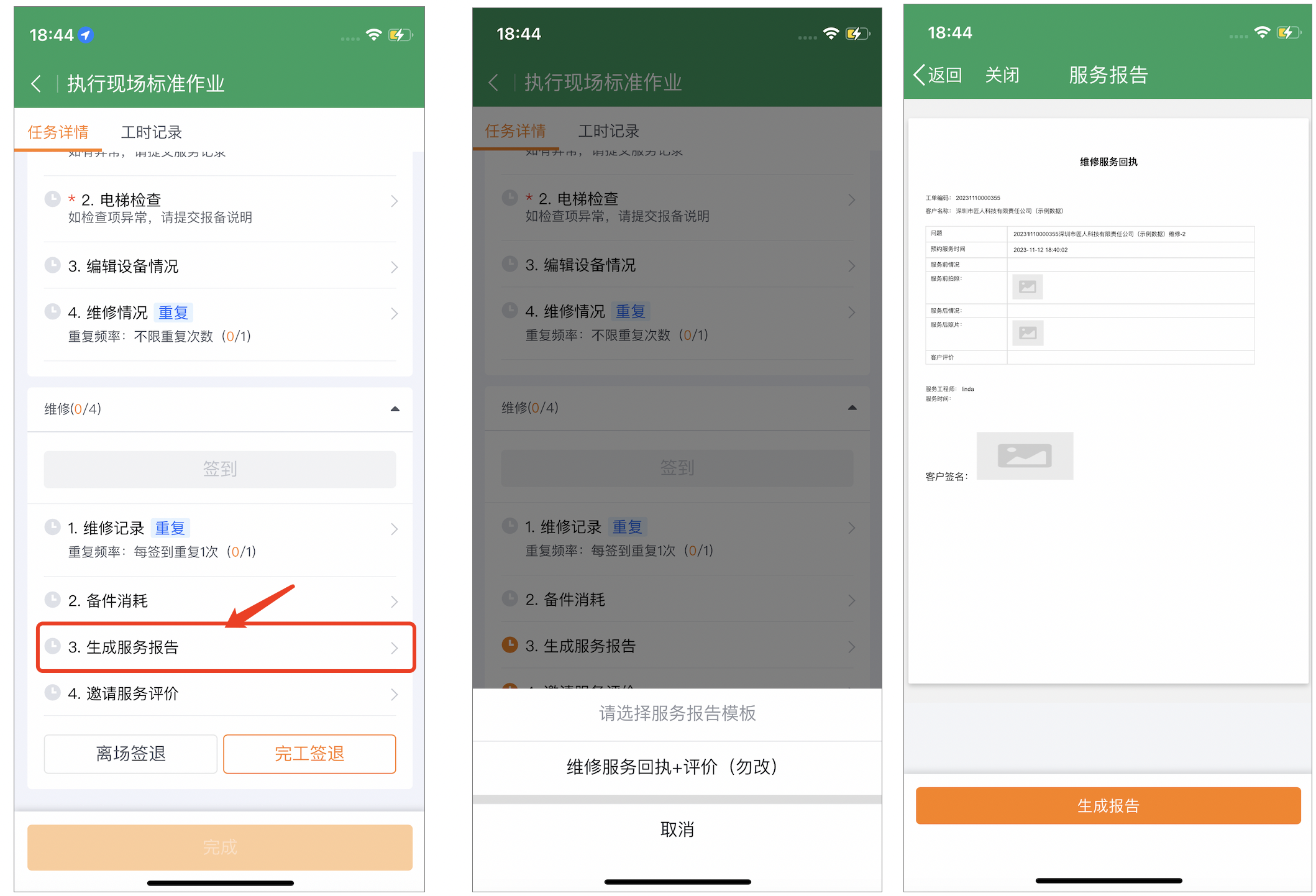 > Limitation: The generate service report action in SOP does not support configuring action-level completion condition verification, nor does it support post-completion action.
Configure shortcut buttons to generate reports
Shortcut buttons need to meet both function permissions and button visibility conditions:
- Grant the Generate Service Report permission to the service engineer who needs to perform report generation in the work order function permissions.
- Set the visibility conditions for Generate Service Report in the business button configuration.
- Use a test work order that meets the conditions to check whether the button is displayed.
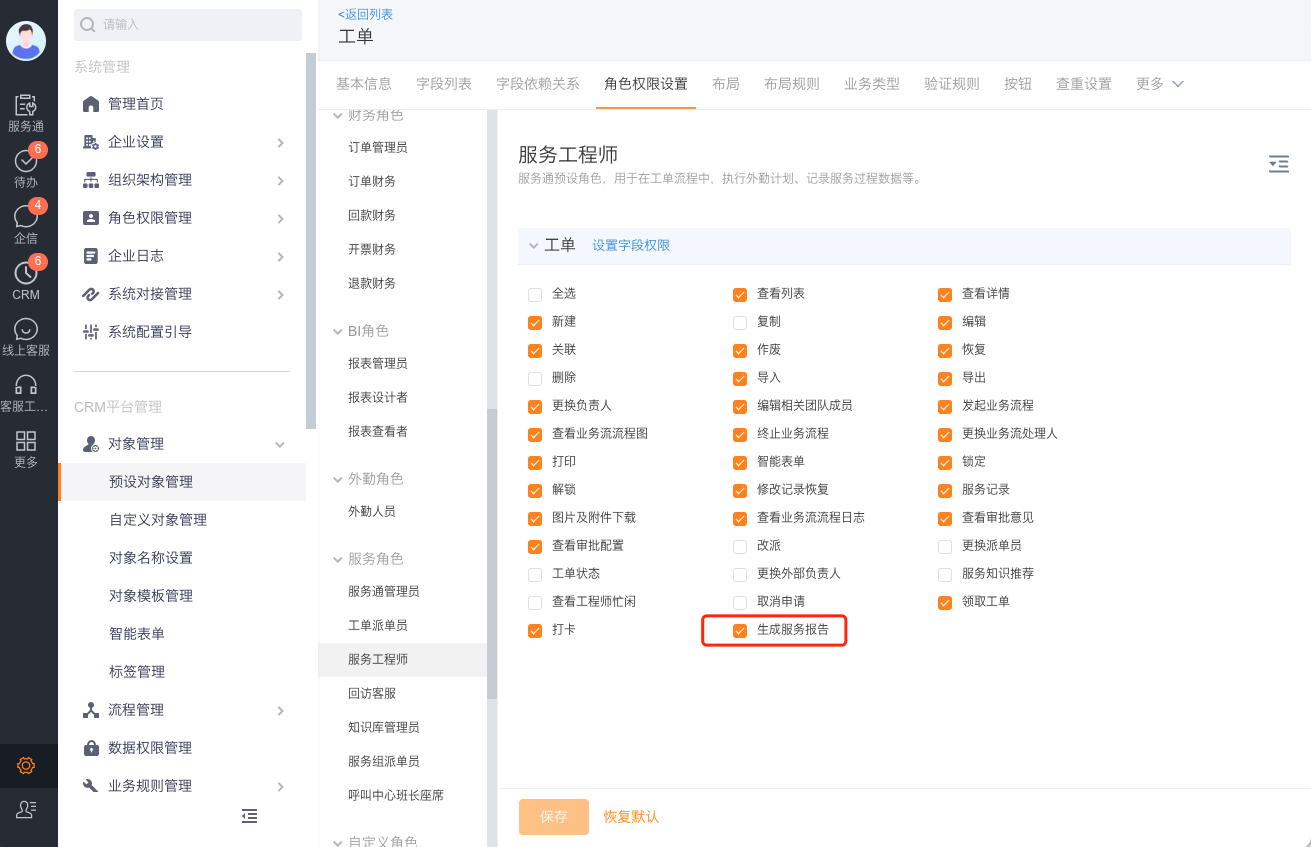
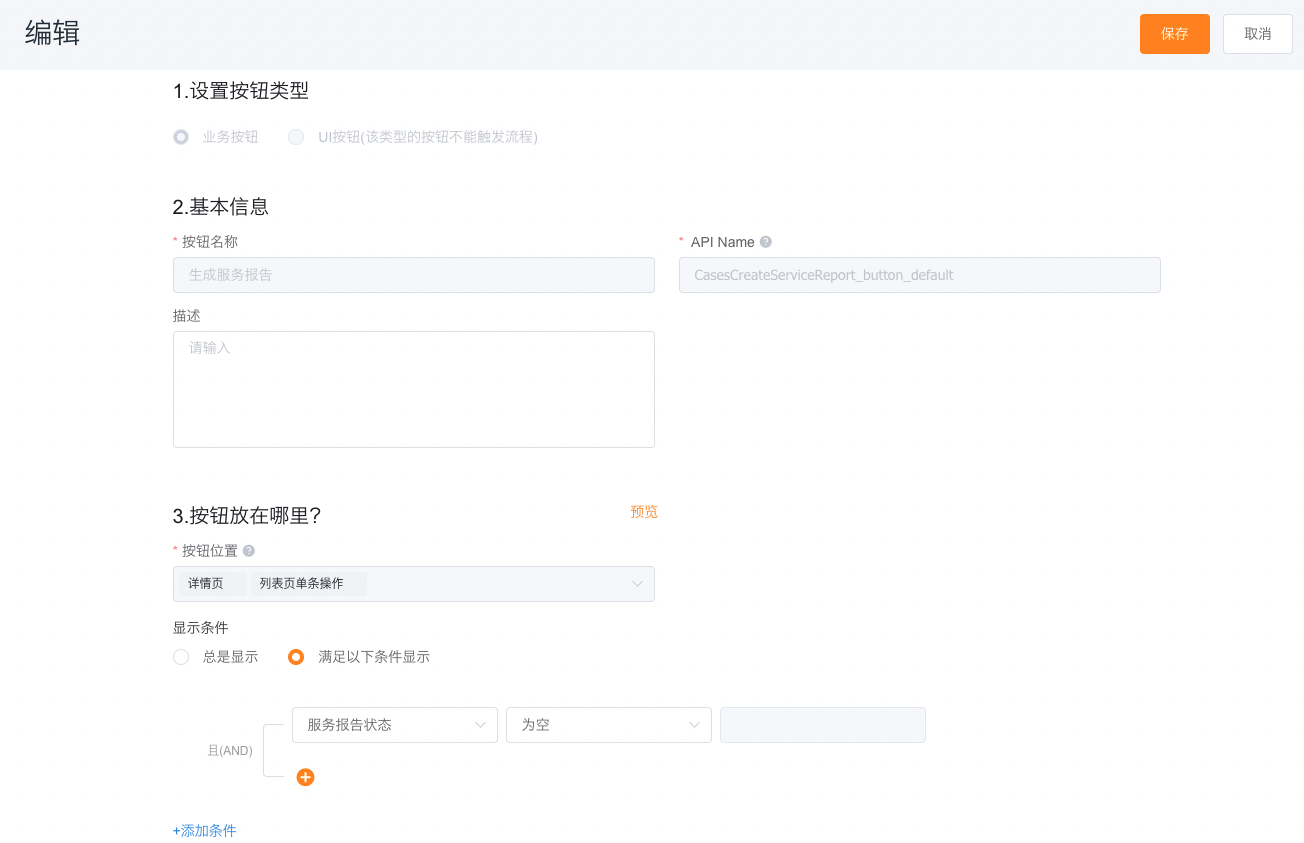
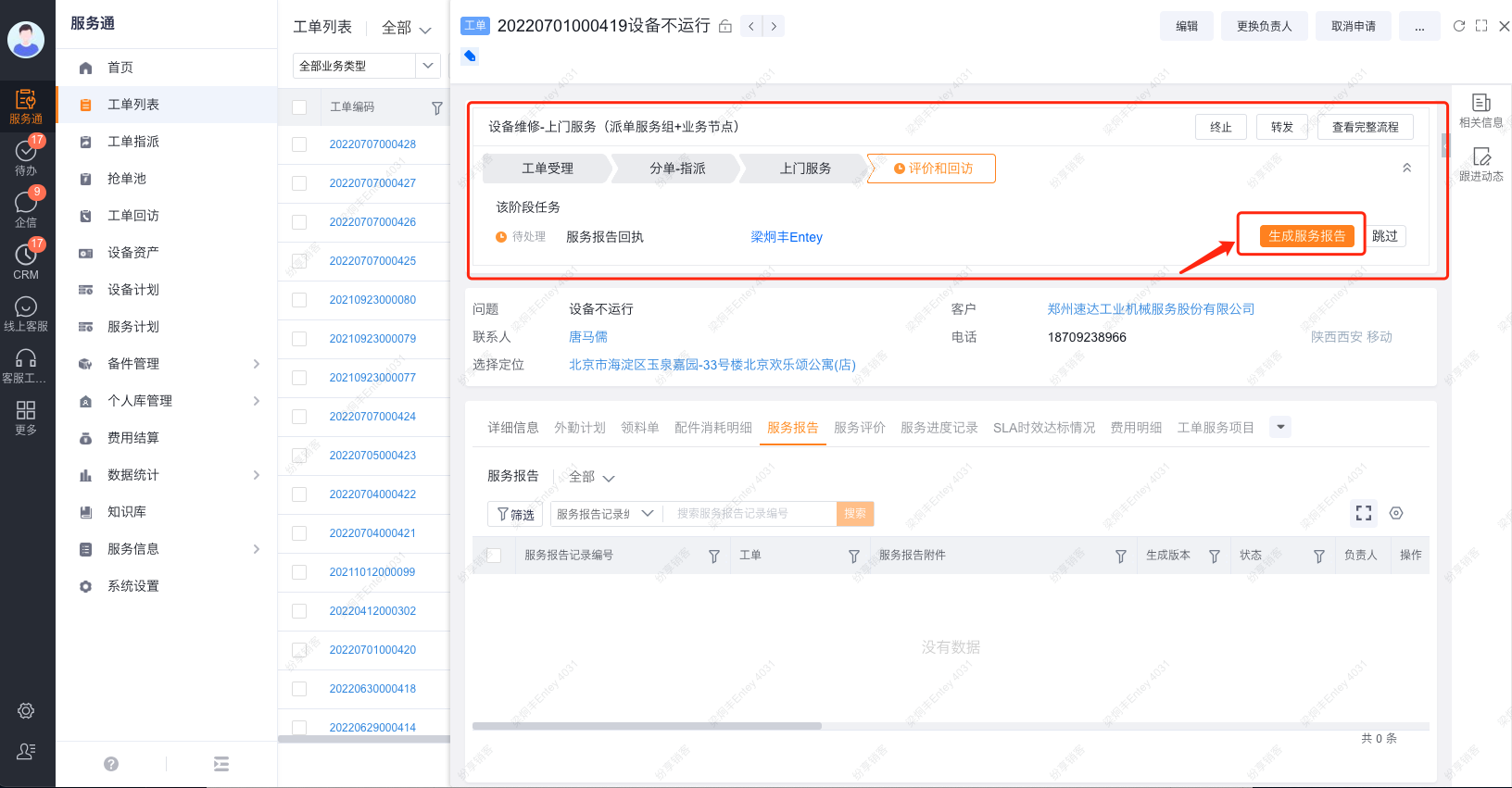
Only engineers who have both permissions and meet the conditions for the button to be visible can generate reports from the work order operation portal.
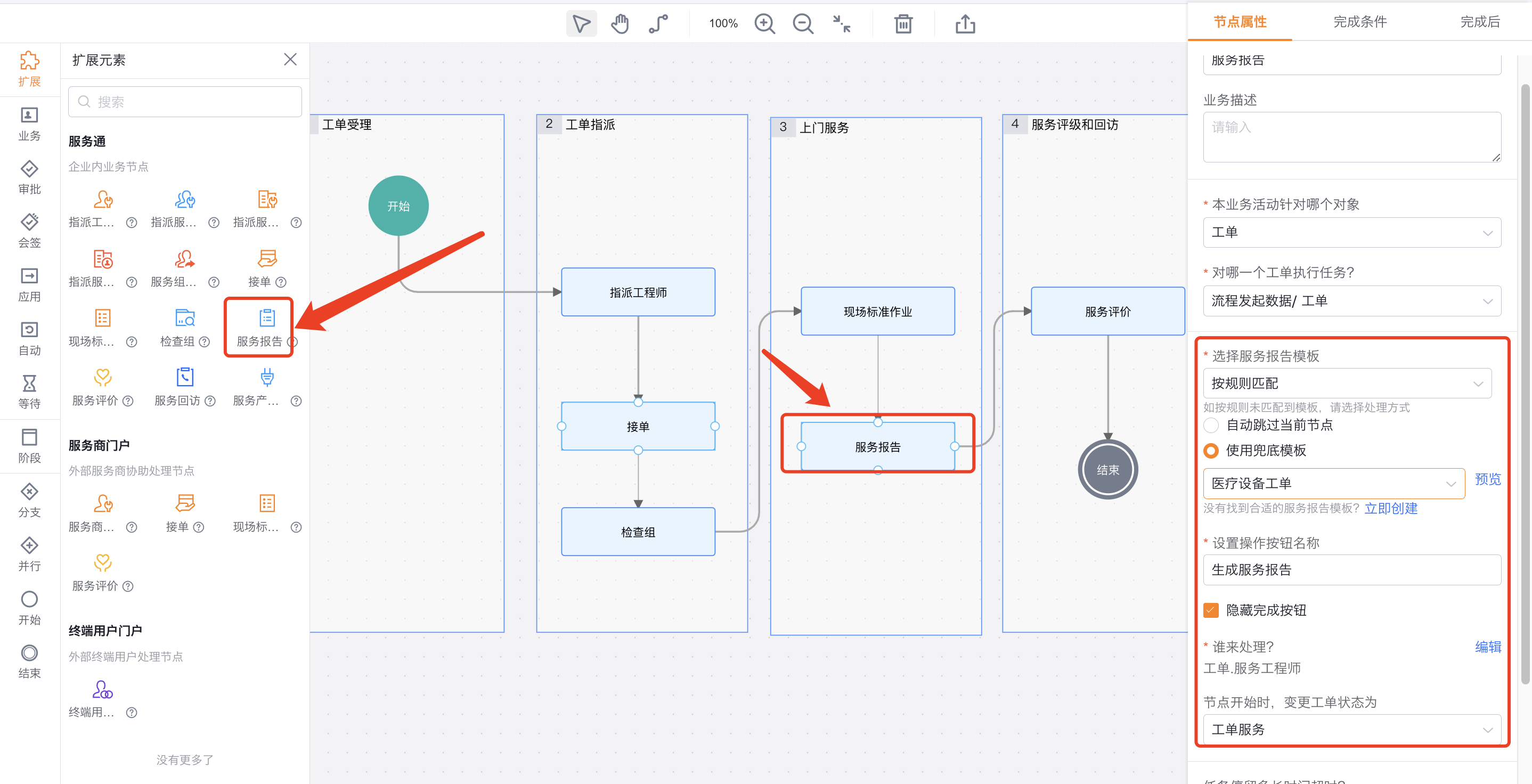
Configure the work order report node in the service process
- Add the Service Report node in the target service process.
- Set the service report subject object to Work Order.
- Select template method:
- Specify Template: The node is fixed to use the selected template;
- Match by rules: Match templates based on their scope and priority.
- Configure the handling method when there is no match for rule-based matching: select Automatically complete the current node, or configure a cover-up rule.
- Configure the primary action label and, if needed, hide Done in the task list.
- Configure the handler. The default handler is the work order personnel field Service Engineer.
Configure equipment service reporting
Single equipment work order: generated in the work order SOP
For work orders with only one equipment, add the Generate Service Report action to the work order SOP and set the subject to Work Order.Equipment. After the engineer completes all required actions, the system generates a report for the equipment.
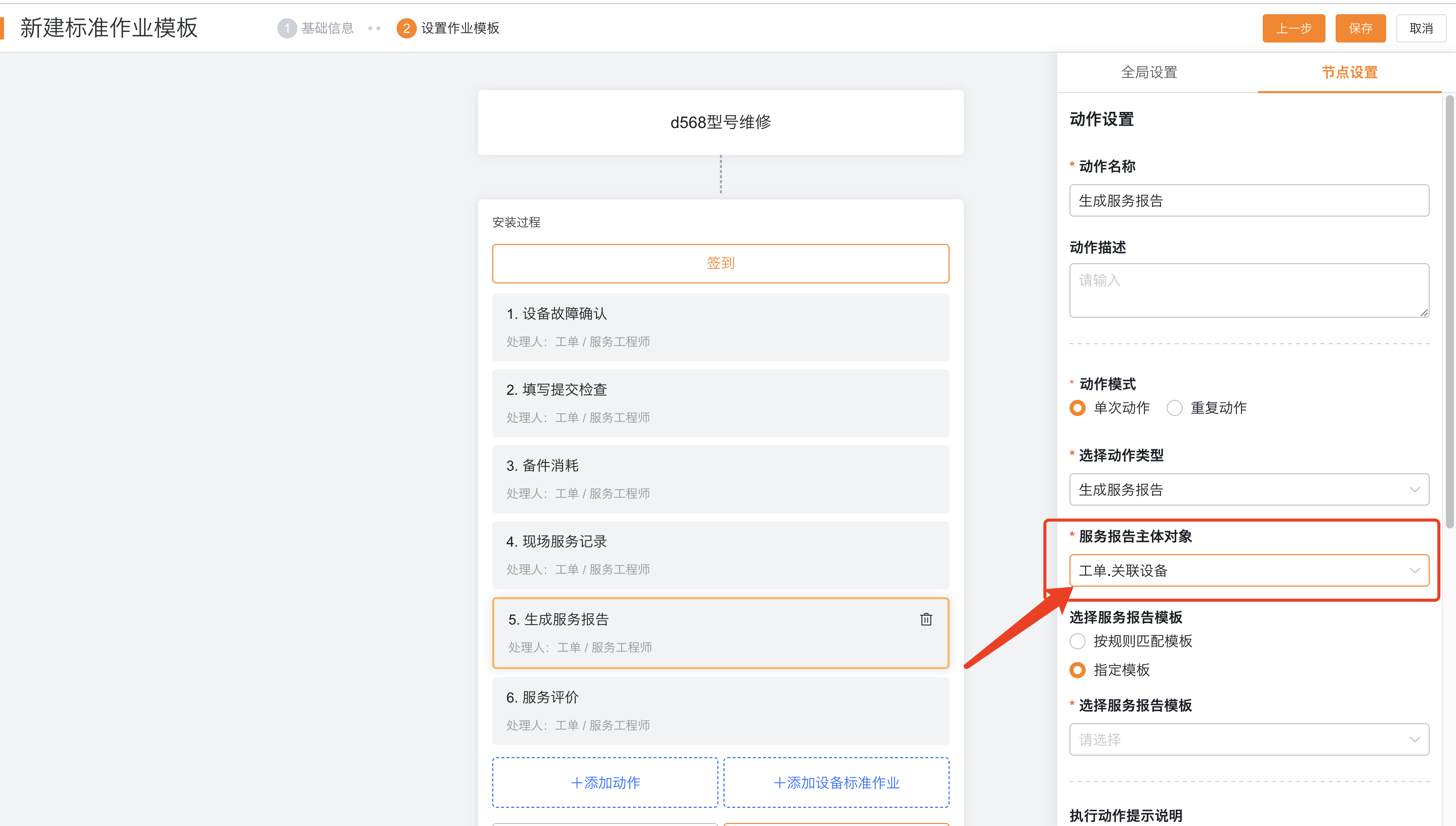
Action level completion condition checksums post-completion actions are also not supported.
Multi-equipment work order: generated in equipment SOP
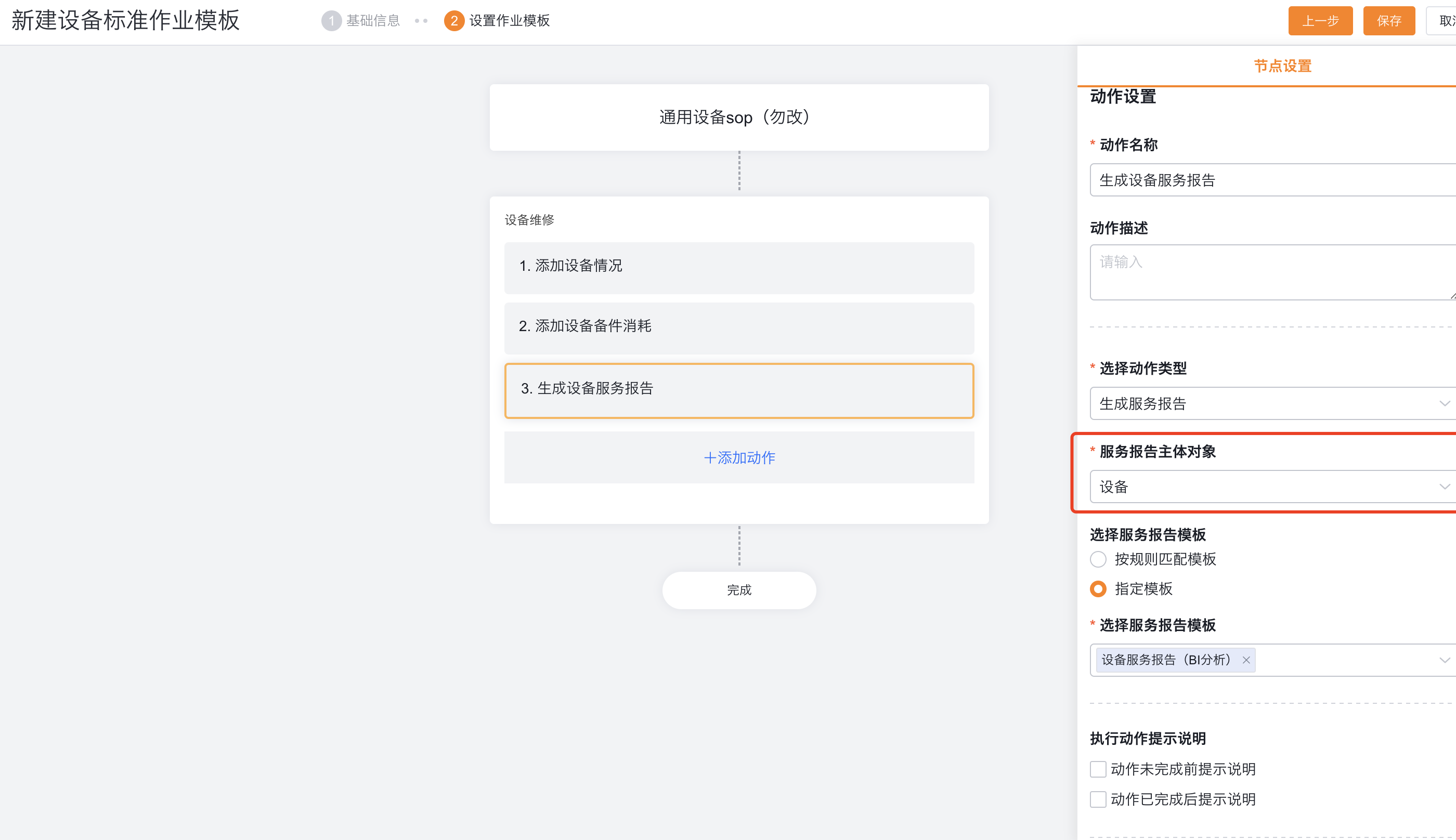
For work orders with multiple equipment, add the Generate Service Report action to the equipment SOP and set the subject to Equipment. The system performs report generation for each equipment in the work order that triggered the equipment SOP.
Equipment standard operation is a grayscale capability. Before enabling it, you should confirm that the current enterprise has opened this function and use a multi-equipment test work order to verify it.
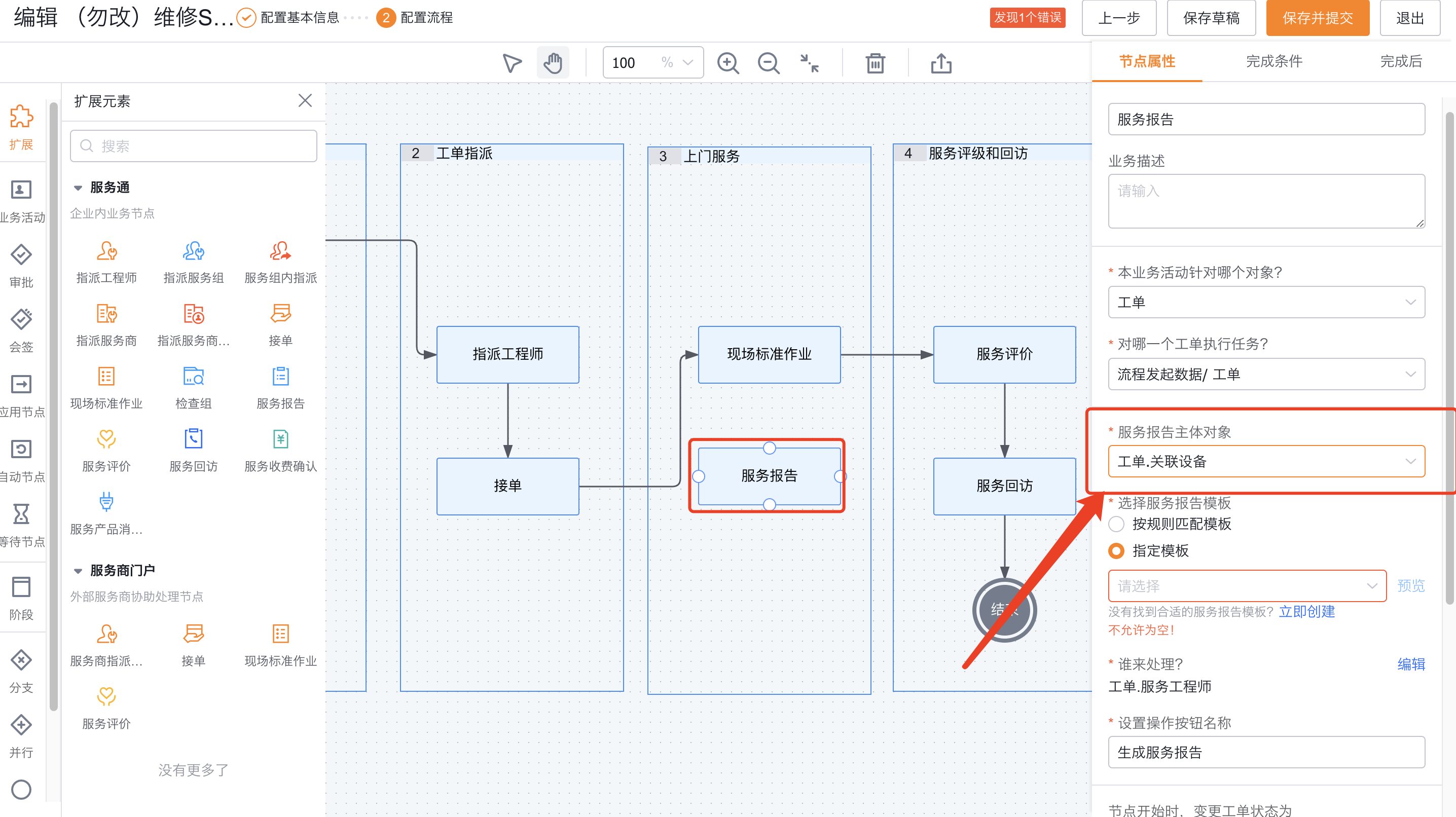
Configure the equipment reporting node in the service process
For single equipment work orders, you can add a service report node in the service process and set the subject object to work order.Equipment. Template selection, unmatched processing methods, button settings and handler rules are consistent with the work order report node:
- You can specify a template, or match according to the template's scope and priority;
- When there is no match, choose to automatically complete the current node or use the cover-up rule;
- The name of the main action button can be customized, and the Complete button in the to-do list can also be hidden;
- The default handler is the work order personnel field Service Engineer.
Configure scheduled tasks to automatically generate reports
Scheduled tasks are suitable for automatic scenarios that do not require on-site operations by engineers, such as generating a report for each equipment on the 1st of every month and sending the PDF to the email address of the customer associated with the equipment.
- Configure scheduled tasks to trigger the generation of service reports as scheduled.
- Pass in the work order ID and service report template ID in the function.
- Store the generated results in the Service Report object, and handle the failure information based on the returned results.
The following source example requires function and scheduled-task configuration permissions. It is not an entry point for engineers.
groovy
Map header = [
 "Content-Type": "application/json;charset=UTF-8",
 "x-fs-methodname": "createServiceReportDirect"
];
Map args = [
  "casesId" : context.data._id,     // Work order ID
  "serviceReportTemplateId" : 92,   // Service report template ID
]

Map requestParam = ["args": args];
def ret = Fx.proxy.callAPI("eservice.proxy", header, requestParam);
HttpResult result = ret.data as HttpResult;
log.info(result);
Map content = result.content as Map;
String errCode = content["errCode"];
String errMsg = content["errMsg"];
Boolean createResult = content["data"];
if (errCode != 'C120040000') {
  log.info("Failed to generate the service report: " + errMsg);
  return errMsg;
}
return "Service report generation result: " + createResult;
Run verification after configuration
Verify engineer side generation
- Use the test account of the configured handler to enter the process node, work order operation menu or SOP action entrance.
- Execute Generate Service Report on App or Web.
- Check whether the report body is consistent with the configuration, and whether the dynamic fields and editable fields are correct.
- If the template requires customer confirmation, verify the on-site invitation, link/QR code, WeChat or SMS method respectively.
Both App and Web support entering the report preview from the process node or work order object node; whether the specific button is displayed depends on the permissions of this page, business buttons and process configuration. For complete engineer operation steps, see Generate Service Report.
Verify generated results
- Service report records are stored in the Service Report object and include the generated PDF attachment.
- The Service Report Status on the work order is updated based on the actual generation and customer confirmation results.
- After the customer completes the signature, a signed PDF is generated; when the customer refuses the signature, the status should reflect the refusal result.
Expected results and verification
- The test records of the work order body, equipment body and equipment SOP can all match the correct template.
- The shortcut button is only displayed to engineers who meet both permission and visibility conditions.
- The process node generates a report according to the specified template or rule matching method; if there is no match, it will be processed according to automatic completion or cover-up rules.
- When the SOP required actions are not completed, the report generation action will not be completed in advance.5. The generated results can be queried in the service report object, the PDF is located in the attachment field, and the work order status is updated simultaneously.
Notes
- The report subject must be consistent with the template subject: work order reports use work order, single equipment reports use work order.equipment, and multi-equipment equipment SOP reports use equipment.
- Matching by rules depends on the scope and priority of the template; when multiple templates are matched at the same time, the priority configuration should be checked.
- The SOP Generate Service Report action does not support action-level completion conditions and post-completion actions.
- The standard operation of the equipment is grayscale capability; whether the current enterprise is available, the configurable range and the page name should be based on the actual page.
- The default handler of the process node is Work Order. Service Engineer. Do not mix it with service provider engineer or other collaborative roles.
- WeChat and SMS invitations rely on official account binding and SMS service respectively; when relying on unavailable, verification link or on-site invitation method.
- Scheduled tasks and functions belong to advanced automation scenarios. The template ID, work order ID, and return code should use the current enterprise configuration, and do not directly copy the example values.