Appearance
Create an internal service group and configure internal dispatch
Overview
Internal engineer service groups organize engineers by region or function. Configure the group type, members, service group dispatcher, and intra-group dispatch method together.
Before you begin
- The target employee has been assigned the Engineer role.
- The scope of the service group and the person responsible for manual scheduling within the group have been determined.
- Process planning uses assigned service groups and assigned nodes within service groups.
Procedure
1. Create a new service group
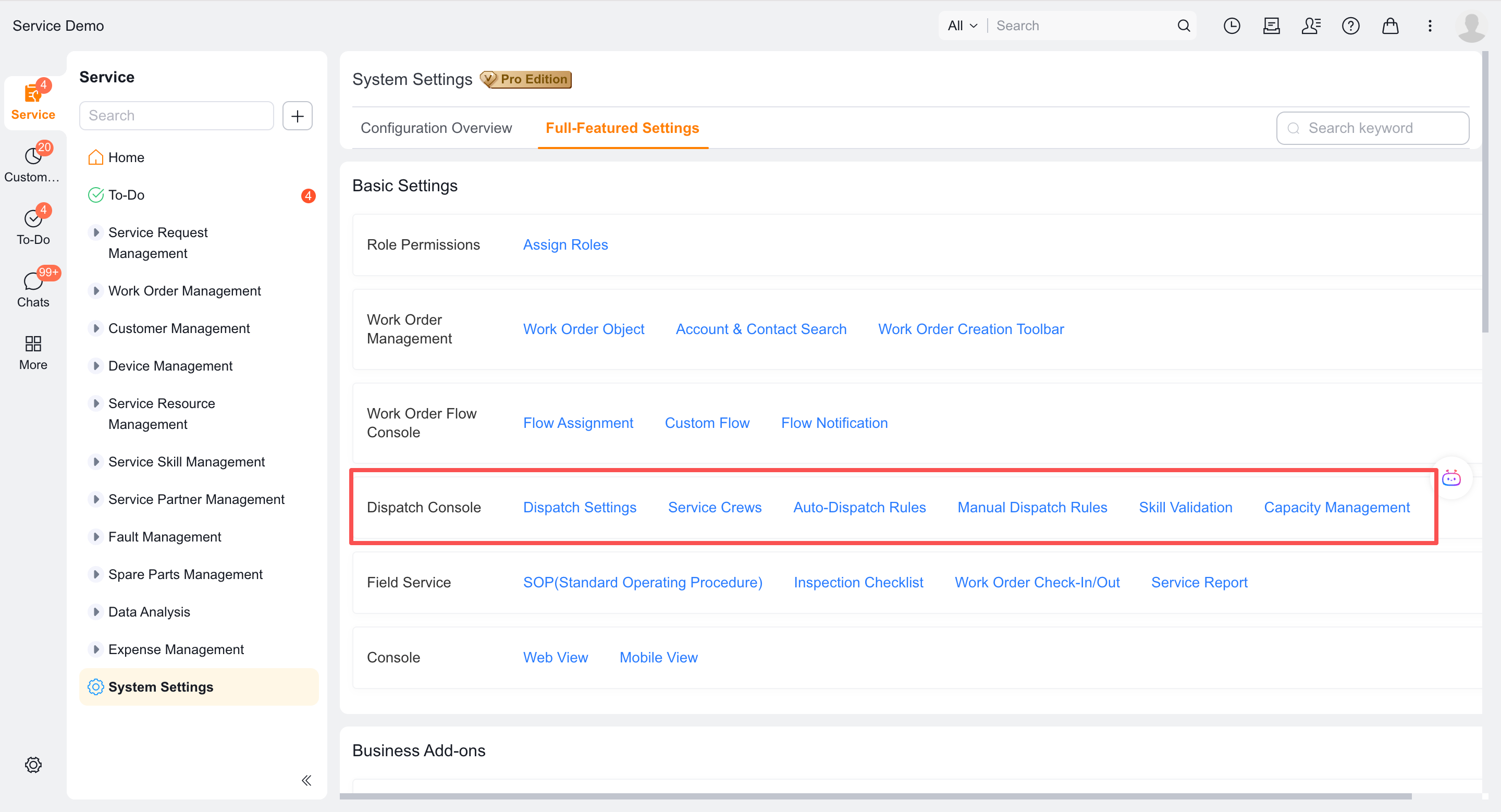
Enter Field Service > System Settings > Work Order Assignment > Service Group.
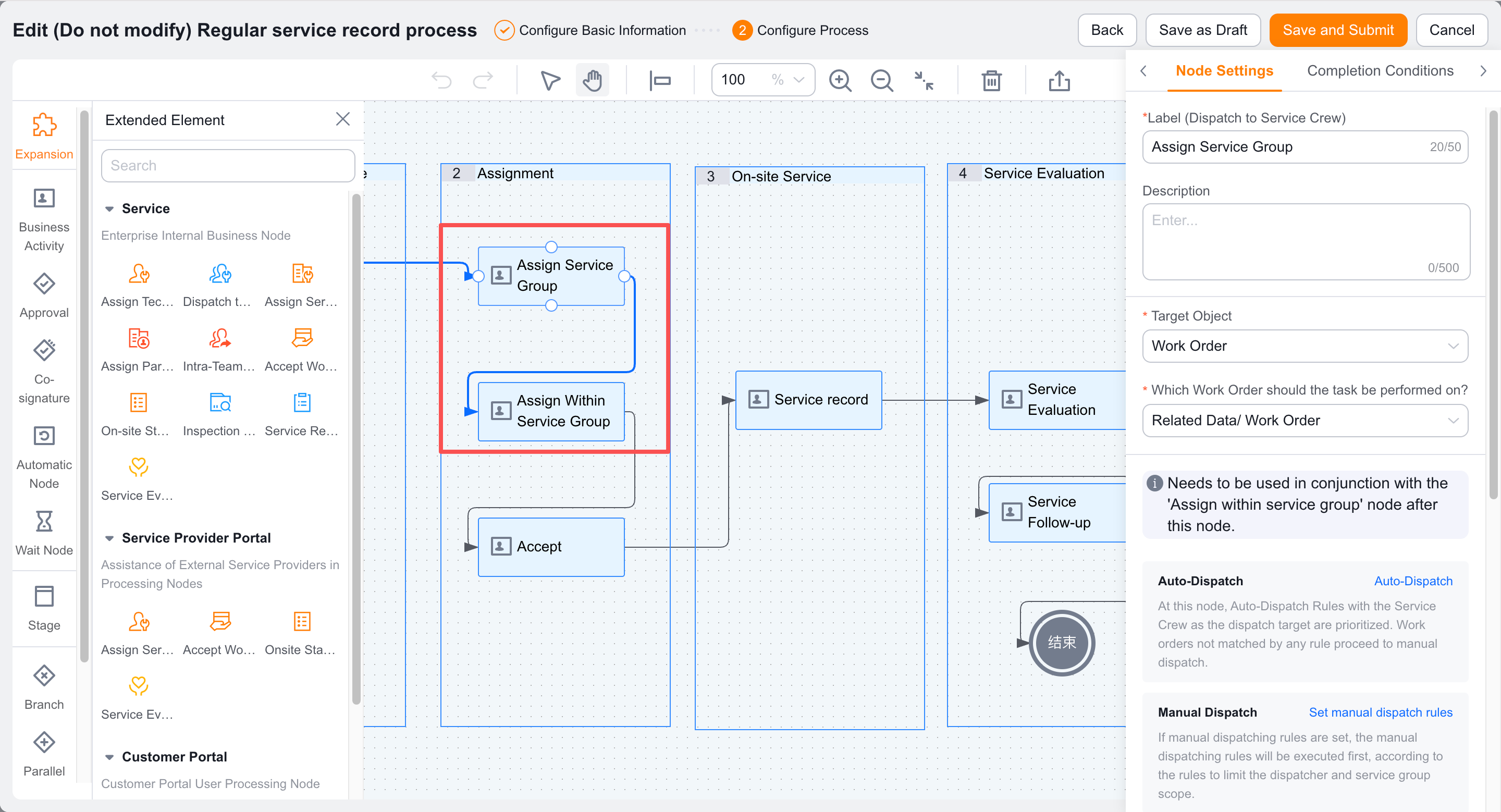
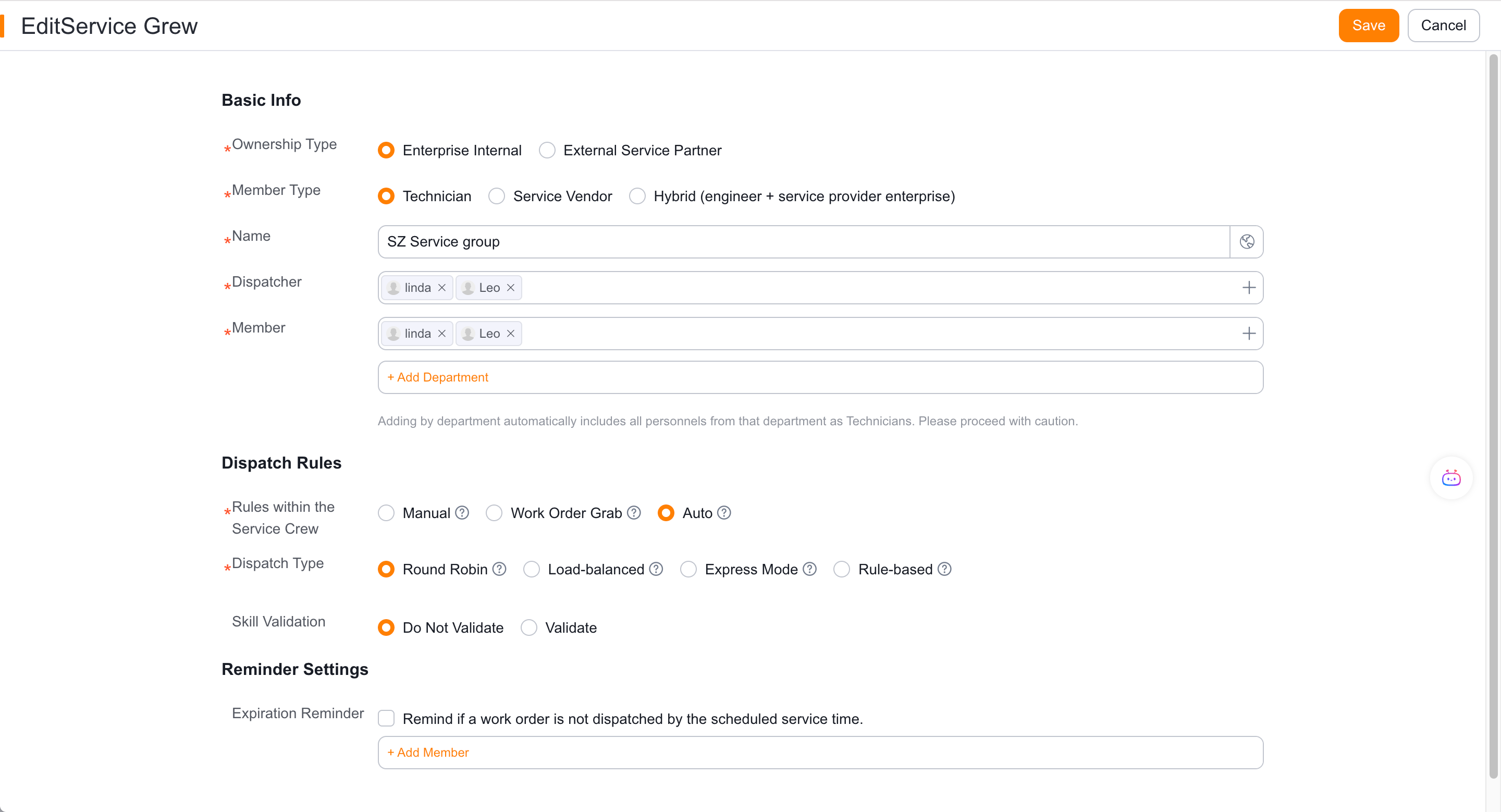
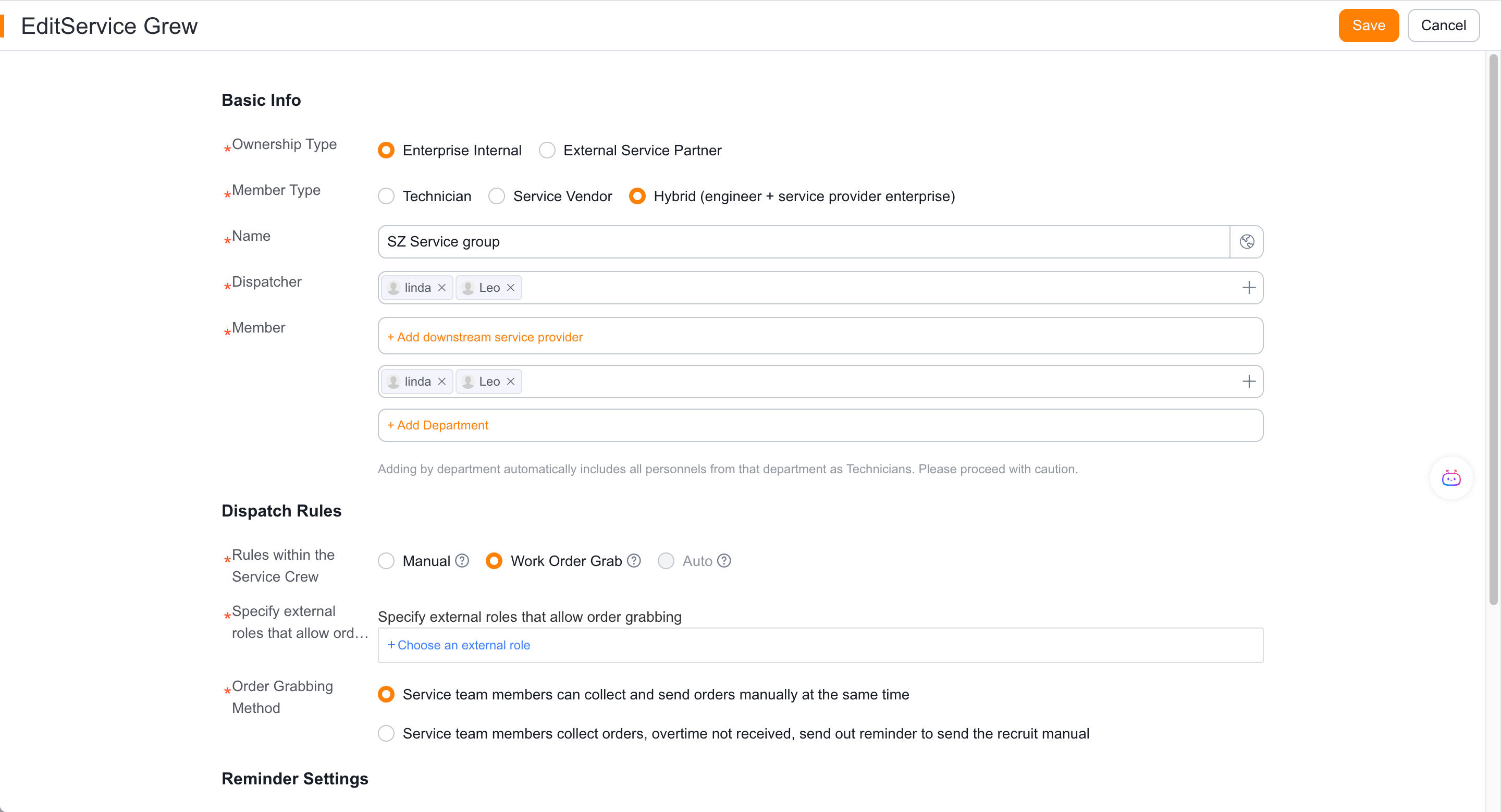
Create a new service group, set the service group type to Enterprise, and set the member type to Engineer.
Enter a name for the service group by region or function.
Set dispatcher in the service group.
Add employees, or add members by department and save.
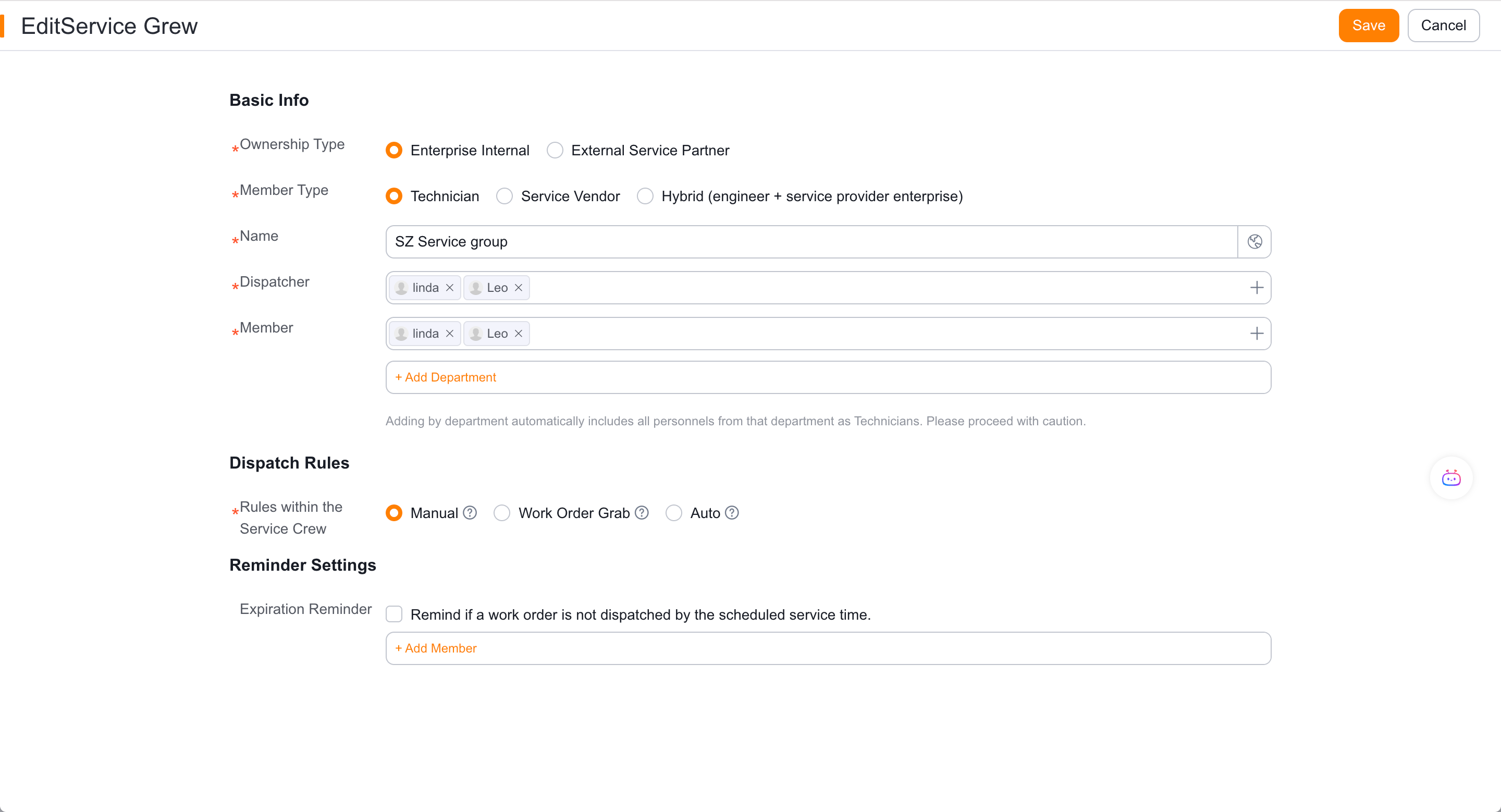
When adding by department, the system will assign the engineer role to the department members and monitor subsequent additions of employees in the department.
2. Select the group mode
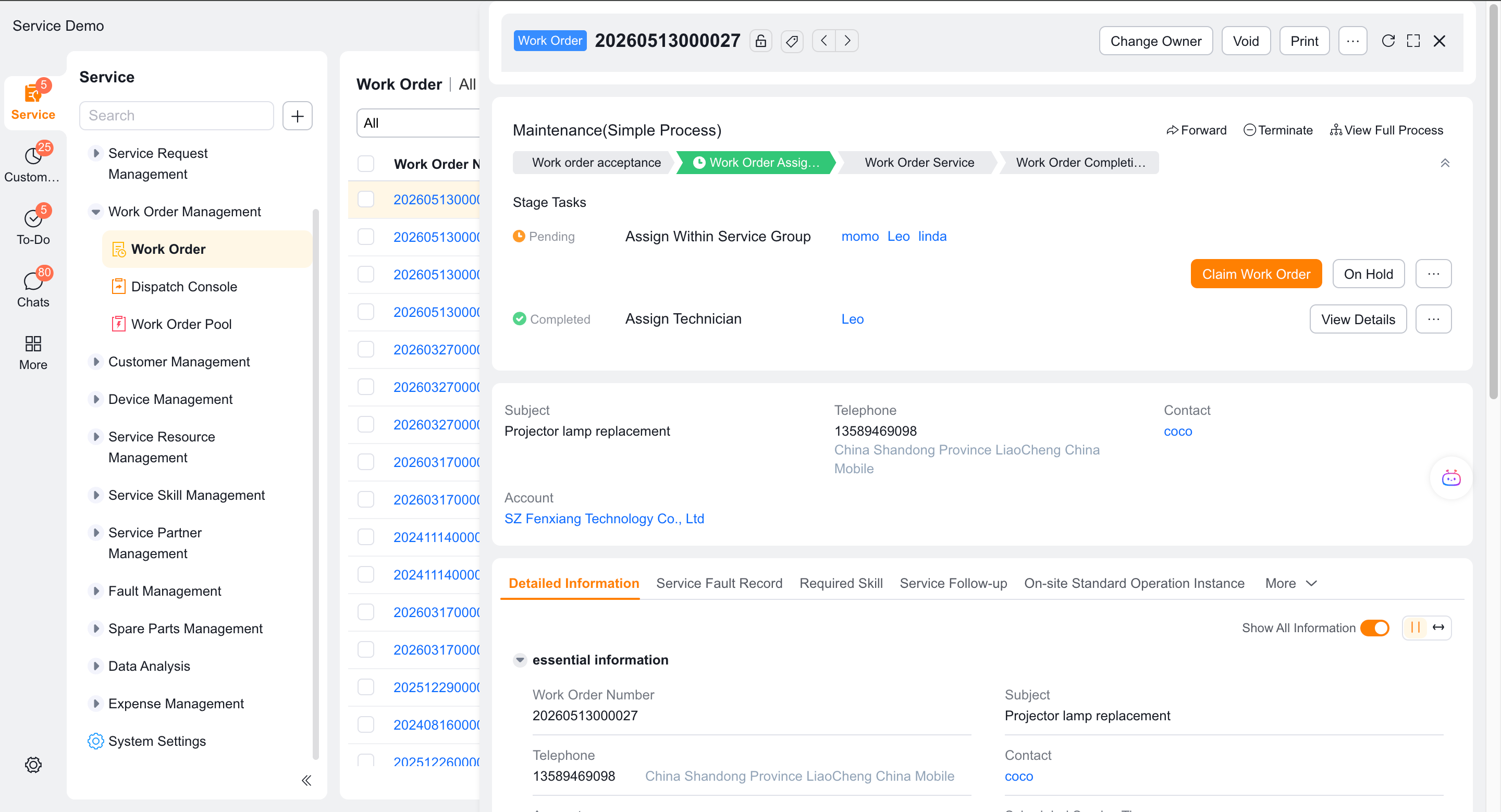
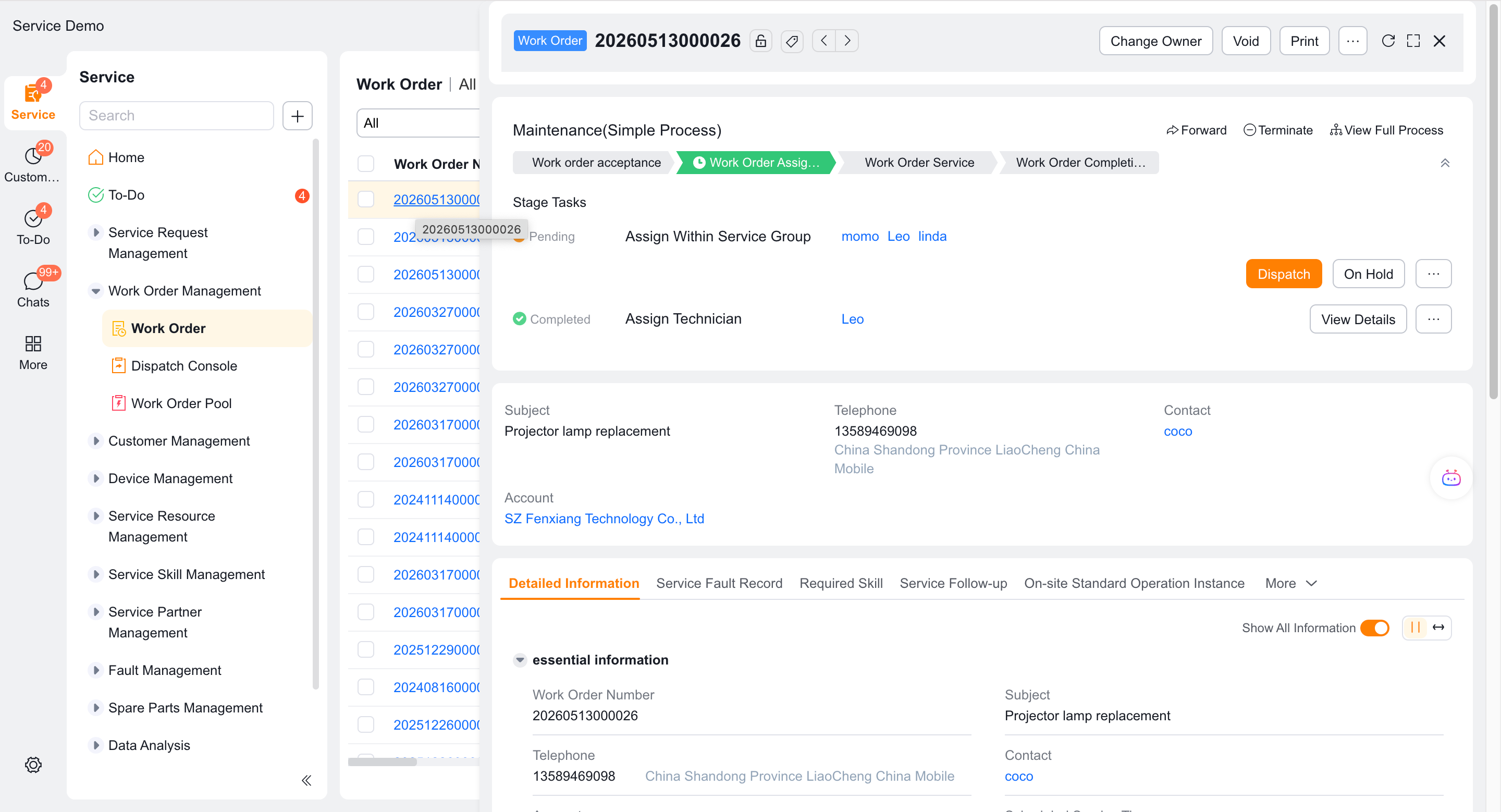
When Manual is selected, the service group dispatcher selects the members in the group.
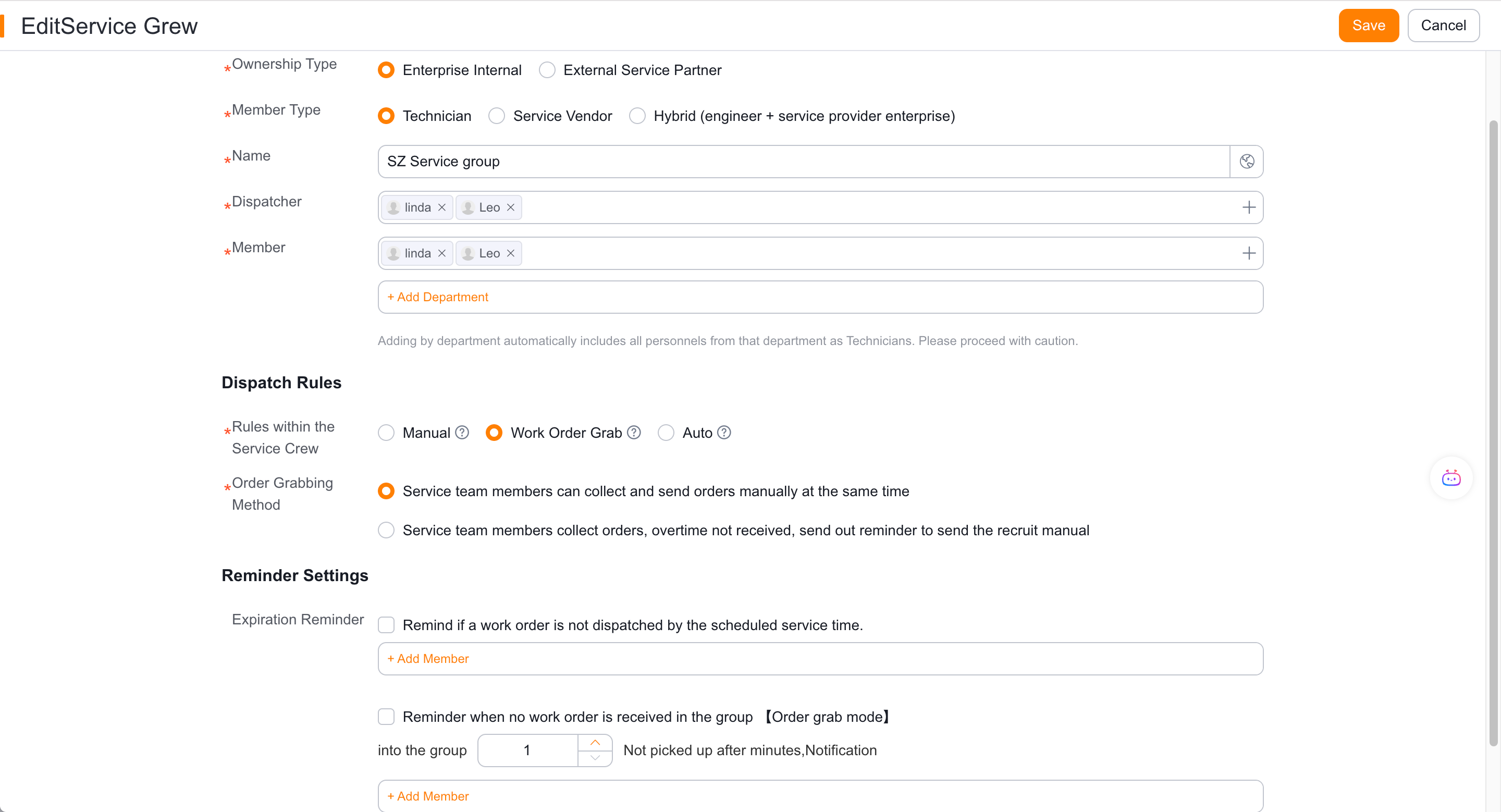
For Claim Work Orders, choose either synchronous claiming by engineers and dispatchers or engineer-first claiming with dispatcher intervention after a timeout. These names describe the behaviors for documentation; the actual UI labels depend on tenant configuration.
When selecting round-robin allocation, allocate in member order.
When selecting Evenly Distribute, priority will be given to members with fewer work orders on that day.
When selecting Extremely Fast Allocation, priority will be given to members with fewer unfinished work orders.
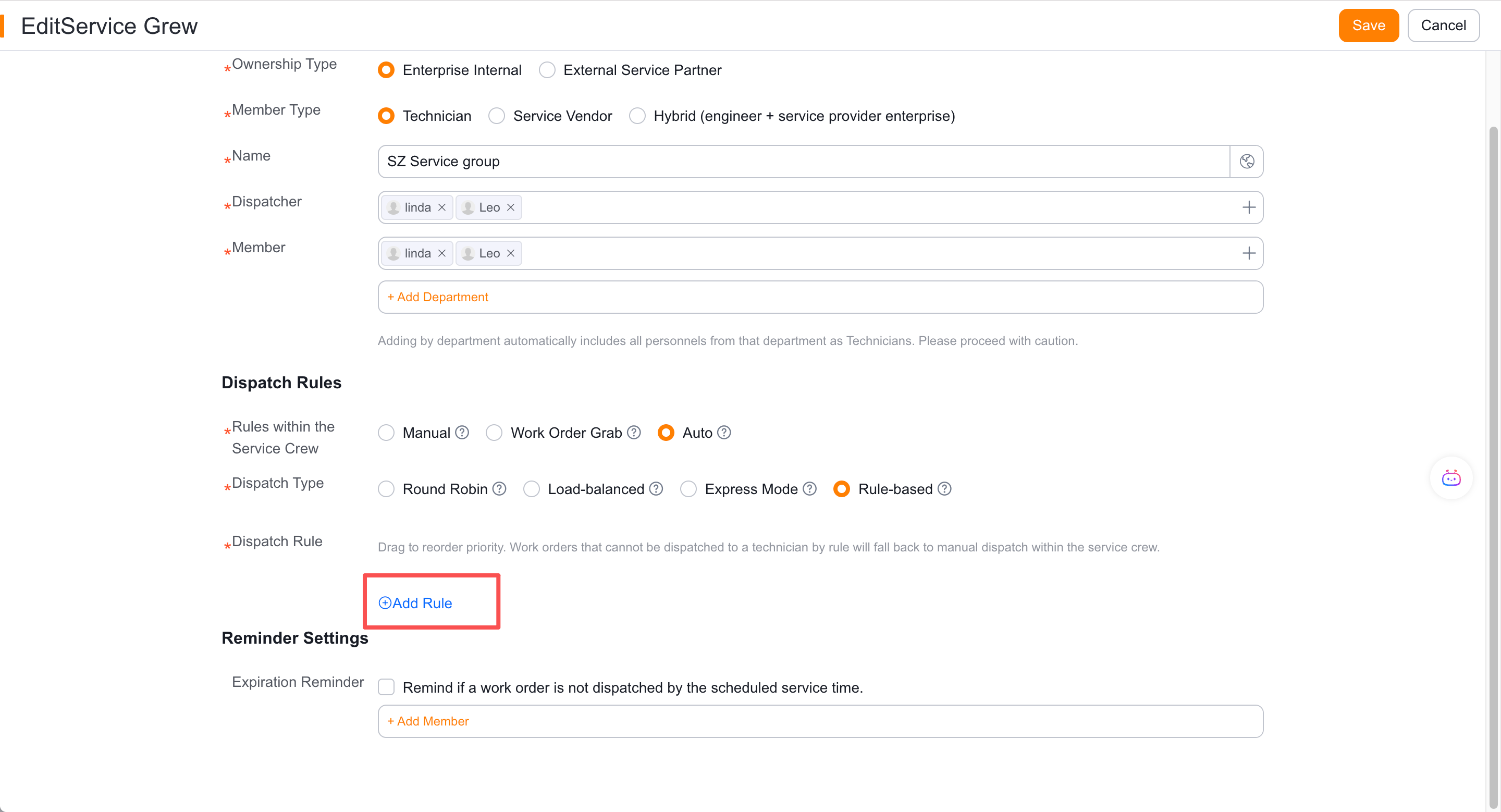
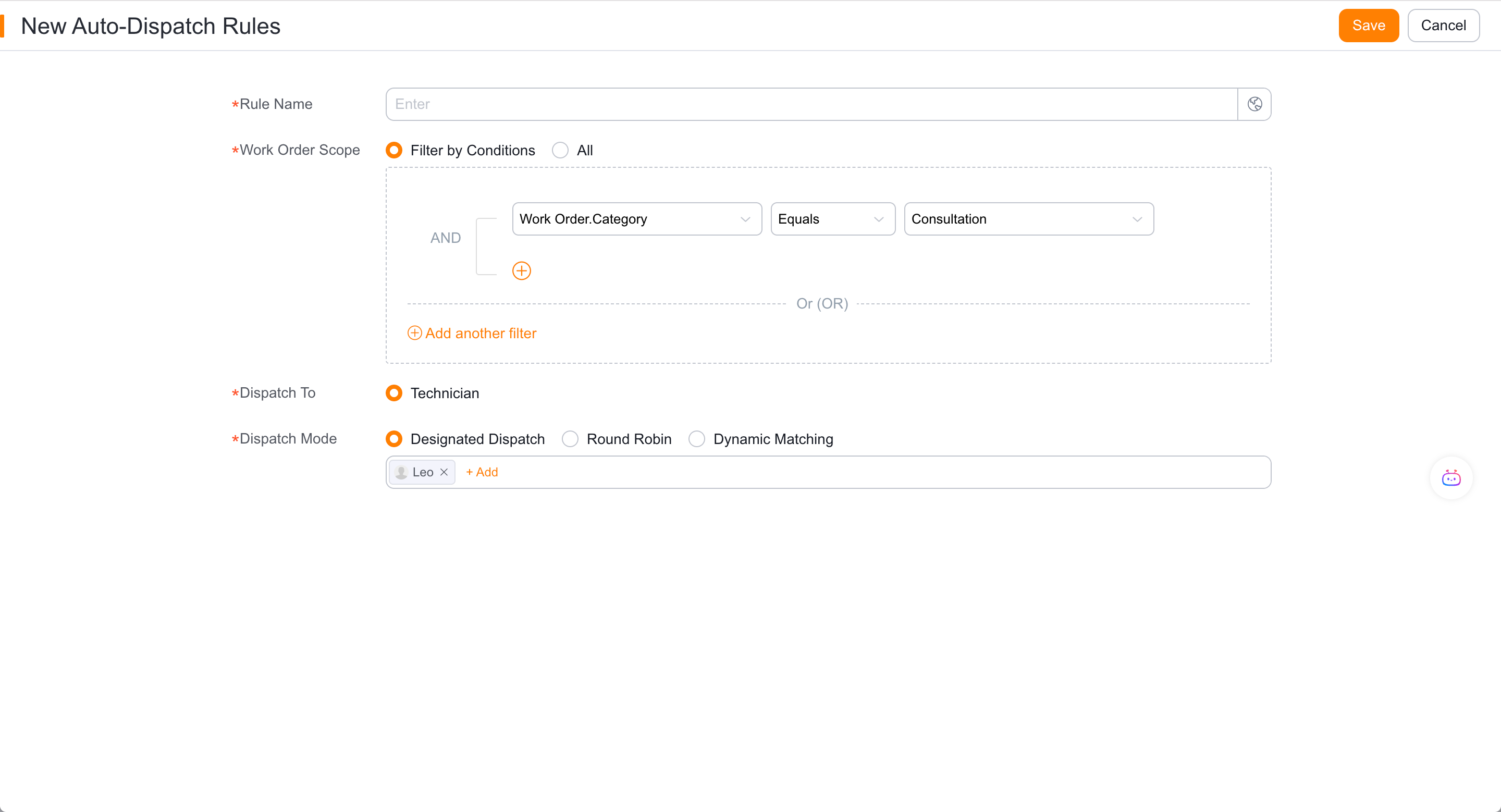
When selecting Assign by rules, configure the work order conditions, engineers and priorities; if not selected, enter the group to manually dispatch the order.
A mixed service group can contain both internal engineers and service providers. It supports only manual dispatch or work-order claiming, not intra-group auto dispatch.
3. Allow engineers outside the group
- If members of the group cannot cover the special work order, go to Field Service > System Settings > Work Order Assignment > Dispatch Settings > Global Settings.
- Enable the service group to allow assignment of additional engineers.
- Use the service group dispatcher account to check that the All Engineers tab appears on the Web.
Verify the result
- The service group and its service information records are automatically generated.
- The assigned nodes in the service group run in the selected mode.
- The synchronization and timeout intervention behaviors of work-order claiming are consistent with the selected configuration.
- Work orders that are not matched according to the rules will be sent to the current group to be dispatched.
- After the out-of-group switch is enabled, all engineers can be selected on the web.
Notes
- The hybrid service group only supports manual and work-order claiming, and does not belong to the pure engineer service group configuration in this article.
- To support claiming in the app, add the To Be Assigned menu for engineers.
- After expanding to engineers outside the group, roles and data permissions should be checked at the same time.