Appearance
Manage equipment barcodes and QR codes
Configure equipment barcodes and QR codes for identification and service request submission.
Overview
Equipment codes are used to connect physical tags to equipment ledgers. The QR code can carry a link to the device details, which is suitable for scanning the code to view the device or reporting for repair; the barcode and the QR code without a link only provide code text, and the device needs to be matched with the query tool or form scanning logic; the device live code first generates a blank QR code, and then binds the device at subsequent business nodes.
Before you begin
- Equipment asset management has been enabled, and the target equipment already exists in the equipment ledger.
- The administrator has determined the unique device code assignment rules for the entire enterprise and configured corresponding permissions for personnel who generate, export or scan codes.
- If it is for end users to scan QR codes, it is necessary to enable the end user service pass and configure the device object permissions and data permissions.
- Do not directly copy other companies’ QR code links. When the QR code is generated by an external device code machine, the link format provided by the system should be copied from the current page of the enterprise.
Select device code scheme
| Equipment status | Recommended solution | Scan code results or restrictions |
|---|---|---|
| New equipment, there is already equipment data in CRM, ready to generate labels by Fenxiang | The system generates a QR code or barcode | The QR code can jump to the device details; the barcode only recognizes text |
| For new equipment, the QR code is generated by an external machine when it leaves the factory, and the device data is synchronized to the CRM | The external machine generates the QR code according to the link specified by the company | The device code in the link must be consistent with the CRM field value |
| Deployed equipment has no label, and you need to print a code before binding it | Equipment live code | Generate a blank QR code, and then scan it to bind equipment according to your permissions |
| Deployed equipment has a QR code linked to another system | Replace it with an equipment live code | Service Pass cannot directly identify links to other systems |
| There is an external barcode or a QR code without a link | Synchronize the code value to the device code field | Logically match the device through query or form scan code, and you cannot directly jump to the details |
Maintain device code field
- Enter the field configuration of the device object and find the QR code/barcode encoding field (API Name:
device_code). This field may appear as Device Serial Number in historical enterprises. - Maintain unified assignment rules. By default, the value of this field is equal to the serial number; the enterprise can also fill in manually or generate other codes through functions.
- For existing external barcodes or QR codes without links, write the original code value into this field when creating a new device or integrating a synchronized device.
- Check the encoding for uniqueness. Device code generation and code scanning identification both rely on this field.
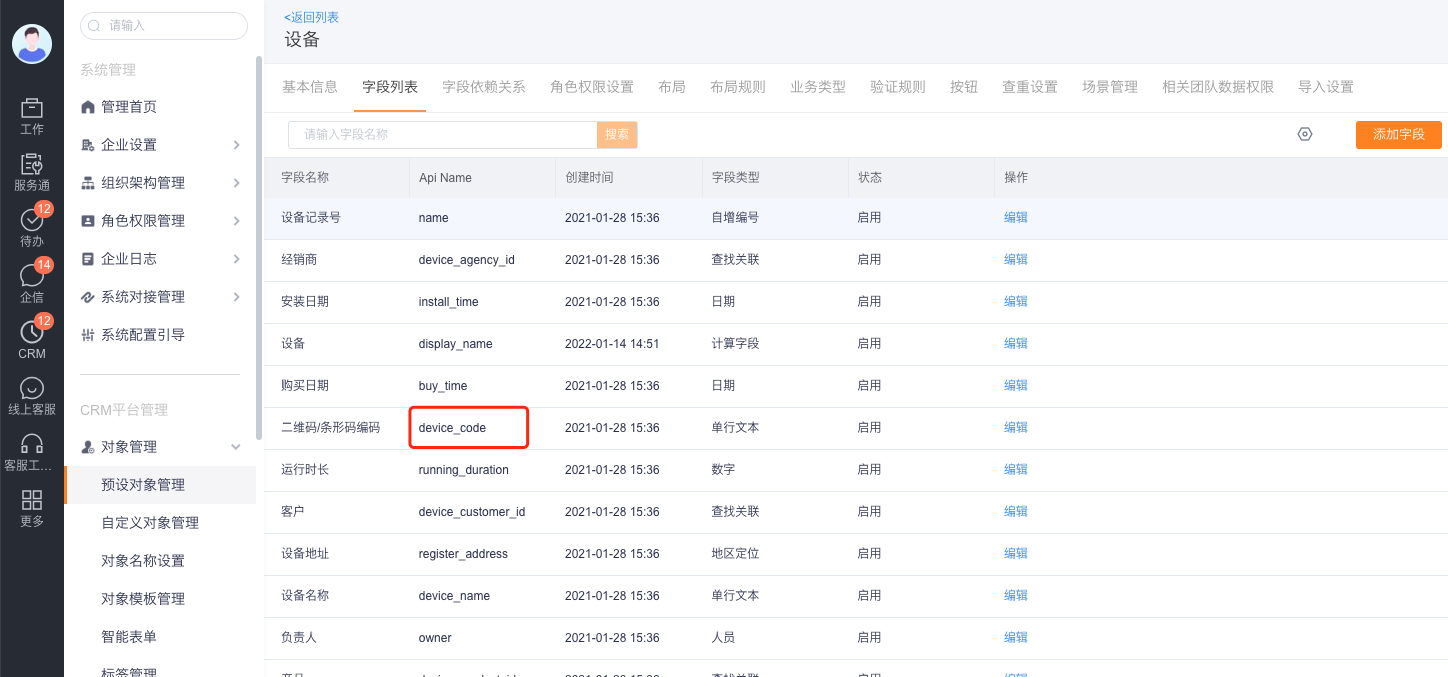
Configure the device code generated by the system
Create generation rules
- Enter Service Pass > System Settings > Device Management > Device Settings > Device Code.
- Click Device Code Generation Rule.
- Select Device as the object, and select QR Code/Barcode Encoding as the Generate Device Code field.
- Select the code type: Barcode, QR Code, or select both at the same time.
- For a QR code, enable the URL and select the equipment detail page. Do not add a URL to a barcode.
- Set the generated name of the exported PDF to facilitate query and archiving.
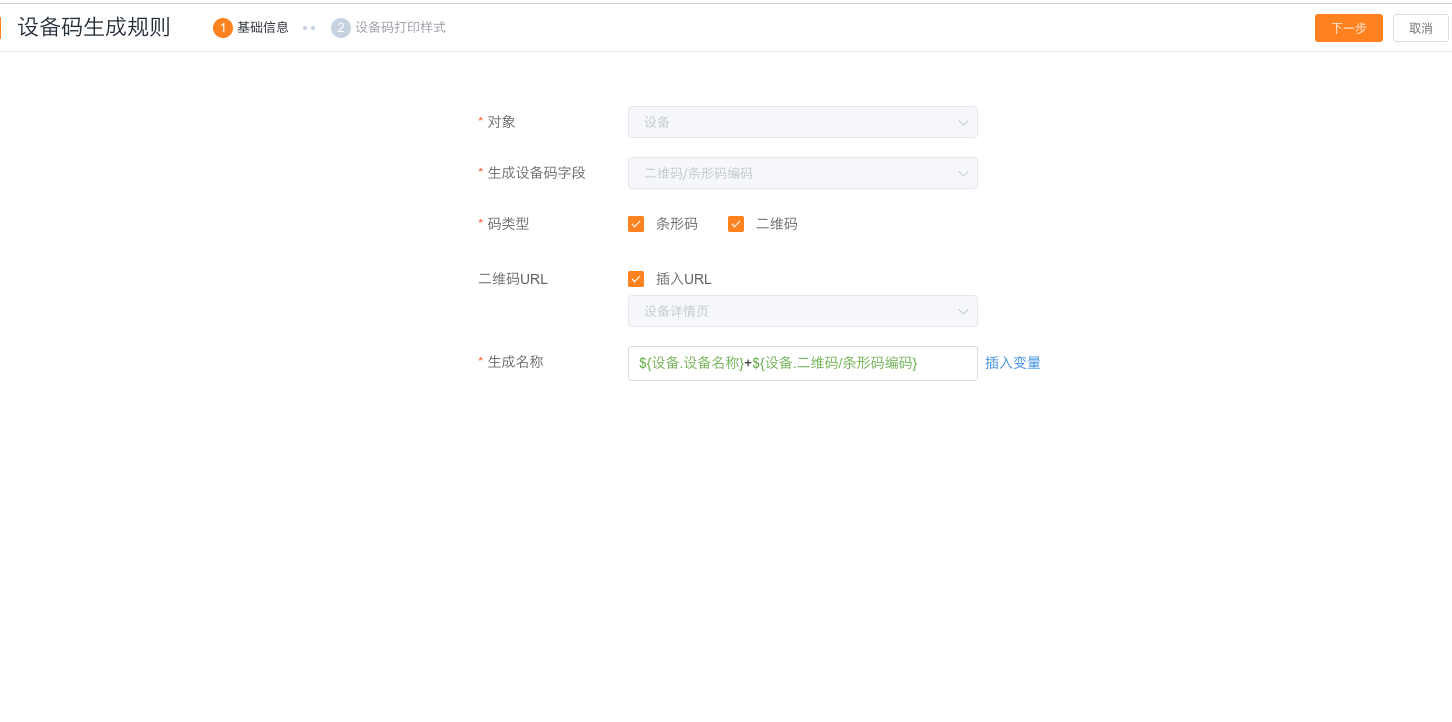
Configure print style
- Enter Device Code Printing Style in the generation rules.
- Select a style template and adjust the paper size according to the label paper size.
- Place the QR code or barcode placeholder in the template, and insert fields such as device name and device encoding as needed.
- When generating a QR code, the template must contain a QR code placeholder; when generating a barcode, select the barcode placeholder.
- Save the template and preview it using a test device.
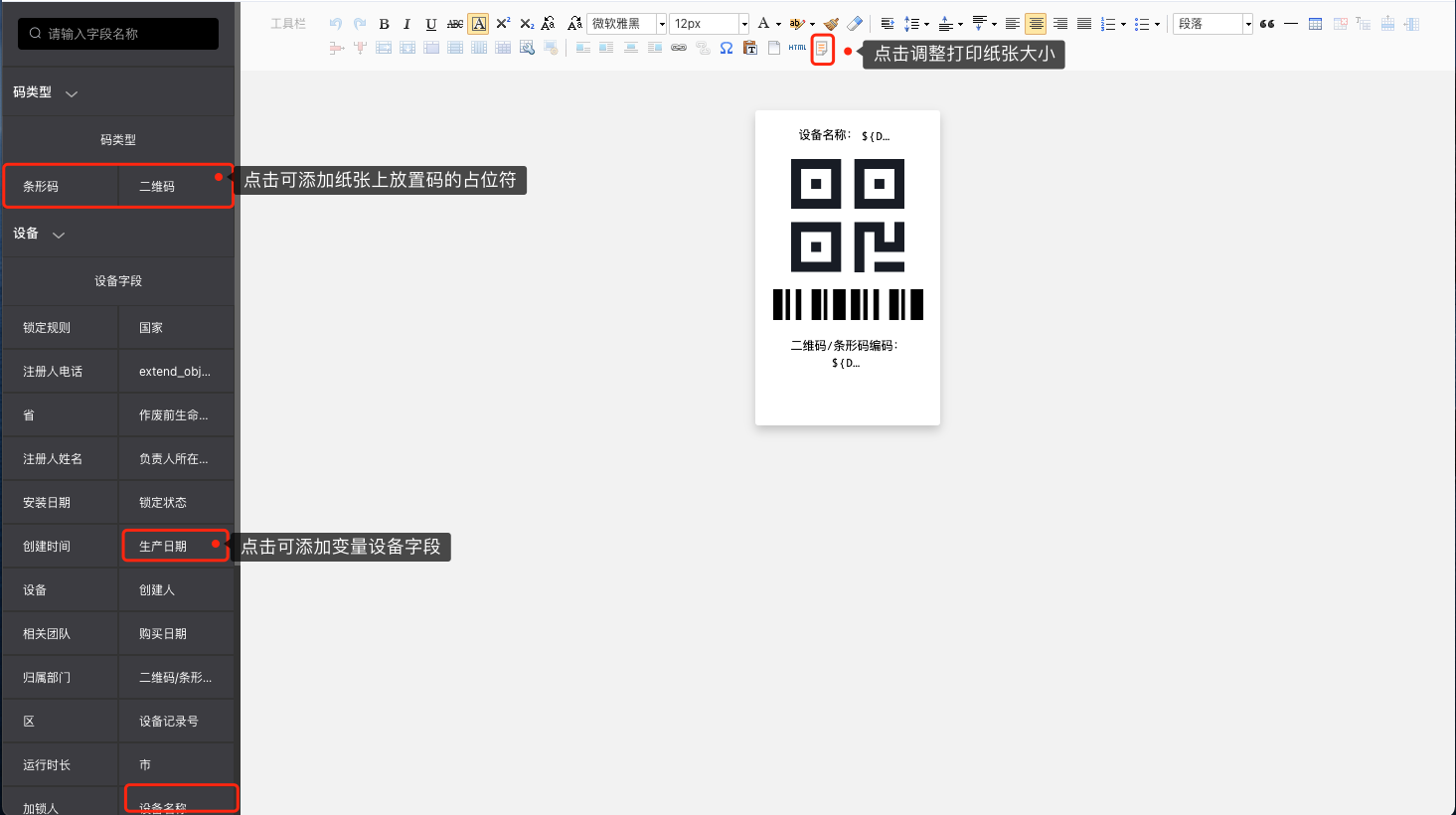
Generate and export
- The administrator assigns the Export Device Code button permission to the relevant roles.
- When generating a single device label, open the device details and click Print Device Code.
- When generating in batches, select records in the device list, and then use Export Device Code or Merge to Export Device Code.
- Check the code value, device name and paper size before printing, and then affix the label to the corresponding object.
Configure the QR code generated by an external machine
- Copy the specified link format provided by the system on the company's Device Code settings page.
- In the external label system, replace the equipment code parameter in the link with the equipment's
device_code, and then generate the QR code. - Ensure that the same encoding value is used when synchronizing device factory data to CRM.
- Use the engineer terminal to scan the test QR code and confirm that the correct device details can be opened before mass production.
The external machine generates a QR code containing a link. If only the encoded text is converted into a QR code, it should be processed as a barcode or a QR code without a link. Scanning the code cannot be expected to jump directly to the device details.
Configure and use device live code
- Go to Service Pass > System Settings > Device Management > Device Live Code and enable it. The system initializes the QR code object.
- Configure the label style in the device live code background.
- Configure blank code registration device permission. Service engineers and service administrators have preset permissions by default; other roles need to be authorized based on business needs.
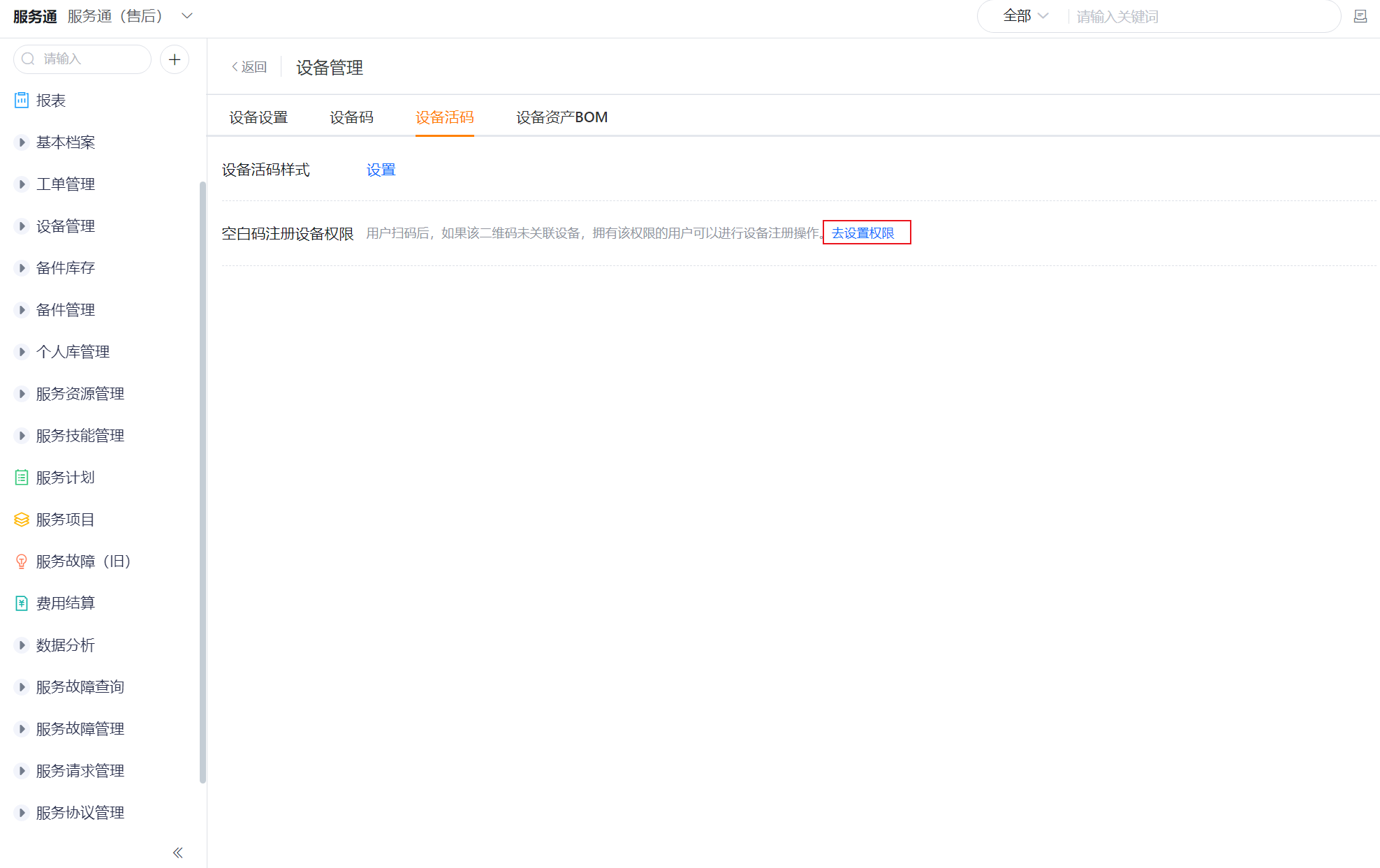
- Maintain the QR code string code field assignment rules in the QR code object.
- Maintain the QR code object data, use Export QR Code to generate a blank code and post it to the device.
- Personnel with registration authority scan the blank code of the unbound device and follow the page prompts to select the device to complete the binding.
Scan the QR code to view or associate devices
Internal engineers scan the QR code to view
- After you add Scan to the engineer workbench, engineers can scan a QR code to open equipment details.
- Engineers can also select + > Scan in the upper-right corner of ShareCRM.
- After entering the device details, you can continue to view related work orders and other information.
End user scans QR code
- The administrator enables the End User Service Pass and opens the Device object permission to the end user or guest role.
- If visitors need to query all devices, set the device object data permission to public. Disclosure will expand the scope of data visibility and should be combined with the evaluation of enterprise security policies.
- The end user scans the QR code through WeChat Scan, the WeChat service account's Scan menu, or the end user portal's Scan portal.
- After scanning the QR code to enter the device details, you can use the preset Fault Report button to submit a work order. Enterprises can configure the field mapping of devices to work orders as needed.
NOTE
WeChat and the above portals can only access device details through QR codes, and cannot use barcodes instead.
Scan barcode or QR code without link
- After scanning the barcode, you will only get the encoded text and will not automatically jump to the device details.
- External users can use the QR code scanning capability of the device field to associate the device when submitting a work order, or use the end user query tool to manually enter and scan the QR code value to query.
- When using the scan code in the Associated Device field of work orders, spare parts consumption and other objects, the administrator needs to enable Scan to Add and configure the UI function to query the device according to
device_code. The custom field API Name in the example function must be replaced with the actual field of the enterprise and cannot be copied directly.
Expected results and validation
- A system-generated code matches the equipment
device_code, and the print template contains the correct QR code or barcode. - After scanning the QR code, the correct device details will be opened; after scanning the barcode, the device can be matched through configured query or form logic.
- Blank live codes can only be bound by people with registration rights. After binding, scan the code again to locate the corresponding device.
- End users can only see device information allowed by object permissions and data permissions.
FAQ
The QR code can be recognized, but the device opened is incorrect.
Check whether the device code in the QR code link is exactly the same as the target device device_code, and confirm that there are no duplicate values in this field.
No device details will be redirected after barcode scanning
This is expected behavior of barcodes. The barcode only returns text, and the device needs to be queried through the end-user query tool or the scan function of the associated device field.
The original QR code of the external system cannot be recognized
If the QR code contains links to other systems, it cannot be processed directly as the Fenxiang device code. Device live codes can be enabled and labels can be changed for released devices.
Visitors cannot see the device after scanning the QR code
Check whether the Device object permissions and corresponding data permissions have been opened to the guest role. Setting data permissions to public will allow visitors to query all devices and should be carefully evaluated before configuring.