Appearance
Configure object and role permissions
Overview
Whether the end user can ultimately see the object entrance, open details, perform operations, or view fields is determined by business object configuration, connected role permissions, and page layout. Merely adding objects to End User Service Channel will not automatically open the data; administrators also need to assign business types, layouts, object operation permissions, field permissions, and data scopes to external roles.
Before you begin
- End-user Service Pass has been enabled and the objects that need to be opened have been determined, such as work orders, equipment, customers or service reviews.
- The connected roles used by end users have been determined, as well as the functional and data scope that need to be isolated for different roles.
- The business type and mobile layout suitable for external users have been prepared to avoid direct exposure of internal fields and internal operations.
- Use an administrator account that can maintain end-user service business objects, connected roles and layouts.
Configure end user business objects
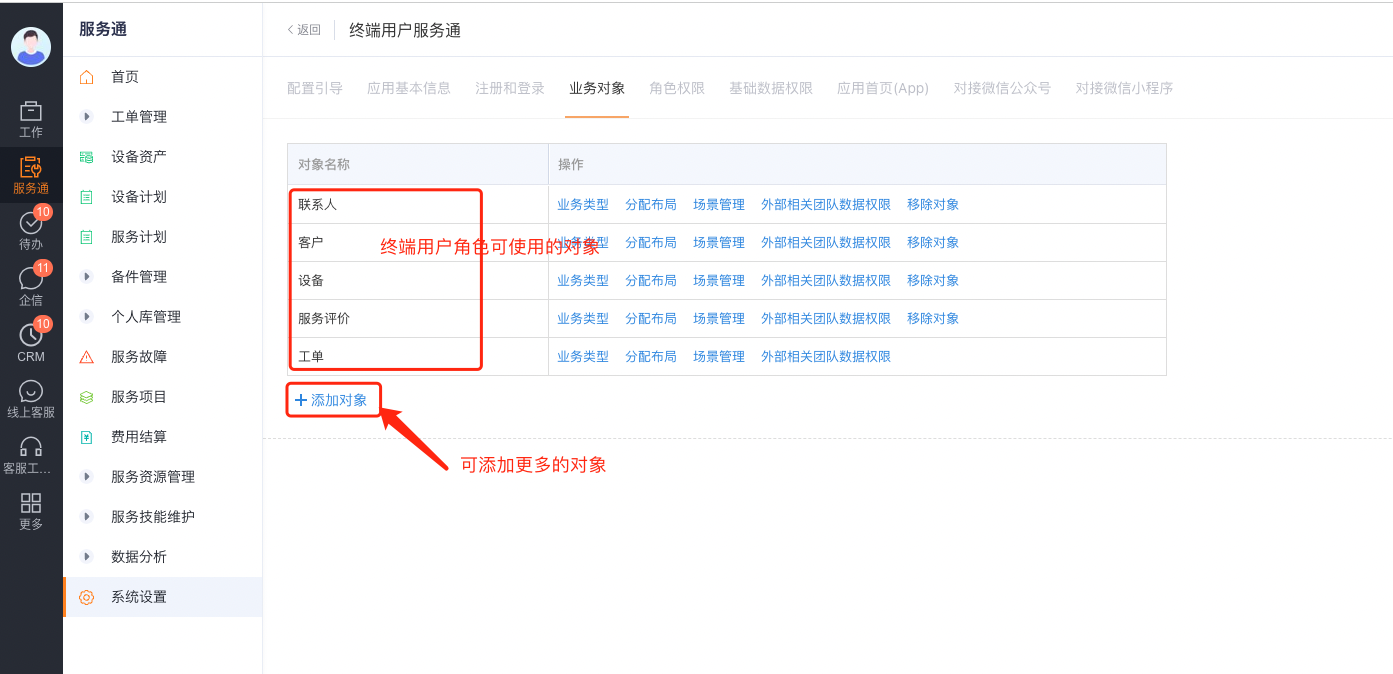
- Enter the object list in Service Pass > System Settings > Full Function Configuration > End User Service Pass > Business Objects.
- Check the system-preset end-user business objects. Preset objects carry default portal capabilities and are not recommended to be deleted directly.
- If you need to open other objects, select Add Object and add it to the object list.
- Configure the business type, distribution layout, and data permissions that can be used by external roles for each object.
Assign business type and layout
Assign business type
- In the business object list, select the object's Business Type.
- According to the connected role, select the business types that the role can use.
- Save the configuration.
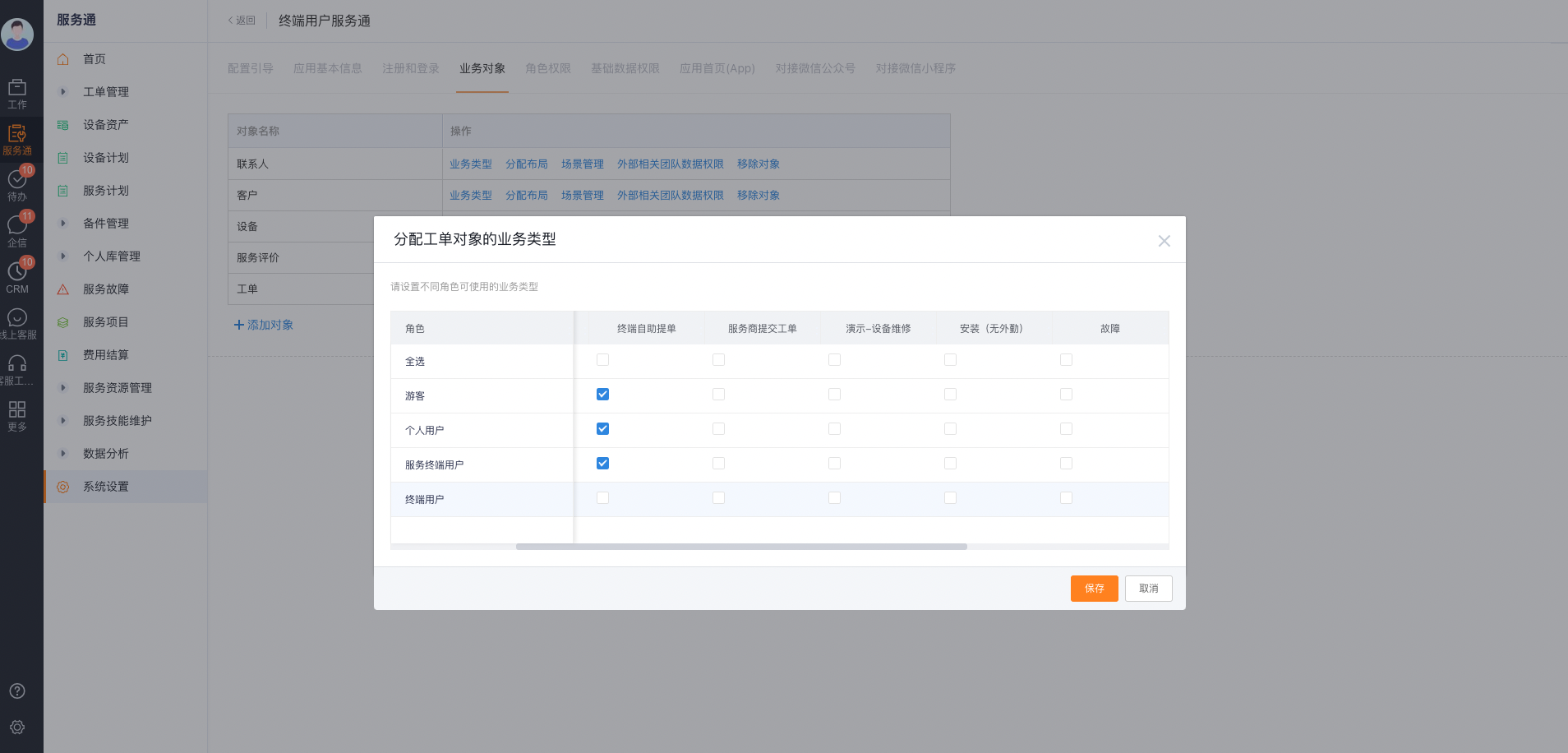
A role can be configured with multiple business types, but the original data recommends opening only one when facing end users to reduce the selection cost when users create new or view records.
Assign page layout
- Return to the object configuration and select Assign Layout.
- Assign list, new, edit and detail layouts for external users to each connected role and business type.
- Keep only the fields, components, and buttons in your layout that your end users need.
- Save the layout and return to the object configuration.
The layout determines what page the end user actually sees. Even if a role has permission to perform an action, end users will not be able to perform the action if the corresponding button is not displayed in the assignment layout.
Configure connected role permissions
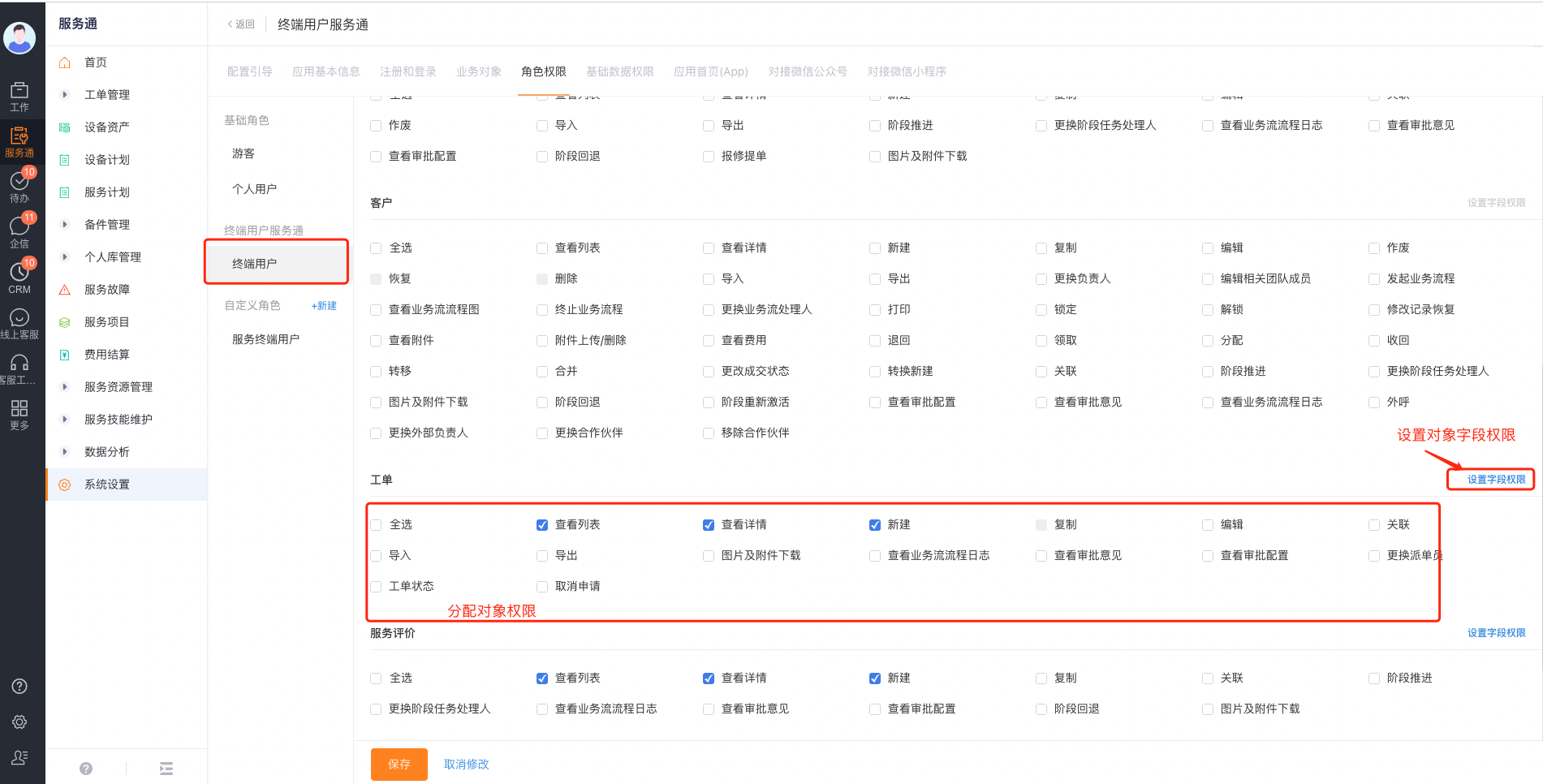
- Enter Role Permissions in End User Service Pass.
- Select the connected role to configure, such as Guest, Individual User, or End User.
- Configure the following permissions by object:
- View List: Determines whether the object entrance and list are accessible.
- View Details: Determines whether the record details can be opened; without authorization, the user may see the list but cannot open the details.
- Create, edit and other operation permissions: Determine whether the list page and details page provide corresponding operations.
- Field Permissions: Set fields as read-write, read-only, or invisible.
- Save the role permissions.
Check layout button
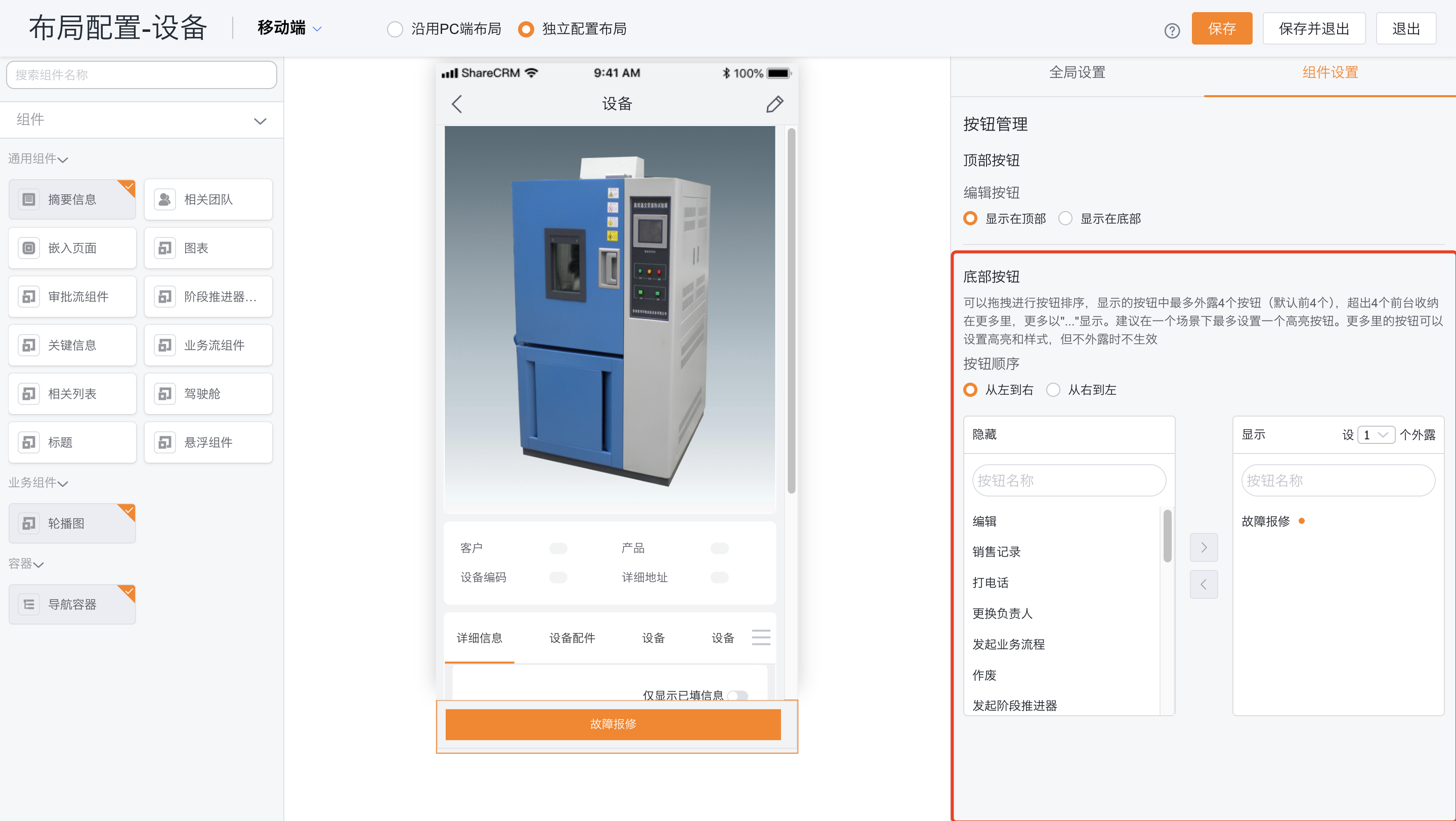
- Open the object layout assigned to the external role.
- Check that the top and bottom buttons contain the actions required by the end user.
- Adjust the button display position and order and save the layout.
Permission validity logic
| Configuration layer | Control content | Behavior when configuration is missing |
|---|---|---|
| Business object | Whether the object is included in the End User Service Pass | The object cannot be configured or used in the portal |
| Business type | Which object types can be used by the role | New creation or access to the corresponding business type is restricted |
| Object function permissions | View list, view details, create new, edit, etc. | Entry, details or operations are not available |
| Field permissions | Fields can be read-write, read-only or invisible | Fields are not displayed or cannot be modified |
| Data permissions | Which records the role can access | Only records within the data range can be seen |
| Page layout | Page fields, components and buttons | Authorized operations may still have no clickable entry |
Expected results and verification
- Prepare a test account for each target connected role.
- In the portal, confirm that object entries and lists appear when the account has View List permission.
- Open a record and check View Details, field visibility, and data range.
- Check whether the new, edit, etc. buttons meet both role permissions and layout visibility.
- Use guest accounts to additionally confirm that you will not access other customers or non-public data.
FAQ
- Cannot see object entry: Check whether the object has been added and whether the role has the View List permission.
- Can see the list but cannot open the details: Configure the View details permission for the role.
- Already have operation permissions but the button is not displayed: Check the list or detail layout assigned to the role.
- Role saw data it shouldn't have access to: Tighten object data permissions and check that query tools are configured not to restrict external data permissions.
- Too many business types appear when creating a new job: Reduce the business types that can be used by this role, and confirm that the corresponding layout has been assigned.