Appearance
Invite a customer to submit a service review
Show a review QR code on-site to collect timely customer feedback.
Overview
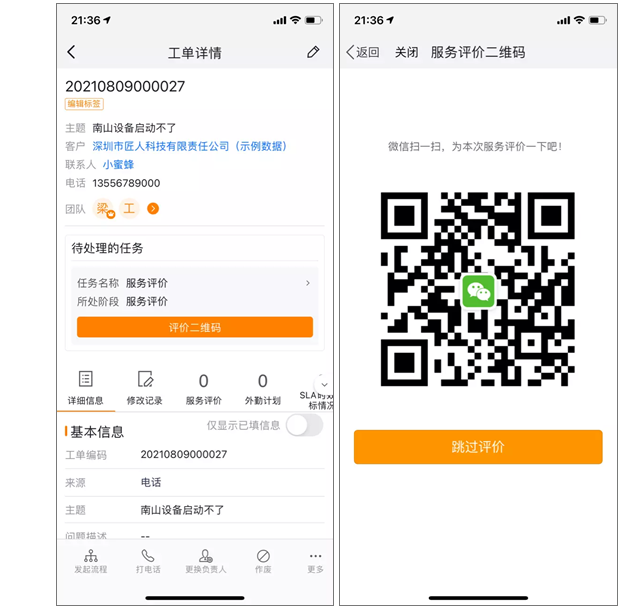
After service, the work order can enter a service review node. In the App, show the customer a QR code. The customer scans, completes, and submits the review.
The service engineer is the default owner. Your organization controls the actual owner, actions, form, and completion rules.
The system can also send invitations by WeChat, SMS, or email. Engineers normally do not resend automatic invitations.
Before you begin
IMPORTANT
- Use the service review task owner's account with access to the work order.
- The work order is at the service review node and has a pending task.
- The task supports QR-code reviews. Automatic-message-only tasks might omit this entry.
- If registered users are required, ask the customer to sign in.
- If guest reviews are allowed, the customer can submit without registration.
Invite the customer with a QR code
- In the App task list or work order details, open the service review task.
- Select the QR-code review action. Its legacy default label is Review QR Code.
- Show the QR code to the customer.
- Ask the customer to scan it with WeChat.
- If prompted, ask the customer to sign in or register.
- Ask the customer to enter ratings, comments, or a signature.
- Ask the customer to select Submit.
- Refresh the work order details and verify the review.
- If the task remains pending, select Complete as prompted.
TIP
Guest reviews open the form directly. Restricted reviews first require sign-in or registration.
Understand automatic invitations
When configured, the system sends the invitation after the service review node starts.
| Method | Recipient and requirement | Engineer verification |
|---|---|---|
| Connected user bound to the work order's external owner and official account or mini program | Verify the contact and external owner | |
| SMS | Mobile number selected by the review rule; requires available SMS quota | Verify the mobile number |
| Email address selected by the rule; template must contain the review link | Verify the email address |
With channel priority enabled, a successful higher-priority channel suppresses lower-priority channels. Without priority, the system uses every selected channel.
Customer identity
- End-user review: The customer signs in or registers, and the system records that identity.
- Guest review: The customer submits without signing in.
- Administrators control guest access. Engineers cannot change it from the task.
Node completion rules
- Review required: The node completes only after customer submission.
- Skip review: Appears only when administrators allow it; its label can be customized.
- Multiple reviews: Several customers can submit. Complete the node manually after all invitations.
- Automatic completion: After a configured wait, the system skips the node if no customer submits.
Expected result
- In work order details, open Service Reviews.
- Verify the rating, comments, signature, and source.
- Confirm that the review node status is updated.
The customer opens a form for the current work order. Submission creates a review record and advances the process according to configured completion rules.
Notes
- Do not submit a review with an engineer account on the customer's behalf.
- QR codes, fields, and action labels depend on configuration.
- Follow the task instructions for required and skippable reviews.
- For multiple reviews, confirm that every intended customer has submitted before completion.
Troubleshooting
The QR-code review action is unavailable
Confirm that the order reached the review node and that you own the task. Automatic-message-only configurations can omit the QR code.
The customer must sign in after scanning
Your organization currently permits only registered end users. Ask the customer to sign in or register.
The customer did not receive an automatic invitation
- For WeChat, verify the external owner and official-account or mini-program binding.
- For SMS, verify the mobile number and quota.
- For email, verify the address and ask the customer to check spam.
The node remains pending after submission
Refresh the task. For multiple reviews, select Complete after all invitations. Otherwise, ask an administrator to check completion rules.
Skip Review is unavailable
Administrators can hide this action, and required reviews must wait for customer submission.