Appearance
Configure end-user accounts
Configure end user accounts to control portal identities and access rights.
Overview
End users are external connected users who access the Customer Self-Service Portal. The system uses Internet Enterprise and Internet User to save external account identities, and can associate these two types of identity data to Customers and Contacts of CRM. After the administrator assigns connected roles to interconnection users, end users can query devices, submit work orders, or use other portal functions based on role permissions.
The relationship between these data is as follows:
- Internet Enterprise, Internet User: Save portal login identities and external roles. After the end user account is opened, regardless of whether the customer information has been completed or not, the portal will be accessed as an connected user.
- Customer, Contact: Save the customer master data and personal contact information required by the enterprise. Whether it must be created or associated on first access depends on the self-registration method and the required settings of the business object fields.
- Guest: A special connected account in the system, corresponding to a tourist role. All anonymous visitors share this account, and their business data is unified to the same customer and contact designated by the administrator, and cannot be isolated by individual.
WARNING
Guest status is only suitable for accessing public data. Do not open data and functions that contain customer privacy, device details, or need to identify the operator to visitors; guest accounts and their data collection methods cannot be used to distinguish actual visitors.
Before you begin
- Confirm that the end user account has been purchased and the interconnection function has been activated.
- For first-time setup, select End User Service Pass under Service Pass > System Settings > Configuration Overview to initialize the feature.
- For later changes, go to Service Pass > System Settings > Full Function Configuration > End User Service Pass > Account Activation.
- When manually opening an account, the current administrator must have the New permission for Internet Enterprise and Internet User objects; the End User menu must also be displayed in the Service Pass view on the Web side.
- Prepare connected roles for assignment. Roles determine the data and operation permissions of end users. The applicable roles of portal templates will further affect whether pages and function entrances are visible.
- Before using customer and contact information to self-register, prepare the business type, layout and required fields of customers and contacts. The system usually initializes dedicated business types and layouts. If the initialization fails, you need to manually create and complete the allocation.
Select account mode
| Mode | Identity establishment method | Customer and contact requirements | Applicable scenarios and restrictions |
|---|---|---|---|
| Manual activation | The administrator opens an connected account for designated customers and contacts | The selected customer has at least one contact | Suitable for only allowing approved customers to access |
Third-party OpenID self-registration | An connected account is automatically generated when a user enters from a WeChat official account or Mini Program | It can be completed after the first visit or not | Each OpenID corresponds to an independent connected user, and data can be isolated by user |
| Customer and contact self-registration | Users verify a mobile number, then match or create a customer and contact | Must complete the organization's registration form | Suitable when customer identity must be confirmed before portal access |
| Account generated from a mobile number or email address | The system creates a connected account when an unregistered user signs in with a mobile number or email address | Customer details depend on the other enabled registration methods and business requirements | Suitable for non-WeChat portals; verify against the channel's sign-in method |
| Guest access | All anonymous visitors share guest accounts | Guest accounts are associated with designated customers and contacts | Visitors are not distinguished, data is collected centrally, and is not suitable for sensitive businesses |
| Self-registration is prohibited | Only connected accounts that have been opened by the administrator are allowed to log in | Maintained by the administrator in advance | Login and registration are directly blocked when an connected user is not matched |
Manually activate end users
Enable manual provisioning
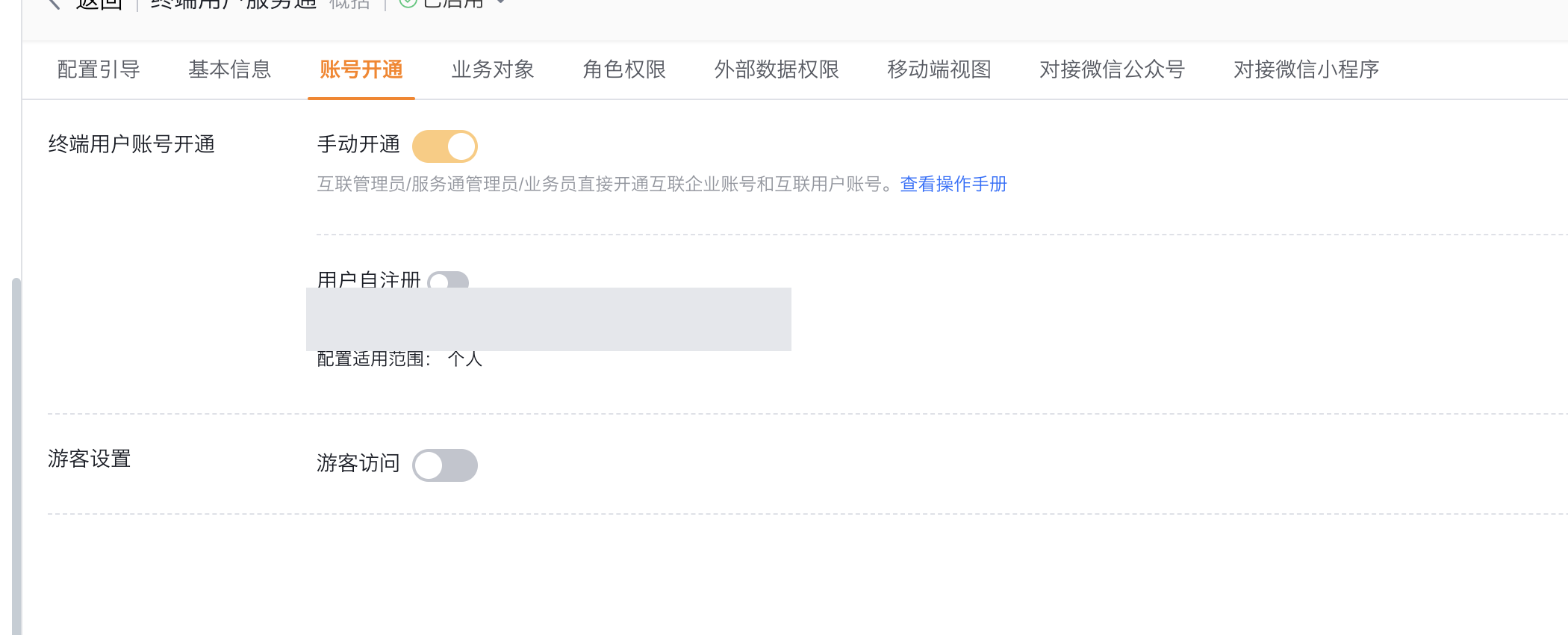
- Enter Service Pass > System Settings > Full Function Configuration > End User Service Pass > Account Activation.
- Enable Manual Provisioning. This switch allows Internet administrators, service administrators, or business personnel with corresponding permissions to directly create connected enterprise accounts and connected user accounts.

Open an account for a customer contact
- Confirm that the End User menu is displayed in the web Service Pass view, and then enter Service Pass > End User.
- Select Add End User.
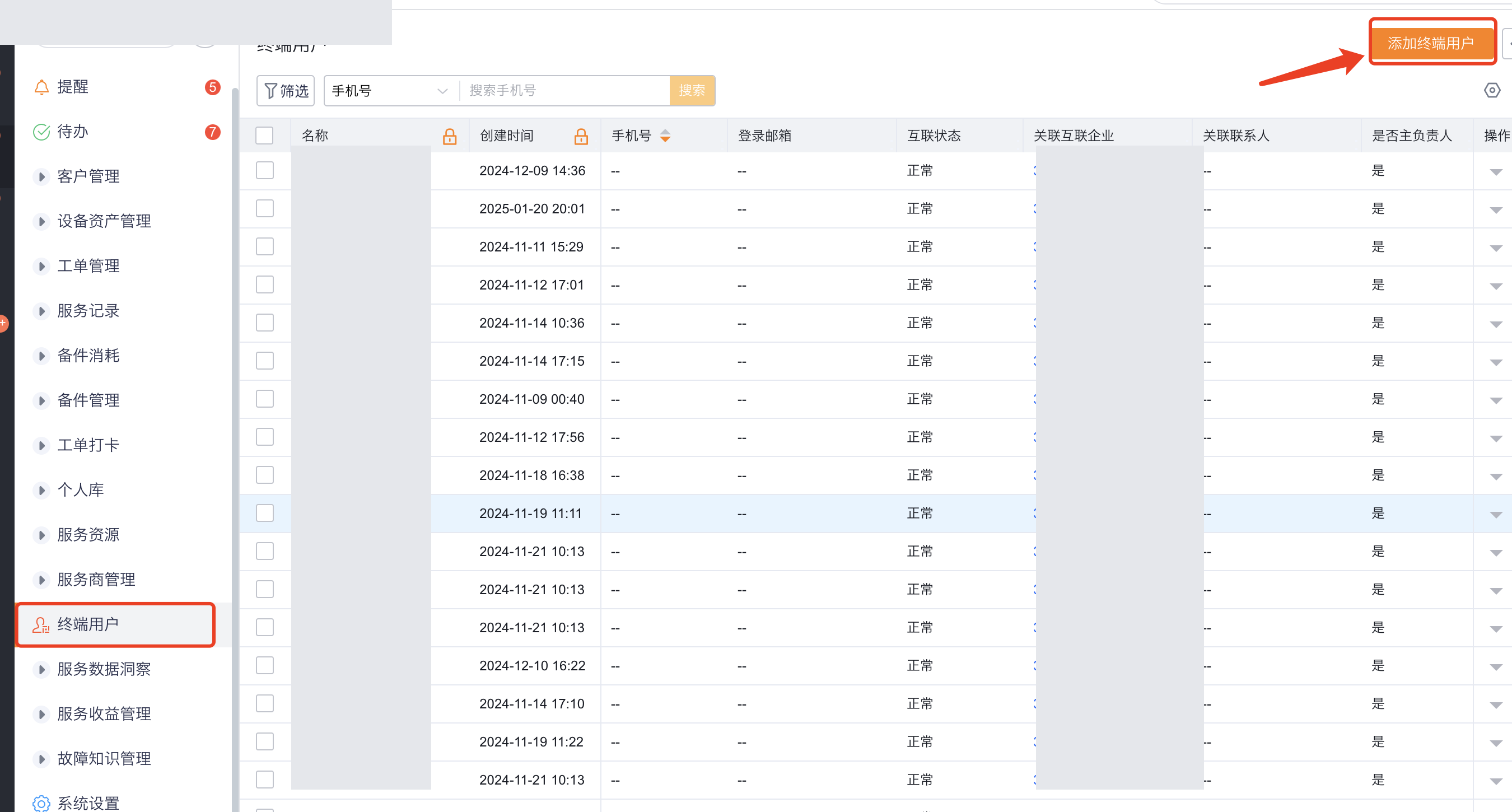
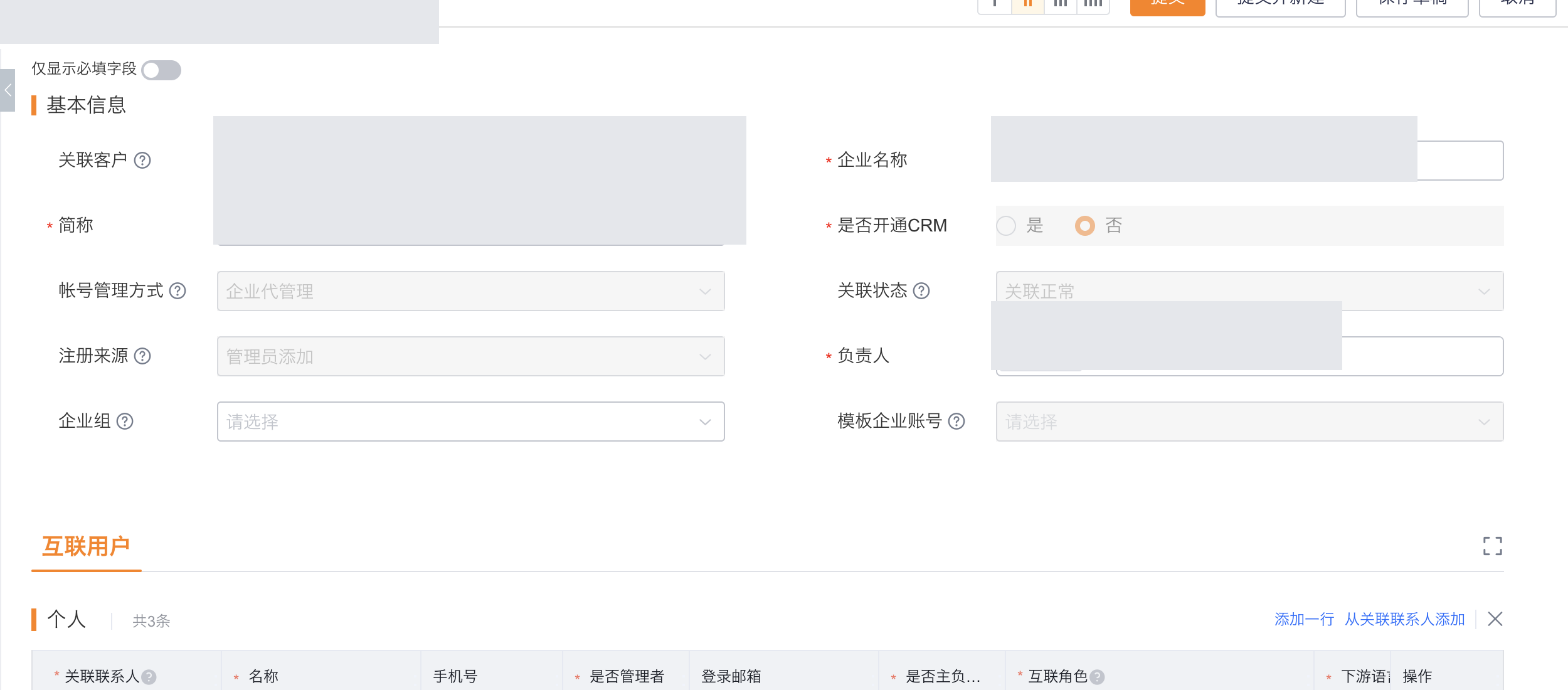
- Select the customers to activate. Each customer must have at least one contact.
- Select the connected role to assign to the end user and submit.
- After submission, the system creates or activates the corresponding connected enterprises and connected users, and associates the selected customers and contacts. The end user can use the contact's mobile phone number to receive the verification code and log in.
Configure guest access
- Go to the Account Activation page and enable Guest Access.
- Select Set Parameters and specify a customer record used to collect visitor business data.
- Check the system initialized guest account, contact person, connected account and guest role. If the guest customer is not initialized successfully, manually create a "tourist" customer data and associate the guest account according to the system requirements.
- Grant only the object, action, and field permissions required to access public data in the guest role.
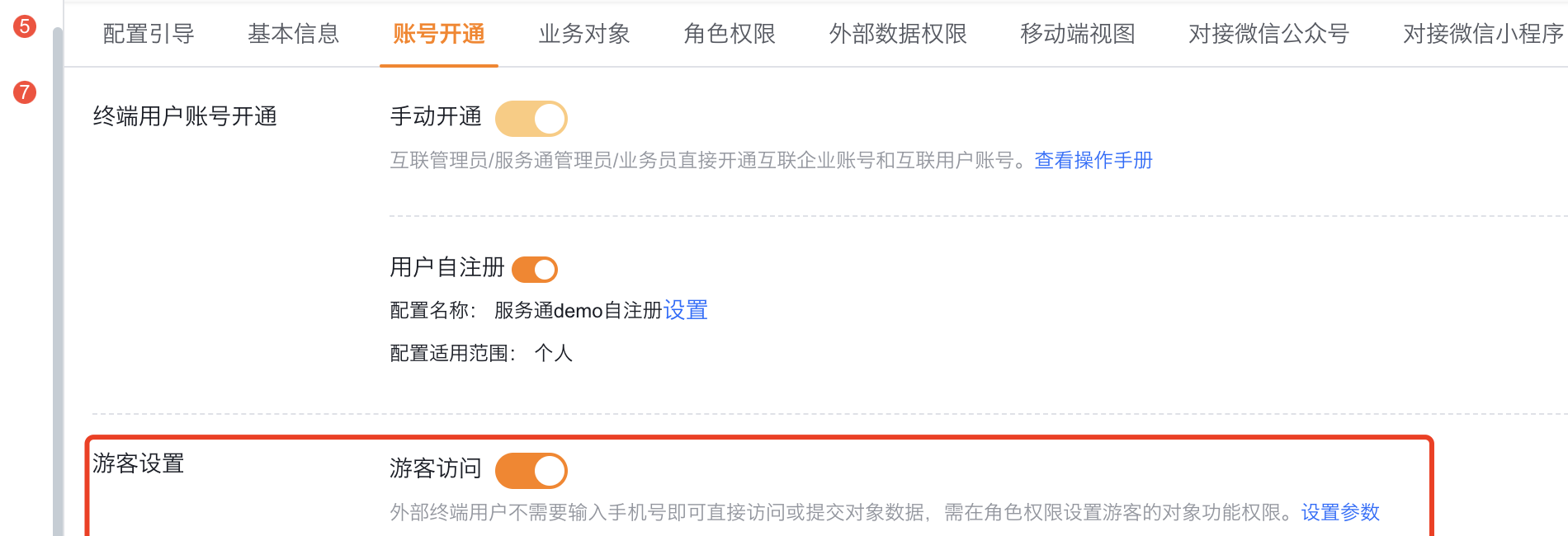
The visitor switch only determines whether anonymous users can enter; what visitors can see and perform also depends on the visitor role permissions, portal page configuration and business object layout. All visitor operations are still classified as the same account and the same customer, and cannot be restored to real individuals through subsequent reports.
Configure user self-registration
Enable and select self-registration configuration
- Go to Service Pass > System Settings > Full Function Configuration > End User Service Pass > Account Activation.
- Enable User Self-Registration.
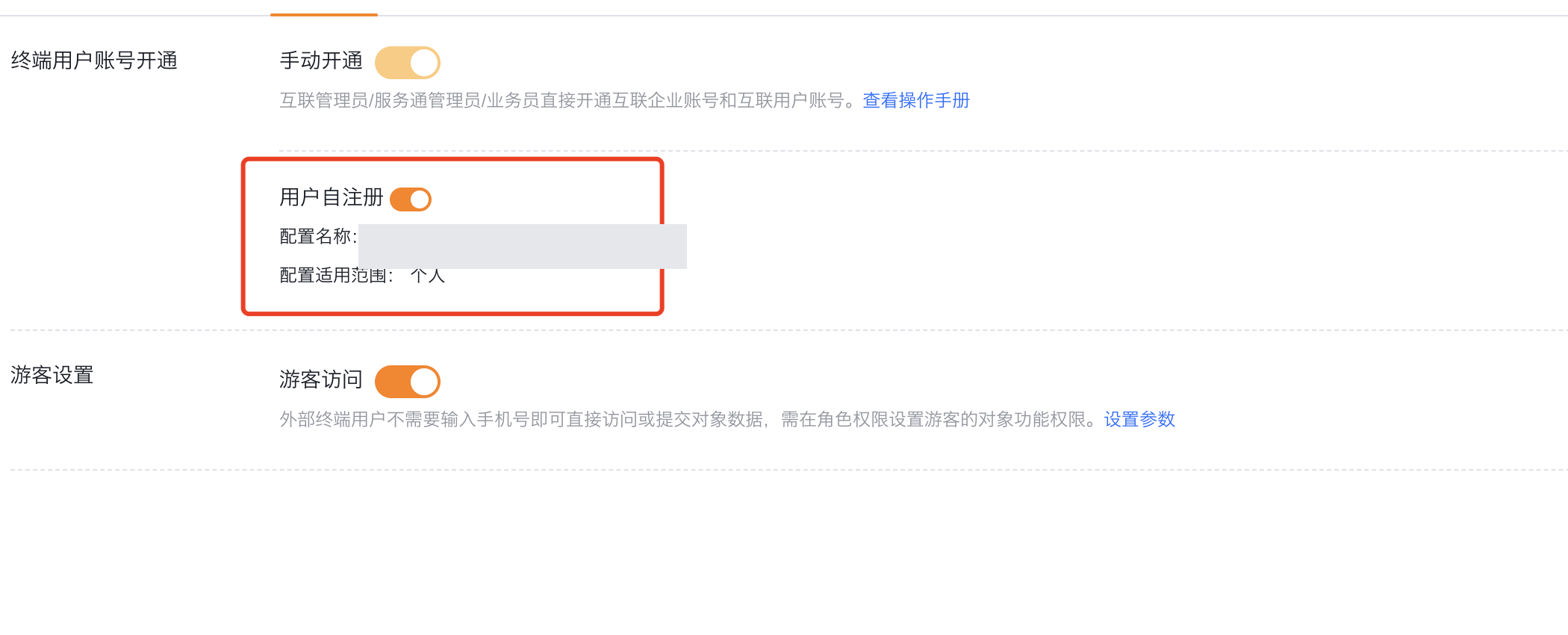
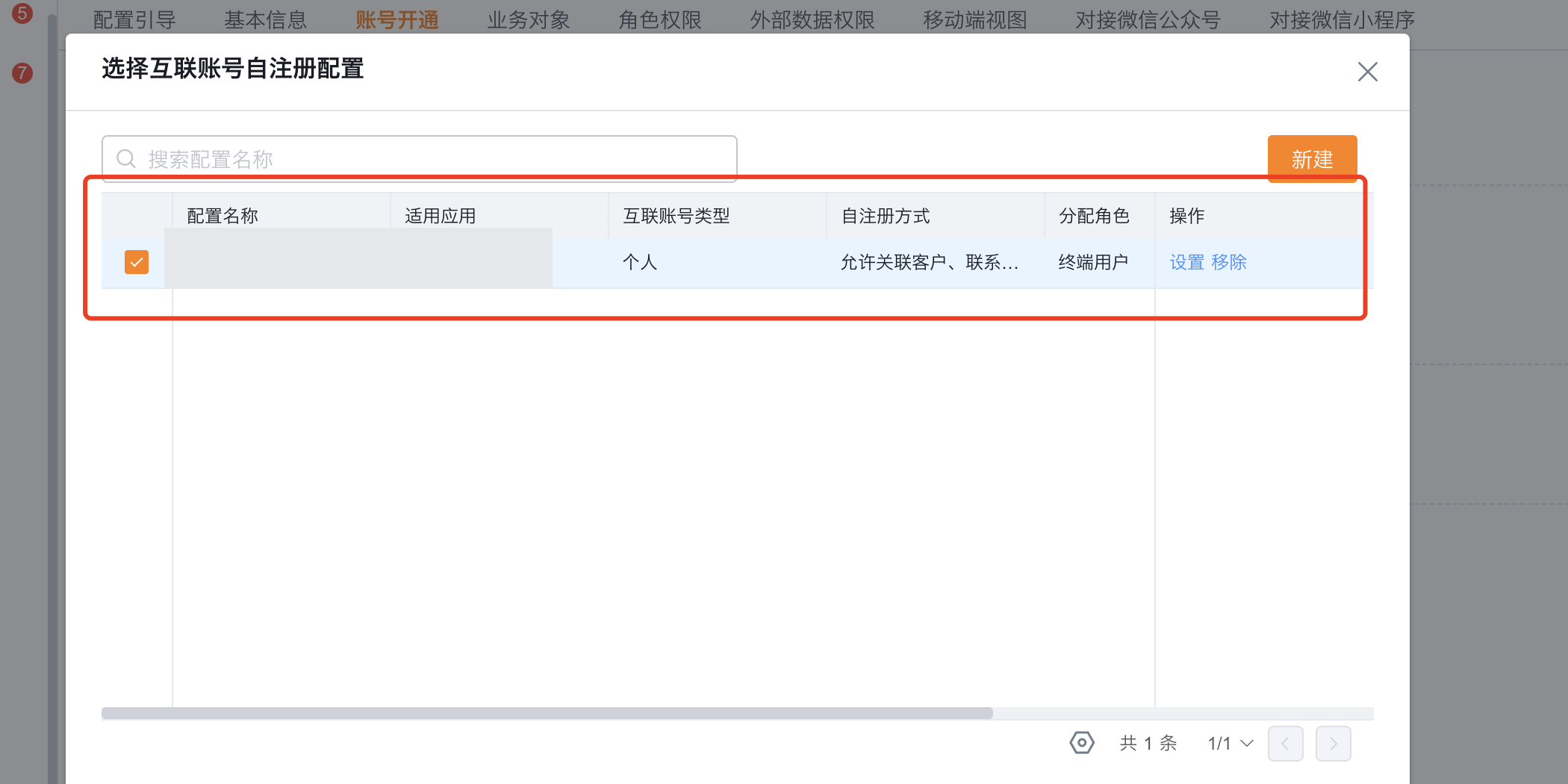
- Select Settings.
- Check the existing configuration in the connected account self-registration configuration, or create a new configuration; if adjustments are needed, open the selected configuration and continue editing.
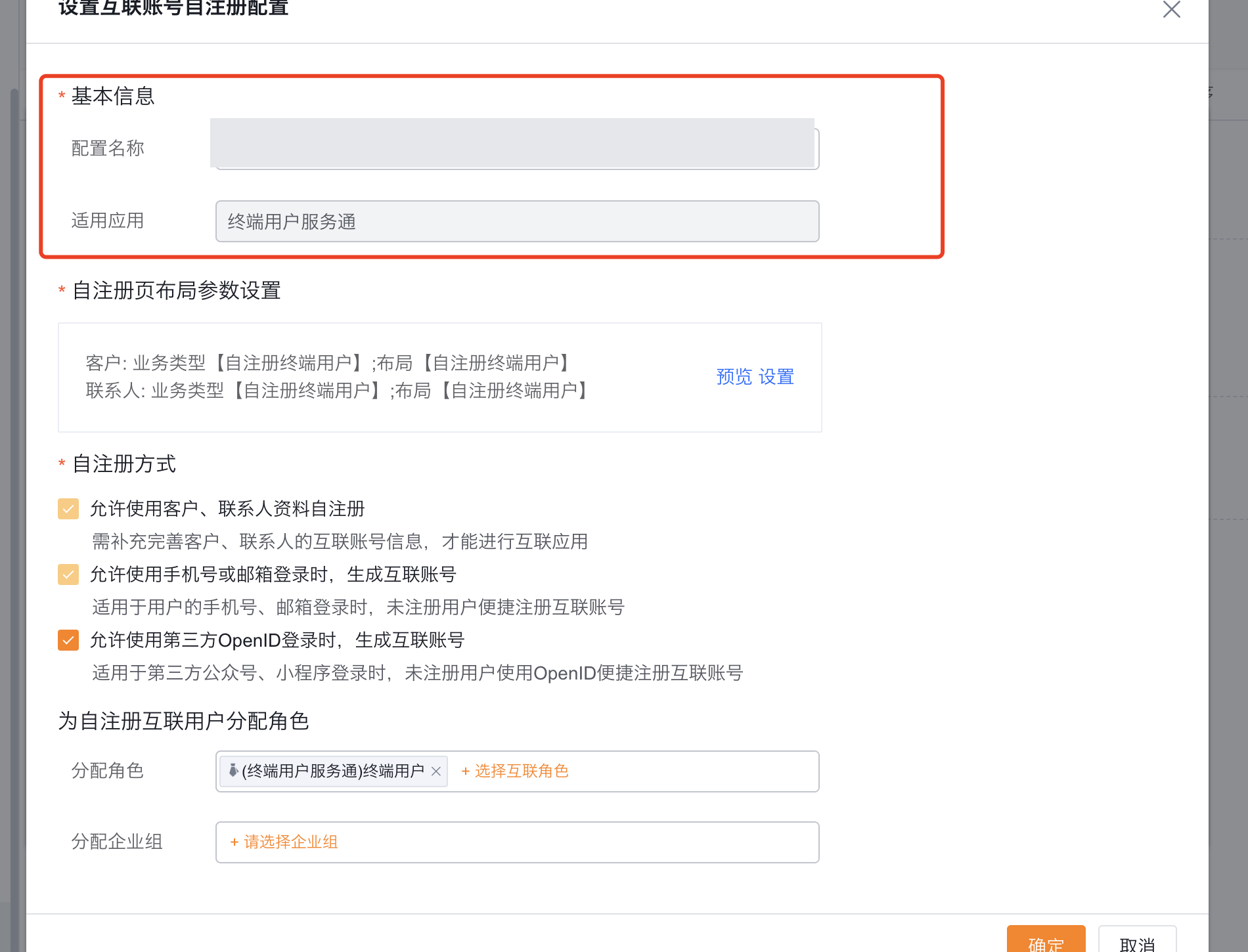
Configure basic information
- Configuration Name: Enter a name that is easy for administrators to identify. The name is only used for background management and is not used as the page title for end users.
- Applicable Applications: Select End User Service Pass. The configuration only takes effect for the selected application.
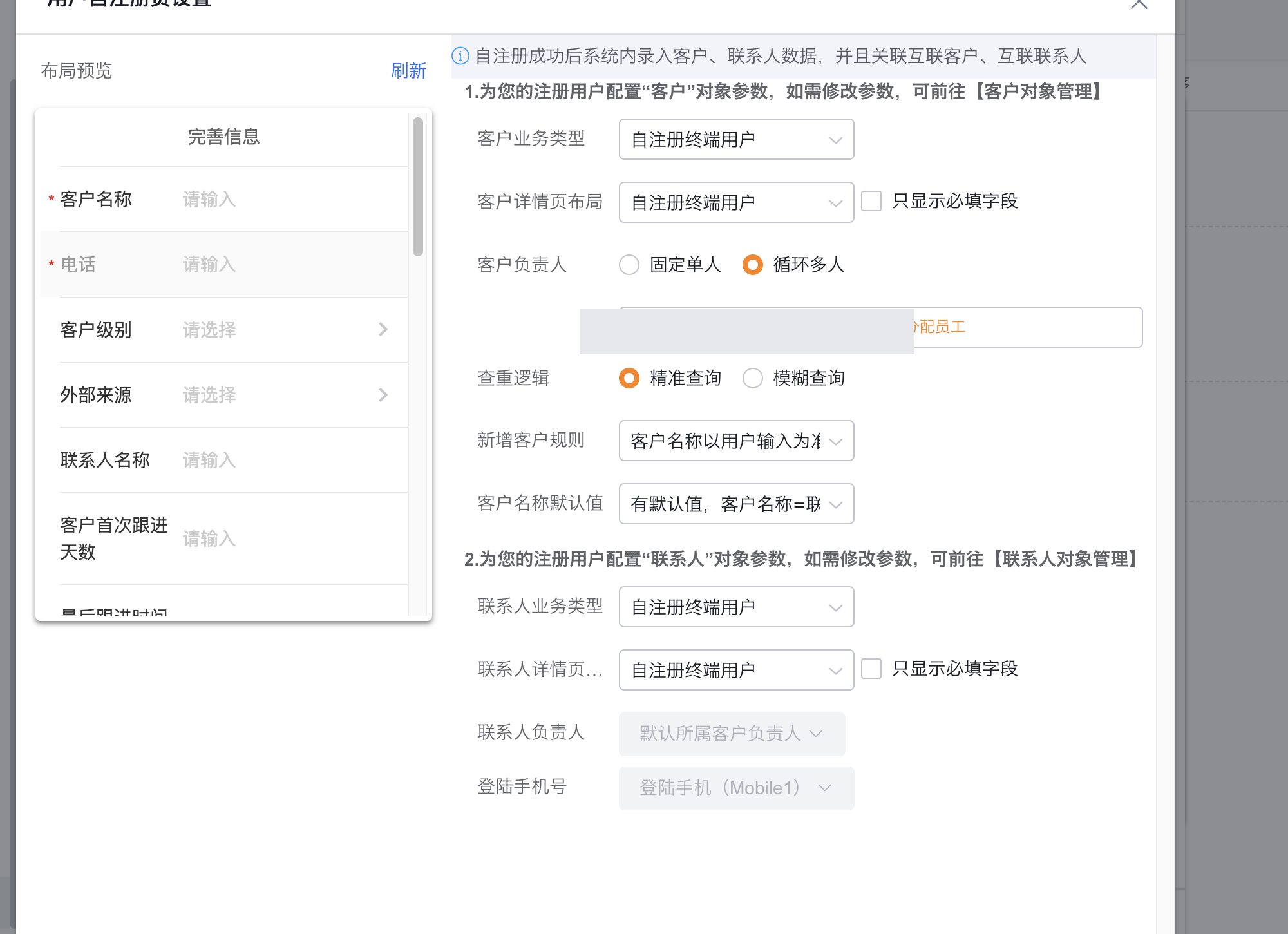
Configure customer parameters
Select Settings in Self-registration page layout parameter settings and configure the customer object:
- Customer business type: This business type is written to the customer created by self-registration. The system usually initializes the Self-registered end user business type; if this business type does not exist, it needs to be created manually in customer object management.
- Customer details page layout: Select the customer fields on the registration page. The system normally initializes End User Layout. If initialization fails, create the layout and assign it to the self-registration business type.
- Show only required fields: When enabled, the registration page filters non-required fields. Whether a field is required or not is still determined by the selected business type and layout; before enabling this, you should confirm that the necessary customer identification information is set to required.
- Customer Responsible Person: You can choose a fixed single person or multiple employees to be assigned in a circular manner. Fixed single person is convenient for centralized acceptance; circular allocation is suitable for spreading the follow-up volume of new customers.
- Duplicate checking logic: Match by customer name. Precise query has a small hit range and low risk of false association; fuzzy query may quickly return multiple similar customers, but it needs to prevent end users from selecting the wrong customer.
New customer rules support three modes:
| Rules | System Behavior | Applicable Scenarios |
|---|---|---|
| The customer name is subject to user input | Users can enter and create new customer names | Customers are mostly individuals, or the legal corporate name is not emphasized |
| The customer name can only be selected from existing customers | You can only continue if the entered content hits an existing customer | Only open to existing customers, no stranger customers are allowed to register |
| The customer name is only obtained from the industrial and commercial query | The user must select the subject name returned by the industrial and commercial query | The corporate subject name is required to be formal and accurate |
Customer Name Default supports three modes:
| Default value | System behavior | Applicable scenarios |
|---|---|---|
| No default value | The user enters a customer name | Requires the user to provide the customer name |
| Editable default value | Generates "contact name + mobile number" by default and lets the user change it | Suitable when a formal customer name is optional but users can correct it |
| There is a default value and cannot be modified | Generate and lock according to "contact name + mobile phone number" | Pursue fast registration and do not require a formal company name |
Configure contact parameters
- Contact Business Type: Contacts created from self-registration are written into this business type. The system usually initializes the Self-registered end user contact business type; if it does not exist, it needs to be created manually.
- Contact Details Page Layout: Determine which contact fields are collected on the registration page. When initialization fails, manually create the End User Contact Layout and assign it to the contact business type used for self-registration.
- Show only required fields: When enabled, only required fields in the layout will be displayed. You should first confirm that necessary information such as your name has been configured as required.
- Contact person in charge: The person in charge of the customer is fixed and inherited, and the end user cannot modify it during registration.
- Login mobile phone number: The login mobile phone number for user verification is written into the
Mobile1field of the contact by default. When duplication checking and subsequent mobile phone number matching rely on this field, do not rewrite the login mobile phone number to other custom fields.
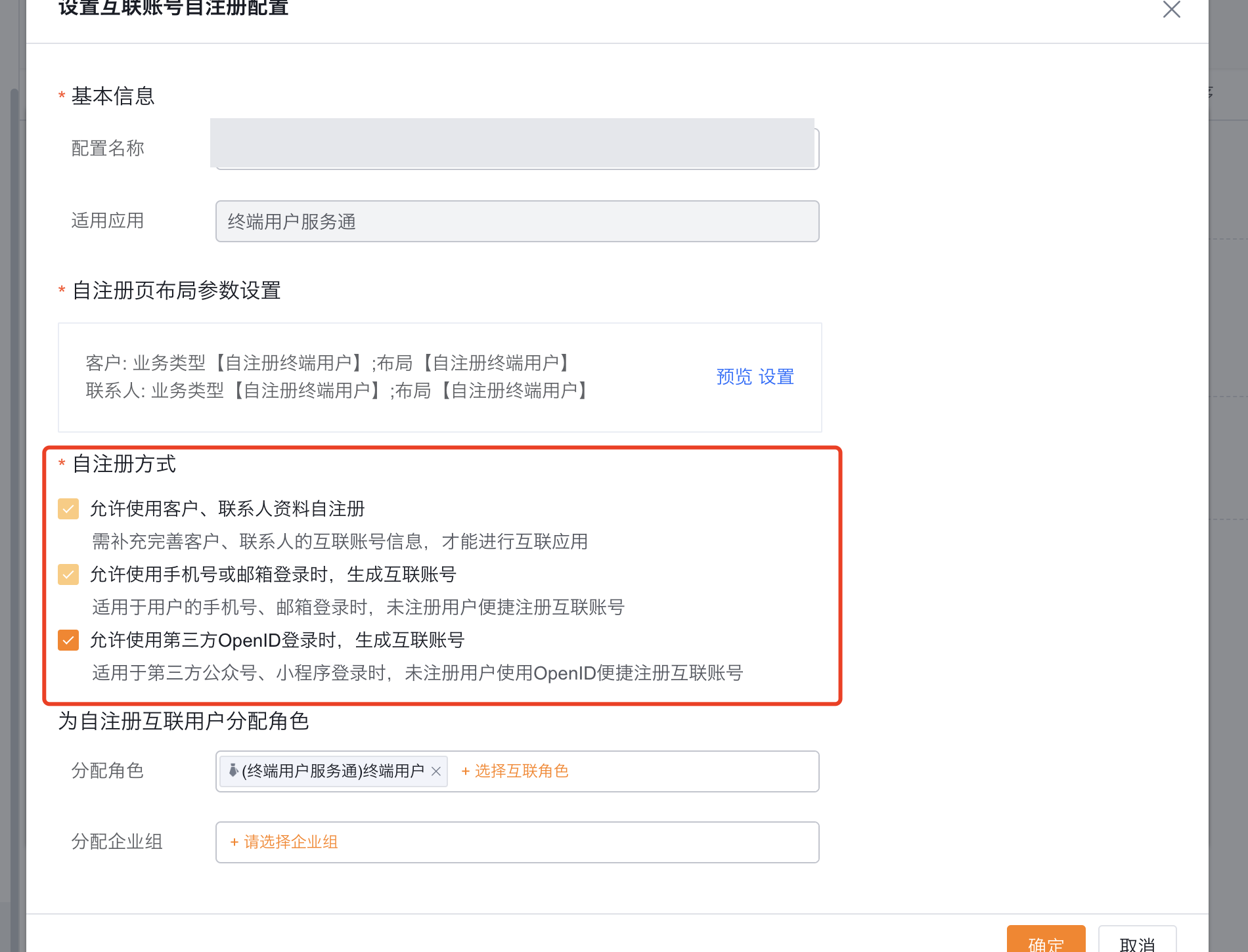
Select self-registration method
Check one or more of the following methods according to the actual channel:
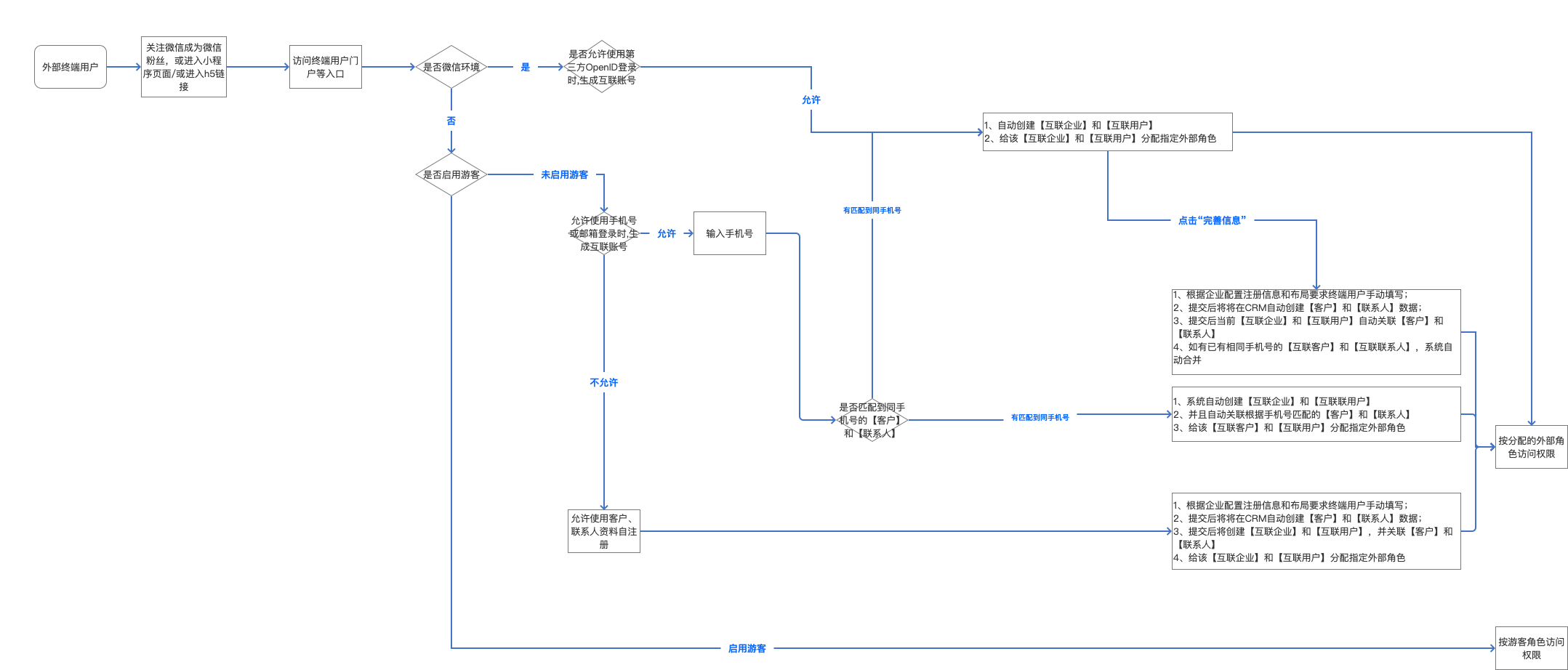
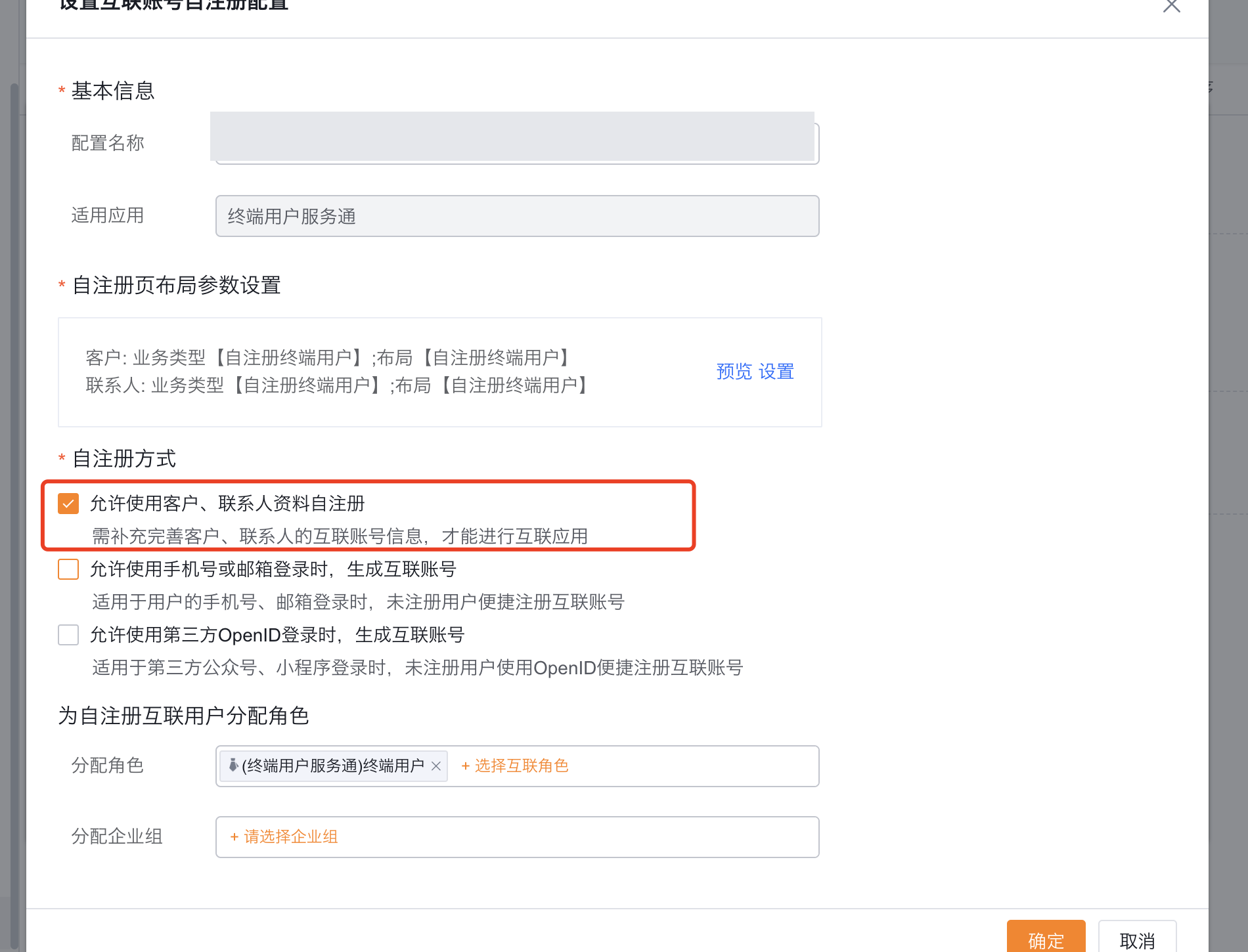
- Allow customer and contact self-registration: Users complete customer and contact details before using connected applications. The system matches or creates CRM data from the configured business types, layouts, duplicate checks, and creation rules.
- Allow the generation of connected accounts when logging in using mobile phone numbers or email addresses: When unregistered users log in through mobile phone numbers or email addresses, the system can easily generate connected accounts. Whether you need to continue to complete customers and contacts depends on whether data self-registration is allowed at the same time and the specific business entry requirements.
- Allows the use of third-party
OpenIDto generate connected accounts: applicable to WeChat official accounts or WeChat Mini Programs. After obtainingOpenID, the system generates an connected account and establishes third-party channel binding.
The figure below illustrates the conversion relationship between login identity and connected account, customer and contact under different registration methods.
Assign roles and enterprise groups
- Assign role: Select the connected role for the interconnection users generated by self-registration. This role determines object, operation, field and external data permissions; when the correct role is not assigned, the user may be able to log in but cannot see the business portal or data.
- Assign enterprise group: If the enterprise uses connected enterprise groups for organization or data range management, select the enterprise group that the self-registered account should join. When the enterprise group is not used, it can be processed according to the current tenant configuration.
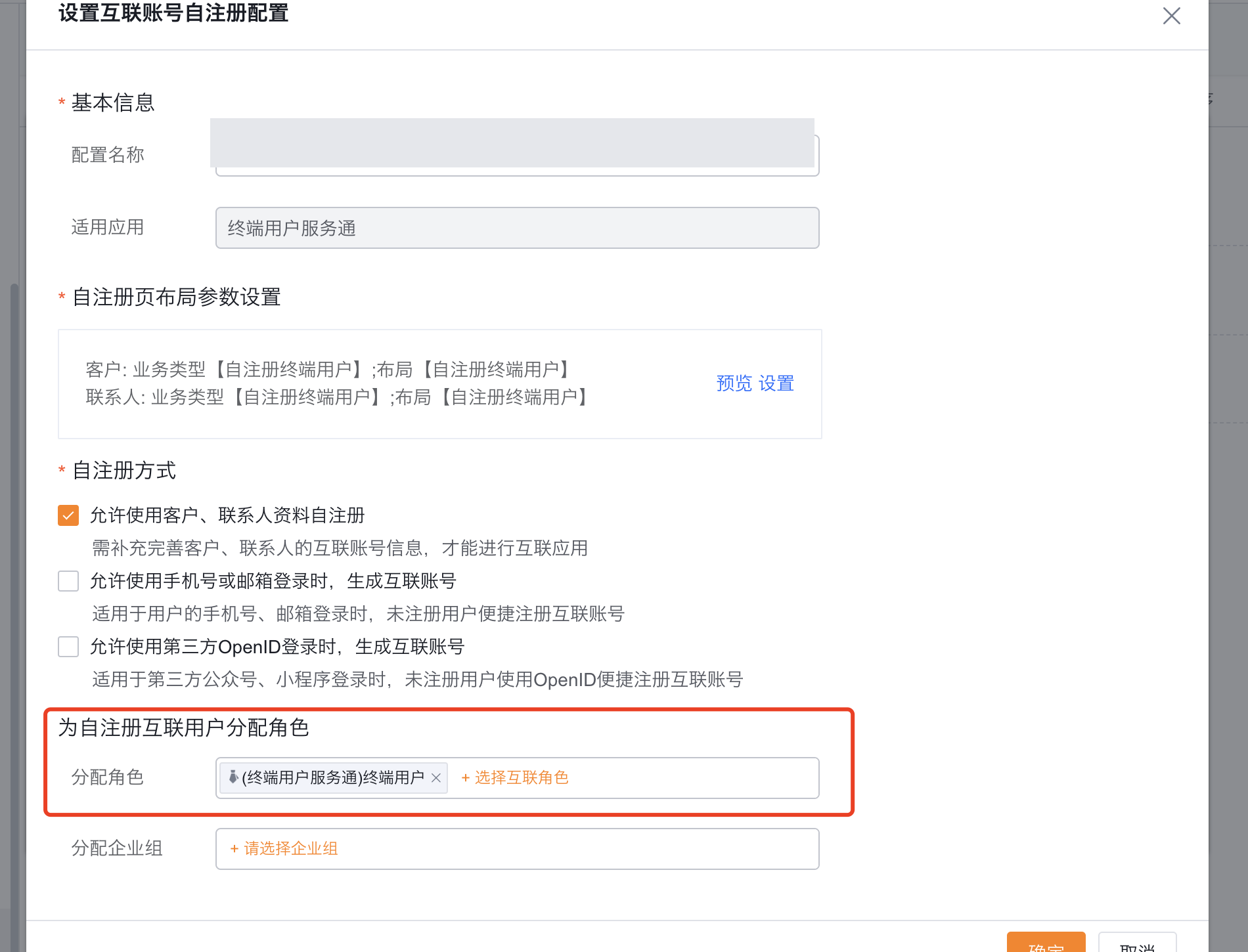
After saving the configuration, return to the Account Activation page and confirm that User Self-Registration is enabled and the newly saved configuration is displayed.
Configure according to business scenario combination
The "customer and contact fields" in the following scenarios refer to the fields on the work order or service request object used to associate customers and contacts. Whether a field is required must be checked in the corresponding business object, business type and layout.
Scenario 1: OpenID automatically creates an account without requiring customers and contacts
Applicable to WeChat official accounts or WeChat Mini Programs. Users can access the portal and submit business without first filling out customer profiles.
- Enable Allow third-party
OpenIDto log in to generate an connected account in the self-registration configuration. - Set the customer and contact fields in the work order or service request to not required.
- Assign the required connected roles to the self-registered account.
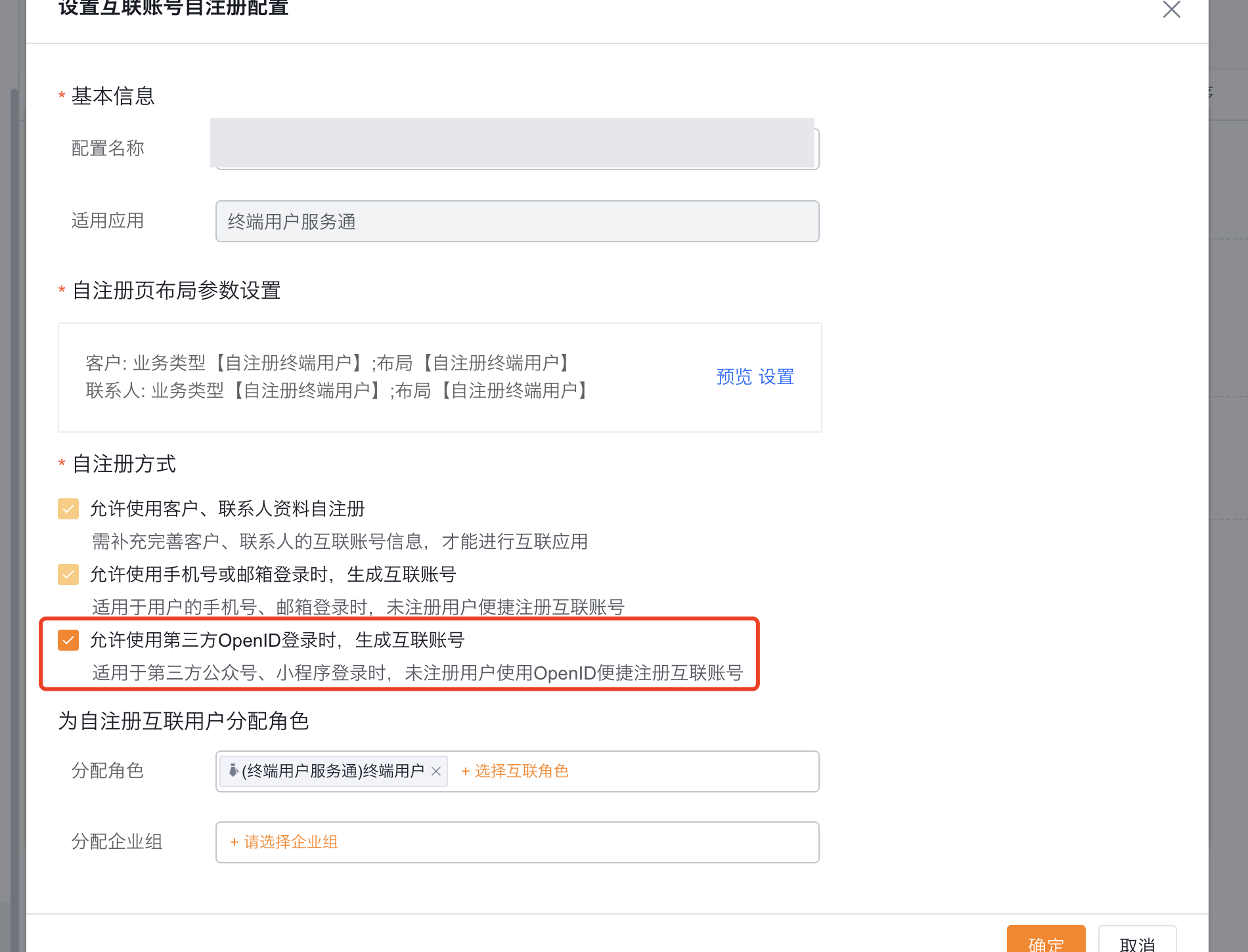
System data and terminal results: When a user enters through the WeChat channel for the first time, the system obtains OpenID, automatically creates connected enterprises and connected users, assigns designated external roles, and establishes WeChat Official Accounts or mini-program bindings. Users can enter the portal directly and submit business objects that are allowed to be empty without filling in customers and contacts.
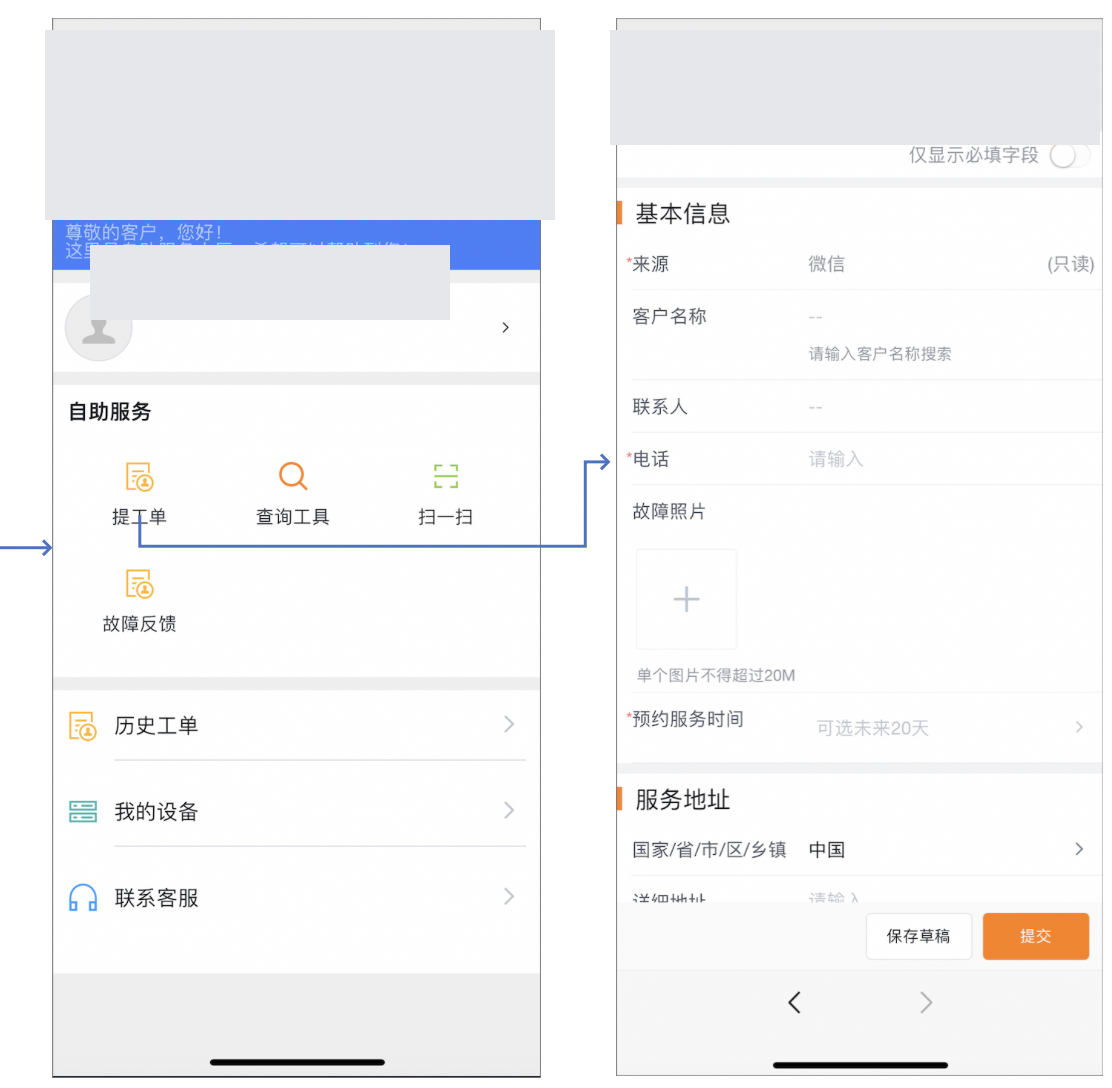
Limitations: This mode will not automatically generate complete CRM customer and contact information. It is different from tourists: each OpenID corresponds to an independent connected user, so data can be isolated by external accounts; however, processes, statistics, and permission conditions that rely on customers or contacts may not work properly.
Scenario 2: OpenID Enter the portal first and complete the information when submitting the business
It is suitable for WeChat official accounts or Mini Programs that want to lower the threshold for first access, but must obtain customer information before submitting a work order or service request.
- Enable Allow third-party
OpenIDto generate an connected account when logging in. - Also enable Allow self-registration using customer and contact information, and complete the configuration of customer and contact layout and duplication check rules.
- Set the customer and contact fields in the work order or service request to required.
- Assign the required connected roles to the self-registered account.
System data and terminal results: When entering for the first time, the system first creates connected enterprises and connected users based on OpenID and establishes third-party bindings. Users can browse the portal content allowed by their roles. When submitting a work order, since the customer and contact fields are required, the system prompts the user to complete the account information. After the user submits the registration form, the system matches or creates customers and contacts, and associates them with the current connected enterprise and connected user; if there are already connected enterprises and connected users with the same mobile phone number, the system automatically merges them. After completion, the user can continue to submit the business.
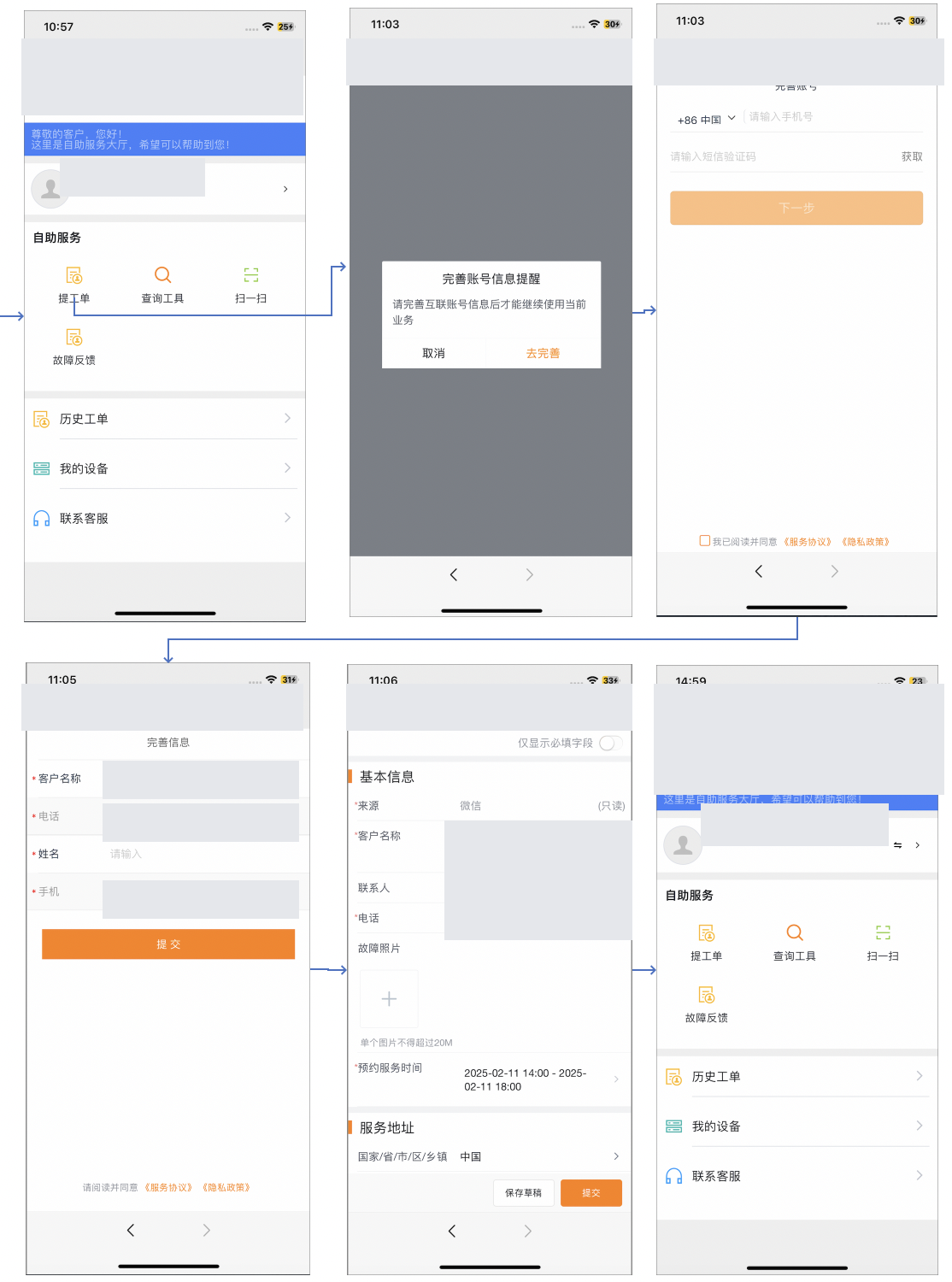
Restrictions: Only if the business object field is set as required can it be forced to be completed during the submission process. Users may still browse the portal before completion, so external role permissions also need to be used to limit the data that is visible when the customer is not associated.
Scenario 3: Customer and contact registration must be completed before entering the portal
Applicable to WeChat official accounts or WeChat Mini Programs, users are required to confirm their mobile phone number and customer identity before accessing any portal business.
- The self-registration method is only enabled Self-registration using customer and contact information is allowed.
- Close Guest Access.
- Complete customer and contact business types, layout, required fields, duplication checking and role assignment.
System data and terminal results: Users first enter their mobile phone number when entering the portal. If Mobile1 matches customers and contacts with the same mobile phone number, the system creates connected enterprises and connected users and associates existing records; if it does not match, the system collects data according to the registration layout, and after submission, creates customers, contacts, connected enterprises, and connected users and completes the association. The system assigns designated external roles; when entering from the WeChat channel, corresponding third-party bindings will also be established. Users can enter the portal only after completing the above steps.
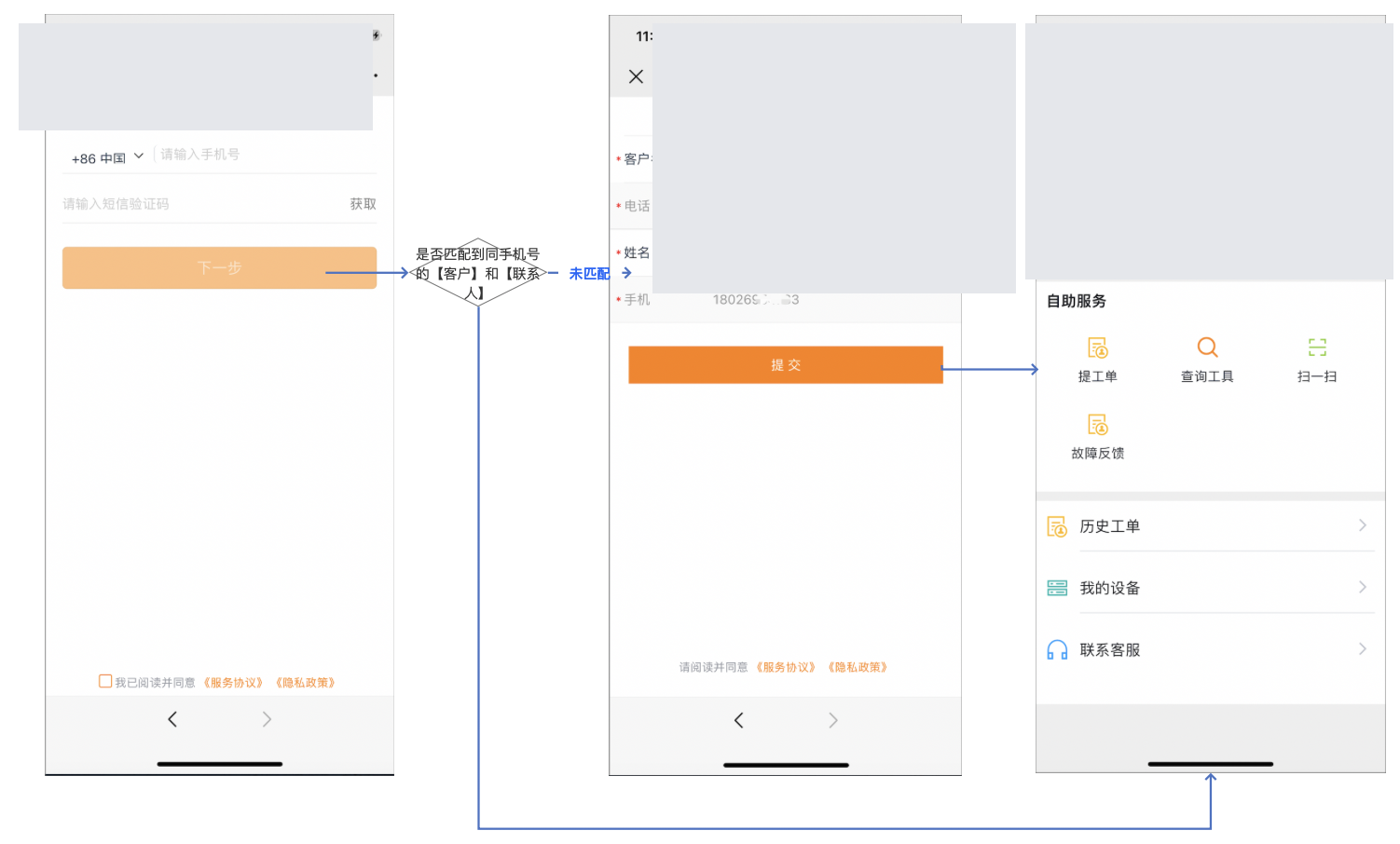
Limitations: The matching results depend on contact Mobile1 and customer duplication checking rules. If the mobile phone number is missing, written in other fields, or used repeatedly, it may not be matched or associated with the wrong record; existing customer mobile phone numbers should be used for verification before going online.
Scenario 4: H5 visitors choose to log in to complete information after visiting (not recommended)
This mode is typically used for H5 links. Anonymous users can access or submit data directly as guests, or they can choose to log in and become named end users in the portal.
- The self-registration method is only enabled Self-registration using customer and contact information is allowed.
- Enable Visitor Access and set the customer used to collect visitor data; manually create a visitor customer if initialization fails.
- Configure the minimum object, operation and field permissions for the guest role; configure independent connected roles for self-registered users.
- Check the customer and contact registration layout, mobile phone number matching and new customer rules.
System data and terminal results: The user directly uses the shared guest account when opening H5 for the first time. Select Login and enter your mobile phone number; when existing customers and contacts are matched, the system creates connected enterprises and connected users and associates existing records. If no matches are found, the system collects data according to the layout and creates customers, contacts and connected accounts. After completion, press the self-registered role to enter the named portal.
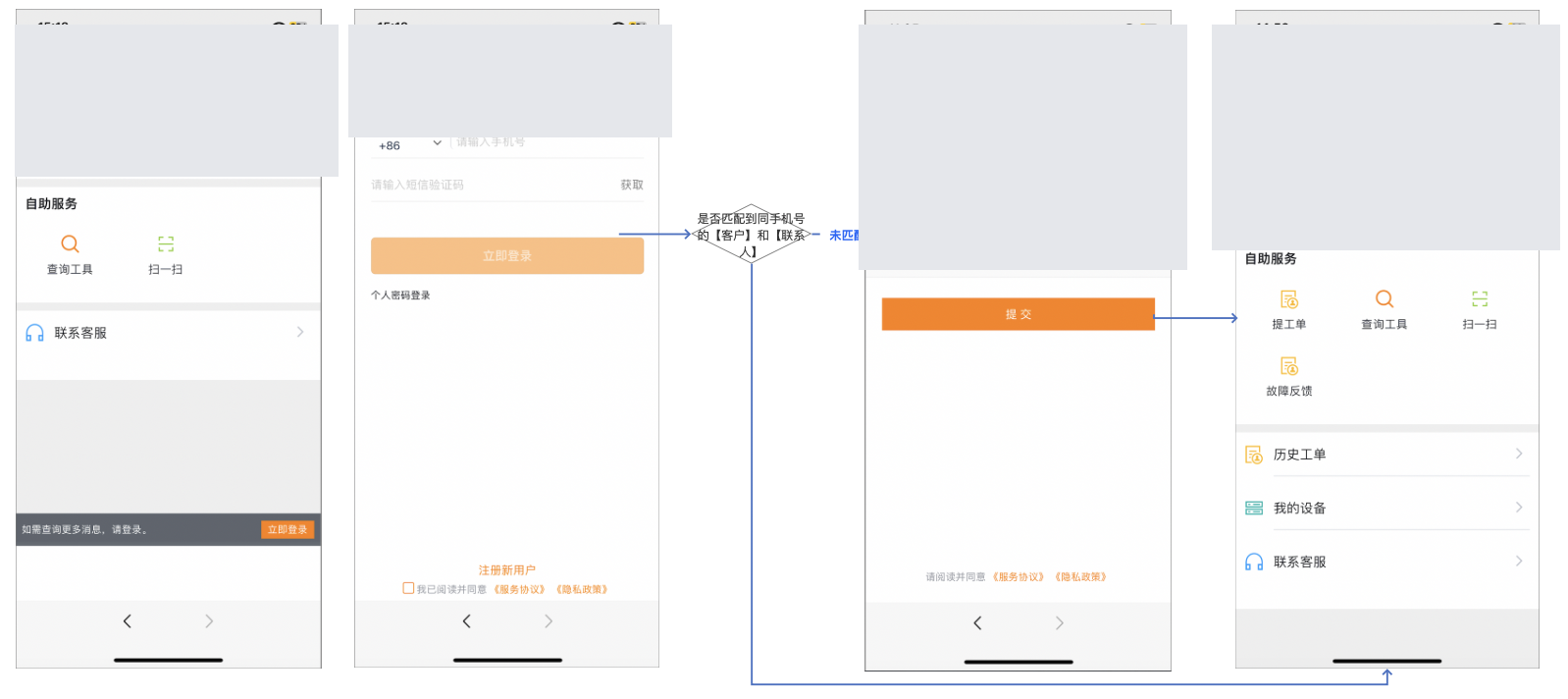
Limitations: Data created before sign-in remains under the shared guest account and cannot be reliably attributed to the actual user. Broad guest permissions can also expose data. Do not use this mode for work order submission, equipment queries, or other identity-sensitive processes.
Scenario 5: Only allow access to accounts manually opened by the administrator
The applicable portal is only open to audited customers and does not allow external users to register themselves.
- Close User Self-Registration.
- Close Guest Access.
- Keep Manual Provisioning enabled, and follow the steps in "Manual Provisioning of End Users" to create accounts that allow access in advance.
System data and terminal results: After the user enters their mobile phone number, the system only searches for existing connected users. If the match is successful, you will enter the portal according to the assigned role; if there is no match, the login will be intercepted directly, the self-registration entrance will not be displayed, and customers, contacts, connected enterprises or connected users will not be created.
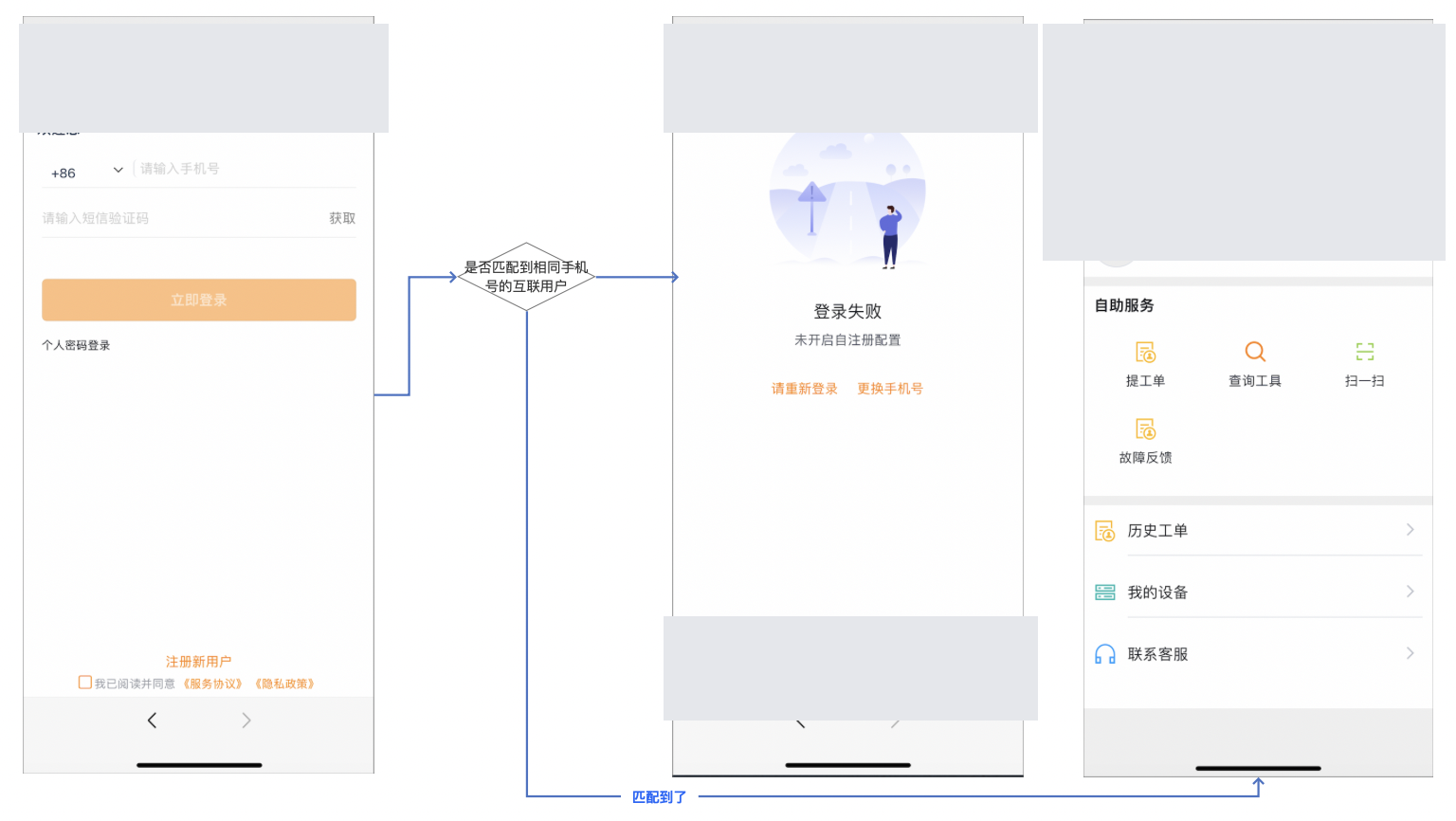
Restrictions: The administrator must complete the activation before user access, and maintain the account simultaneously after the contact's mobile phone number changes. This model does not provide a self-service registration channel for new customers.
Expected results and verification
Prepare at least one activated mobile phone number, one unactivated mobile phone number and one WeChat test account, and verify according to the actual activation scenario:
- Check the entry result: Confirm whether the user enters directly, must complete details, must register first, or is denied access.
- Check account data: Confirm in connected enterprises and connected users whether accounts are created according to scenarios, and whether existing connected accounts with the same mobile phone number are merged according to supported scenarios.
- Check CRM association: Confirm whether the system associates existing records or creates new records in customers and contacts; check whether the contact's login mobile phone number is written as
Mobile1. - Check third-party binding: When entering from the WeChat official account or Mini Program, confirm that the connected user has established the corresponding external third-party binding; H5 mobile phone number login should not be misjudged as
OpenIDbinding. - Check the role and enterprise group: Confirm that the connected user has obtained the role and enterprise group in the configuration, and can only see the data, fields, buttons and portal entries allowed by the role.
- Check data isolation: Use two
OpenIDor two opened accounts to create test data, and confirm that the accounts cannot be viewed without permission; in guest mode, confirm that the test data is indeed collected to the designated guest customer, and the page only displays public data. - Check object requiredness: Submit a work order or service request for Scenario 1 and Scenario 2 respectively. If you confirm that the customer and contact are not required, you can submit them directly. If they are set as required, data completion will be triggered first.
FAQ
- Manual provisioning is enabled, but Add End User is unavailable: Verify permission to create connected enterprises and users. Confirm that the End User menu appears in the web Service Pass view.
- A customer cannot be selected or submitted during manual provisioning: Confirm that the customer has a contact whose mobile number can receive a sign-in verification code.
- No dedicated business type or layout in self-registration configuration: may be an initialization failure. Manually create self-registered business types and layouts in customer and contact object management respectively, and then assign the layouts to the corresponding business types.
- Users can log in but cannot see the business portal: Check the connected roles, enterprise groups, object permissions assigned during self-registration or manual activation, and the applicable roles of the portal template.
- Generating duplicate customers after registration: Review customer duplication checking logic, new customer rules and name default values. Formal enterprise customers are given priority to use precise query or industrial and commercial query rules.
- The mobile phone number exists but does not match the contact: Confirm that the login mobile phone number is saved in the contact
Mobile1, and check the format, country code or duplicate mobile phone number. OpenIDUsers can enter but cannot submit: Check whether the customer and contact fields of the work order or service request are required; if required, also allow the customer and contact information to self-register and configure the layout correctly.- WeChat users do not have third-party binding: Confirm that the user does access from the connected Official Account or Mini Program entrance, and the self-registration configuration has enabled the third-party
OpenIDto generate an connected account. - Guest customer does not exist: Manually create a guest customer and necessary contacts, reset the guest parameters, and check the association results of the guest account.
- Guests can see nonpublic data: Restrict the guest role's object, field, and external-data permissions. Check portal-page and query-tool data scopes.
- Access continues after self-registration is disabled: Check guest access and whether the mobile number already has a connected user. Retest with a new number if needed.