Appearance
Configure work order progress display
Configure work order progress display to control the service stages visible to end users.
Overview
The work order progress display consists of two parts: the administrator first sets the process nodes visible to end users according to the work order business type and process, and then puts the End User Process Progress Query component into the work order details layout used by external end users. Only after the end user opens the work order details can they see the nodes and process progress that are allowed to be disclosed.
Process notifications can actively inform users of progress, but they cannot replace the progress component and node visibility configuration in the details page.
Before you begin
- Work order business type and service process configuration has been completed.
- Created or confirmed ticket details layout for use by external end users.
- The ticket object has been opened to end users and the layout is ready to be assigned to external roles.
- Use an administrator account that can maintain ServicePass system settings, work order processes, and object layouts.
Configure nodes visible to end users
- Enter the configuration page in Service Pass > System Settings > Full Function Configuration > Business Functions > Work Order Progress Query.
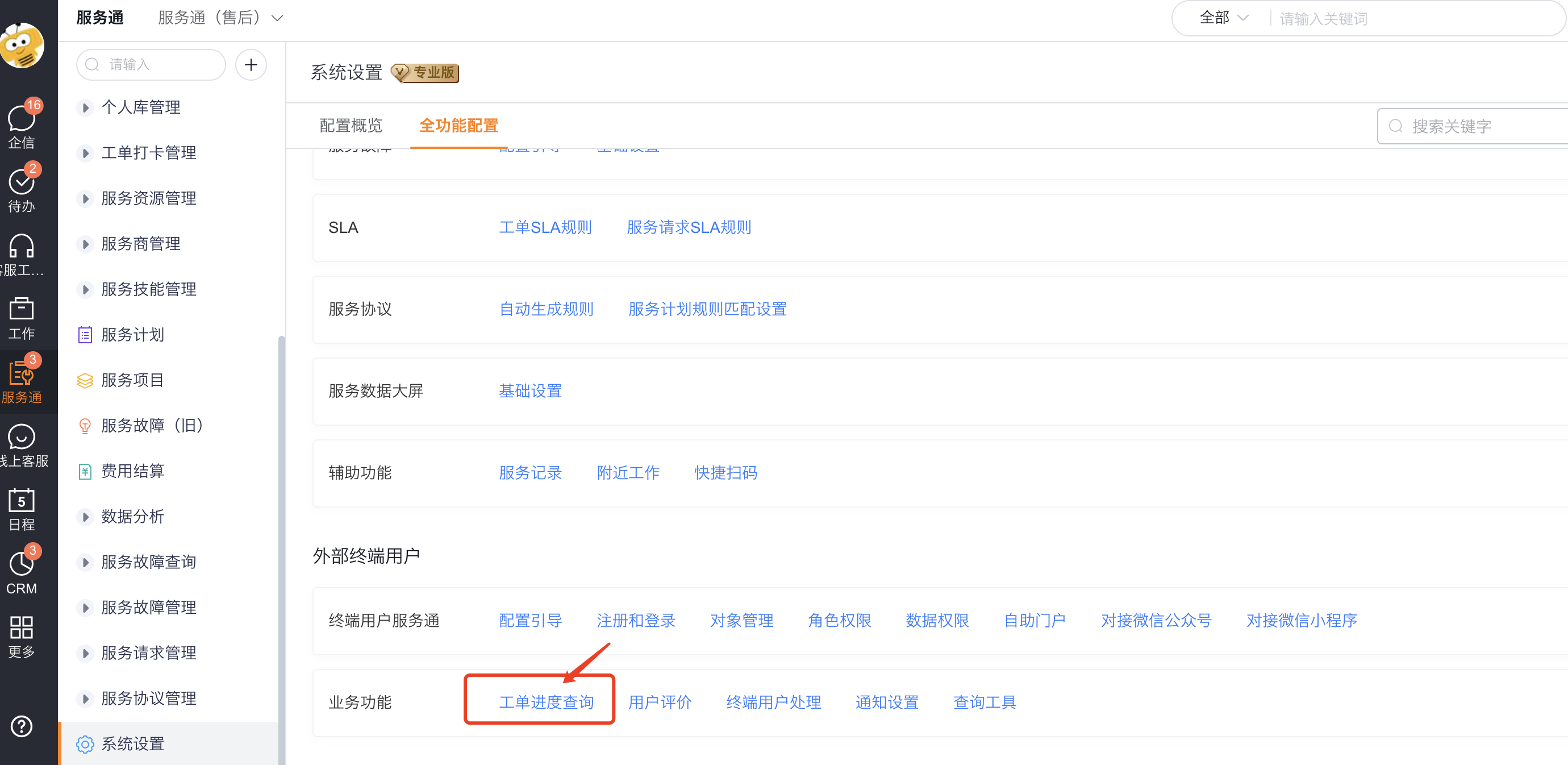
- Press Work Order Business Type to find the process to open the progress.
- Check the process nodes that are allowed to be viewed by end users under the corresponding Process Type.
- Configure display fields for public nodes as needed.
- Save the node settings.
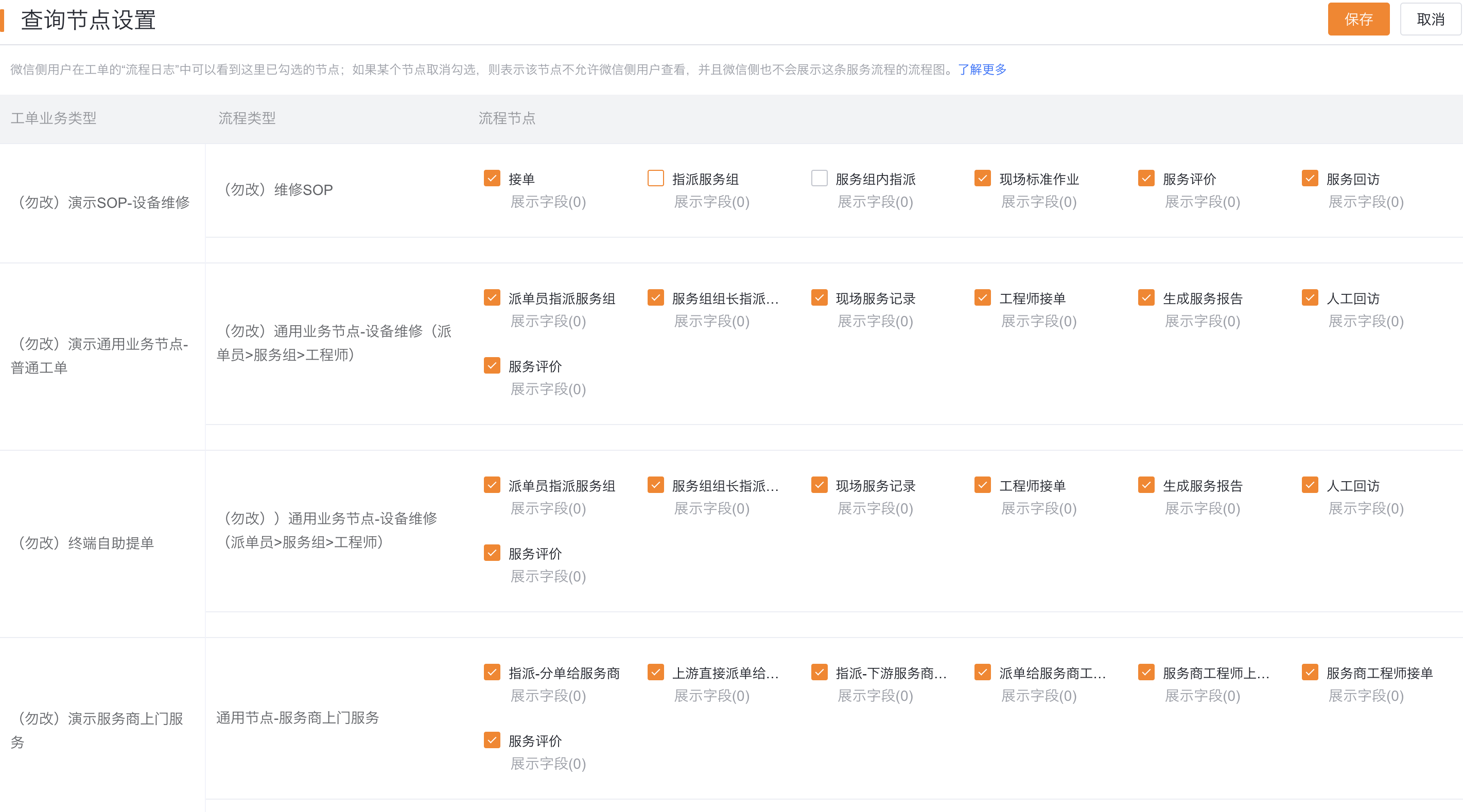
Unchecked nodes will not be displayed to WeChat end users. The original data also states that the node visibility configuration will affect whether the flow chart of the service process is displayed on the WeChat side, so after adjustment, the complete process display needs to be verified from actual channels.
Add the progress component to the work order details layout
- Enter the detailed layout configuration of the work order object and open the layout specifically assigned to external end users.
- Find End User Process Progress Query in the component list.
- Drag the component into the appropriate location on the details page.
- Save the layout.
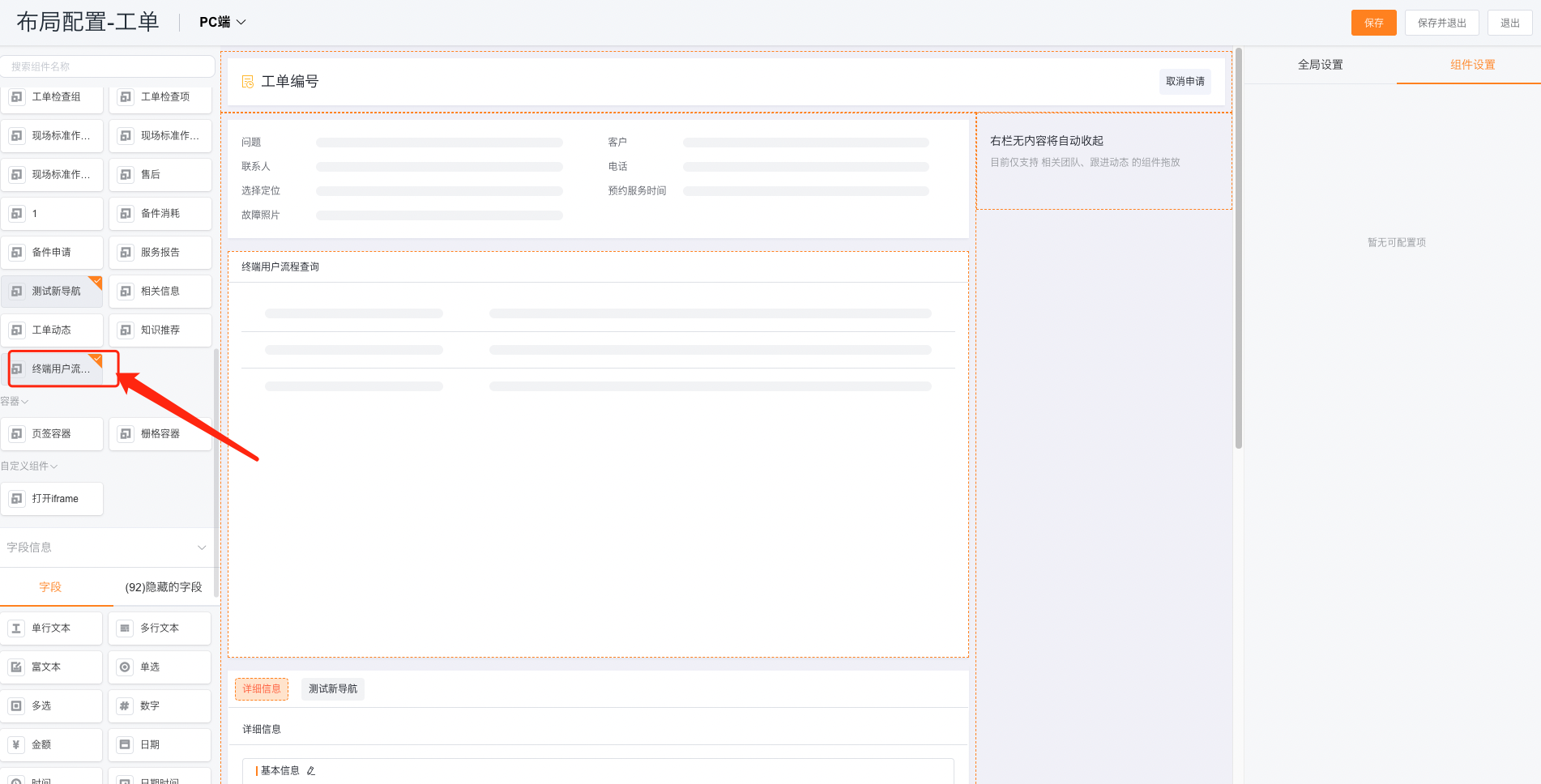
Assign layout to external role
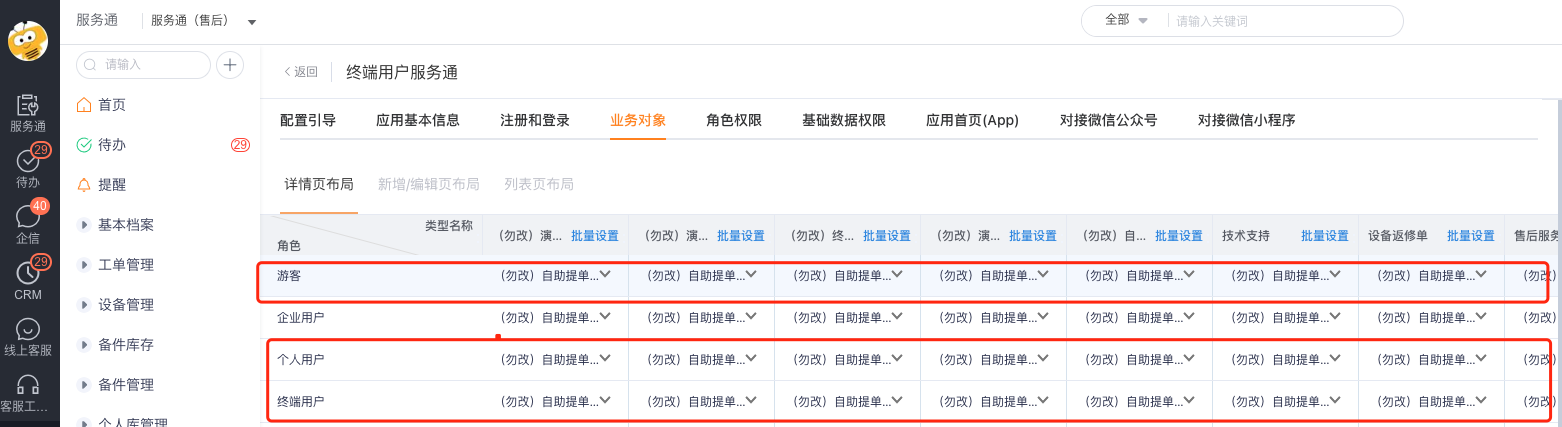
- Find the work order object in End User Service > Business Object.
- Select Assign Layout.
- Assign the ticket details layout containing the progress component to the target external role such as guest, individual user or end user.
- Save the allocation results.
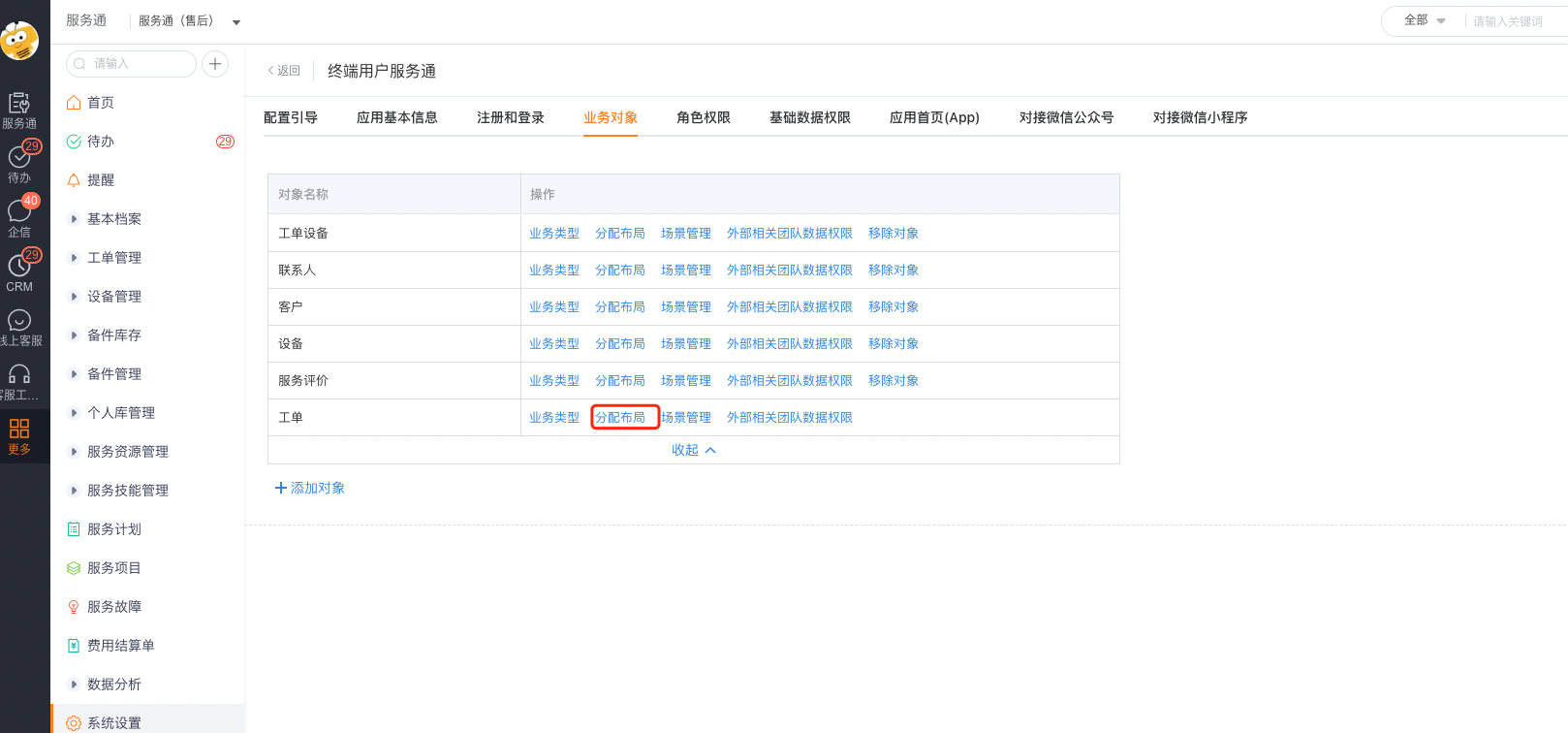
Configure progress notification (optional)
If you want to proactively remind end users after the node is completed, you can also configure an official account, Mini Program or SMS notification. Different channels have their own prerequisites: Official Account users need to follow and bind their accounts, Mini Program users need to enter from the Mini Program and agree to subscribe, and text message users need to activate the service and have available quotas.
Notifications are only reminders. Whether the end user can view details and progress after clicking on a work order still depends on the work order viewing permissions, node visibility, and detail layout.
Expected results and verification
- Open a test work order using the target external role account.
- Confirm that the process progress component is displayed in the work order details.
- Check that the checked nodes are visible and the unchecked nodes are not displayed according to the administrator configuration.
- Use test work orders of different business types to confirm that they match the correct process configuration.
- If a notification is configured, trigger the corresponding node and check whether the notification link can open the work order details.
FAQ
- No progress area on the details page: Check whether the progress component has been added to the details layout actually used by the current character.
- Component exists but no node: Check whether the work order business type, process type and node check configuration match the current work order.
- Visible to insiders but not to end users: Check the view details permissions and layout assignments of end user roles.
- Notification received but details cannot be opened: Check the work order to view details permissions and data range; notifications do not grant data permissions.
- WeChat side flow chart abnormality after adjusting nodes: Recheck the visible nodes of the process and use WeChat channels to test the complete display.