Appearance
Reassign engineers
Overview
Reassignment lets an authorized user change the primary or collaborative engineer from the work order details page. It differs from a transfer initiated by an engineer at the Accept Work Order node.
Before you begin
- The work order has been assigned an engineer.
- Determined who can be reassigned and the button display conditions.
- Checked whether the subsequent task handler directly references the work order engineer field.
Procedure
1. Configure the reassignment button
Go to Work Order Object > Button and edit the Reassign Engineer and Reassign Collaborative Engineer buttons.
Configure the display conditions and click action.
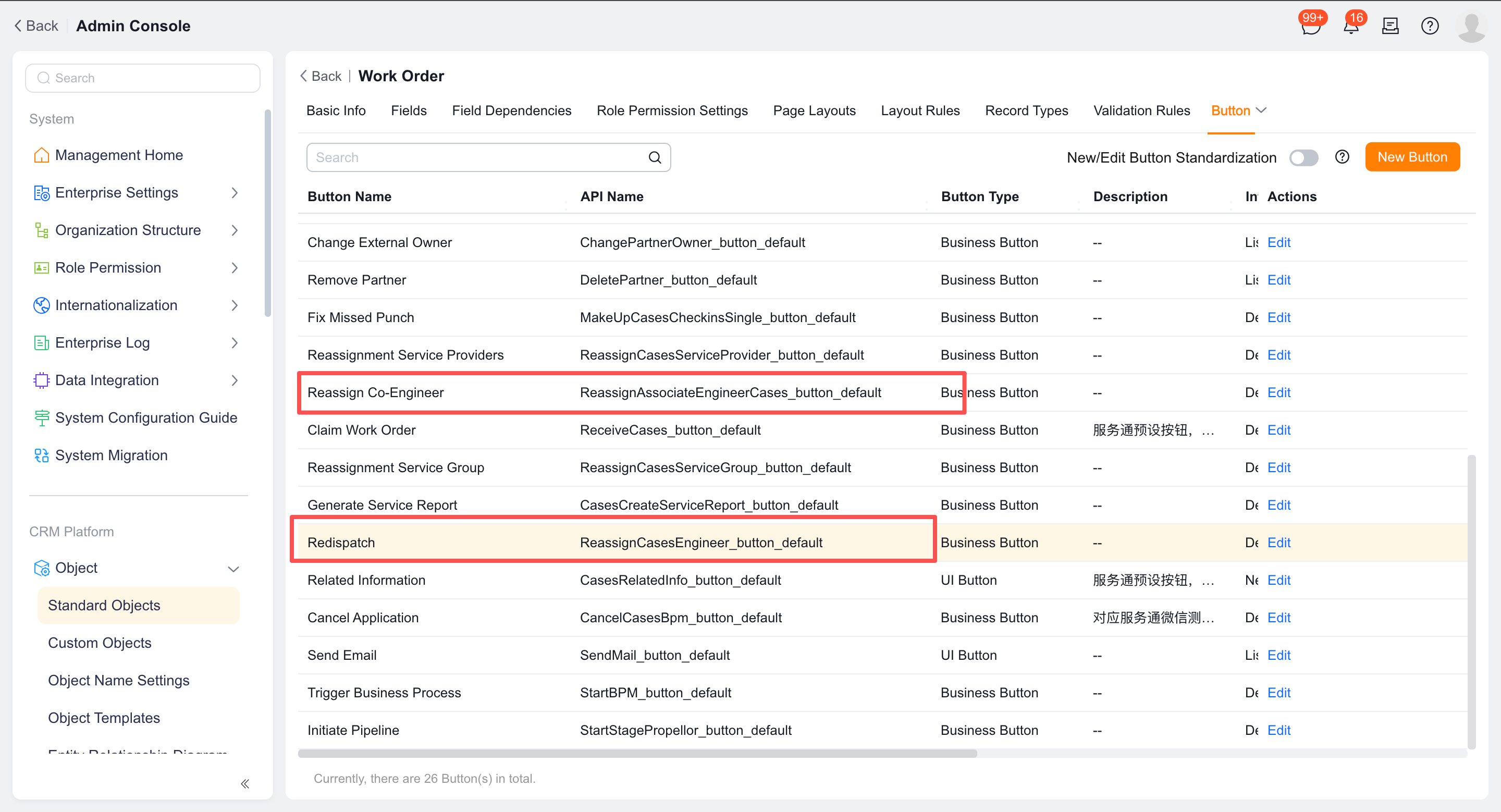
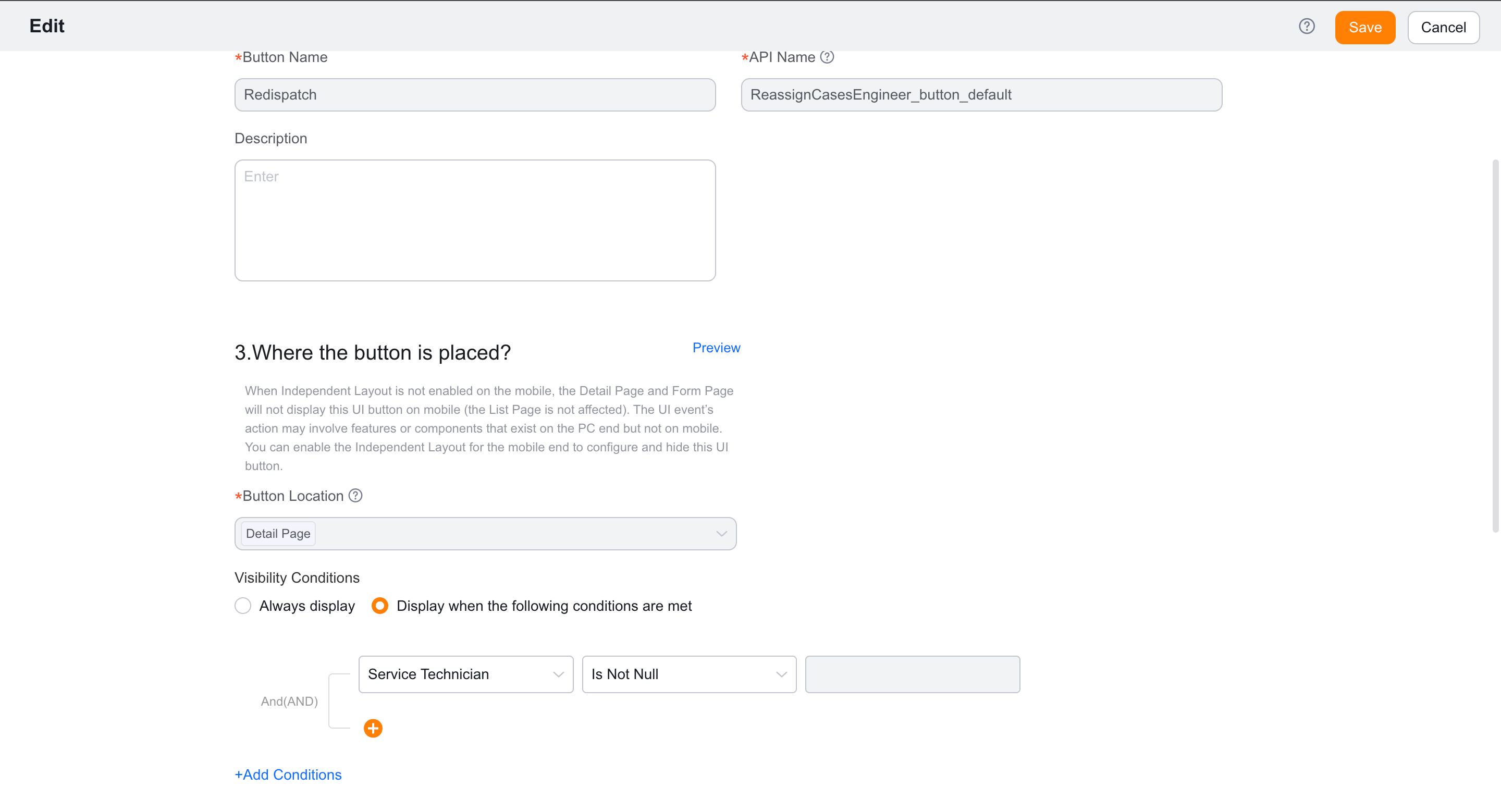
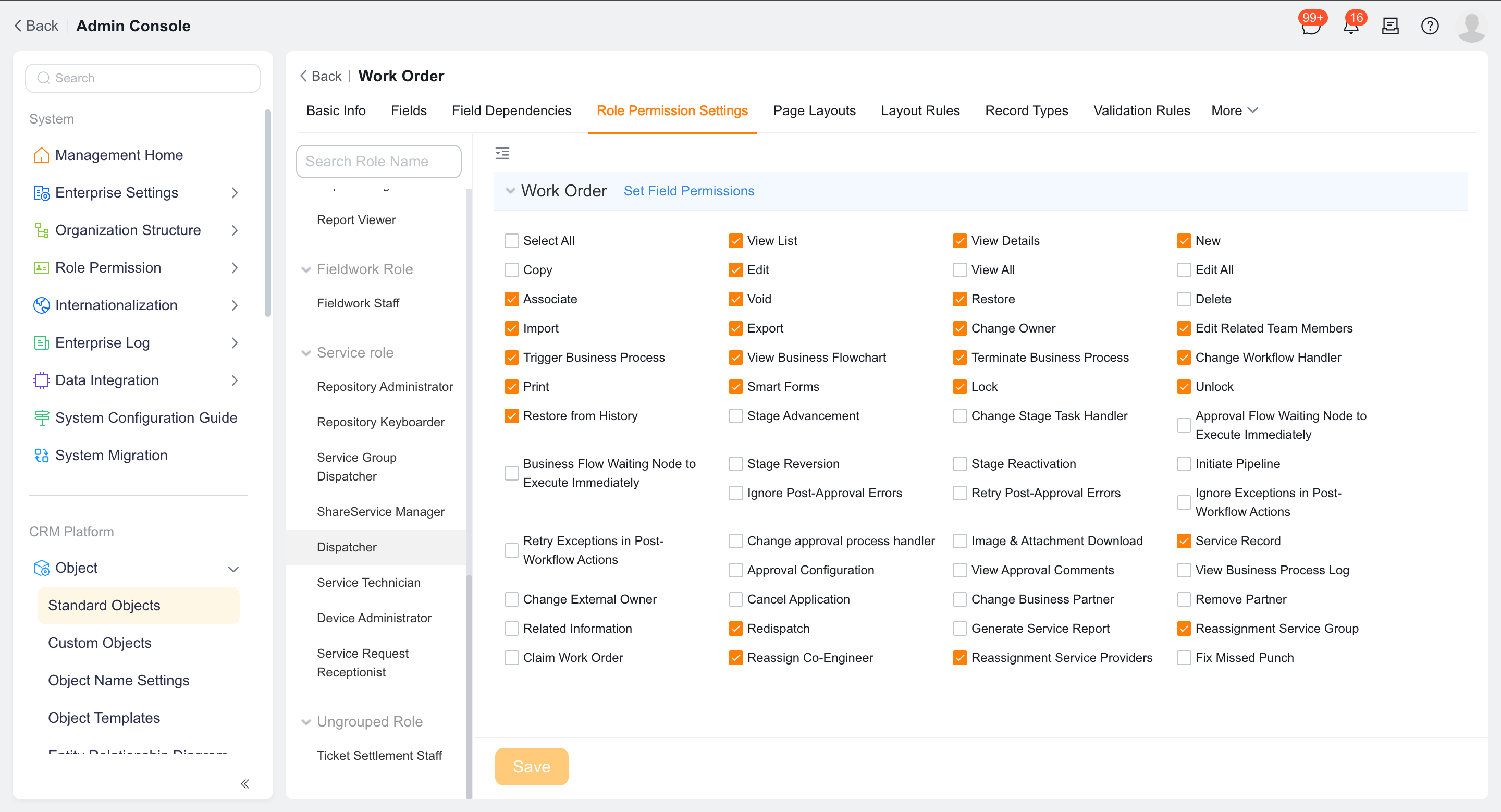
Assign the button permissions to the role that needs to be reassigned, usually the dispatcher.
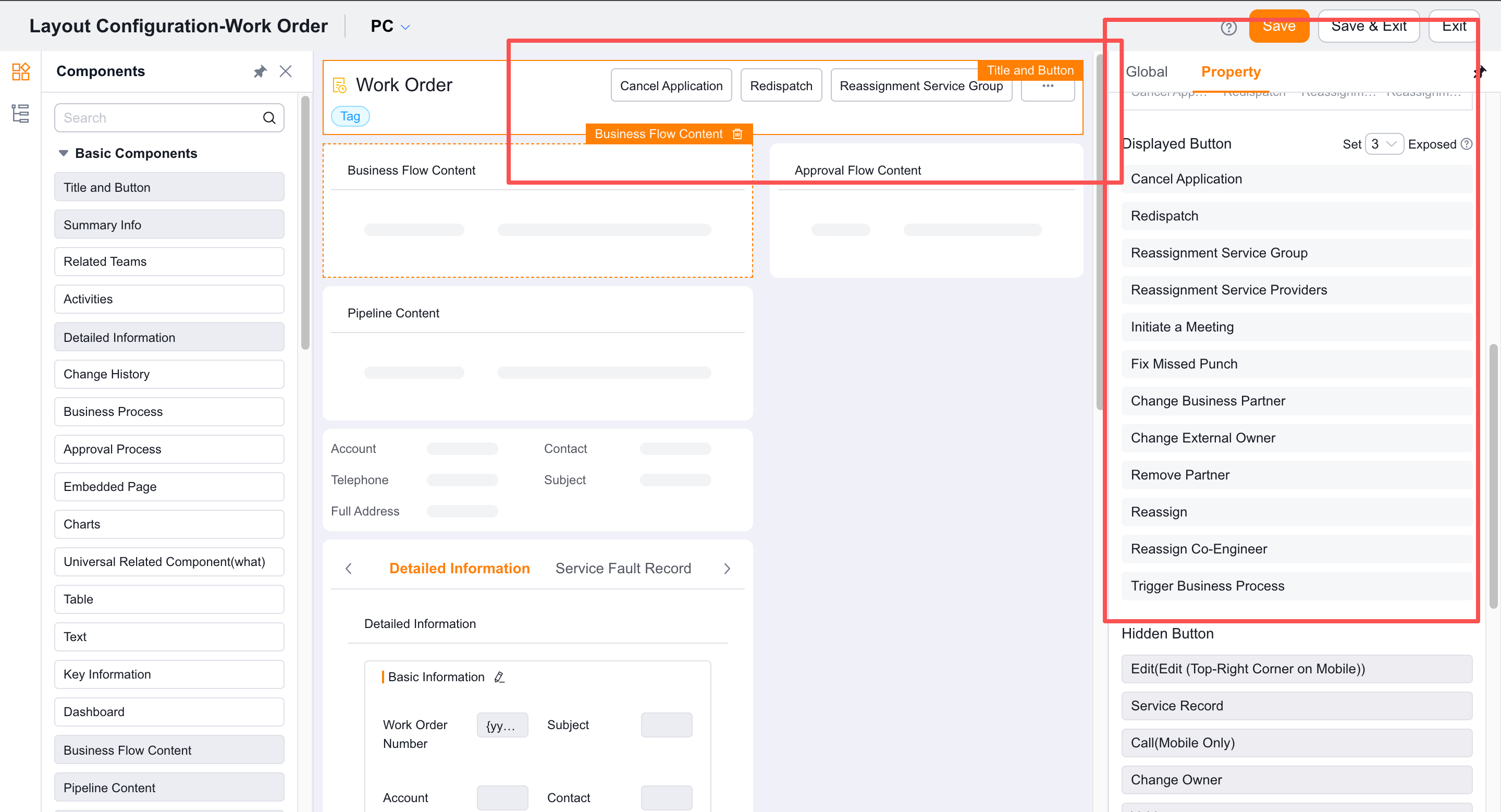
Confirm that the button appears on every applicable work order details-page layout.
2. Execute reassignment
Open the assigned work order details.
Click Reassign Engineer or Reassign Collaboration Engineer.
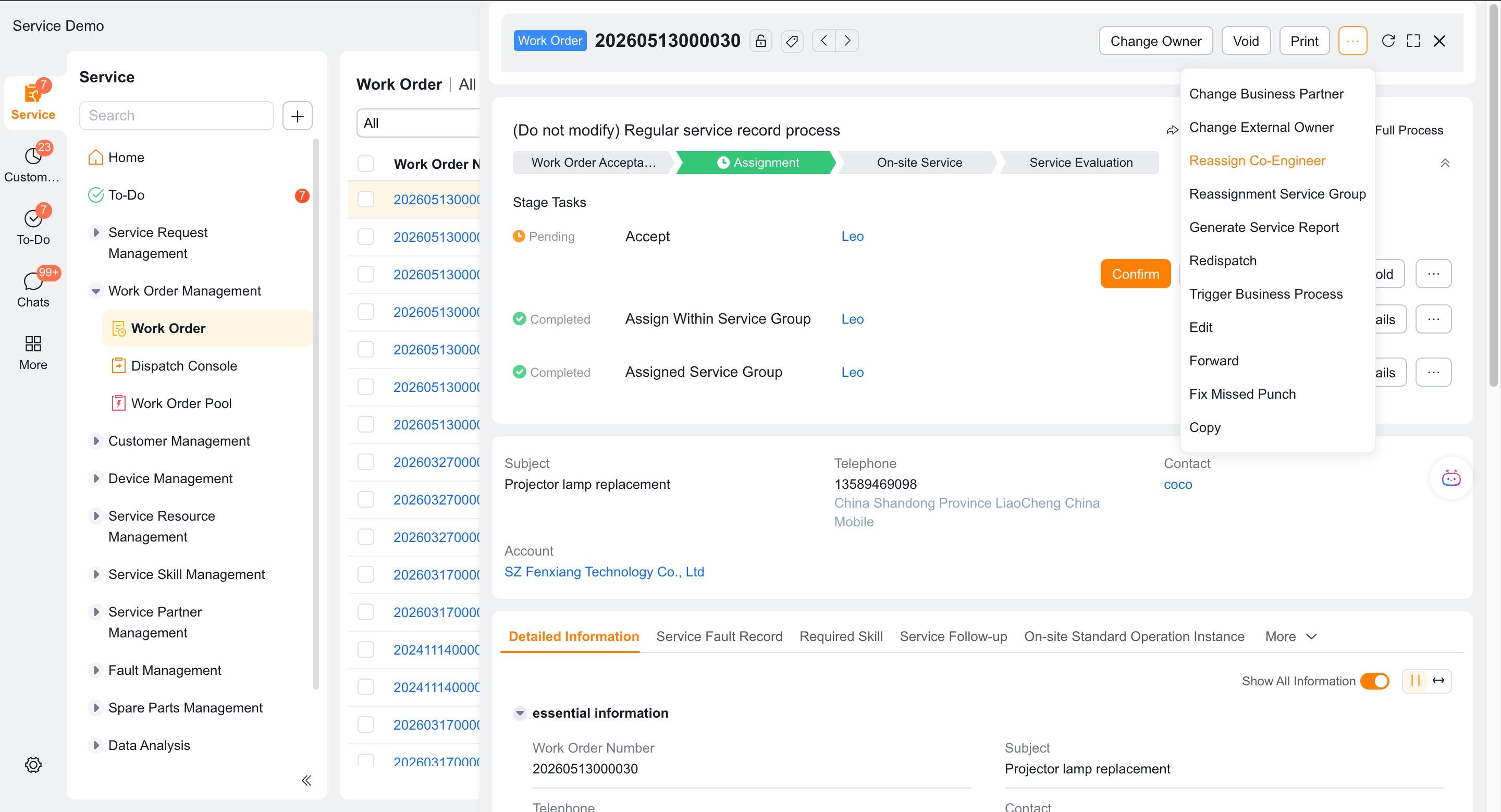
Select the current engineer to replace, then select the new engineer.
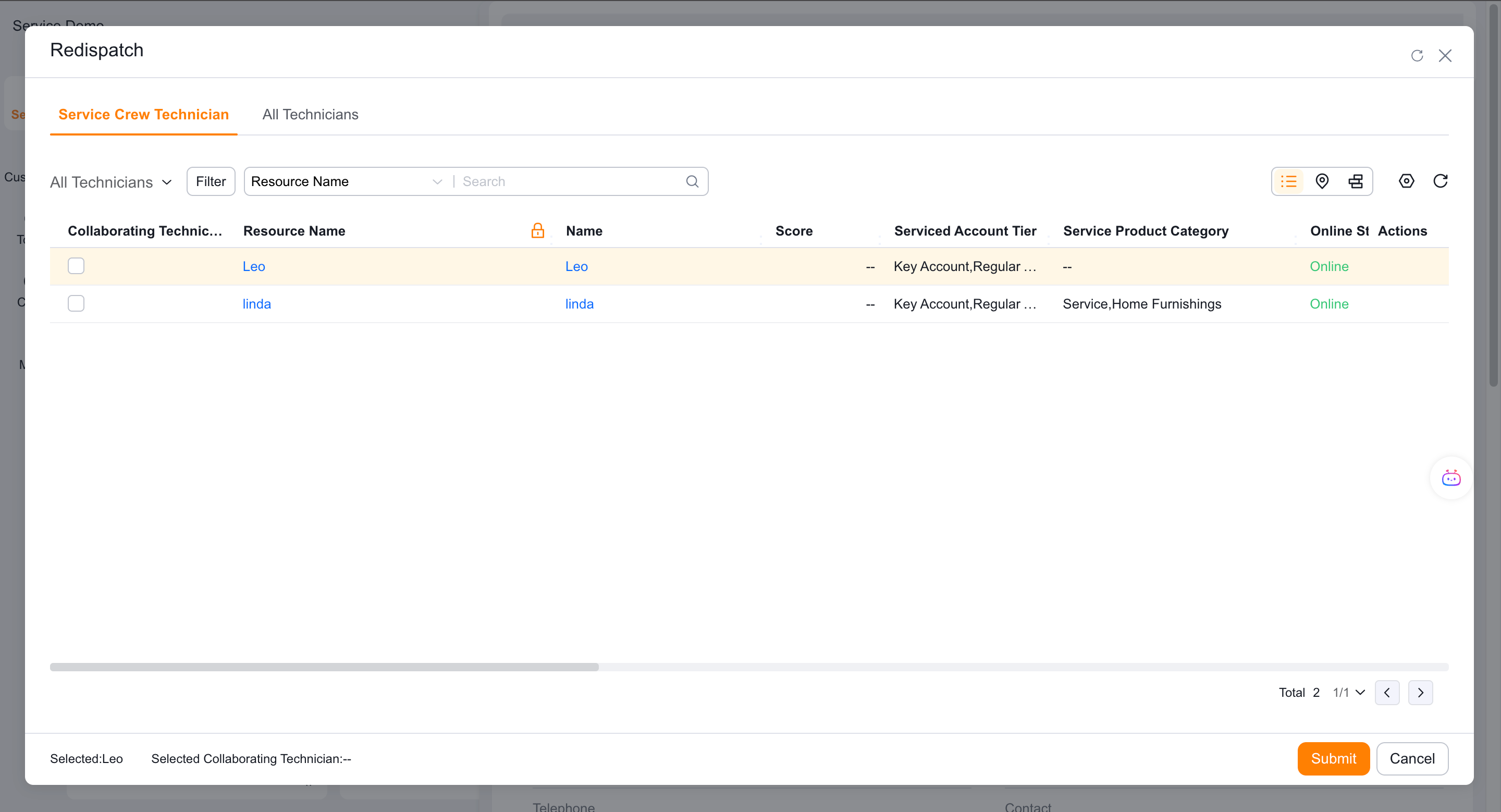
After submission, check the work order engineer, collaborative engineer and current process task handler.
When a subsequent node handler directly references the work order's Engineer or Collaborative Engineer field, the system updates that task handler. For expressions such as Owner or Supervisor, use Change Handler or a function to synchronize the task.
3. Evaluate the reassignment of any historical node
Earlier versions provided Allow reassignment at any node in Field Service > System Settings > Work Order Assignment. This capability is a historical configuration and is only used after the current tenant is still displayed and regression testing is completed. It is not used as a default step for new implementations.
Verify the result
- Only those who meet the permissions, display conditions, and layout requirements will see the reassignment button.
- After reassignment, the field of the primary engineer or collaborative engineer of the work order is updated.
- The subsequent tasks of the standard field processor are synchronized to the new engineer.
- Customized nodes or other human expressions are synchronized by changing the handler or function.
Notes
- Don’t just check the work order fields, check the current process task handler as well.
- The reassignment of any node in history needs to be verified based on the actual capabilities of the tenant.
- The role needs button permission, and the button must appear on the applicable details-page layout.