Appearance
Enable equipment asset management
Enable equipment asset management and establish traceable equipment and asset ledgers.
Overview
Enable equipment asset management through the path that matches your purchased product. Then enable automatic record creation, multi-equipment work orders, location updates, or equipment asset BOMs as required.
Before you begin
- Use a service pass administrator or an account with corresponding system configuration permissions.
- Confirm that the enterprise has purchased Service Pass Professional Edition, or has purchased the Equipment Asset Management module separately.
- First confirm whether you need to associate one work order with multiple devices. The settings page prompts that the activation action is irreversible and a business review should be completed before activation.
- If you plan to enable equipment asset BOM, you should first confirm that you really need to manage the equipment component level in the future; this function cannot be turned off after it is turned on.
Enable device asset management
Purchased Service Pass Professional Edition
- Go to Service Pass > System Settings > Configuration Overview.
- Find Device Management in the Business Plug-in area and enable it.
- Confirm that Device Management appears as Enabled in the configuration overview.
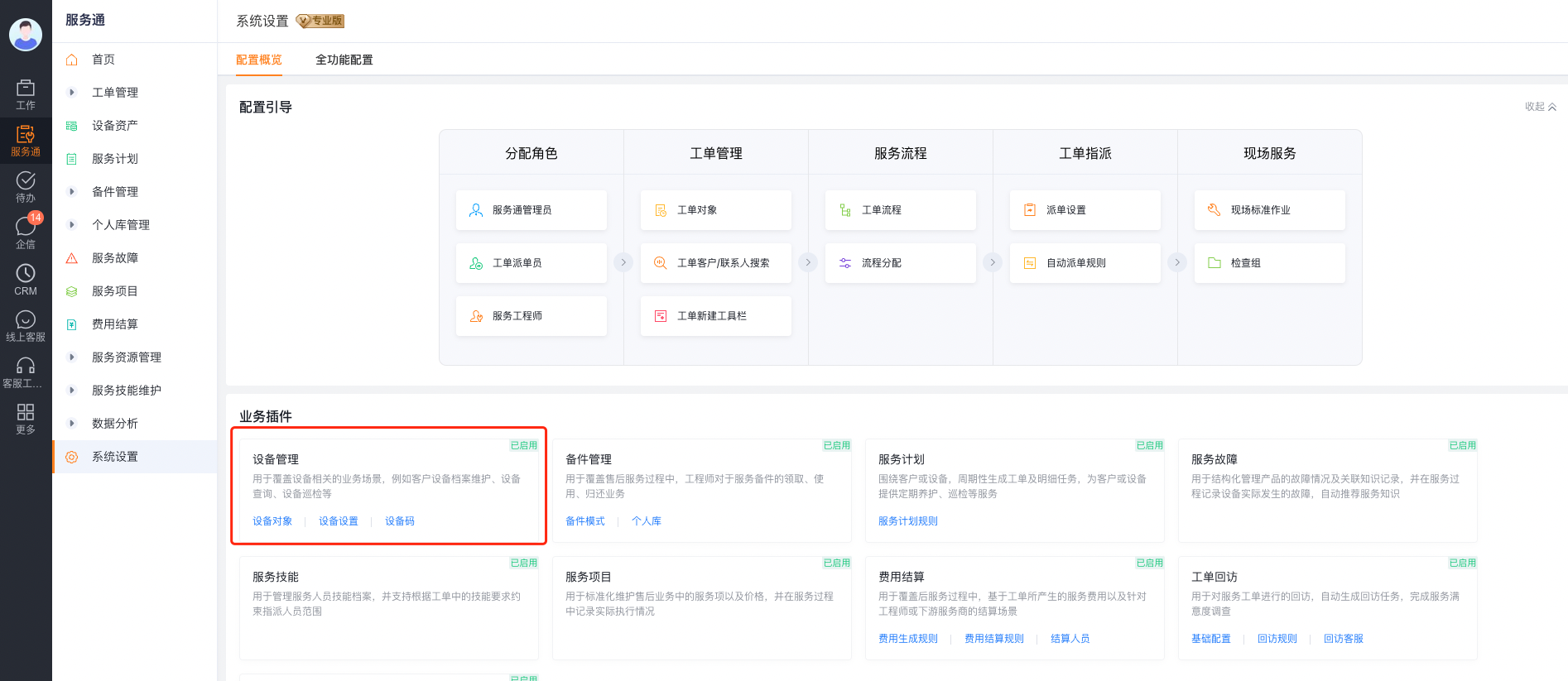
After enabling, the system automatically adds basic objects such as Equipment, Equipment Asset BOM and Equipment Asset History.
Equipment Asset Management has been purchased separately
- Go to CRM Management > Business Rule Management > Asset Management.
- Click Start Asset Management.
- Confirm that the Asset Management menu appears in CRM.
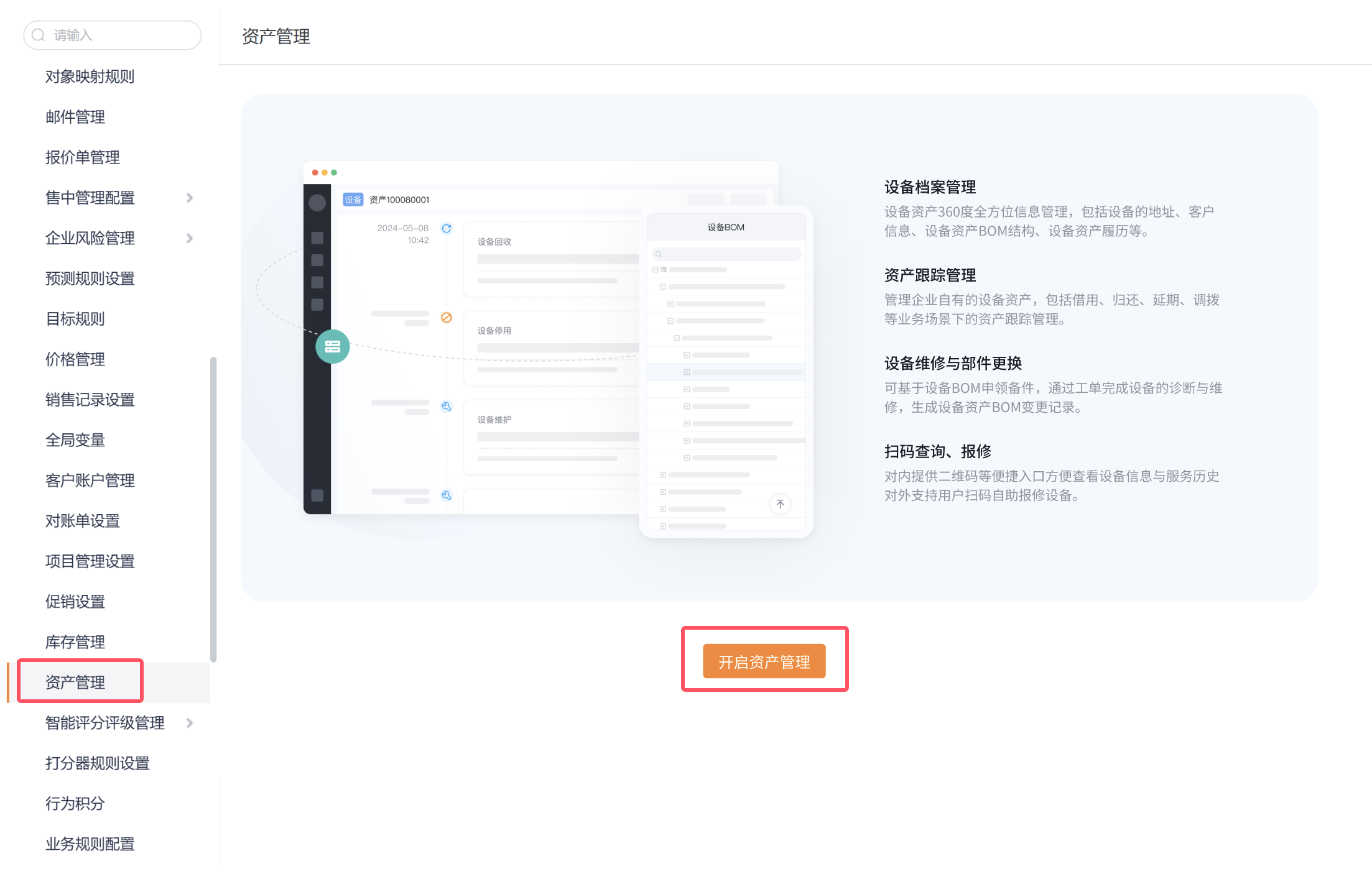
After enabling, the system also initializes basic objects such as Equipment, Equipment Asset BOM and Equipment Asset History.
Configure basic device settings
- Go to Service Pass > System Settings > Equipment Management > Equipment Settings.
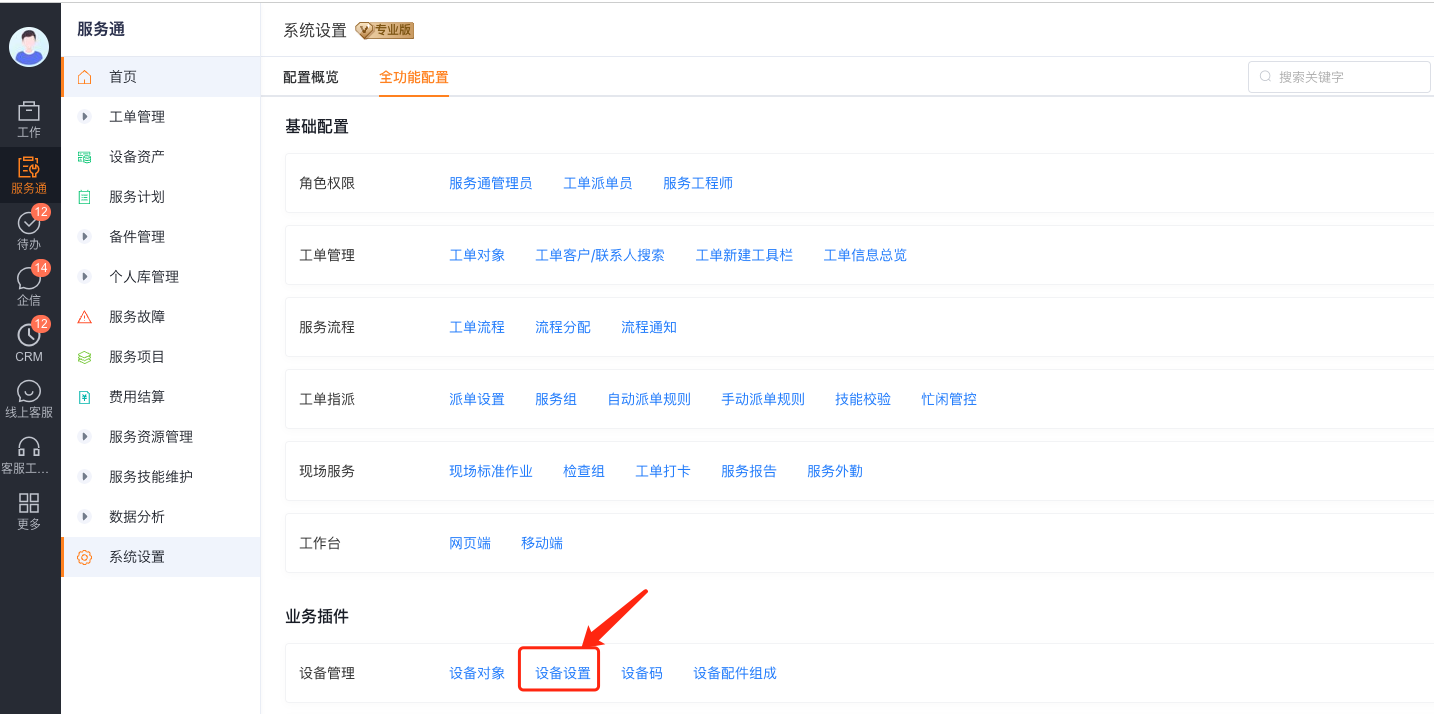
- Configure the following switches according to business needs. These switches are independent of each other, and capabilities that are not enabled will not automatically take effect because device management is enabled.
| Settings | Behavior after enabling | Confirmation required before configuration |
|---|---|---|
| Automatically generate equipment assets | After the invoice process is completed and the delivery status is updated to received, equipment assets are automatically generated according to customer business types | Check the customer fields in the device, the customer fields in the invoice and the customer business type mapping |
| Work order supports multiple devices | The work order has added the work order equipment slave object, which can be associated with multiple devices in one repair report | The page prompts that the activation action is irreversible; confirm whether the existing work order process and report are suitable before enabling |
| Work order updates device location | When service engineers execute work orders related to a certain device, they can update the device address | Confirm the engineer's field permissions and device address maintenance rules |
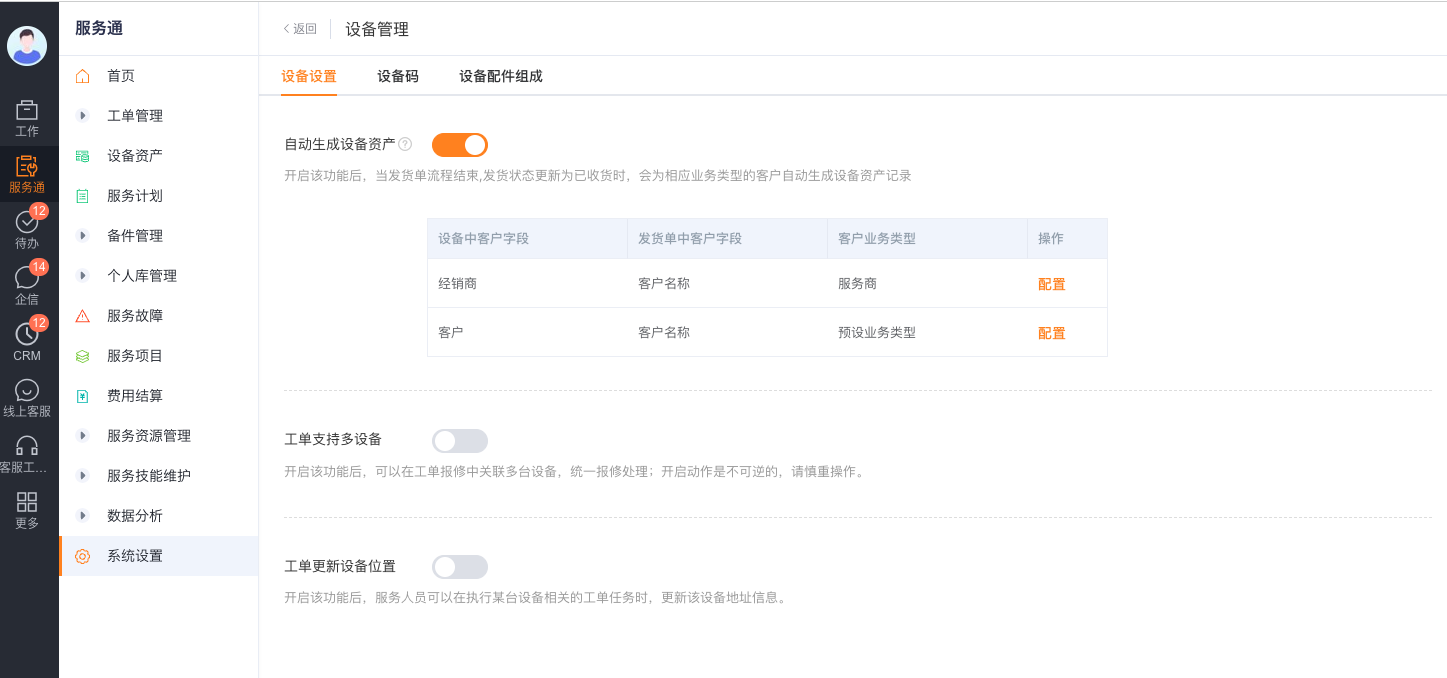
- Save the configuration.
Enable equipment asset BOM on demand
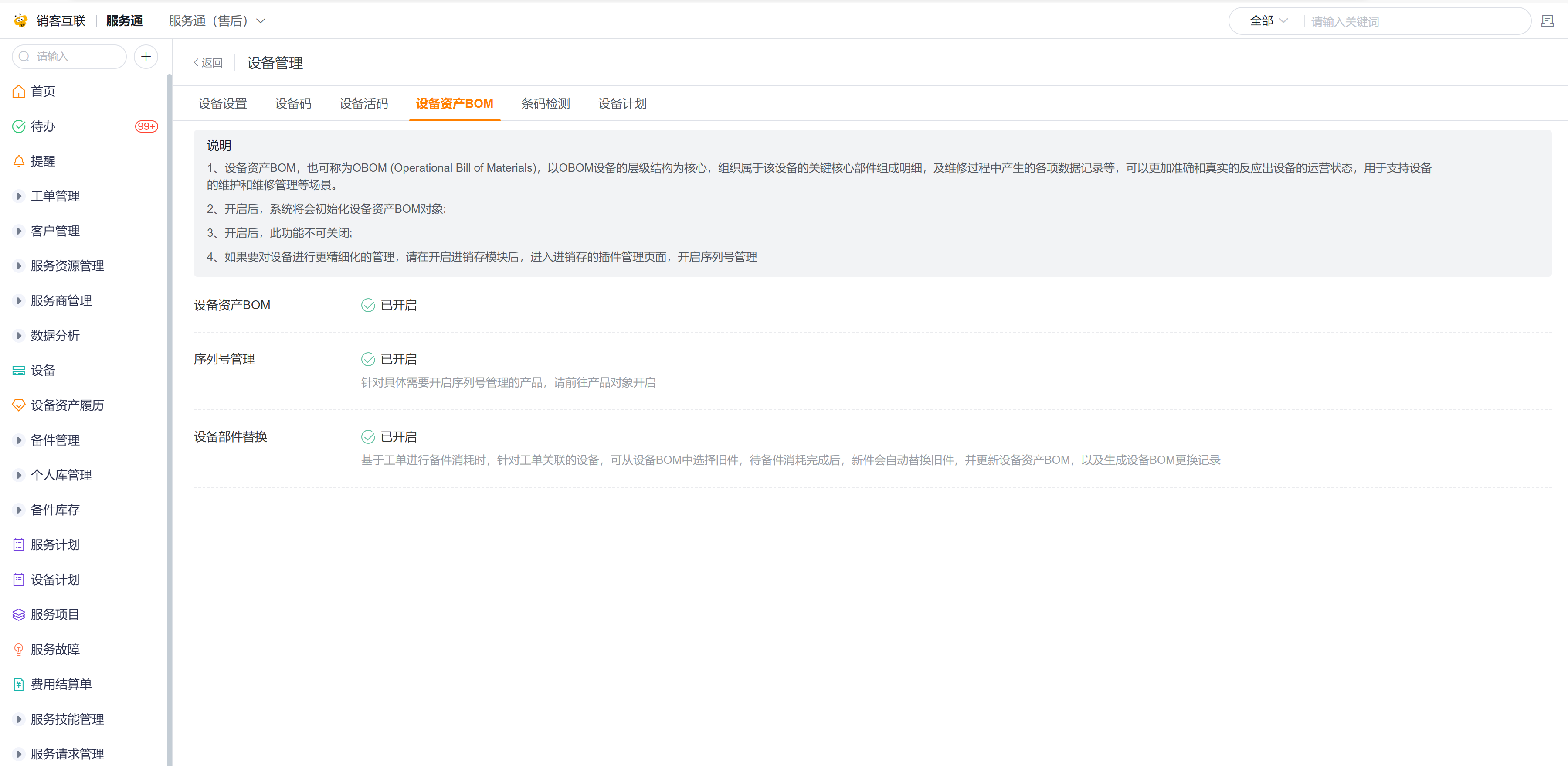
- Go to Service Pass > System Settings > Equipment Management > Equipment Asset BOM.
- Read the page description and confirm that cannot be turned off after it is turned on.
- Open the Equipment Asset BOM.
- Confirm that the system has initialized the equipment asset BOM object (API Name:
DeviceComponentsObj).
Expected results and verification
- Confirm in the system menu to enter the Equipment and Equipment Asset History objects.
- Create a new test device, confirm that the product can be selected and save it.
- If automatic generation of equipment assets is enabled, use the test delivery note to complete the process and confirm receipt, and check whether the equipment is generated according to the configured customer business type.
- If multi-device work orders are enabled, check whether the Work Order Equipment slave object appears in the work order.
- If the device asset BOM is enabled, open the device details and confirm that the Configuration OBOM portal can be used.
Notes
- Do not execute two asset management enablement paths at the same time; choose the entrance based on the actual purchase method of the enterprise.
- Equipment Asset History is initialized when you enable equipment management. You do not need to enable it separately.
- Automatically Generate Equipment Assets runs only when the field mappings and delivery process conditions are met.
- Work order supports multiple devices and Equipment Asset BOM both have irreversible limitations. The test environment or test process should be used to check the impact before official launch.