Appearance
Configure inspection groups and inspection items
Overview
An inspection group is used to configure a set of inspection contents for the same subject as a template. Templates can be applied to the inspection group node of the work order process, or as inspection actions in the work order SOP or equipment SOP. The subject object selected when creating a template will affect the optional scope of the template in process nodes and SOP actions.
Before you begin
- Confirm that the current administrator account can go to Service Pass > System Settings > Inspection Group; if you need to apply a template, you should also be able to configure the corresponding work order process or on-site standard operations.
- Determine whether the template is used to check the current work order or the equipment associated with the work order.
- Sort out the inspection content, field types, required inspection requirements, numerical reference values, remark conditions and template application scope.
- If you want to check work order.Equipment in the work order SOP, make sure the equipment field of the work order is required.
Create a new inspection group template
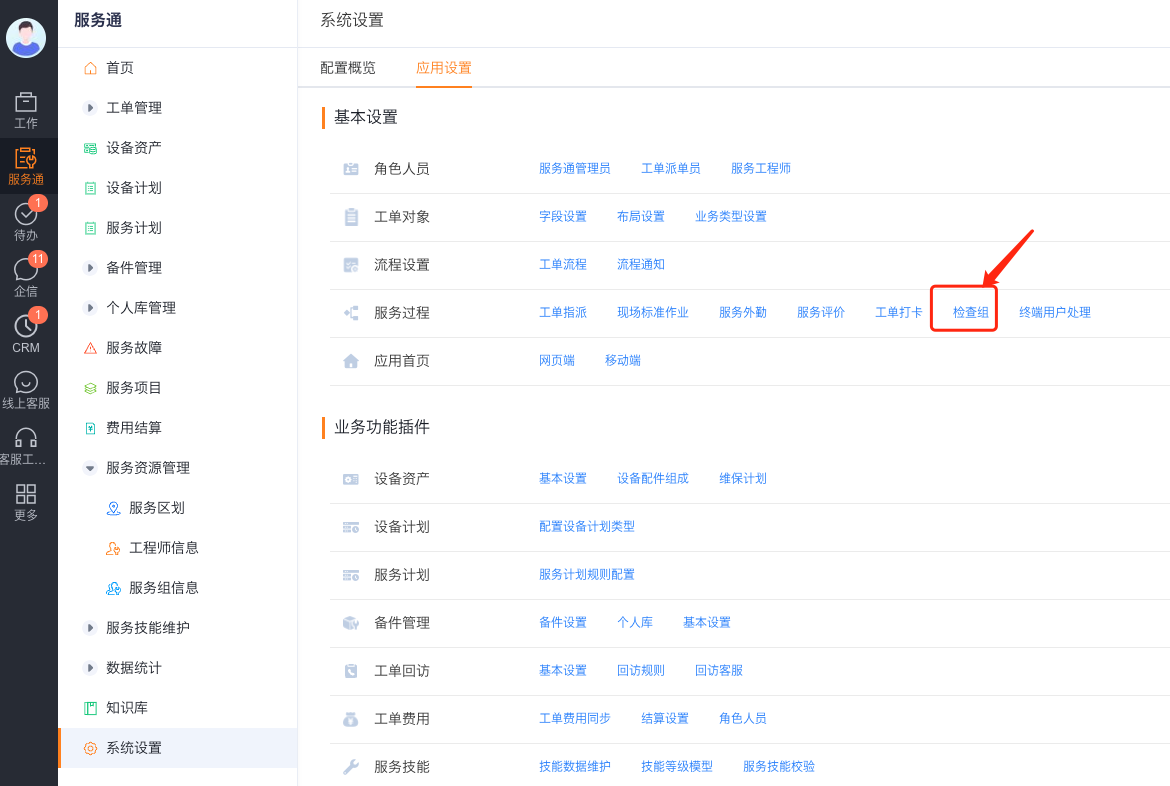
Go to Service Pass>System Settings>Check Group.
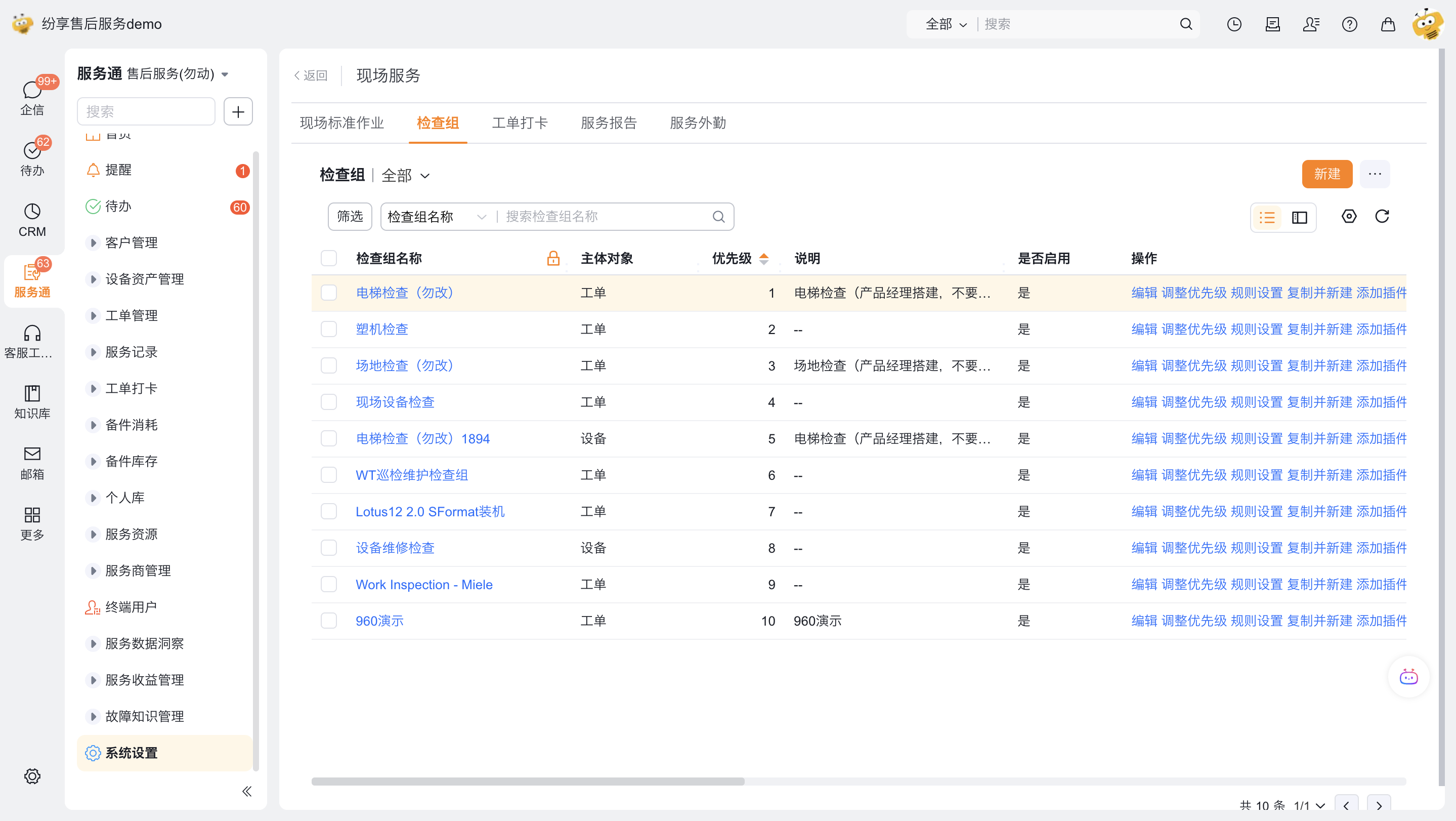
Click New and select the template body based on the actual inspection object:
- Work Order: Used to check the current work order.
- Equipment: Used to check the equipment associated with the work order, or Work Order Equipment from the object record.
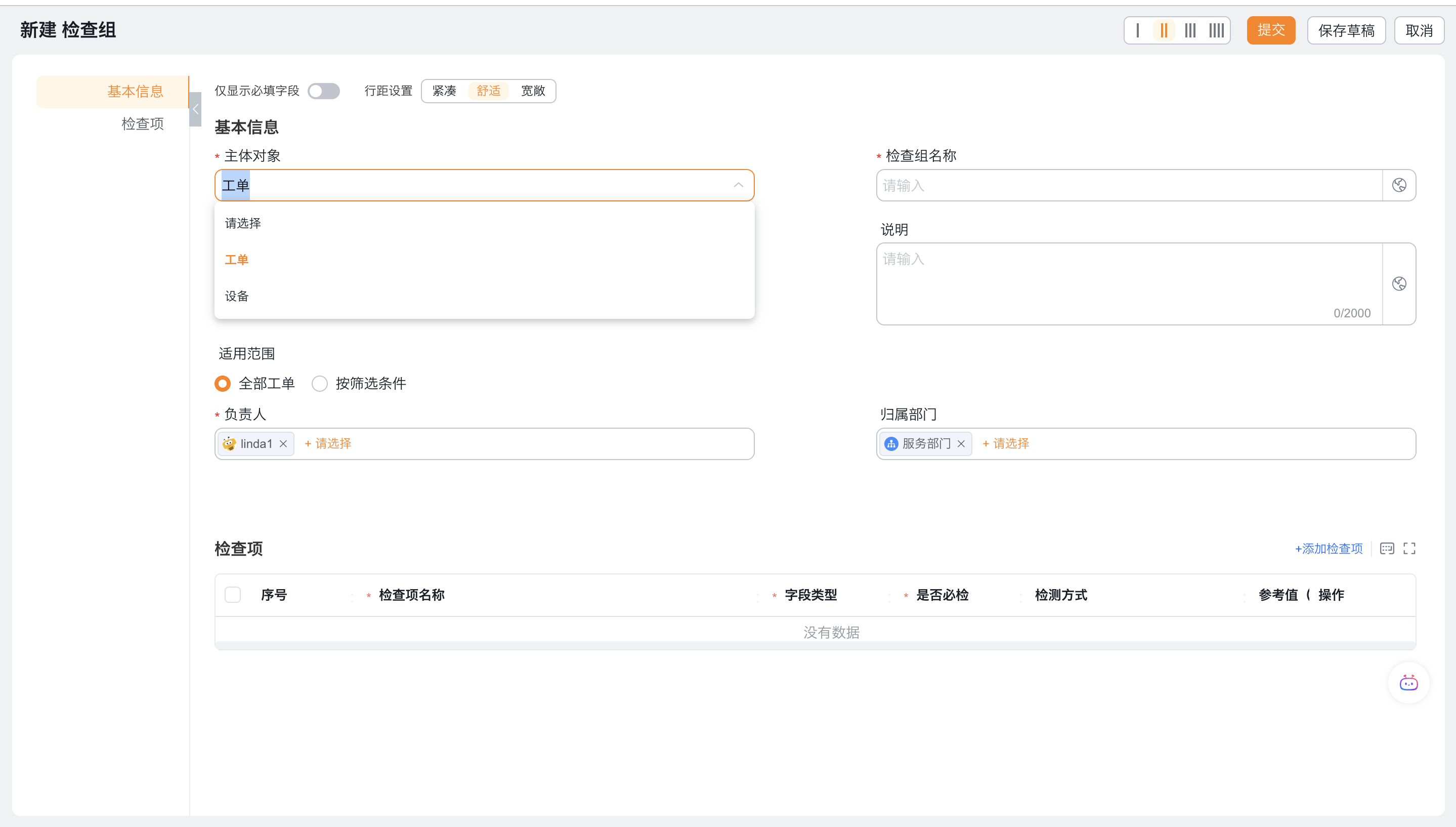
Enter the template name and description, and set its scope. When you select Match by Rules, the system filters templates by this scope.
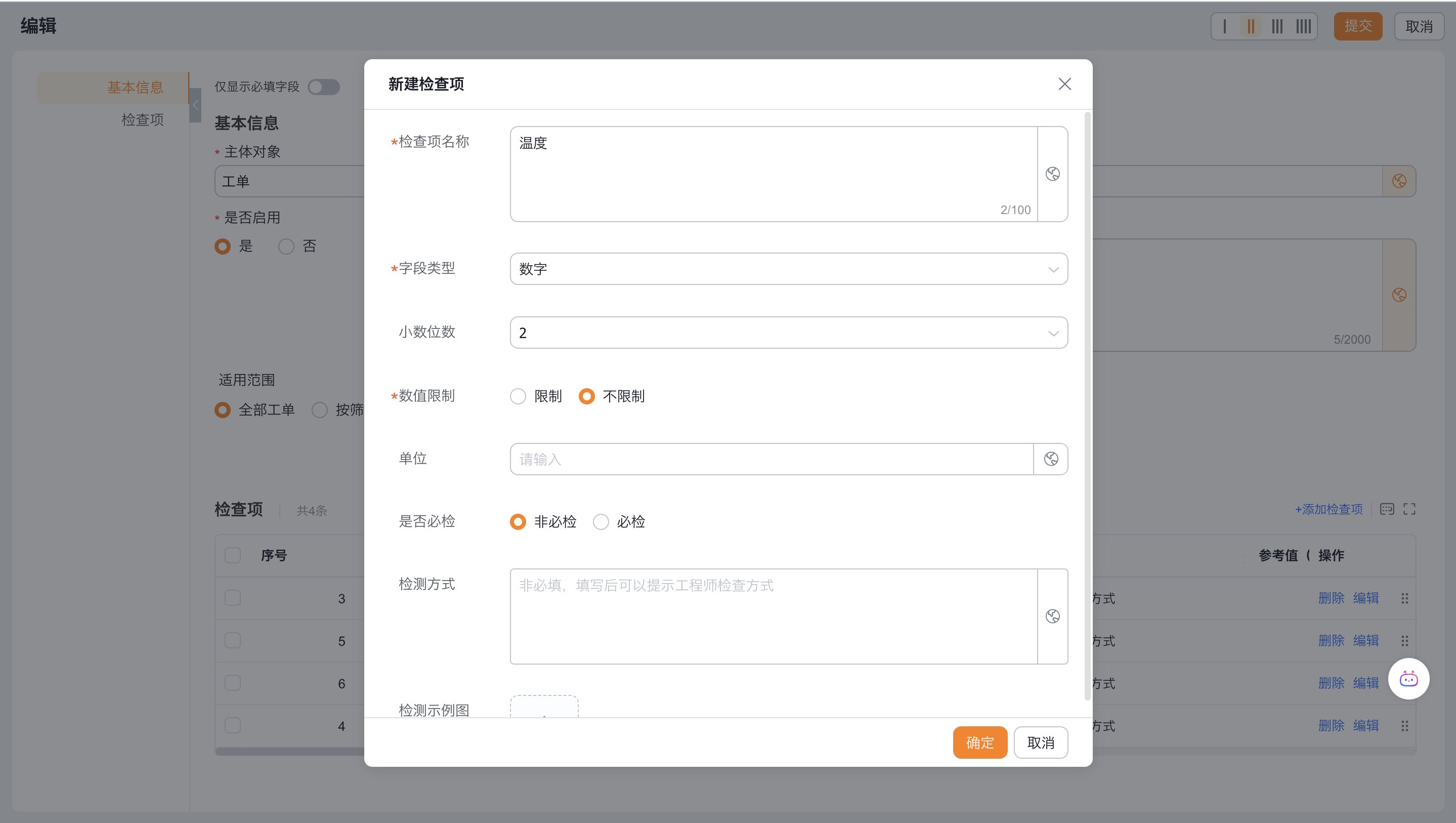
Configure check items
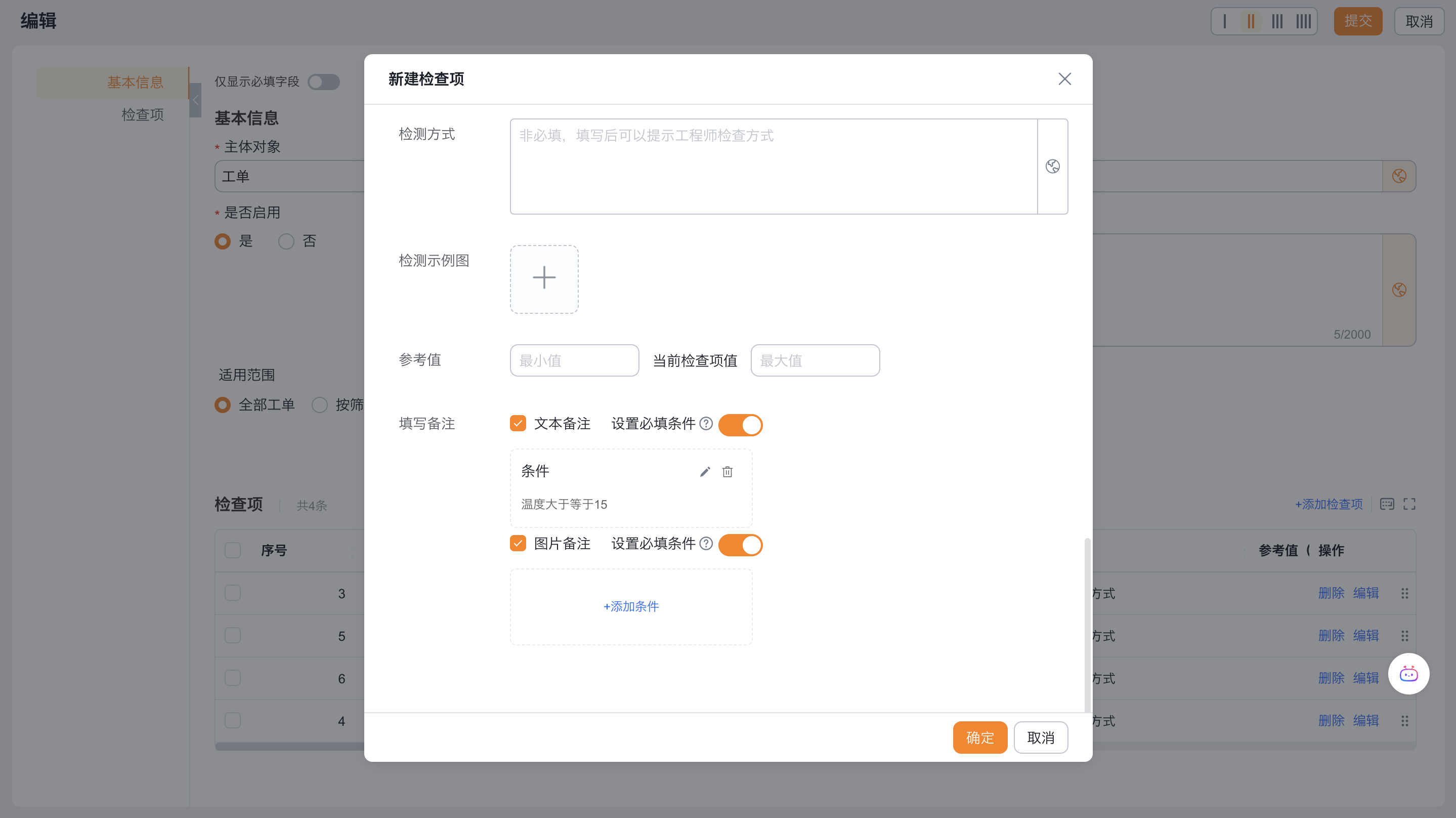
- Click Add Check Item on the template editing page.
- Configure inspection items according to inspection requirements:
| Configuration items | Description |
|---|---|
| Serial number | Sort by creation time by default |
| Name | Inspection content seen by the engineer |
| Field type | Support text, number, yes/no, single choice, multiple choice, picture, attachment, date and signature |
| Whether inspection is required | Control whether the current inspection items must be filled in before submitting inspection content |
| Detection methods | Prompt engineers on inspection methods |
| Inspection example diagram | Prompts engineers about equipment locations or inspection locations |
| Reference value | Only numeric types can set the maximum and minimum values; prompt when out of range |
| Fill in notes | When enabled, additional text or picture notes are allowed, and the notes can be set as required according to conditions; when not enabled, the note entry will not be displayed |
 ## Configure template matching priority
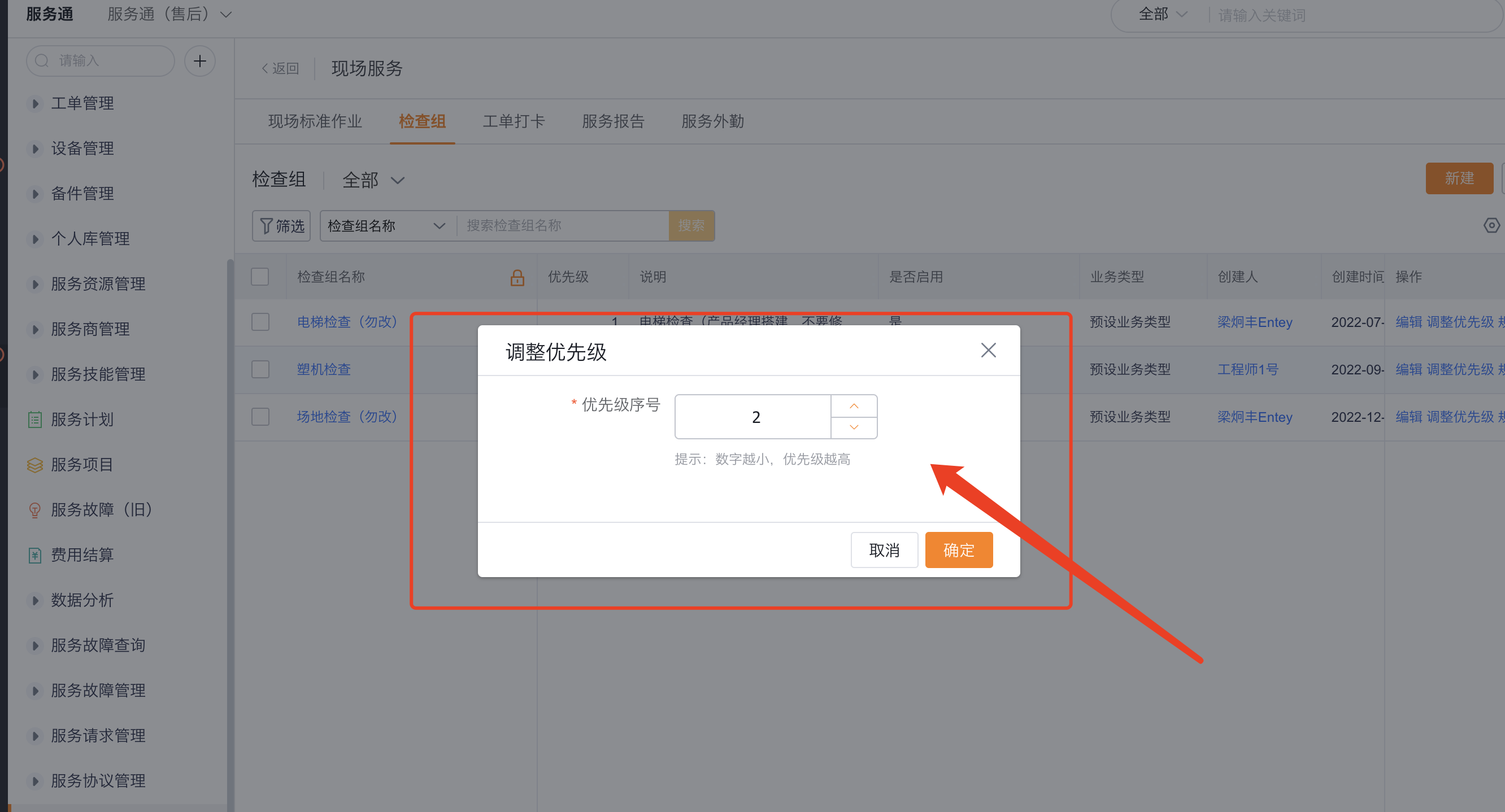
Template priority is only used in scenarios where the application node or SOP action selects match by rules. The system first matches according to the applicable scope of the template; when multiple templates are matched at the same time, the template with the highest priority is used. The smaller the priority number, the higher the priority.
When you select Specify Template, the selected template is used directly and the matching is completed regardless of the applicable scope and priority.
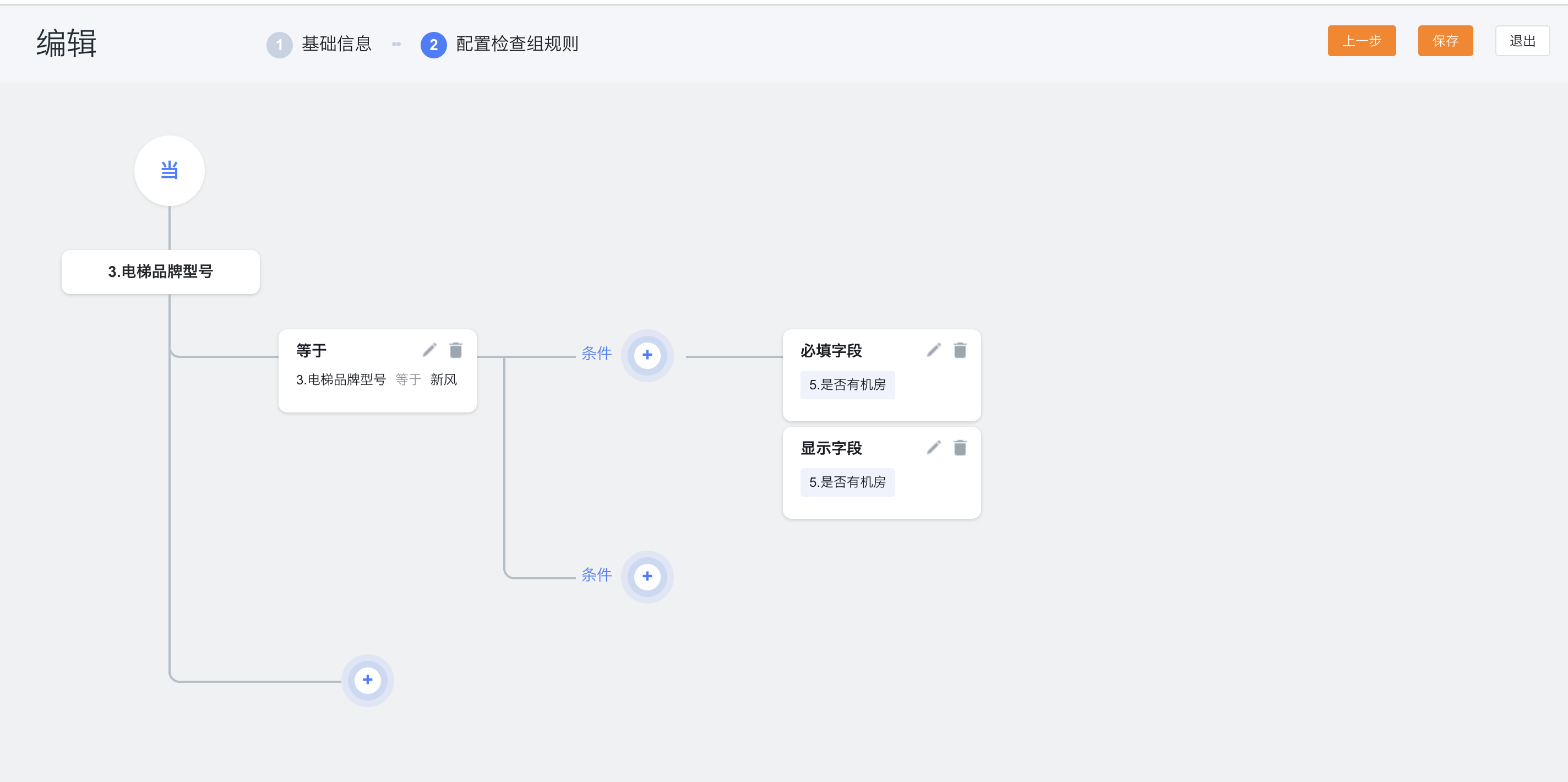
Configure check item linkage rules
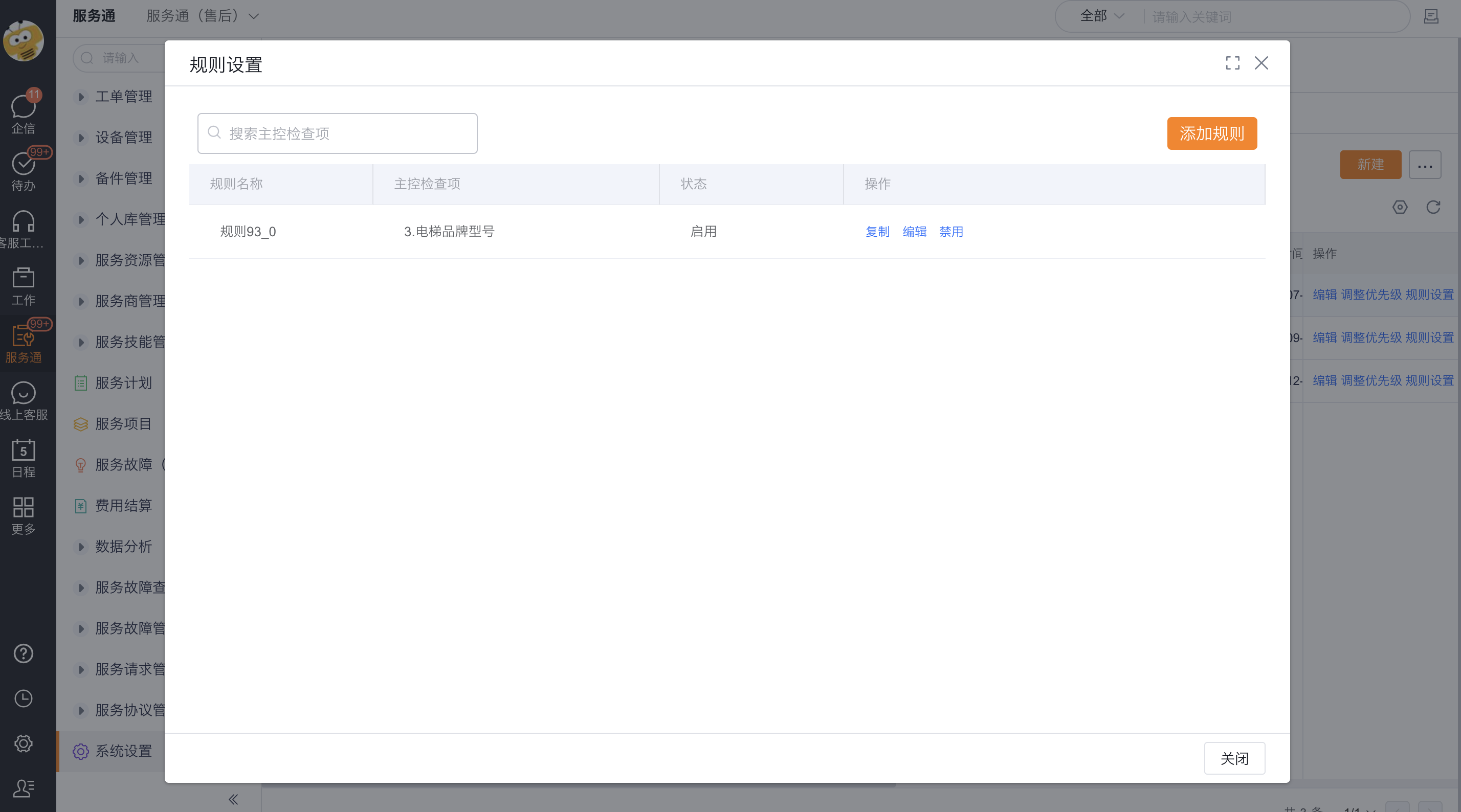
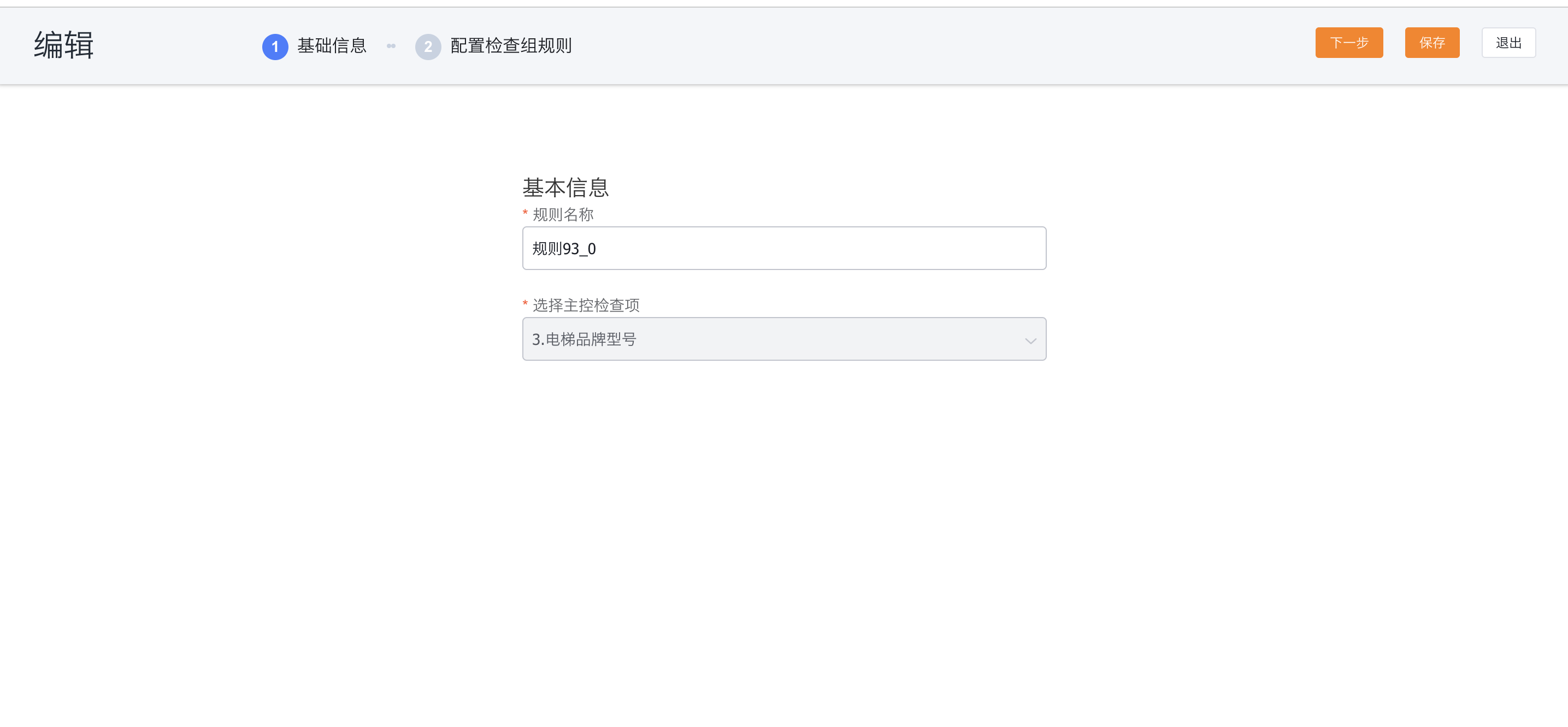
Check item rules are used to control whether post-check items are displayed or required based on the results of pre-check items.
Add check item rules in the template and select the pre-check items as the basis for judgment.
Set the conditions and select the post-check items that need to be displayed when the conditions are met.
Set post-check items as needed that must be filled in when the conditions are met.
Apply inspection group template
An inspection group template supports three application methods:
| Application location | Inspection subject | Template selection | Key limitation |
|---|---|---|---|
| Inspection Group node of the work order process | Current work order | Specify template or match according to rules | One node can only perform one set of inspections |
| Inspection group action of work order SOP | Current work order or work order.Equipment | Specify template or match by rules | When selecting work order.Equipment, the equipment field of the work order should be required |
| Inspection group action for equipment SOP | Work order equipment from the equipment field of each record in the object | Specify template or match by rule | Perform inspection on each equipment under the work order that triggers equipment SOP |
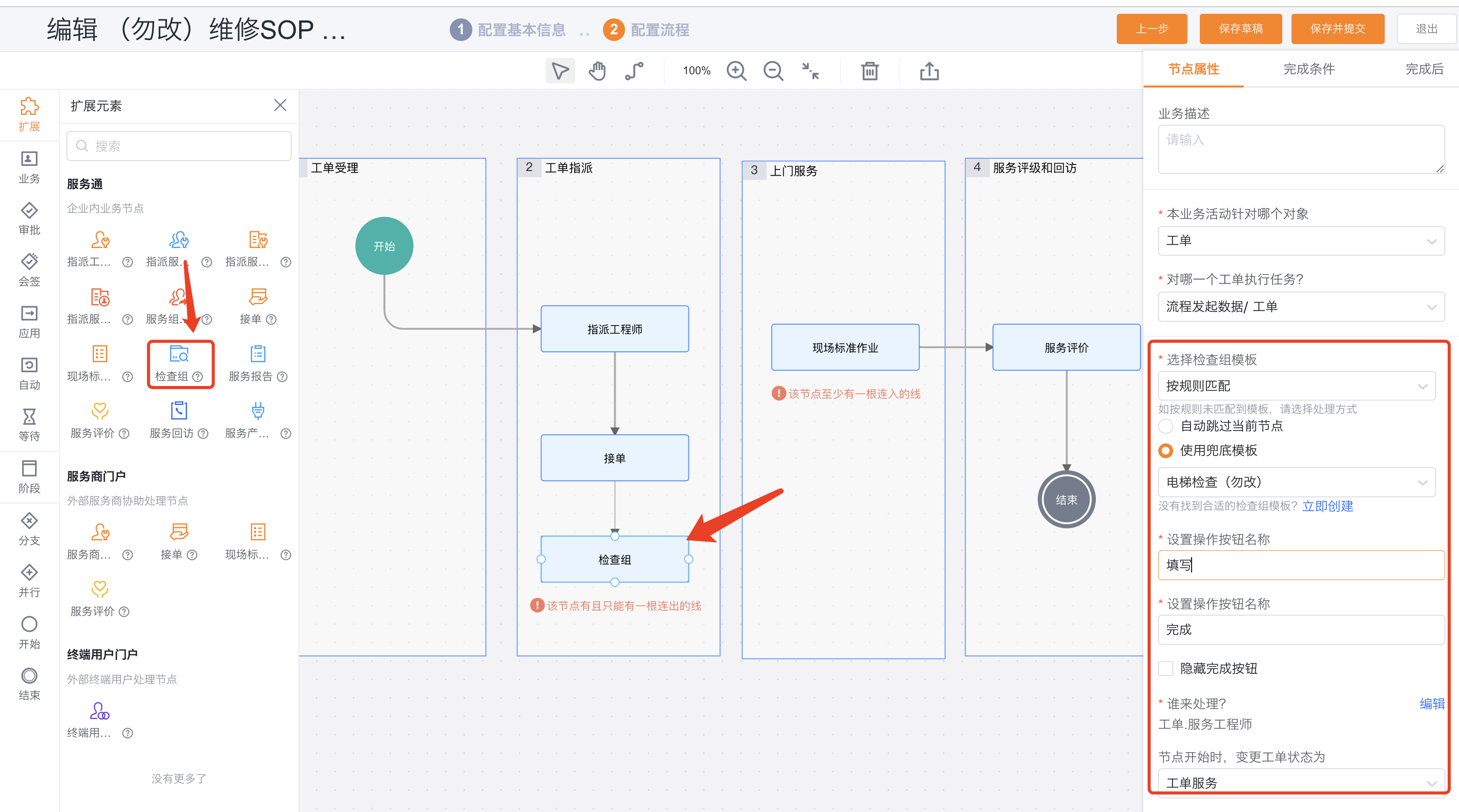
Configure the inspection group node in the work order process
- Add the Inspection Group node in the target work order process. This node checks the current work order by default.
- Select a specified template, or match by rules based on the template's scope and priority.
- When selecting match by rule, configure the processing method when the template is not matched: automatically complete the current node or use a cover-up rule.
- Set the node handler. The default handler is the work order personnel field Service Engineer.
- Customize the name of the main action button as needed, and set whether to hide the Done button in the to-do list.
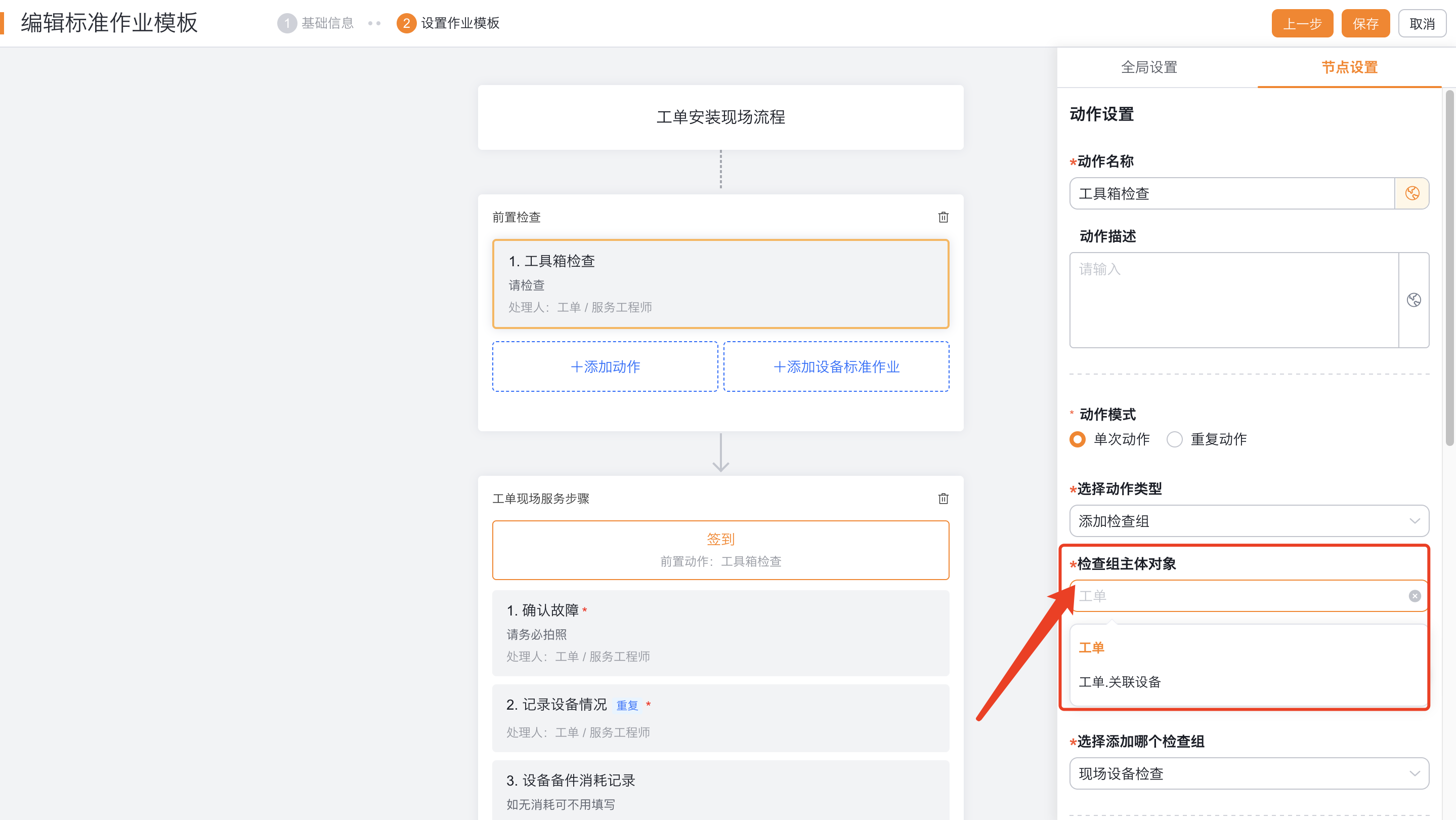
Add inspection group in work order SOP
- Add inspection group actions in the work order SOP template.
- Set the inspection group subject to the current work order or Work Order.Equipment. If you select Work Order.Equipment, make the work order's Equipment field required.
- Select a specified template, or match by rules based on the template's scope and priority.
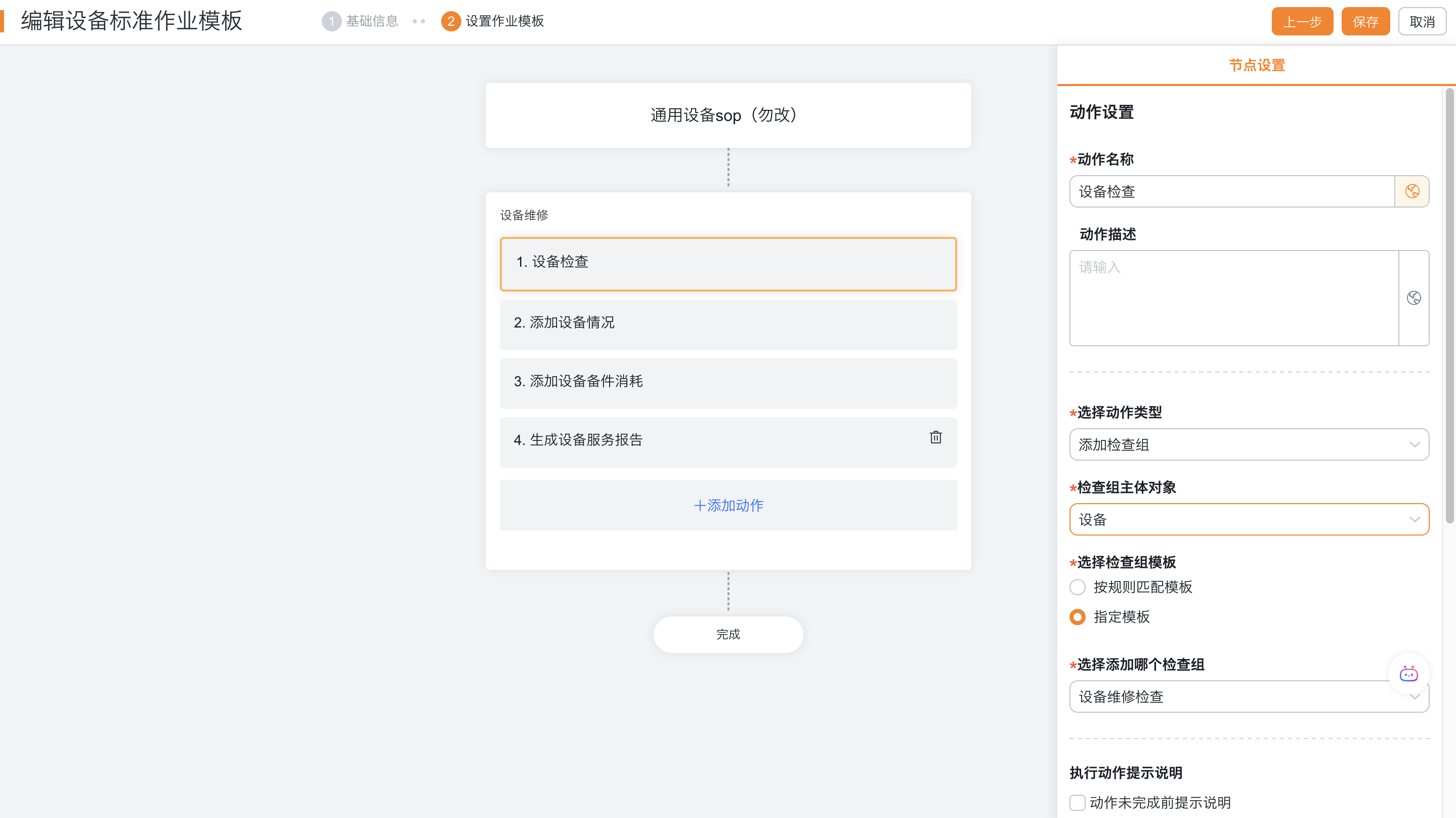
Add inspection group in equipment SOP
- Add inspection group actions in the equipment SOP template.
- Set the inspection group principal to the device. For the work order that triggers the current equipment SOP, the system uses the equipment field of each record in the Work Order Equipment object as the inspection subject.
- Select a specified template, or match by rules based on the template's scope and priority.
Expected results and verification
- Create a test template using the work order body and the equipment body.
- Verify the check item field type, numeric reference value, required check item and condition required remarks respectively.
- Change the results of the pre-check items and confirm that the post-check items are displayed according to the rules or become required.
- Construct multiple templates that meet the applicable scope at the same time, and confirm that the template with the smallest priority number is used when matching according to the rules.
- Construct the situation where the template is not matched in the work order process, and verify the configured automatic completion node or cover-up rule.
- Test the inspection subject separately in a work order SOP and an equipment SOP. Confirm that the engineer sees content from the expected template.
Notes
- The main body of the template determines the subsequent optional application locations; when configuring process nodes or SOP actions, you should select a template with the same main body.
- The Inspection Group node of a work order process can only perform one set of inspections.
- Matching by rules depends on the scope and priority of the template; the smaller the priority number, the higher the priority.
- Check item linkage rules can only use the results of pre-check items to control post-check items.
- The equipment check of the work order SOP relies on the equipment field on the work order; the inspection subject of the equipment SOP comes from the equipment field in the work order equipment slave object record.