Appearance
Perform standard on-site work
Complete the procedures and actions in a standard operating procedure (SOP), record the service, and advance the work order.
Overview
Administrators configure procedures, actions, owners, and completion rules. Complete your assigned actions as prompted. If procedure clock-in is enabled, clock in before starting.
Before you begin
IMPORTANT
- Your account can process the work order, SOP actions, and related objects.
- The work order is at the SOP node and has matched a template.
- If clock-in is enabled, turn on location services and clock in as prompted.
- Verify all action results before submission. Required actions block clock-out and SOP completion.
Procedure
- Find the work order in the App task list or process-node application.
- Select Perform On-site Work.
- Verify the customer, address, status, and current procedure. Complete your assigned actions.
- If required, clock in before the actions. Use leave-site or completion clock-out as appropriate.
- Complete all required actions, select Complete, and verify the process status.
Perform work in the App
- At the SOP process node, select Perform On-site Work from the task list or node application.
- The page shows procedures and pending actions. Depending on the action type, you can:
- Edit fields on the work order or a related object.
- Create one or more related records.
- Confirm existing related records.
- Add and complete an inspection group.
- Generate a service report.
- Generate a service review QR code.
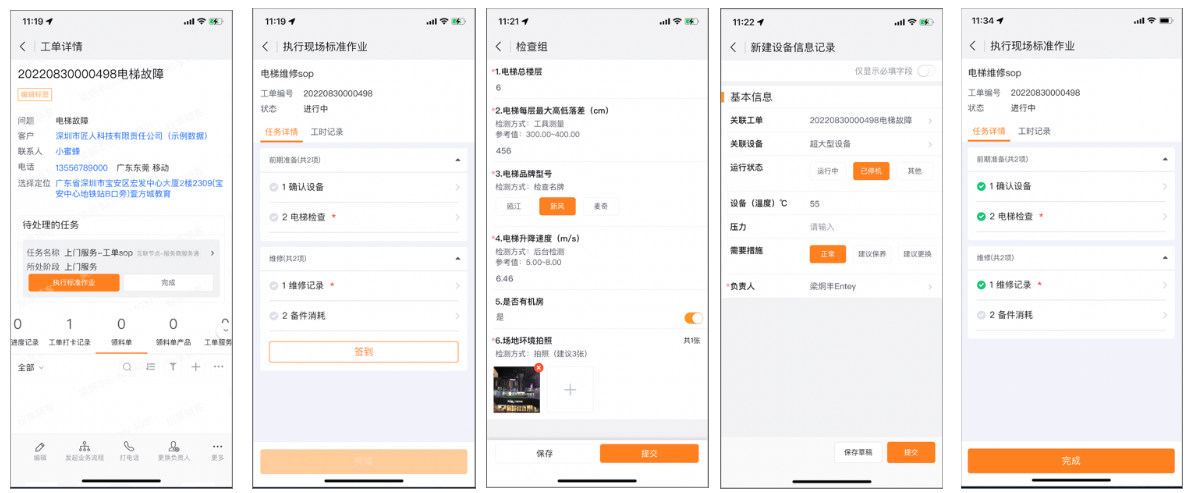
- Follow each action card's instructions. Configuration determines visibility, skip options, and requirements:
- Prerequisite action: Complete it before the current action.
- Conditional action: The system displays it only when the configured condition is true.
- Required action: Complete it before clock-out or SOP completion.
- Skip this step: Available only when enabled. Skipping does not mark the action complete.
- Completion condition and post-action: Correct failed validation. The system runs post-actions automatically after completion.
- Repeating actions generate tasks according to configuration:
- Unlimited: Process again after completion, either automatically or through a manual trigger.
- Once daily: Generate at SOP start and at 00:00 each day until completion.
- Once per clock-in: Generate after every procedure clock-in until completion clock-out.
Clock in and out of a procedure
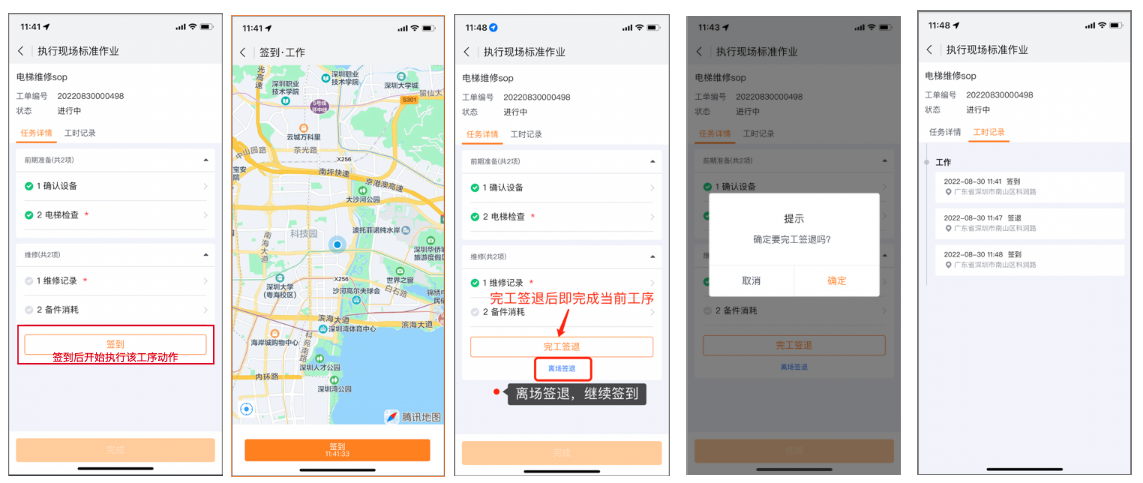
When enabled, each action owner maintains independent clock-in records.
- Standard clock-in: Clock in, complete required actions, and select Completion Clock-out.
- Repeated clock-in: Use Leave-site Clock-out, then clock in again when you return. Finish with Completion Clock-out.
- The system validates your required actions at either clock-out.
- An open clock-in becomes a missing-clock record at 23:59 and can follow your organization's correction rules.
Complete the SOP
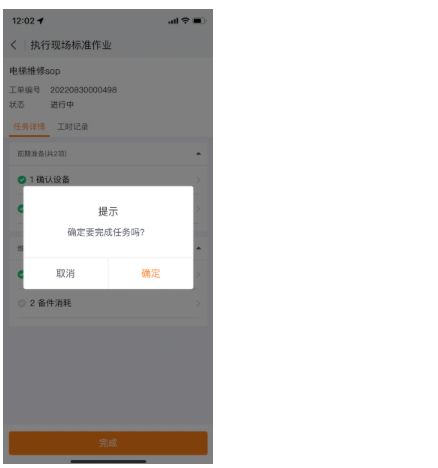
After all required actions and clock-outs, select Complete. The system validates completion conditions, saves records, and completes the process node.
Perform work on the web
- Select Perform On-site Work from the task list or process-node application.
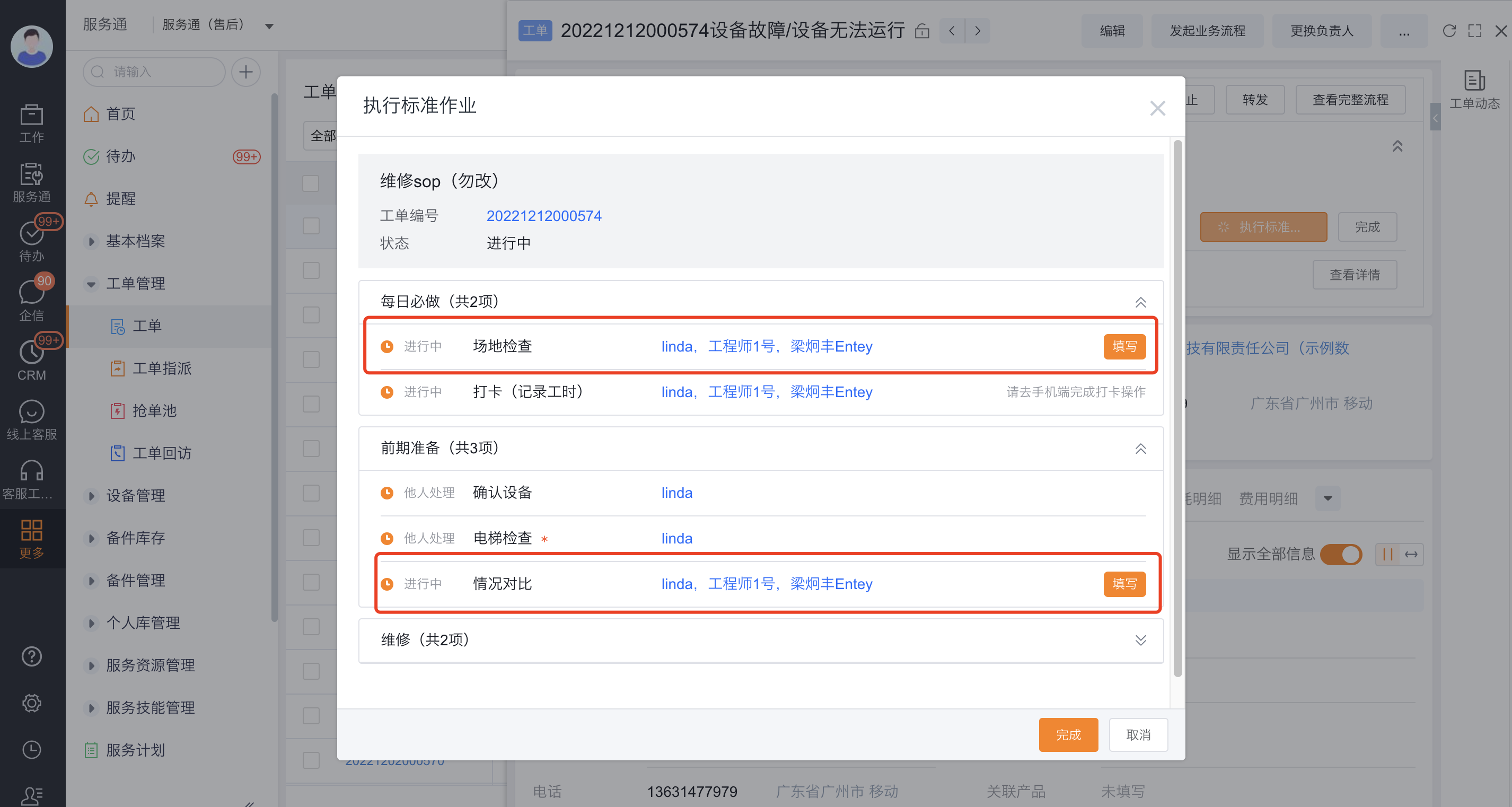
- Complete assigned actions such as editing objects, creating or confirming related records, and completing inspections.
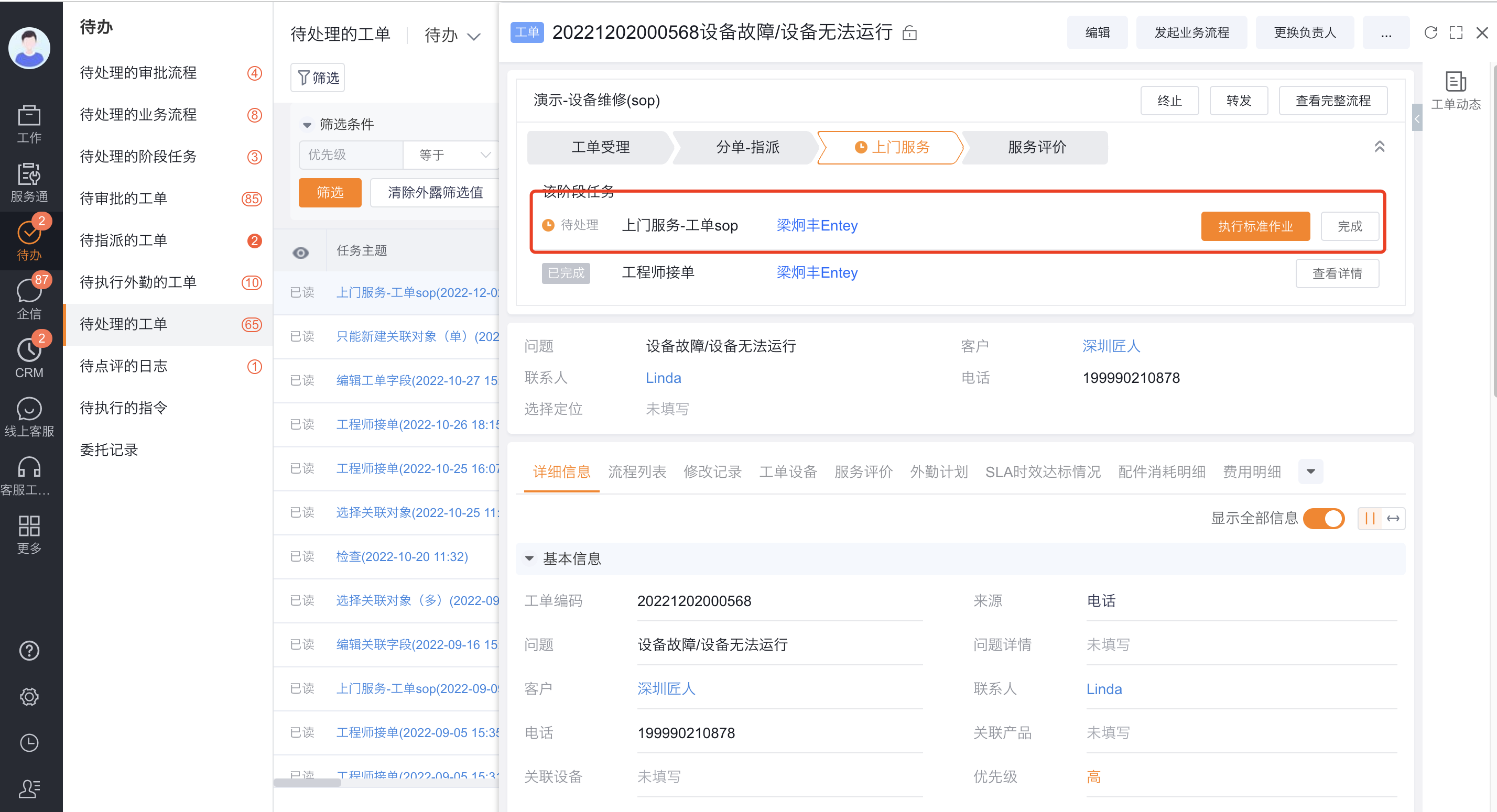
- The web does not support procedure clock-in, clock-out, or location records. Use the App when clock-in is required.
- The primary engineer completes actions assigned to the primary owner.
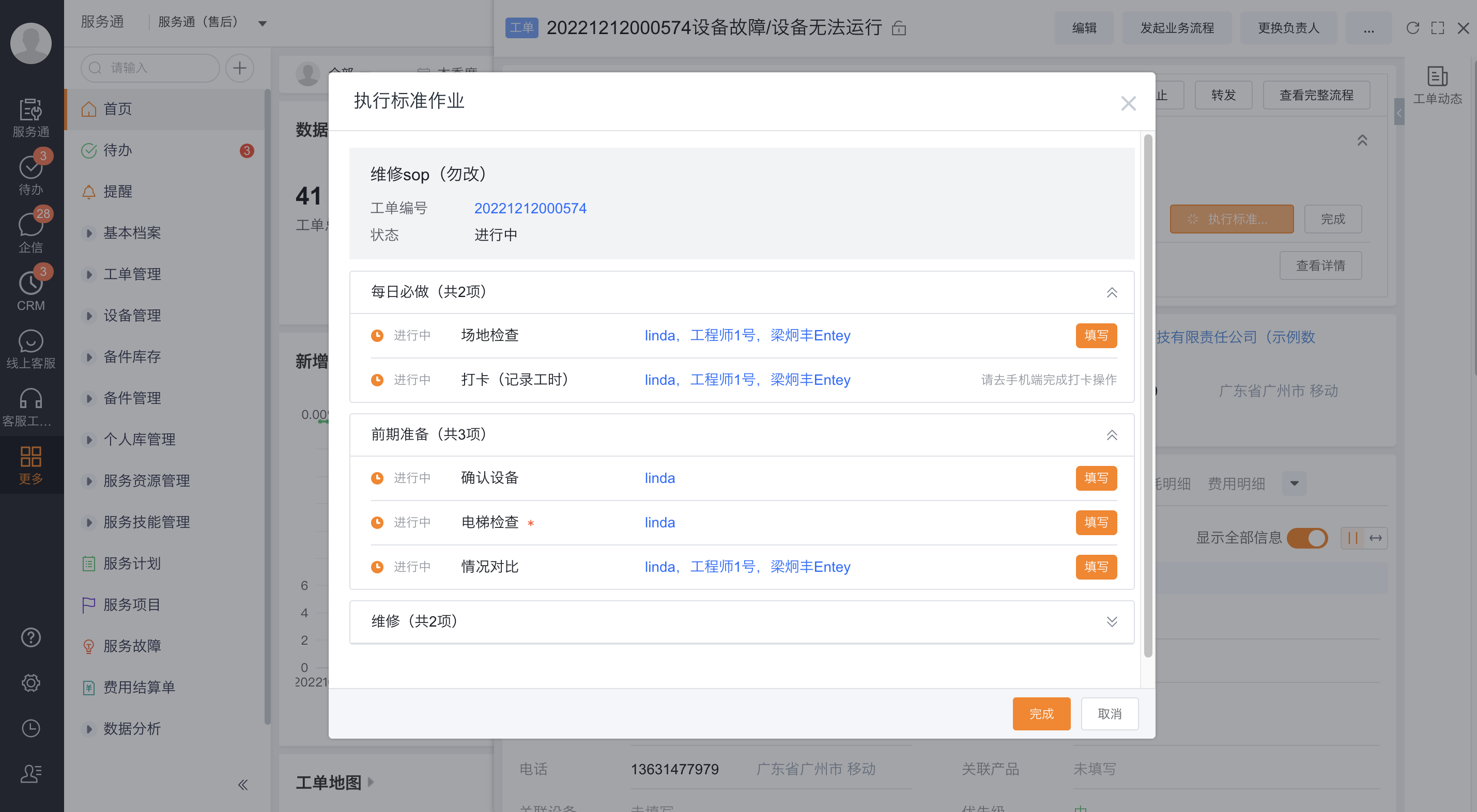
- Collaborating engineers complete their own assigned actions independently.
Expected result
- Action data, inspection results, and clock-in records are saved to the configured business objects.
- Completed actions leave the pending list, and related records show the resulting data and status.
- After SOP completion, the work order advances to the displayed next node and owner.
Notes
- Product edition, process configuration, and permissions control entries, actions, and labels.
- Engineers need both action ownership and functional and data access to related objects.
- For missing actions or validation failures, check prerequisites, conditions, required fields, and object permissions.
- Use the App to record procedure location data.