Appearance
Configure other work order intake channels
Overview
In addition to corporate employees, customer service workbench, customer self-service portal and email, work orders can also be accepted from device codes, external business systems or corporate self-developed apps, websites, mini-programs and other portals. Different channels require different investment in identity recognition, data synchronization and development. You should first choose a solution based on customer identity matching requirements.
For complete configuration steps, see Configure customer service portals and Configure emails to automatically create work orders.
Before you begin
- Use a service pass administrator or an account with corresponding object, device, and integration configuration permissions.
- The work order business type, fields and processes for handling have been configured.
- The equipment code scenario requires the preparation of equipment data that can be queried and repaired by end users.
- External systems or self-developed entrance scenarios require enterprise R&D personnel to participate in plan confirmation and implementation.
Channel selection
| Scenario | Recommended approach | Main limitations or dependencies |
|---|---|---|
| The user scans the code to report for repair at the equipment site | Equipment code | The equipment code needs to be generated and posted |
| A work order originates in another system but must be dispatched and processed in the CRM. | Integration platform, custom development, or OpenAPI | Requires data synchronization and field mapping. |
| A custom app, website, or Mini Program needs only a simple submission entry. | Embed a work order Smart Form link. | Can't identify users of the custom system or automatically match CRM accounts and contacts. |
| The self-developed portal needs to identify users and match CRM customers and contacts | Customized development | An account manager needs to be contacted, and corporate R&D personnel must participate |
Configure device code bill of lading
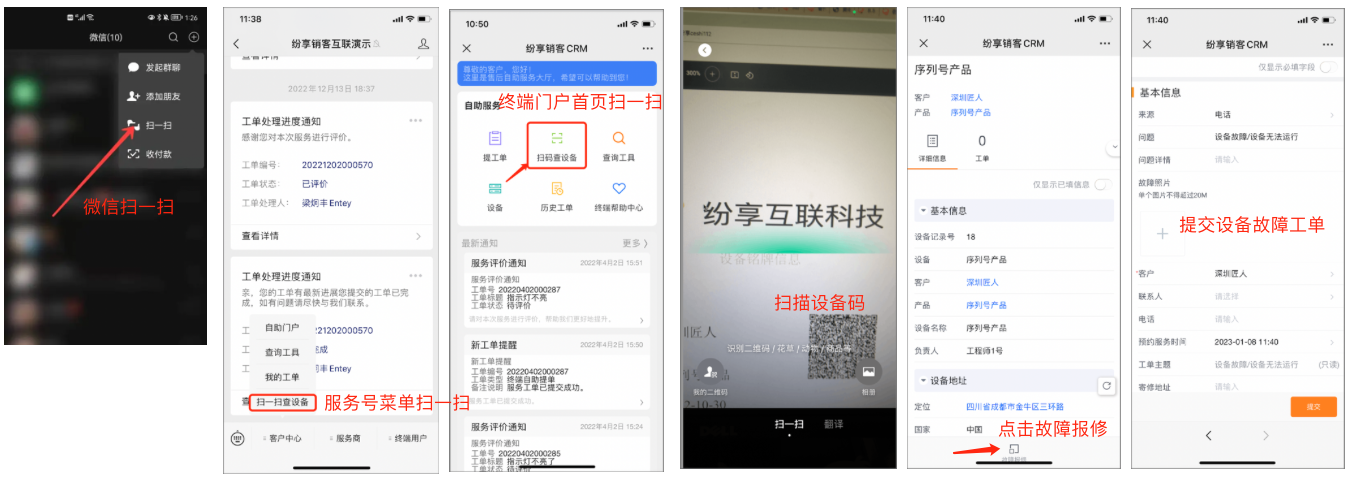
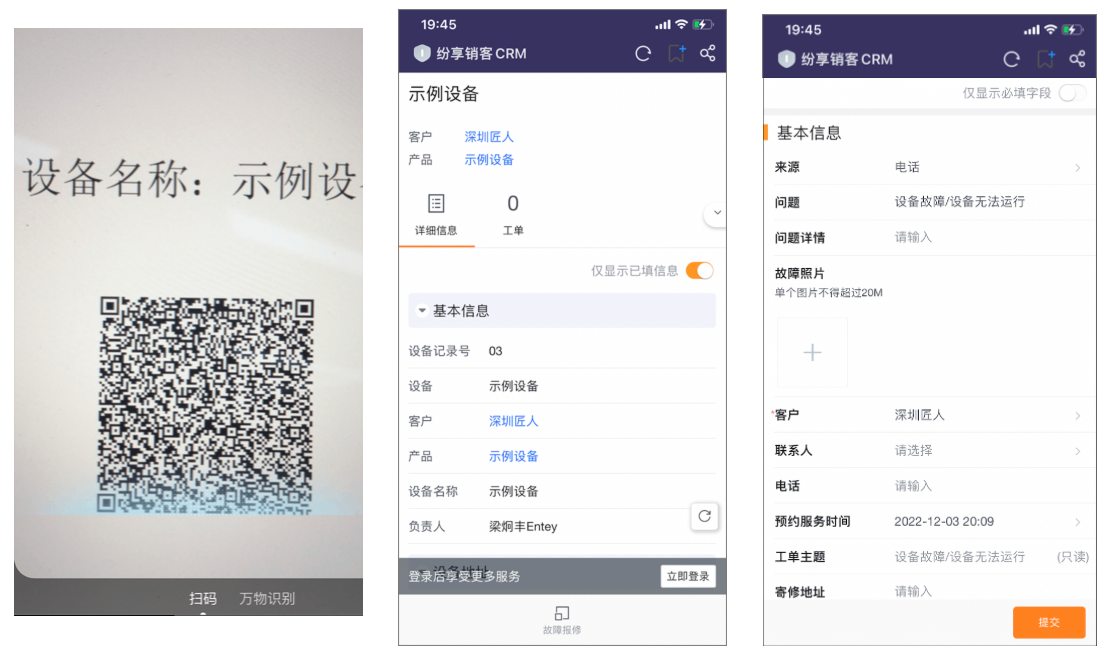
- Generate a device code for the device and post the device code on the corresponding device.
- Confirm that the end user can open the device information and repair portal after scanning the QR code.
- Use the test device code to submit a work order and check whether the work order is associated with the correct device.
Connect with other business systems
If the work order data is created in other systems, but needs to be assigned and processed within Fenxiang, the data can be synchronized to the Work Order object of Fenxiang. The source material provides the following three implementation directions:
- Use the capabilities of the Fenxiang integration platform to integrate between systems.
- Contact the account manager to submit customized development requirements.
- Enterprise R&D personnel synchronize data through Fenxiang Open API.
Before implementation, the field mapping, business type and subsequent process between the source system and the work order object should be clarified. The specific integration configuration needs to be performed according to the selected integration solution.
Provide work-order intake in a custom portal
Embed a Smart Form link
- Get the smart form link of the Work Order object.
- Have your development team embed the link in a custom app, website, or Mini Program.
- Use the test portal to submit a work order, check the form fields and generate data.
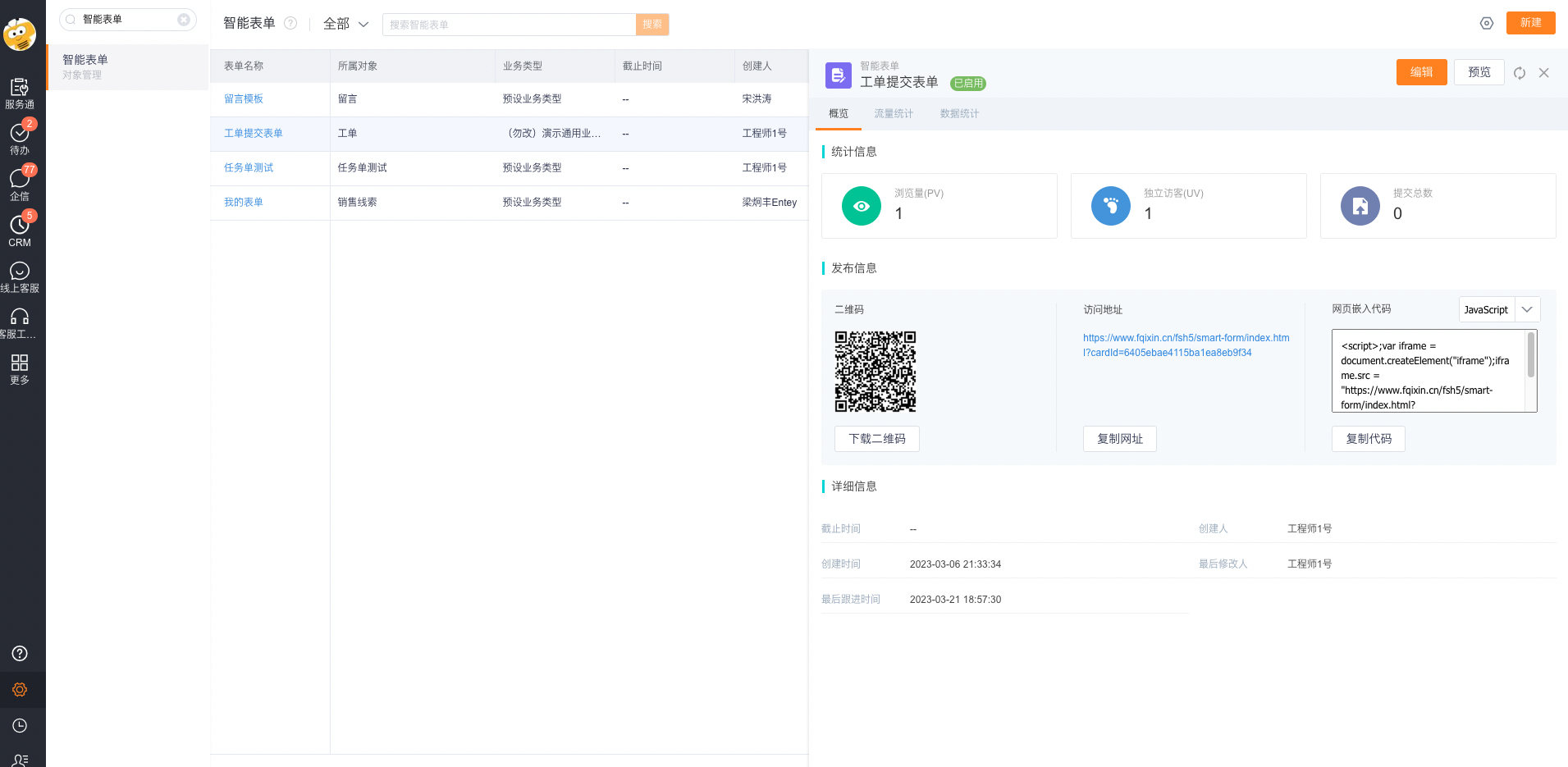
Smart form links cannot identify logged-in users in the self-developed system, nor can they automatically match customers and contacts in Fenxiang CRM. Smart form links should not be used only when identification and customer matching are required.
Adopt customized development
If a work order in a self-developed app, website or mini-program needs to match Fenxiang CRM customers and contacts, you should contact your account manager to submit customized development requirements. This solution still requires enterprise R&D personnel to participate in interface, identity and page integration.
Expected results and verification
- Submit a test ticket from the selected external portal.
- Check whether the work order business type, source fields, customers, contacts, and device associations meet the capabilities of the selected solution.
- Check whether the work order can enter the expected assignment and processing process.
- For the smart form solution, confirm that the business party has accepted the restriction of not being able to identify login identities and automatically match customers and contacts.
Notes
- Do not describe smart form links as having single sign-on or customer identity matching capabilities.
- External system synchronization and customized development require the participation of enterprise R&D personnel; this article does not provide specific interface implementation.
- The equipment QR code must correspond to the correct equipment record. Redact QR codes with directly accessible content before publishing them.
- The customer self-service portal is an independent portal configuration, and the automatic transfer of emails to work orders also has independent rules and failure handling. Please use the dedicated guides in related topics.