Appearance
Manage equipment and asset records
Maintain equipment and asset ledgers, and uniformly record ownership, status and history.
Overview
The equipment ledger is used to record the basic files of a single equipment, including product, serial number, equipment code, customer and address and other information. It can be created manually, imported in batches, integrated by external systems, or automatically generated according to configuration after the delivery process.
Before you begin
- Confirm that the administrator has enabled device asset management and assigned the current account the view, create, or import permissions for the Device object.
- Maintain the products that need to be associated in advance in the Product object. Associated products are required for new devices.
- If the product needs to be managed by serial number, first enable serial number management on the product and maintain the basic serial number in the Serial Number object.
- If you want to automatically create files after shipment, the administrator must first enable Automatically generate equipment assets and complete the mapping of customer fields and business types.
Manually create a new device
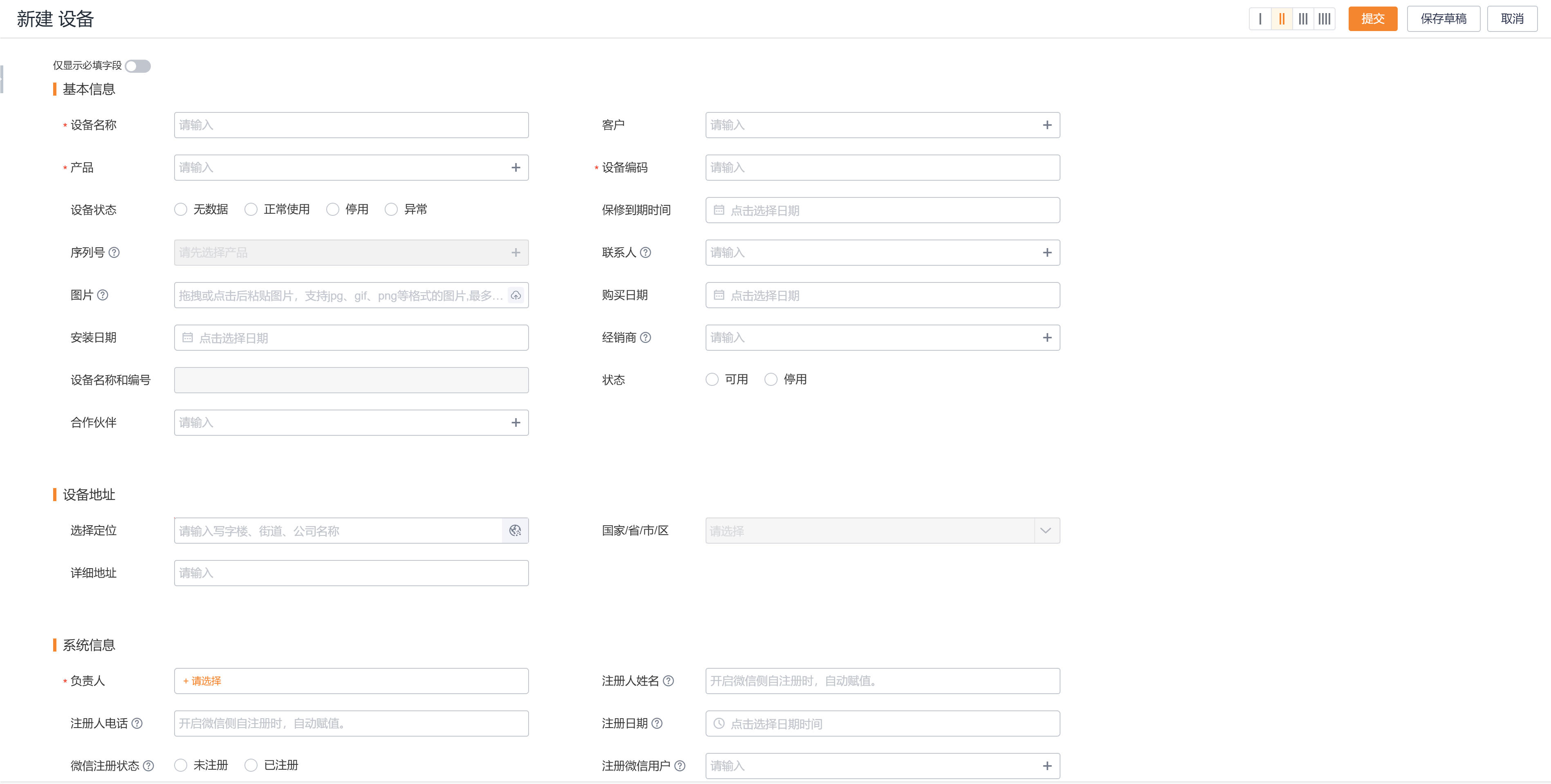
- Enter the Device object list and click New.
- Select the equipment business type and fill in the equipment file.
- Select the product in the Product field. By default, the system uses the product name as the device name, which can be modified according to the actual situation.
- If the selected product has serial number management enabled, select or fill in the corresponding serial number in the Serial Number field. By default, the system uses the serial number as the device code, which can be modified according to the actual situation.
- Check the customer, address and other required fields and click Submit; if you do not want to submit yet, you can use Save Draft.
Batch import or external integration
- Use the import capability in the Device object list, or synchronize data from an external system to the device object (API Name:
DeviceObj). - Ensure that each piece of data can be associated with a valid product.
- For products that enable serial number management, provide matching serial numbers; when you need to customize device coding, do not rely on system default values.
- After the import or synchronization is completed, randomly check the product, serial number, device code, customer and address of the device.
NOTE
Upstream data confirmation supports manual creation, import and external system integration, but does not provide an import template field list. The actual import should be based on the template downloaded in the current environment and the verification results.
Automatically generate equipment through the shipping process
- Confirm that the administrator has enabled Automatically generate device assets in Service Pass > System Settings > Device Management > Device Settings.
- Confirm that the target customer business type has configured the mapping between the equipment customer field and the invoice customer field.
- Complete the invoice process and confirm receipt.
- Query the newly generated records by customer or product in the Equipment list, and check the customer, product and equipment codes.
Automatic archiving only occurs when the switch is enabled and configuration conditions are met. You should not expect the system to automatically create devices when the process is not completed, the receipt is not confirmed, or the business type mapping is not hit.
Expected results and verification
- The corresponding device record exists in the device list.
- The device has been associated with the product; when serial number management is enabled, the device also has correct serial number information.
- Unless you override them, the equipment name comes from the product name and the equipment code comes from the serial number.
- The account and address match the actual delivery or after-sales recipient.
Notes
- Associated Product is always required; Associated Serial Number is only used after serial number management is enabled for the product.
- The product name and serial number are only used to generate default values, the device name and device code can still be modified. Modifications should avoid conflicts with existing coding rules.
- Automatic generation of equipment assets and manual import are different archiving paths. Deduplication rules should be formulated before going online to avoid repeated archiving of the same physical object.
- The ledger is only responsible for equipment files. Use OBOMs in device details at the component level; use asset tracking objects for borrowing, returns, and transfers.