Appearance
Manage equipment asset BOMs
Maintain equipment asset BOM hierarchy.
Overview
An equipment asset BOM, or operational bill of materials (OBOM), records equipment and components in a hierarchy. The system maintains the relationships among the root equipment, parent equipment, and child nodes.
Before you begin
- The administrator has enabled this capability in Service Pass > System Settings > Device Management > Device Asset BOM. This ability cannot be turned off after it is turned on.
- The root device already exists and the product is associated.
- Equipment ledgers have been established for records that need to be added as subordinate equipment; when product-level components only need to be recorded, product data has been maintained.
- The current account has the permission to view the device and configure OBOM.
Enter OBOM configuration
Open the details of the root device that needs maintenance.
Click Configure OBOM in the upper right corner of the page.
Find the node that needs to be expanded on the configuration page, click Add Subordinate, and then select Add Subdevice or Add Subproduct.
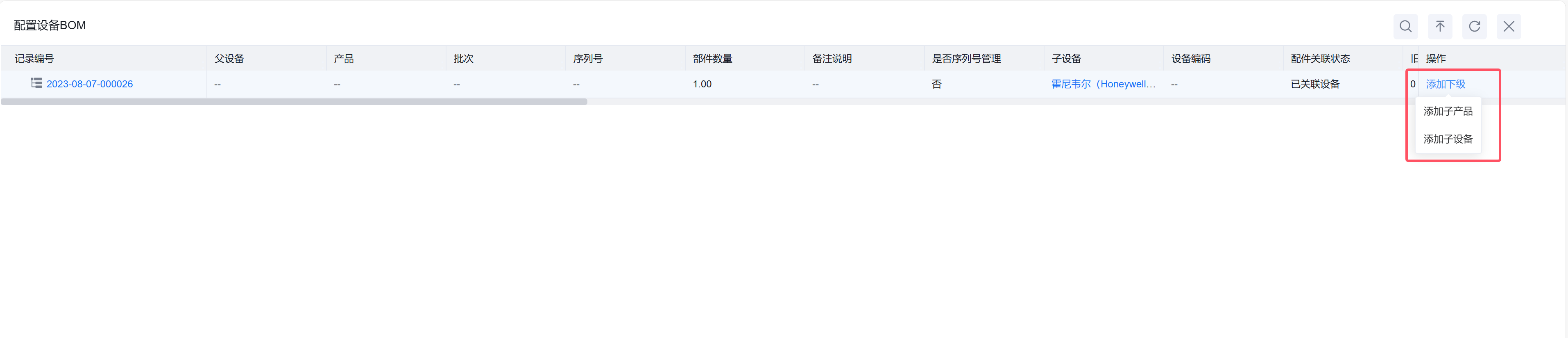
IMPORTANT
OBOM can only be maintained from Configure OBOM on the device details page. You cannot directly create or import data manually in the Equipment Asset BOM object.
Add lower-level devices
- Select Add Sub-Device under the device node.
- Select the child equipment to associate.
- Check the root device and parent device automatically filled in by the system.
- If the device has serial number management enabled, check the serial number automatically brought in by the system.
- Submit records.
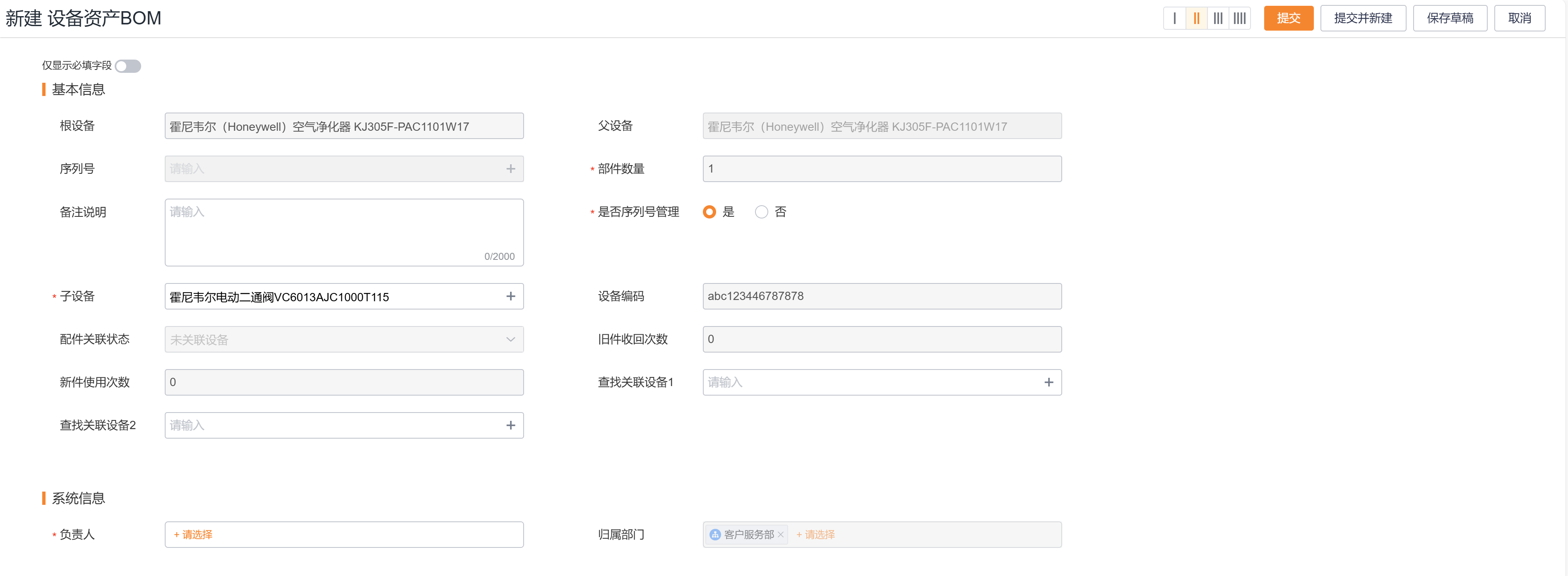
The component quantity of the lower-level device is fixed at 1. After submission, the system automatically maintains the hierarchical relationship.
Add subordinate products
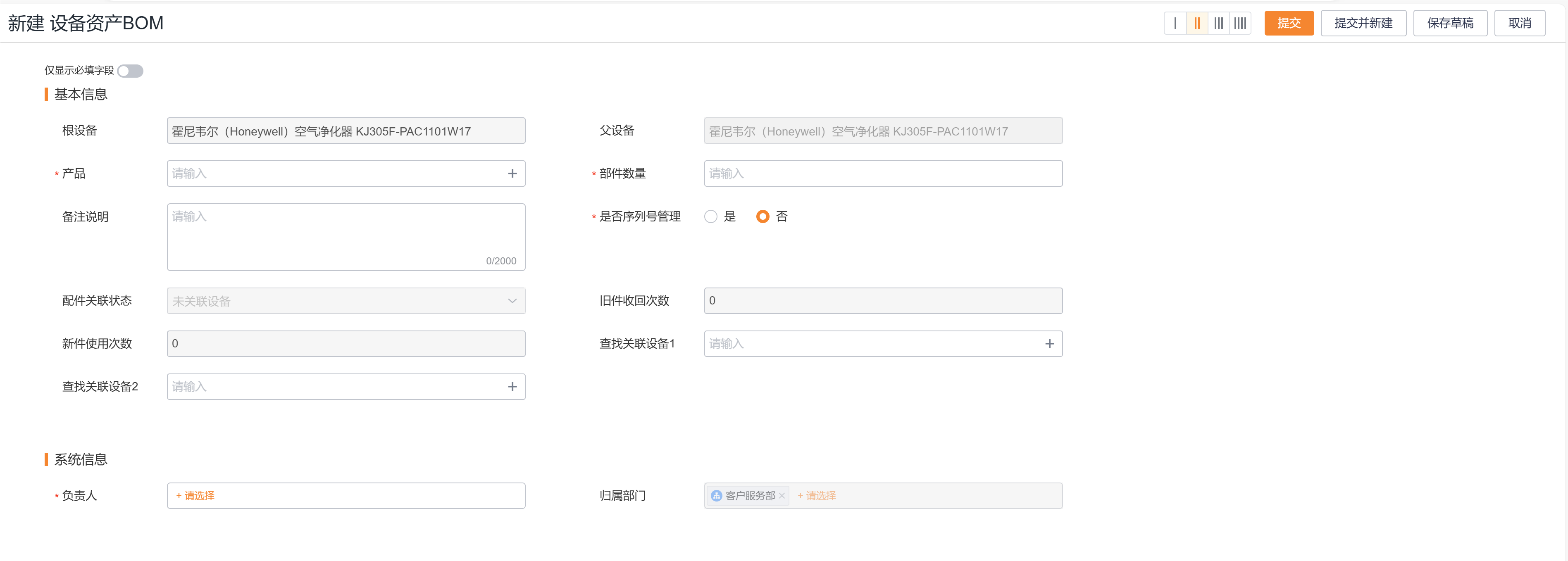
- Select Add Sub-Product under the device node or product node.
- Select the product to be the part.
- Check the root device and parent device automatically filled in by the system.
- Fill in the quantity according to the serial number management method:
- When serial number management is not enabled for the product, the part quantity can be entered.
- When the product has serial number management enabled, the part quantity is fixed at
1.
- Submit records.
Hierarchy rules
| Current node | Subordinate equipment can be added | Subordinate products can be added | Quantity rules |
|---|---|---|---|
| Root node | Yes | Yes | The root node must be associated with the device, not just the product |
| Device node | Yes | Yes | The number of sub-devices is fixed at 1 |
| Product node | No | Yes | When serial number management is enabled for a sub-product, the quantity is fixed at 1, otherwise the quantity can be entered |
Expected results and validation
- The configuration page shows the correct root equipment, parent equipment, and child nodes.
- The lower-level equipment or products are at the expected level and the quantity complies with the serial number management rules.
- After reopening the device details, the saved structure can still be viewed through Configuration OBOM.
Notes
- The root node must be a device; the product cannot be used as the root node of the entire OBOM.
- The product node cannot add lower-level devices, and can only continue to add lower-level products.
- OBOM objects do not support direct creation or import. Bypassing the device details entry is not a supported maintenance method.
- After serial number management is enabled on the device, selecting the device will automatically bring in the serial number; you should still check whether the correct physical object is associated before submitting.