Appearance
Configure service faults
Configure service fault rules to unify fault identification, review and processing.
Overview
Enable the Service Fault plugin, and then maintain fault trees, service faults, and their details. Engineers can use the data only after details reference fault-tree nodes and each service fault defines a product or equipment scope. Knowledge recommendations, Fault Self-Check components, and fault review are optional.
Before you begin
- Use a Service Pass administrator account, or an account with business plug-in, service fault object and layout configuration permissions.
- Prepare product or equipment scope, as well as fault location, fault phenomenon, fault cause and fault solution data.
- If batch import is used, prepare the data template of the corresponding object, and confirm that the association identifiers of the parent and child data are consistent.
- If knowledge recommendation is enabled, first prepare knowledge records that can be associated; if fault review is enabled, first determine the review process and handler.
Configuration steps
1. Enable service fault plug-in
On the web, go to Service Pass > System Settings.
Find Service Fault in the Business Plug-in area and confirm that the plug-in is enabled; if it is not enabled, follow the page prompts to enable it.
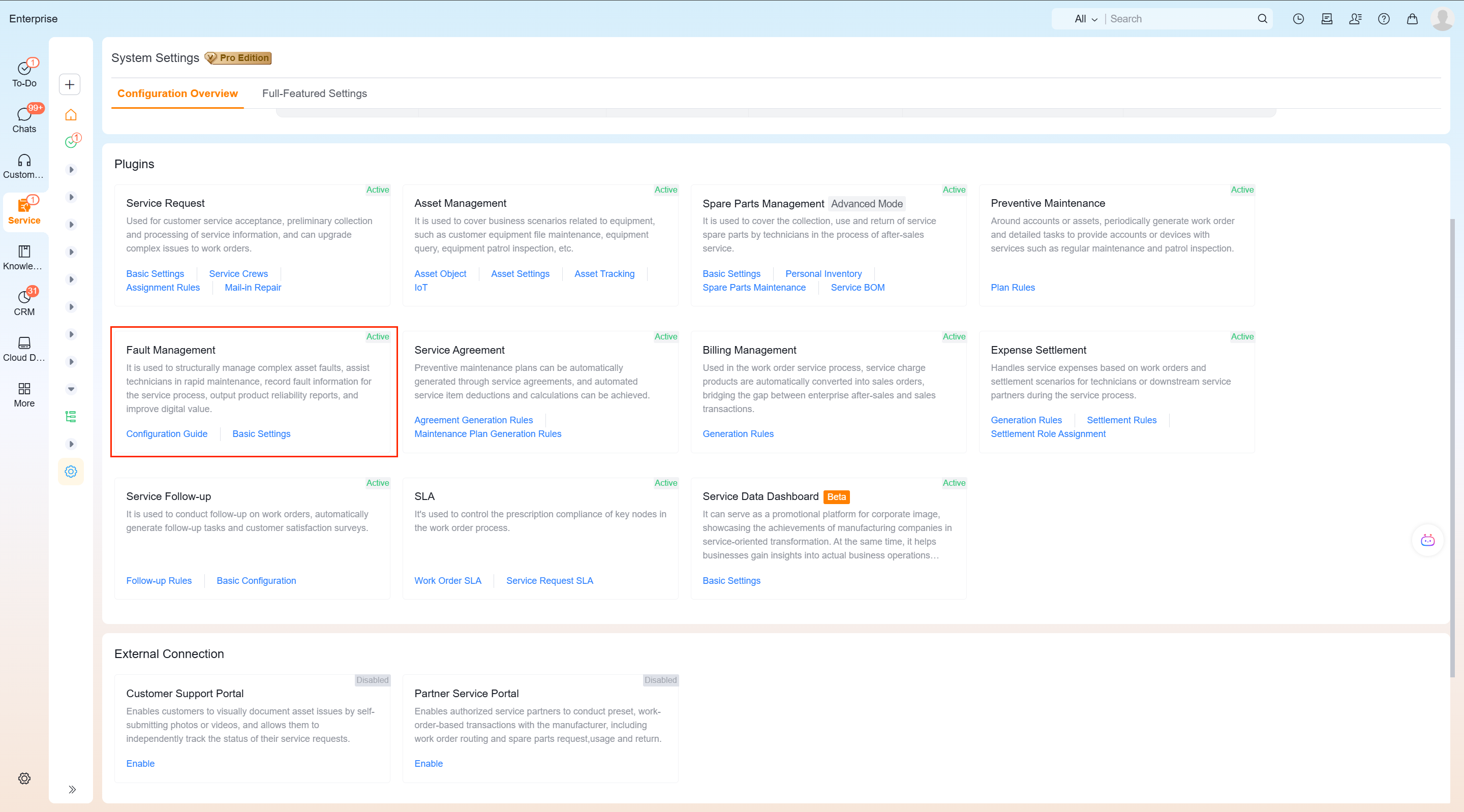
Enabling the plug-in only opens service fault-related objects and entries, and does not automatically generate the company's own fault tree data.
2. Maintain fault tree
Fault trees are used to maintain the hierarchical relationship of faults. The data hierarchy listed in the source material is Fault location > Fault phenomenon > Fault cause > Fault solution; the fault location does not need to be maintained.
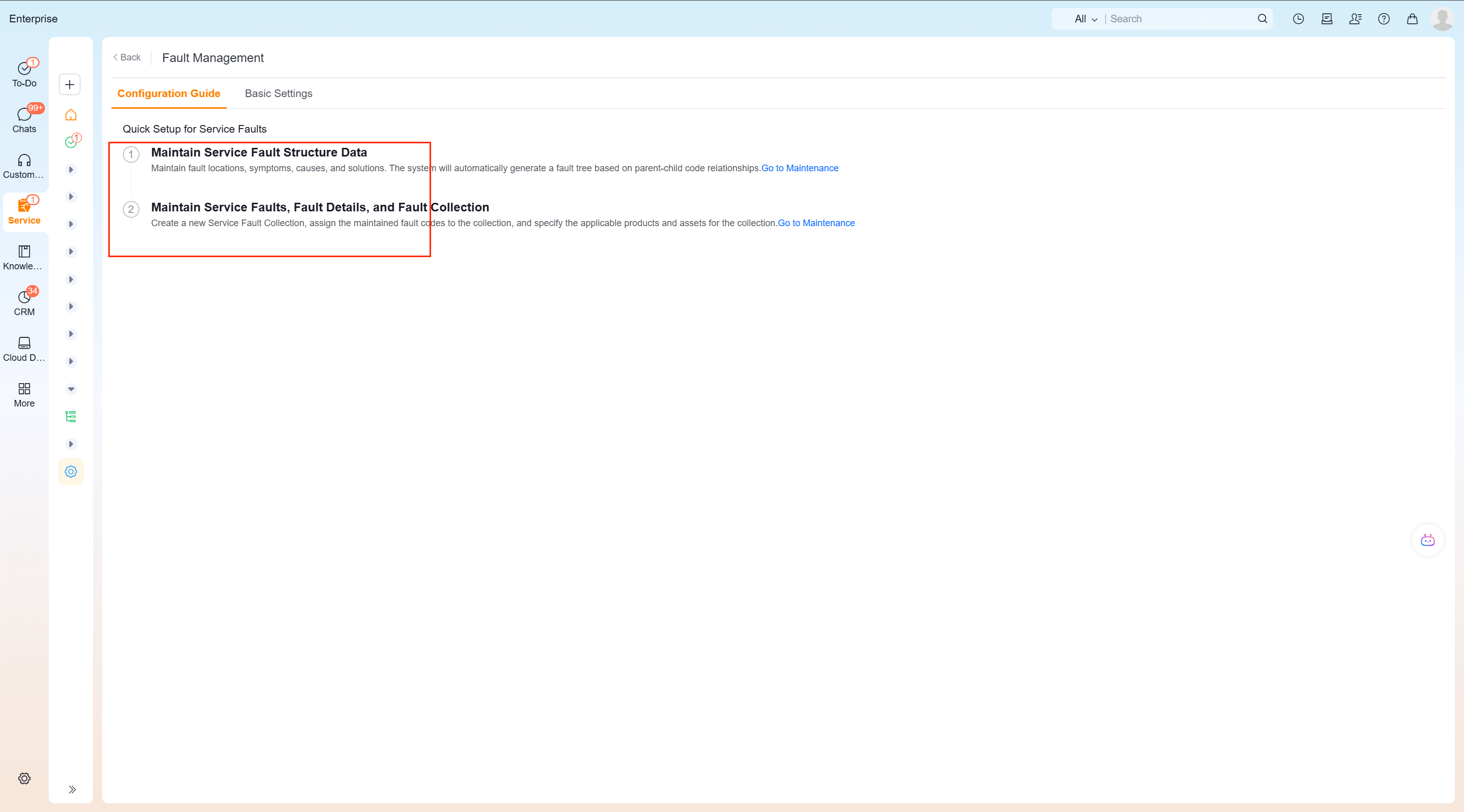
The configuration guide page for service faults divides maintenance actions into two steps: first maintain the fault tree structure data, and then maintain service faults, service fault details and their associated scopes. Do not skip the second step and go straight to finding the fault in the work order.
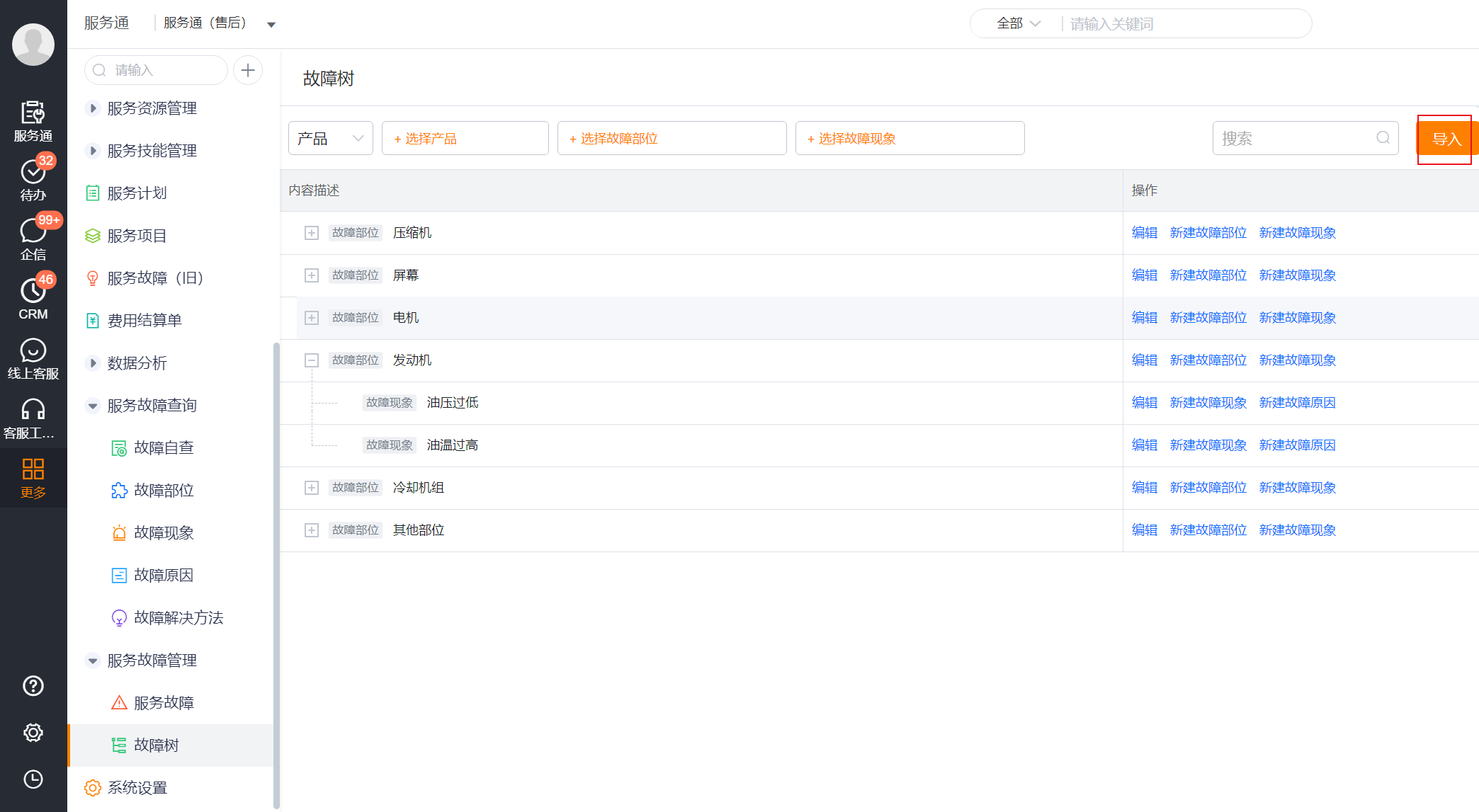
Enter Fault Tree in the service fault management area.
Select manual addition or batch import according to the amount of data. When the amount of data is large, it is recommended to select Import in the upper right corner of the page.
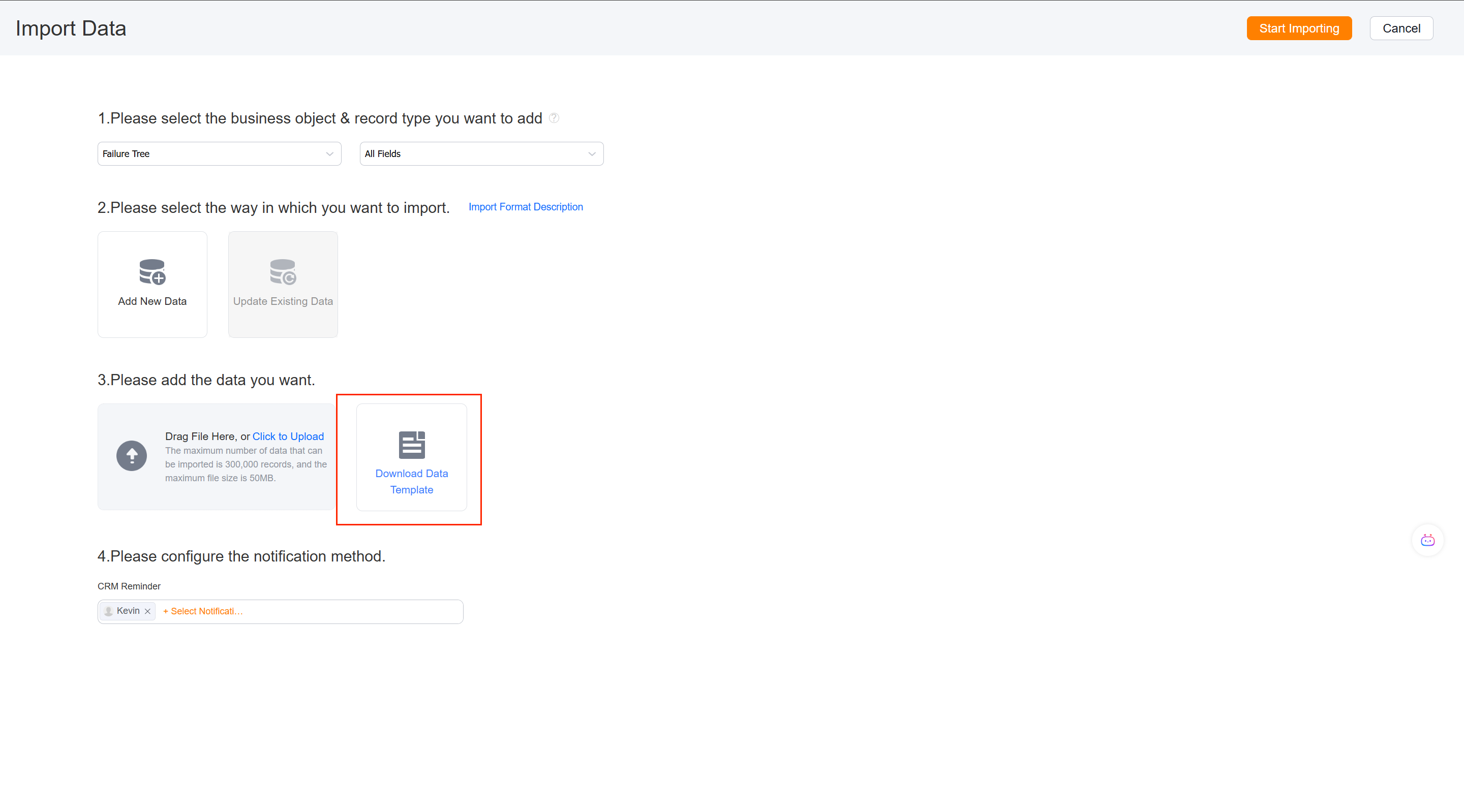
Select the business object Fault Tree on the import page, select Add new data, download the data template and fill it in according to the template.
Enter locations, symptoms, causes, and solutions in the template. Use the parent and child identifiers to create the hierarchy.
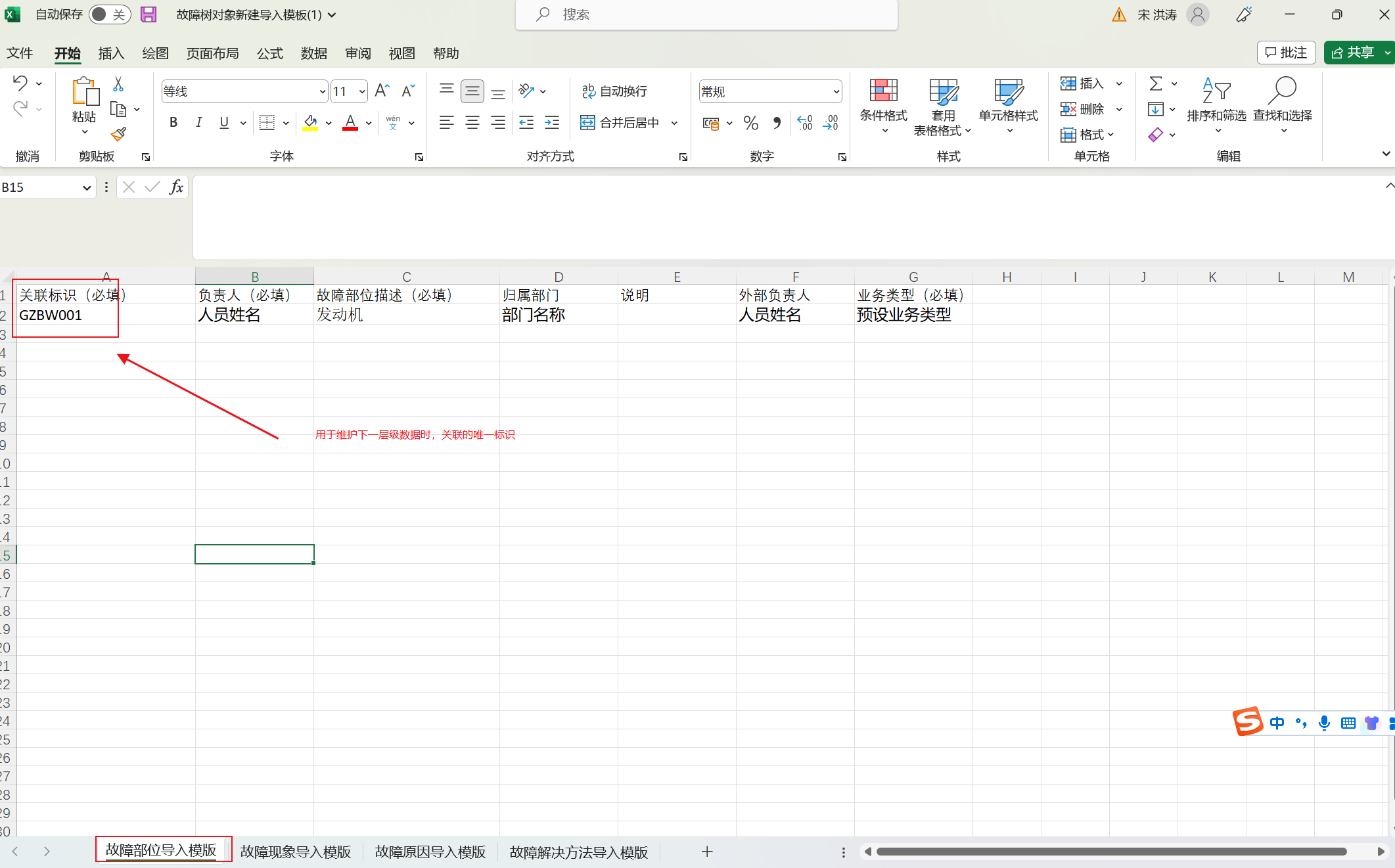
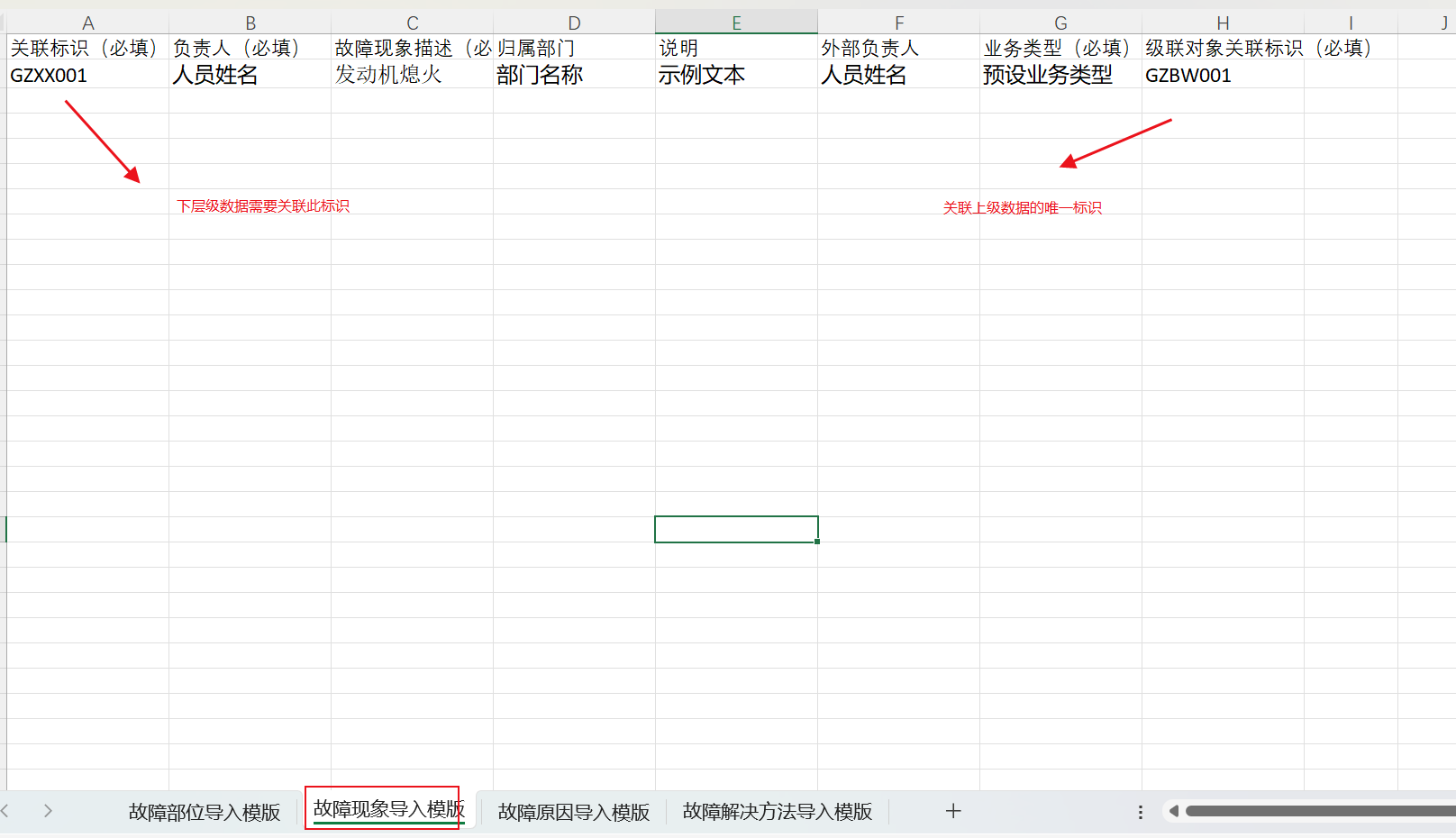
Return to the import page to upload the file and start importing. After the import is complete, go back to the fault tree and check the node level and name.
The operation methods of manually adding and creating new objects are the same. Either way, the fault tree data is not yet directly available for work orders, and service faults and their details must continue to be maintained.
3. Create a new service fault and bind the applicable scope
Go to Service Pass > Service Fault Management > Service Fault and select New.
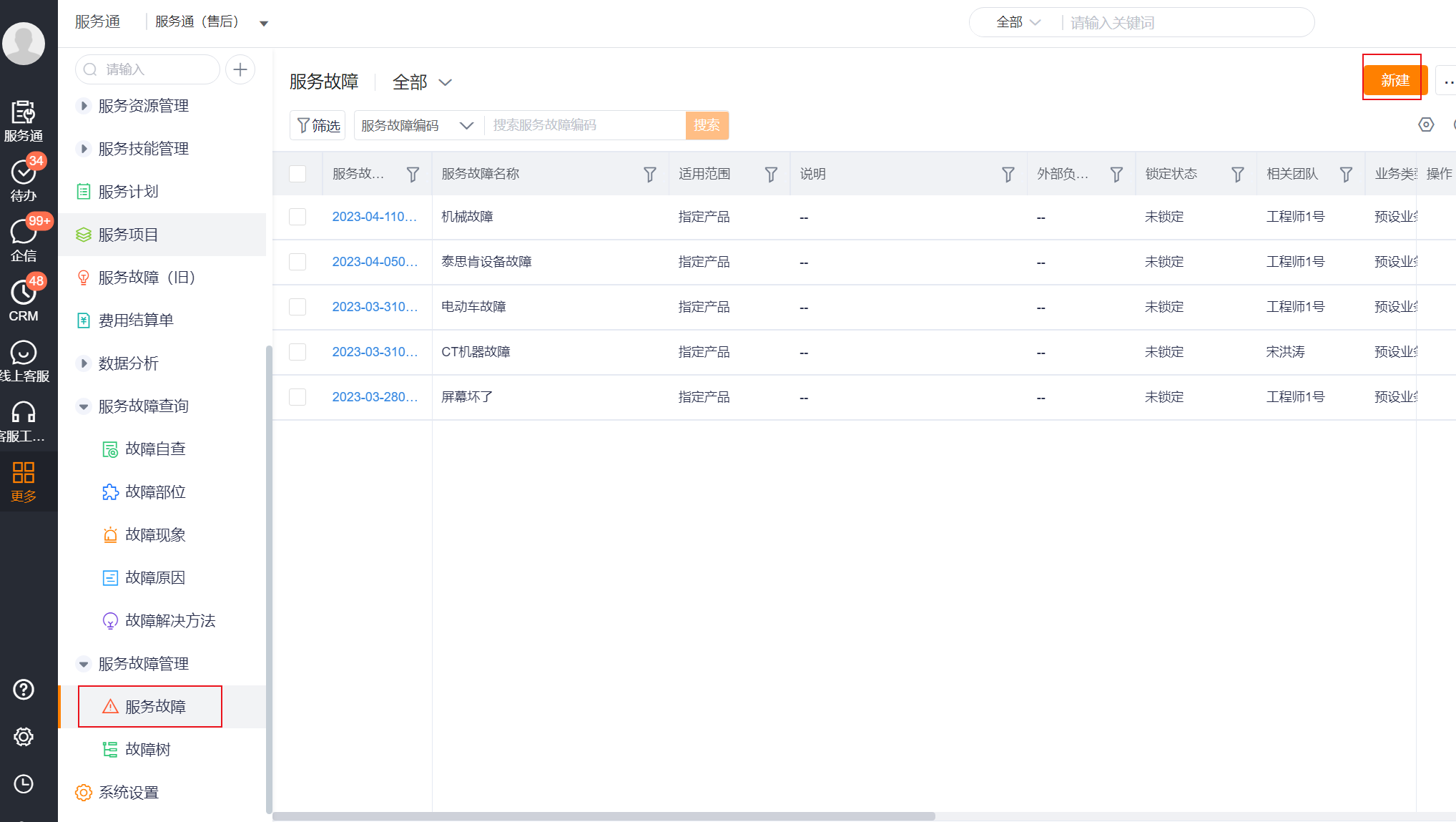
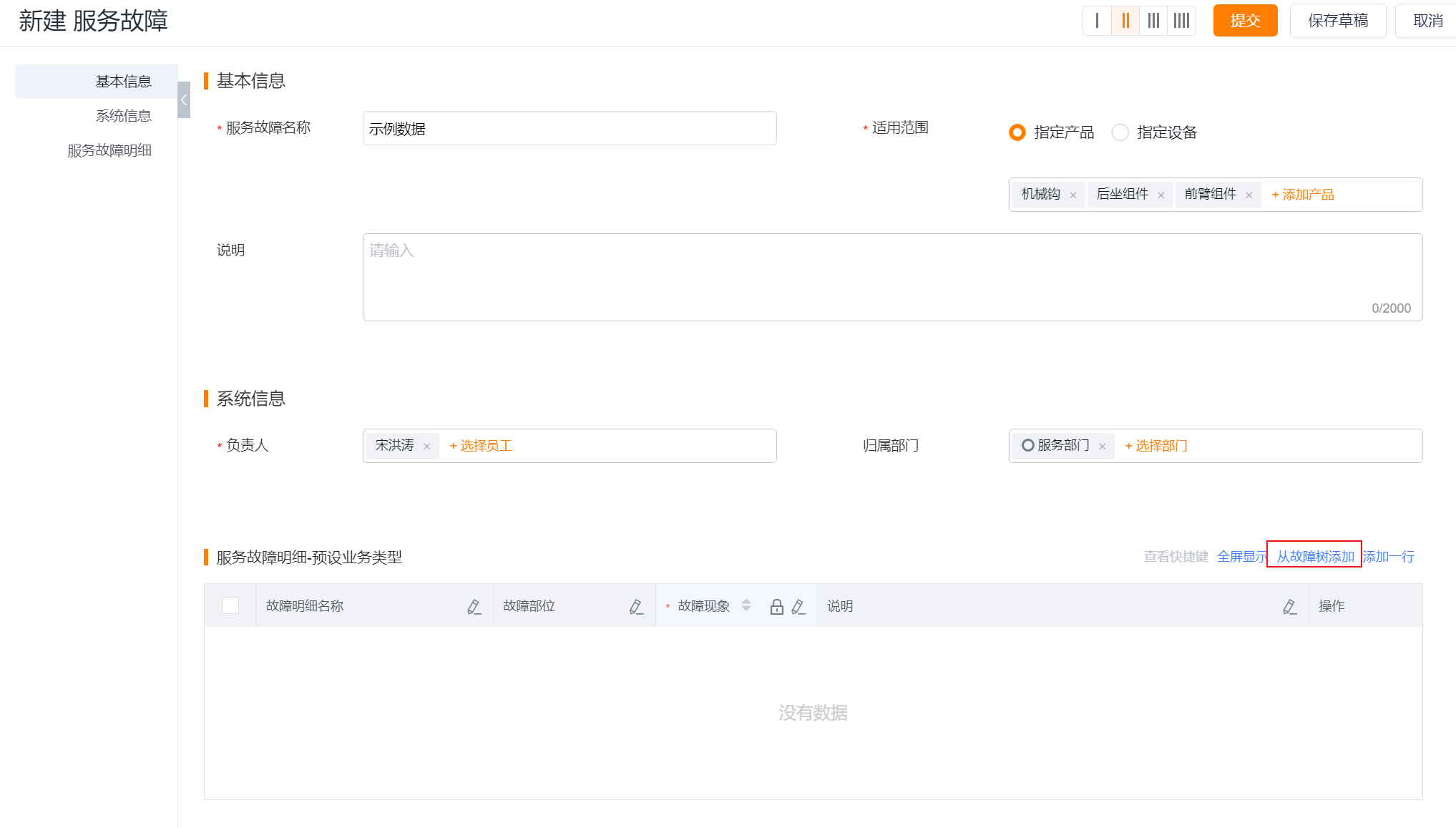
Fill in the service fault name in Basic Information, select Specified Product or Specified Equipment in Applicable Scope, and then add the corresponding product or device.
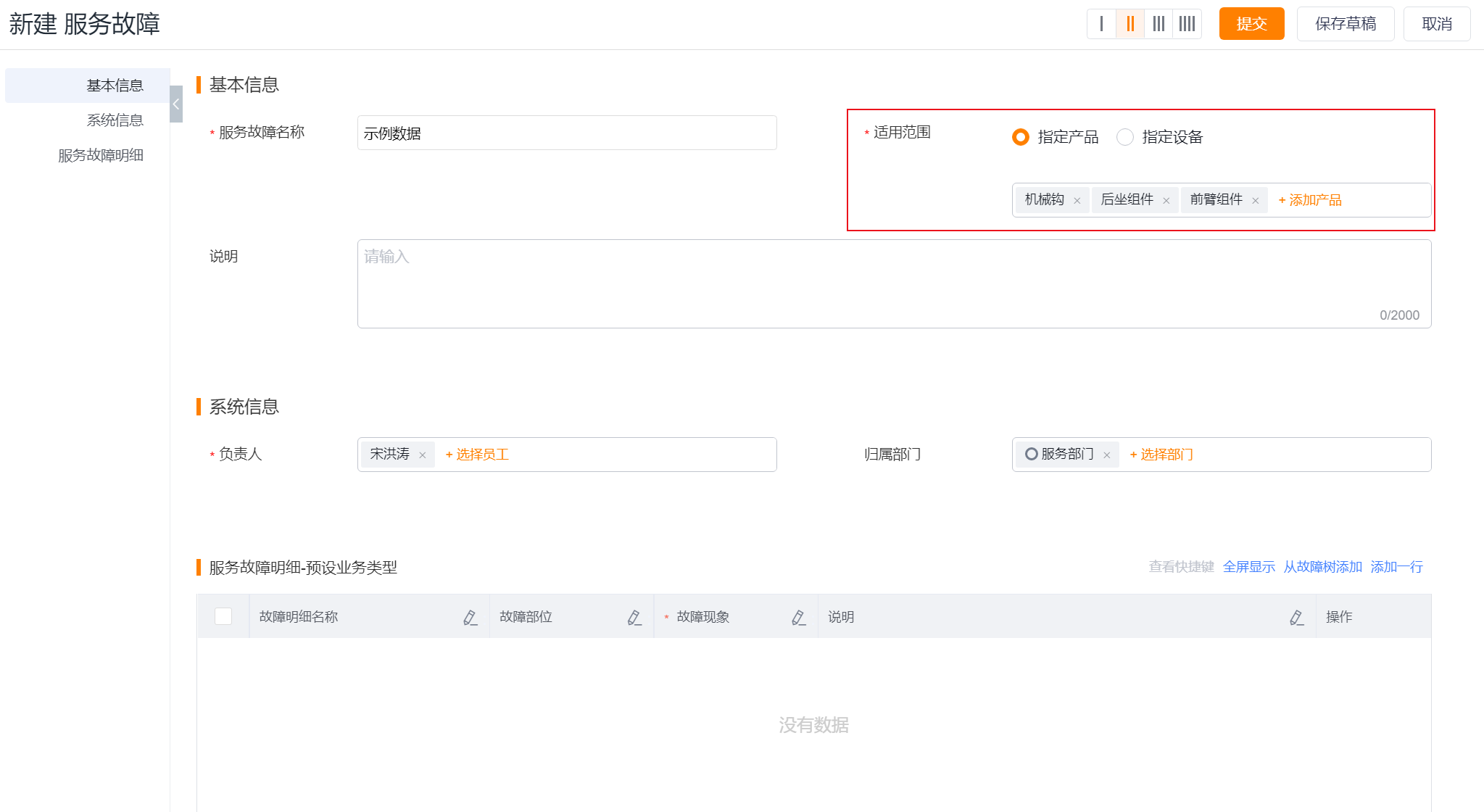
Supplement the person in charge, the department to which you belong and other required information as required on the page.
Click Add from Fault Tree in the Service Fault Details area.
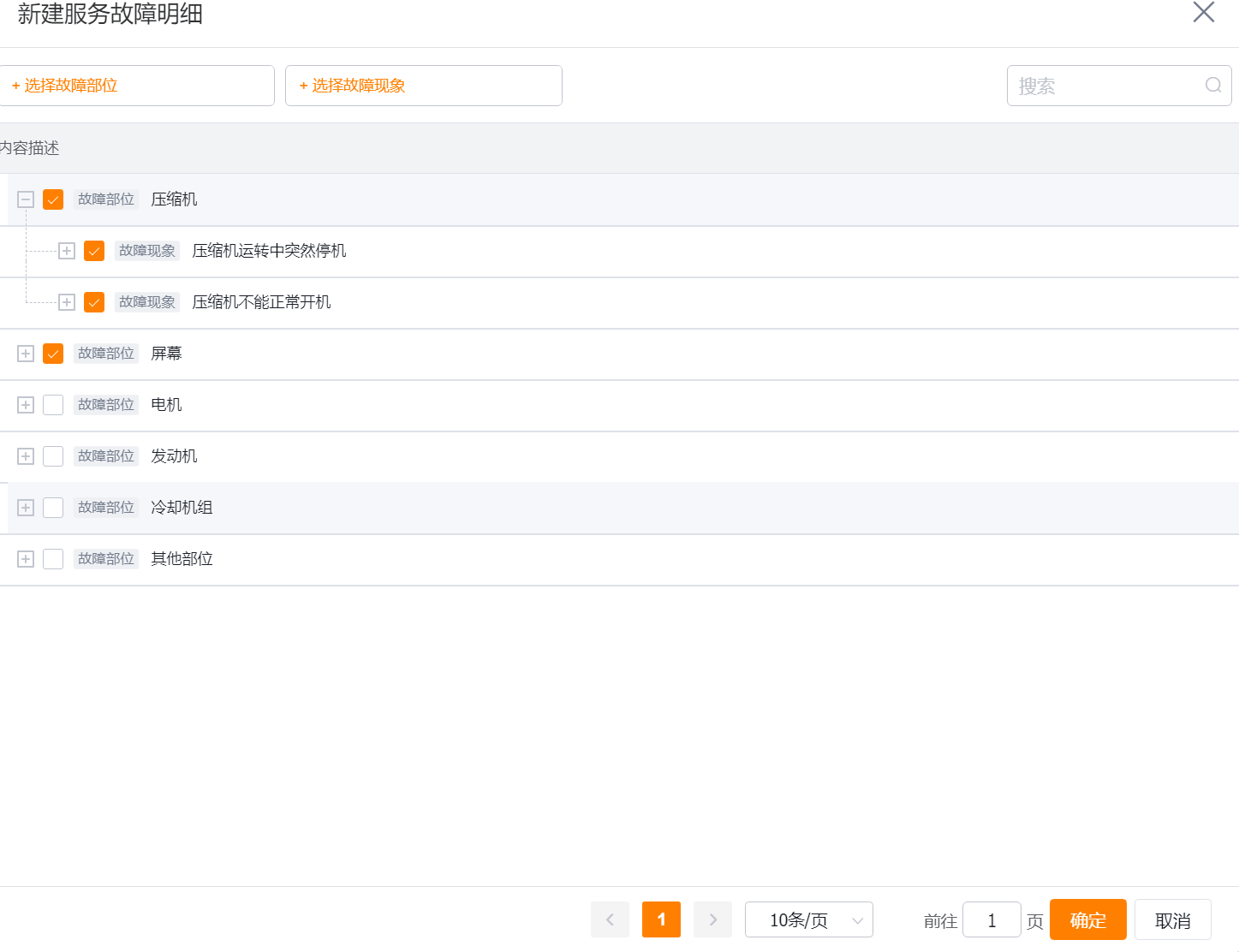
In the pop-up window, check the fault location and fault phenomenon that need to be applied, and save the service fault after confirmation.
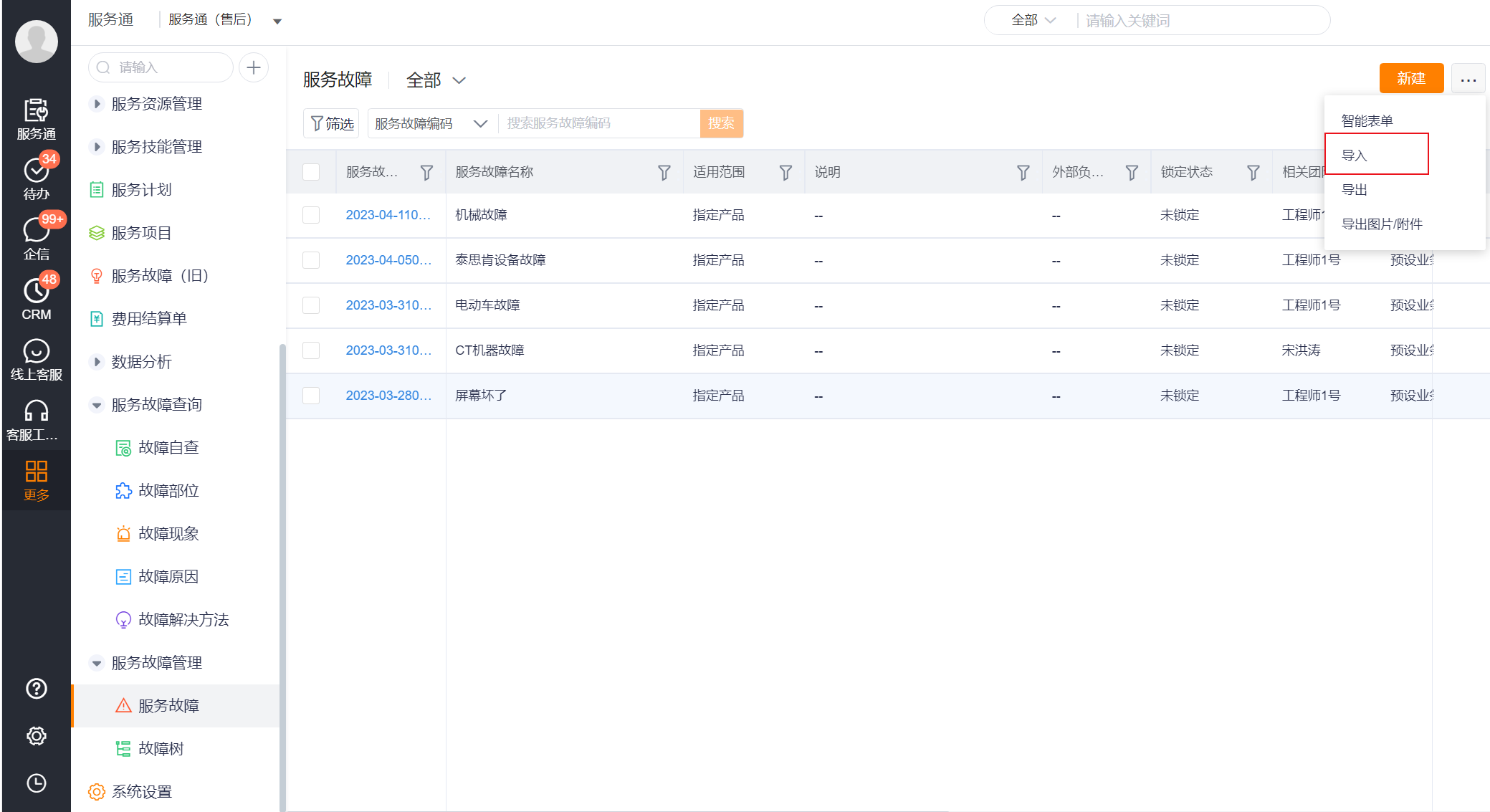
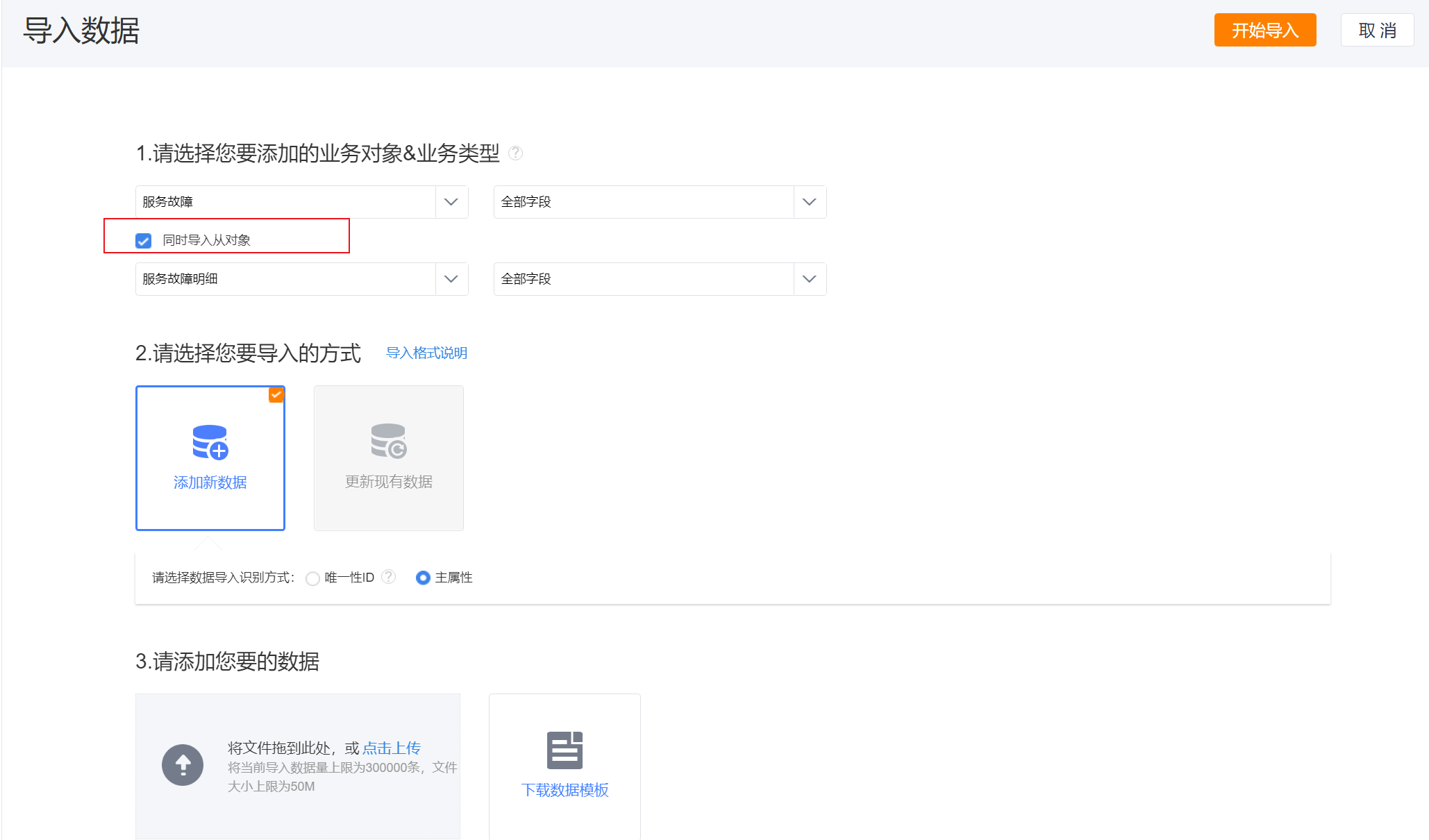
Service fault details can also be imported in batches. When the amount of data is large, select Import in the more menu of the service fault list, select Service fault and check Import slave objects at the same time, then select Service fault details and upload the data according to the template.
4. Configure fault self-checking components (optional)
If you want engineers to directly query the fault tree on the details page, you can add the Fault Self-Check component to the work order, product or equipment layout.
Open the layout configuration of the target object.
Find Fault Self-Check from the component list, drag it into the details page layout and save it.
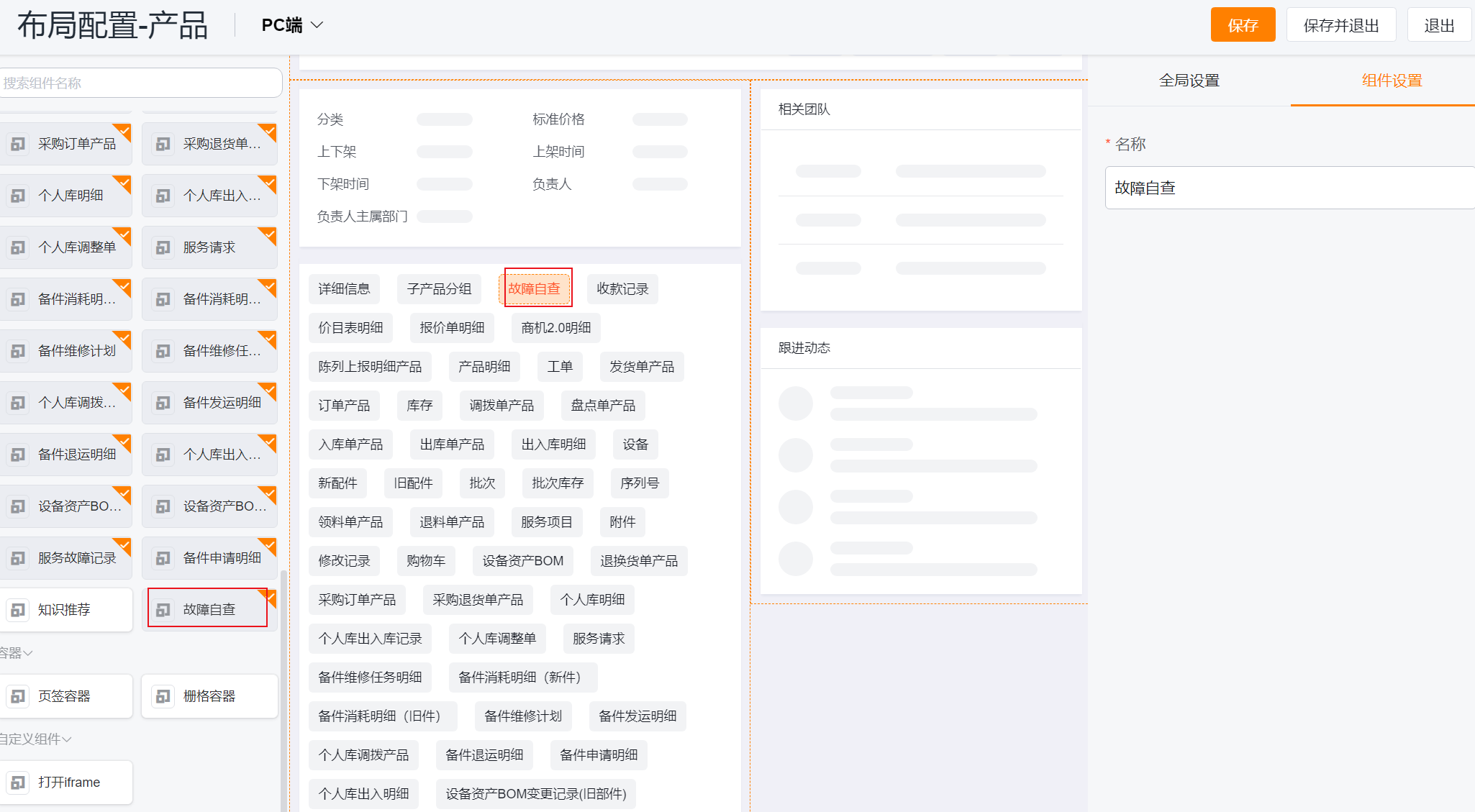
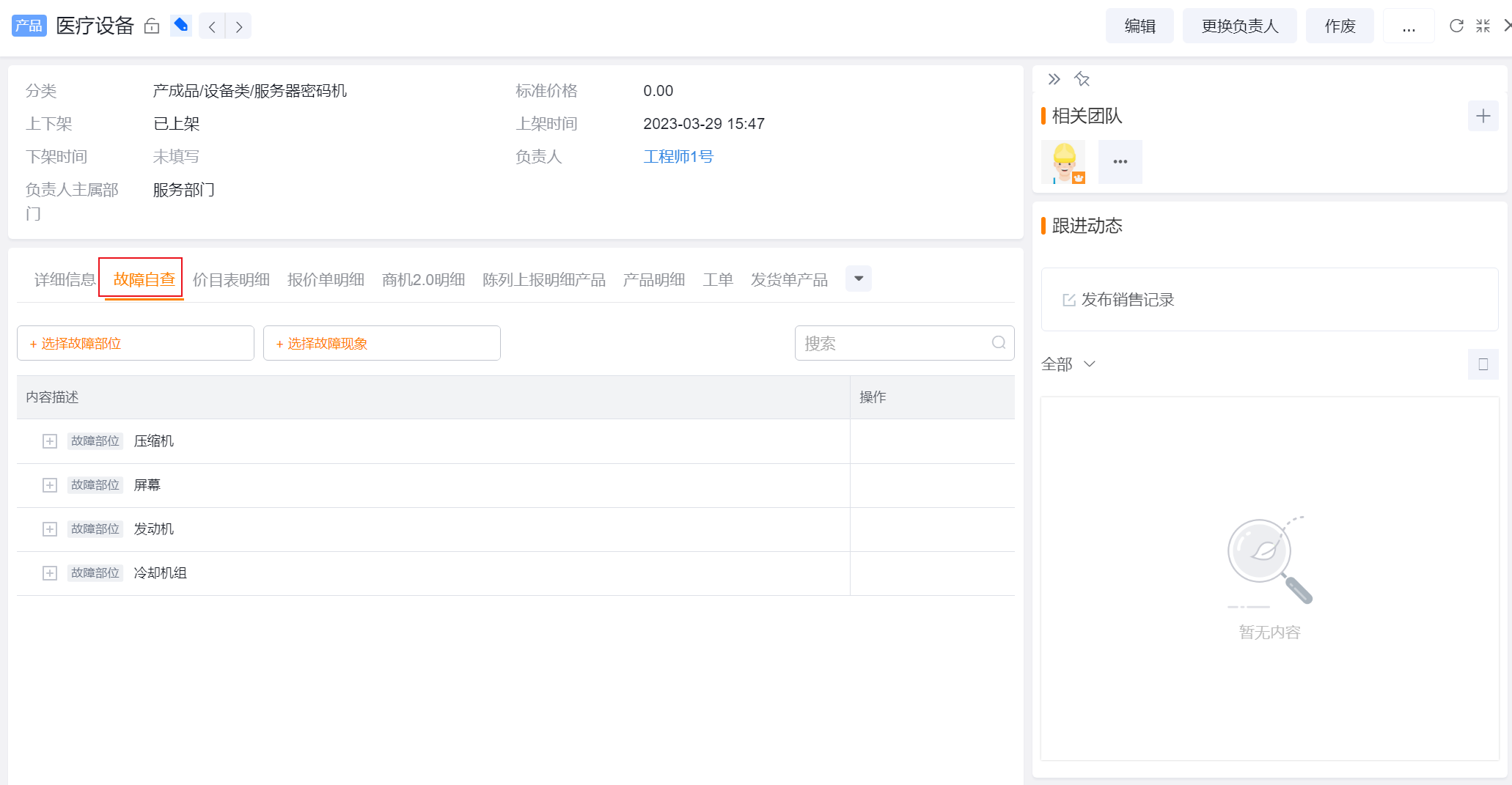
The component displays query results only if fault tree data is available for the target product or device.
5. Enable knowledge recommendation and associate it with the knowledge base (optional)
Turn on Service Fault Knowledge Recommendation in Service Pass > System Settings > Service Fault > Basic Settings.
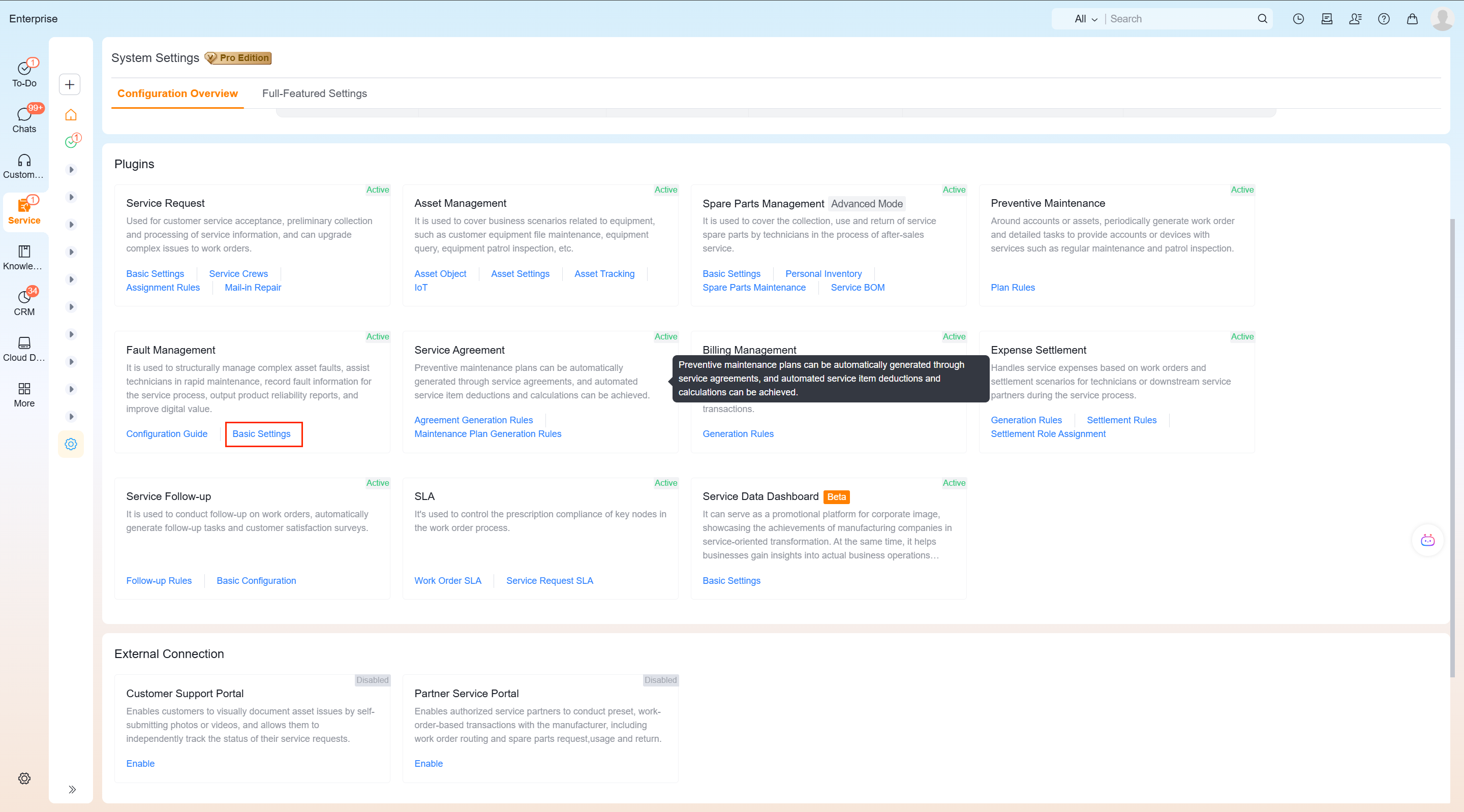
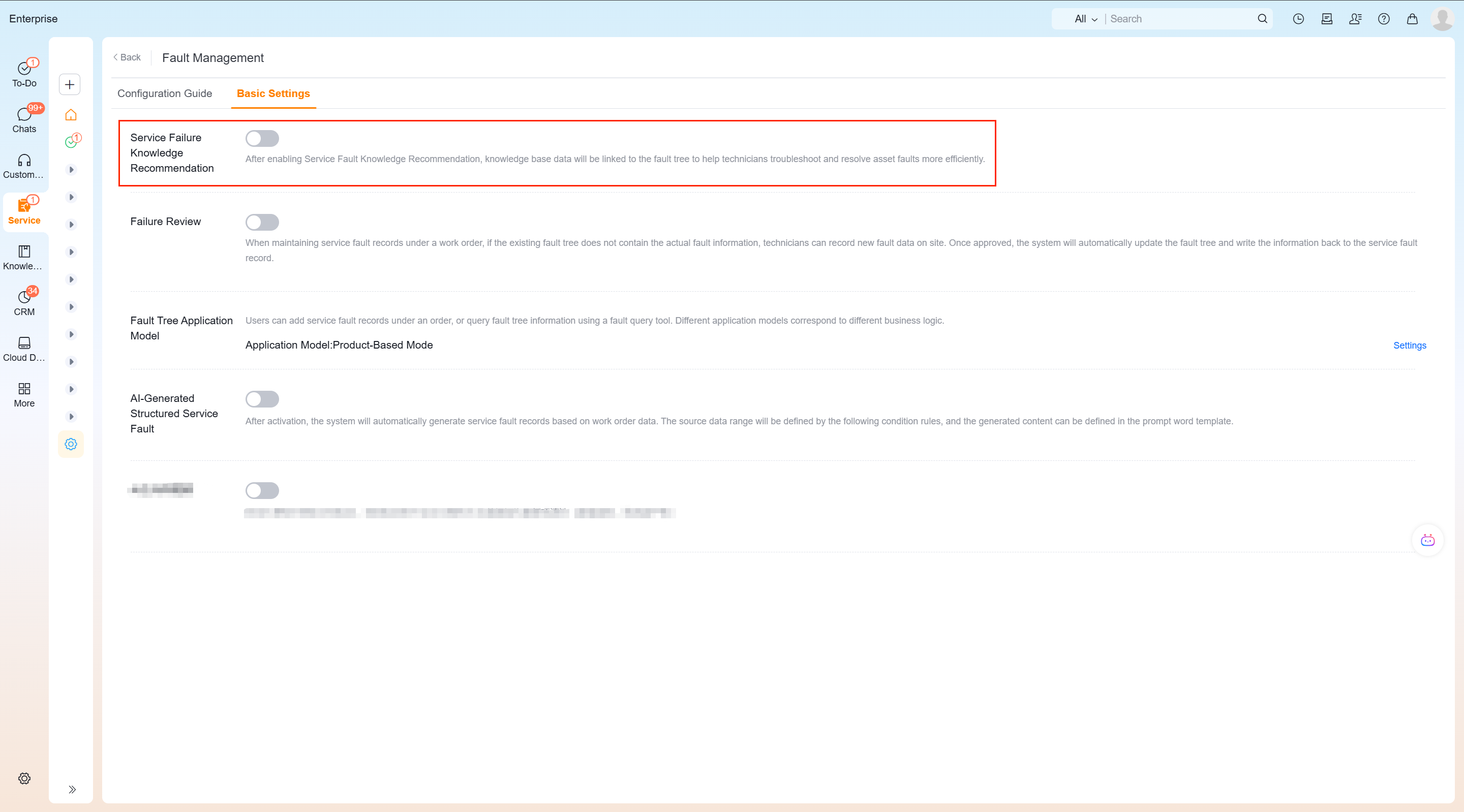
Create or edit a fault solution, associate the knowledge base record in the Knowledge Record field and save it.
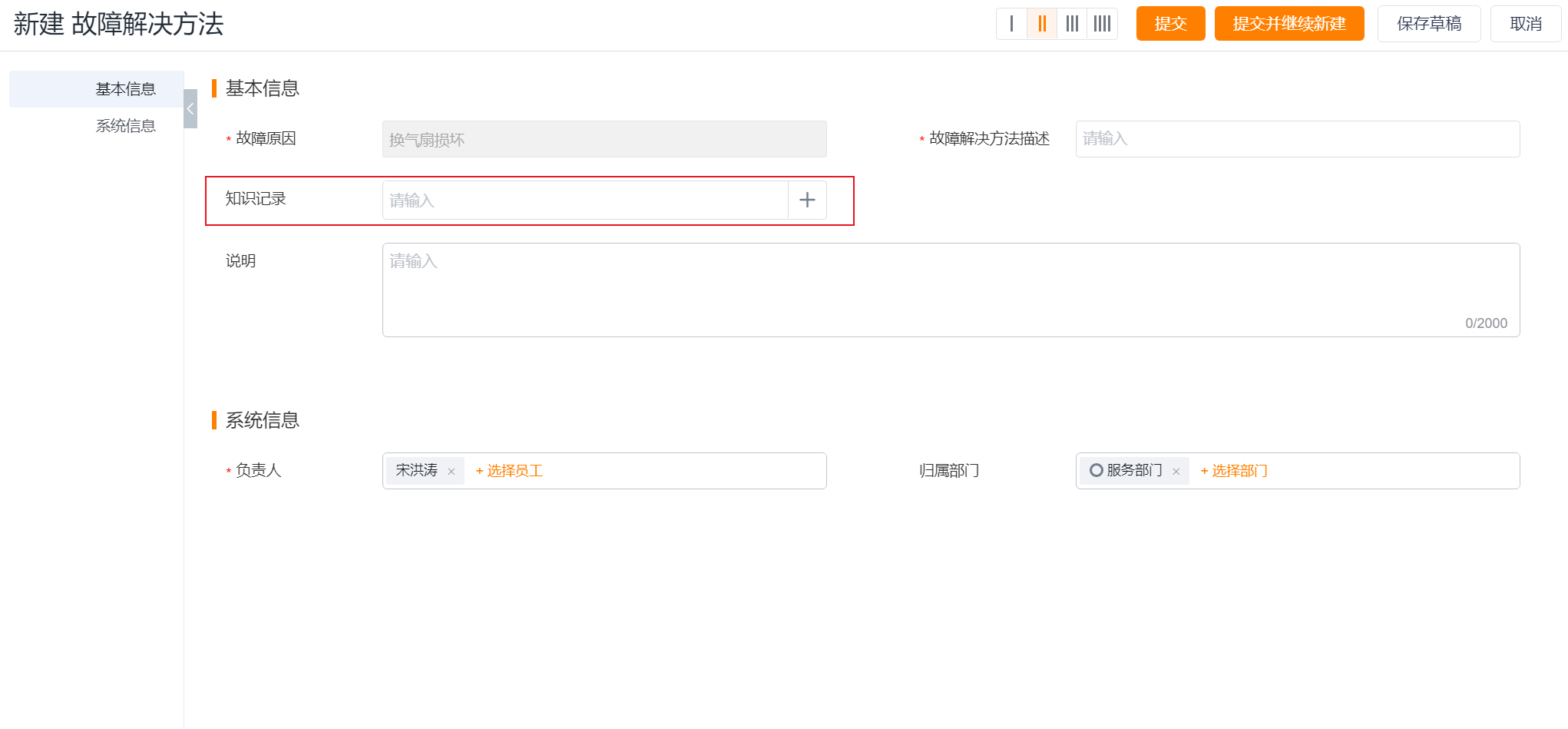
After completion, engineers can see the corresponding Knowledge Recommendation entry in the fault self-check results. When the switch is only turned on but there is no associated knowledge record, no specific recommended content will be generated.
6. Configure fault auditing (optional)
Turn on Fault Audit in Service Pass > System Settings > Service Fault > Basic Settings.
Allow engineers to supplement unmaintained text information in the fault tree in the work order service fault record.
After the engineer saves the service fault record containing text fault information, the system will automatically generate a fault audit work order the next day.
After passing the review, the system creates fault tree data and writes the structured data back to the service fault record.
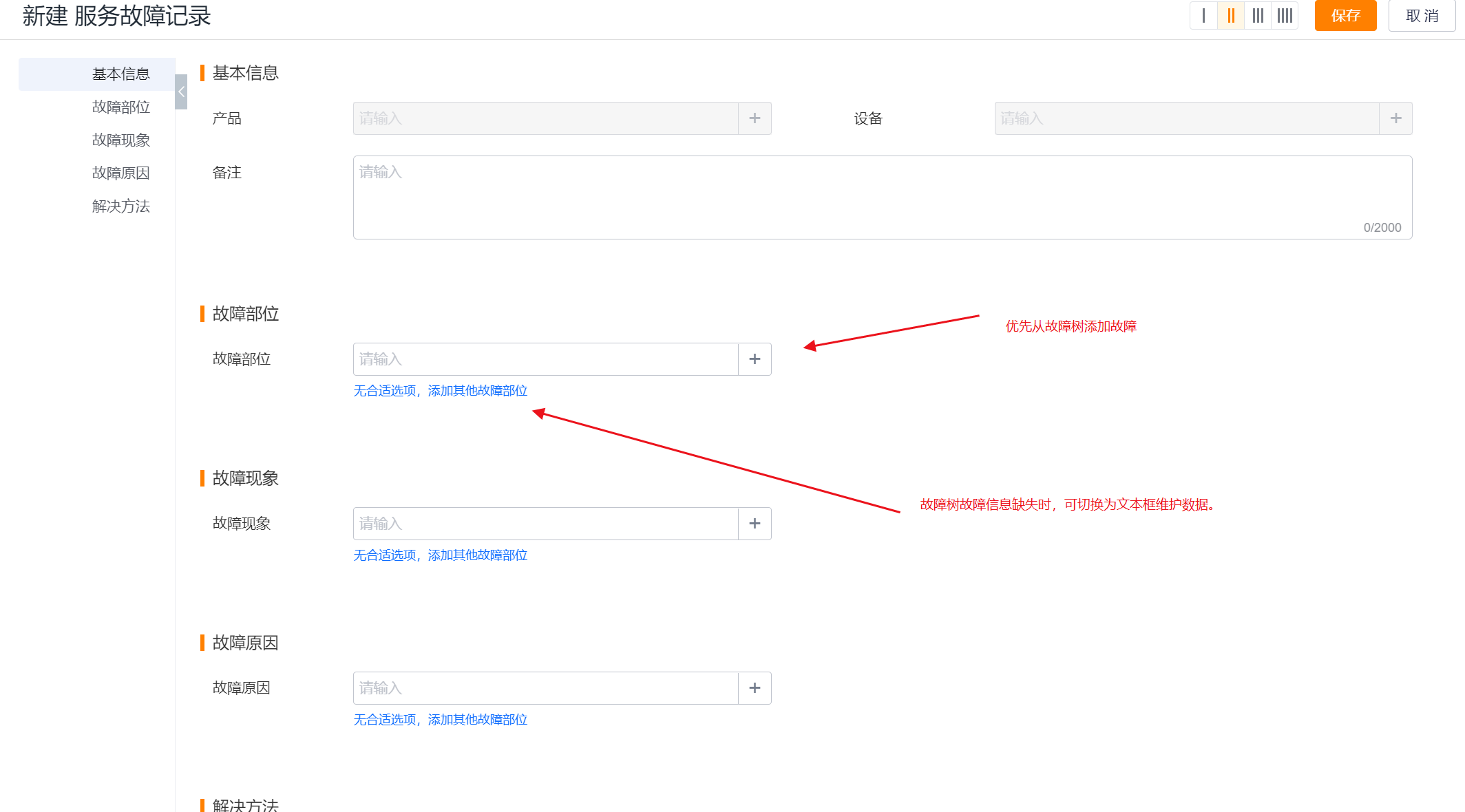
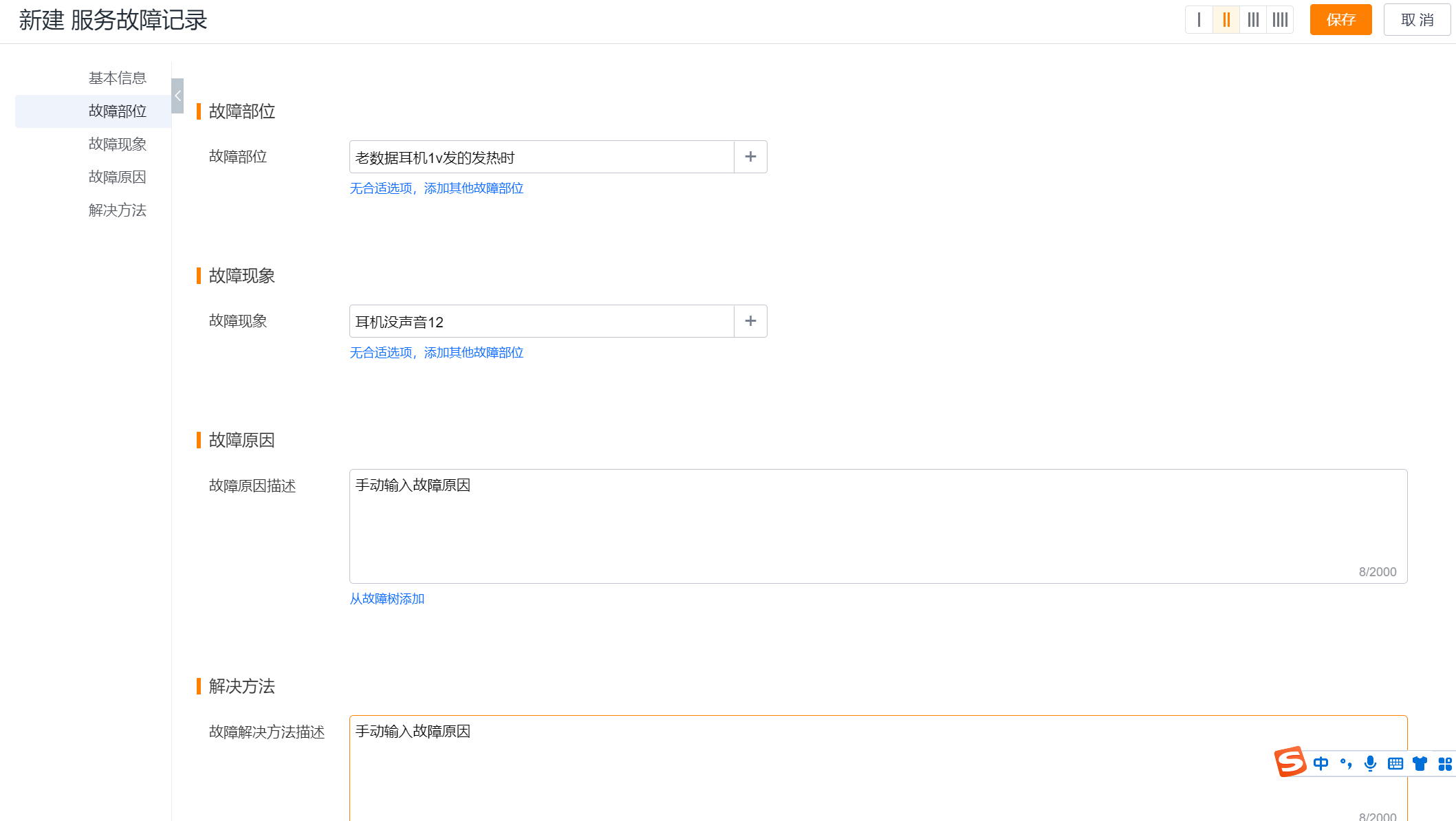
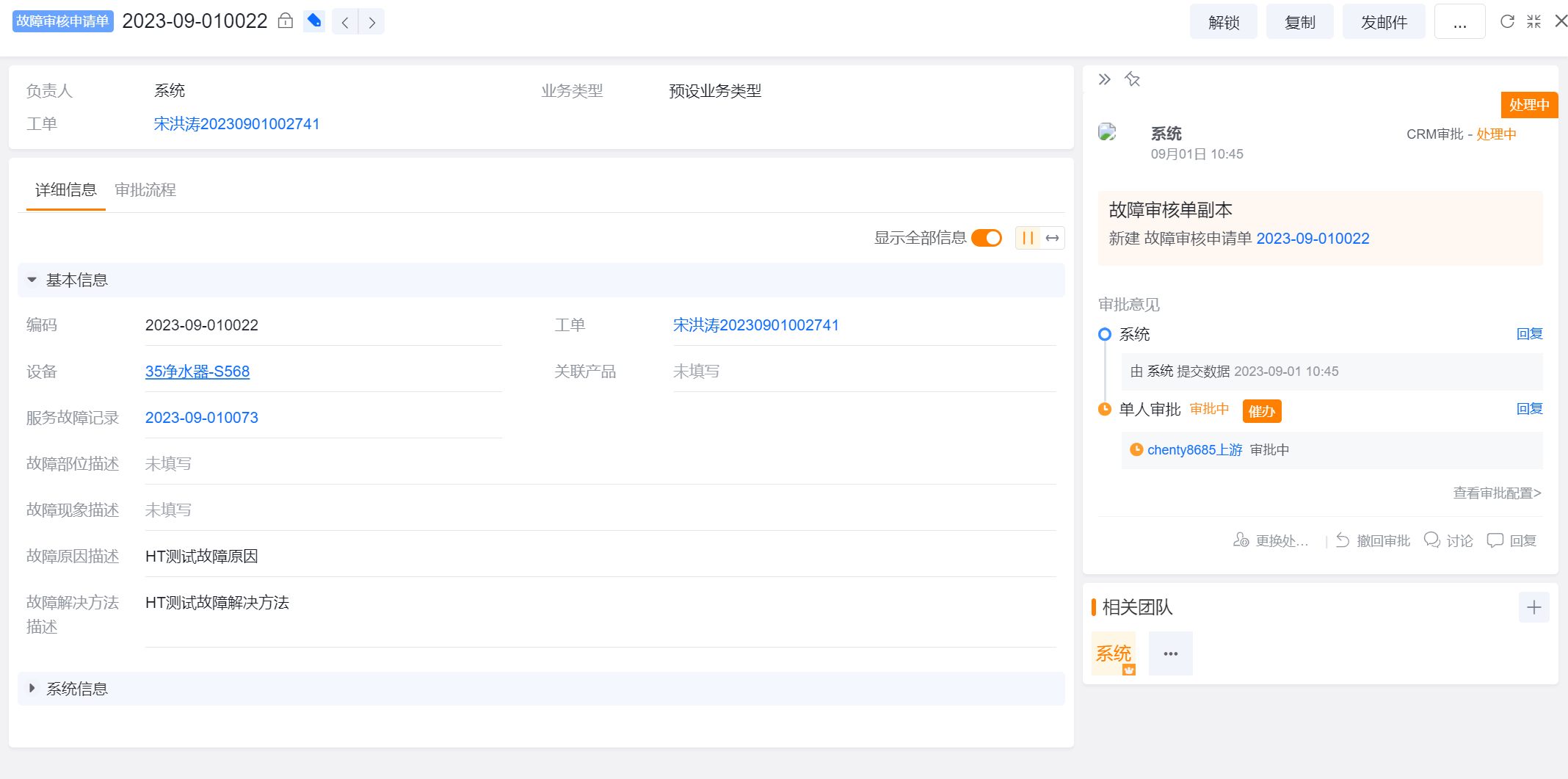
The generation time and writeback action of the fault audit are performed according to the source data; the audit role, approval node and notification method need to be confirmed in conjunction with the company's own approval configuration.
Expected results and verification
- Select the configured product or device in the fault self-diagnosis to view the corresponding fault tree.
- Create or edit a work order, click Add from Fault Tree in Service Fault Record, and you can filter and bring in product, equipment and fault information.
- On the work order, product or equipment details page of the configured layout, you can see the Fault self-diagnosis component and available data.
- When knowledge recommendation is enabled, the solution associated with the knowledge record displays Knowledge Recommendation.
- When fault auditing is enabled, use a test fault that is not maintained in the fault tree to confirm that an audit work order will be generated the next day; after passing the audit, check whether the fault tree and service fault records have been updated.
Notes
- Only maintain the fault tree without configuring the service fault scope and details, and the fault data will not appear in queries or work orders.
- The applicable scope of service fault must clearly select the product or equipment; do not regard "specified products" and "specified equipment" as valid scopes at the same time.
- When importing service faults in batches, check Import slave objects at the same time to process service faults and service fault details at the same time; the parent-child association identification should be checked before importing.
- Fault auditing is an optional capability, and the text record cannot be regarded as having been written into the fault tree before the audit is passed.
- The names, personnel, and business data in the source screenshots are only used to illustrate the page structure. The actual configuration is subject to the current tenant fields and permissions.
FAQ and troubleshooting
Fault Self-Check has no data
Check layer by layer according to "Fault Tree Node > Service Fault Details > Product or Equipment Applicable Scope". If any layer is not associated, the query results may be empty.
The required node cannot be selected for service fault details.
First confirm that the corresponding fault location or fault phenomenon has been created in the fault tree, and then add it from the fault tree. Manual text entry is not a substitute for structured binding of service fault details.
The knowledge recommendation entrance does not appear
Check whether Service Fault Knowledge Recommendation is turned on in the basic settings, and confirm that the fault solution is associated with the knowledge record.
No fault tree is written back after auditing
Confirm that the fault audit switch is turned on, and check whether the fault audit work order generated the next day has been approved. The source material does not explain the automatic write-back rules after review rejection or withdrawal. When encountering such status, it should be handled according to the enterprise approval process.