Appearance
Configure a WeChat Official Account channel
Bind the WeChat Official Account to provide service entrance and notifications for end users.
Overview
After binding a WeChat Official Account and configuring a custom menu, end users can enter the self-service portal from the official account, submit or query work orders, query equipment, and access the knowledge base. The official account is only an access channel, and the user identity, object scope and data permissions are still determined by the end user account and Internet role configuration.
Before you begin
- Use the CRM administrator account to perform service side binding.
- Prepare the WeChat Official Account administrator, who will scan the QR code on the WeChat authorization page to confirm.
- Only certified WeChat Official Accounts are supported; subscription accounts and uncertified service accounts cannot be bound.
- If the outsourcing service provider also needs to submit work orders through WeChat, use another service account for it and do not share it with the end user.
- Confirm the end user's visitor access or registration policy to prevent anonymous users from obtaining unexpected permissions after the official account menu is released.
Bind WeChat Official Account
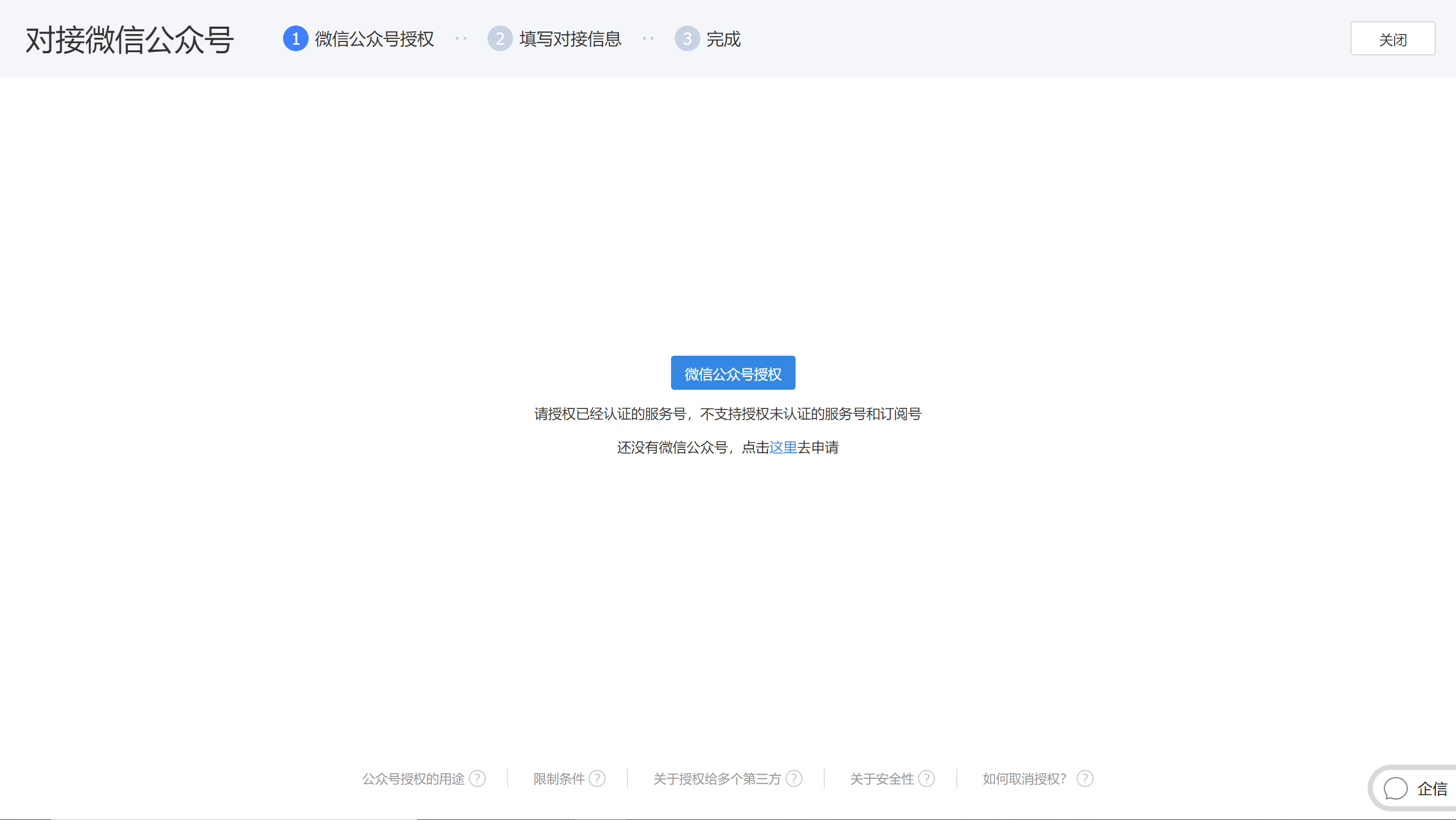
- Enter the binding page in Service Pass > System Settings > Full Function Configuration > End User Service Pass > Connect WeChat Official Account.
- Select WeChat Official Account Authorization to enter the WeChat Official Account platform authorization process.
- The Official Account administrator scans the code and authorizes the certified service account.
- Return to the service channel and check the official account docking information.
- Select Create in the upper right corner of the page to complete the binding.
Configure Official Account menu
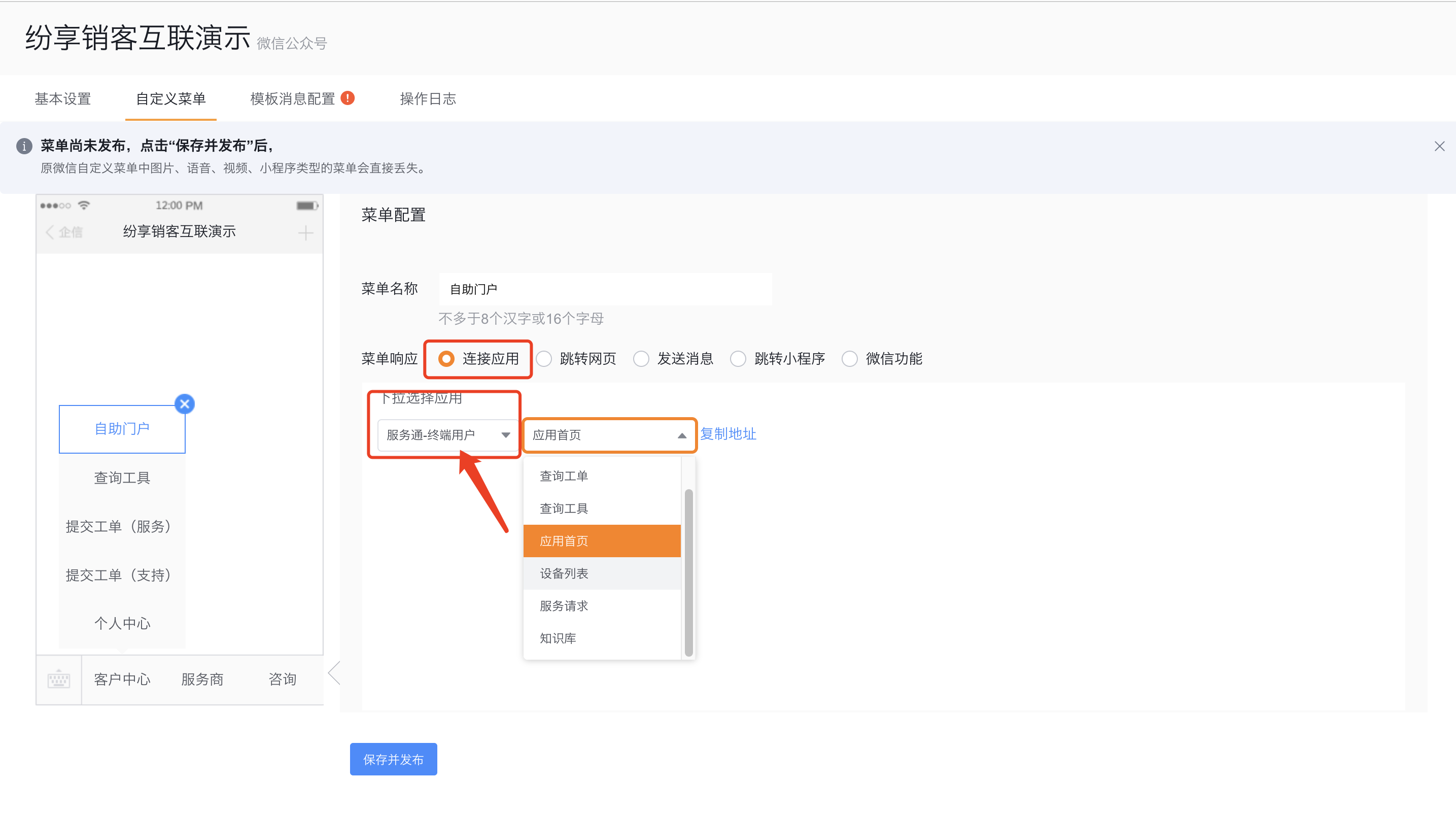
- Open the Custom Menu settings for the bound service account.
- Create or select a menu item and set Menu Response to Connect App.
- Select Service Pass-End User in the application.
- Select the application homepage, query tool, submit work order, query work order, equipment list, service request or knowledge base according to the business purpose.
- Save and publish the menu.
| Menu target | The page after the end user enters | Configuration dependencies |
|---|---|---|
| Application homepage | Self-service portal homepage | Mobile portal template with corresponding role enabled |
| Query tool | Keyword or scan QR code query page | Enabled and configured query rules |
| Submit a work order | New work order page | The role has permission to create new work orders, and the layout allows the required fields and buttons to be displayed |
| Query work orders | Work order list | The role has permission to view the list and corresponding data permissions |
| Device List | Device List | Role has device view permissions |
| Service request | New service request page | Opened service request objects and new permissions |
| Knowledge Base | Knowledge Base List | Knowledge content and permissions that have been maintained and are open to end users |
Configure login and access scope
- This channel might enable guest access by default. Before publishing the menu, check guest access, self-registration methods, and assigned roles under Account Activation.
- When you need to identify each visitor, use the Official Account
OpenIDfor self-registration or customer or contact information self-registration. Do not rely on shared visitor accounts. - Just because the menu is visible does not mean the data is accessible. The object's permissions such as view list, view details, and new creation, as well as the visibility of buttons in the layout, need to be met at the same time.
Expected results and verification
- Use the test WeChat account that has followed the official account to open the newly released menu.
- Confirm the menu to enter the expected Service Pass page, not a blank page or no permission page.
- Use registered users and unregistered users respectively to verify login, registration or guest access behavior.
- Test the query or submit operation corresponding to the menu, and check the role data range.
FAQ
- Unable to select official account authorization: Confirm that the account is a certified service account, not a subscription account or an uncertified service account.
- Authorization process cannot be completed: Confirm that the person who scanned the QR code is the administrator of the official account, and re-initiate authorization.
- The menu opens and requires accidental registration or entry as a guest: Check the account opening configuration of the End User Service Pass.
- The menu entry exists but the page has no content: Check the applicable roles, business objects and connected role permissions of the mobile view.
- Original menu capabilities lost after publishing: Check the existing menu response configuration in the WeChat custom menu before saving and publishing.