Appearance
Configure manual follow-up calls
Configure manual follow-ups to form a closed loop of customer feedback after the service is completed.
Overview
Manual follow-ups are used to automatically generate follow-up tasks when the work order process reaches the designated location. The follow-up service staff will contact the customer and fill in the service review on their behalf to complete the satisfaction survey. The follow-up record is still saved in the Service Review object.
Administrators can let all work orders entering the node use the same follow-up settings, or they can match different follow-up templates and customer service personnel based on work order conditions. Call center outbound calling is an optional integration and is not a requirement for manual follow-ups.
Before you begin
- Use an administrator account with permissions for service plug-in, object management, role permissions, follow-up rules and work order process configuration.
- The timing of follow-ups, follow-up questions, responsible personnel, and business rules that allow skipping follow-ups have been determined.
- The Service Review business type and layout for manual follow-ups has been created or is about to be created.
- If you need to connect to the call center, confirm that you have purchased the online customer service professional version, and prepare the calling accounts for outbound calls and returning customer service.
Enable service callback plug-in
- Go to Service Pass>System Settings>Business Plug-in>Service Follow-up.
- Click Enable Service Callback. This plug-in is not enabled by default.
- After enabling it, confirm that the Service Follow-up configuration entry appears in the system settings.
Enabling the plug-in only opens the configuration capability and does not automatically generate follow-up tasks. You also need to configure the follow-up object, customer service role, and service follow-up node in the work order process.
Configure follow-up template
The data filled in by manual follow-ups are stored in the Service Review object. Multiple sets of service review business types and layouts can be established according to different work order scenarios, such as maintenance follow-ups and installation follow-ups.
- Enter the Service Review object in object management.2. Confirm or create a new business type for follow-ups in Business Type.
- In the Layout, configure the fields such as ratings, problem resolution, service response, remarks, etc. that need to be filled in by the returning customer service.
- Assign corresponding business types and layouts to the internal roles used by returning customer service.
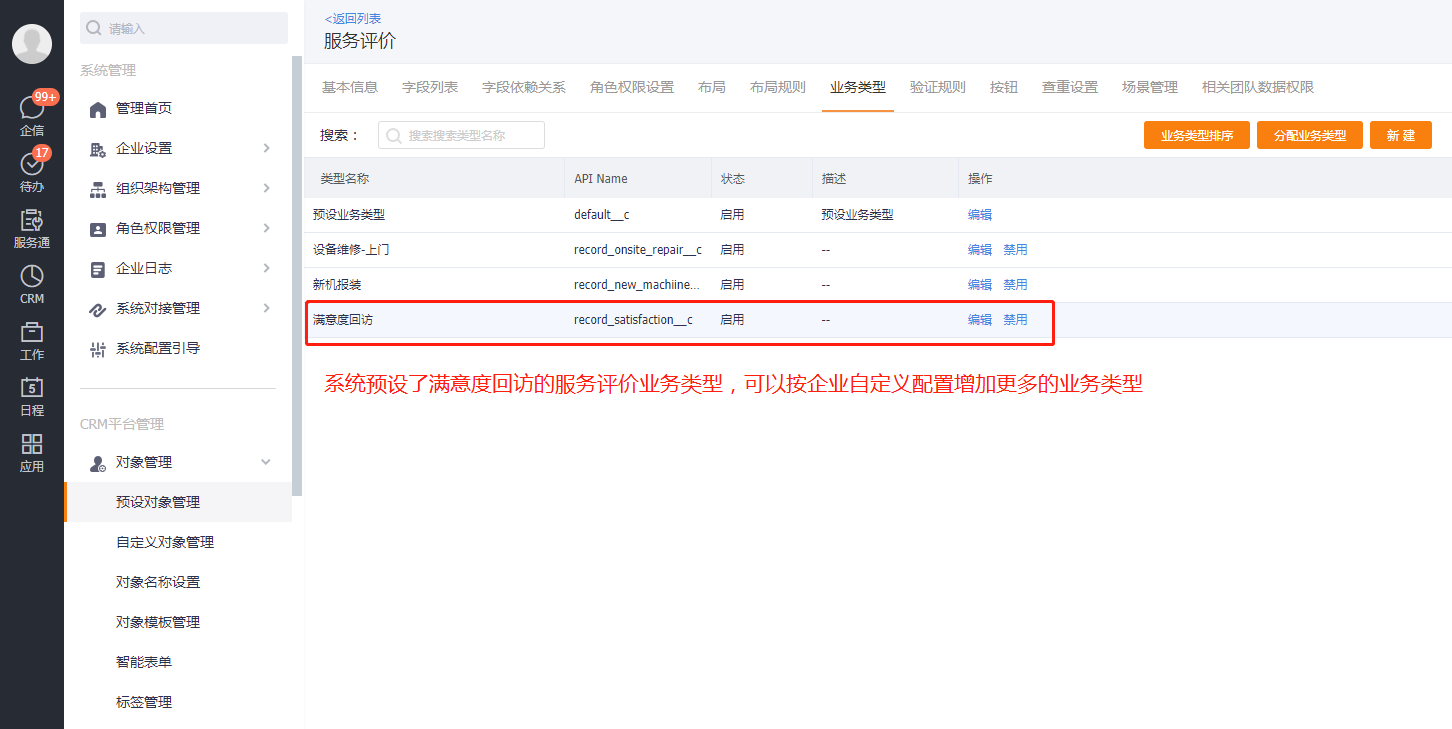
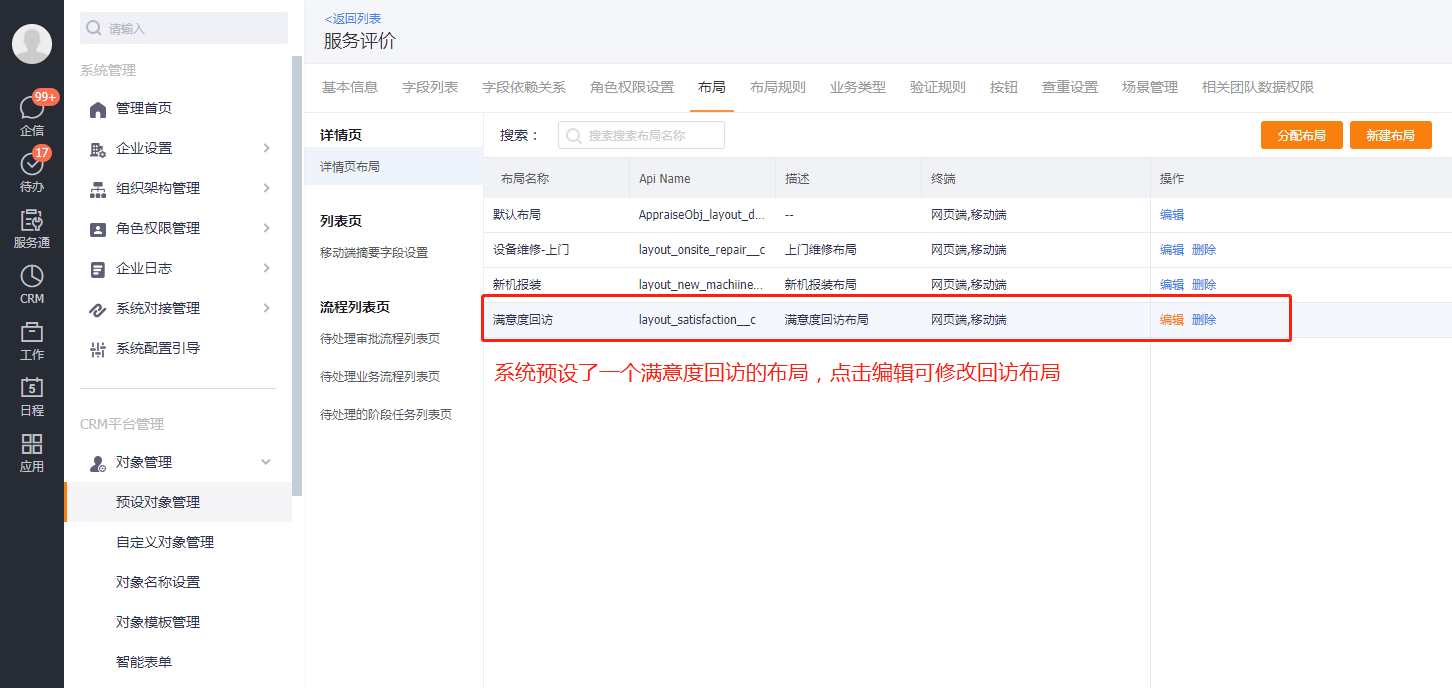
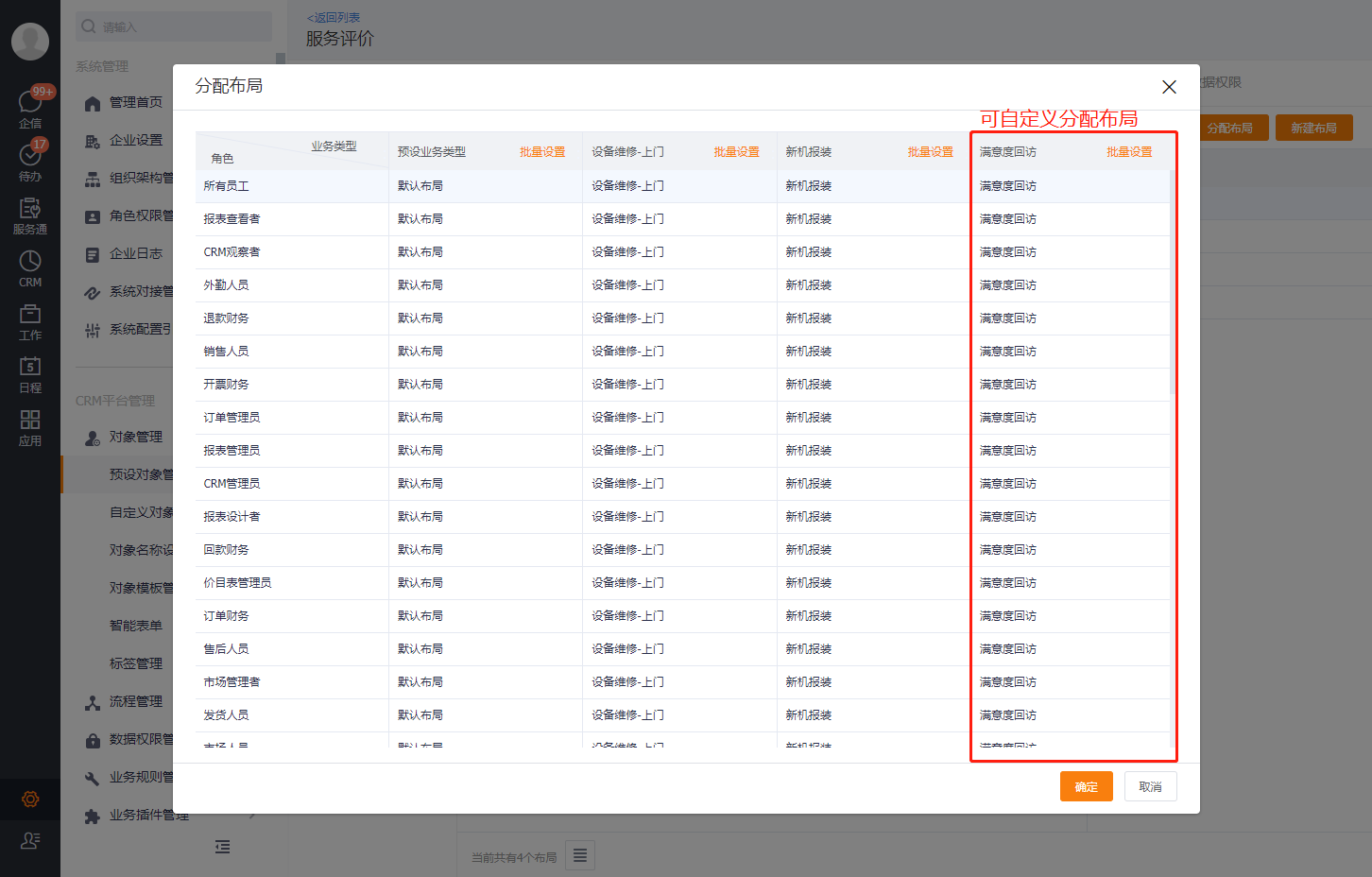
The follow-up template determines the service review form filled out by customer service, but does not determine which work orders will be returned by whom. The work order scope and follow-up personnel should be configured in the common follow-up node or follow-up rules.
Configure follow-upor service role
- Go to System Management > Role Permission Management > Business Function Permissions.
- Select the system’s default Follow-upor Server role.
- Add employees who need to perform manual follow-ups to this role, and confirm their service review object permissions.
The follow-up workbench is only visible to follow-up service personnel. When an employee is only selected in the follow-up rule but is not given the follow-up service role, the employee may not be able to enter the follow-up workbench to handle tasks.
Add a follow-up node in the work order process
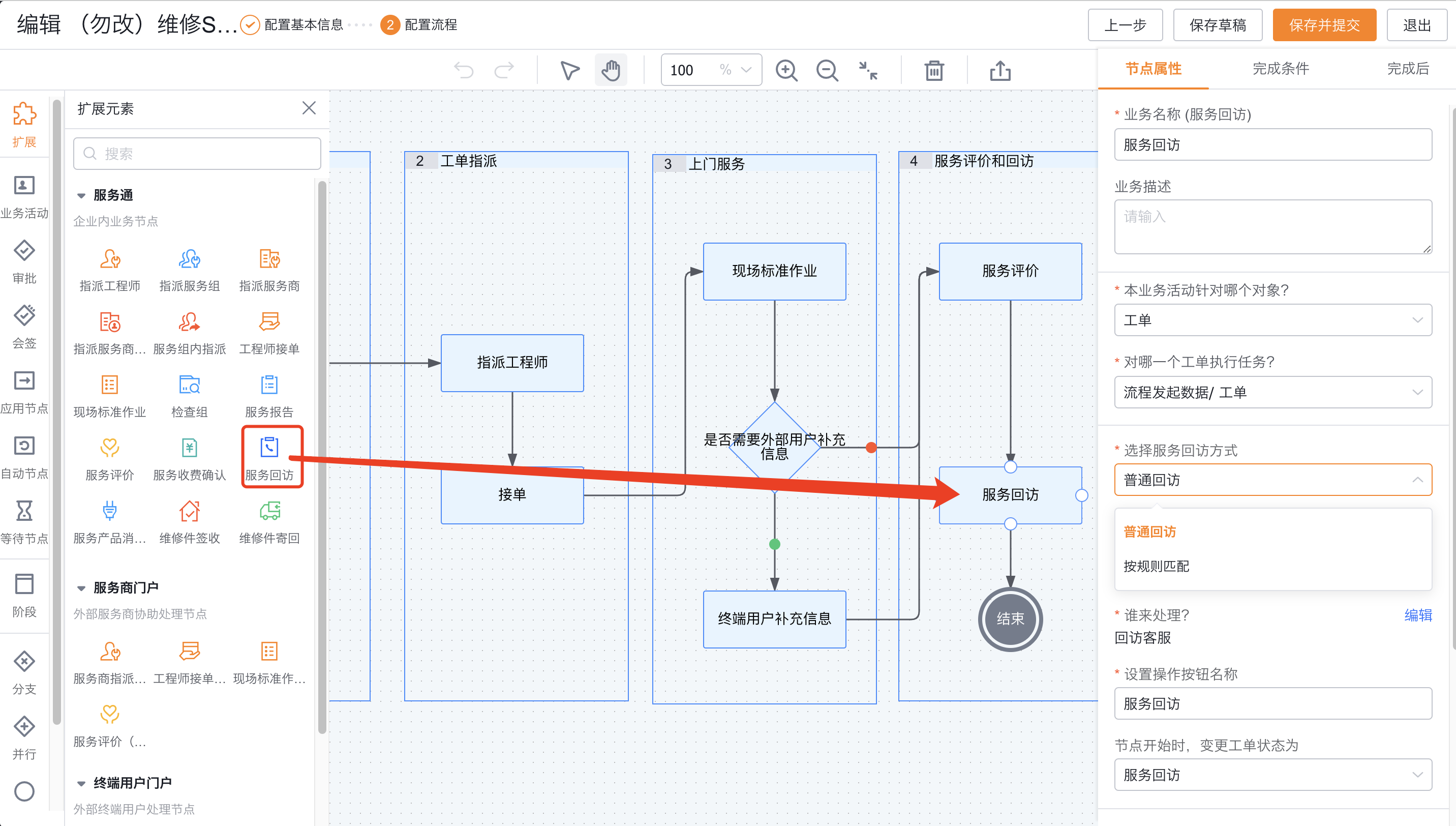
- Open the target custom work order process and add the Service Follow-up application node where a follow-up needs to be initiated.
- Confirm that the node initiates data execution for the work order and current process.
- Select Standard Follow-up or Match by Rules.
- Configure the node button name and process attributes such as start and completed work order status.
- Save and submit the work order process.
Configure ordinary follow-up
Ordinary follow-ups are suitable for all work orders entering the node to use the same set of templates and personnel arrangements.
- Select Ordinary Follow-up in the service follow-up node.
- Select the follow-up template, that is, the service review business type and corresponding layout.
- Select returning customer service personnel.
- Customize the follow-up action button according to business terms.
- Save and submit the process.
After the work order enters the node, the system generates a follow-up task according to the node configuration and no longer determines additional work order scope rules.
Configure follow-ups according to rules
Return visits by rules are suitable for assigning different templates and customer service personnel based on work order business types, service scenarios or other conditions.
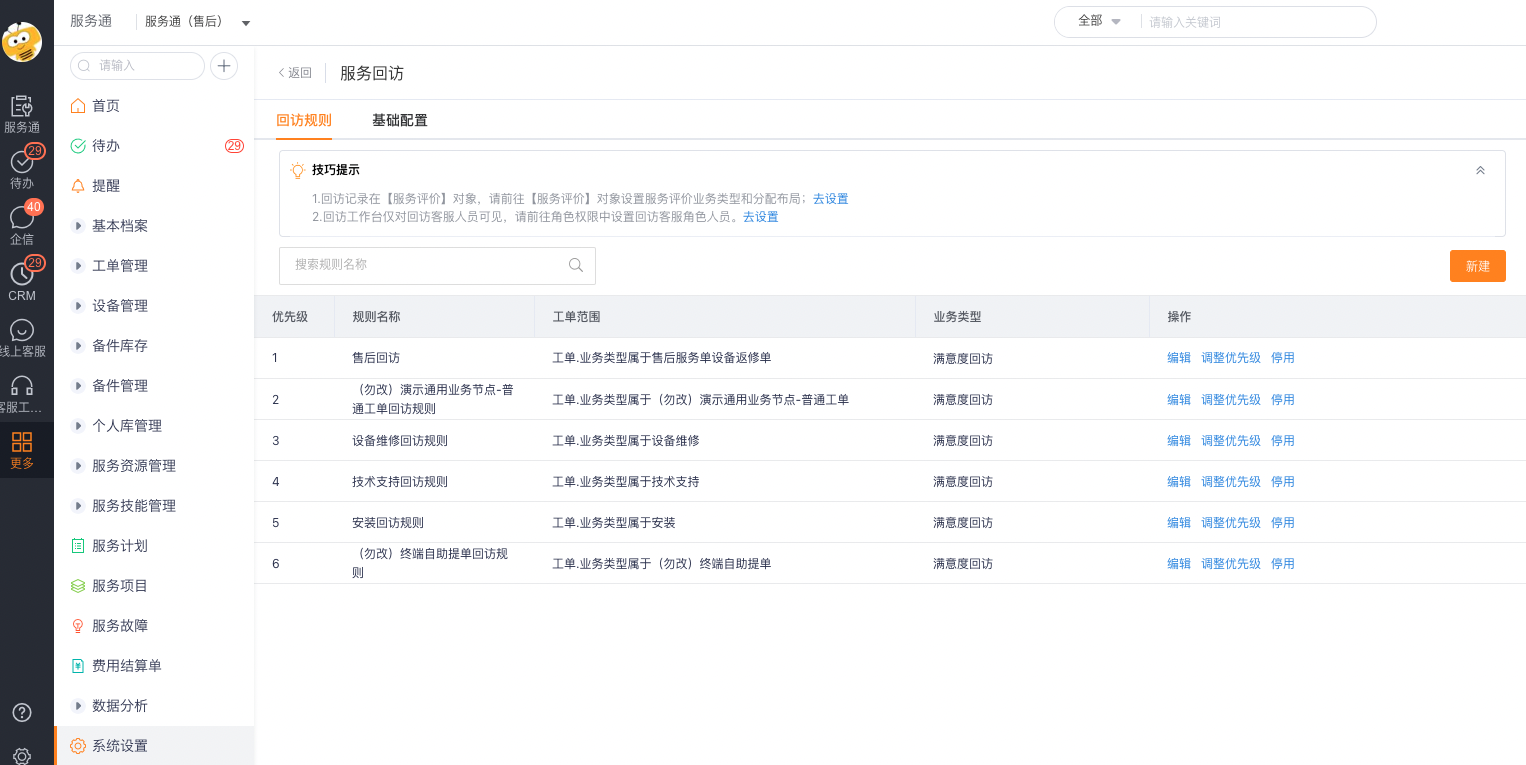
Create a new follow-up rule
- Enter Service Pass > System Settings > Service Follow-up > Follow-up Rules.
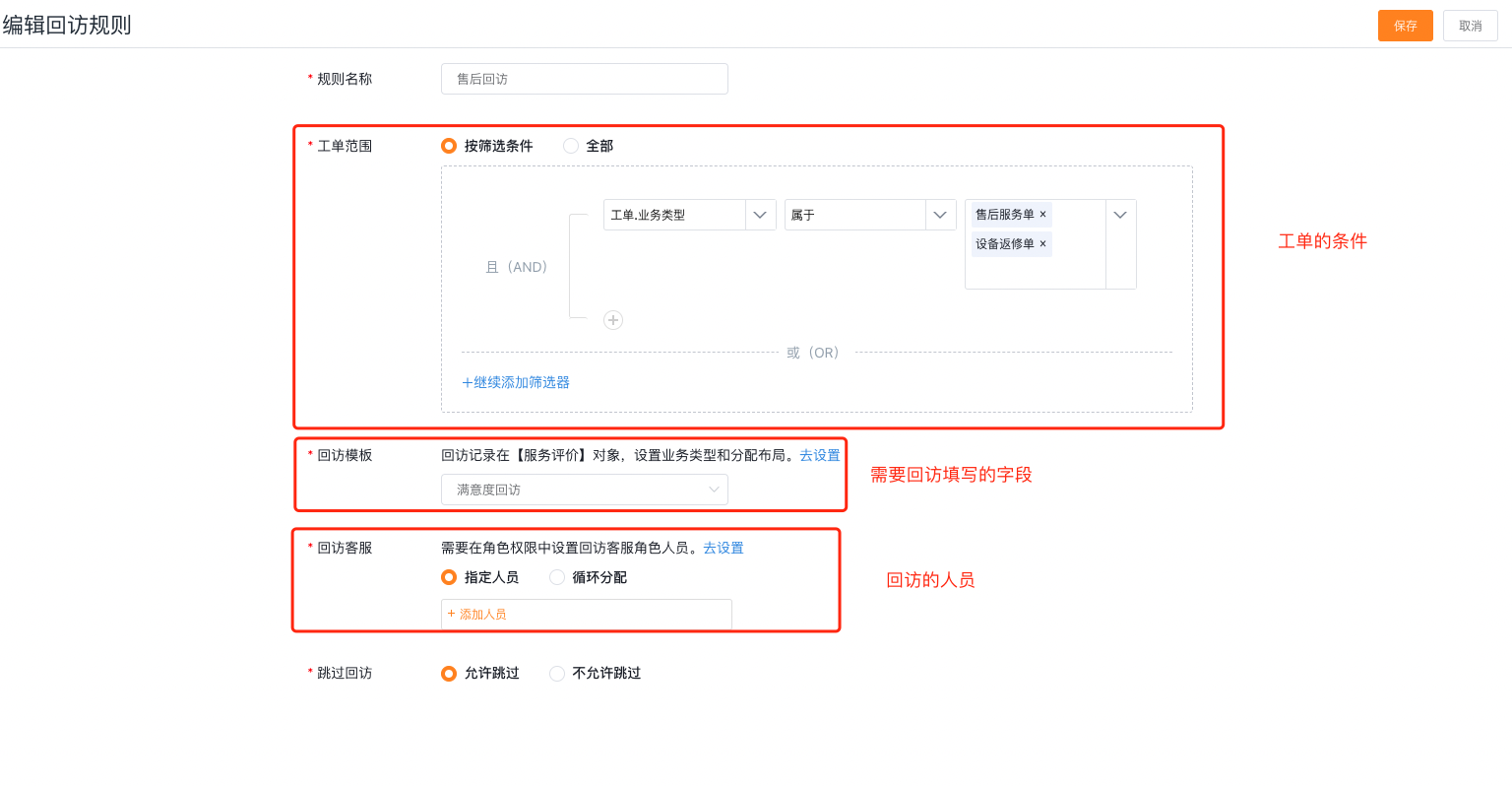
- Click New and fill in the rule name.
- Set work order scope. You can select all work orders, or configure filter conditions based on work order fields.
- Select a follow-up template.
- Select the follow-upor service allocation method: specify personnel, or circulate among fixed follow-upor service staff.
- Set whether to allow skipping follow-ups and save.
- Return to the rule list and determine the matching order of multiple rules by adjusting priority.
Using rules in process nodes
- Return the service return node of the target work order process.
- Set the follow-up method to match by rules.
- Save and submit the process.
Return visit rules are matched by priority. When there are overlapping conditions in the configuration, you should use a test work order to verify the final hit template and customer service personnel. Do not just check whether the rule is enabled.
Task generation and processing logic
After the work order is transferred to the service return node:
- The system determines the template and follow-up service based on the common follow-up node or the hit follow-up rule.
- The system pushes a return reminder to the returning visitor service or node handler.
- The task is displayed in the To be returned visit list on the follow-up workbench.
- Return visit service contact the customer, fill out the follow-up form and save the service review record.
- After the follow-up task is configured according to the node, the work order continues with the subsequent process.
The actual operation button name can be customized by the administrator. User guides should describe what the buttons mean and cannot assume that all companies display "Service Return".
Optional: Connect with call center
After docking, returning customer service personnel can initiate outbound calls from the work order details. This capability requires additional purchase of the Online Customer Service Professional Edition.
- Enter Service Pass > System Settings > Service Follow-up > Basic Configuration.
- Configure the work order as an outbound call object.
- Bind the calling account to the returning visitor service.
- Save the settings. Use a test work order to confirm that Outbound Call appears on the details page.
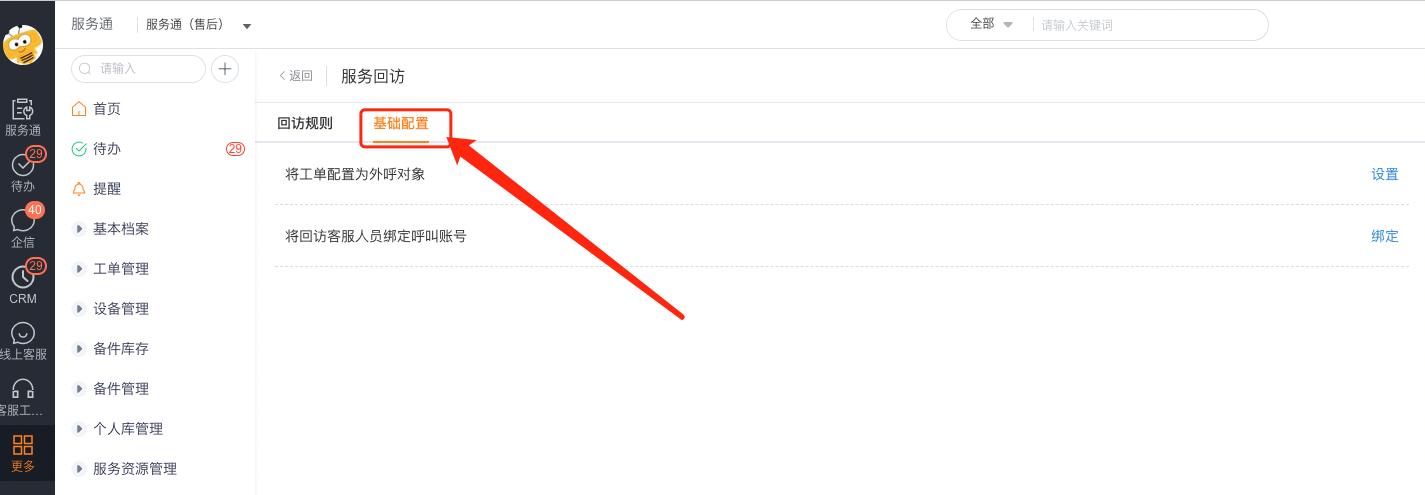
Merely enabling the Service Callback plug-in does not automatically gain call center capabilities. In the absence of product authorization, work order outbound call object configuration, or customer service call account, the work order details will not form a complete outbound call operation link.
Expected results and verification
- Prepare test work orders that hit ordinary follow-ups or various follow-up rules.
- Let the work order enter the service follow-up node, confirm that the correct follow-up service member receives the reminder, and the task appears in the To be returned visit list.
- Use the returning customer service account to open the task and confirm that the form uses the expected service review business type and layout.
- Verify the personnel results of both designated personnel and round-robin allocation methods, and check the priority of overlapping rules.
- Verify the task button and process results when skipping is allowed and skipping is not allowed.
- After completing the follow-up, confirm that the follow-upor's service, review content, and associated work orders are correct in the Service Review object.
- If the call center is enabled, verify the Outbound button of the work order details and the actual calling account.
FAQ
The returning visitor server cannot see the returning visitor workbench.
Confirm that the employee has joined the Follow-upor Service role and has the required permissions for service review objects. Simply selecting people in callback rules cannot replace role configuration.
The work order does not use the expected template or personnel after entering the node.
Check whether the node selects Match by Rule, whether the work order meets the rule scope, and the priority of multiple rules. Ordinary follow-ups will not implement follow-up rules.### There is no "Call out" button for work order details
Confirm that the call center related capabilities have been purchased and enabled, the work order has been configured as an outbound call object, and the current returning customer service has been bound to a calling account.
After the follow-up is completed, no independent "follow-up" object record can be found.
The results of manual follow-ups are saved in the Service Review object. Service review records should be queried according to the associated work order, review source or follow-upor service.