Appearance
Configure the end-user query tool
Overview
The query tool allows end users to search for equipment, work orders, and other objects by keywords or scanning barcodes. Administrators need to configure query objects, hit fields, search methods, search data range, number of results, summary fields and data permissions, and place the query tool entrance in the self-service portal or WeChat official account menu.
Before you begin
- The objects and search fields to be opened for query have been identified. The query tool supports up to 3 objects.
- The object stores fields that users can enter manually or match by scanning a QR code.
- Object view list, view details, field and data permissions have been configured for the end user role.
- The mobile portal or WeChat Official Account channel has been enabled for publishing query entrances.
Enable query tool
- Enter the configuration page in Service>System Settings>Full Function Configuration>Business Functions>Query Tool.
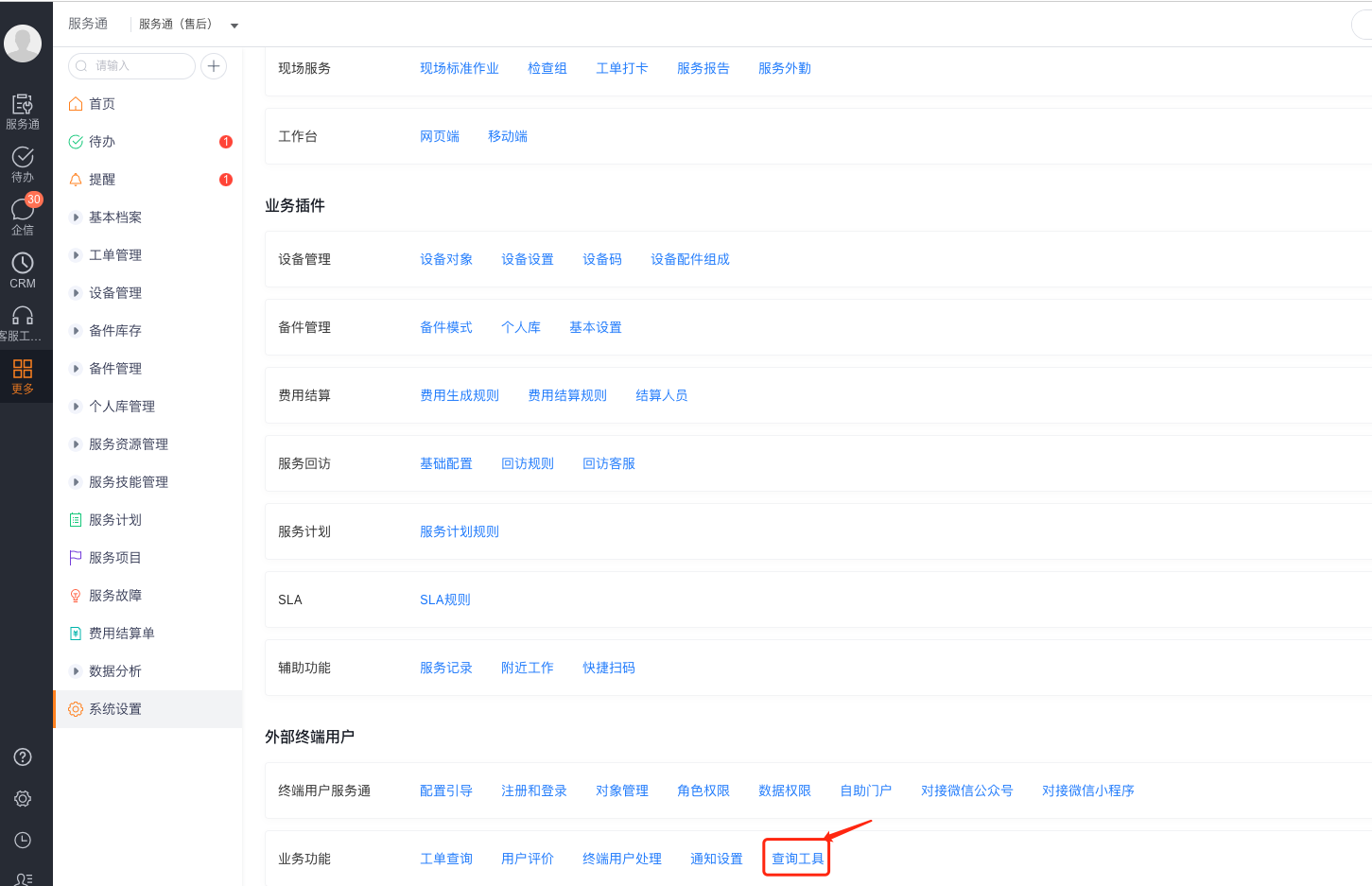
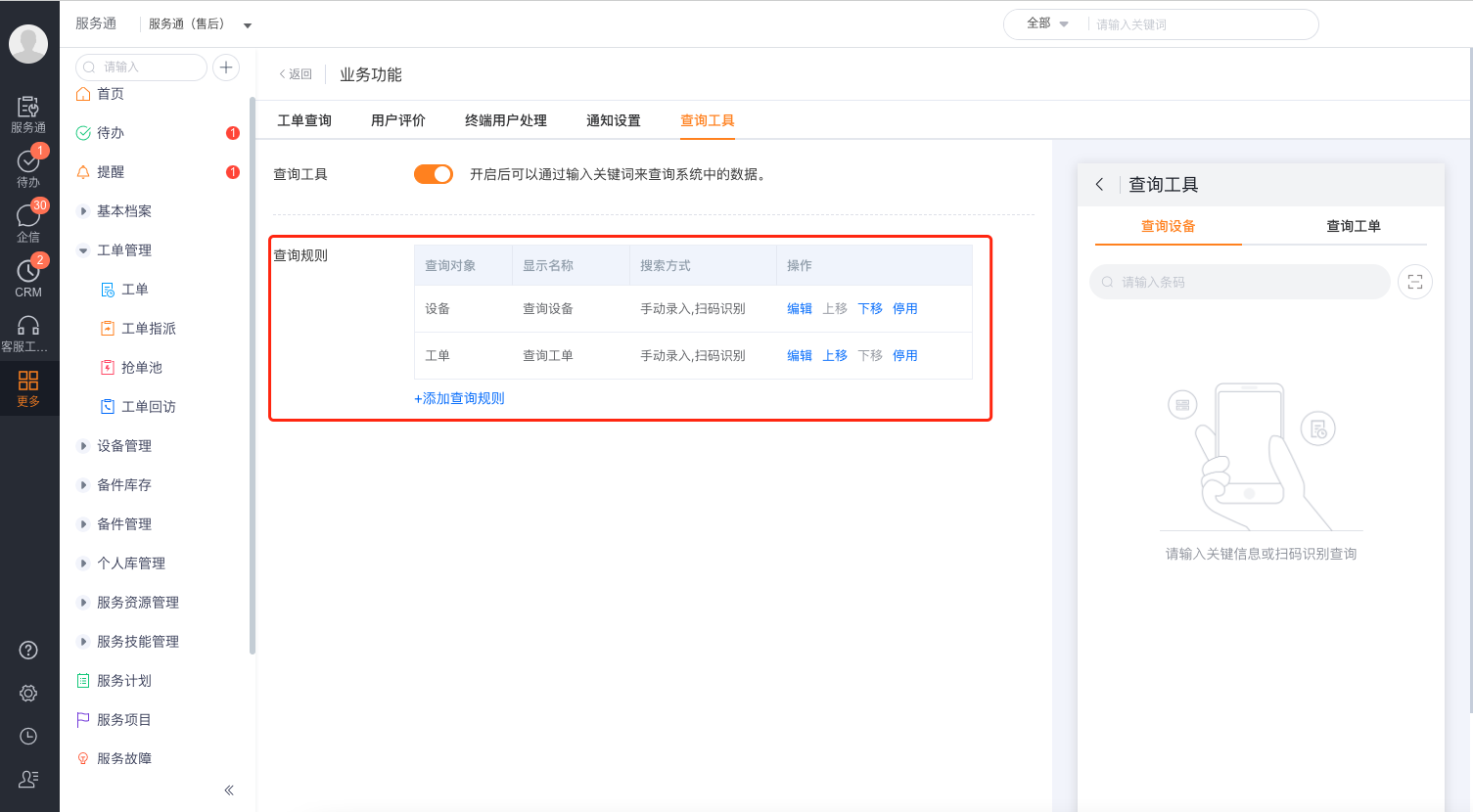
- Turn on the query tool switch.
- Check the existing query rules, or select Add query rules.
- If multiple objects are configured, use Move Up and Move Down to adjust the navigation order seen by end users.
Configure query rules
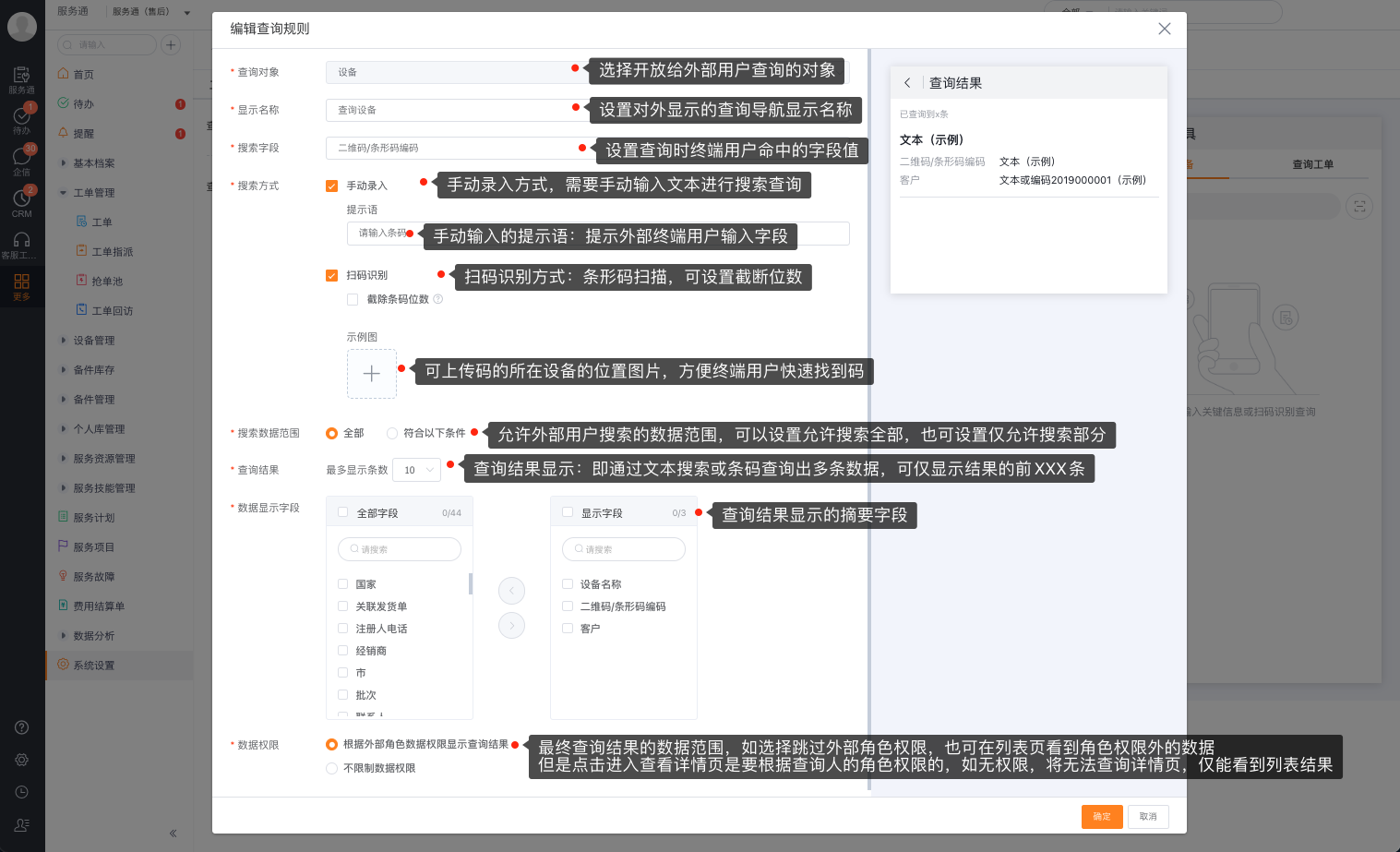
- Select the query object that end users can query.
- Enter a Display Name. For multiple objects, end users see this name in the query navigation.
- Select a Search field to match keywords or barcode content.
- Choose one or two search methods:
- Manual entry: Allows users to enter text, and can configure input prompts.
- Scan code recognition: Allows scanning of bar codes; when the scan code result has more fixed characters than the system field, the number of intercepted digits can be configured.
- Configure Search data range: You can search all data of the object, or only search data that meets the conditions.
- Set the maximum number of records displayed in the query results.
- Select the summary fields for the results list display.
- Configure whether the query results are restricted by external role data permissions and save it.
Understanding query permissions
| Permission Mode | Result List | Open Details |
|---|---|---|
| Display based on external role data permissions | Only display records within the current role data range | Continue to verify object details permissions |
| Does not restrict external data permissions | The list may display records outside the role data range | The details page still verifies role permissions; if there is no permission, it will prompt that the details cannot be viewed |
"Not restricting external data permissions" may allow end users to see records such as equipment from other companies in the list. Only use it when public search is absolutely necessary and the summary field does not contain sensitive information, and the detailed permissions must be checked at the same time.
Publish query entry
Post to Self-Service Portal
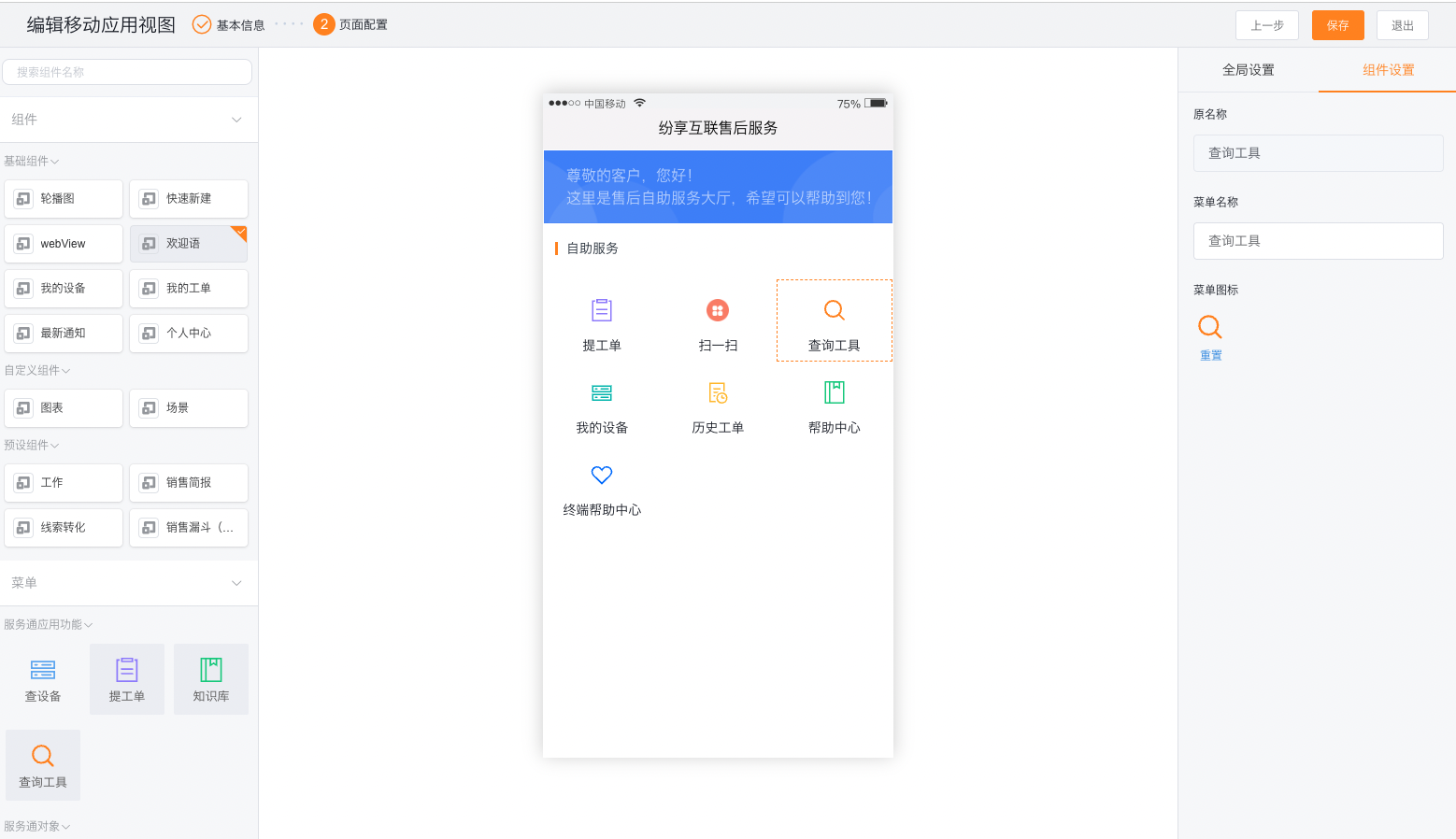
- Open the end-user mobile view.
- Drag the Query Tool component into the page.
- Configure the menu name and icon and save the page.
Publish to WeChat Official Account
- Open the custom menu of the bound service account.
- Set the menu response to Connect App.
- Select Service Pass-End User > Query Tool and publish the menu.
Expected results and verification
- Use the target connected role account to enter the query tool from the portal or official account.
- Use keywords and barcodes to test whether the search fields are correctly hit.
- Check whether the interception number, number of results, and summary fields comply with the configuration.
- Use two test accounts with different data permissions to compare the result list.
- Open a result and confirm that the details page continues to verify the object and role permissions.
FAQ
- Cannot add more query objects: The query tool supports up to 3 objects, first deactivate or delete rules that are no longer used.
- No results for entering keywords: Check the search field, field actual value and search data range.
- The scanned code content cannot be hit: Compare the original value of the scanned code and the system field value, and adjust the number of intercepted digits.
- The list can be seen but the details cannot be opened: The query result list and the details permission are verified twice; configure the view details permission and the corresponding data range for the role.
- A user can query another customer's data: Check whether Do Not Restrict External Data Permissions is selected. Restrict the search scope and summary fields.
- The portal has no query entry: Check the query tool switch, mobile view component, and template roles.