Appearance
Configure app pages and menus
Configure the app workbench by role.
Overview
The mobile workbench template is used to configure the home page layout and menu entry of the Service Pass App by role. Administrators can configure templates for roles such as dispatchers and service engineers, and make high-frequency applications easier to access through bottom navigation.
Before you begin
- Use a service pass administrator or an account with mobile workbench configuration permissions.
- The configuration of role, object and field permissions has been completed; mobile templates will not replace these permissions.
- Confirm the backlog, work order, customer, equipment and field service portals required for each role type.
Procedure
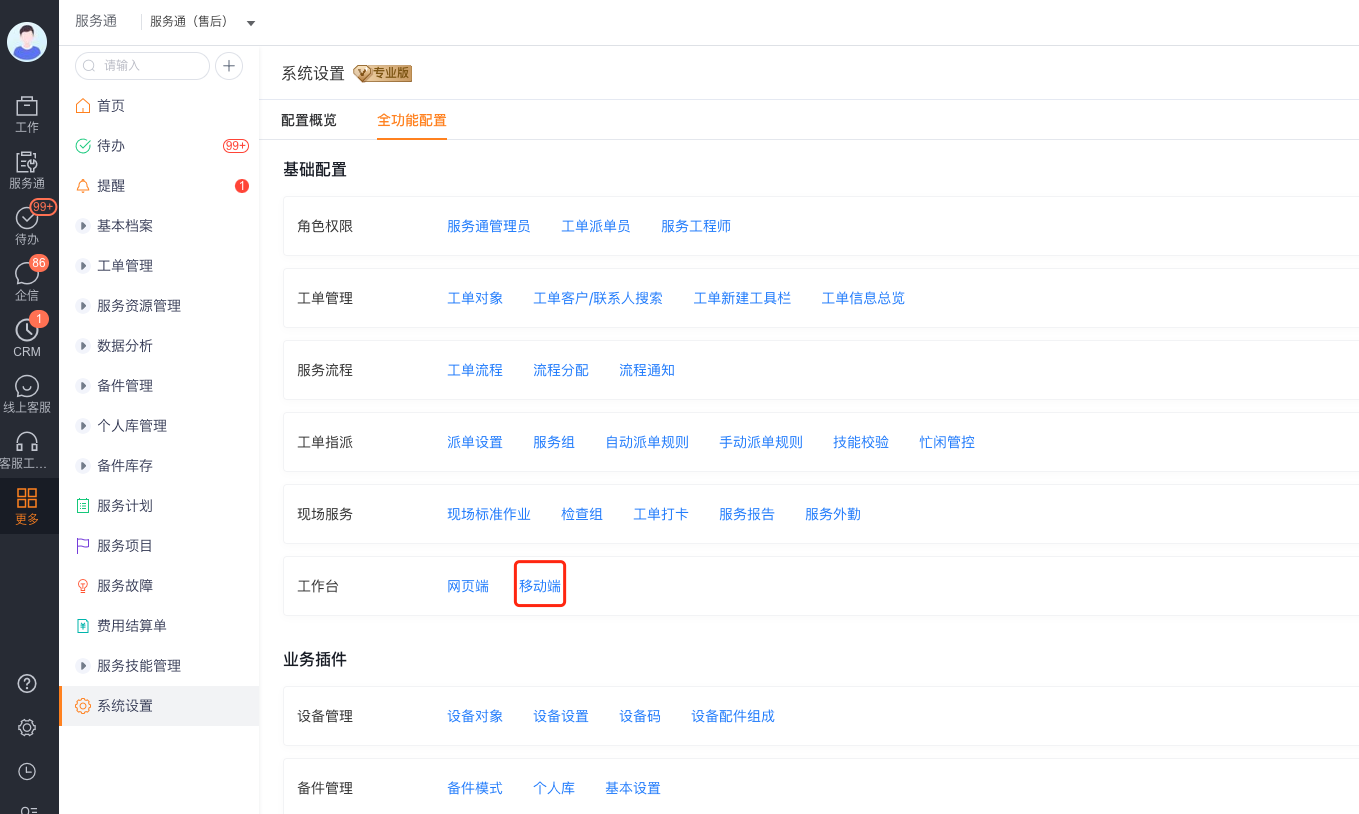
Enter Service Pass > System Settings > Full Function Configuration > Mobile Terminal and open the mobile terminal workbench configuration.
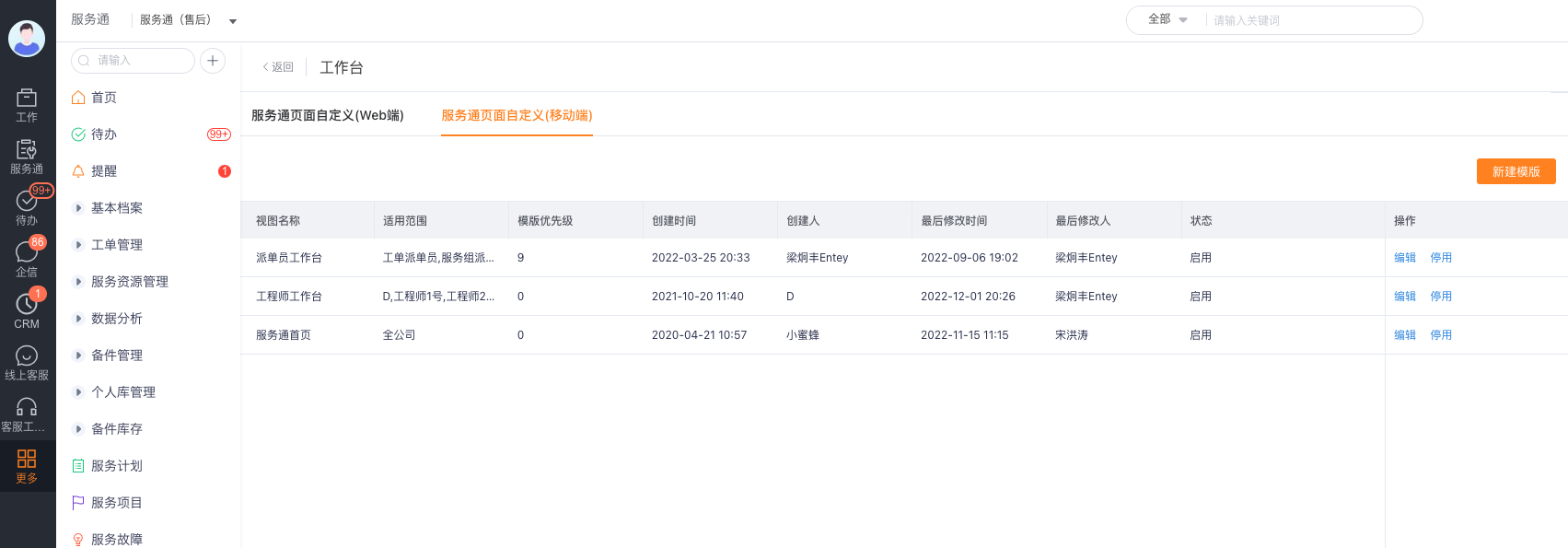
Click New Template in the Service Pass Page Customization (Mobile) list; existing templates can be modified through Edit, and if necessary, use Deactivate to pause the template.
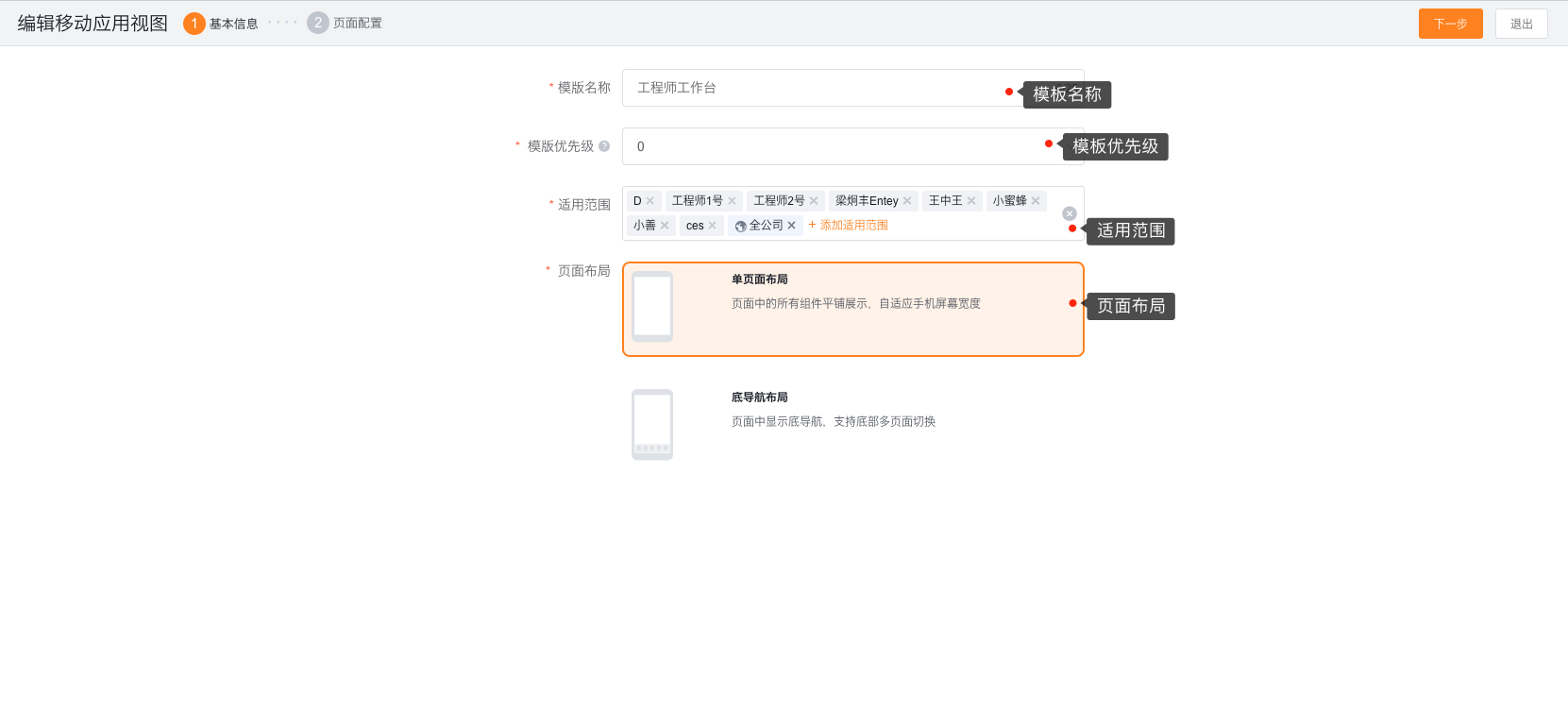
Fill in the template name, template priority and scope of application in Basic Information. Choose a page layout based on your device screen and usage:
- Single Page Layout: Displays all components vertically on one page for a consolidated view of to-dos and work orders.
- Bottom Navigation Layout: Uses bottom navigation to switch between pages. This layout suits roles that switch modules frequently.
On the Basic Information page, click Next to enter the page configuration.
In the page configuration, add Menu Entry from the component list. Find the target menu by object class, application class, page class or new class, and then set the menu title, icon and arrangement.
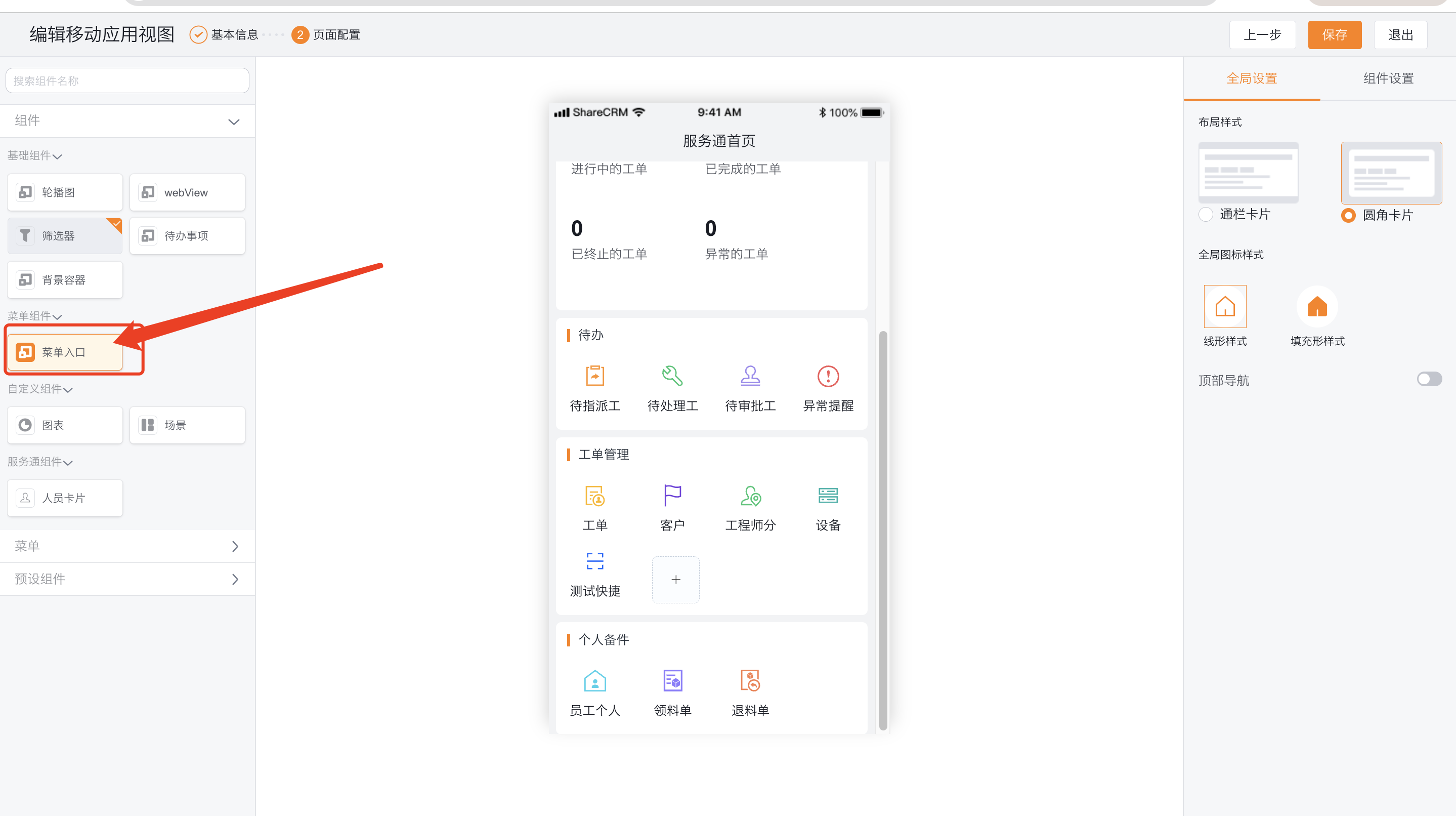
Locate the service object or page that needs to be added in the menu entry selector, click Create and return to the page configuration.
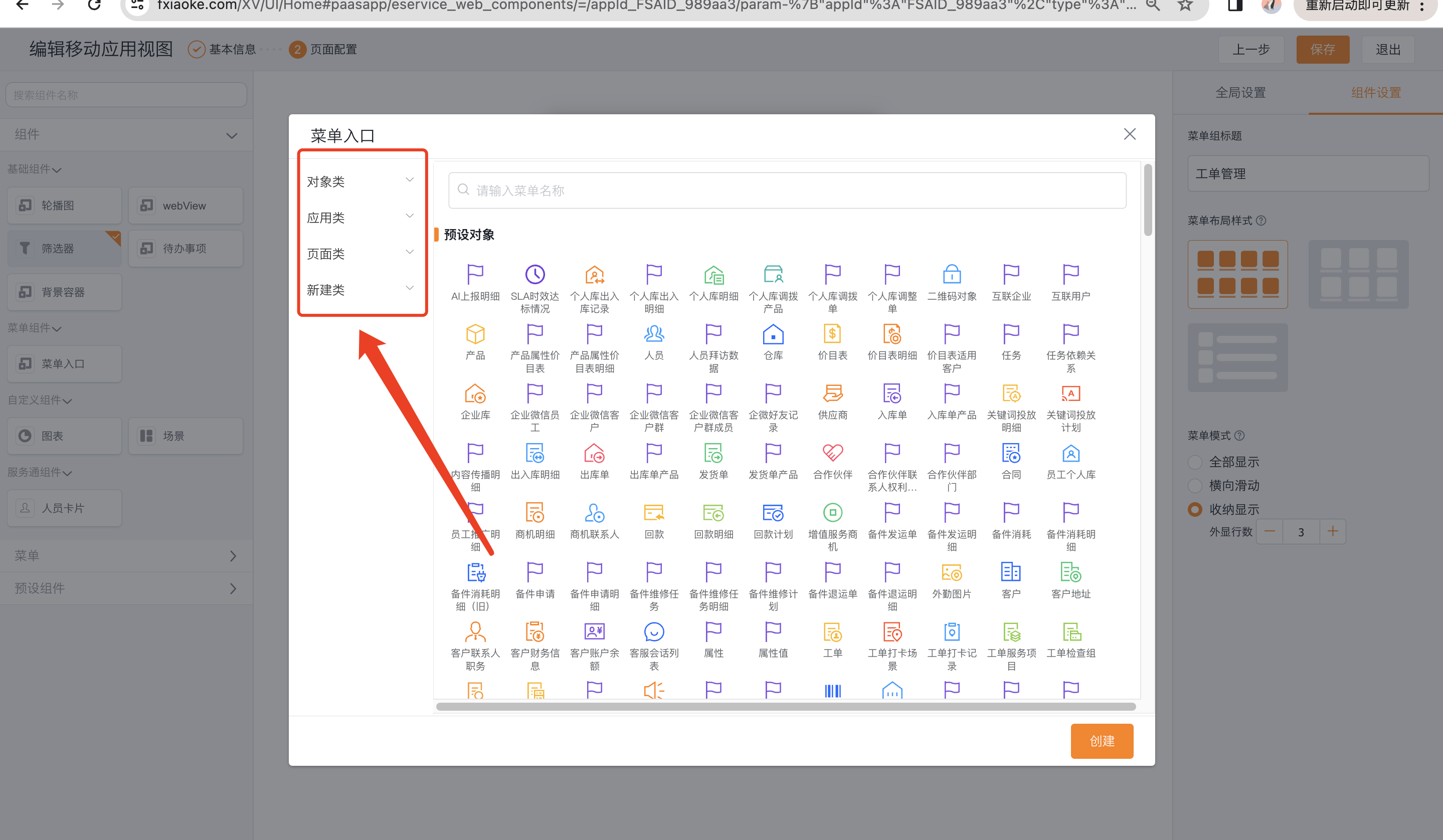
In the page configuration, click Save. Log in to the app using an applicable employee account and examine menus, page switches, and component data.
Configure bottom navigation
Enter Management > Interface Customization Management > App Bottom Navigation Customization.
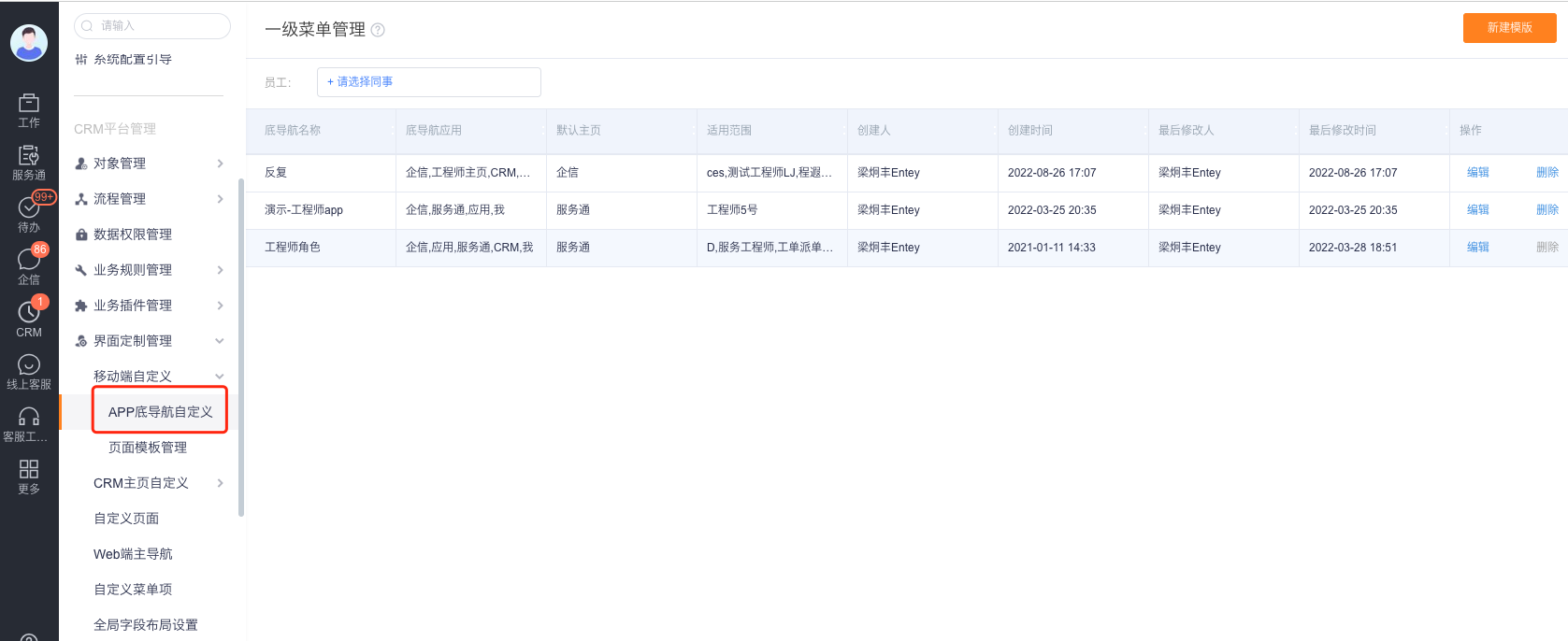
Create or edit the bottom navigation template, select the applicable employee or role, set Service Pass as the bottom navigation entrance, and save the template.
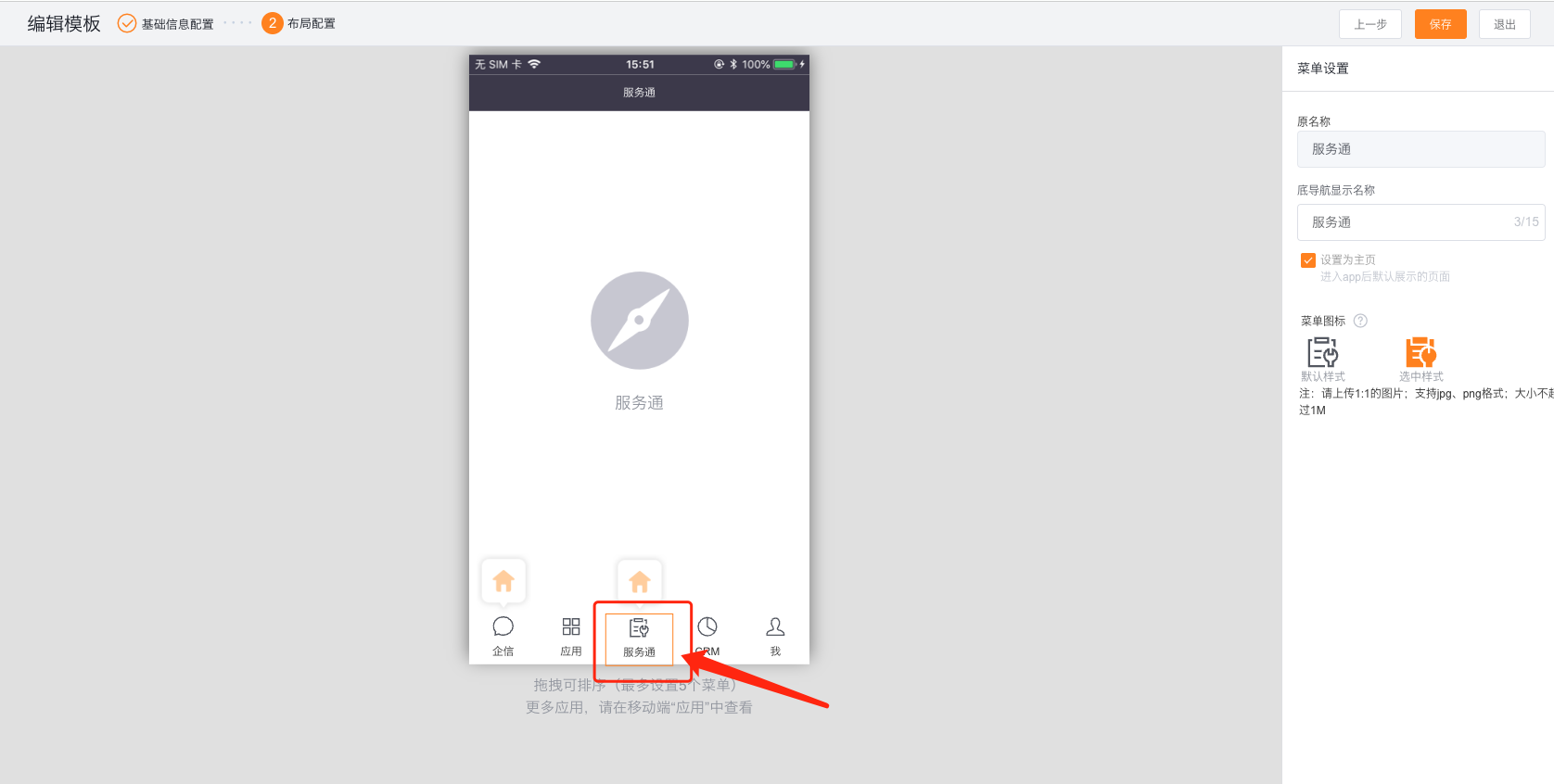
Scenarios and configuration suggestions
| Using roles | Mobile template suggestions | Validation key points |
|---|---|---|
| Dispatcher | Put the entrance to assignments, work orders and service resources on the homepage or bottom navigation | Be able to enter the tasks to be assigned and access the authorized dispatch function |
| Service Engineer | Place pending work orders, customers, equipment and field operations on the homepage | Only display tasks and objects that can be processed by the current account |
| Service Pass Administrator | Centralize the configuration entrance and workbench management entrance in the management template | The configuration menu is visible and will not be mistakenly used for ordinary engineer accounts |
Expected results and verification
- Employees within the applicable scope will see the corresponding mobile workbench template after logging into the app.
- The menu entry, page layout and bottom navigation are saved and displayed according to the template.
- The mobile menu is still limited by role object permissions, field permissions and business type visibility range.
Notes
- Configure the app and web workbenches separately. The mobile template doesn't synchronize the web menu or home page.
- If employees can't see a configured menu, check role permissions, business-type visibility, and the template's scope.
- The bottom navigation is the application entrance configuration and will not automatically grant service pass object permissions.
- After the template is deactivated or the applicable scope is changed, the employee account within the applicable scope should be used to re-verify whether the menu has been updated.