Appearance
Configure the new work order toolbar
Overview
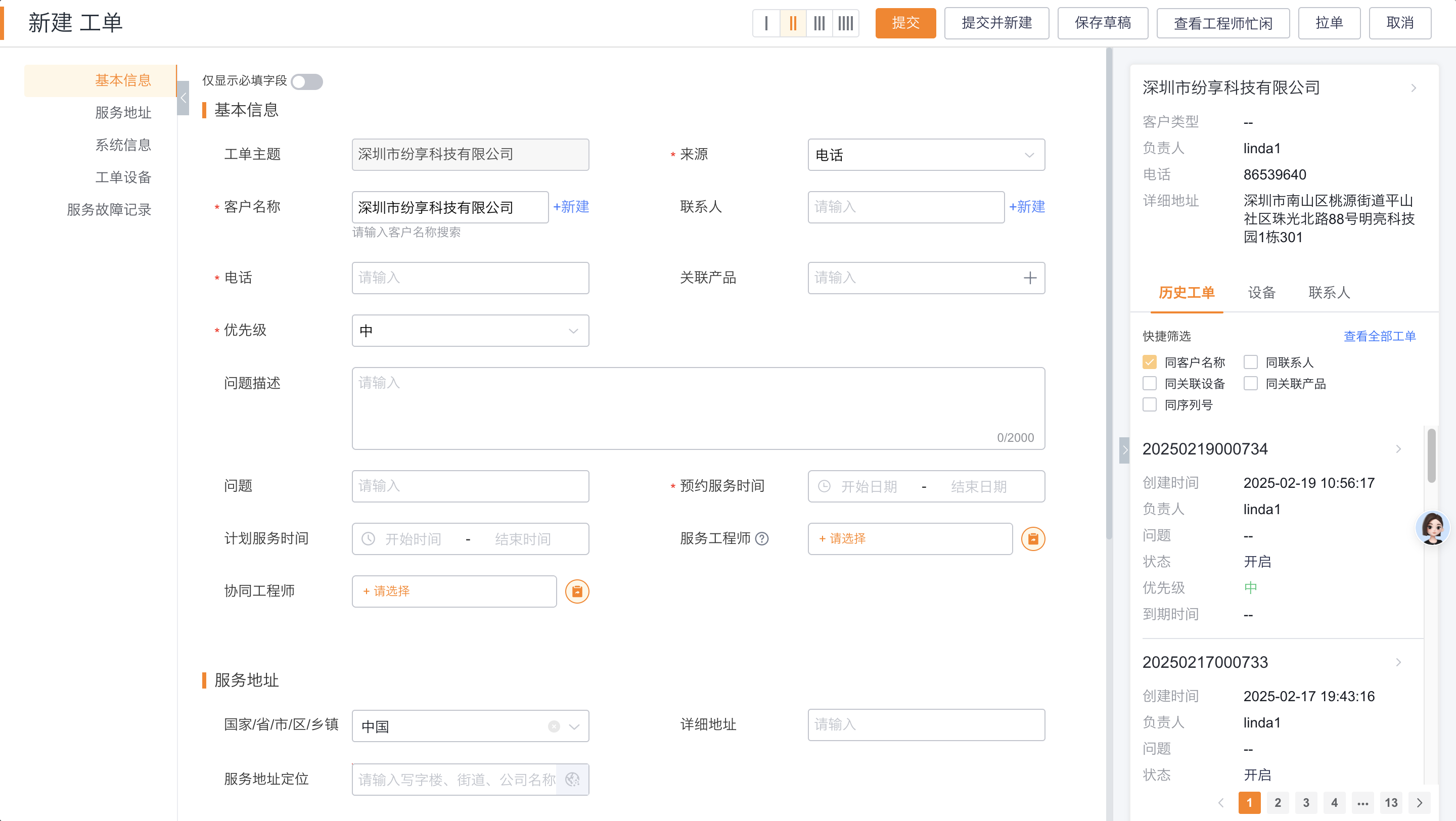
The new work order toolbar is displayed on the new work order page on the Web. It can quickly view customer information, contacts, equipment and historical work orders based on the selected customer, helping the bill picker to supplement information and determine whether there are duplicate or related problems.
Before you begin
- Use a service pass administrator or an account with work order management and configuration permissions.
- Confirm that the customer, contact, device or historical work order object that needs to be displayed has been enabled.
- This toolbar is only displayed on the web side and not on the mobile side.
Procedure
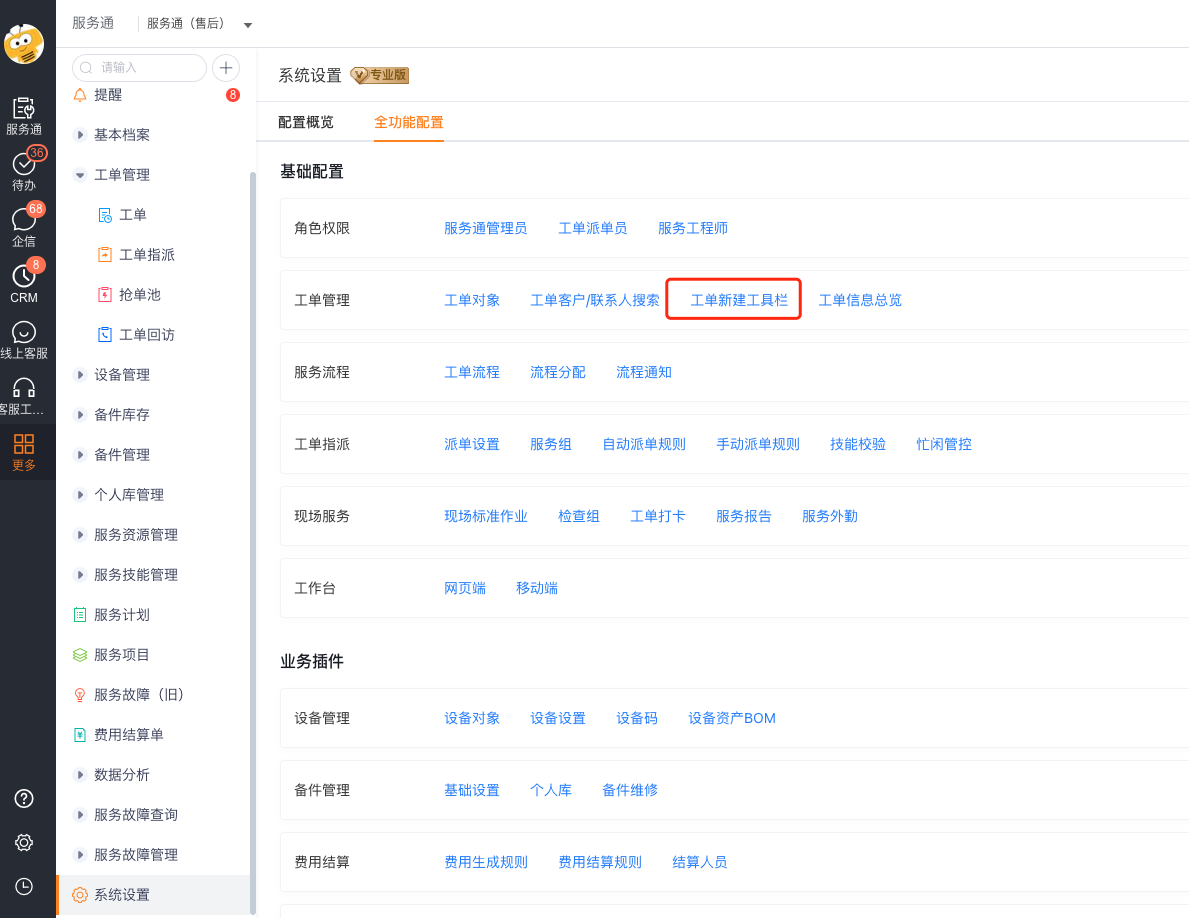
Enter Service Manager > System Settings > Work Order Management > Work Order New Toolbar.
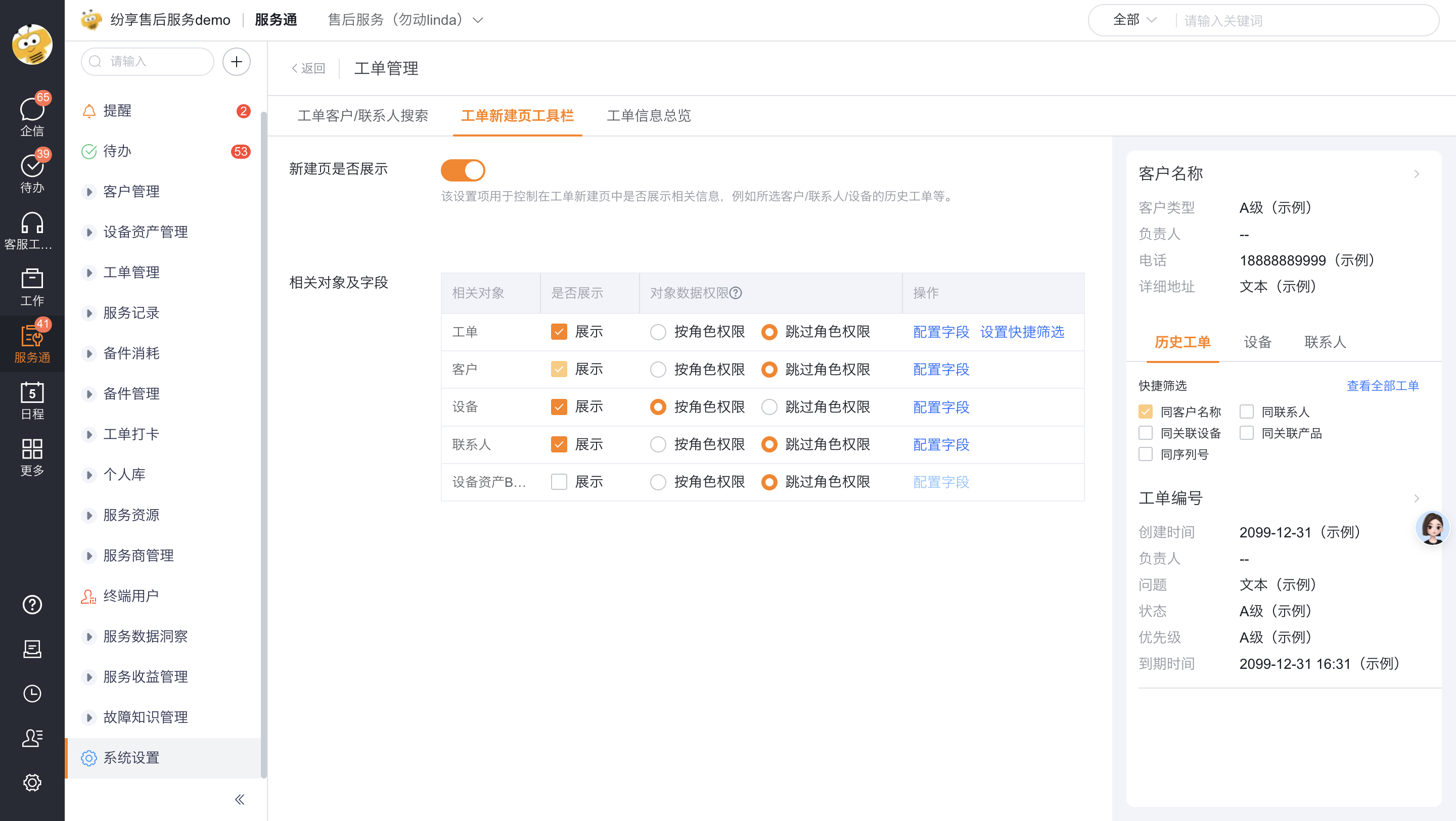
Set whether to display the new page. After closing, the entire toolbar will not be displayed on the new work order page.
Set the content to be displayed in the relevant object configuration:
- Whether to display: Customer information is displayed by default, other objects can be checked as needed.
- Object Data Permissions: Select Permissions by Role or Skip Permissions by Role.
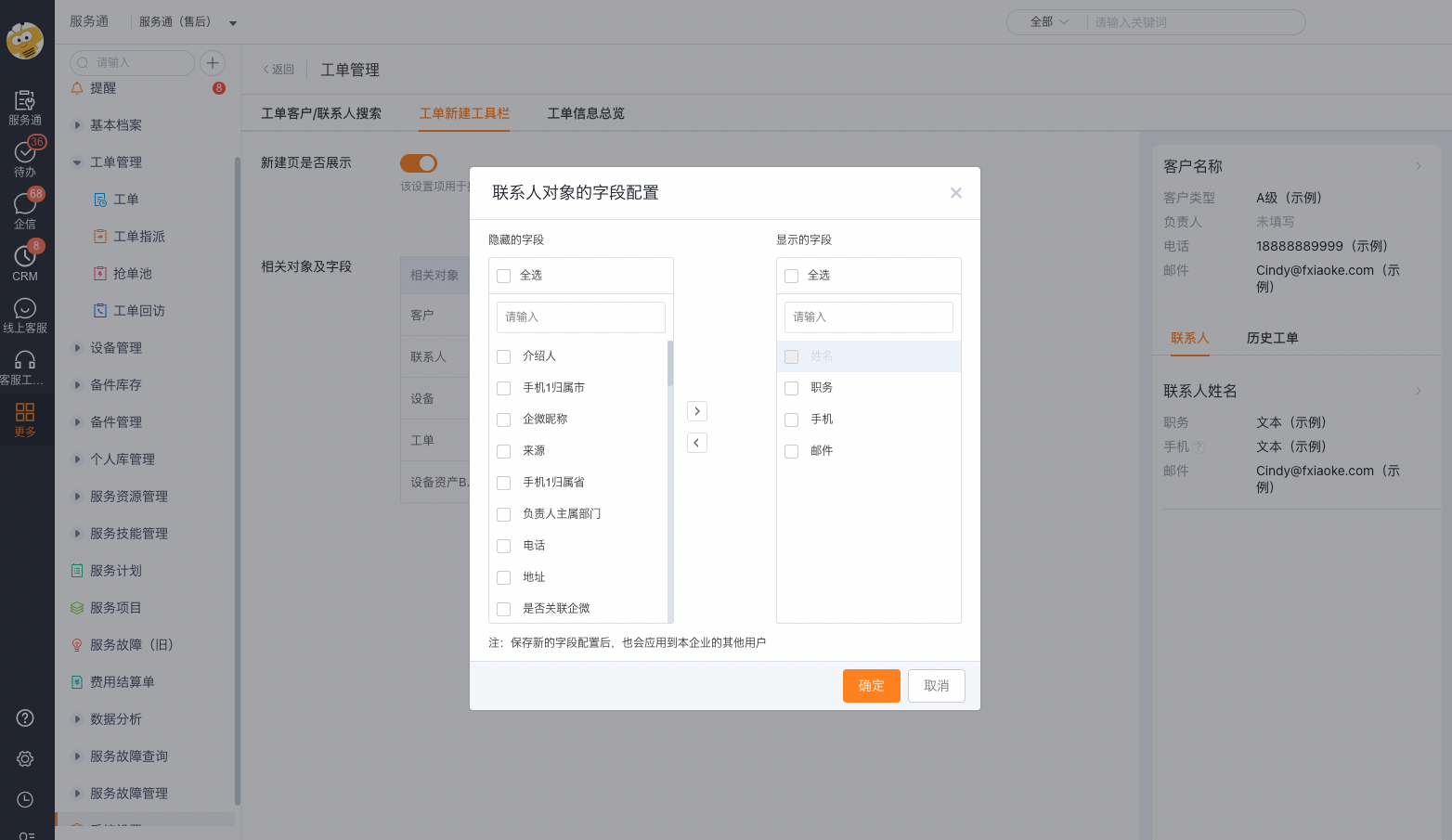
- Object column summary field: Select the key fields that need to be displayed in the list.
- Quick filtering of historical work orders: You can quickly filter historical work orders with the same information based on the associated equipment or serial number of the new work order.
Set column summary fields by object so that bill of lading personnel can directly view key information in the toolbar list.
Save the configuration.
Data permission rules
| Options | Toolbar List Data | Object Details Page |
|---|---|---|
| By role permissions | Only display related data within the current user role permissions | Continue to control by current user permissions |
| Skip role permissions | Display all related data | Still controlled by the current user permissions, you will not obtain detailed viewing permissions due to this option |
Expected results and verification
- Use the target role to create a new work order on the web and select the customer.
- Check that the toolbar displays customers, contacts, devices, and historical tickets as configured.
- Check whether the summary fields and quick filtering of historical work orders comply with the configuration.
- Use accounts with different data permissions to verify the list range, and confirm that users without details permission still cannot open restricted details.
- Create a new work order on the mobile terminal and confirm that the toolbar is not displayed.
Notes
- Skip role permissions only affects the associated data range in the toolbar list and does not release permissions on the object details page.
- After you turn off Display on New Page, related objects and filter settings don't appear on the new work-order page.
- Quick filtering of historical work orders requires related equipment or serial numbers on the new work order.