Appearance
Configure spare part categories and inventory
Overview
Spare parts classification and product information are basic data required by all three modes; warehouse, inventory, inbound orders and outbound orders are only applicable to the advanced mode. After the configuration is complete, engineers can select the correct spare parts in consumption, picking or requisition.
Before you begin
- Spare parts management mode has been selected and plug-in activation completed.
- Prepare spare parts name, category, model, unit, unit price, pictures and other information.
- In advanced mode, confirm that the inventory management module is enabled and assign corresponding business permissions to warehouse management personnel.
Configure product categories and spare parts
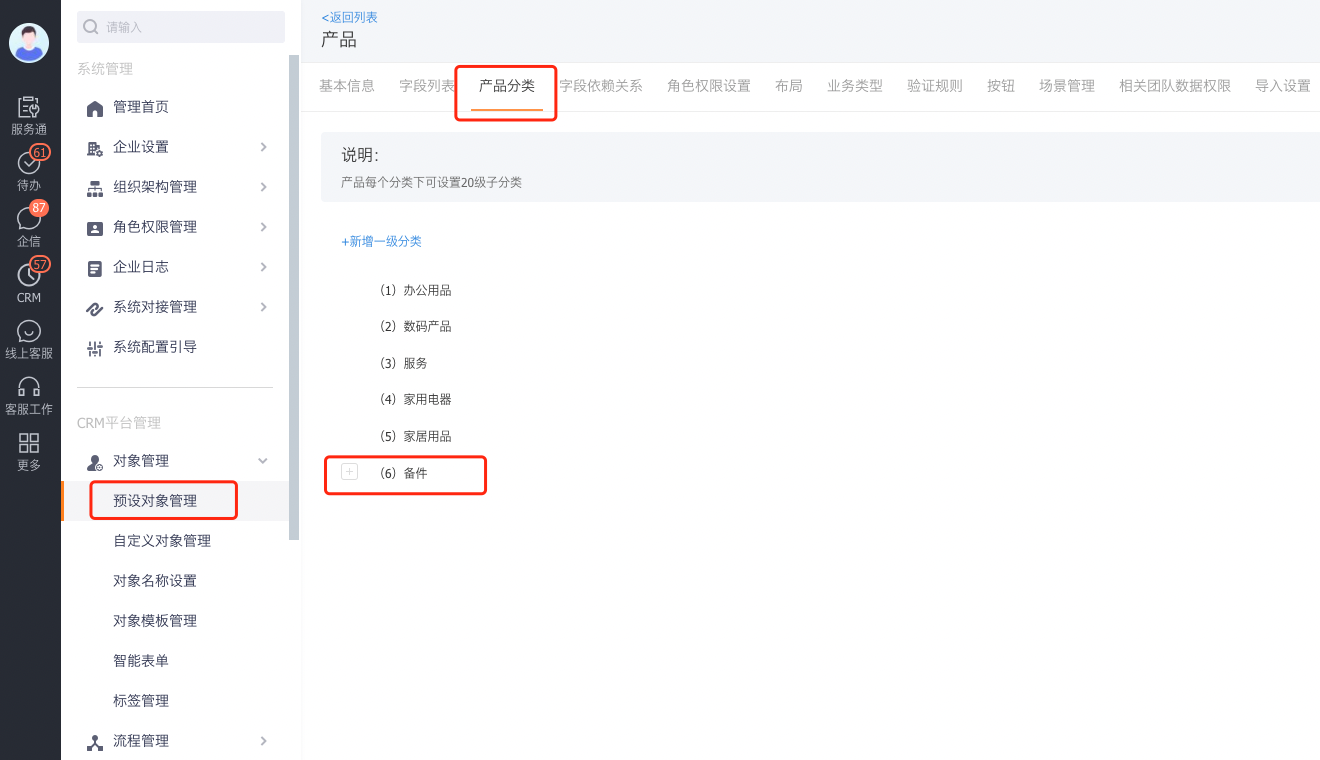
Go to Management > Default Object Management > Product and set the product classification required for spare parts.
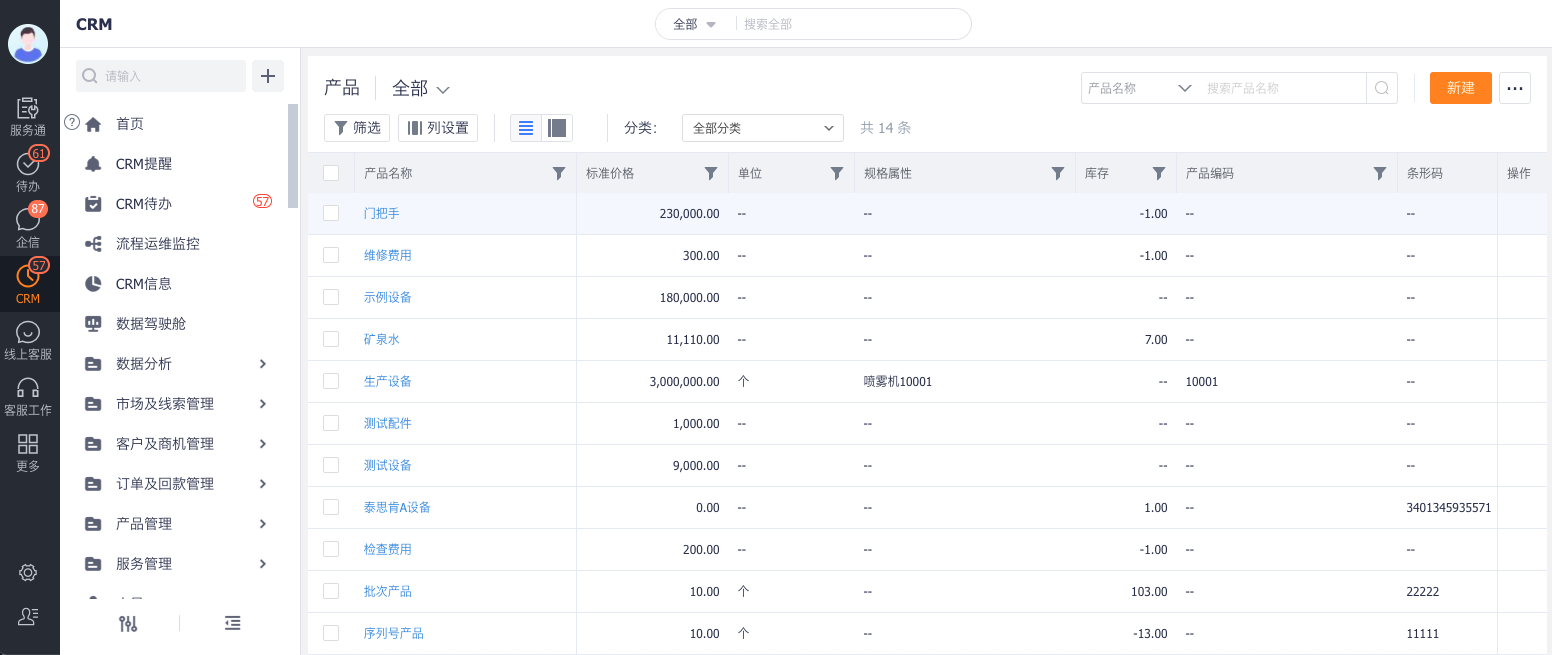
Go to CRM > Products and create or import spare parts products.
Maintain the name, category, model, unit, unit price and picture for each product, and confirm that the product status allows business use.
Advanced mode configuration warehouse and inventory
Configure warehouse permissions
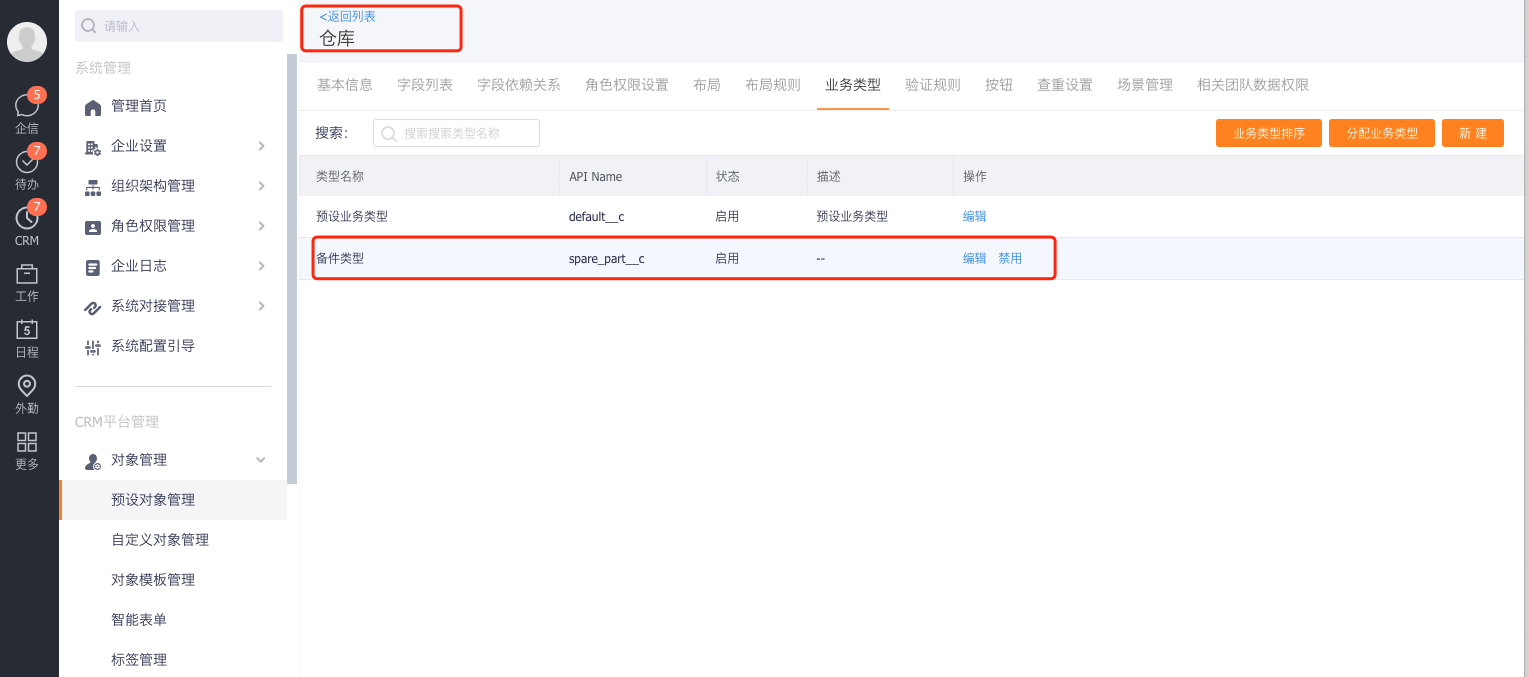
Enter the Management > Warehouse object and assign the "Spare Parts Warehouse" business type permission to the warehouse administrator or spare parts warehouse manager.
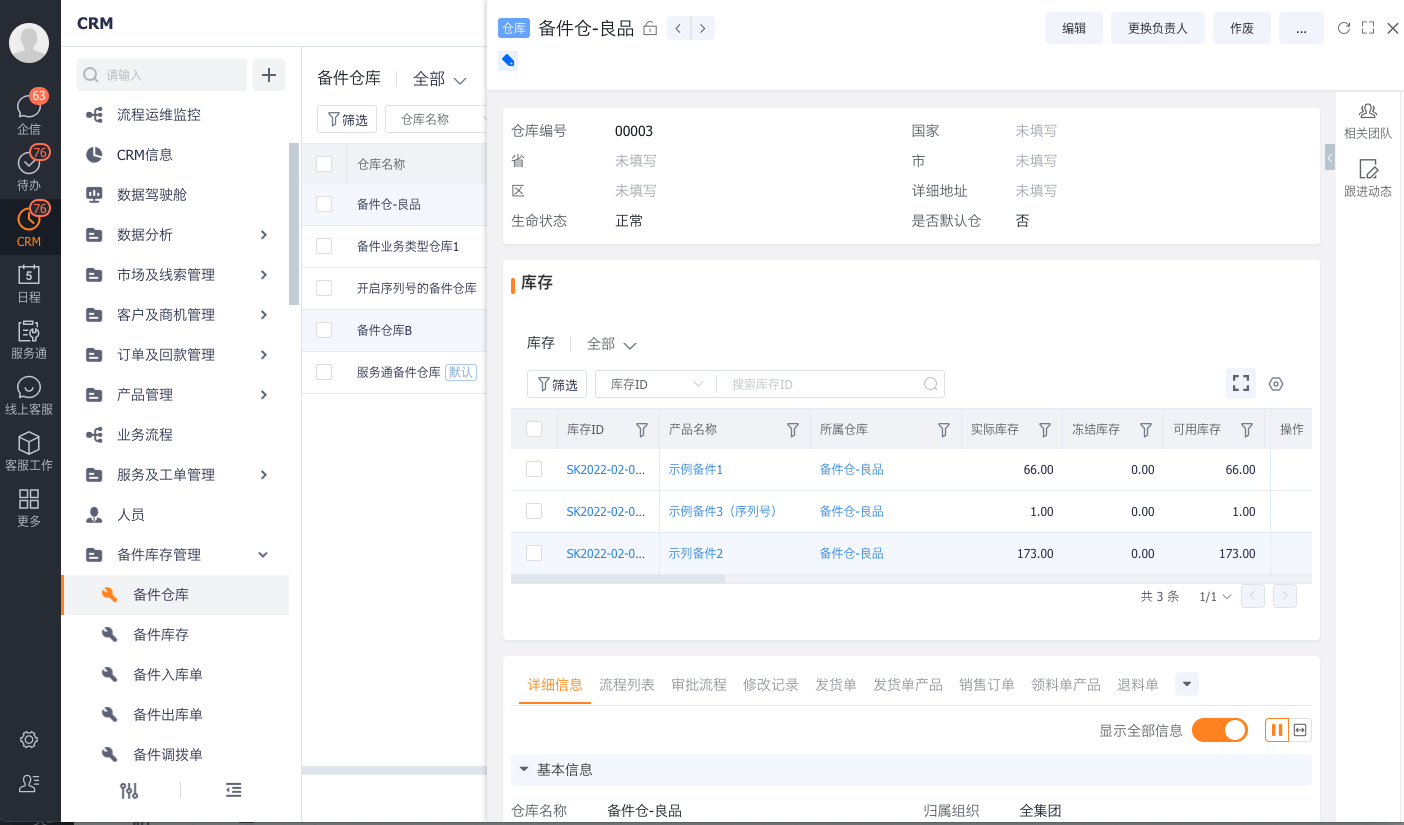
Create and view warehouse
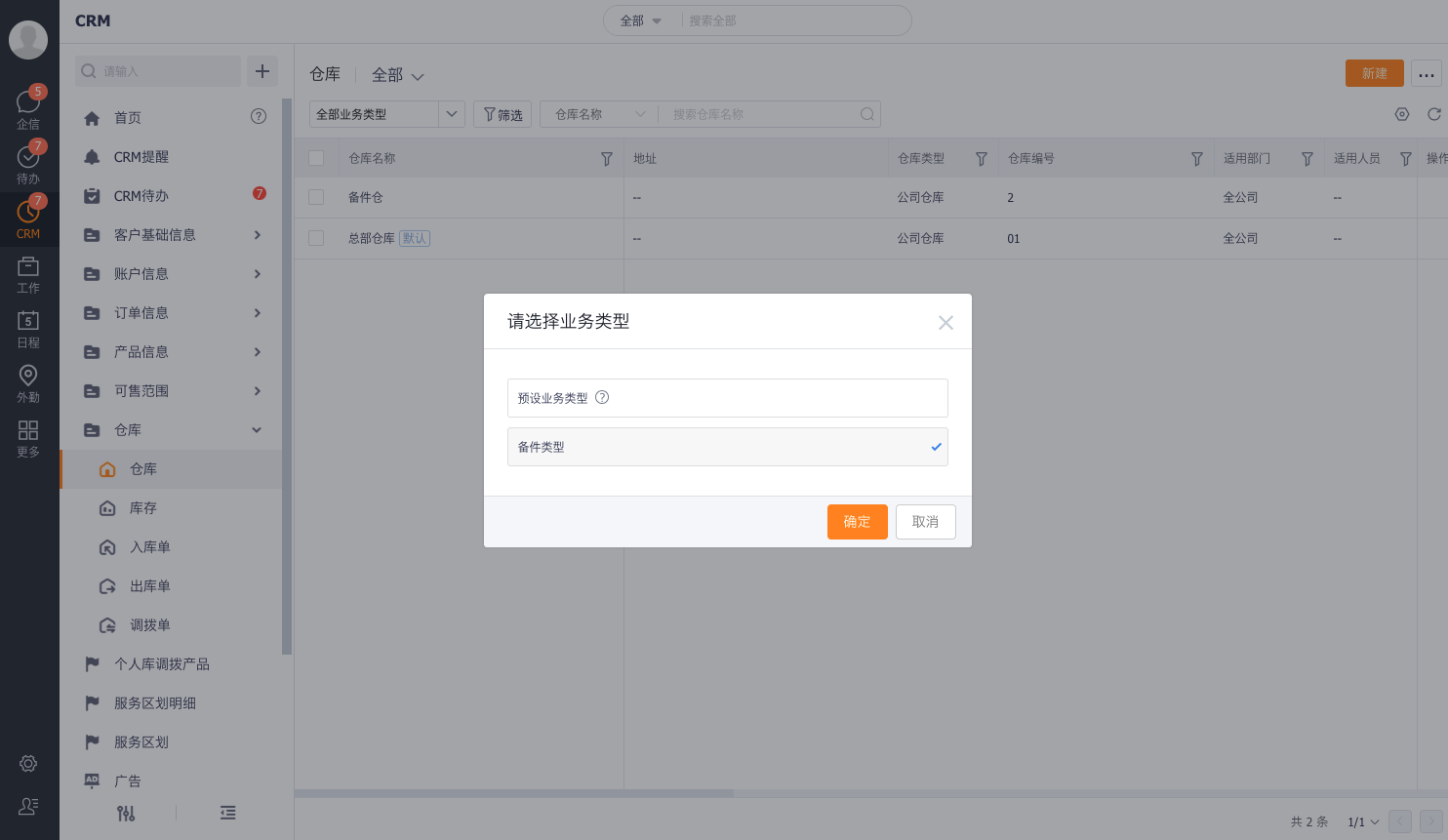
Go to CRM > Warehouse, click New in the upper right corner of the list, fill in the warehouse information and save it.
Open the warehouse details and view the products, units, quantities, warehouse types and safety stocks within the scope of authority.
Configure inbound and outbound permissions
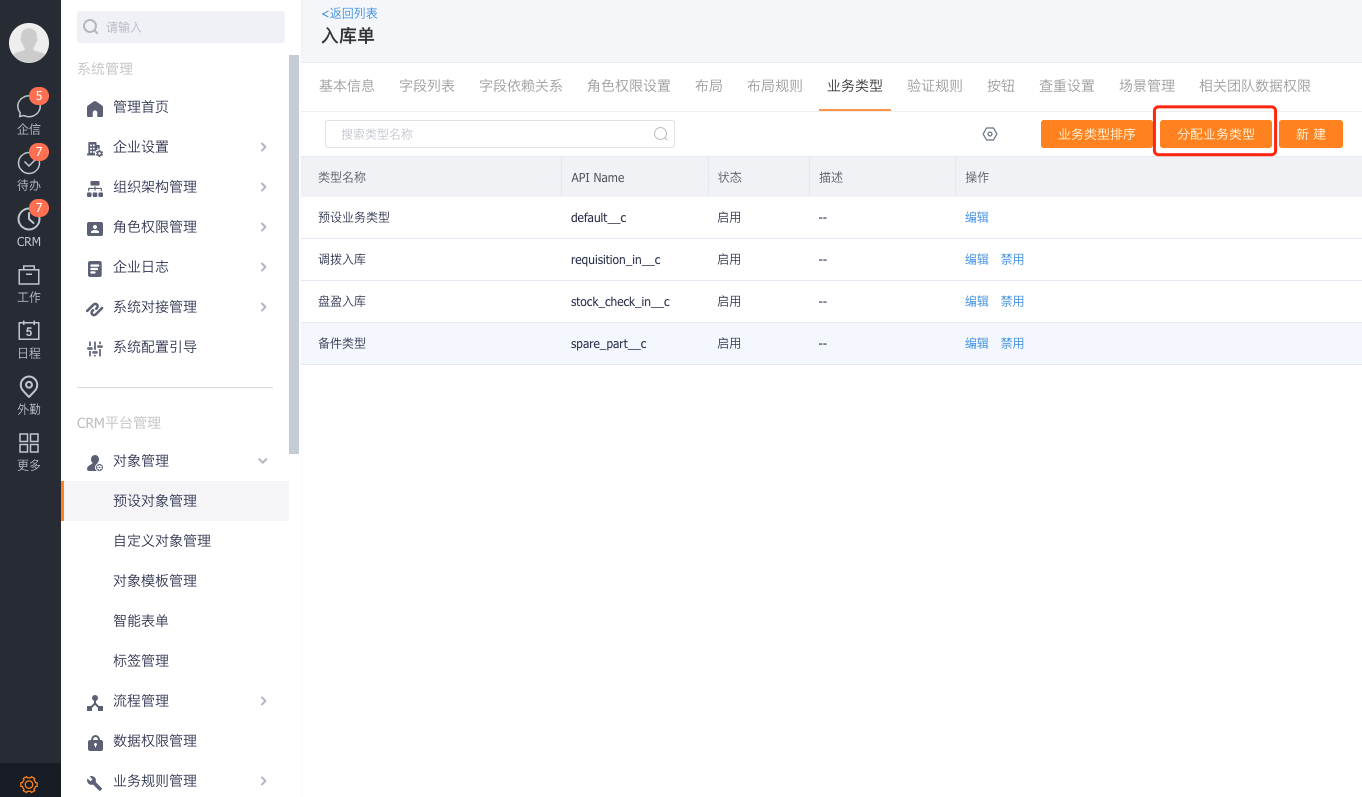
In the Management > Warehousing Order object, assign the "Spare Parts Warehousing" business type permission to the warehouse administrator or spare parts warehouse manager.
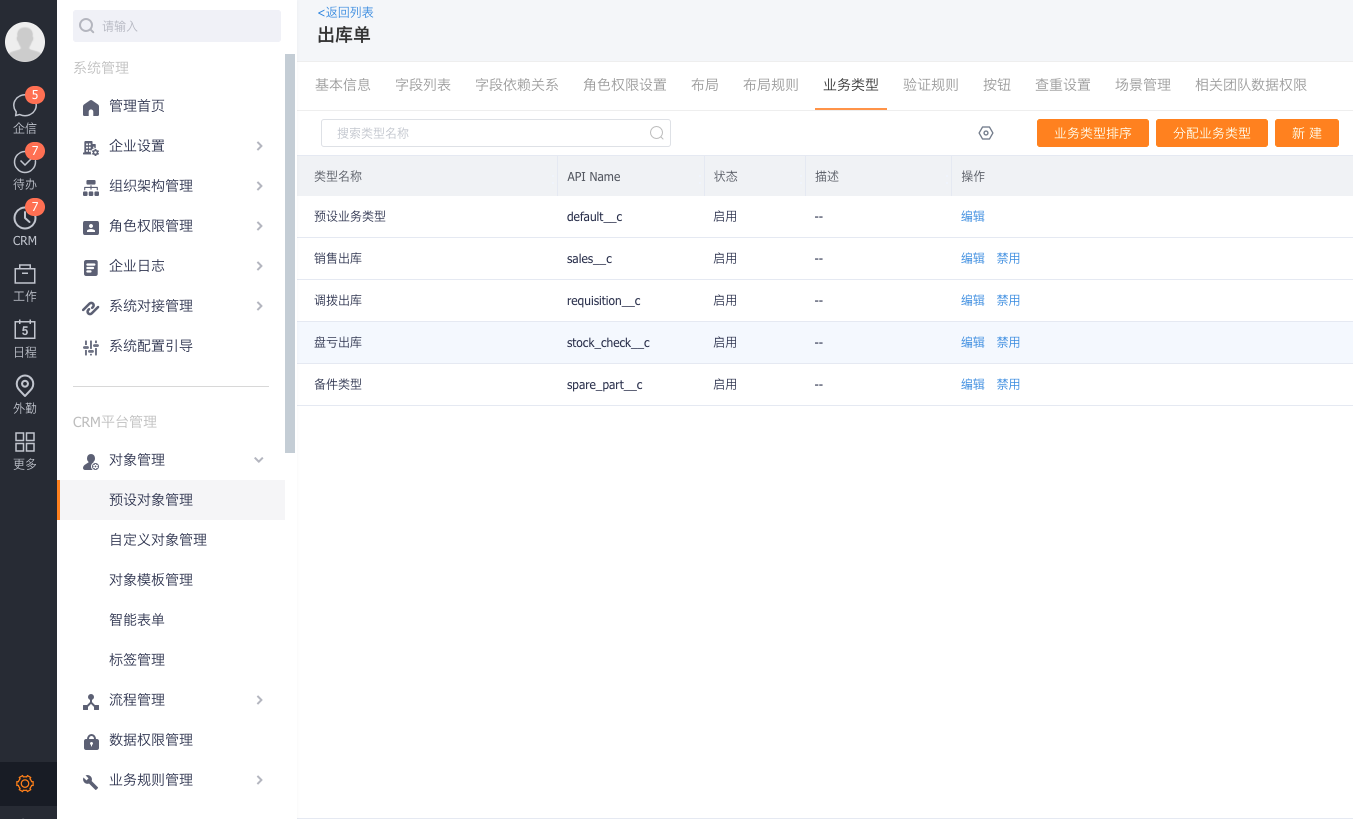
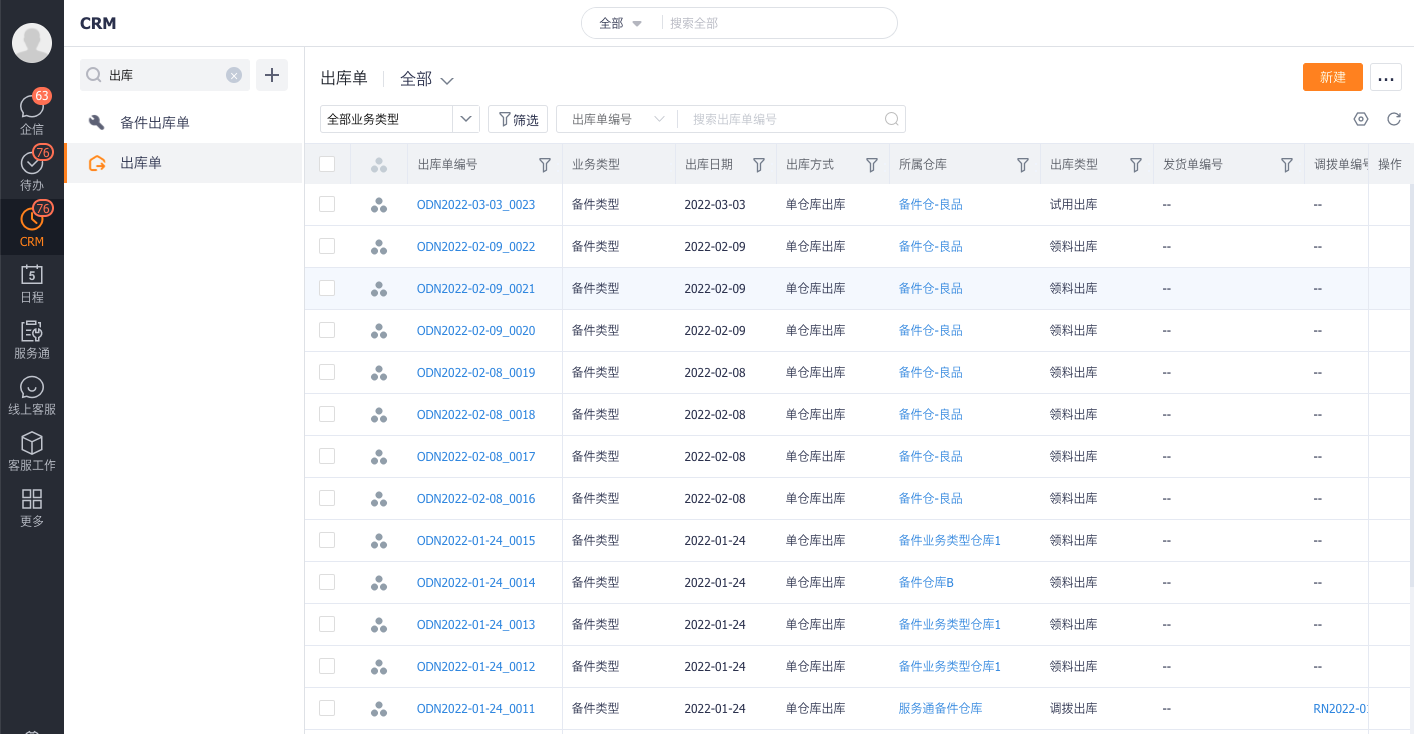
In the Management > Outbound Order object, assign the "Spare Parts Outbound" business type permission to the warehouse administrator or spare parts warehouse manager.
Enter inventory in and out
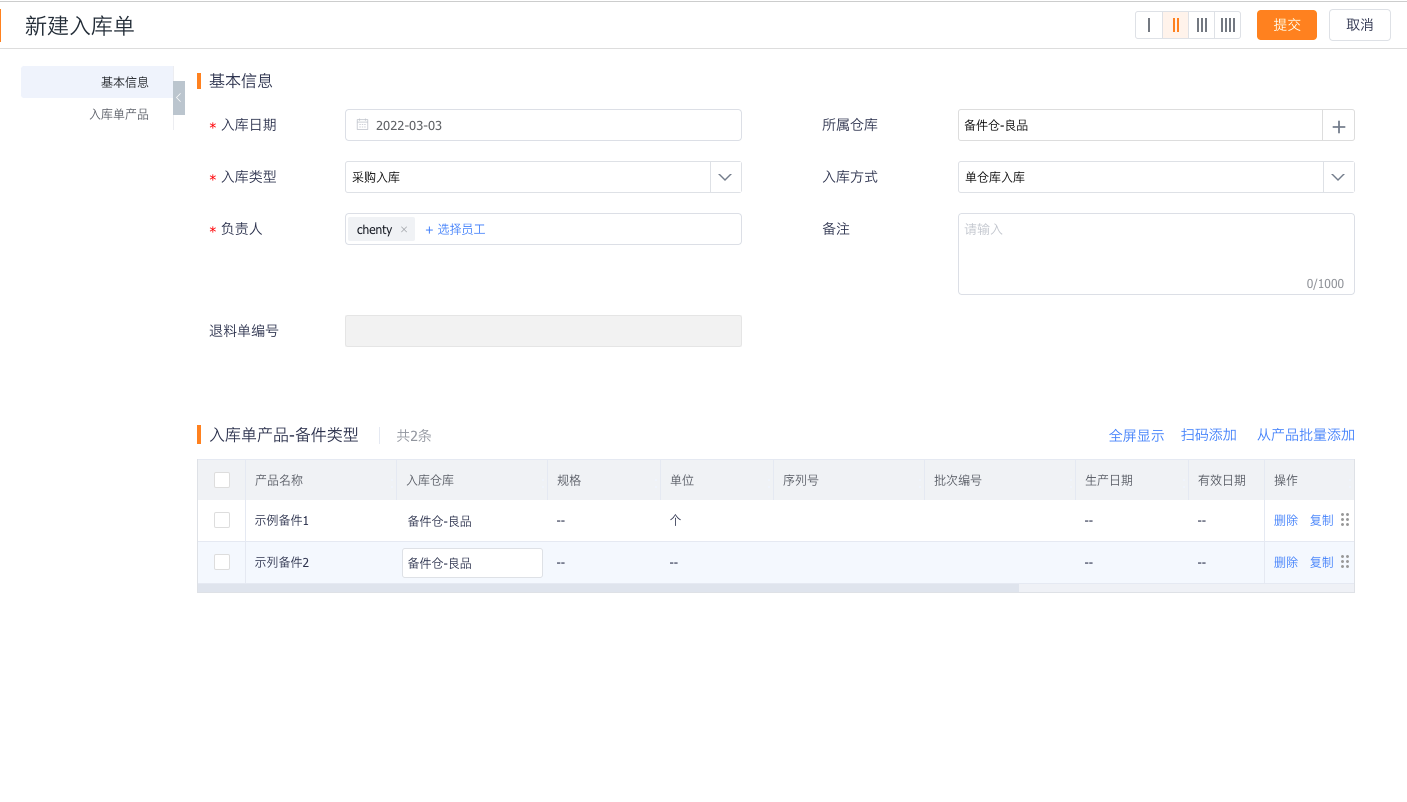
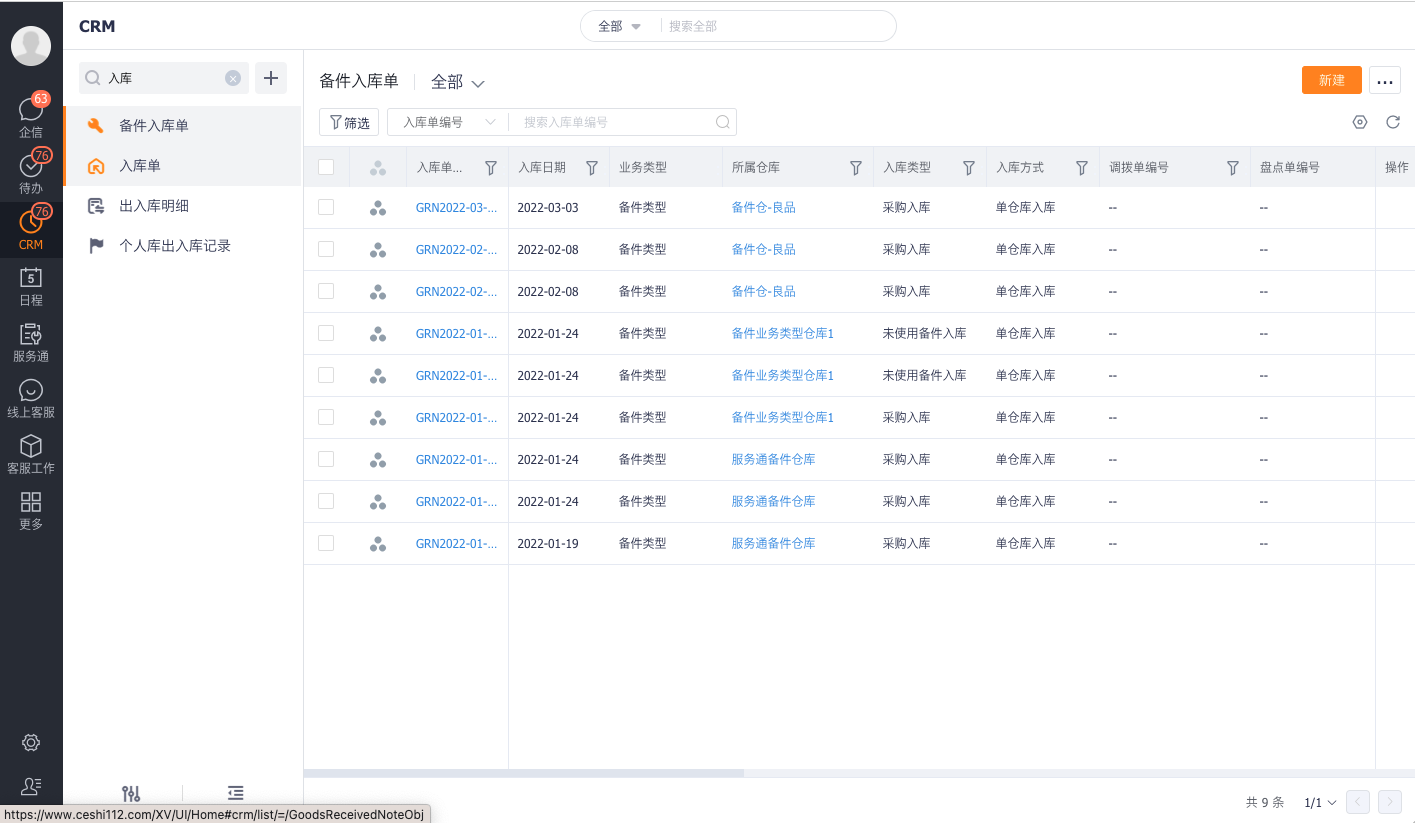
In the upper right corner of the warehouse details page, or enter the warehousing order object, click New Warehousing Order.
Select the spare part type, fill in the warehousing product and quantity, and save the warehousing order.
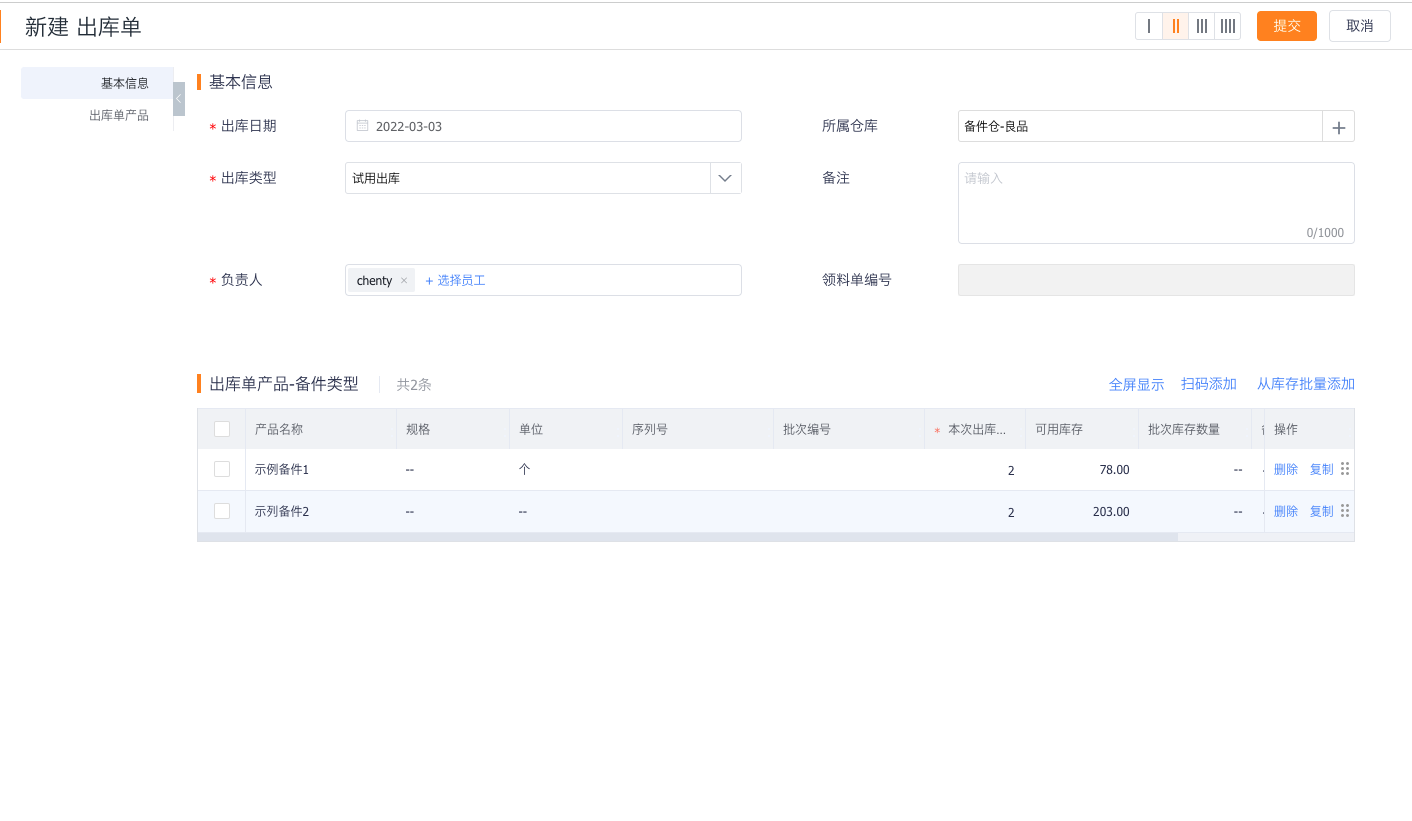
Enter the Outbound Order object, click New Outbound Order, select the spare part type, fill in the outgoing product and quantity, and save.
Expected results and verification
- In the three modes, product categories and spare parts products can be selected in the corresponding business documents.
- In advanced mode, warehouse details show product inventory and safety stock.
- After a test inbound or outbound transaction, reopen the warehouse and verify the quantity change.
Notes
- The normal mode does not maintain the warehouse inventory in the service channel. Do not create an inventory account for the normal mode.
- Inbound and outbound permissions belong to inventory business permissions and cannot rely solely on service order permissions.
- Once product units, models and spare parts categories are used for inventory or consumption, it should be confirmed before modification that it will not affect existing records.