Appearance
Manage service BOMs
Overview
The service BOM (SBOM) summarizes the materials that may be used by the product in maintenance services. It is used for maintenance reference and quick selection of spare parts, but is not used to query the actual configuration of the equipment. It can serve material picking, spare parts application and spare parts consumption at the same time.
Before you begin
- The spare parts advanced mode has been turned on and the new version of spare parts consumption has been used.
- CPQ is enabled; all the above conditions are required.
- If you need product explosion pictures, you also need to purchase OCR text recognition resource package-universal recognition type (high-precision position).
1. Enable service BOM
Enter Service BOM in the spare parts management menu.
After meeting the prerequisites, follow the page prompts to open the service BOM.
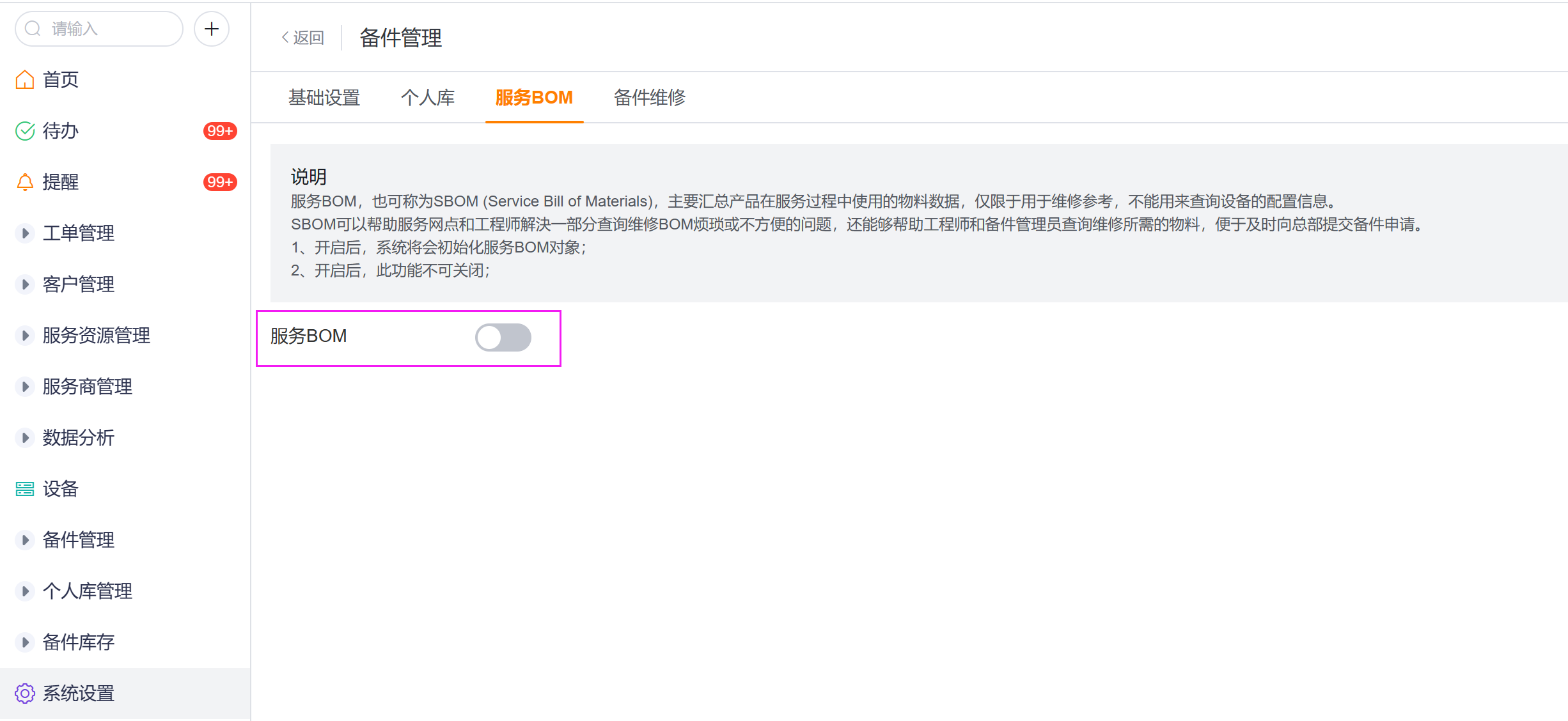
The service BOM cannot be closed after it is opened.
2. Create a new service BOM
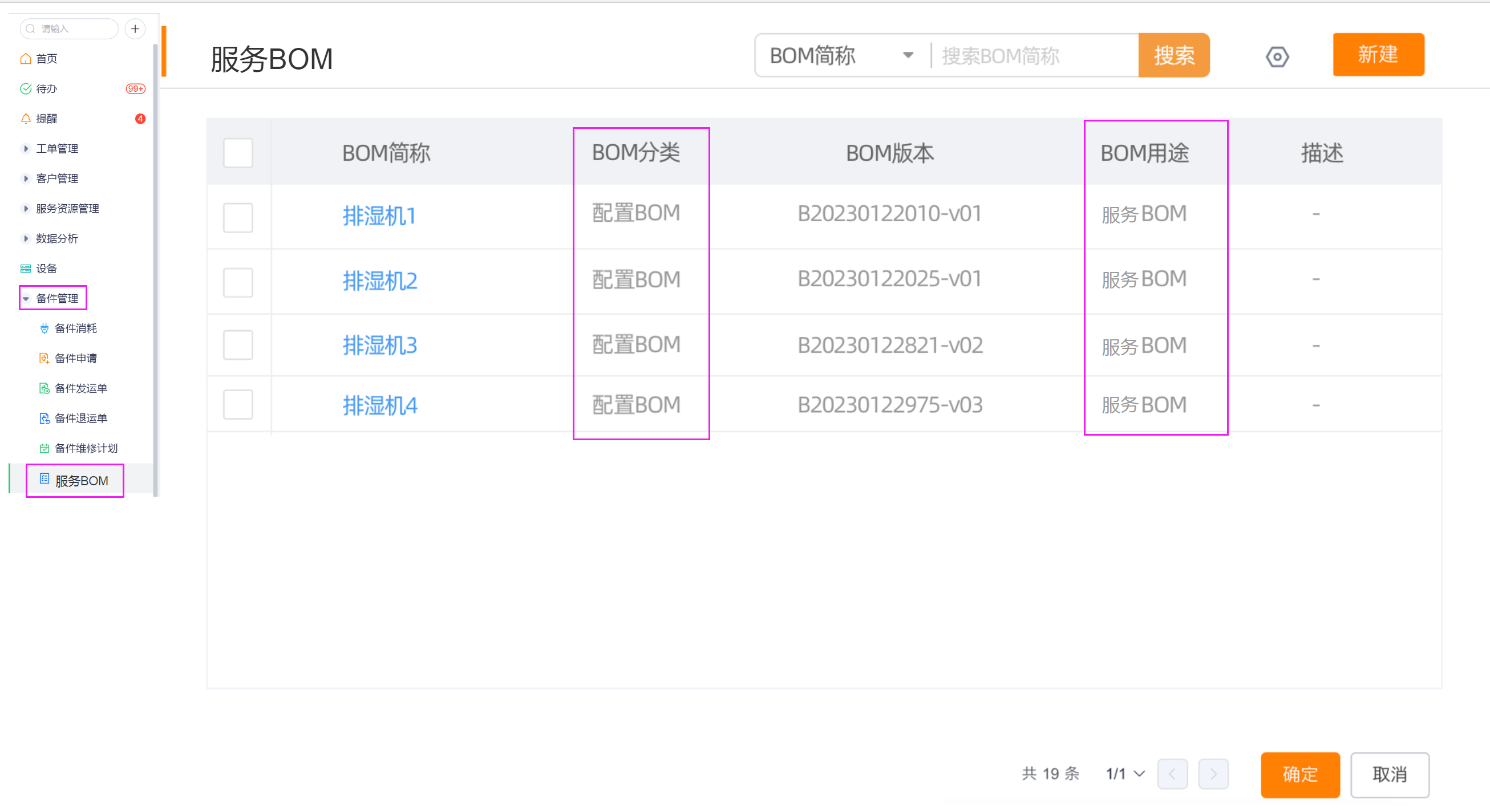
Open the list in Spare Parts Management > Service BOM.
The list only displays data with BOM classification = configuration BOM, BOM purpose = service BOM.
Select New. When you create a BOM from this entry point, its category and purpose use the fixed values above.
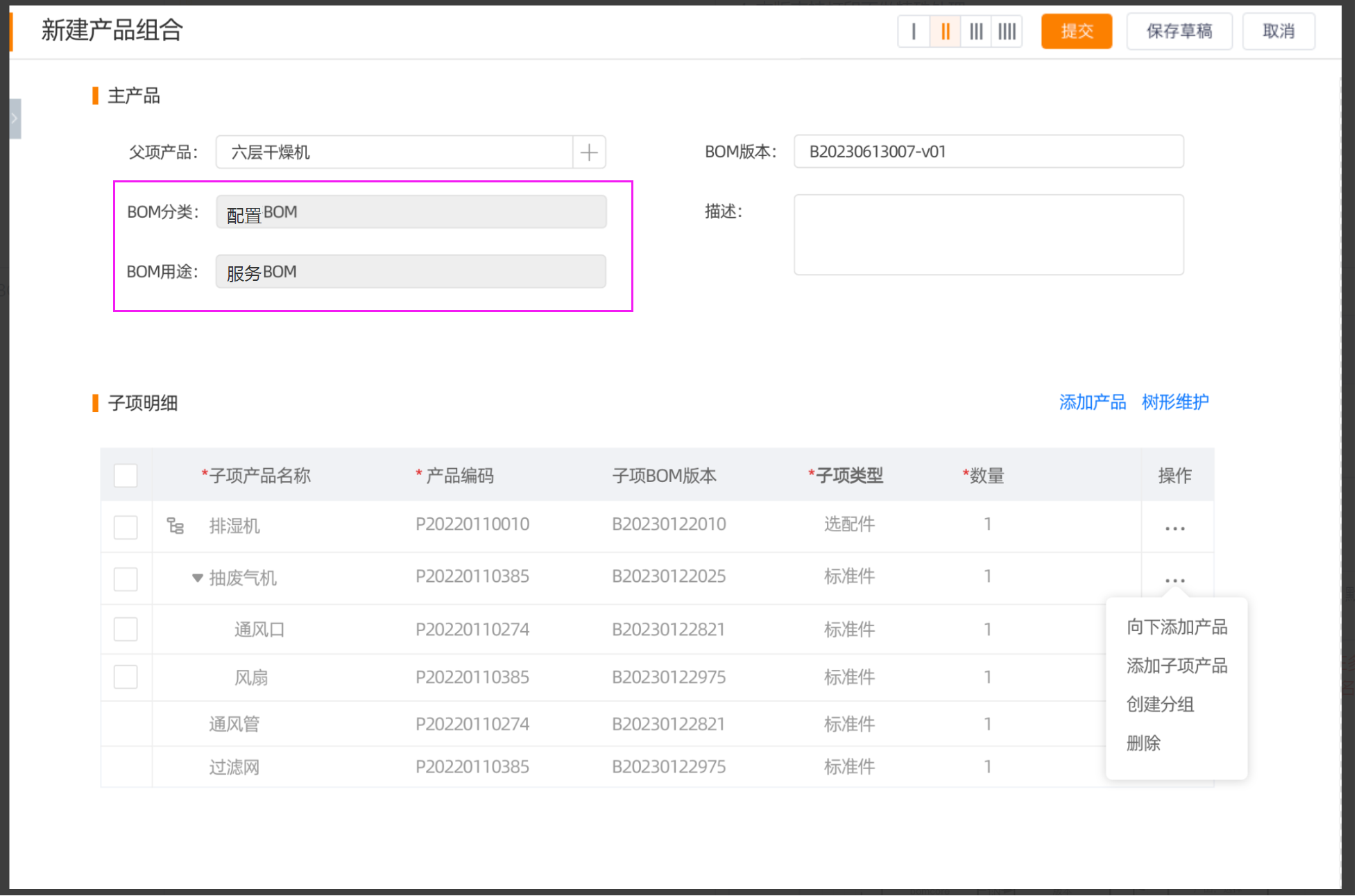
Add the parent product, spare part, quantity, drawing number, and other details. Save the BOM.
3. Use service BOM in picking and applying
Based on service BOM picking
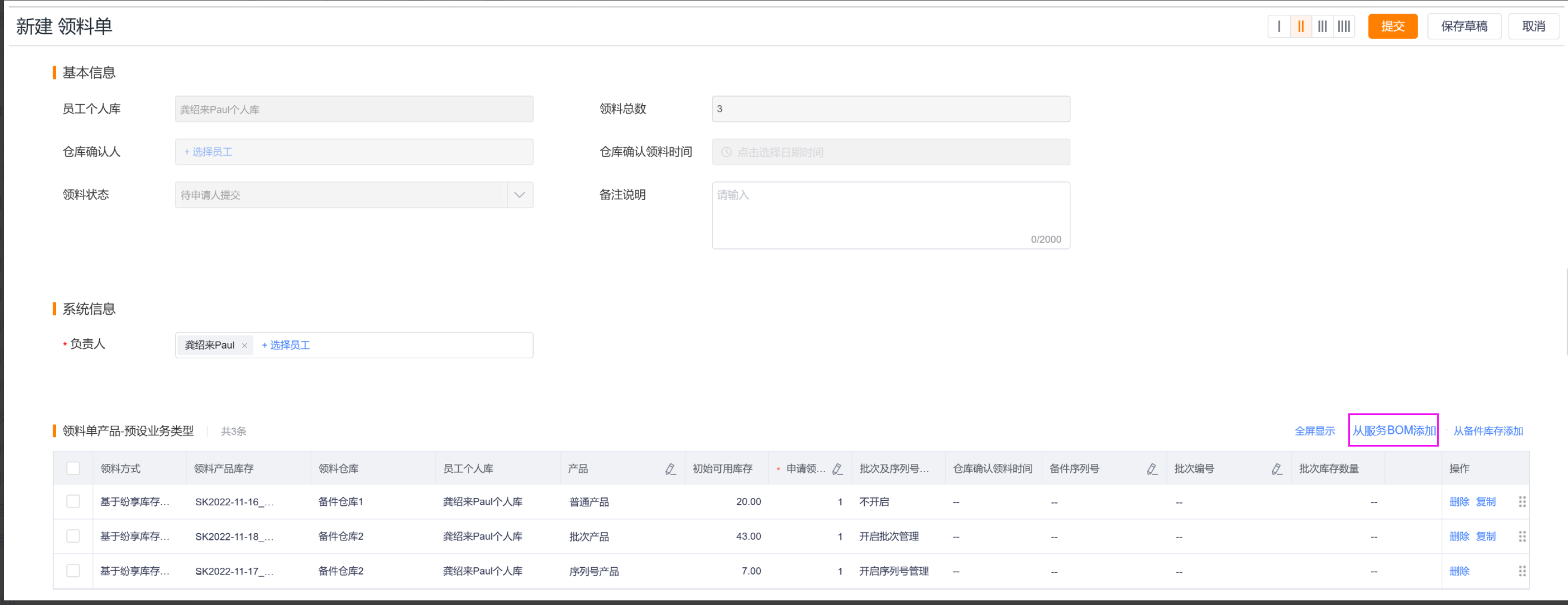
When creating a new picking list, click Add from Service BOM.
When the work order is not filled in, the pop-up window displays all the data that configures the BOM and is used for the service BOM.
After filling in the work order, the system matches the service BOM in the order of multiple devices → single device → product associated with the work order.
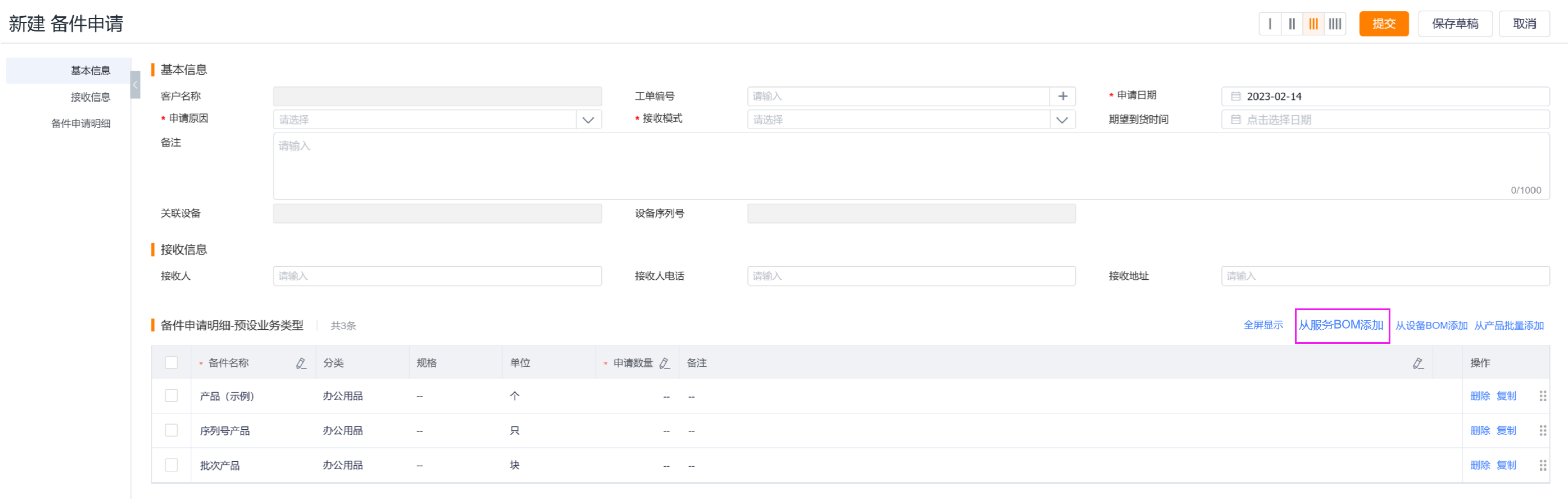
Submit spare parts request based on service BOM
When creating a new spare parts application, click Add from Service BOM.
When the work order is not filled in, all eligible service BOMs are displayed; after the work order is filled in, the BOMs are matched according to the order of equipment products.
4. Use service BOM in spare parts consumption
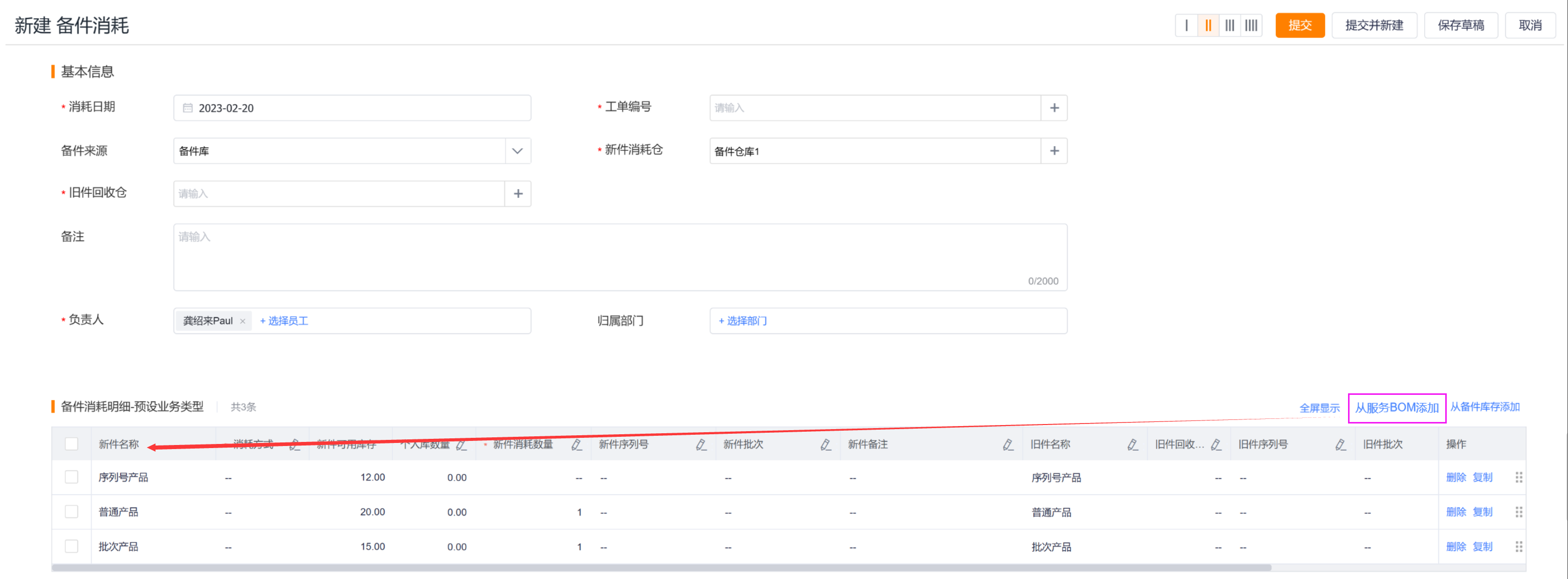
After creating a new spare parts consumption and selecting Spare Parts Library as the source, first select the new parts consumption warehouse.
Click Add from Service BOM to match the product of the device associated with the work order with the service BOM.
You can select multiple service BOM products at one time and click OK.
The system matches records with available inventory quantity greater than 0 in the new parts consumption bin, and fills in the new parts field of the consumption details.
5. Configure and use an exploded view
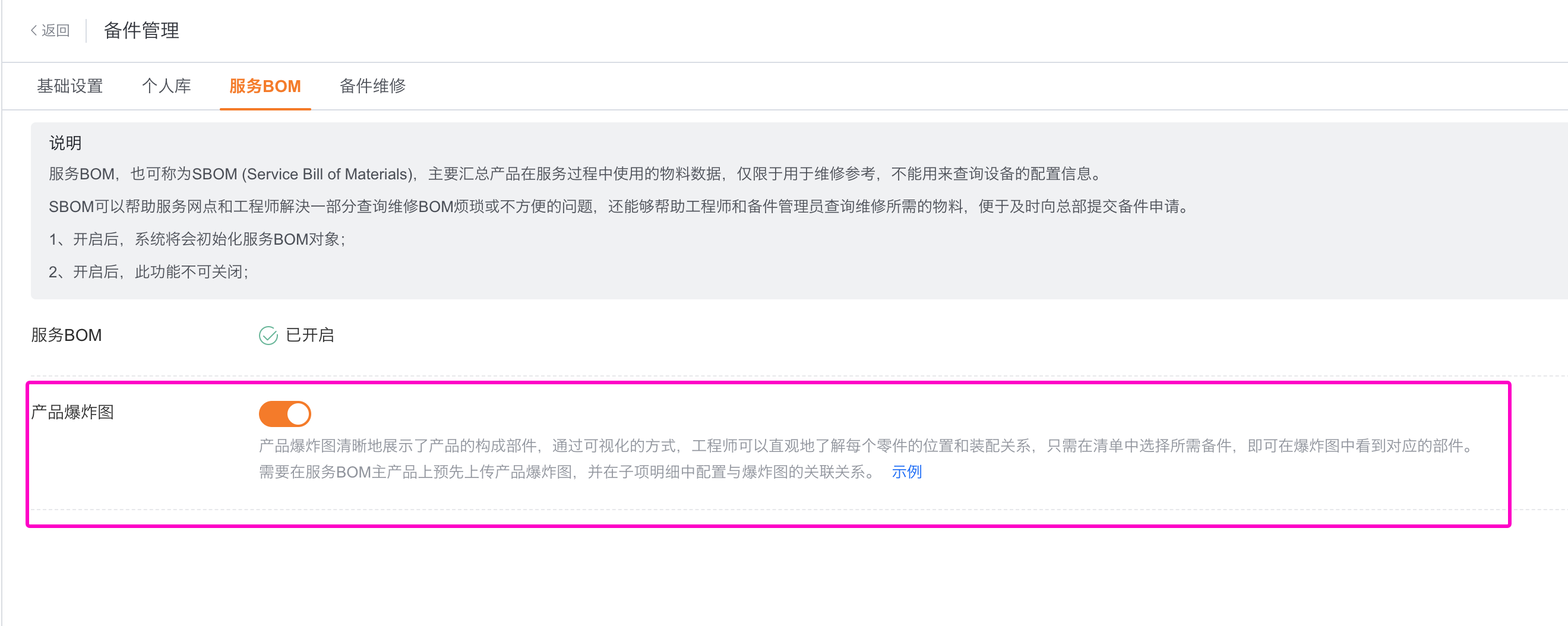
Enter Product Exploded View in Spare Parts Management > Service BOM; it can only be opened after purchasing the OCR resource package.
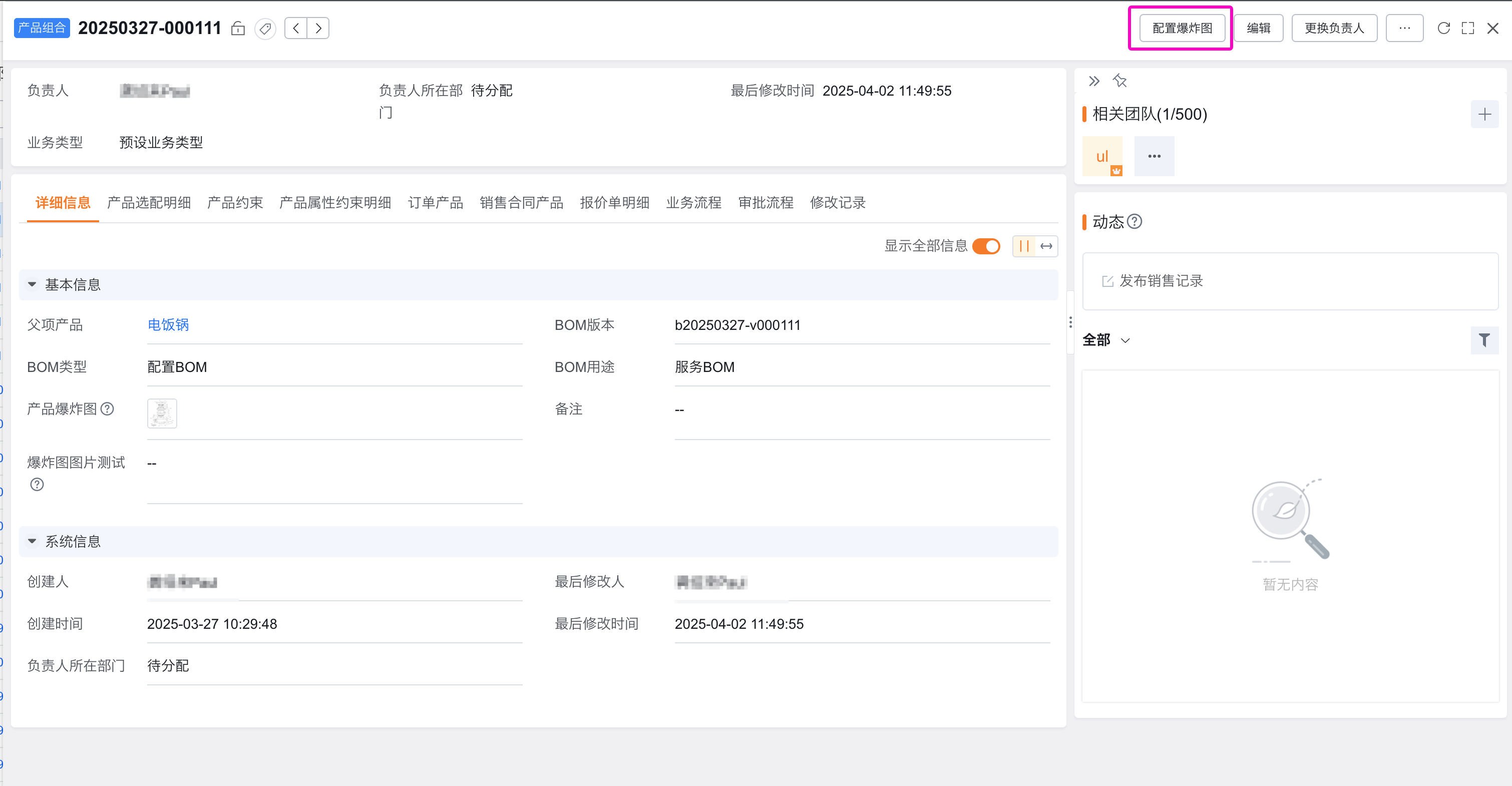
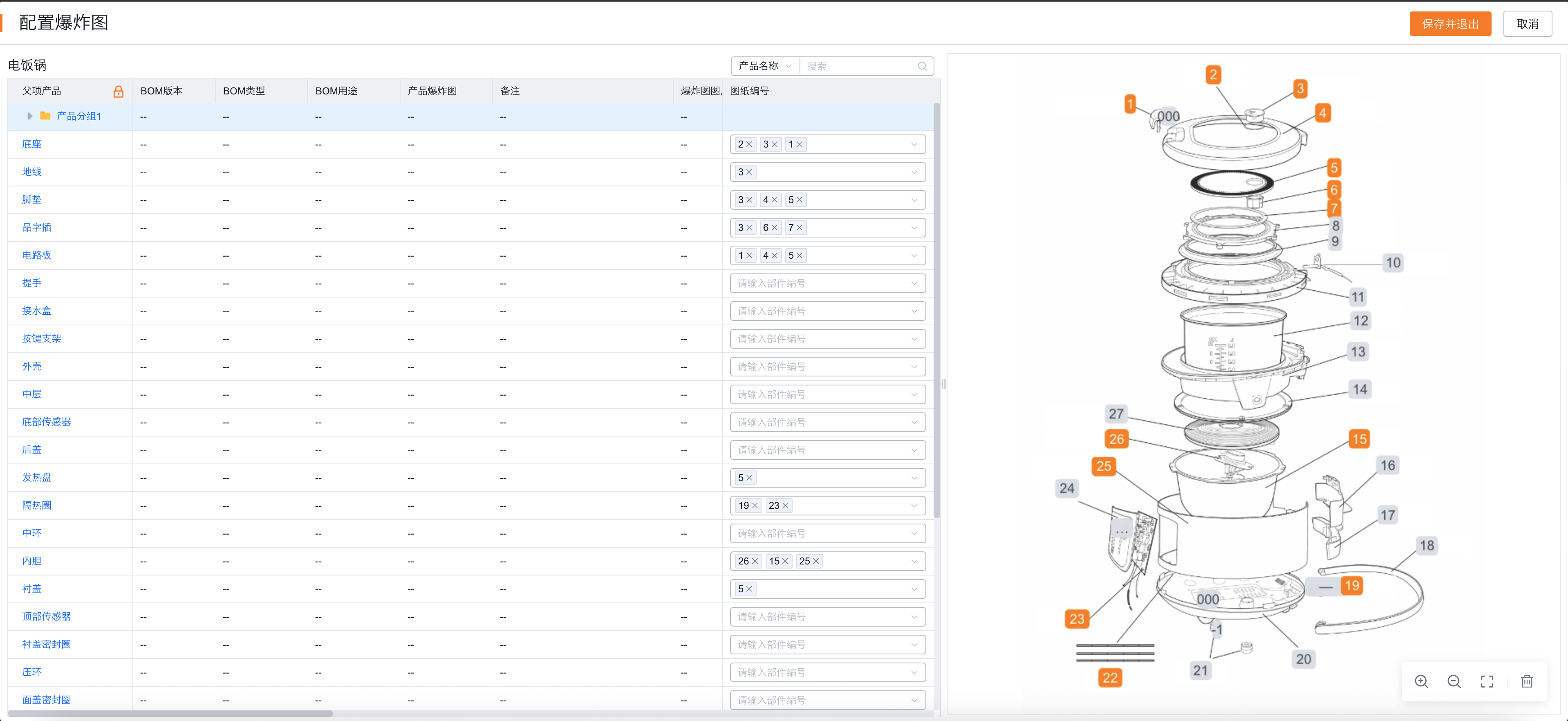
Click Configure Exploded View in the upper right corner of the service BOM details page.
When the OCR recognition times are sufficient, the system recognizes the exploded drawing part number; select the corresponding number in the drawing number of the service BOM detail to complete the matching.
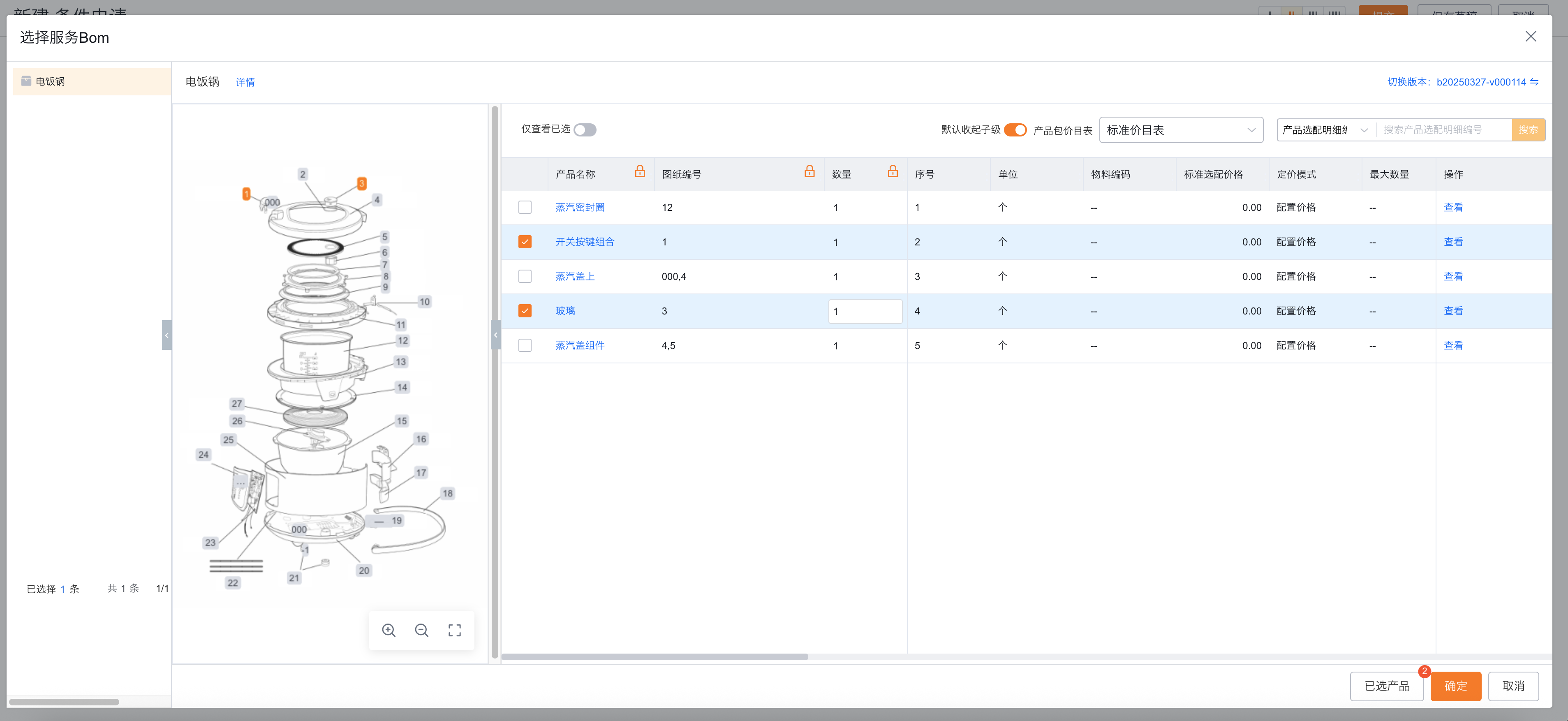
When adding spare parts from the service BOM in business documents such as applications: Selecting the exploded view component on the left will automatically select the product on the right; selecting the product on the right will highlight the corresponding component on the left.
Expected results and verification
- The Service BOM list only displays data that has a configuration BOM and is intended to be a Service BOM.
- Picking lists and spare parts requests can match service BOMs based on work order equipment products.
- When consuming from the spare parts library in advanced mode, the available inventory records can be automatically brought out after selecting the service BOM product.
- Exploded parts and service BOM products can be selected and highlighted in both directions.
Notes
- Service BOMs do not represent the installed configuration of equipment. Use an equipment asset BOM for that purpose.
- The service BOM cannot be turned off after it is enabled. Before enabling it, confirm that CPQ, advanced mode and new version consumption have been met.
- When new parts are automatically brought out from the service BOM, only records with available inventory greater than 0 in the selected consumption bin will be matched.