Appearance
Dispatcher operations on the web and app
Overview
This article fully explains the operations of enterprise dispatchers in handling work orders to be assigned on the Web and App, and is used by administrators to verify whether the roles, menus, and dispatch settings are truly effective.
Before you begin
- The current user has the role of Dispatcher and the permission to assign work orders.
- Web to-do and App workbench have opened the portal for assignment.
- The work order has entered the enterprise-level assignment node.
Procedure
1. Assign work orders on the web
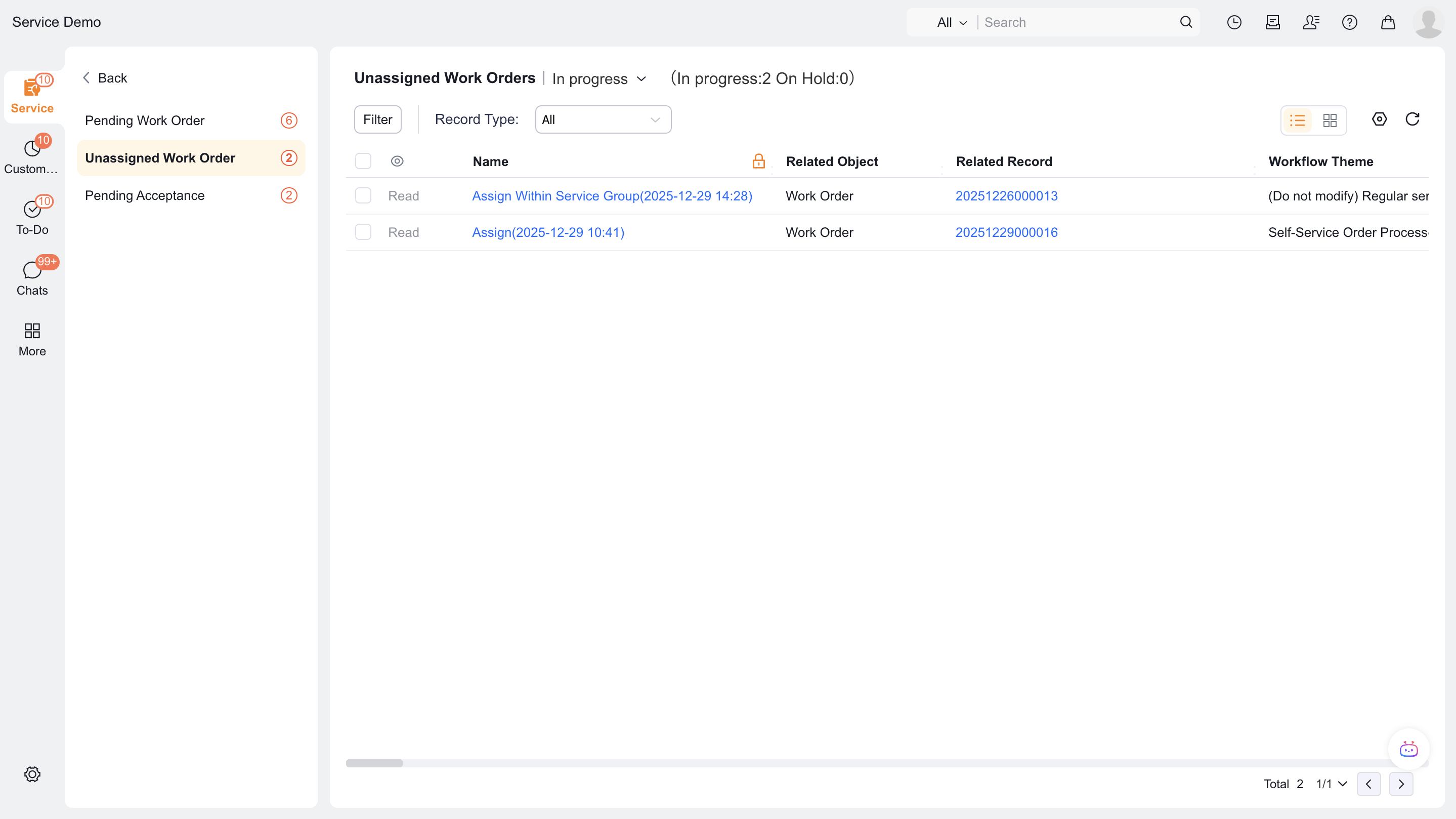
Go to To Do > Work Orders to be Assigned.
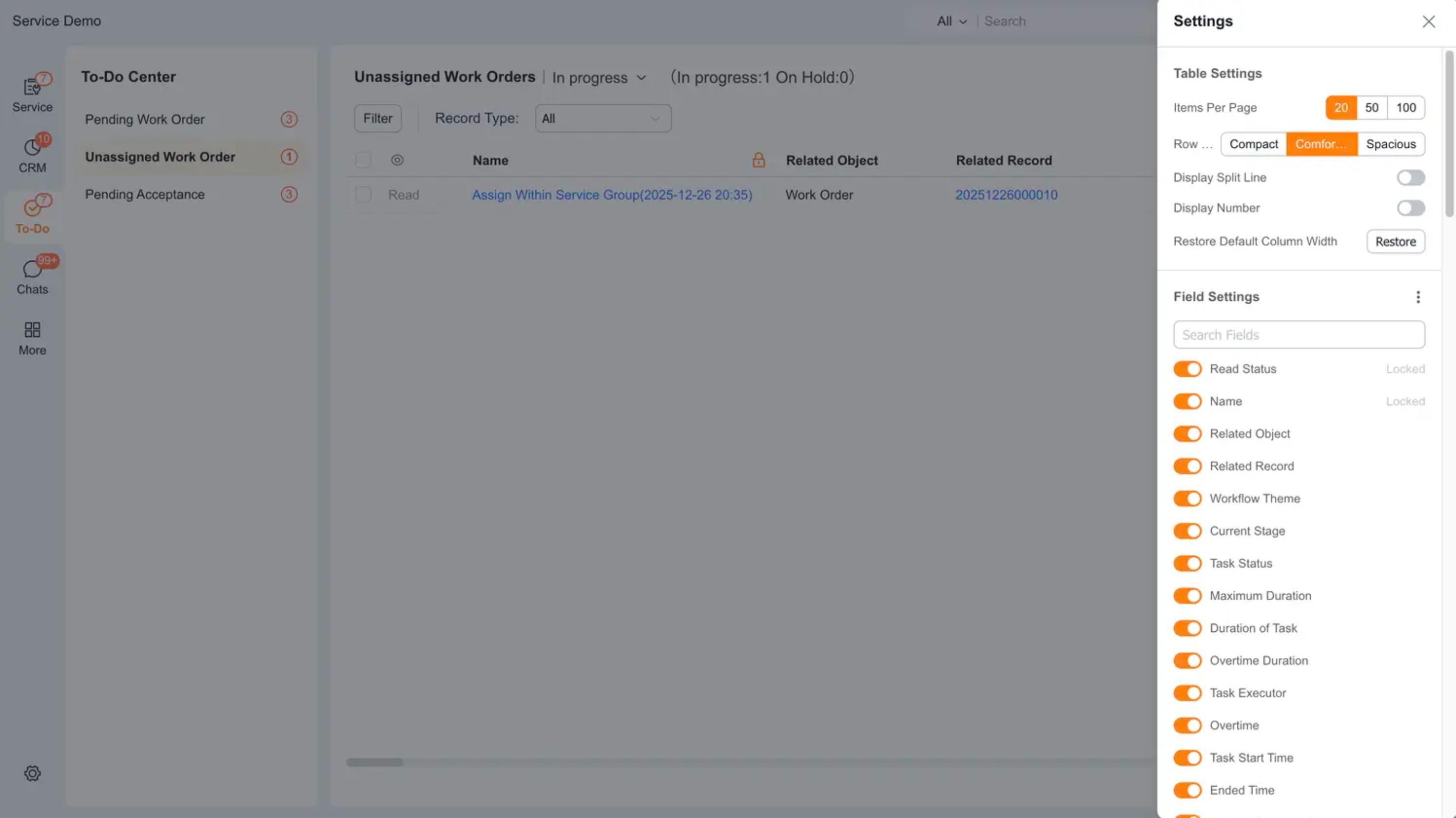
Click Settings in the upper right corner, select the to-do list display field and click Apply.
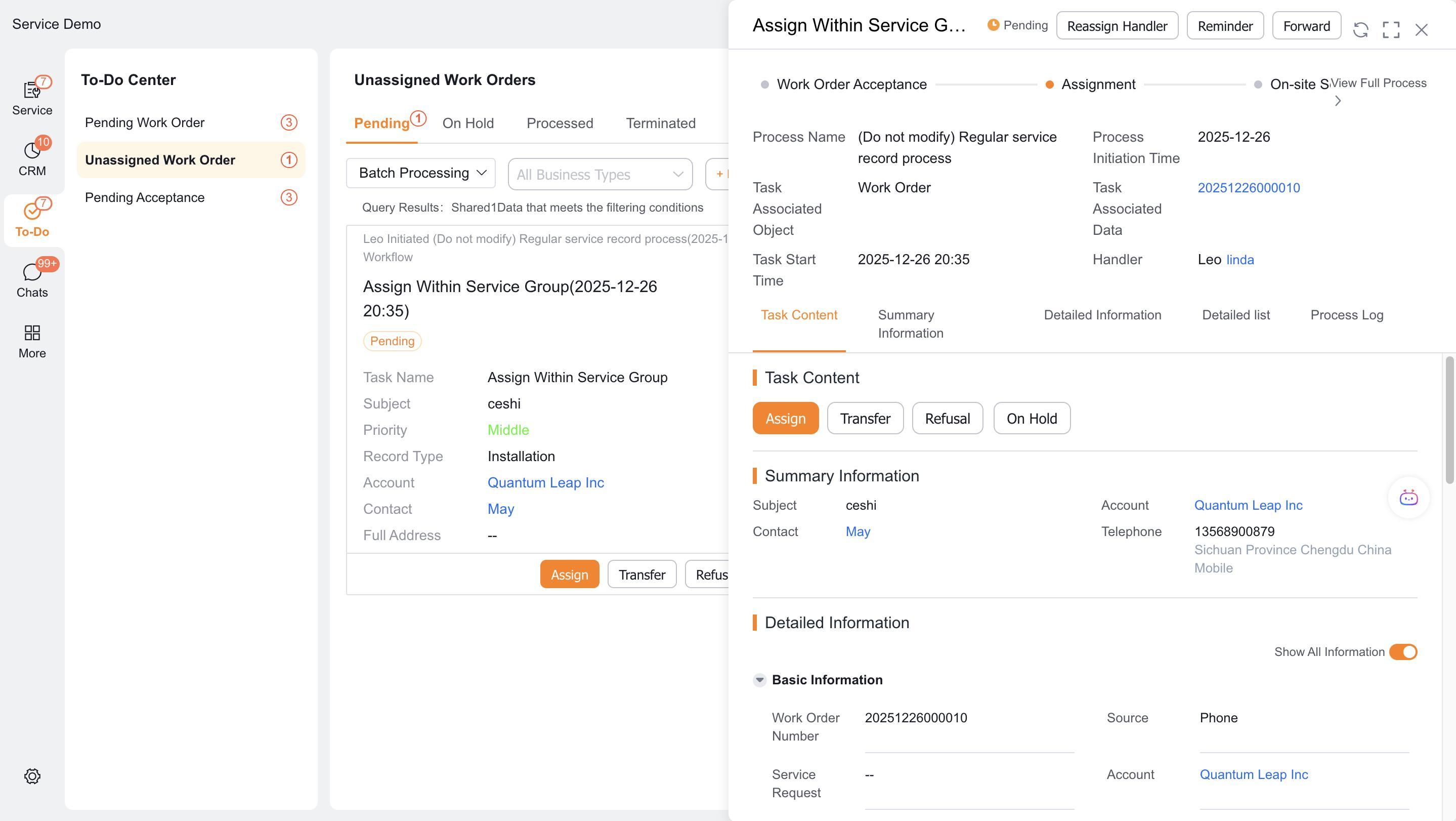
Select the task to be assigned and click Work Order Assignment.
Select the recipient after viewing the engineer's online status, current location, and number of dispatched work orders in list mode.
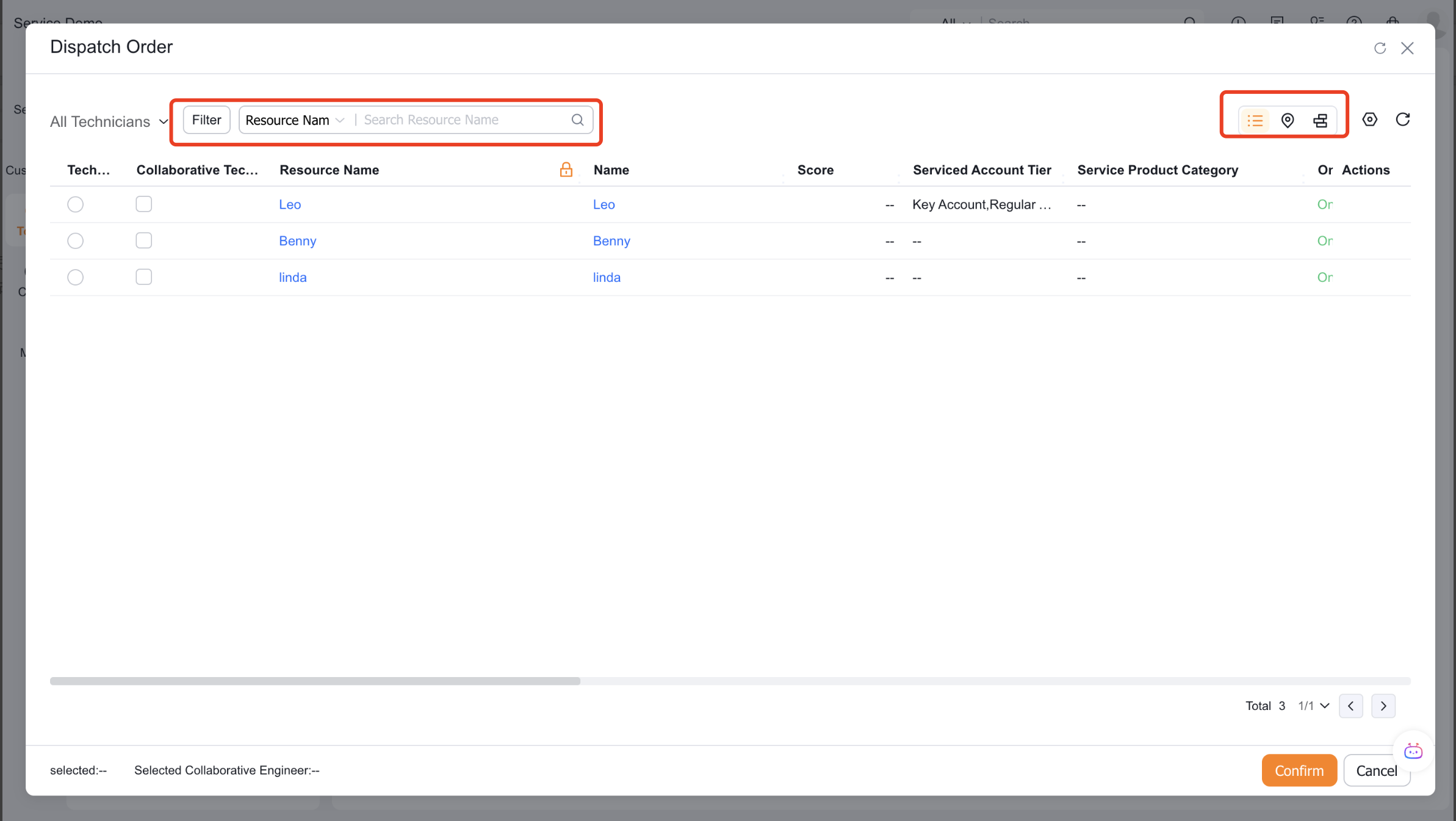
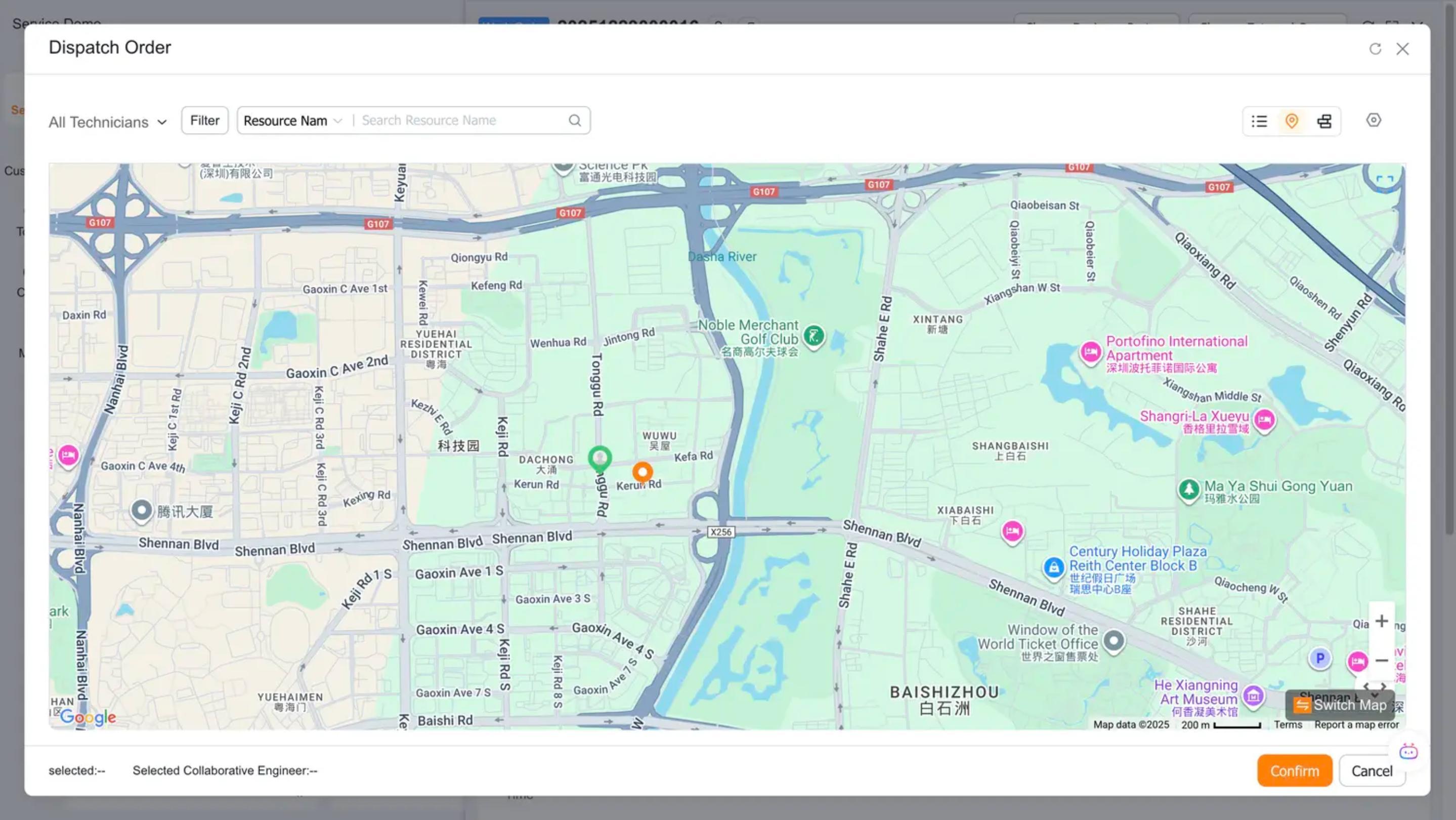
If the work order has a location address, you can switch to map mode to view nearby internal personnel or external service provider resources.
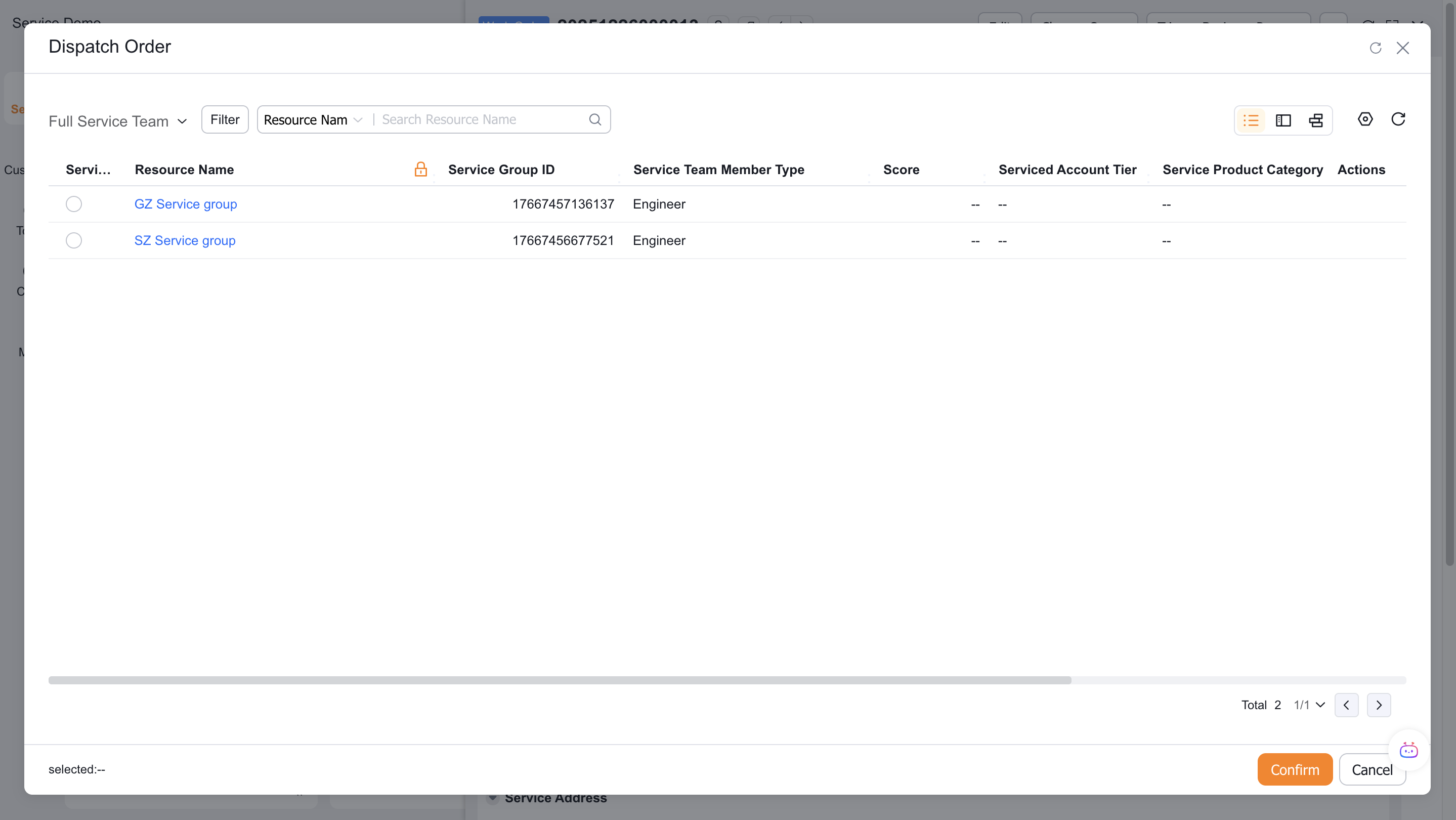
If the process target is a service group, select the service group on the assignment page and confirm.
2. app assignment
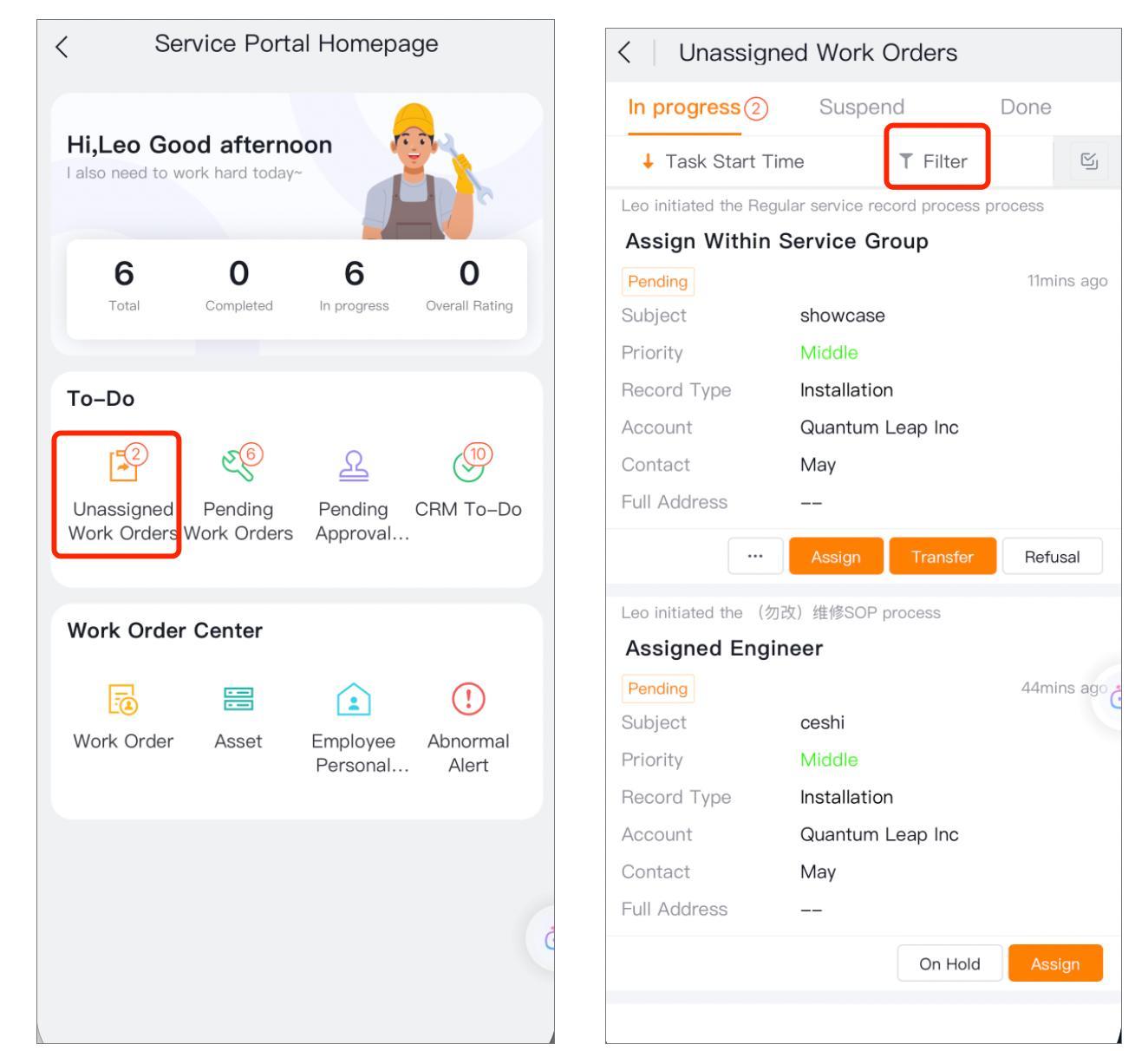
Enter the Assignment menu on the workbench.
Select the work order to be assigned and click Work Order Assignment.
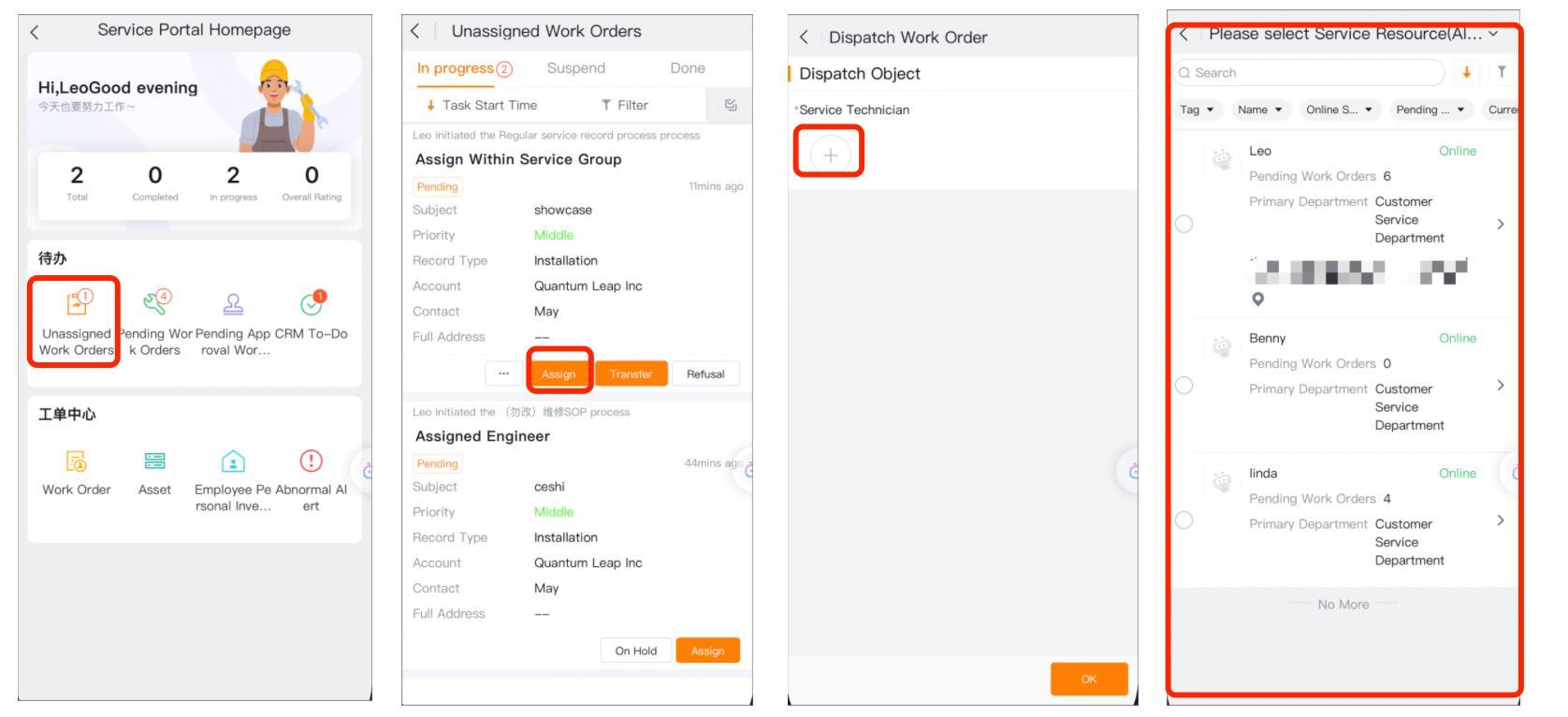
Select Engineer and confirm.
If collaborative engineers are enabled, multiple collaborators can be selected.
The app does not support map dispatch.
3. Reassignment
Confirm that the current account has the permission to reassign the button.
Open the assigned work order and click the corresponding reassign button in the operation area.
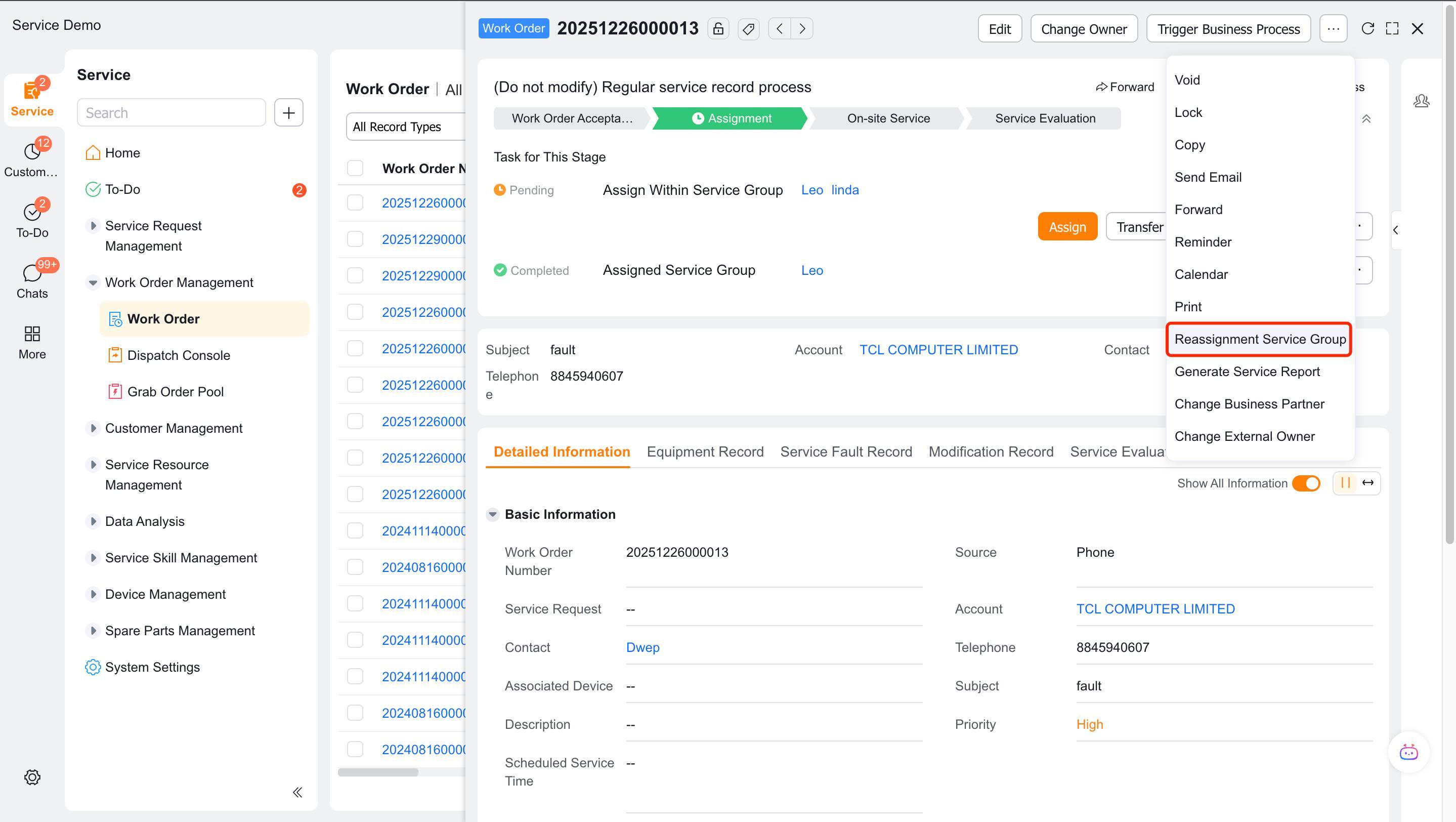
Select a new engineer, collaborative engineer, or service group and submit.
Verify the result
- Dispatchers can receive tasks to be assigned at the same level of responsibility on the Web and App.
- The Web supports lists, maps, and Gantt chart entries allowed by configuration, and map dispatch does not appear in the App.
- Candidate resources comply with manual rules, skill checks, and data permissions.
- The reassignment button is only displayed for authorized roles.
FAQ
App has no entry to be assigned
Check whether the administrator has added the menu to be assigned to the workbench and check the role of the dispatcher.
Map dispatch cannot be used
Check whether the platform is Web and whether the ticket has a location address.
Notes
- List column settings and dispatch pop-up window column settings are different configurations.
- Collaborative engineers can only be selected manually.