Appearance
Configure work order check-in
Overview
Work order check-in is used to record the work, travel, waiting and other working hours of engineers in on-site services, as well as the check-in and check-out locations and photos collected according to company rules. The system supports two application methods:
| Method | Applicable scenarios | Maturity and entrance |
|---|---|---|
| On-site standard operation process clock-in | Engineers sign in before executing the SOP process and sign out after completion | Enable in the SOP process and use the public clock-in rules in this article |
| General work order check-ining rules | Does not rely on fixed SOP procedures, sign in sequence or sign freely to record working hours | Grayscale capabilities, need to contact the account manager to activate |
Before you begin
- Use an administrator account with the ability to clock in work orders, configure work order objects, and role permissions.
- The work order has been configured with a positioning field for distance verification; the system uses the service address positioning field of the work order by default.
- The working hours classification, internal engineer or department scope, service provider scope, positioning requirements, allowable errors and exception handling methods that need to be recorded have been determined.
- When it comes to international maps, confirm that you have purchased the corresponding license.
Configure check-in scenario
Enter Service Pass > System Settings > Work Order Check-in.
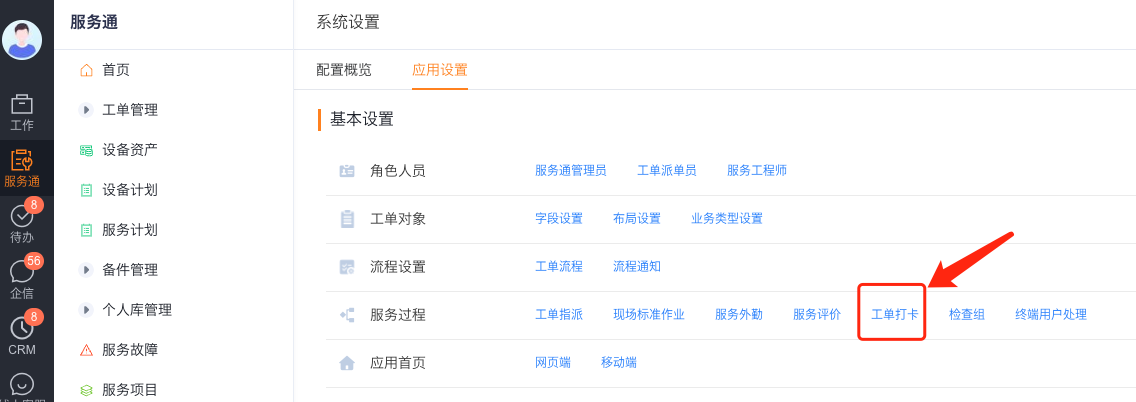
Enable Enable Work Order Check-in when using it for the first time. When the system is started for the first time, the Work Order Check-in Scene and Work Order Check-in Record objects will be initialized.
In Check-in Scenario, select New to create scenarios such as work, business travel, and waiting for materials.
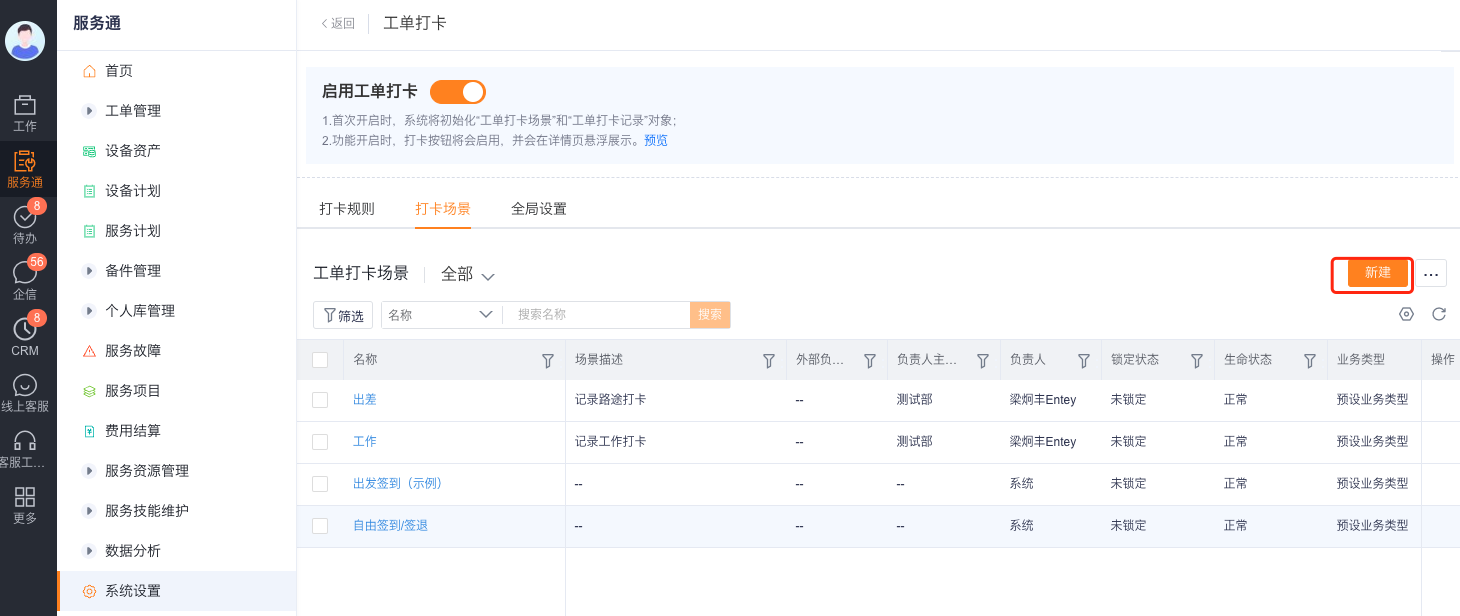
The check-in scenario is used to classify and count work hours, and can be bound to different SOP processes. The source data does not recommend adding custom fields to this object.
Configure distance verification
Specify the work order service location field used for comparison in the work order clock-in settings; the default value is the service address positioning field of the work order.
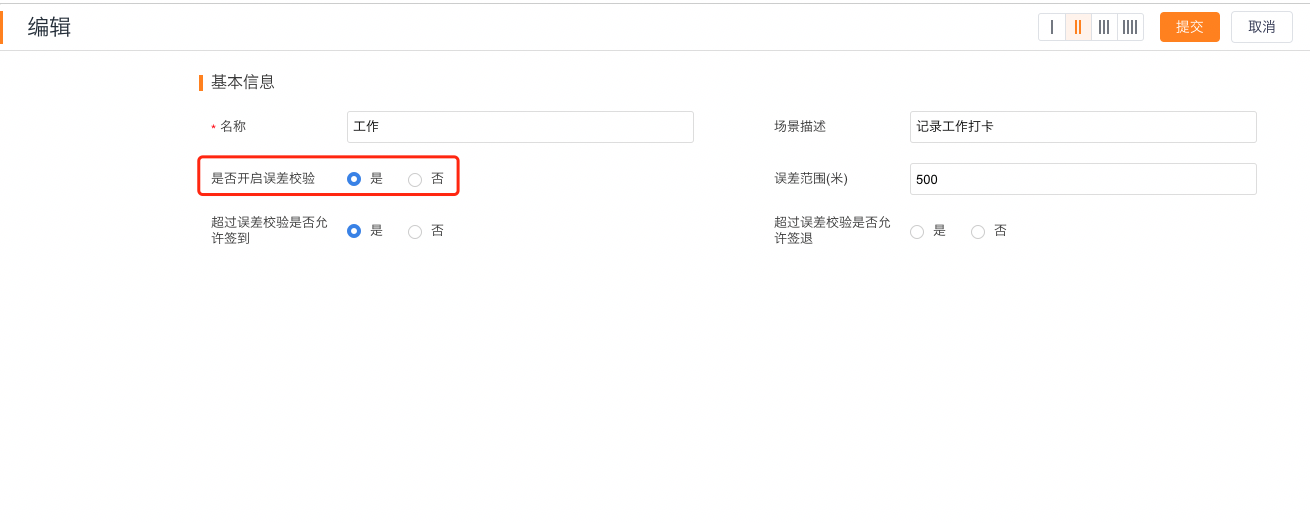
Edit the check-in scene that needs to be verified, enable error verification and fill in the allowed distance.
Set whether check-in and check-out are still allowed after exceeding the error range.
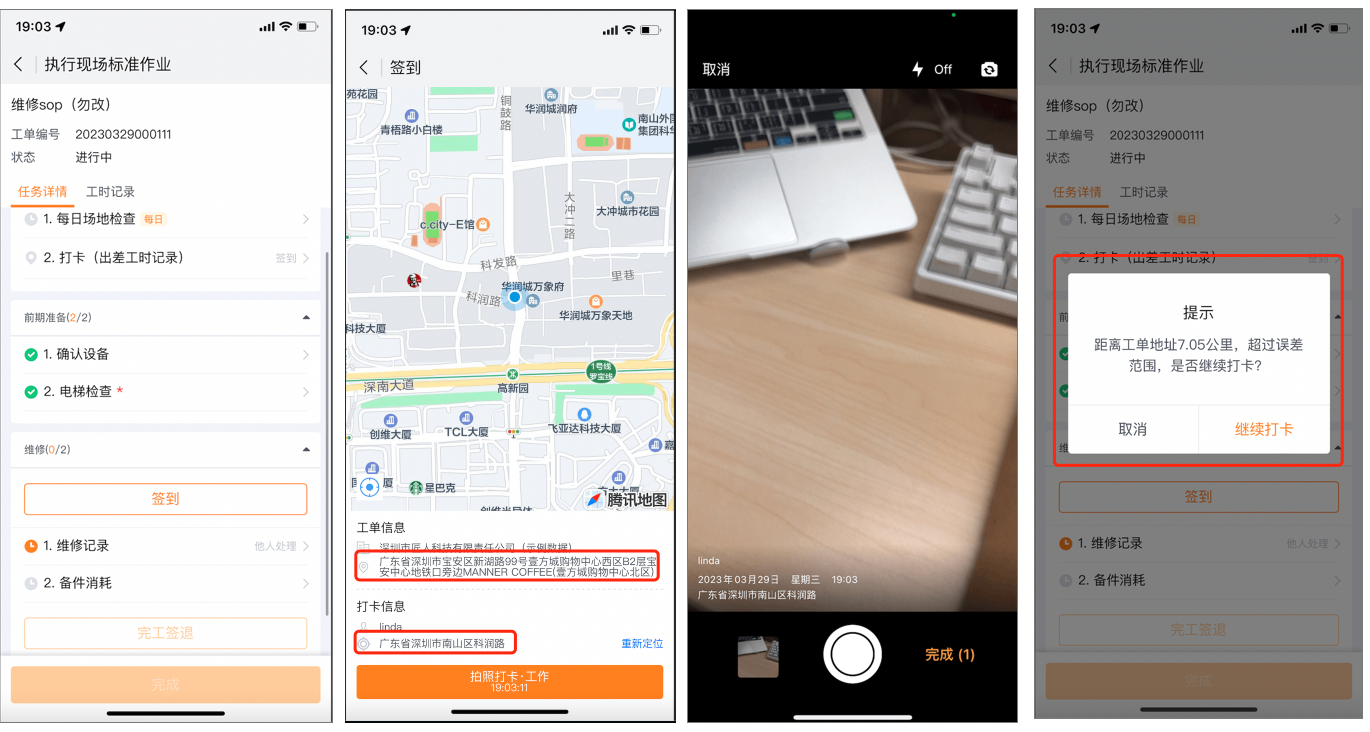
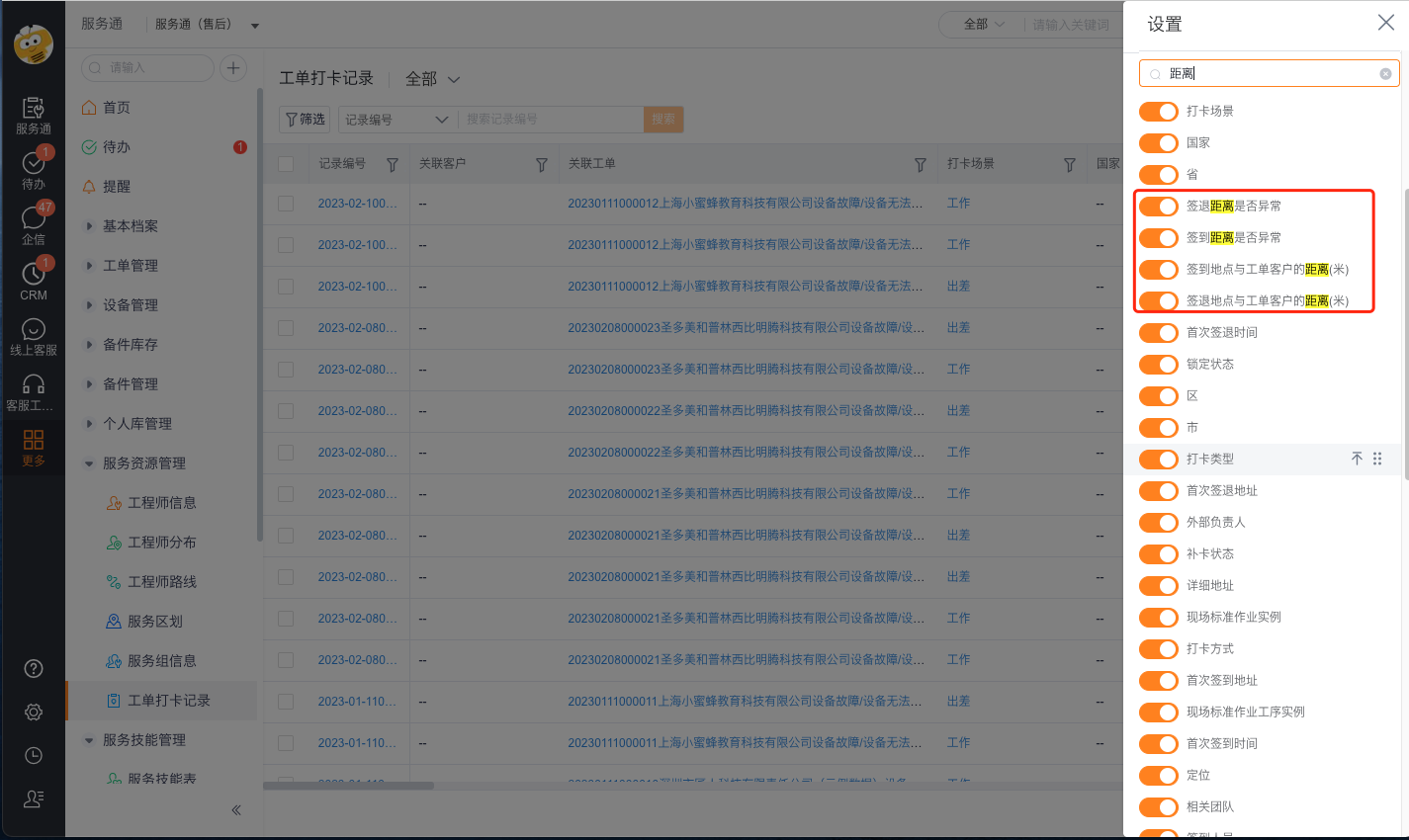
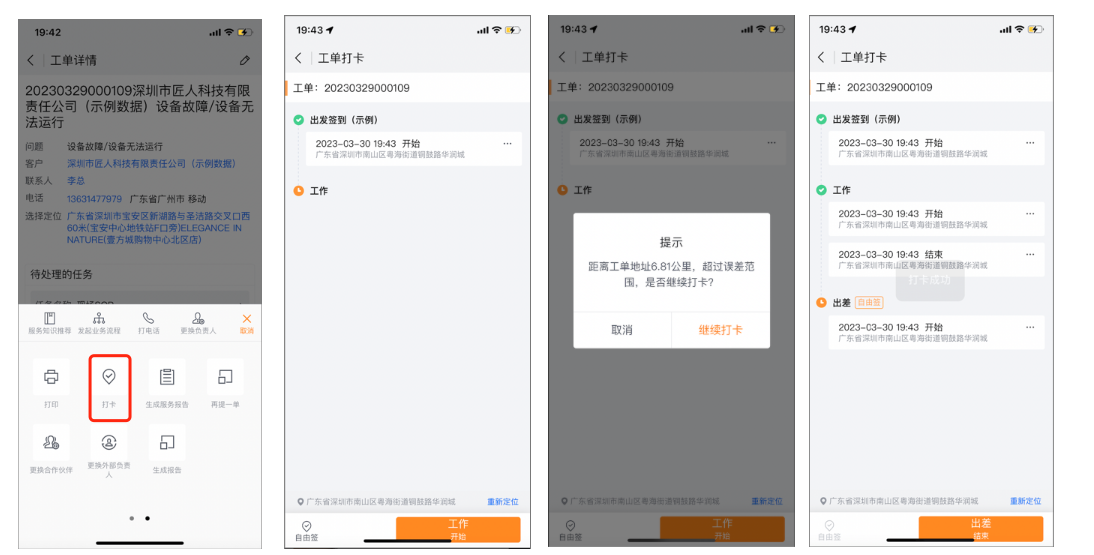
The system compares the engineer's location and the work order service address when clocking in. If the configuration is to allow punching in beyond the distance, the work order check-ining record will save the abnormal situation and abnormal distance.
Configure automatic association fields for check-in records
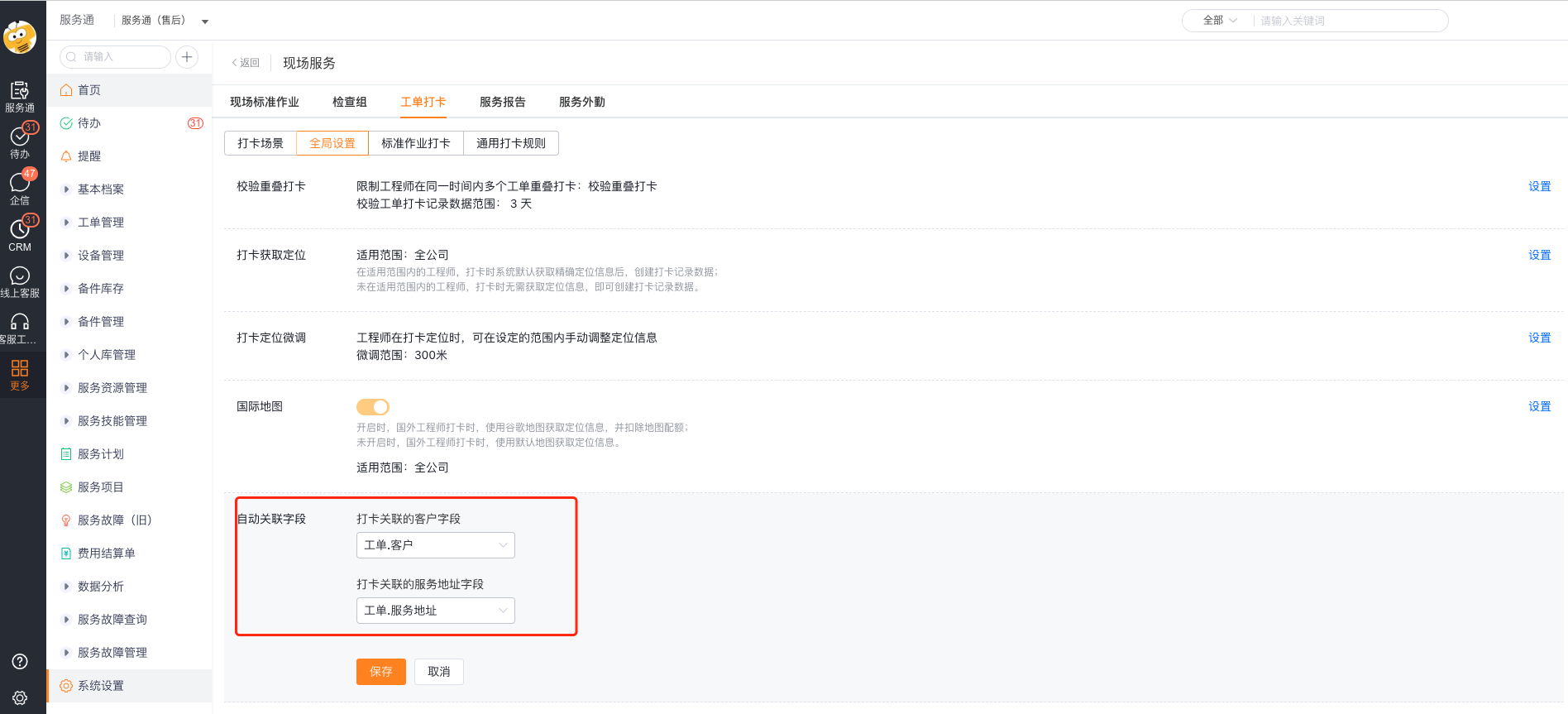
Under Global Settings > Automatically Associated Fields, select the customer and service-address fields for check-in records. For example, use Work Order.Customer and Work Order.Service Address.
Configure overlapping check-in verification
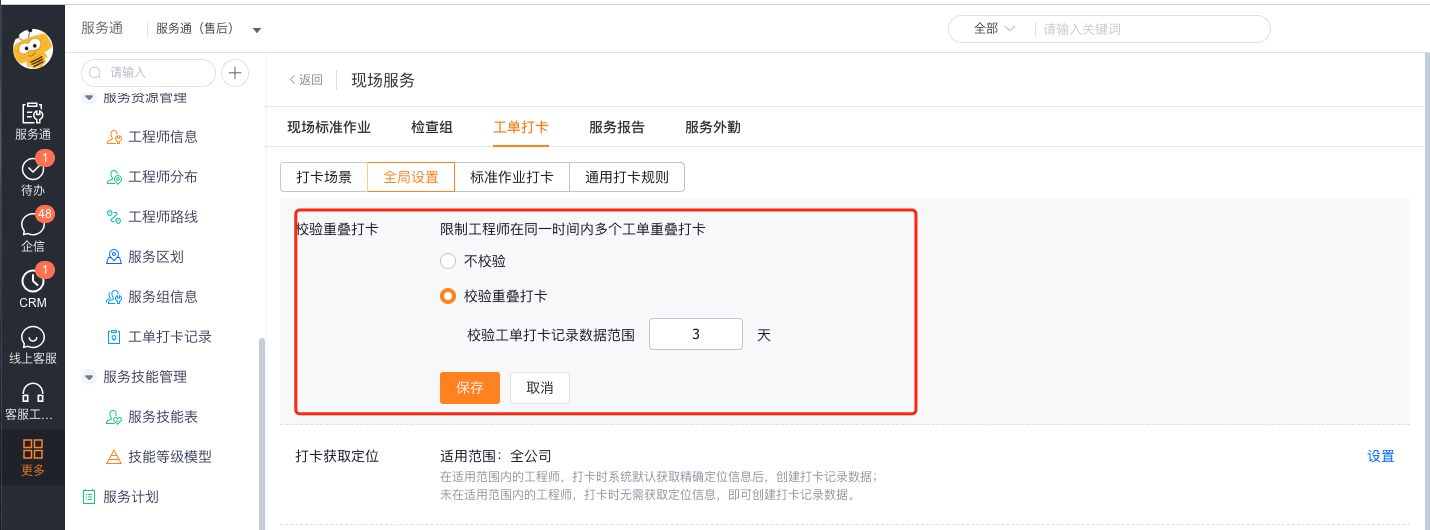
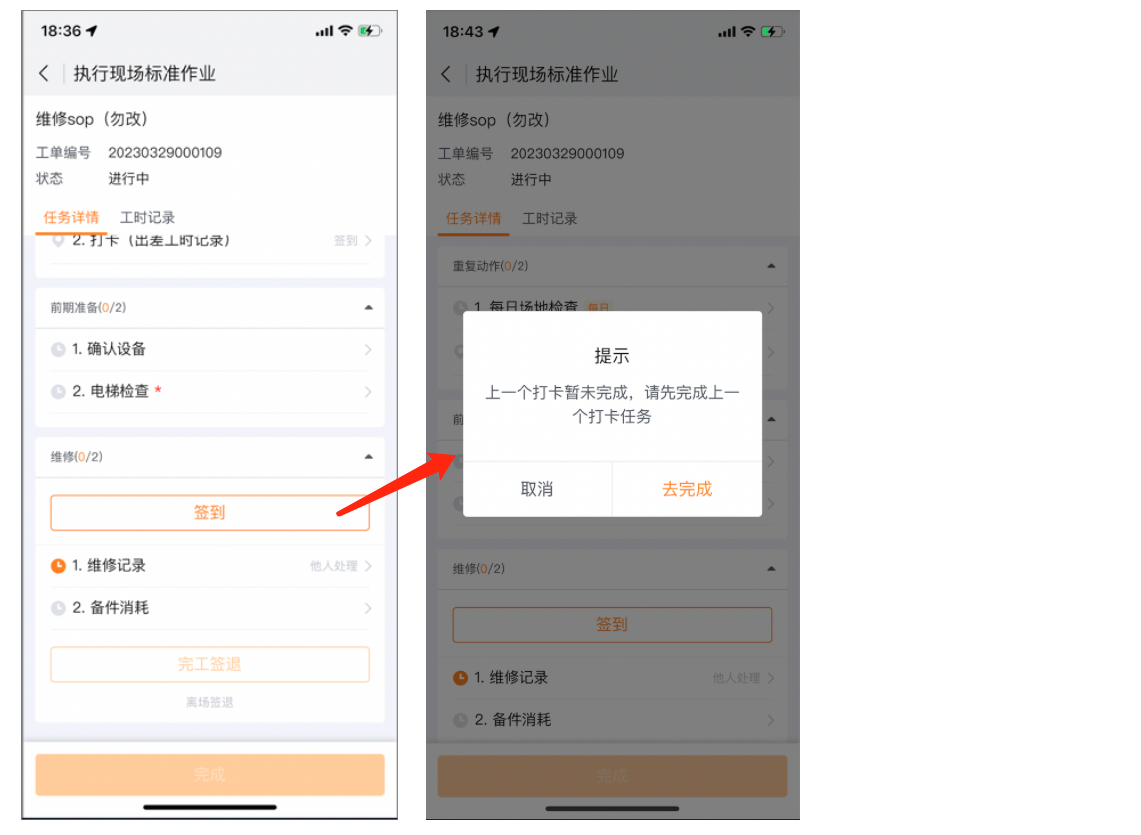
Overlap verification is suitable for companies that require the same engineer to only service one work order at a time. After enabling it, engineers cannot start punching in the next work order before the previous punching in is completed. Verification Days is used to limit the number of days that the system can check forward for unfinished check-in.
Configure positioning acquisition and fine-tuning
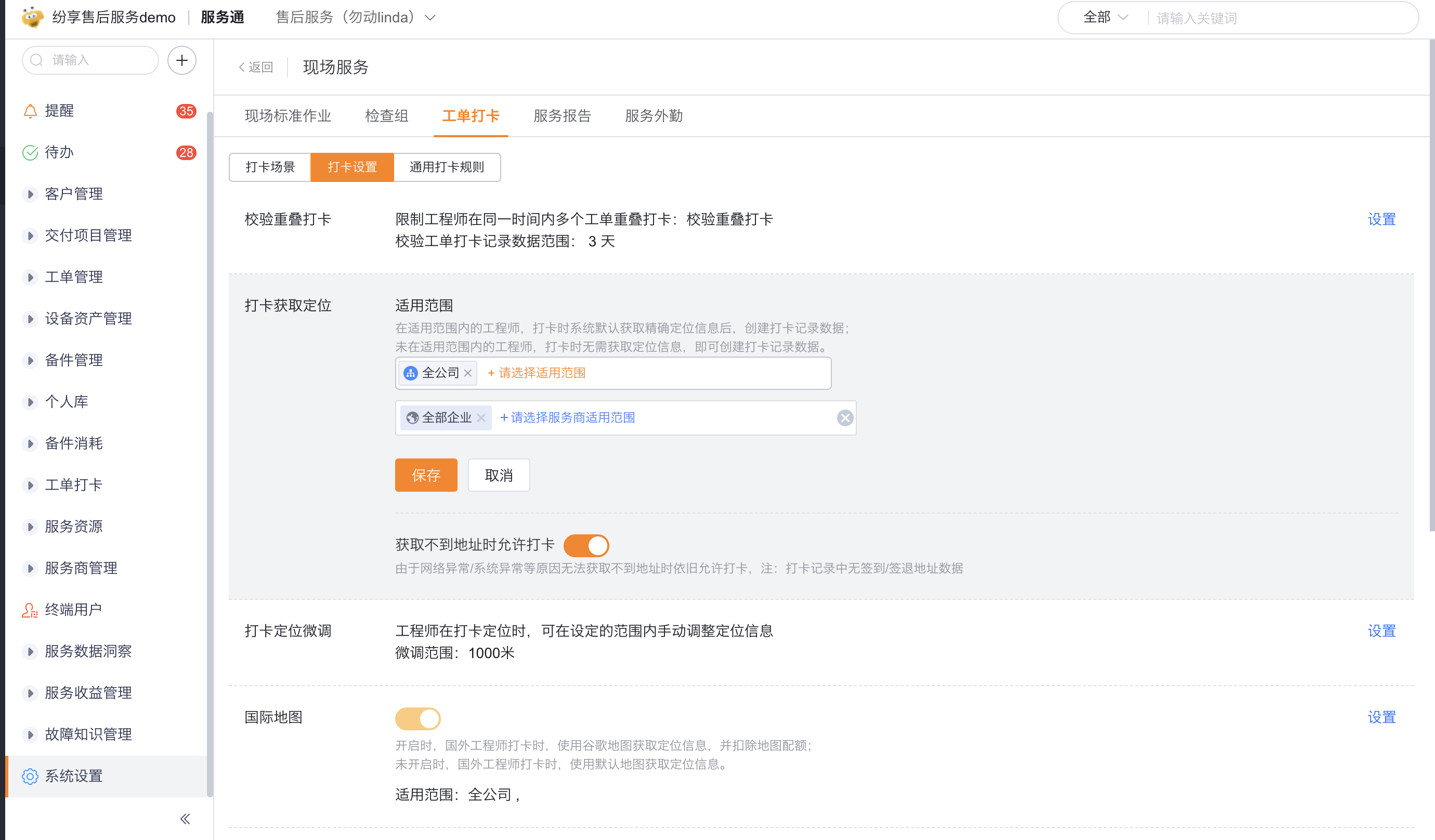
Positioning acquisition range
- The applicable scope can be selected by internal engineers or departments, or the service provider scope can be selected individually.
- When an engineer within the applicable scope clocks in, the system will create a record after obtaining the precise position.
- Engineers outside the applicable scope can create records without obtaining location.
- It is allowed to continue punching in when the address cannot be obtained due to network or system abnormalities; at this time, the punching record does not have a check-in or check-out address.
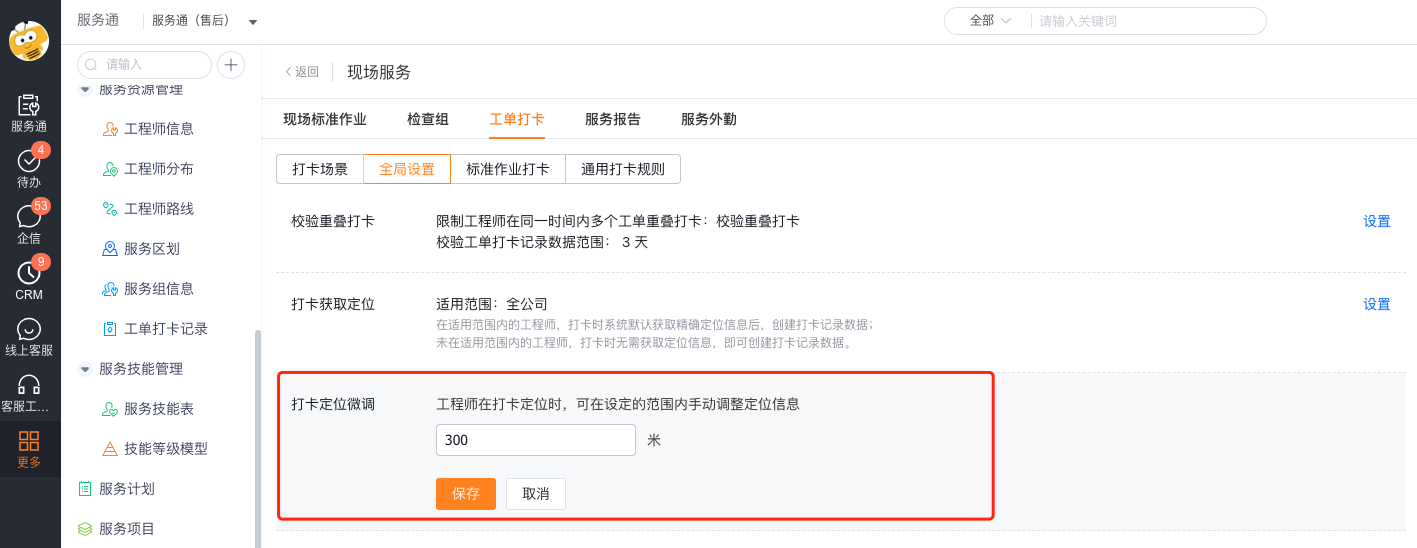
Position fine-tuning range
When the system's automatic positioning is inaccurate, engineers can be allowed to manually select addresses within the set range.
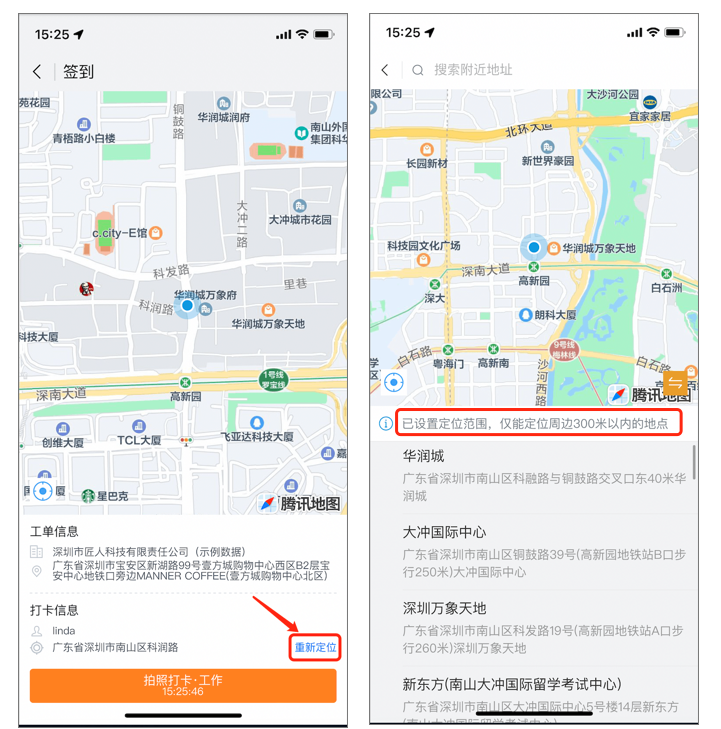
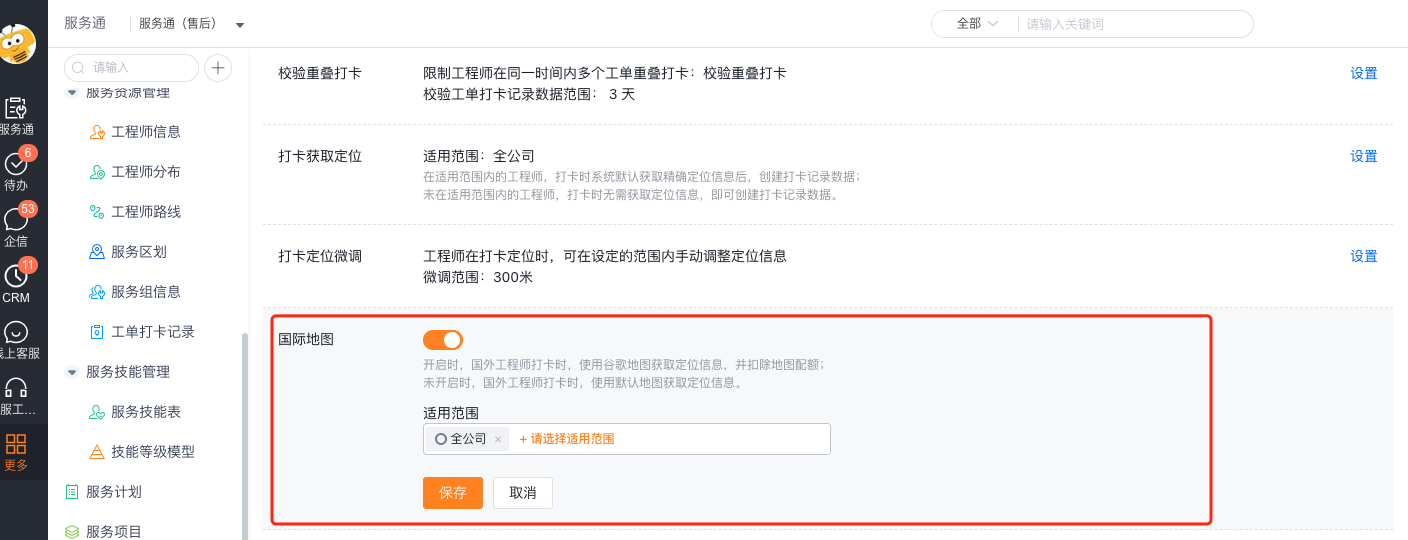
Configure international map
Foreign engineers can enable Google Maps positioning by checking in. This ability requires the additional purchase of an international map license; in order to control consumption, only some international engineers can be added to the scope of application.
Configure photo punch and watermark
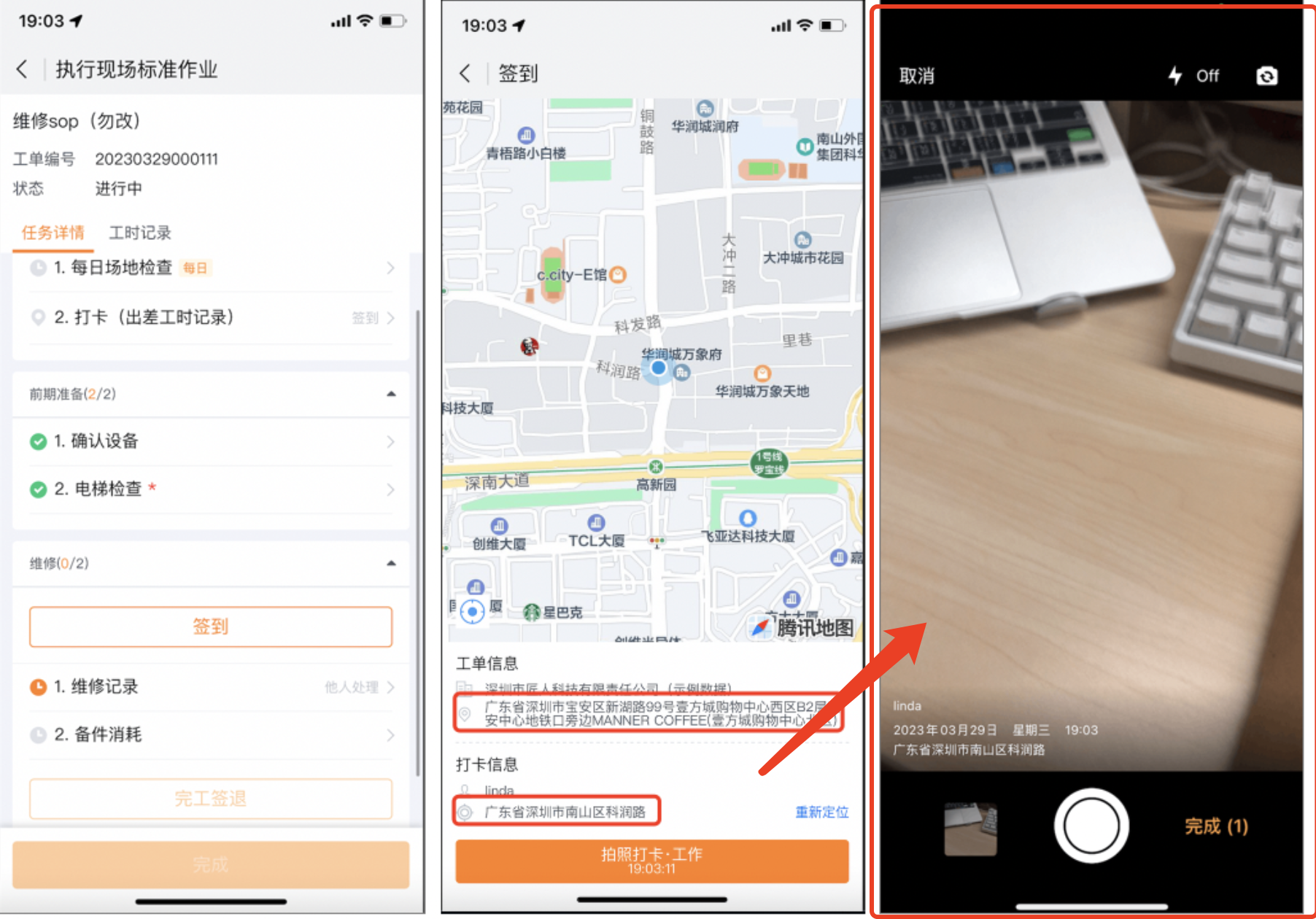
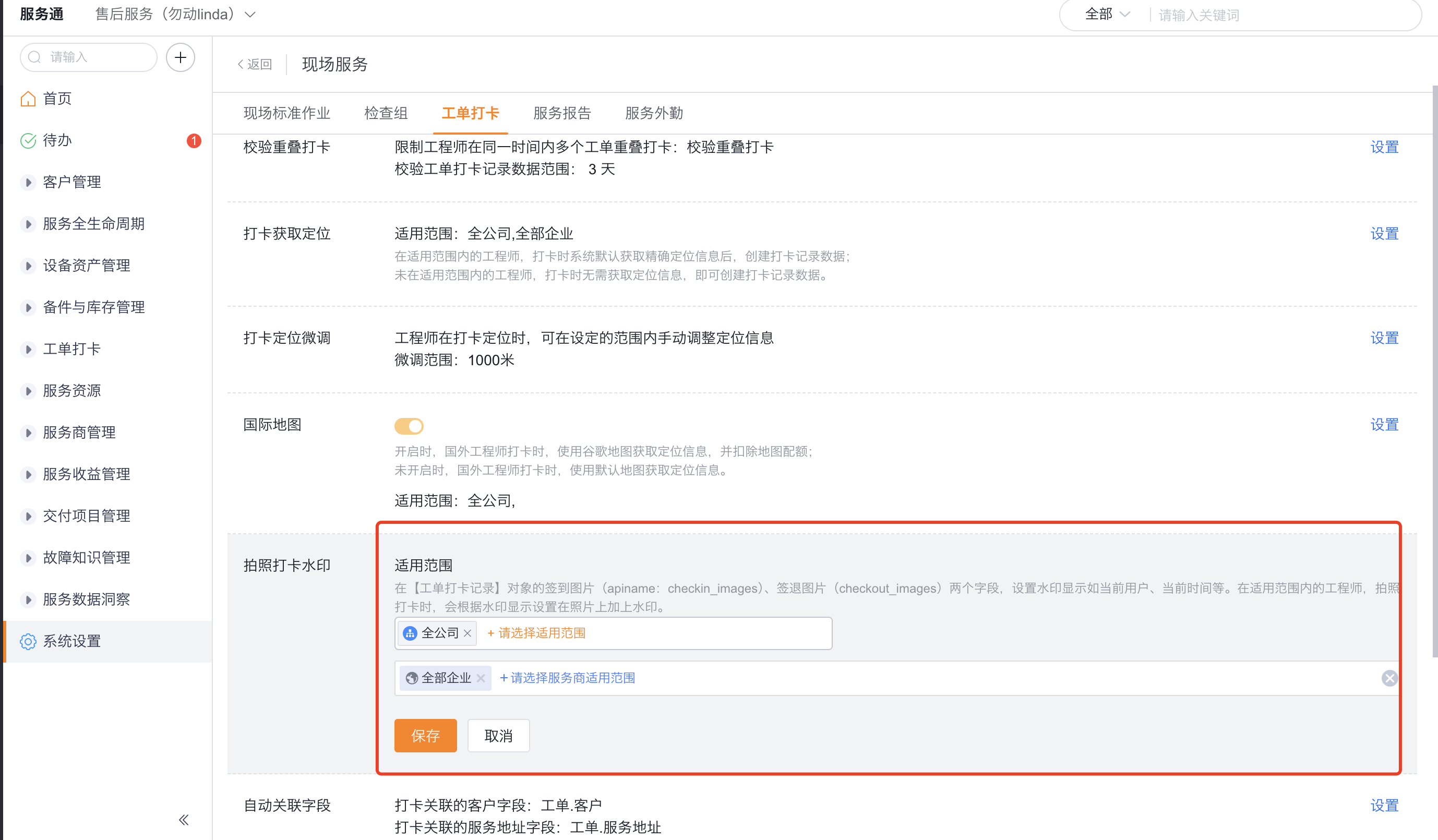
Configure watermarks in the check-in picture (checkin_images) and check-out picture (checkout_images) fields of the Work Order Check-in Record object to display the current user, current time and other information. The applicable scope of the watermark is the entire company by default, and the scope of internal personnel and service providers can also be set separately; when selecting by department, you need to confirm whether subordinate departments are included.
Configuration change
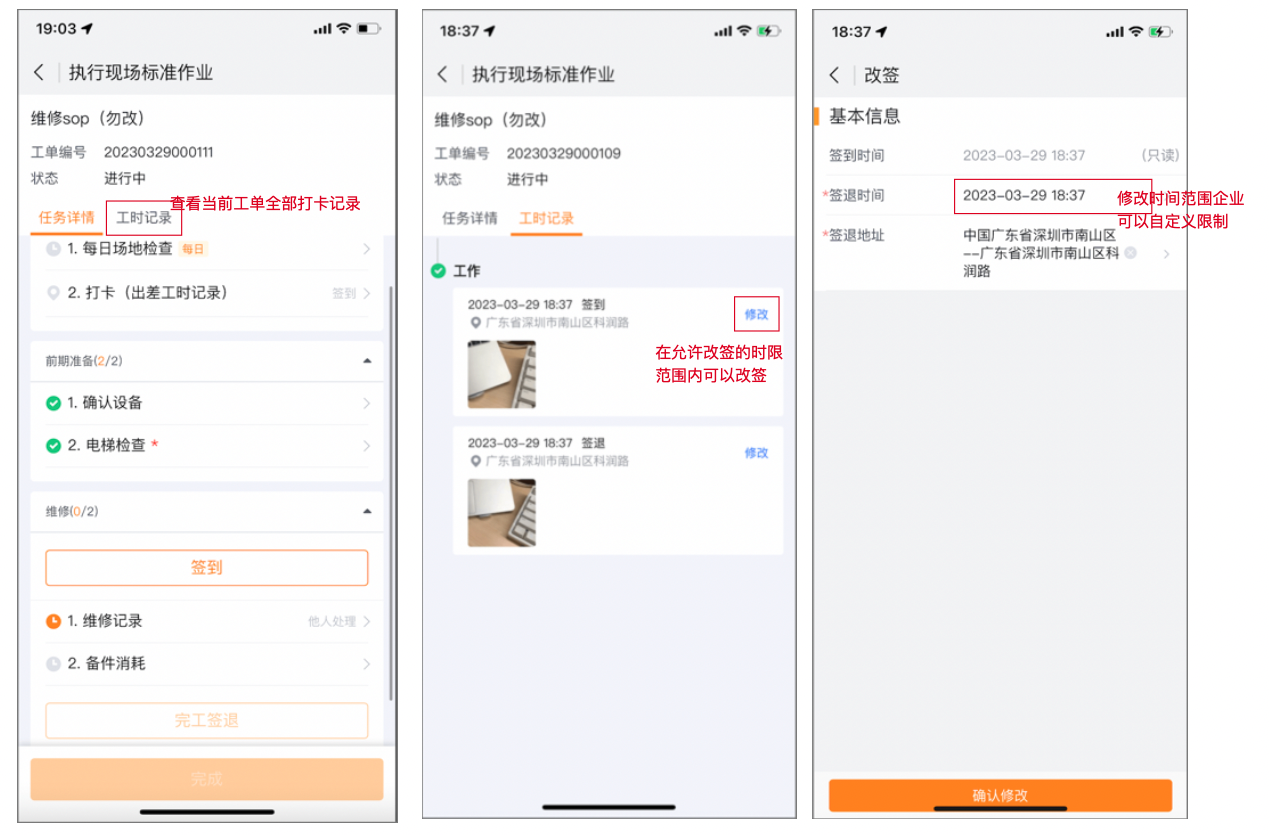
Change is used to modify the time or address of the existing check-in record.
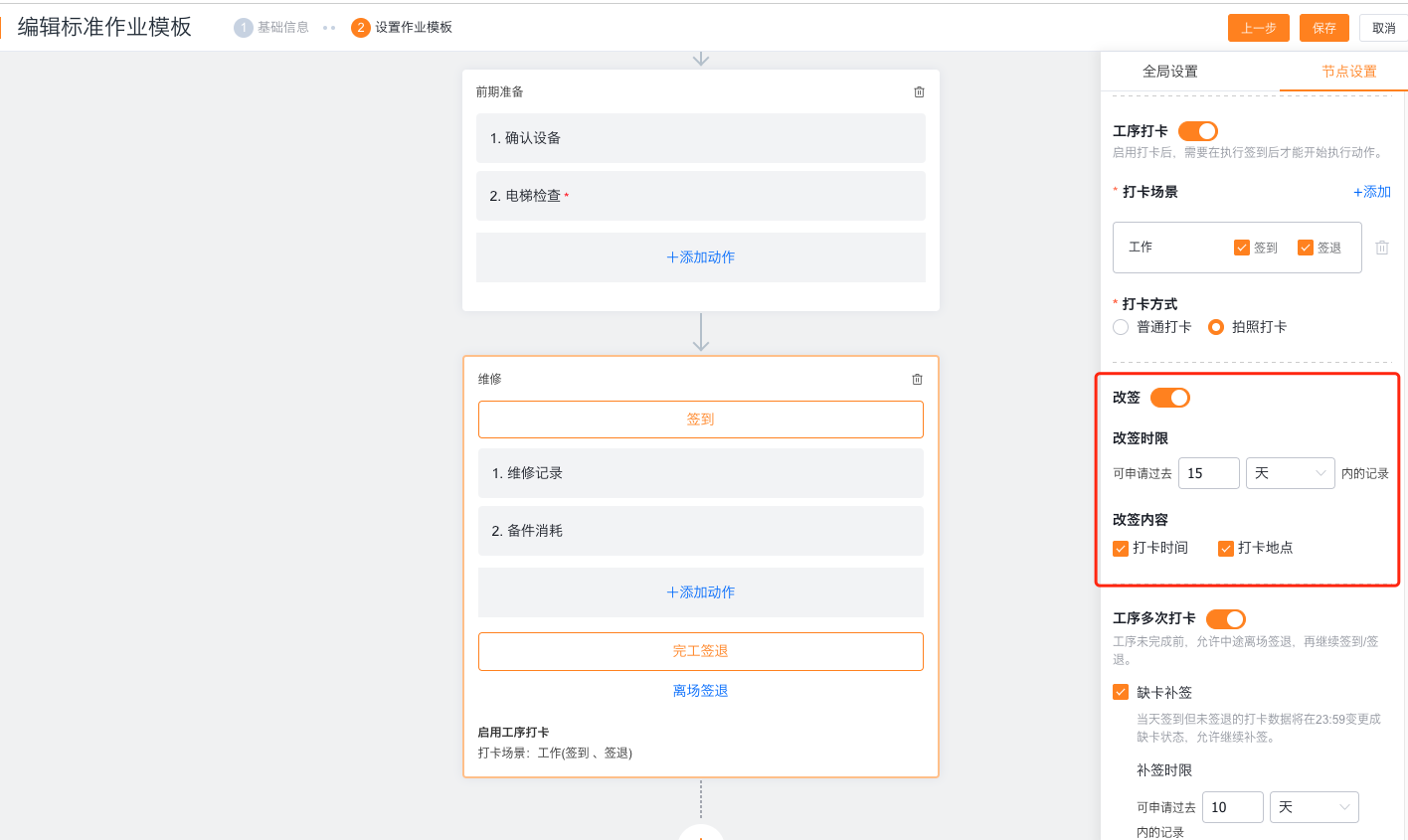
Enable Allow reordering in the standard operating procedure.
Set the time limit for rebooking. For example, when set to 3 days, only records within the past 3 days will display the Change button.
Set the content that is allowed to be modified, such as time and address.
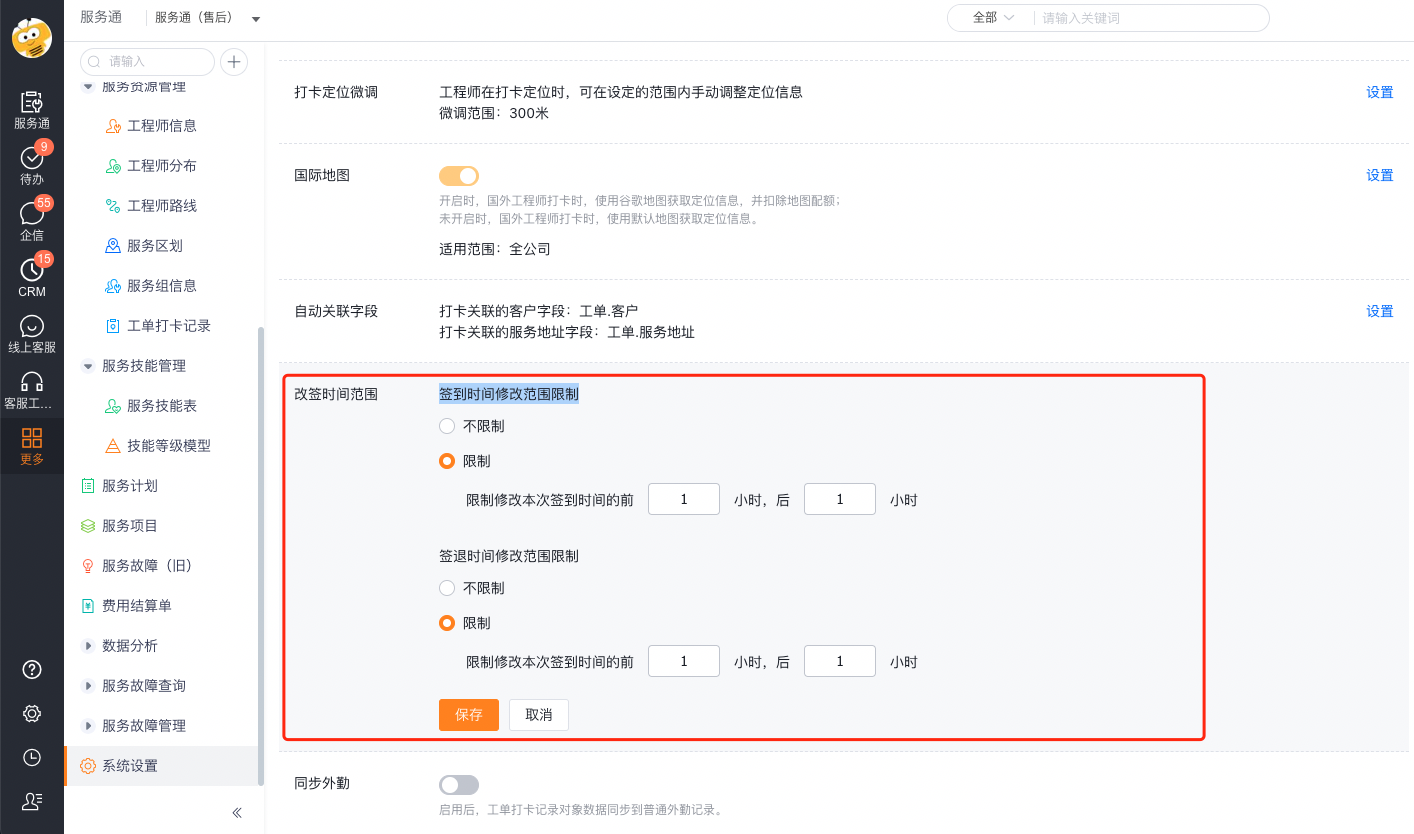
Configure the modification range of check-in and check-out respectively. The system uses the first check-in or check-out time as the basis to limit the number of hours that can be modified forward or backward; you can also choose not to limit it.
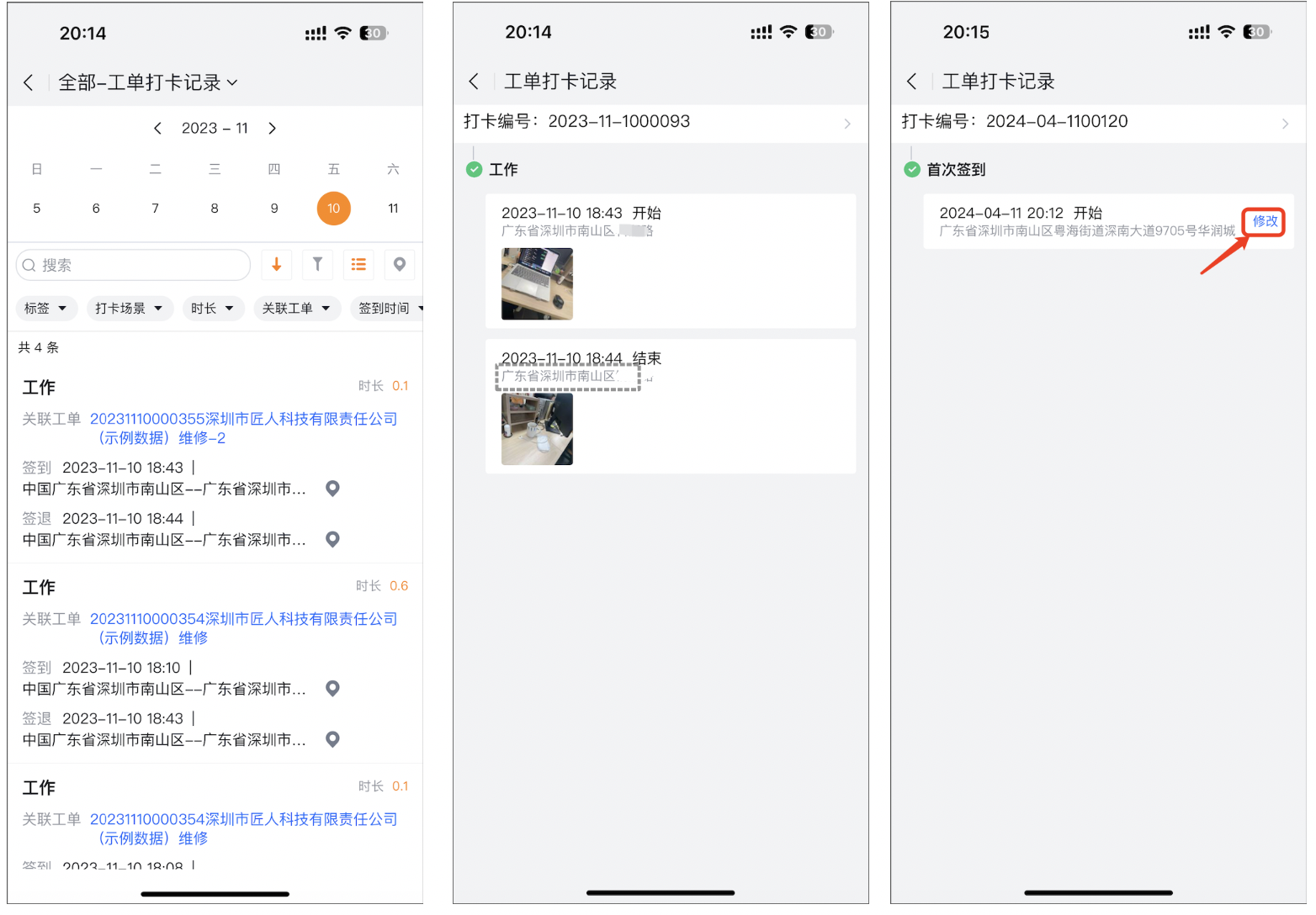
Completed sign-out records can be searched and changed from the Work Order Check-in Record object on the mobile terminal, or from the Work Order Check-in Record association list in the work order details.
Configure check-in correction
Replacement and refund for missing card
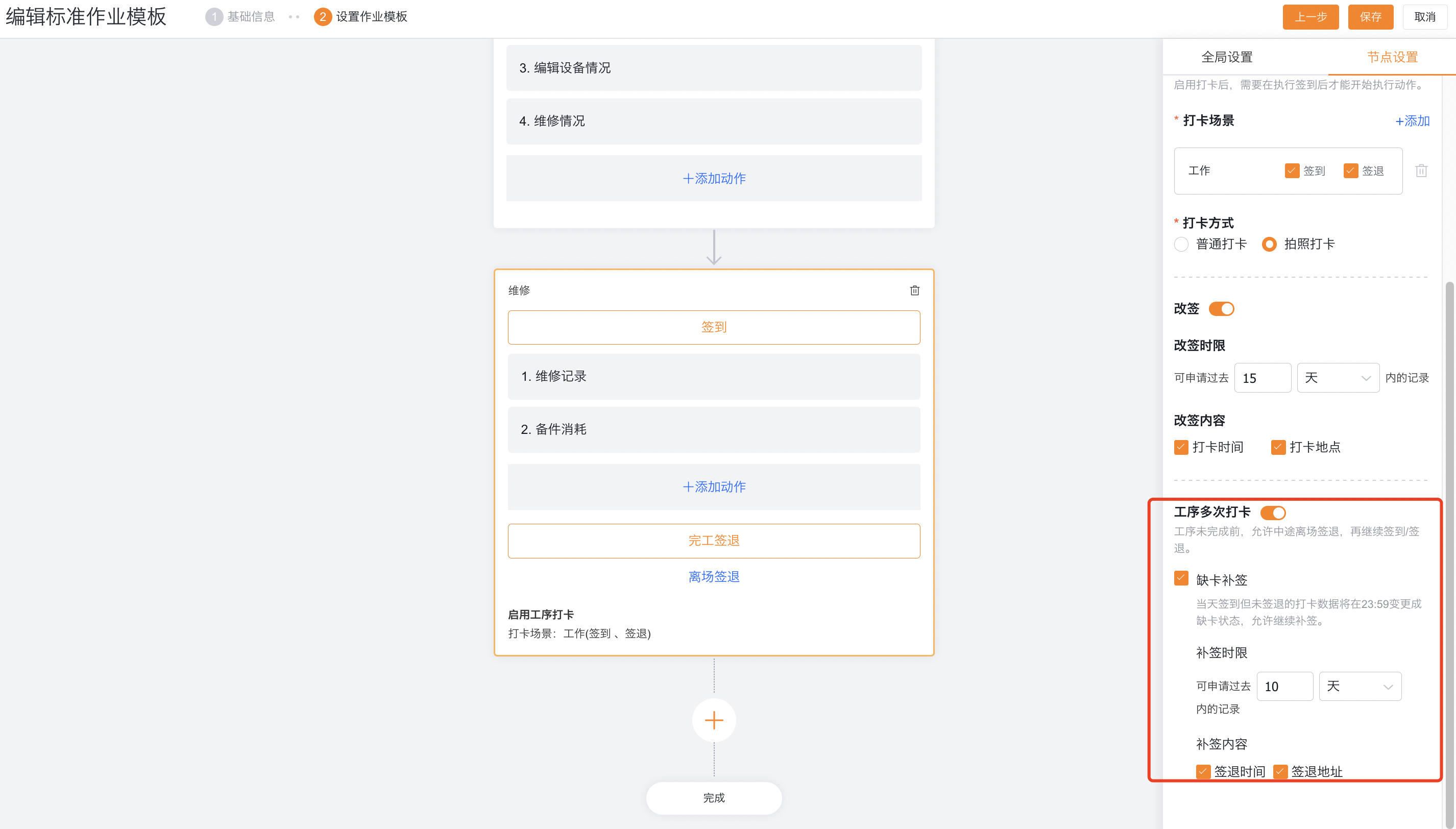
It is suitable for the situation where the engineer signs in but forgets to leave and sign out after multiple check-ins are enabled for the process. Records that have not checked out on the day will become missing cards at 23:59.1. Set the time limit for check-in correction and the time, address, etc. that allow check-in correction.
The engineer executes ** to reissue the card within the time limit from the missing card record.
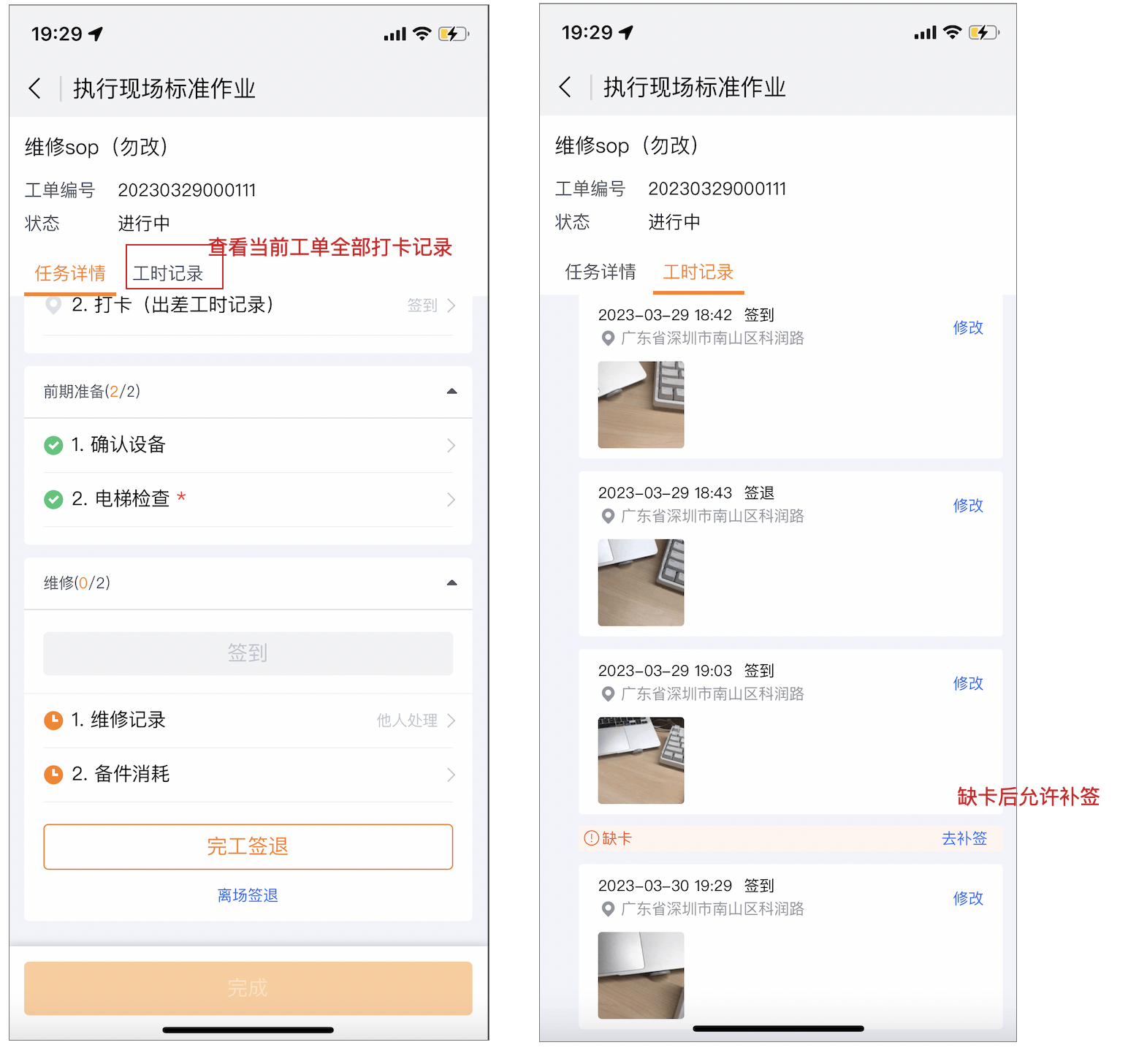
After completing the check-out, you can also search for the record from the mobile terminal's check-in record or work order association list.
Check-in correction all day long
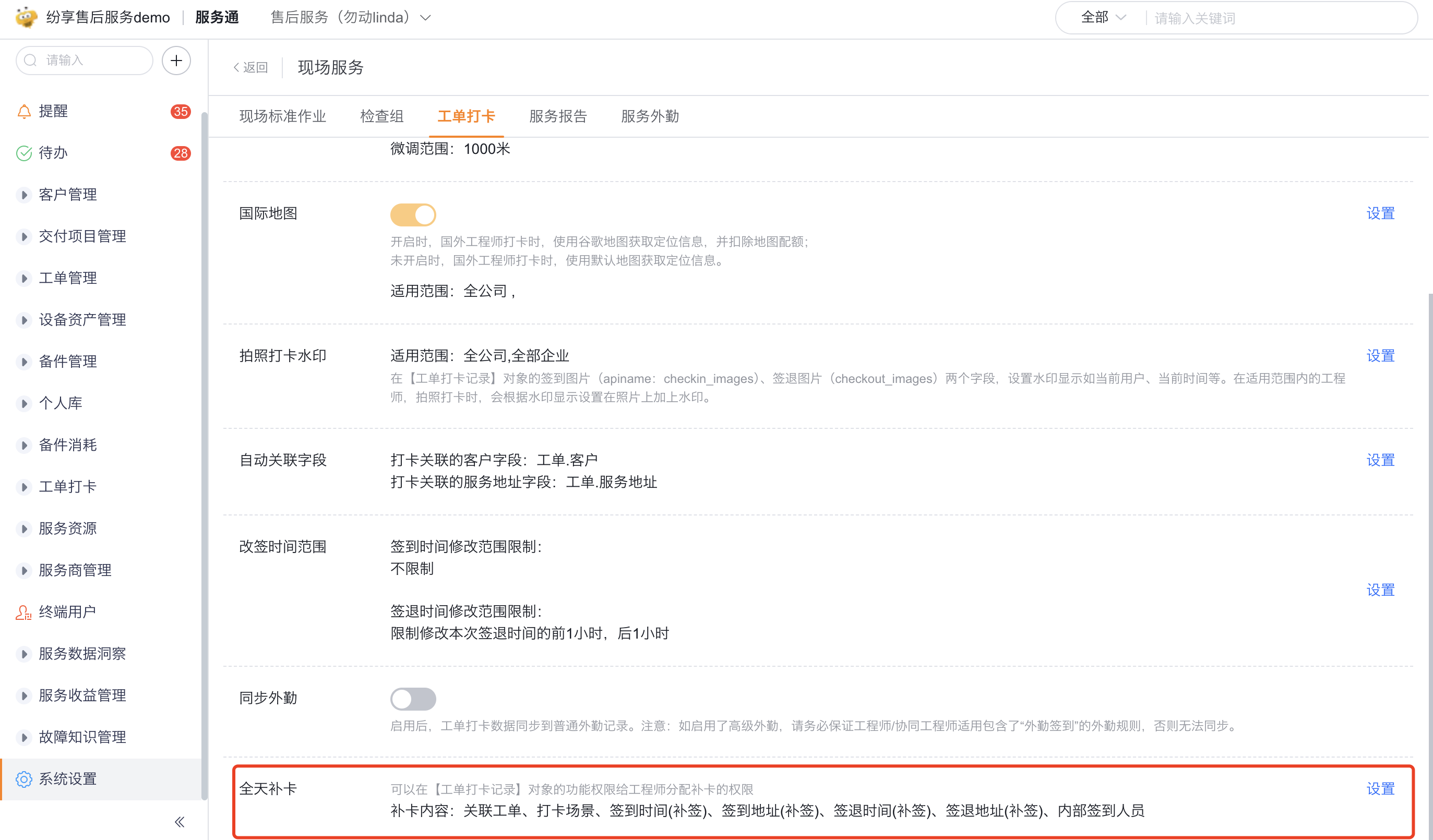
A full-day catch-up is used to make up for an entire period of field service hours missed by the engineer.
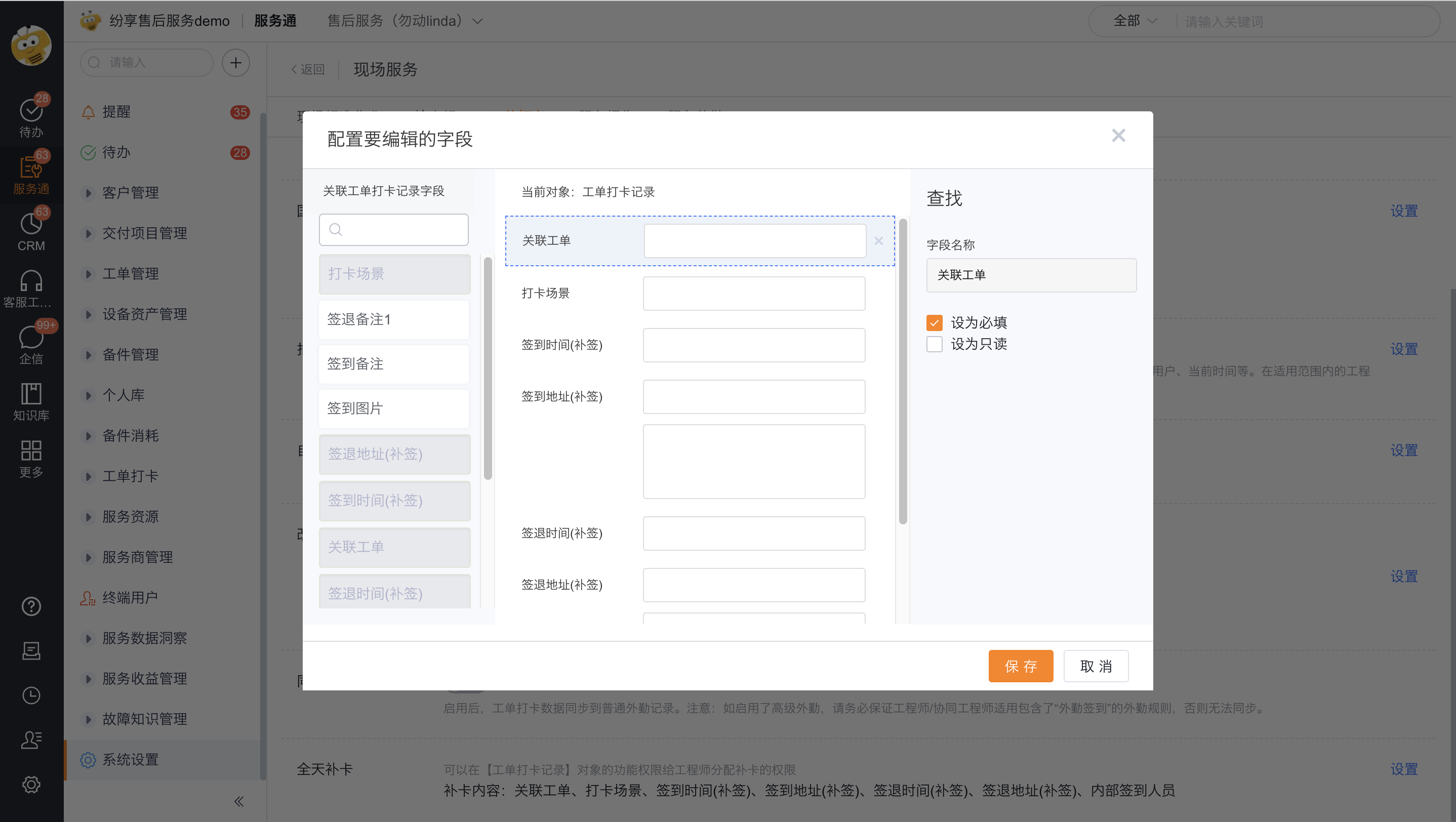
Configure the card replacement page fields in the All-day card replacement settings, including associated work orders, clock-in scenarios, check-in time and address, check-out time and address, and internal check-in personnel; set required or read-only according to business requirements.
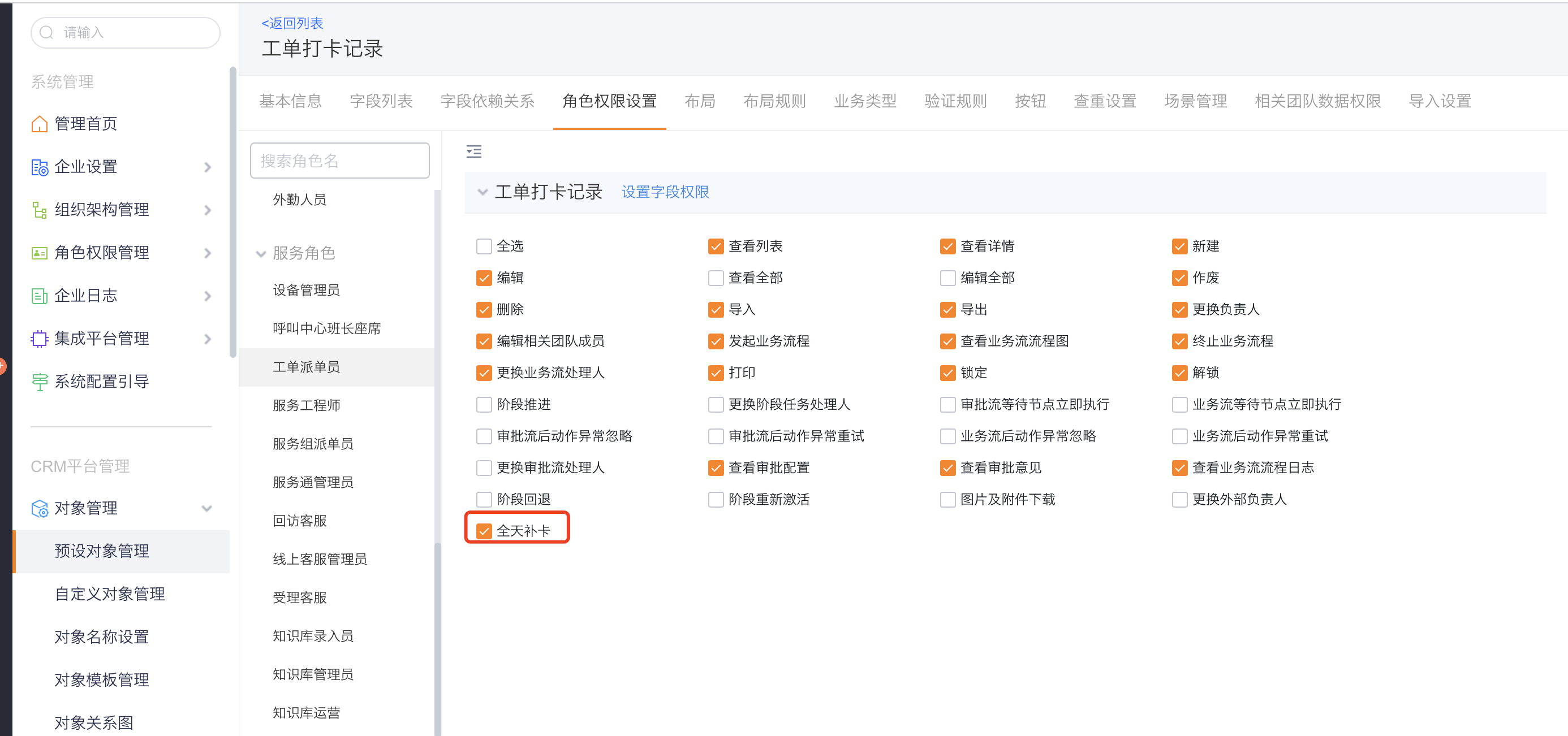
Assign permissions to roles that allow engineers to replenish cards; for example, it is only open to service pass administrators and dispatchers.
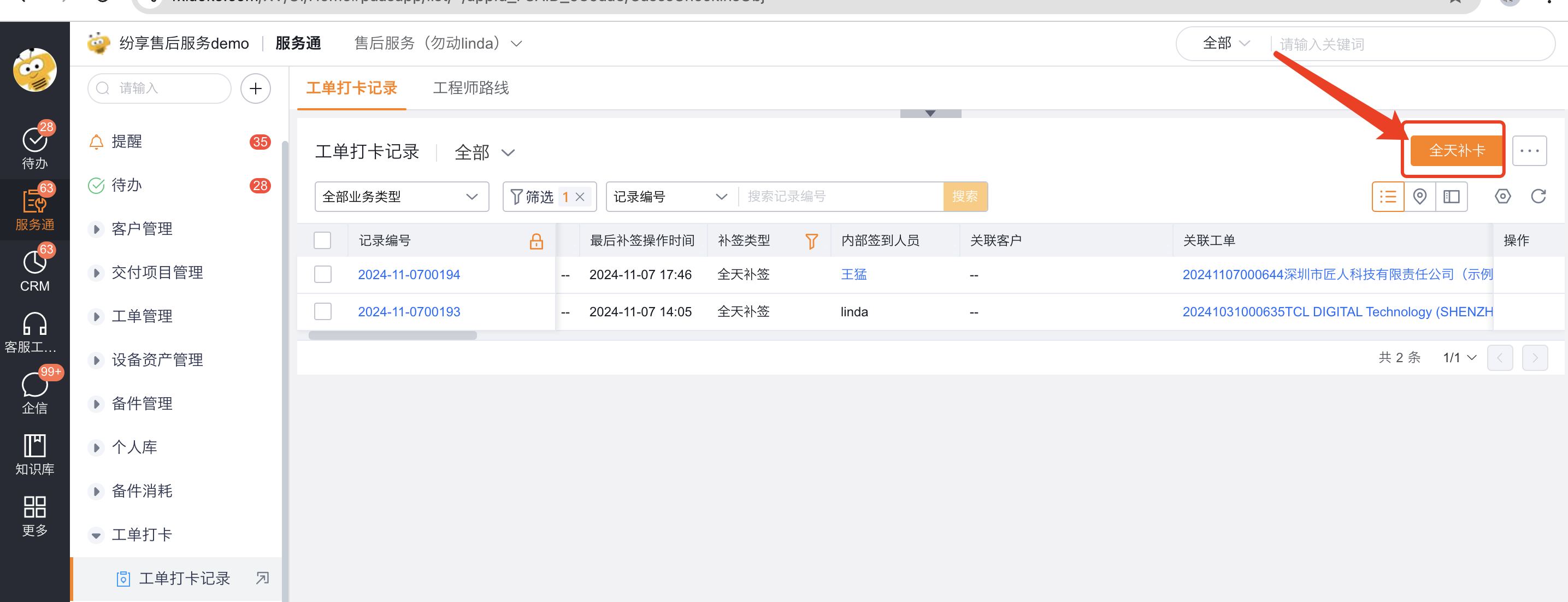
Authorized roles can submit full-day check-in correction in the Work Order Check-in Record list on the web or mobile terminal.
The system backfills fields according to the following relationships:
| Check-in record field | All-day sign-in field |
|---|---|
| Sign-in time of the sign-in component | Sign-in time (check-in correction) |
| Sign-in address of the sign-in component | Sign-in address (replacement) |
| Check-out time of the signed-in component | Check-out time (check-in correction) |
| Check-out address of the signed-in component | Check-out address (check-in correction) |
| Check-in correction type | All-day check-in correction |
Synchronize work order check-in records to the field office
When Synchronize Field Records is enabled, it will take effect in real time, and the work order check-in data will be synchronized to the ordinary field office to facilitate unified statistics with non-work order field records. You can decide whether to allow change data and reissue data to be synchronized to the field separately.
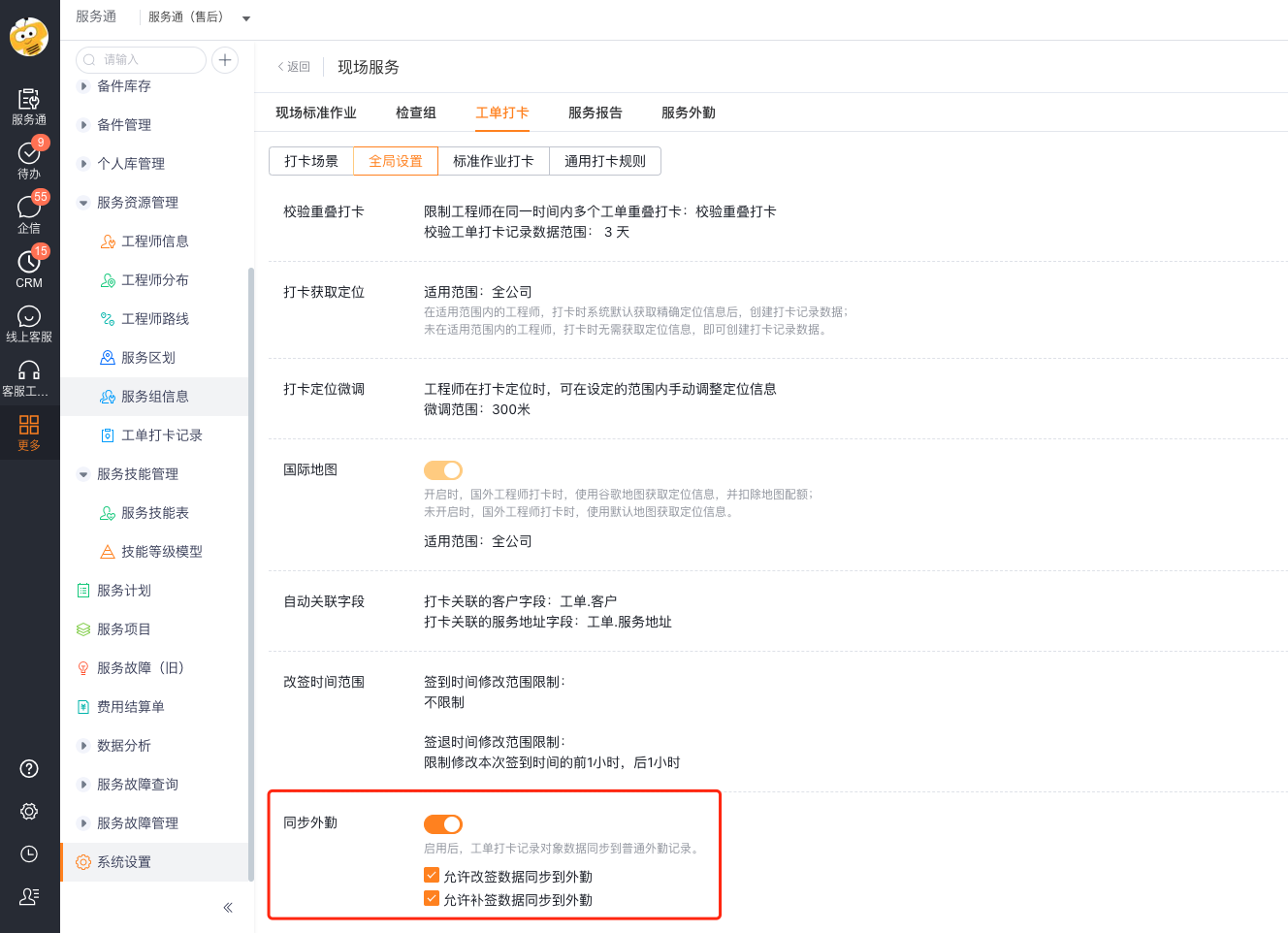
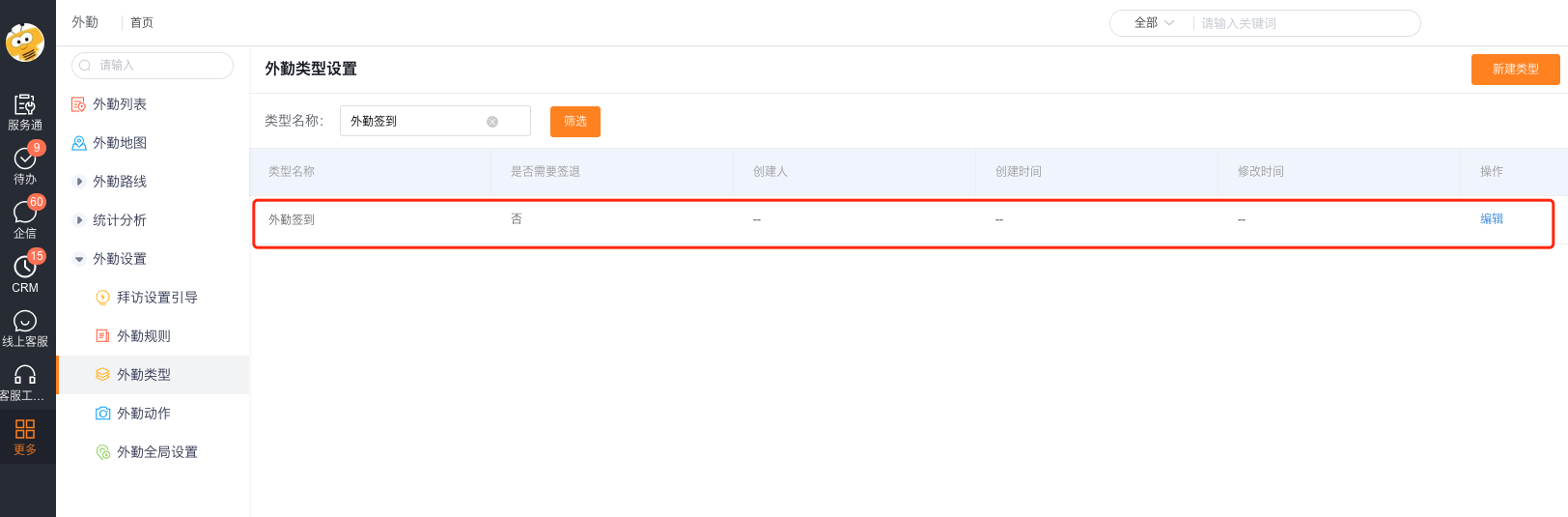
If the enterprise has enabled advanced fieldwork, the advanced fieldwork rules applicable to engineers and collaborative engineers must contain the Fieldwork Sign-in type, otherwise the work order clock-in data cannot be synchronized to the fieldwork.
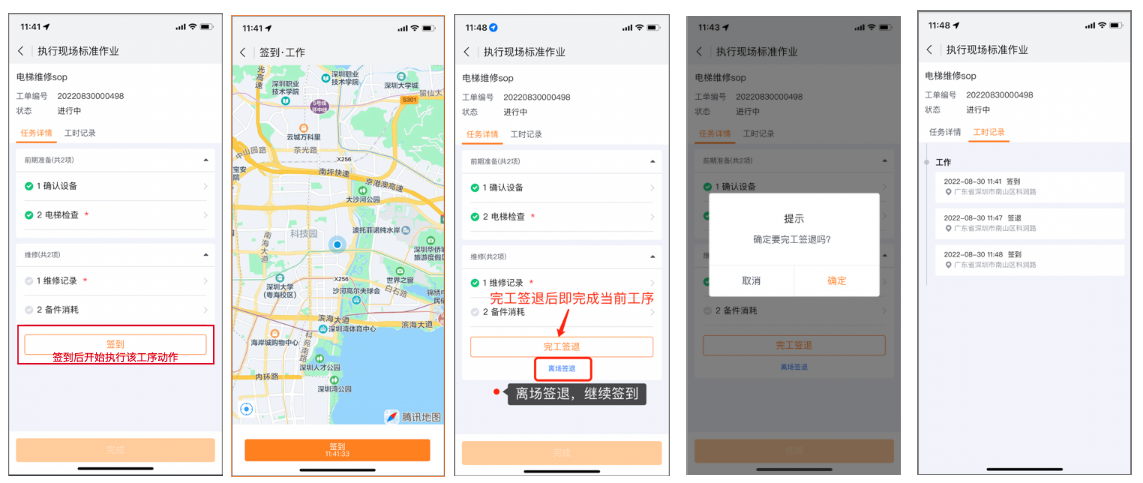
Applied to on-site standard operations
Enable process check-in in the SOP process and select the check-in scenario configured in this article. After the engineer enters the process, he signs in first, then performs the action, and finally leaves the site or signs out after completion.
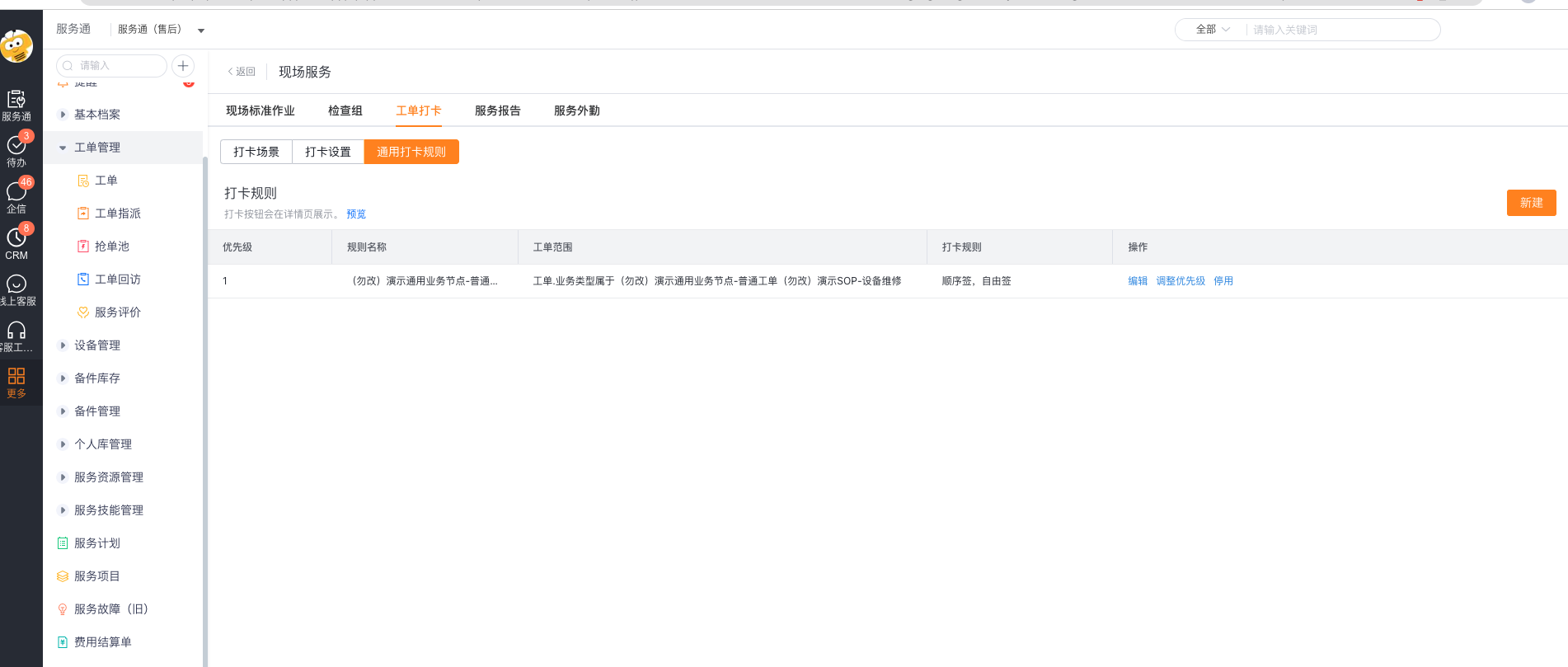
Configure general work order check-in rules (grayscale)
Universal work order check-in allows engineers to clock in at any time without relying on fixed SOP processes. This capability is a grayscale item and you need to contact your account manager to activate it.
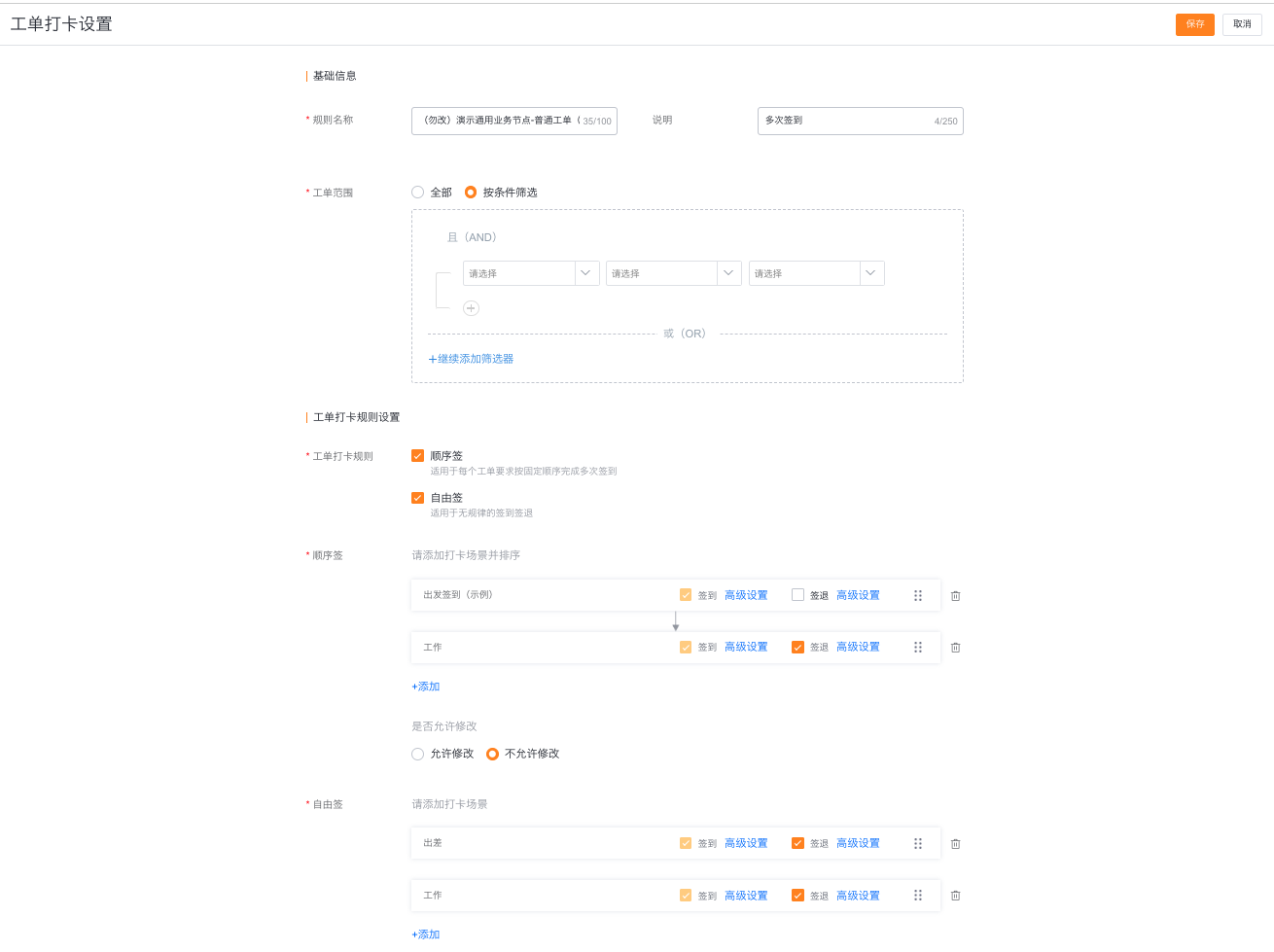
Click New in Check-in Rules.
Fill in the rule name and description.
Configure Work Order Scope: You can select all work orders, or filter by conditions and use fields such as business type to limit the applicable work orders of the rules.
Enable one or two check-in methods as needed:
- Sequential sign-in: Add a check-in scenario and adjust the order. It is suitable for engineers who need to complete multiple check-ins or check-outs in a fixed order such as departure, arrival, start of installation, and completion of installation.
- Free Signing: Add a check-in scene that can be used at any time, suitable for recording non-fixed sequence working hours such as waiting for materials, temporary business trips, etc. in the service.
Select check-in and check-out for each scenario, and enter Advanced Settings as needed.
Specify whether users can modify check-in information, and then save the rule.
The rule list displays the priority, work order scope, and enabled punching methods; rules can be edited, adjusted in priority, or deactivated in the list.
Expected results and verification
- Use test work orders with different check-in scenarios and engineer scope to verify positioning acquisition, distance and fine-tuning rules.
- Verify the two configurations of over-distance prohibition and over-distance permission; when allowed, check whether the abnormal distance is written into the record.
- Turn on overlap verification and confirm that the next punch cannot start before the previous punch is completed.
- Verify the photo watermark, time limit for check-in correction, time limit for check-in correction, and all-day check-in correction role permissions.
- After enabling field synchronization, check ordinary field records; when using advanced field, verify the field sign-in type at the same time.
- After activating the universal check-in in Grayscale, use the work orders that match and do not match the rules to verify the work order range, and then verify the sequential signing, free signing, and allowed configuration modifications respectively.
Notes
- When location cannot be obtained but check-in is allowed to continue, the record will not contain the check-in or check-out address.
- Check-in is still allowed over distance and exceptions will not be ignored. The system will save the abnormal situation and distance in the check-in record.
- International maps require an additional license, which should be limited to the range of international engineers who really need to use it.
- Correcting a missing check-in requires multiple procedure check-ins. Full-day corrections also require separate role permission.
- Field synchronization begins immediately when enabled. If Advanced Field Management lacks the Field Check-in type, work order check-ins cannot synchronize.
- General work order check-ining is a grayscale capability. Enterprises that have not activated it should not write processes based on generally available functions.