Appearance
Clock in to a work order
Clock in and out at the service site to record service time, labor hours, location, and required photos.
Overview
When clock-in is enabled for an SOP procedure, you must clock in before performing its actions. Choose leave-site or completion clock-out when you finish. The system saves these events for review and labor reporting.
This article covers procedure clock-in in the Service Pass App. Your organization controls clock types, location rules, distance limits, and correction options.
NOTE
SOP procedure clock-in is unavailable on the web. Use the Service Pass App.
Before you begin
IMPORTANT
- You own the procedure action and can update the work order.
- The work order is at the SOP node and shows an executable procedure.
- Enable location and camera permissions when required, and maintain network access.
- Clock in only after arriving at the service site. Distance validation usually uses the work order's service address.
Clock in and start work
- In the App, open the work order from Engineer Workspace.
- From its task or process node, select Perform On-site Work.
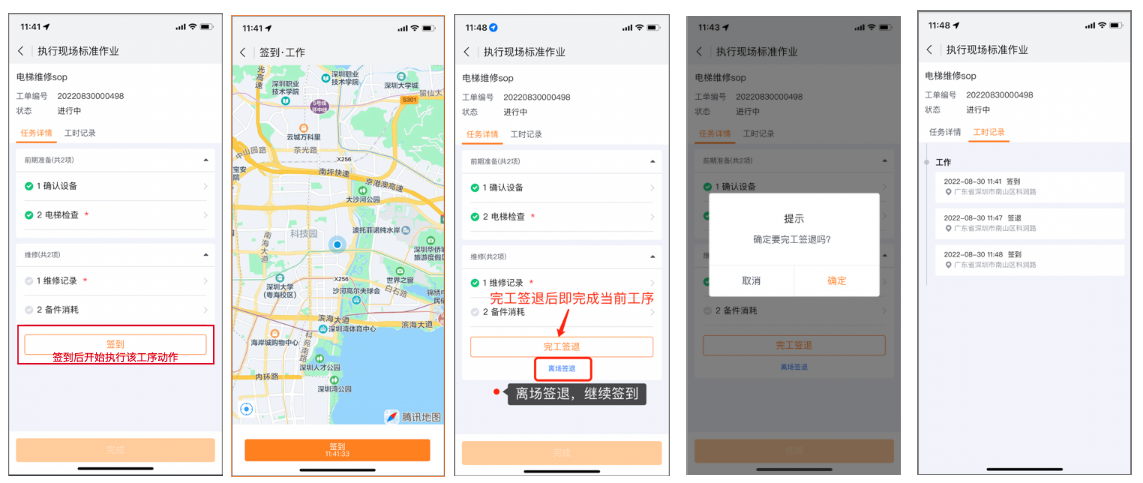
- Find the procedure and select Clock In.
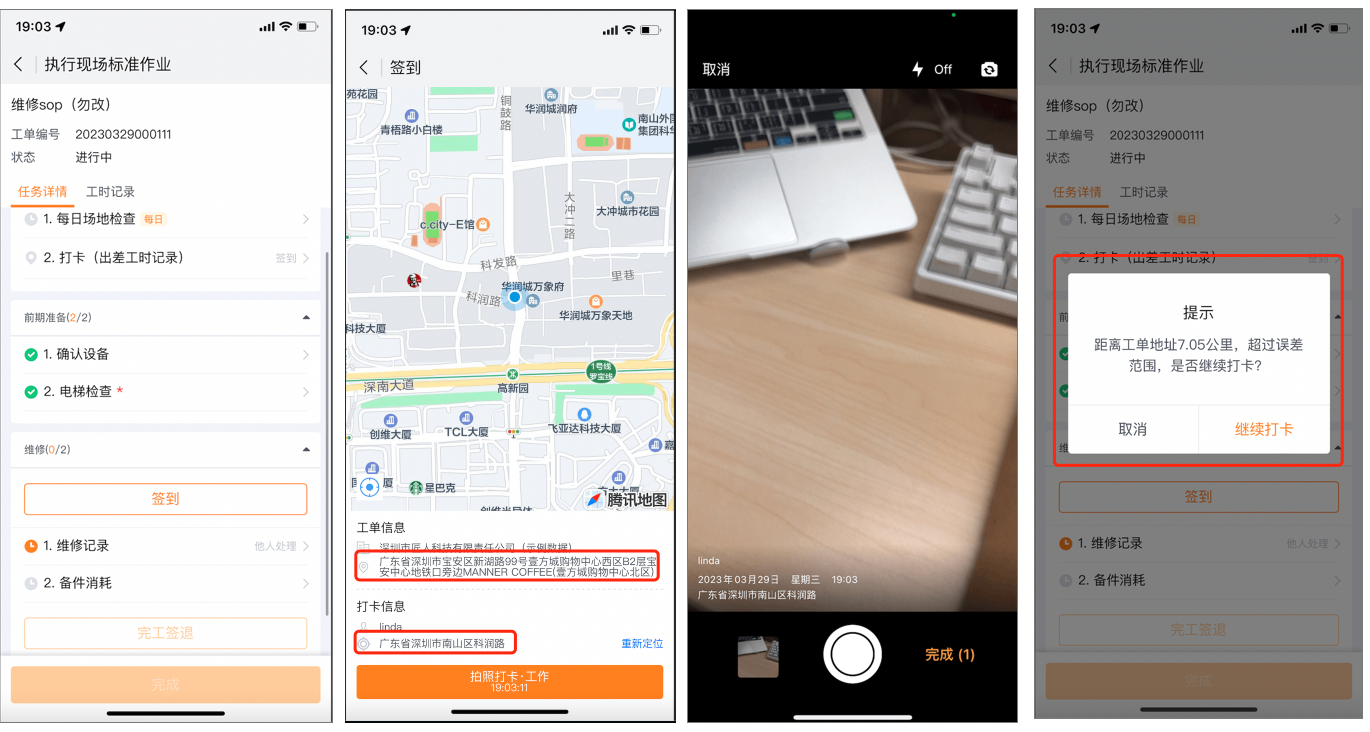
- Confirm the location. If prompted, take an on-site photo and submit.
- After successful clock-in, perform the procedure actions.
TIP
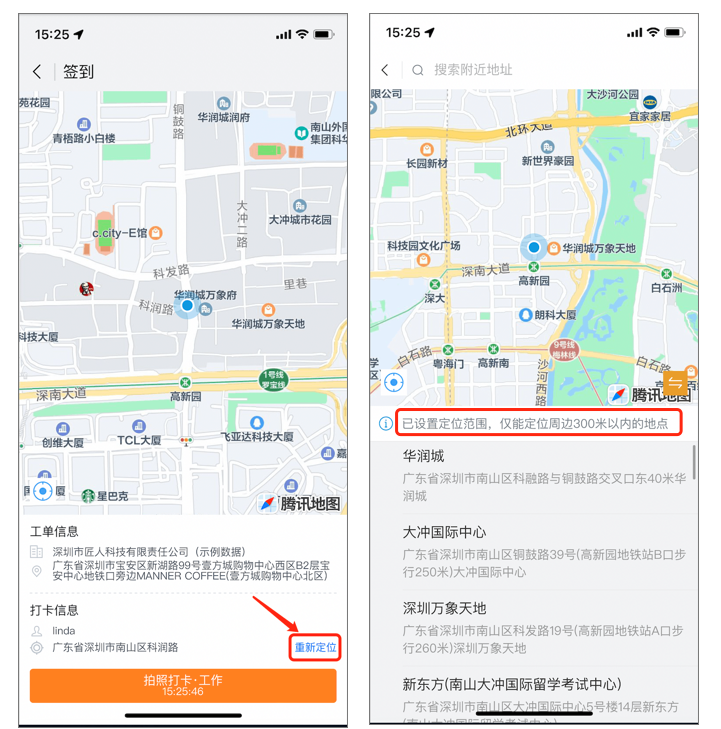
If positioning is inaccurate and adjustment is allowed, select Relocate and choose a more accurate address within the permitted range.
Clock out and end work
The page can show these options:
- Leave-site Clock-out: End this clock-in without completing the procedure. Clock in again when you return.
- Completion Clock-out: Complete the procedure. The system first validates all required actions.
NOTE
Leave-site clock-out appears only when repeated clock-in is enabled. Complete every applicable procedure before completing the overall SOP.
When a procedure has several action owners, each owner clocks in and out independently. Their clock-in records are separate and not mutually visible.
Location, distance, and photo validation
At clock-in or clock-out, the system applies configured checks:
- Location acquisition: The system obtains a precise location before creating the record. Failure can block submission or create a record without an address.
- Distance validation: The system compares your location with the service address. Excess distance can block or flag the clock-in and record the exception.
- Location adjustment: If enabled, choose a nearby corrected address within the configured range.
- Photo clock-in: Take a live photo before submission when required. The system can add user and time watermarks.
If overlapping clock-in validation is enabled, close your current work order clock-in before starting another. Correct a missing-clock record according to your organization's rules.
Review and correct records
Review labor records
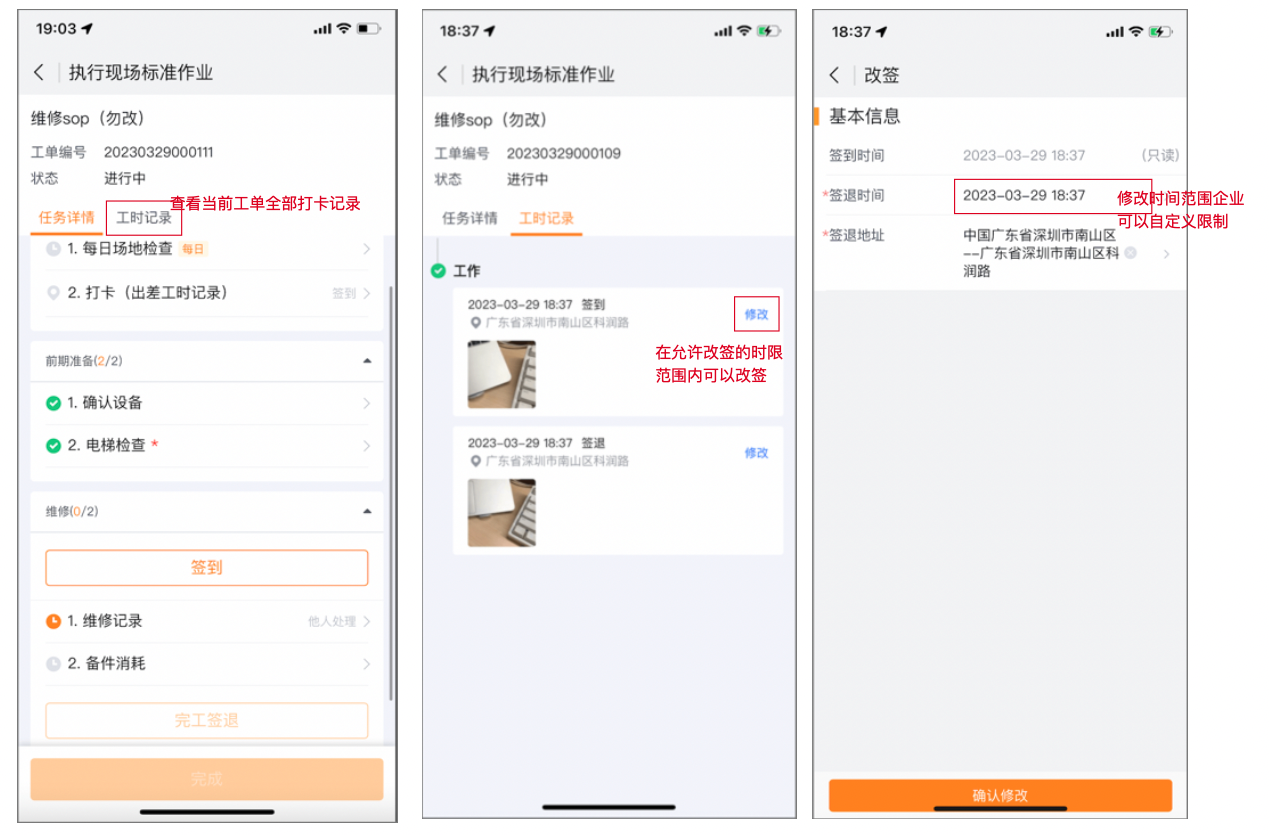
On Perform On-site Work, open Labor Records to view clock-in time, clock-out time, address, and photos. The mobile Work Order Clock-in Records list shows accessible history.
Correct a clock-in record
When corrections are enabled and the record remains within the allowed period, Edit appears:
- In Labor Records, find the clock-in or clock-out and select Edit.
- Change the permitted time or address fields.
- Verify the information, then select Confirm Changes.
After completion clock-out, find records in mobile Work Order Clock-in Records or the related list in work order details.
Add a missing clock-out
An open clock-in changes to missing-clock status at 23:59. If corrections are allowed:
- Find the missing record in Labor Records.
- Select Add Missing Clock-out.
- Enter the required time and address, then submit.
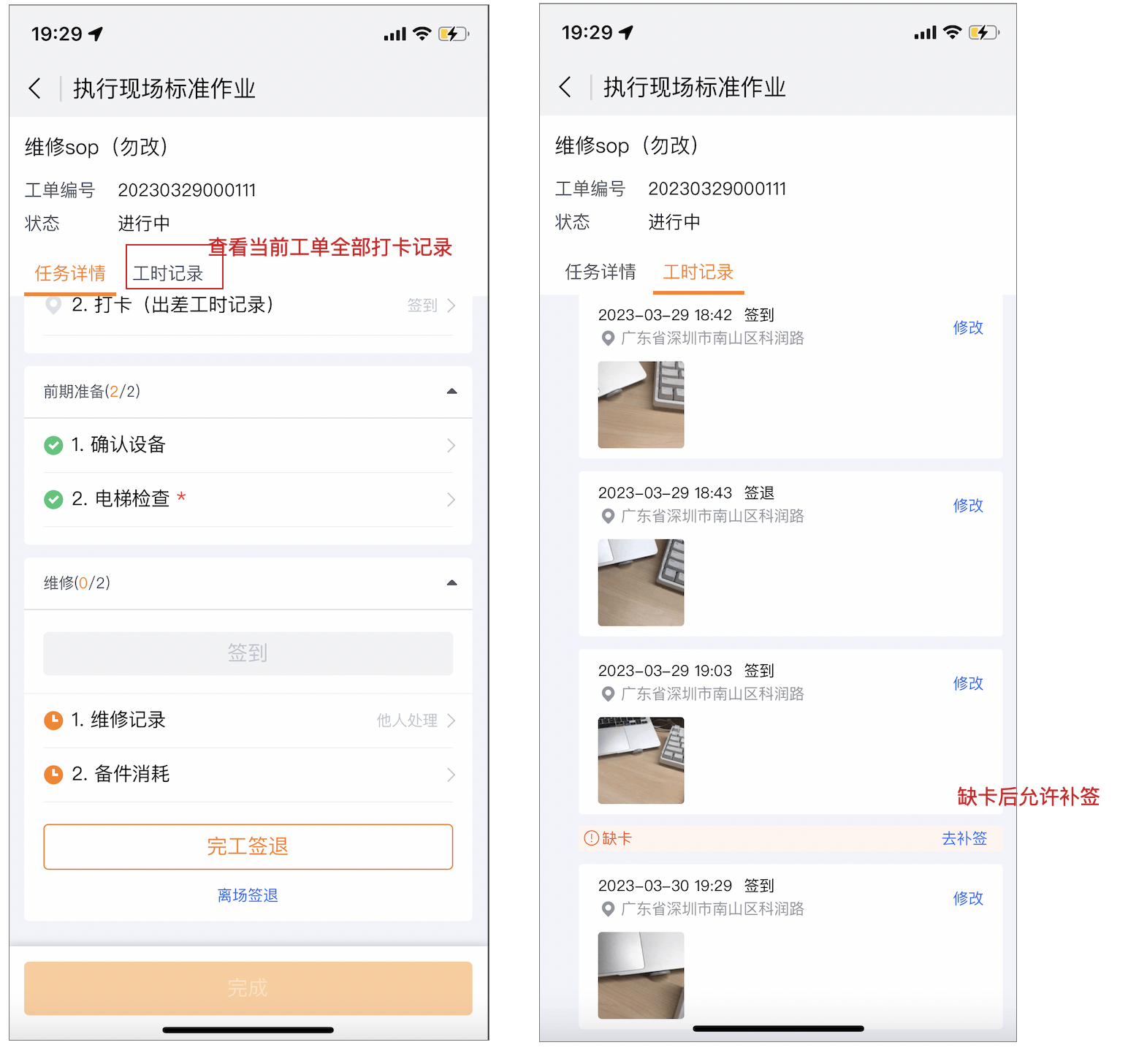
If the entire service period lacks a clock-in, use the full-day correction feature. Ask an administrator or dispatcher if you lack access.
General work order clock-in (limited release)
Some organizations can enable general work order clock-in:
- Sequential clock-in: Follow configured events, such as departure, arrival, installation start, and installation completion.
- Flexible clock-in: Select an event that matches the situation, such as waiting for materials.
This feature is not generally available. Entries, work order types, events, and correction rules depend on configuration.
Expected result
- The system creates or updates a record with the event, time, and required location and photos.
- Leave-site clock-out ends the current attendance period while keeping the procedure open.
- Completion clock-out completes the procedure. Completing all procedures allows SOP completion.
- Corrections and out-of-range events remain traceable in the record.
Notes
- If an action is unavailable, check the work order status, action owner, and enabled clock-in features.
- For location or upload failures, check App permissions and network access.
- Completion clock-out ends the procedure. Complete all required work before submitting.
- Avoid duplicate clock-ins. Verify submission in Labor Records.