Appearance
Configure service plans
Overview
Configure service plans in this order: enable the feature, create a plan type, create a plan, and publish it. The plan type defines the work order business type, process, and mapping. The plan defines its record scope and schedule.
Before you begin
- Use an administrator account that can access the Service Pass > System Settings and service plan configuration pages.
- Confirm whether the plan object is a customer or a device, and prepare the corresponding customer, device or filter conditions.
- Prepare the work order business type to be generated, the corresponding service process, and the mapping relationship between the work order required fields and the plan detail fields.
- If you use equipment running time calculation, first confirm that there is running time data available for planned use on the equipment side; the original data does not explain the specific collection method of this data.
Operation steps
1. Enable service plan
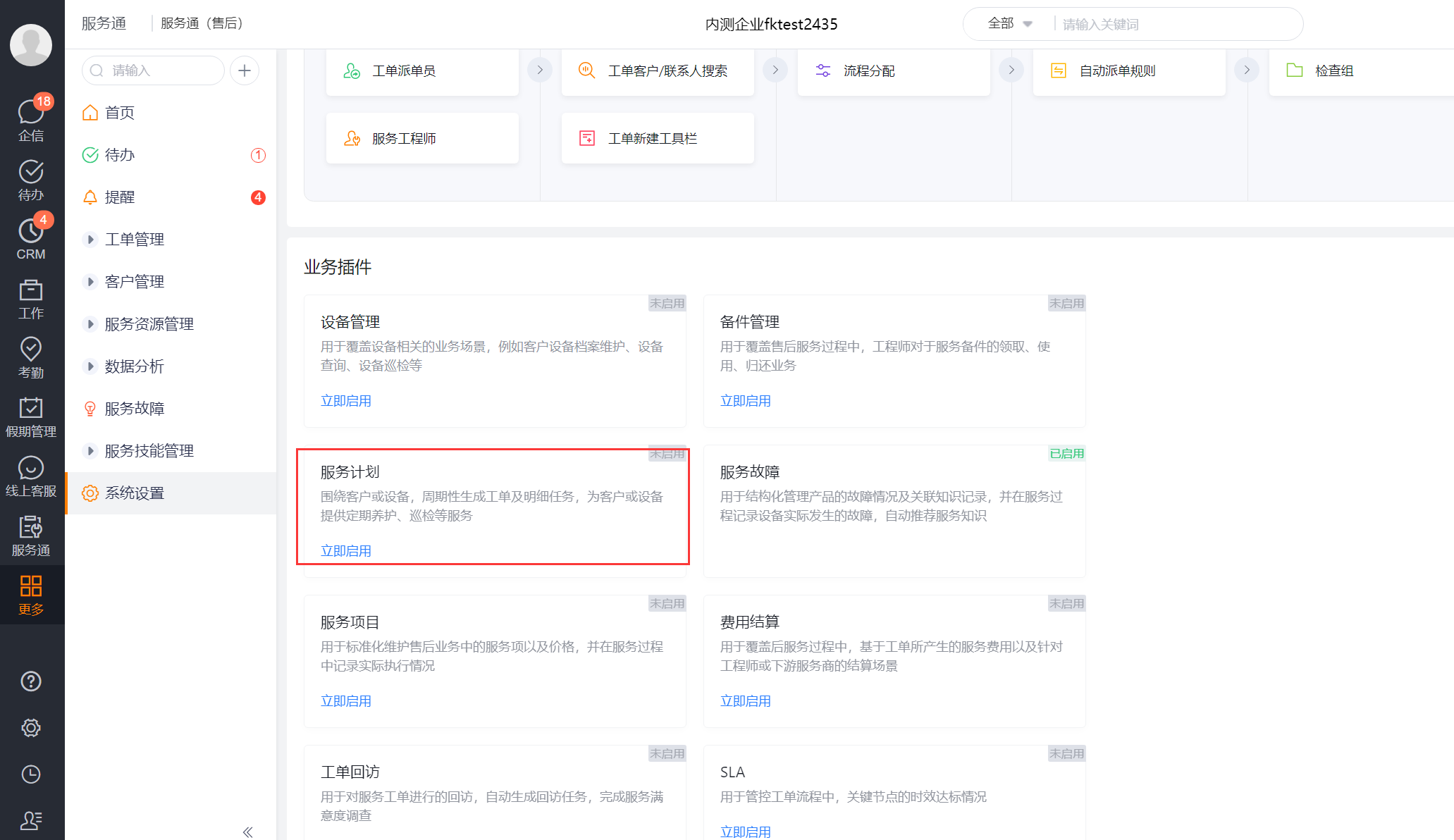
- Go to Service Pass > System Settings > Configuration Overview.
- Click Enable Now in the Service Plan card.
- Check the initialization object description in the confirmation pop-up window and click OK to complete activation; cancel to not activate.
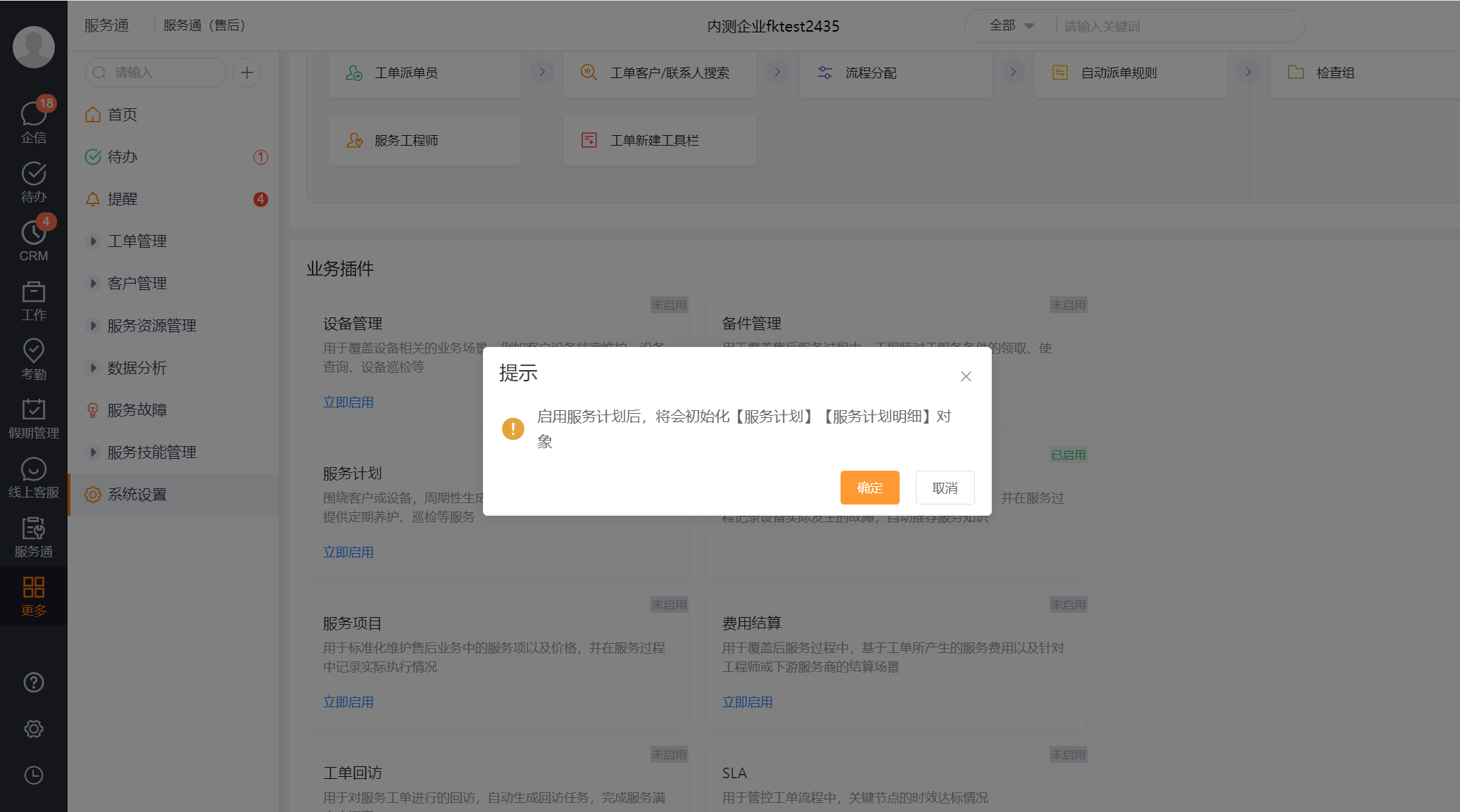
After activation, the system initializes the Service Plan and Service Plan Detail objects. If a custom object has a similar name, confirm its purpose to avoid mixing business data.
2. Create service plan type
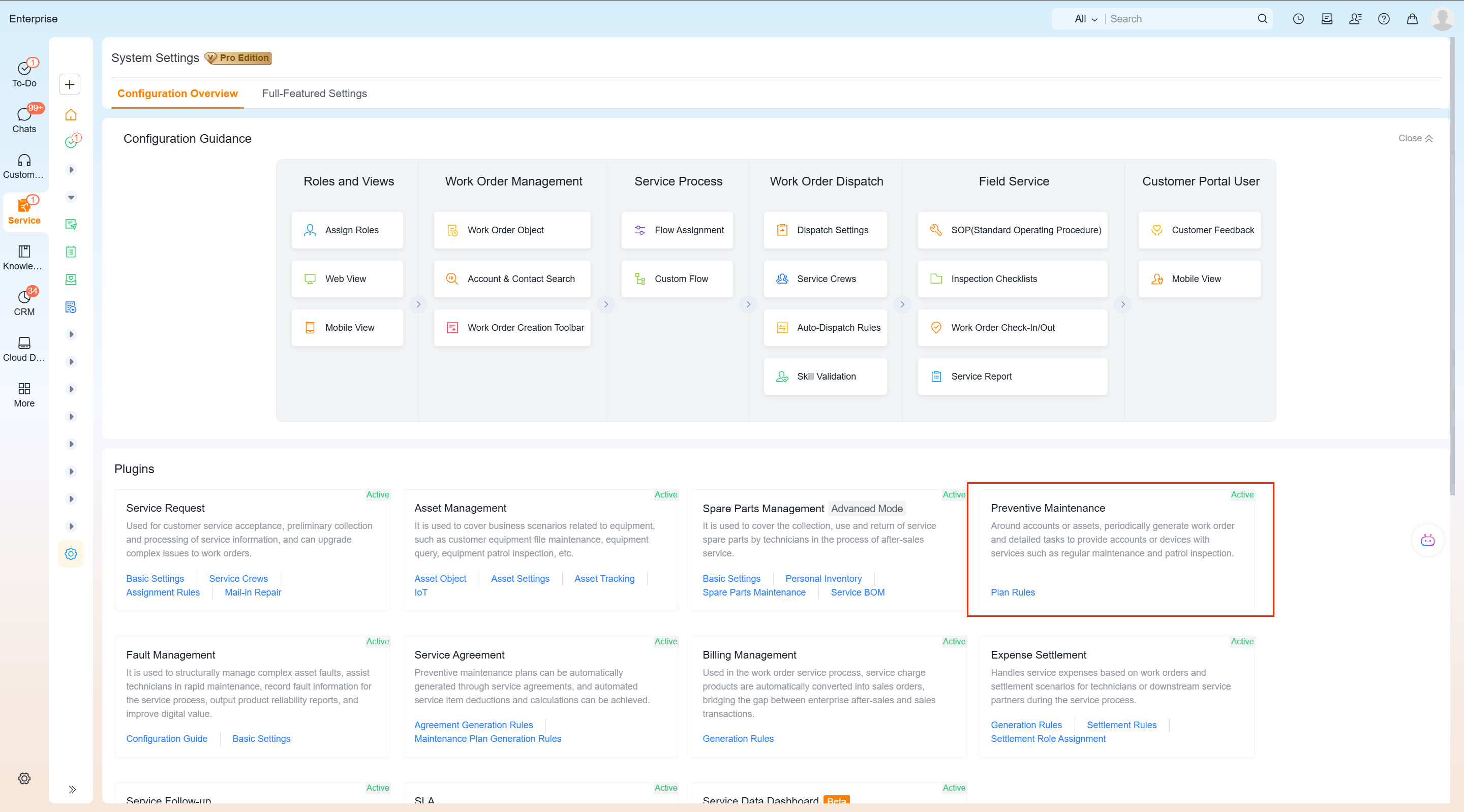
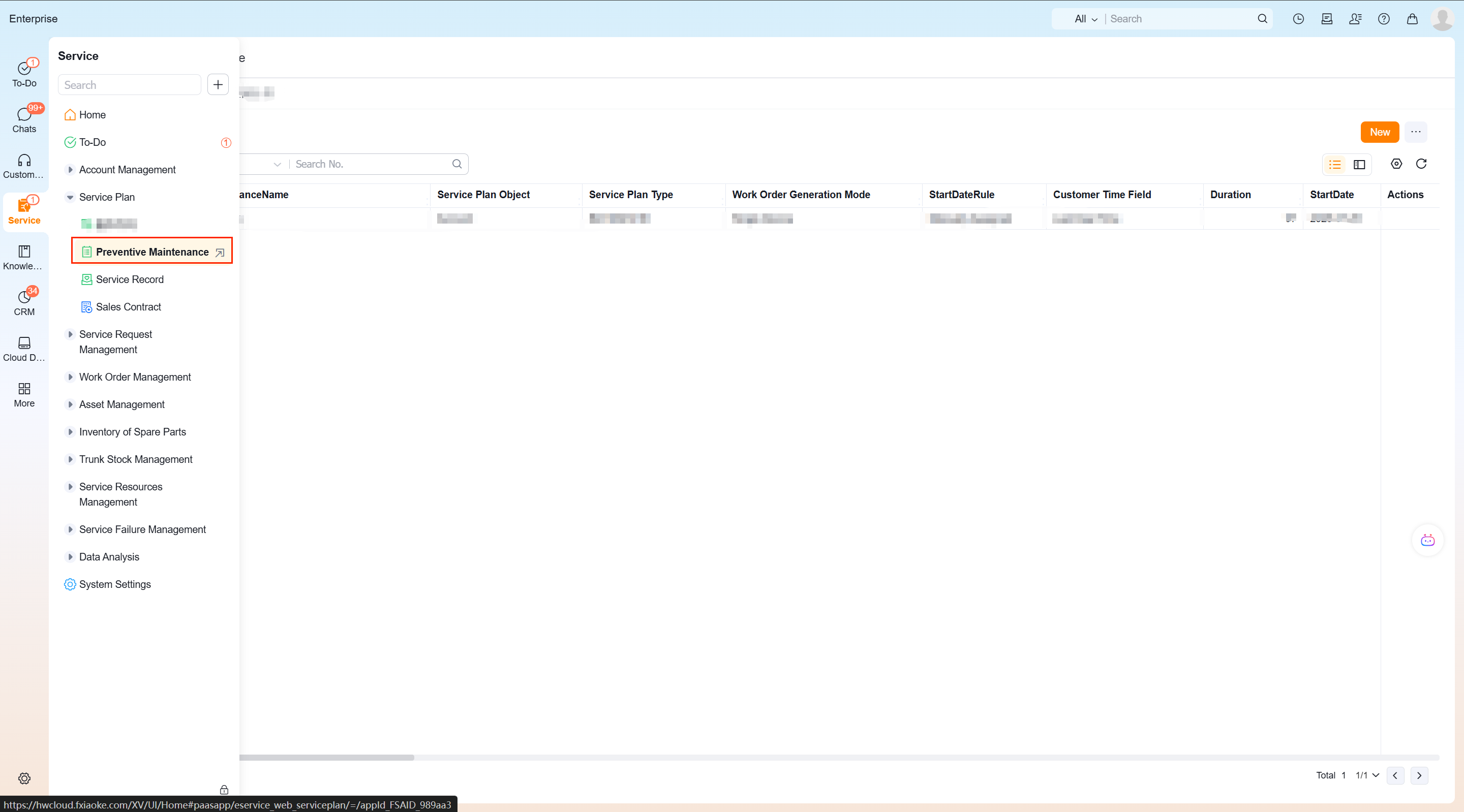
- Go to Service > Service Plan and open the Service Plan Rules portal provided on the page.
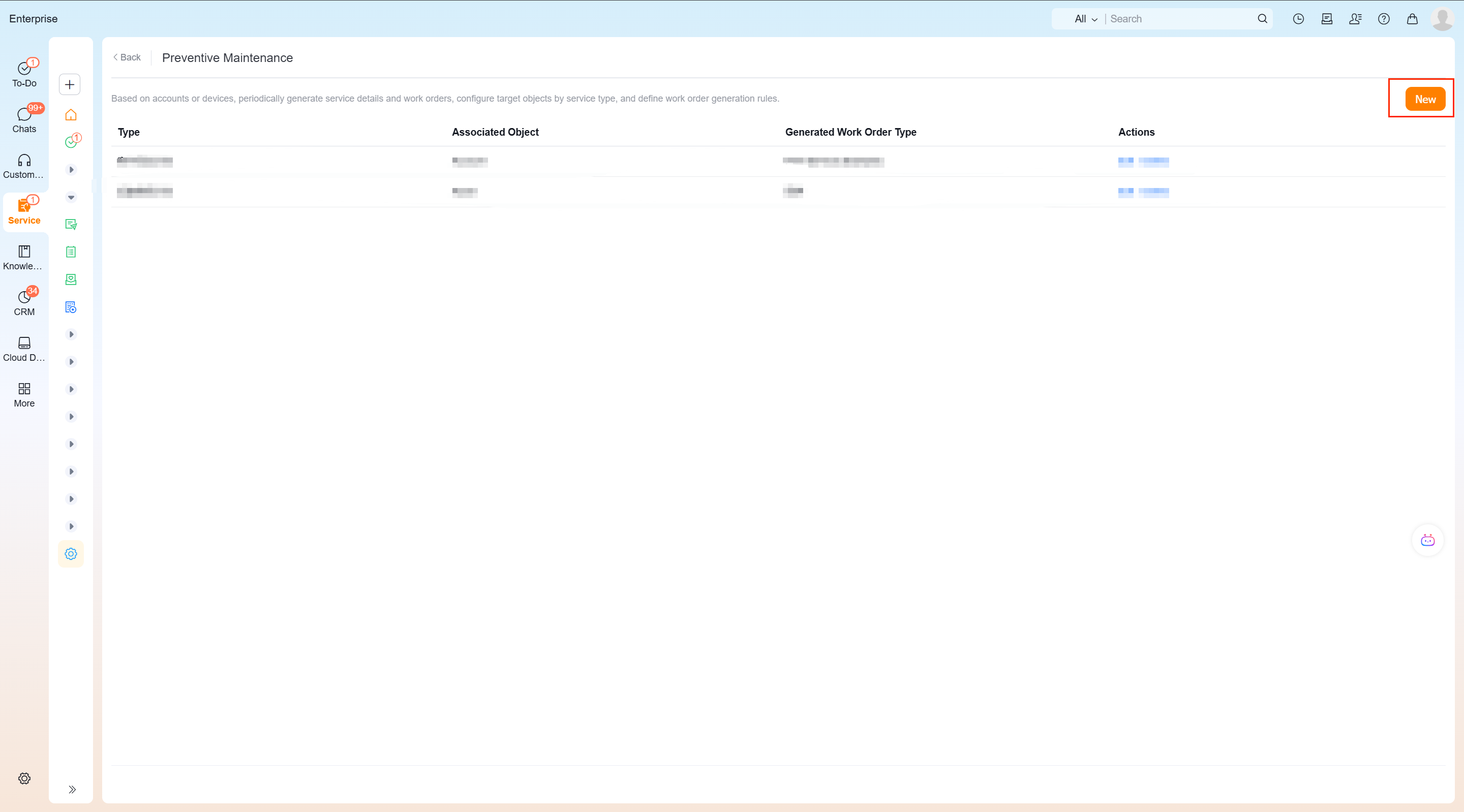
- Click New Plan Type.
- Fill in the basic information of the service plan type and select Device or Customer in Service Plan Object.
- Select the generated work order business type and service process.
- Set the field mapping relationship in : map the plan details to the work order area, select the service plan detail object field and the work order object field item by item; click continue to add supplementary mapping.
- Click Save.
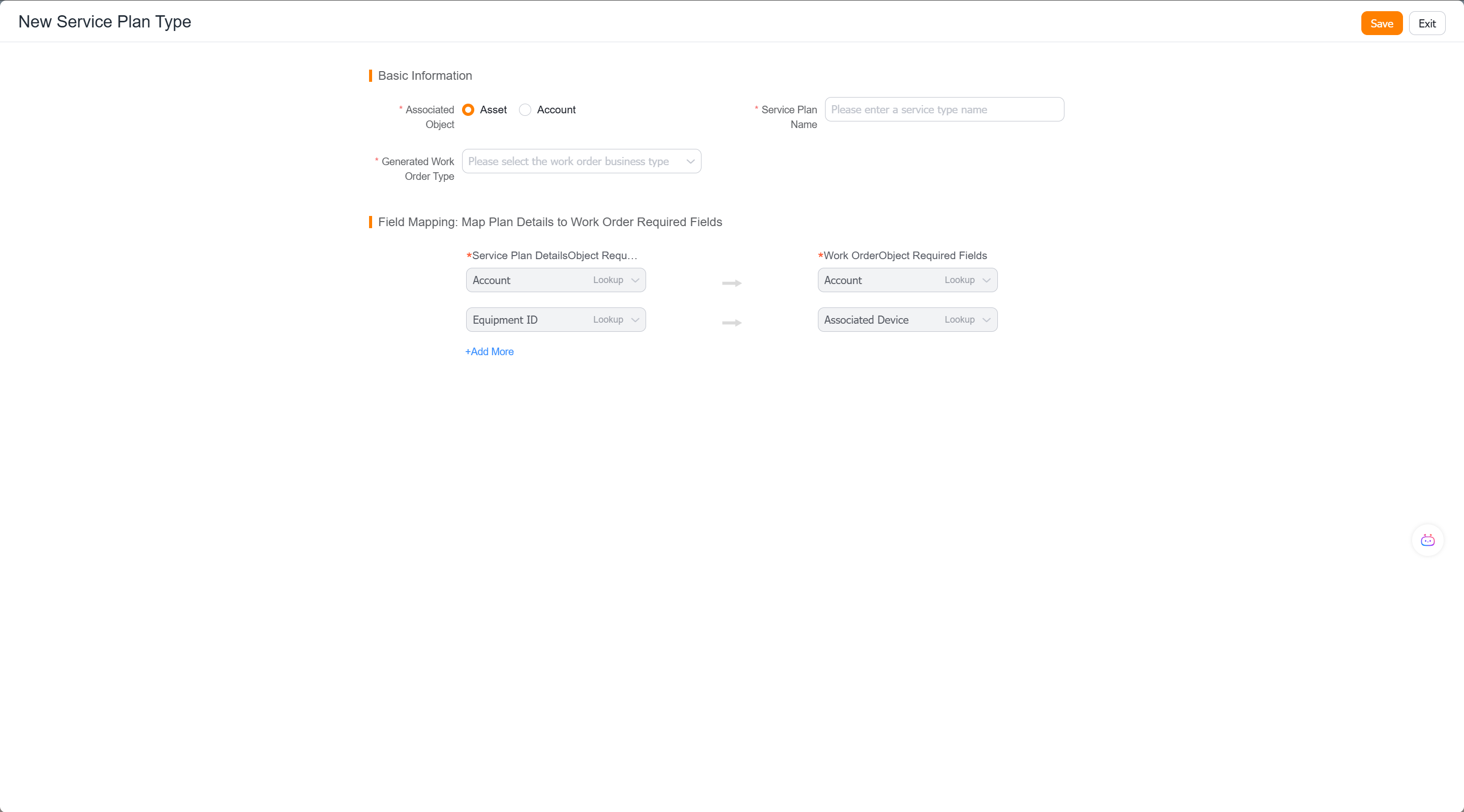
Field mapping is used to bring basic information in plan details into automatically generated work orders. At least check whether the required fields of the plan detail object and the work order object have corresponding mappings; unmapped required fields may cause subsequent order creation to fail to meet the requirements of the work order form.
3. Create a service plan
Return to Service > Service Plan, select the plan type, and select New.
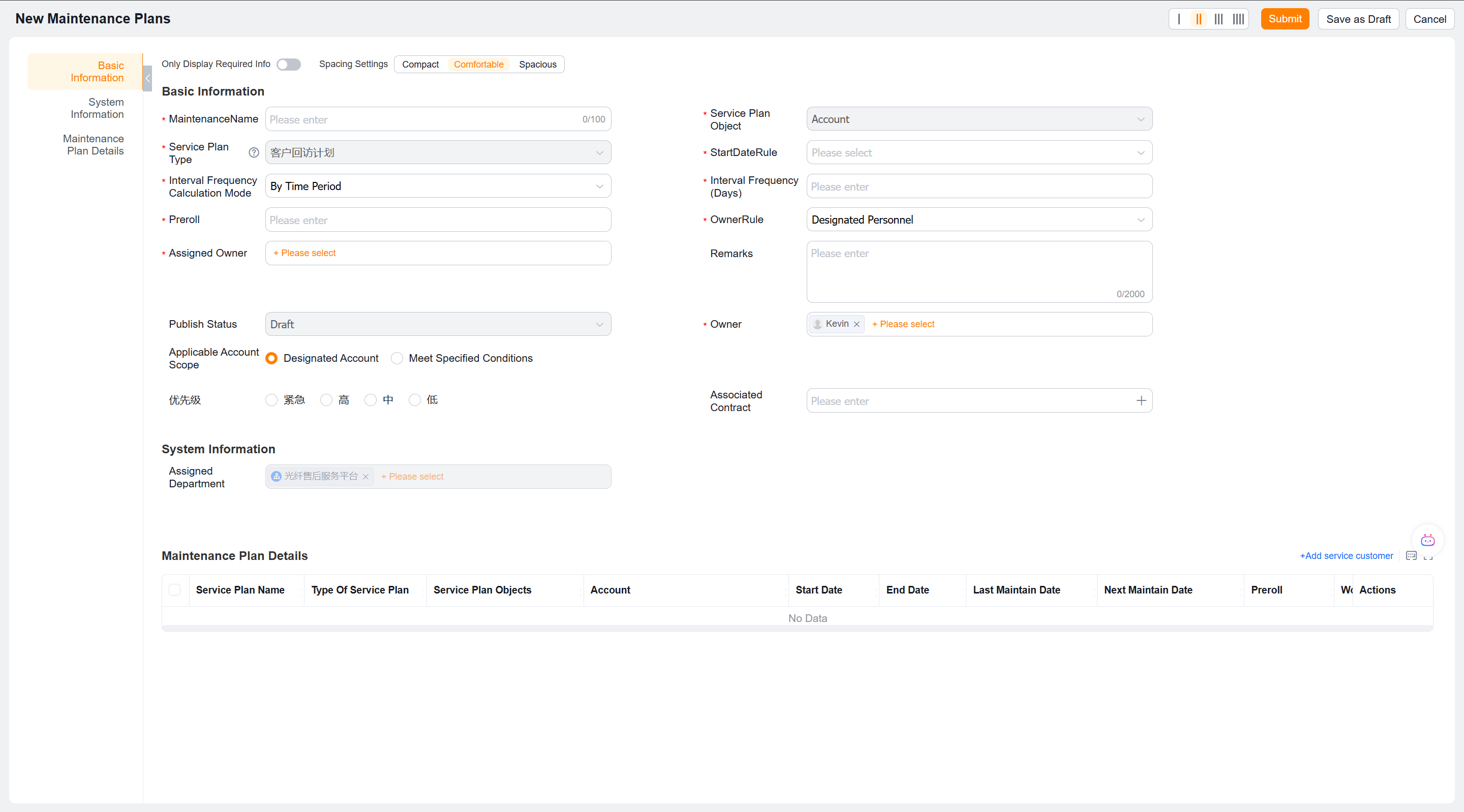
Fill in the service plan name in Basic Information, confirm the service plan type and service plan object.
Set the start time rule, specified start time, specified end time, and total service duration (days).
Select Interval Frequency Calculation Method and fill in Interval Frequency (Days); the equipment plan page provides a running time method, and then fill in the running time interval as required on the page.
Fill in Generate work order X days in advance to determine how long before the planned date to create the work order.
Select the Service Order Responsible Person rule and specify a responsible person if necessary; fill in the plan Responsible Person and remarks.
- Select the specified object or condition range provided on the page in Applicable Customer Scope or Applicable Equipment Scope.
- If the page requires maintenance details, enter Service Plan Details, add corresponding customers or devices, and check detailed information such as service start time, service end time, and days in advance.
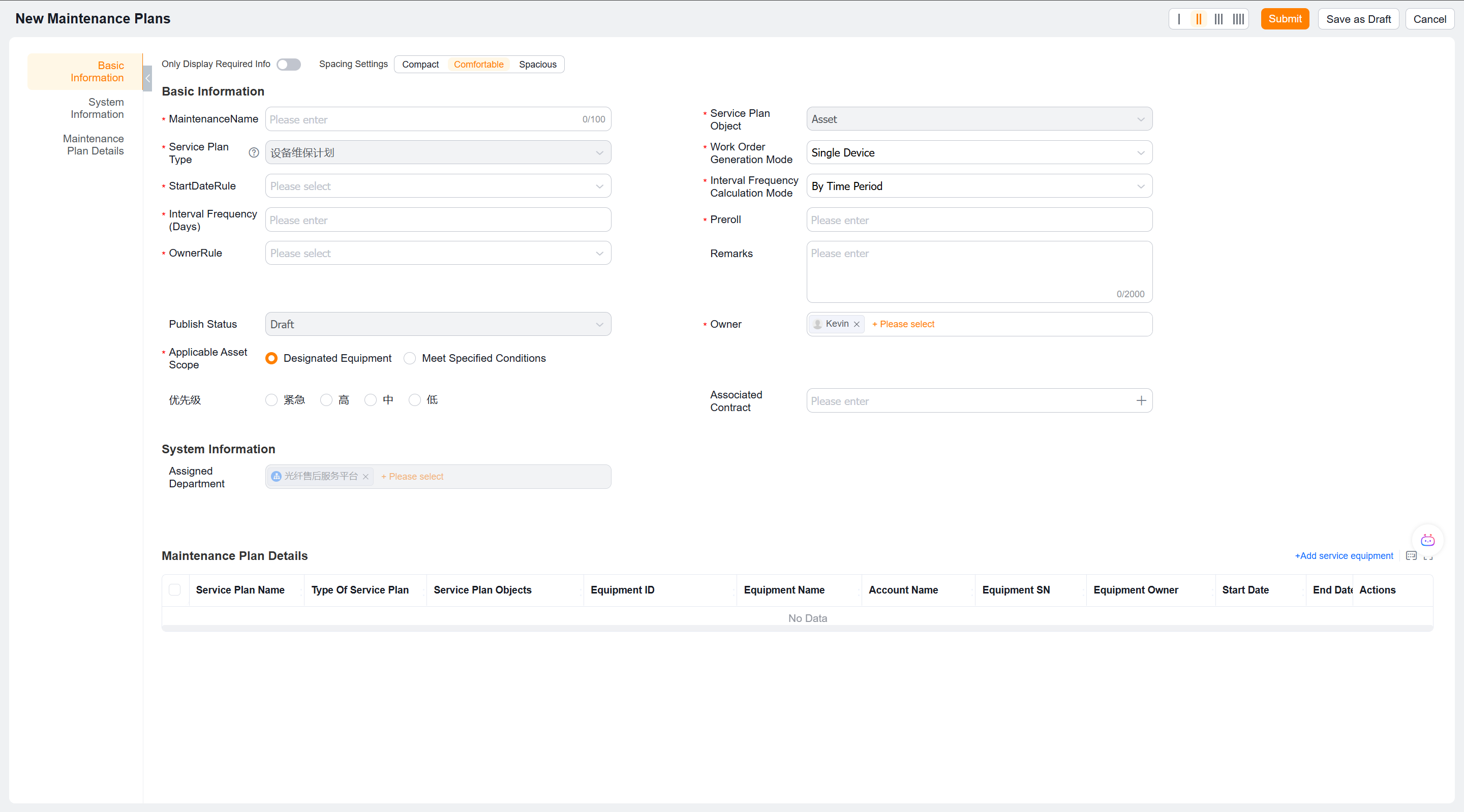
- Save the plan. Saving as a draft will not trigger automatic ticket generation.
4. Publish service plan
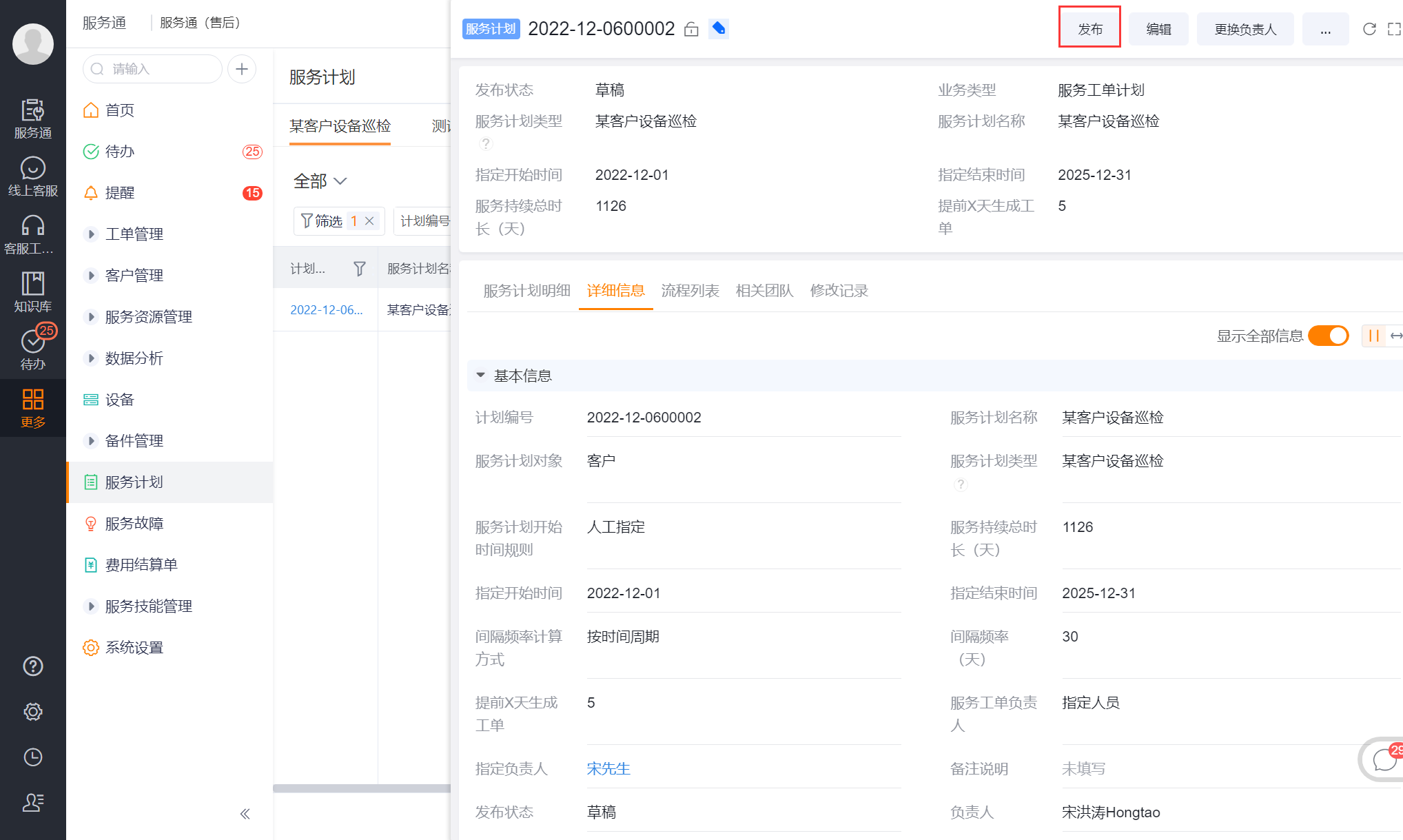
- Open the saved service plan details.
- Check the plan type, object, dates, frequency, owner, and details before publishing.
- Click Publish to enter the automatic execution range of the plan.
Expected results and verification
- Confirm that the publishing status is Published in the service plan list or details.
- Confirm that the target customers or devices exist in the plan details, and the service end time is not earlier than the current date.
- After 8 a.m. on the date when the plan should be generated, check whether the work order of the corresponding service type is created, and confirm that the work order uses the business type and service process configured in the plan type.
- Open the generated work order and check whether the field mapping from the plan details to the work order brings the expected values.
- After completing the work order process, return to the service plan details to check whether execution records such as the latest planned completion time and next planned time are updated.
Notes
- Only published service plans will be traversed by the daily 8am task; draft plans will not generate tickets.
- If the service end time is earlier than the current day, there are no plan details that meet the scope, or the plan has not yet reached the generation date, the work order will not be generated on the current day.
- Customer plans can only be calculated by time period; whether equipment plans can be calculated by running time depends on the current page and device data conditions.
- The work order business type, service process and field mapping in the service plan type will affect the content and flow of subsequent work orders, and should be verified with the test plan before modification.
- The source does not define how to withdraw a published plan, generate immediately, or retry manually. Use only actions available on the current page. Do not assume an edit creates a work order immediately.