Appearance
Manage service faults
Overview
Engineers can use Fault Self-Check to diagnose common product or equipment issues, and then add structured fault data to a work order. Web and mobile entry points differ. The work order's product or equipment filters available fault-tree data.
Before you begin
- You already have view and edit permissions for the corresponding work order, product or device.
- The administrator has enabled service faults and maintains available fault trees and service fault details for the product or device.
- When adding from the fault tree in a work order, the work order should preferably already have product or equipment information filled in; the system will use this to filter the available fault data.
- If an on-site issue is missing from the tree, fault review must be enabled before the new text can become structured fault-tree data.
Operation steps
1. Query the fault tree on the Web
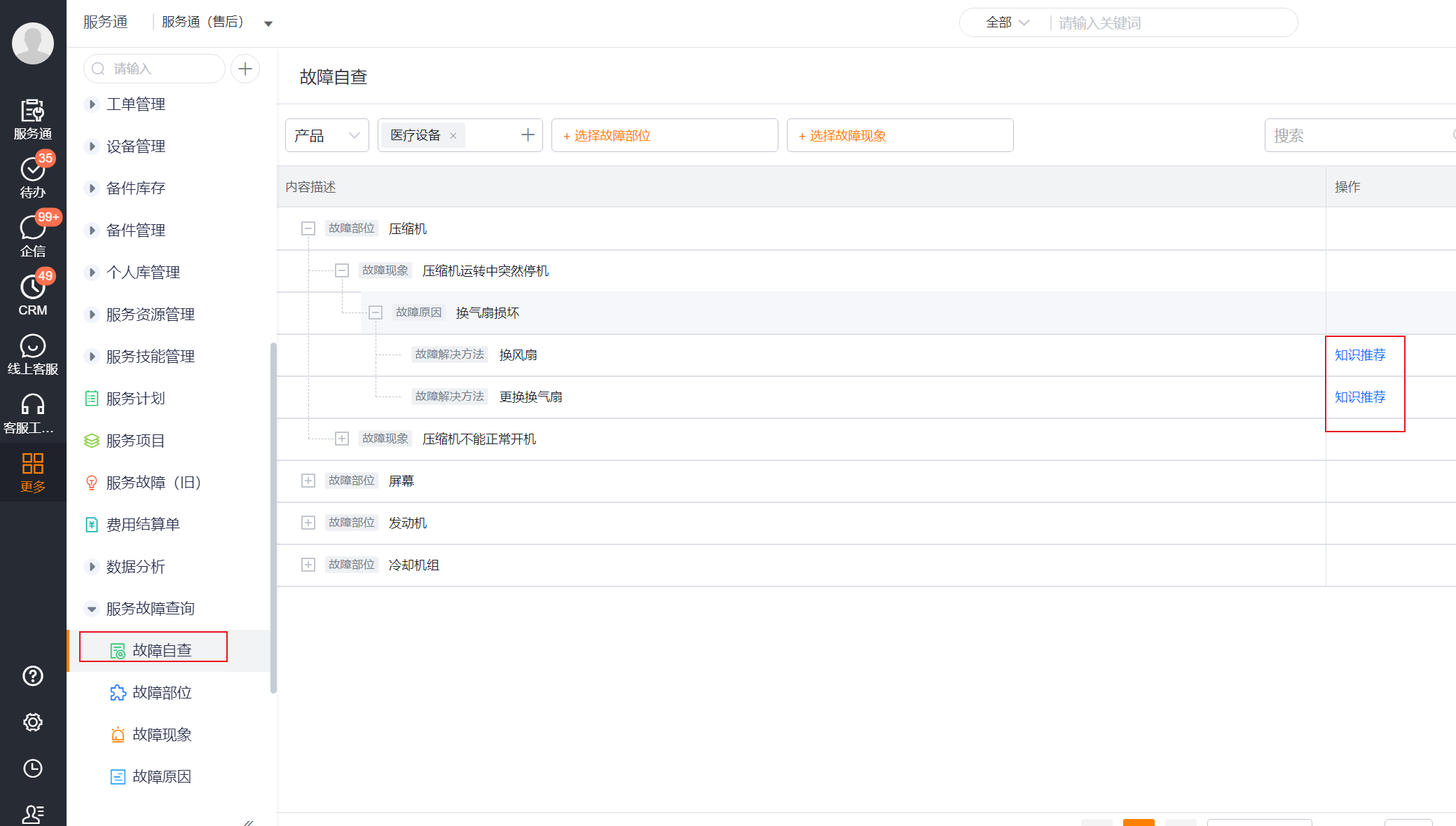
Go to Service Pass > Service Fault Query > Fault Self-Check on the web side.
Select Product or Equipment on the query page, and then select the product or device you want to view.
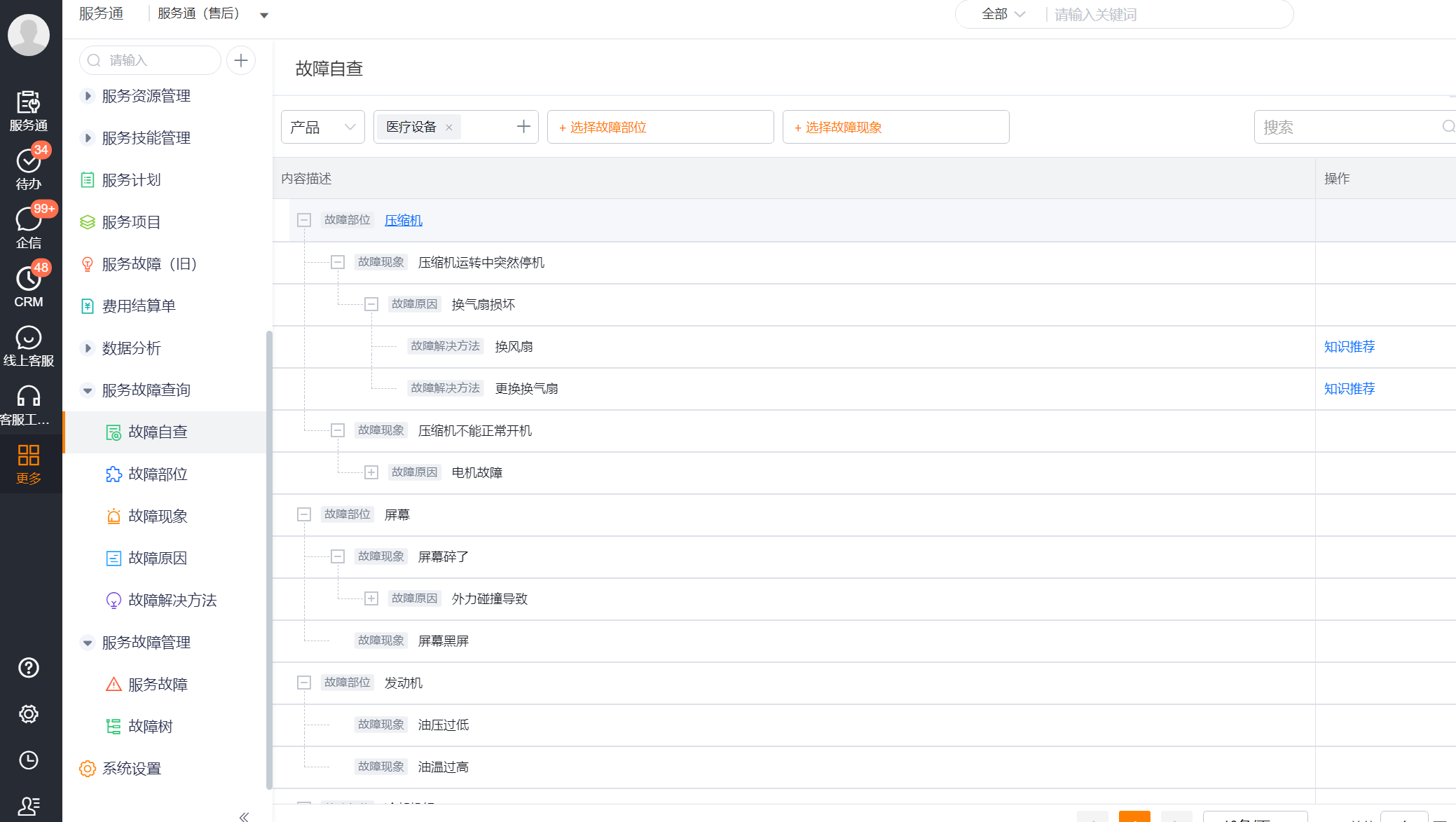
Select Fault Location and Fault Phenomenon as needed, and expand the results to view the corresponding fault causes and solutions.
If the solution is associated with knowledge records, click Knowledge Recommendation in the results to view related knowledge.
2. Query the fault tree in the app
In the app, go to Service Pass > Fault Self-Check.
Select Product or Equipment, and then select the product or equipment you want to query.
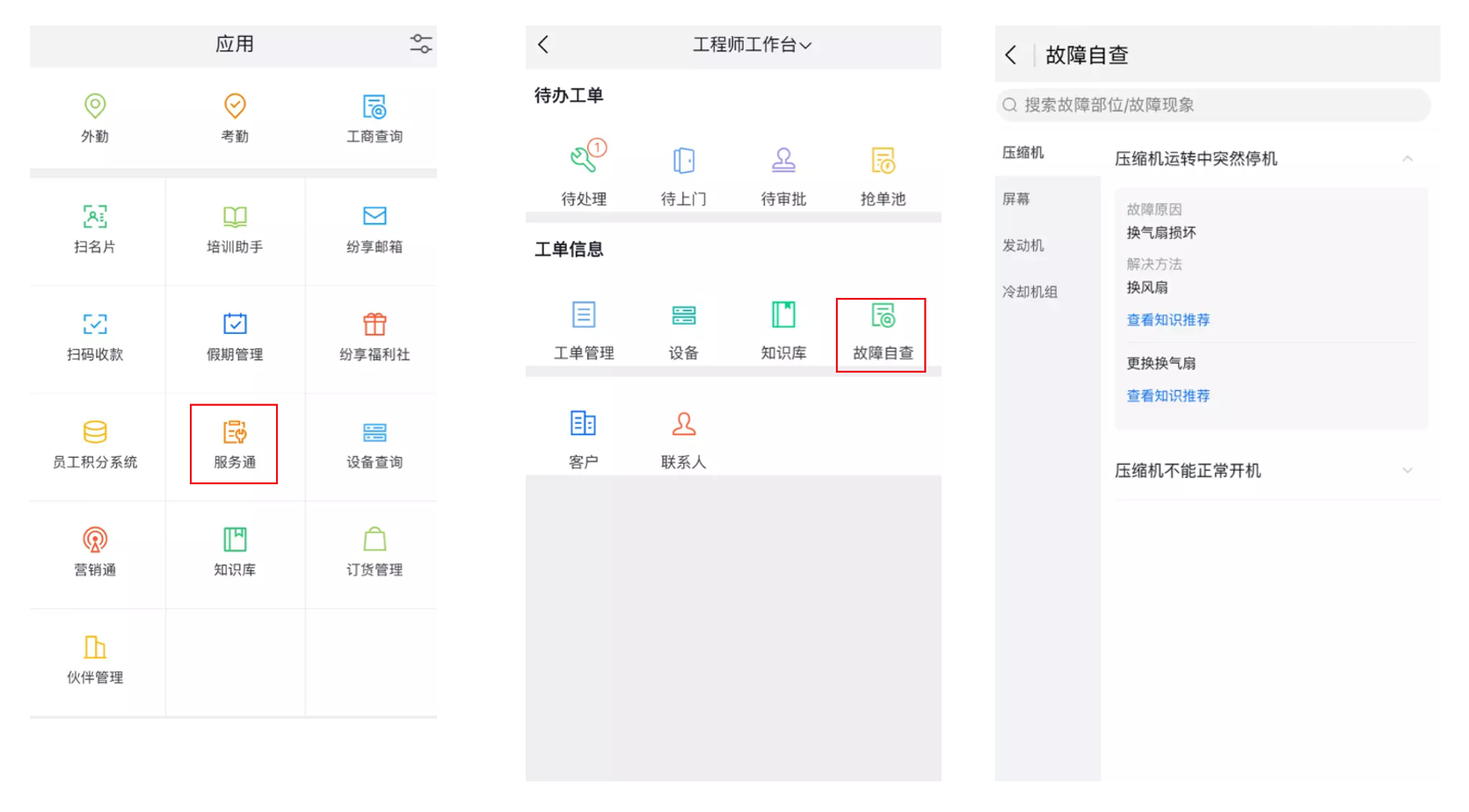
Select the fault location or fault phenomenon to view the causes and solutions in the fault tree.
Web and app entry-point names differ. If Fault Self-Check is unavailable in the app, ask an administrator to verify the plugin and mobile permissions.
3. Add service fault records from the fault tree in the work order
Open a new or existing work order that needs to be processed, and enter the Service Fault Record area.
Click Add from Fault Tree to open the fault tree selection window.
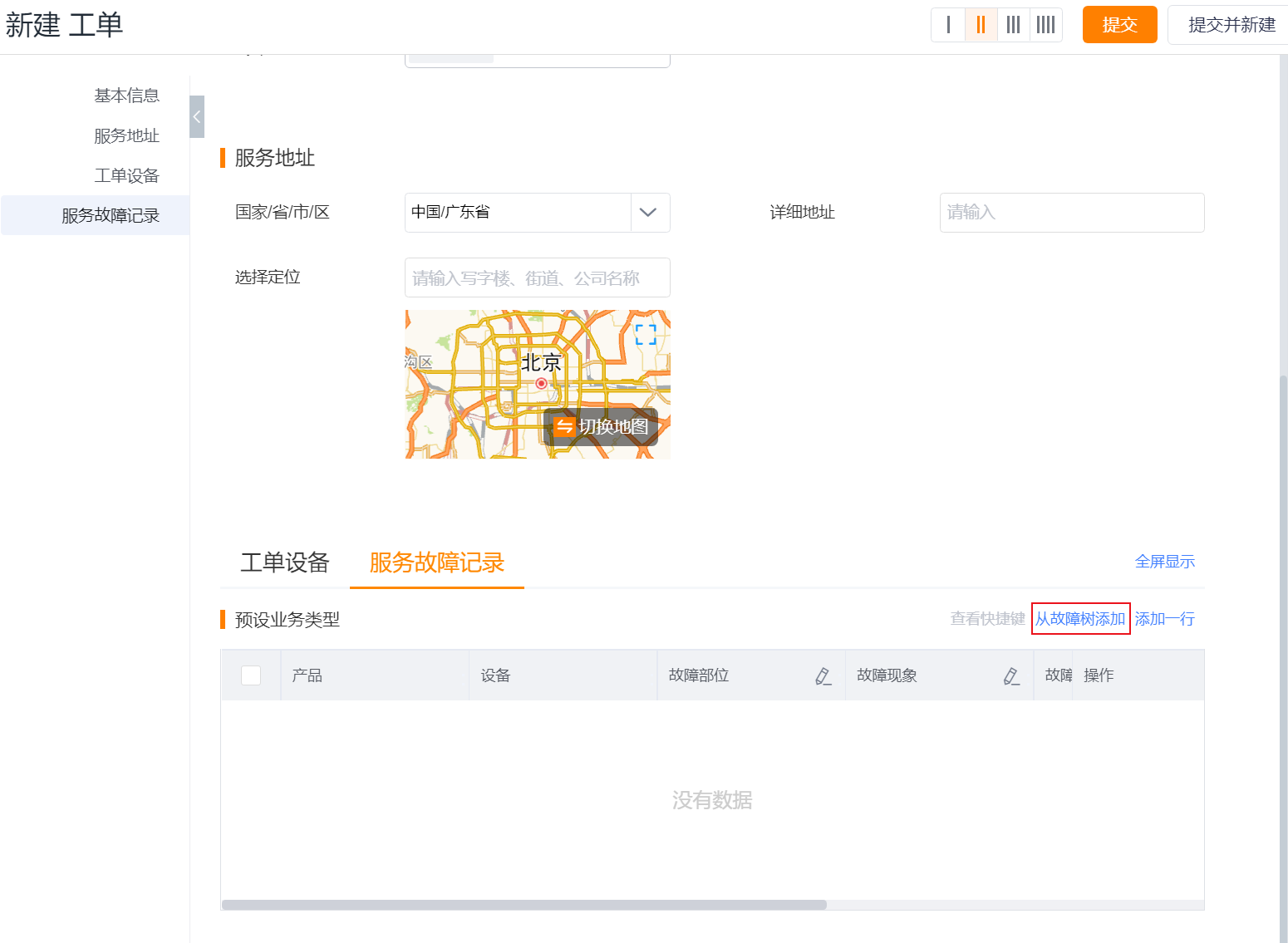
In the upper left corner of the pop-up window, filter the fault data by the product or equipment that has been filled in the work order.
Select the fault location and fault phenomenon, confirm and save.
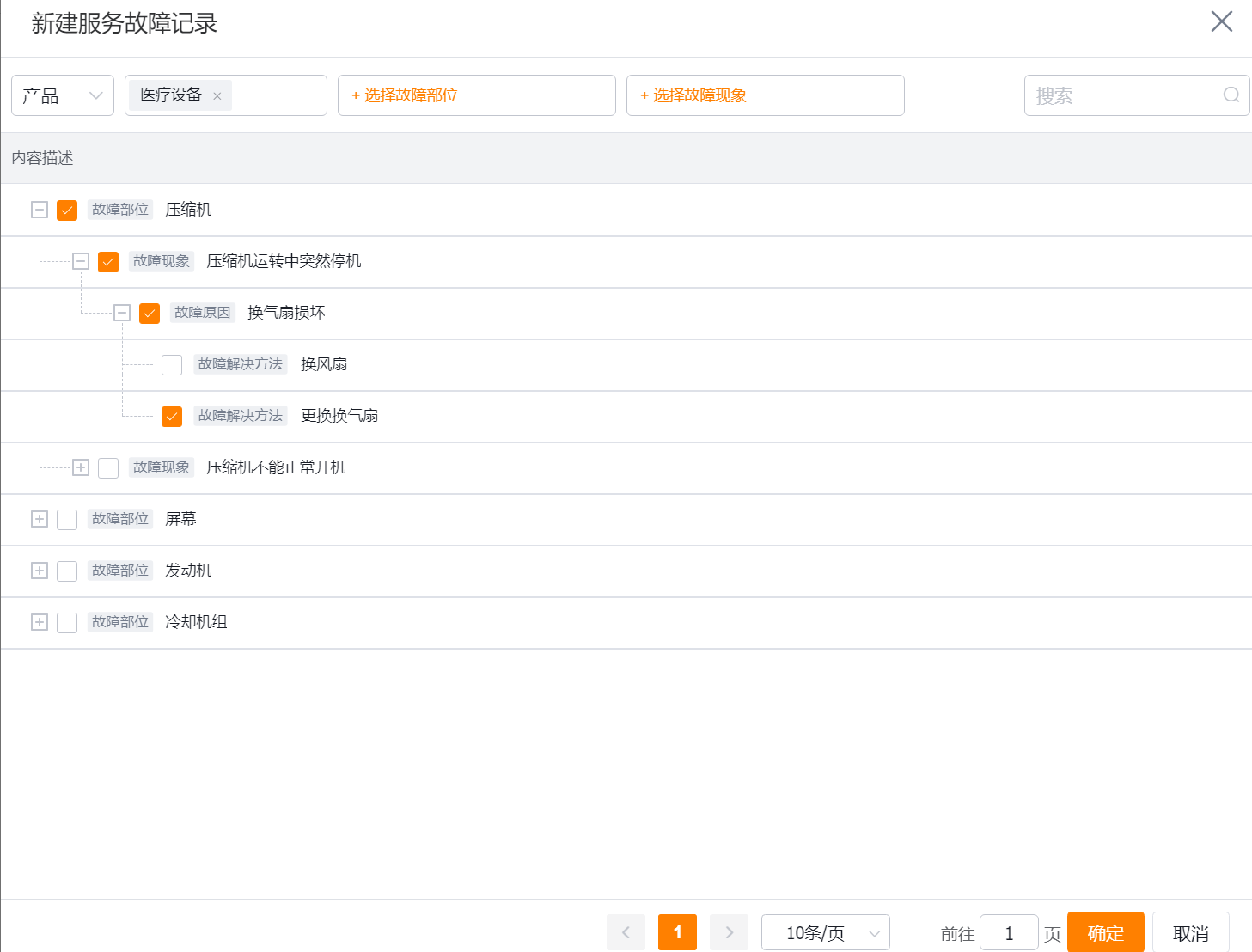
After saving, the system will automatically bring in product, equipment information and fault information. The source data indicates that this set of work order operations is also adapted to the App, but the specific button positions are subject to the current App page.
4. Record on-site information not found in the fault tree
In the Service Fault Record of the work order, fill in the fault location, fault phenomenon, fault cause and fault solution in text form.
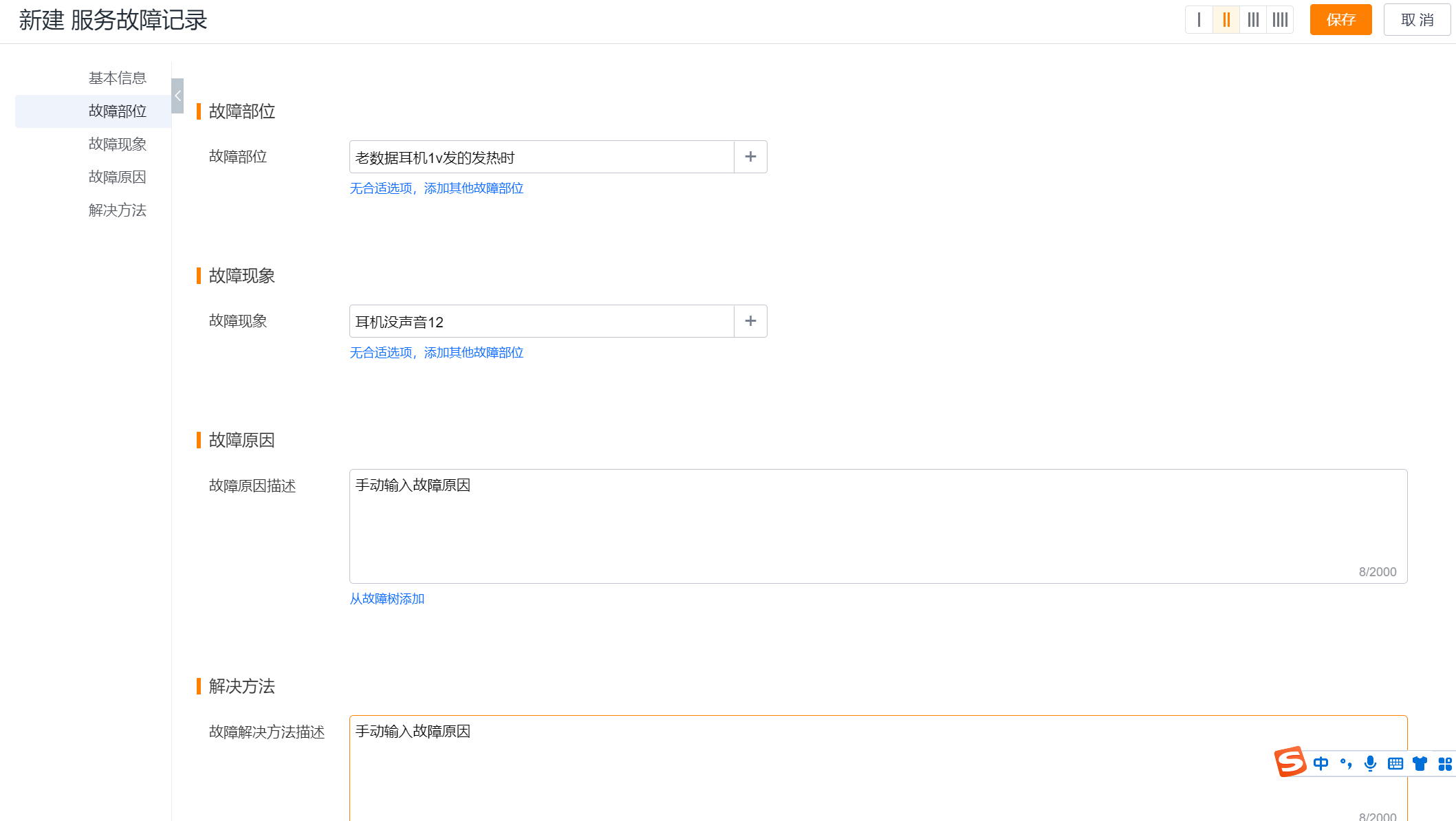
Save work orders or service fault records and retain the actual situation on site.
If the enterprise has enabled fault audit, the system will automatically generate a fault audit work order the next day.
After passing the review, the system creates the text content into the fault tree and writes the structured data back to the service fault record.
Before passing the review, the text record is only the on-site information in the current work order and should not be regarded as a fault tree node that can be queried by other work orders.
5. View Fault Self-Check on a detail page
If the administrator has configured the Fault self-diagnosis component in the work order, product or equipment layout, the fault tree data can be viewed directly on the corresponding details page. The component will only display available fault data for the current product or device; if there is no matching fault tree, the page will not generate new fault records.
Expected results and verification
- Fault self-examination can expand the fault location, fault symptoms, fault causes and solutions by product or equipment.
- When added from the fault tree and saved, the work order service fault record contains product, equipment and fault information.
- Solutions associated with knowledge records display the Knowledge Recommendation portal.
- When fault review is turned on, the corresponding review form can be found at the review portal the next day; after passing the review, structured data can be seen in both the fault tree and the original work order record.
FAQ and troubleshooting
Cannot find a product or asset
Confirm that you can view the product or asset. Ask an administrator to verify that the service fault includes that product or asset in its scope.
The fault tree pop-up window in the work order is empty.
First check whether the product or equipment has been filled in the work order, and then confirm whether the product or equipment has service fault details. The pop-up window filters the available fault data based on the product or equipment on the work order.
Field faults cannot be selected from the fault tree
Use text mode to record the actual fault. Ask an administrator whether fault review is enabled. Approved content can then be added to the fault tree.
No knowledge recommendation after saving
Knowledge recommendation requires the administrator to enable service fault knowledge recommendation and associate knowledge records in fault resolution methods; the entry will be displayed only when these two conditions are met.
Notes
- Add from fault tree saves structured fault records; whether on-site text supplement can write back the fault tree depends on the fault audit configuration and audit results.
- The product or equipment information in the work order will affect filtering and automatic import. When the information is incomplete, first supplement the basic information of the work order and then select the fault.
- The entrance and page layout of different platforms may be different: Web uses Service Fault Query > Fault Self-Check, App uses Fault Self-Check.
- The names and data in the screenshots are page examples. When processing actual work orders, the content displayed by the current tenant shall prevail.