Appearance
Configure equipment on-site standard operations
Overview
Equipment site standard operations are used for multi-equipment work orders: one work order contains multiple equipment at the same time, and different equipment requires different on-site steps or records. The system will match the equipment standard job template based on the applicable conditions of each equipment record in the Work Order Equipment object, and generate an independent equipment SOP instance for each equipment. Only after the engineer completes the required actions for each equipment instance can he complete the on-site standard work of the work order.
Before you begin
- Enable work order support for multiple equipment in Service Pass, that is, add work order equipment slave object (
CasesEquipmentObj) to the work order object. This switch cannot be revoked after it is enabled. Please confirm the business plan before configuring it. - Place work order equipment details in the work order page layout and prepare test work orders containing multiple equipment.
- Determine the fields used to distinguish equipment templates, such as equipment product, model, or other equipment attributes; these fields must be able to participate in condition matching in the work order equipment record.
- Prepare work order on-site standard operation templates and equipment on-site standard operation templates, and confirm that the execution personnel have access rights to the configured objects and on-site operations.
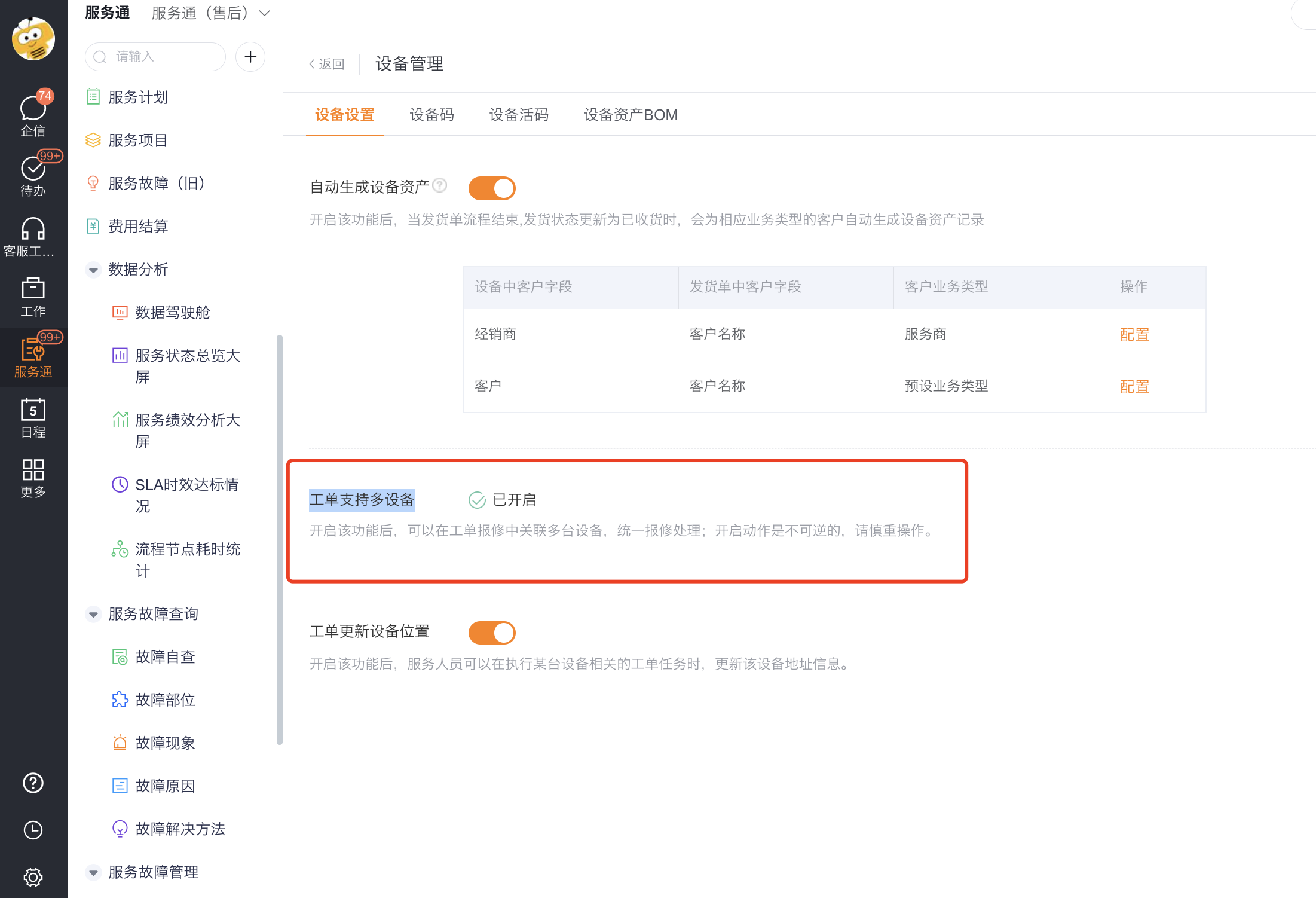
Create new equipment standard job template
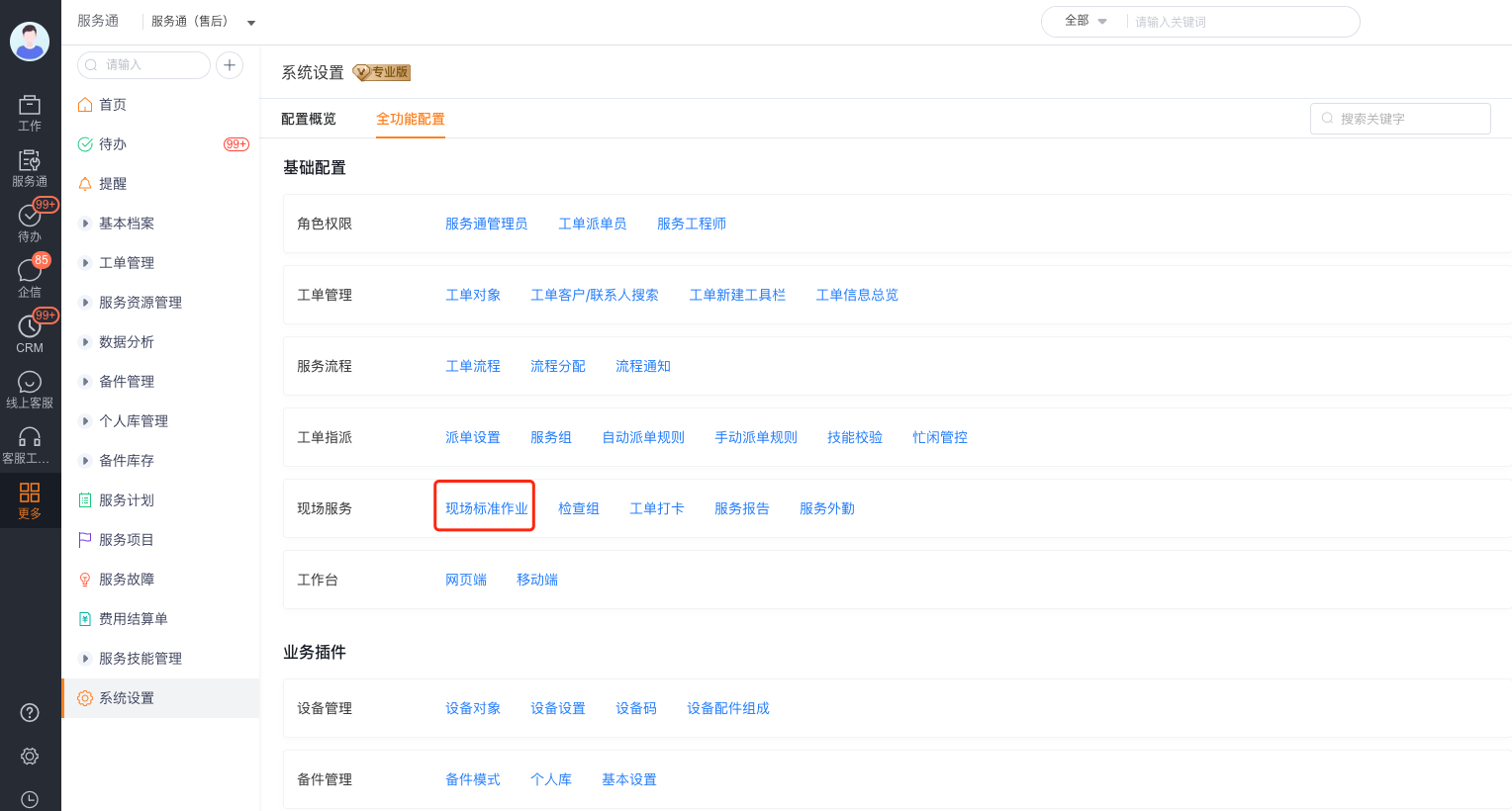
Open the on-site standard operation configuration in Service > System Settings > On-site Standard Operation.
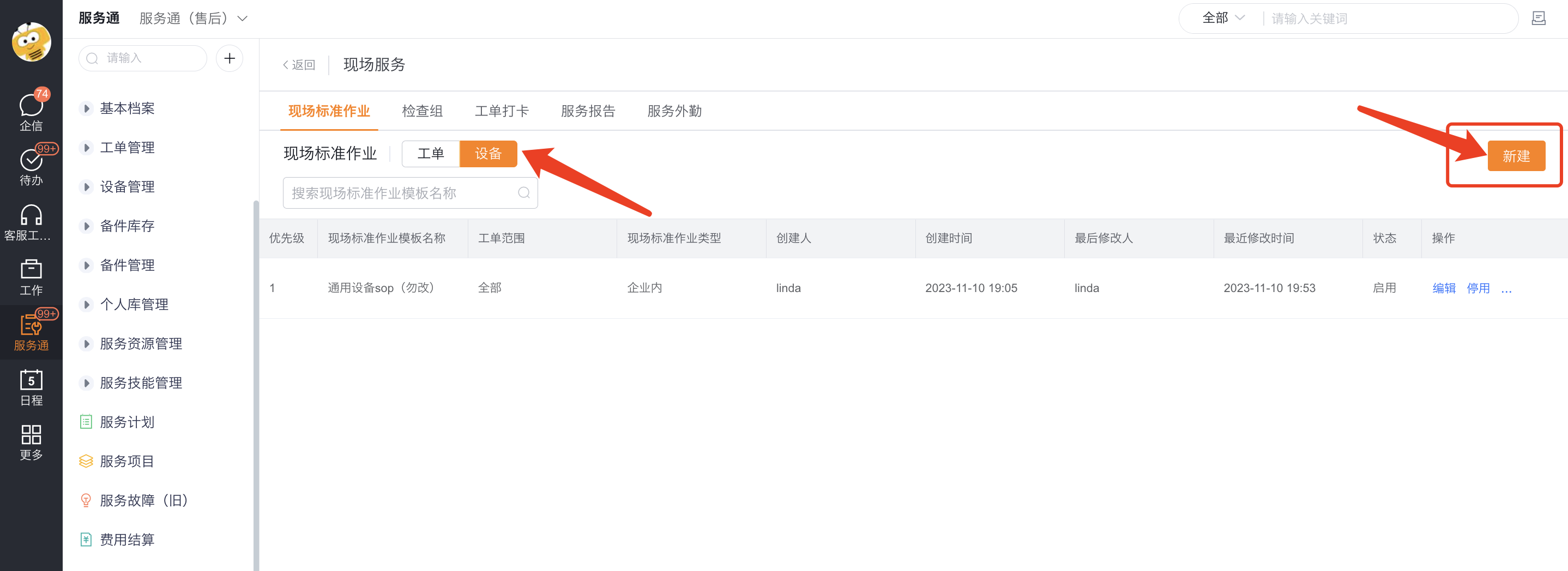
Click New on the Equipment tab.
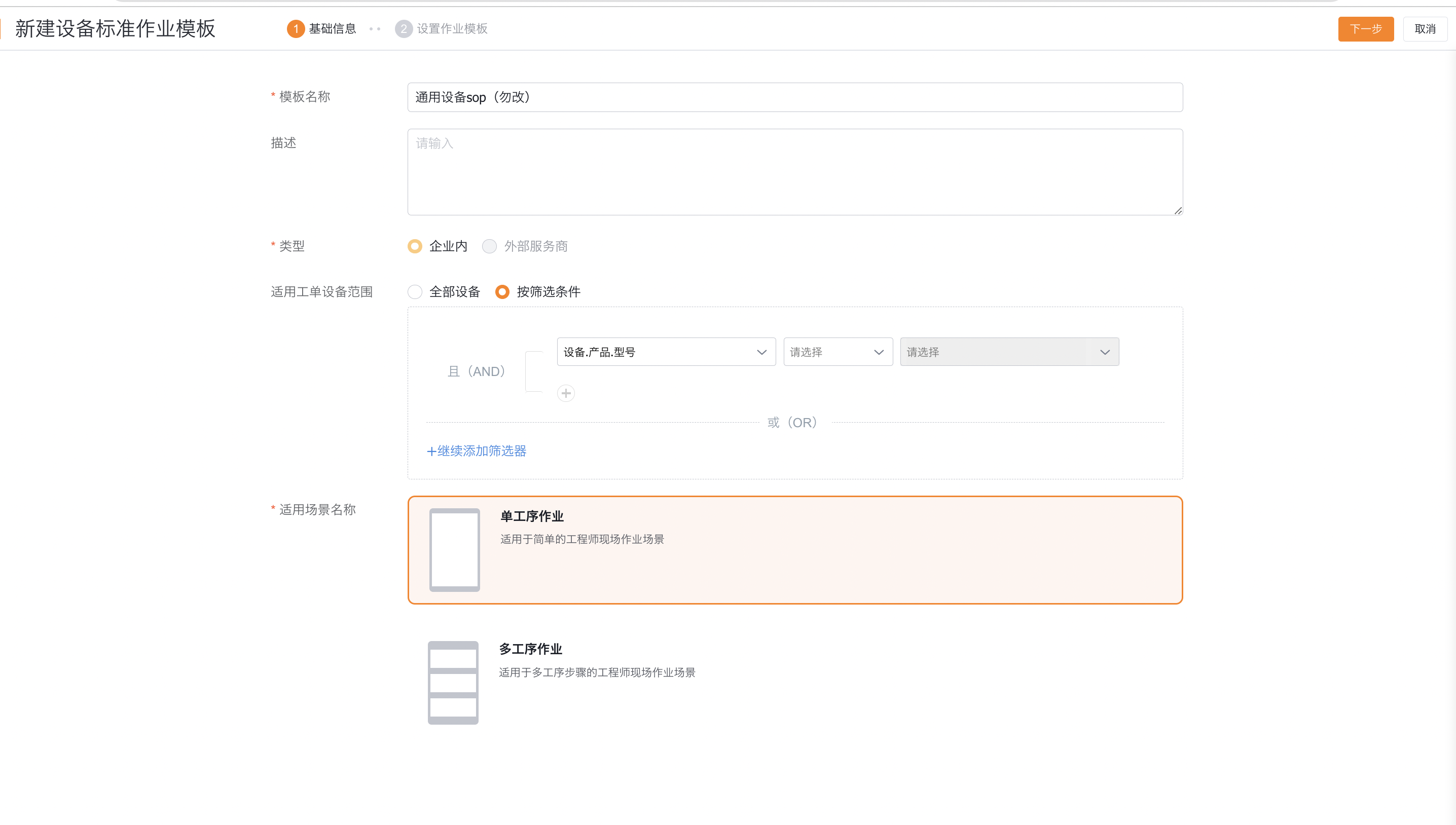
Fill in the following content on the basic information page:
- Template Name: Used to identify the template in Equipment SOP and Work Order SOP.
- Description: Record the template usage and applicable maintenance or installation scenarios.
- Equipment Applicable Scope: Select All Equipment, or select Filter Conditions, and then configure the equipment fields, operators and condition values. Multiple conditions can be combined using ** and (AND) **, or you can use ** or (OR) ** to add condition groups.
- Applicable scenario name: Select Single process operation or Multiple process operation. Use a single process for equipment tasks with fewer steps; use multiple processes when they need to be split into stages such as preparation, maintenance, inspection, etc.
Click Next to enter job template configuration.
Configure equipment standard operating procedures
- In a multi-procedure template, select + to add a procedure. Single-procedure templates do not show this action.
- Select a procedure panel and enter its name and description, such as Preparation, Equipment Maintenance, or Result Inspection.
- Click the Delete operation on the process to remove the current process; before deleting, confirm that the actions in it will not be executed again.
- After the configuration is completed, click Save so that the equipment template can be selected in the work order SOP.
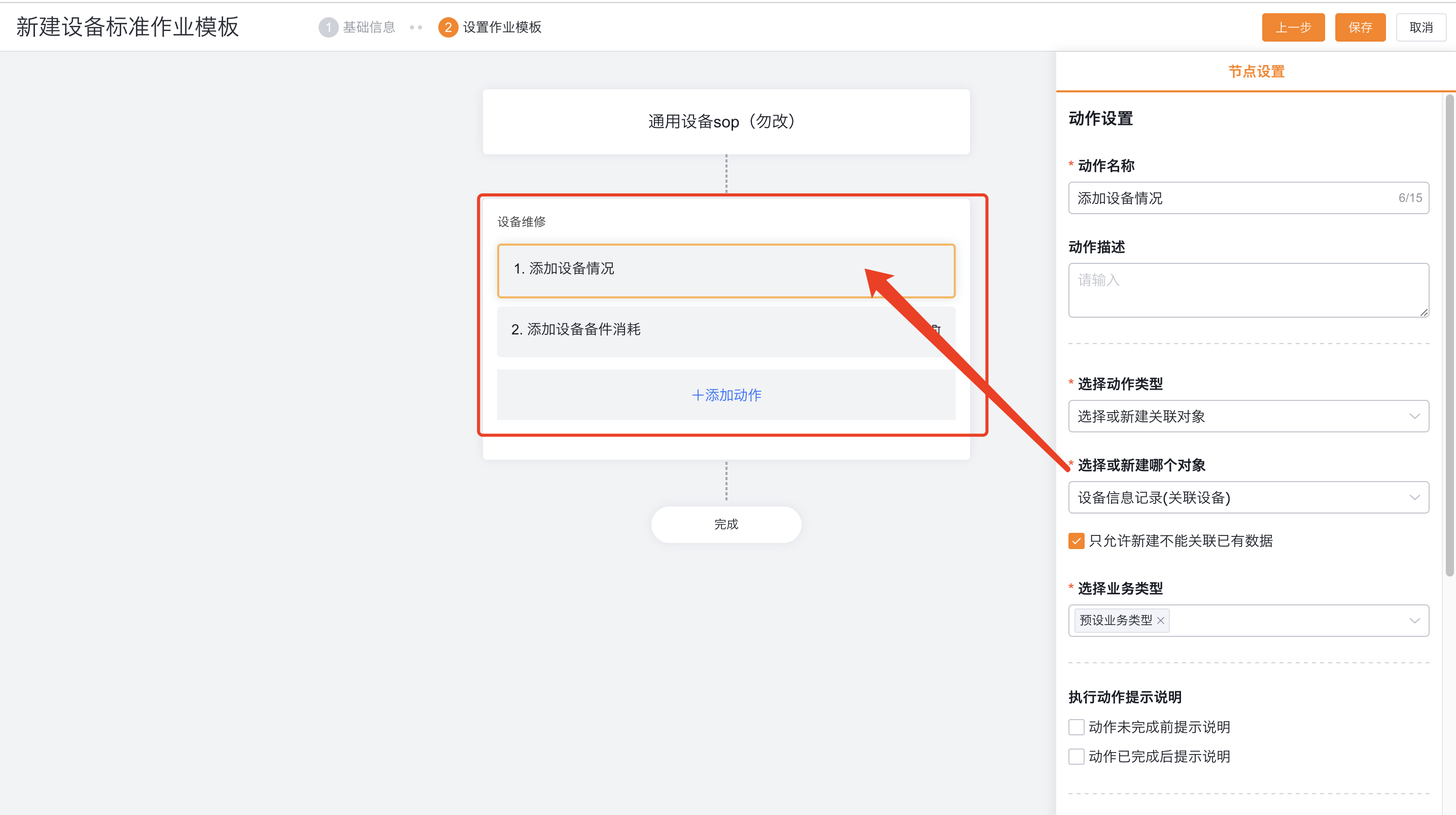
Configure equipment standard operation actions
An action represents a specific piece of work that an engineer needs to complete on a equipment instance. After entering the process, click Add Action, and then fill in the action name, action description and action rules in the Node Settings on the right. Equipment standard operations currently only support single action and do not support the repeated action mode in the work order SOP.
Select action type
Equipment standard operations support the following three action types:
| Action type | Configuration method and applicable scenarios |
|---|---|
| Edit Object | Edit equipment object fields (such as equipment location, equipment description), or edit equipment-related object fields (such as the customer's last follow-up time); when using process editing, you can also maintain master objects and slave objects at the same time, such as work order equipment and equipment faults. |
| Select or create a related object | Select an existing record to associate with the equipment, or create a related record. If you select Allow new records only, users can only create records, such as equipment operation records. |
| Create related objects in bulk | Create multiple equipment-related records at once, such as Spare Part Consumption records. |
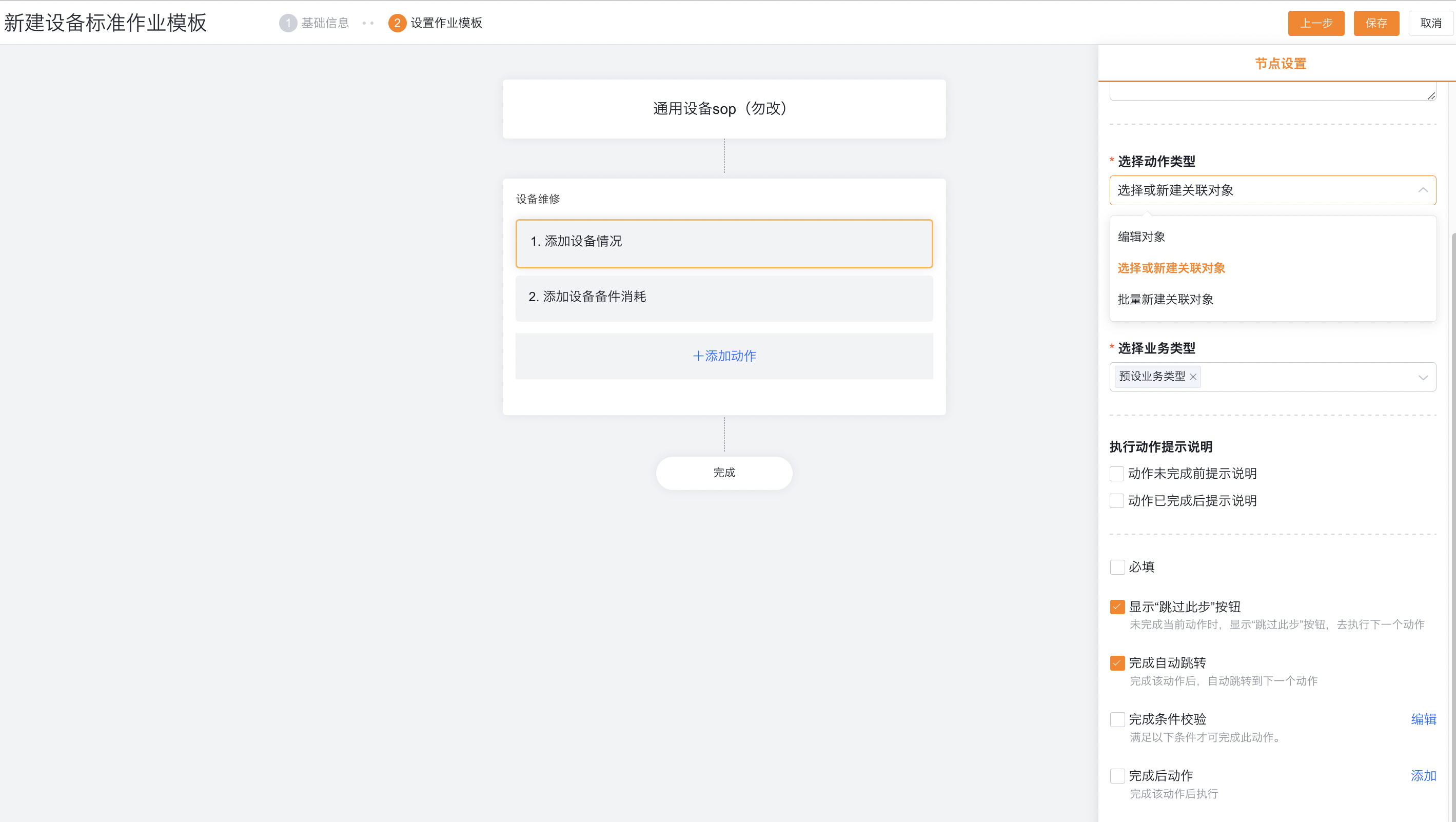
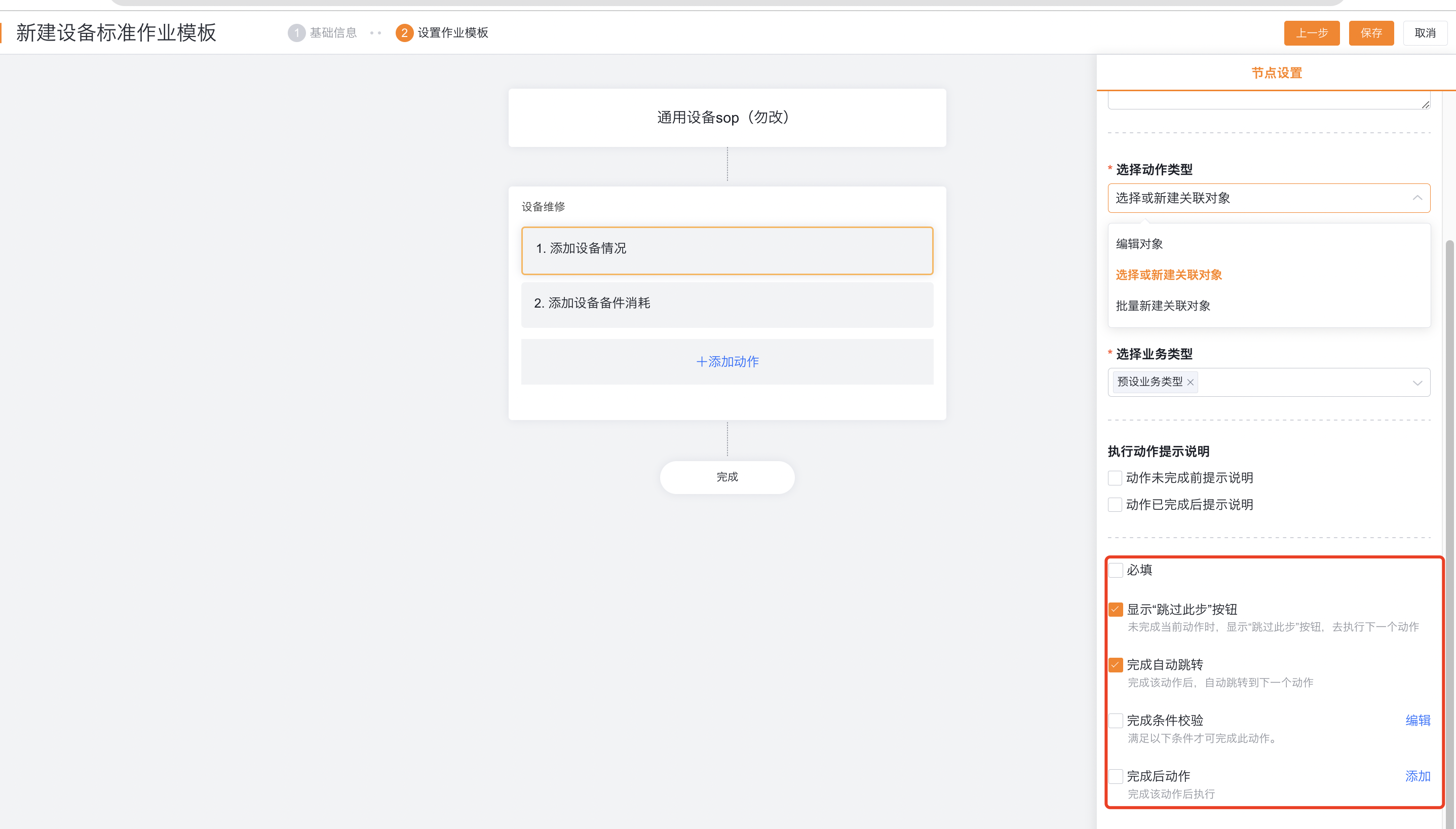
Configure prompts, handlers, and completion rules
Configure as needed in action node settings:
- Execution Action Prompt Instructions: Prompts or operation steps before the action is not completed and after the action is completed can be configured separately to guide engineers to handle according to specifications.
- Handler: The handler cannot be specified separately in the equipment template for equipment actions. When executed, the handler of the equipment standard job instance in the work order SOP will be inherited uniformly.
- Required: When the engineer clicks the process Complete Sign Out or the equipment SOP action Complete, the system verifies whether the required actions for the current equipment instance have been completed.
- Predecessor Action: The current action cannot be executed before the predecessor action is completed; the predecessor action can only be selected from the actions of the current process.
- Display "Skip this step" button: Allows you to enter the next action before the action is completed. This option only changes the order of operations and does not bypass required validation.
- Complete automatic jump: Automatically enter the next action after the action is completed; this interaction is only supported by the App, and the Web does not provide the same automatic jump interaction.
- Complete condition verification: Click Edit to add a verification function; when the conditions are not met, the action cannot be completed.
- Action after completion: Click Add to configure the function; the system automatically executes the function after the action is completed.
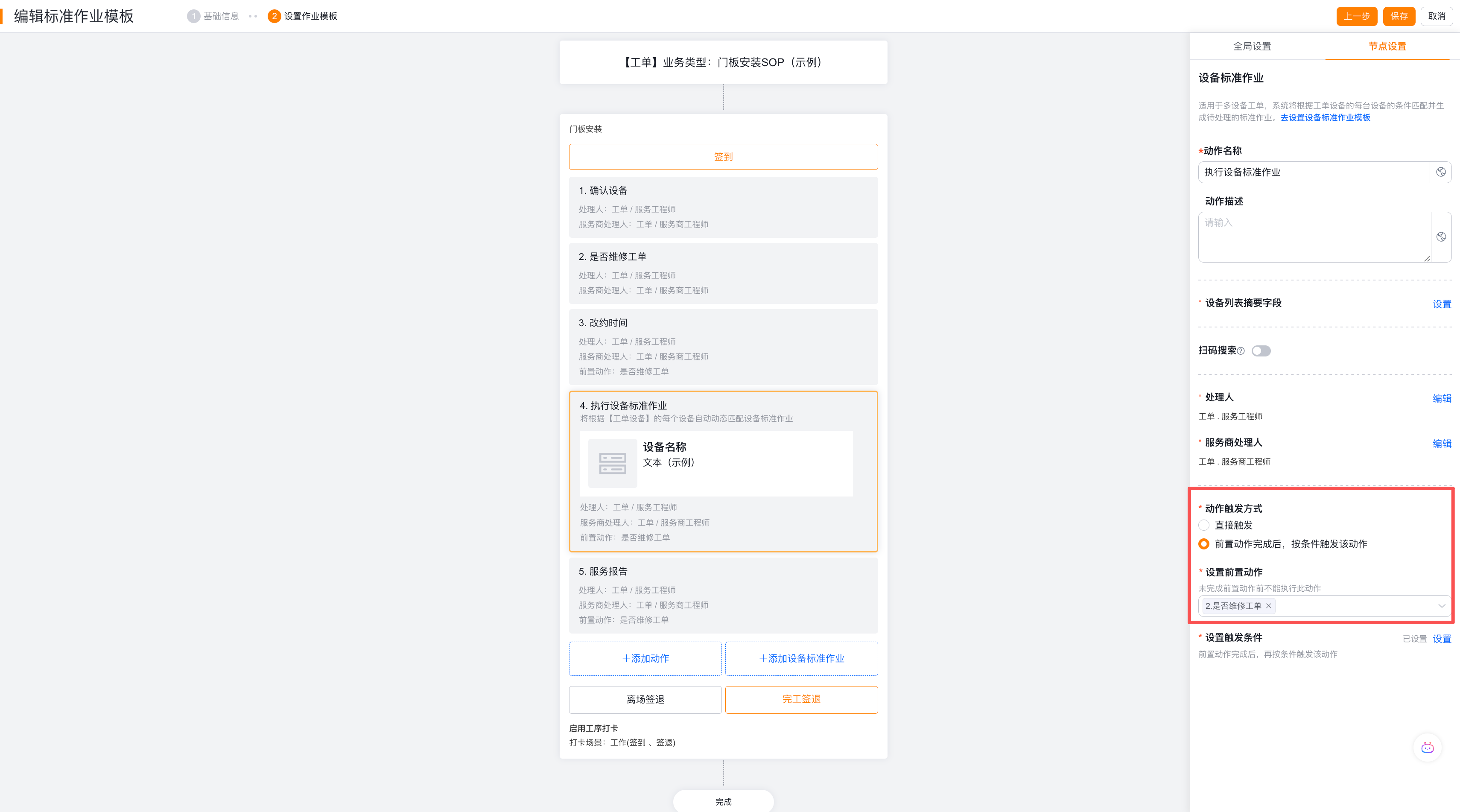
Add equipment standard operations to the work order SOP
Open the work order standard operation template that needs to undertake equipment tasks in Service > System Settings > On-site Standard Operation.
Enter the target process, click Add Equipment Standard Operation, and select the created equipment standard operation template.
Configure the execution person in the Processor settings of the equipment standard job instance. The default value is Work Order.Engineer. This handler will be applied to all equipment instances generated under the work order, and the actions in the equipment template can no longer be covered individually.
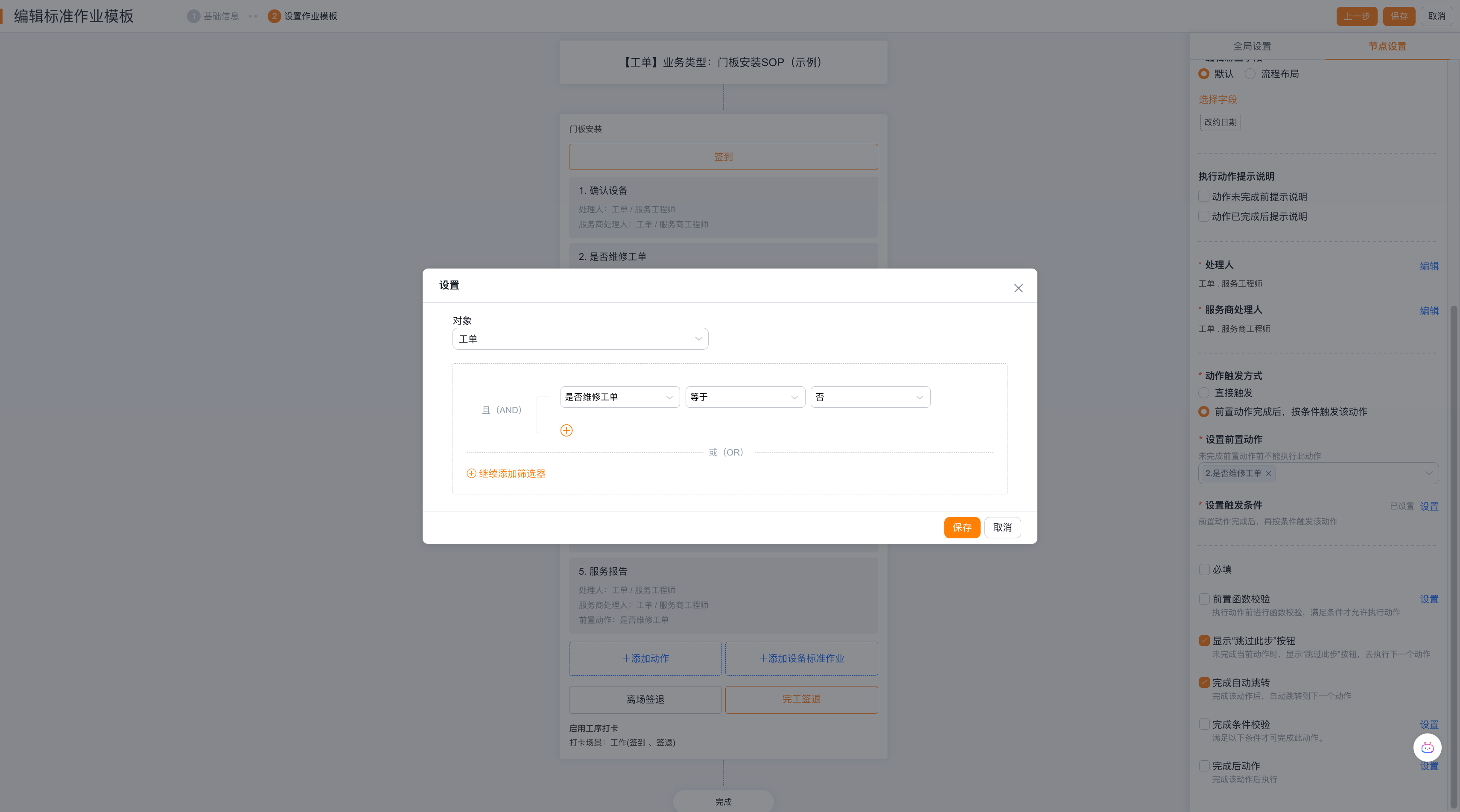
Configure the triggering method of equipment actions:
- Direct trigger: After the process enters the SOP node of the work order, the equipment actions are directly generated and displayed without judging the business conditions.
- After the pre-action is completed, the action is triggered according to conditions: First select the pre-action in the same process; after the pre-action is completed, the system determines whether to display the current equipment action based on the conditions.
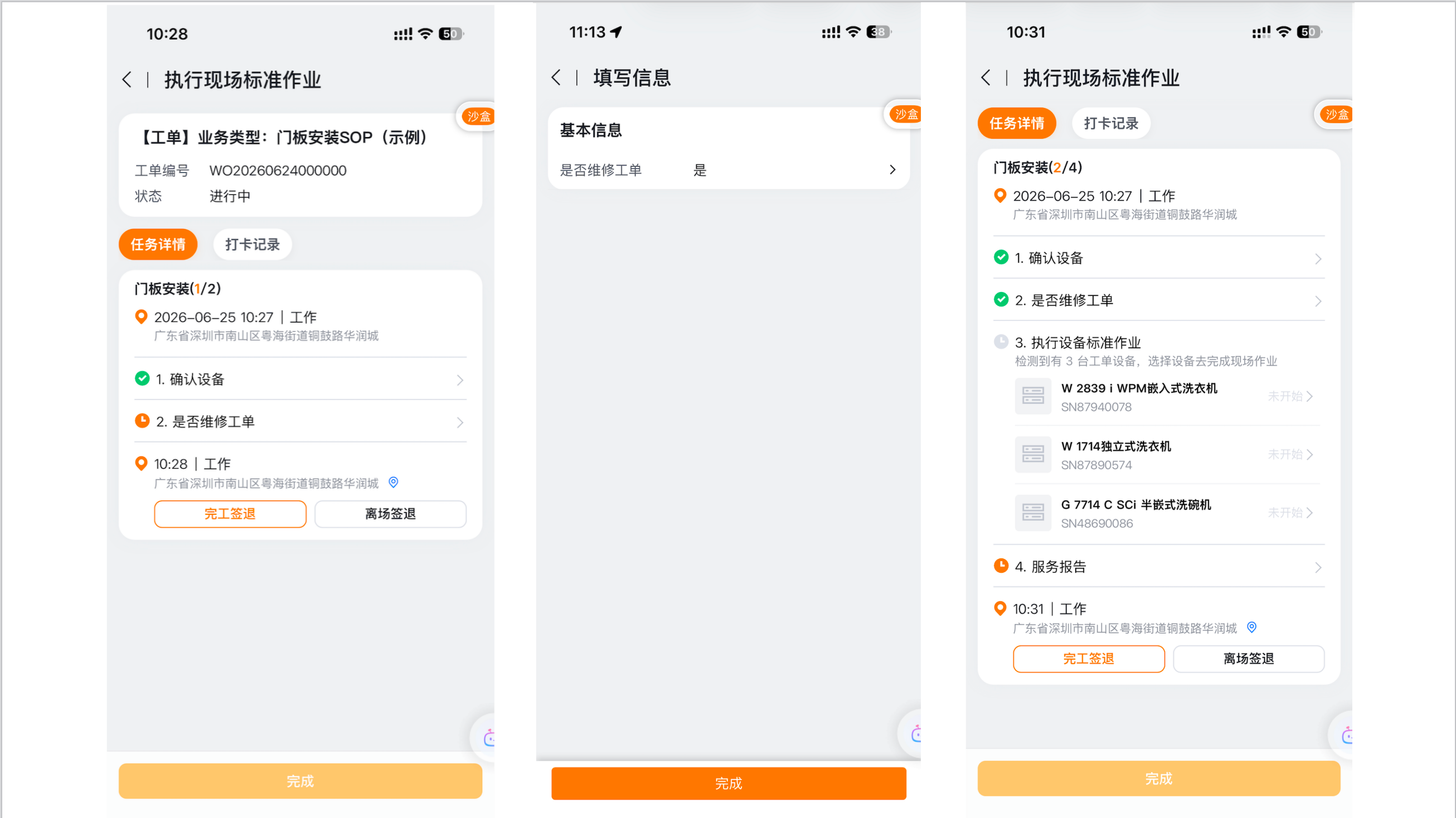
When selecting condition trigger, click Set Trigger Condition, select the condition judgment object, and configure fields, operators and condition values. Only actions that meet the conditions will be displayed to the engineer; when the conditions are not met, the action will not be displayed, will not be required to be executed, and will not block the completion of the work order SOP.
Instance generation and completion logic
Applicable scenarios
When a work order handles multiple faulty equipment, equipment to be installed, or equipment of different models at the same time, and each equipment requires different processing actions or records, use the multi-equipment work order SOP. Equipment templates differentiate equipment by scope of application, and work order SOPs are responsible for placing equipment tasks into the overall on-site service process.
Generate rules
- The work order enters the on-site standard operation node that contains equipment standard operations.
- The system reads each work order equipment record under the work order, and matches the equipment standard operation template according to the equipment's applicable scope.
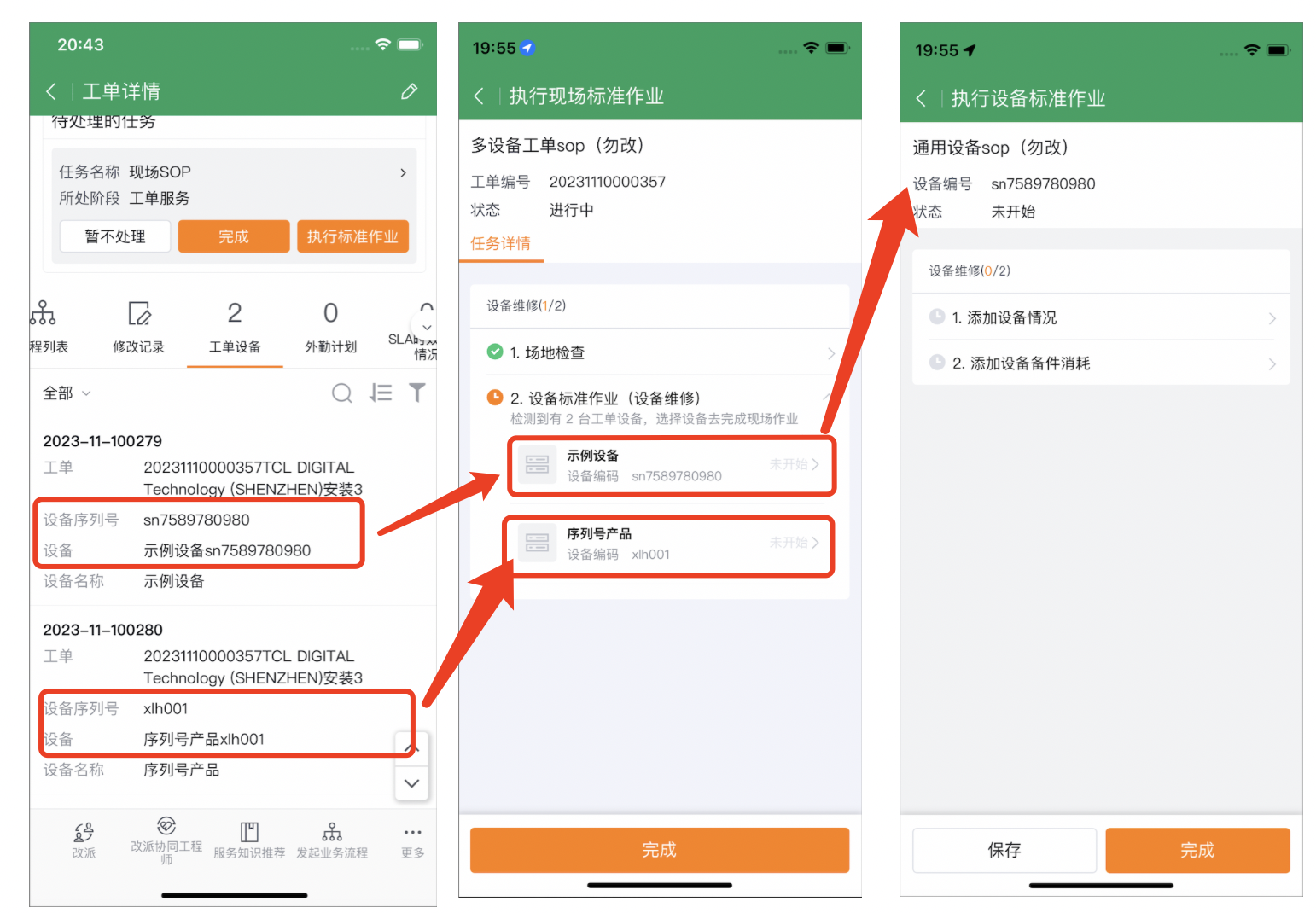
- Each matched equipment generates an independent equipment standard job instance, and the equipment's identification and equipment actions are displayed in the instance.
- The handler of the equipment instance uses the instance handler configured in the work order SOP; the equipment template action no longer assigns a separate handler.
Complete the rules
- Engineers can open the instance of each equipment separately to perform actions; the App will display the instance and completion status separately by equipment.
- When the required actions in the equipment instance are not completed, the corresponding completion checkout or action completion verification cannot be performed. -Only after all required actions for each equipment instance are completed, the work order on-site standard operation can be completed.
Expected results and verification
- Use a test work order with the multi-equipment work order capability enabled to add two or more equipment with different applicable conditions.
- Enter the work order on-site standard operation, confirm that each work order equipment matches the expected equipment template according to the conditions, and generate an independent instance.
- Open any equipment instance and confirm that the action name, prompt description, handler and completion rules are consistent with the template.
- If the required actions of a equipment instance are left uncompleted, they will be verified when the verification action Complete or the process Complete Sign-Out respectively, and the work order SOP cannot be completed.
- Complete the required actions for all equipment instances and confirm that the work order SOP can be completed.
- Configure a trigger action if the conditions are not met, and verify that the action does not display, does not require execution, and does not block the completion of the work order SOP.
Notes
- When work order supports multiple equipment is not enabled or work order equipment slave objects are not added, the equipment SOP cannot be generated according to the method in this article.
- Work orders support multiple equipment cannot be revoked after the switch is enabled; the work order object, page layout and reporting process should be confirmed before going online.
- The equipment template only supports a single action. Do not configure the repeated action frequency of the work order SOP in the equipment SOP.
- The equipment action handler inherits the equipment instance handler of the work order SOP and cannot be specified separately in the equipment template.
- Select prerequisite actions from the current procedure. For conditional prerequisites, configure the action before its field conditions.
- Skip This Step lets engineers proceed to later actions but does not complete required actions.
- When the completion condition check fails, the action cannot be completed; the post-completion action function is only executed after the action is completed.
- Automatically jumping to the next action is only supported by the app; do not judge the template configuration failure based on the lack of automatic jump on the web side.
- Conditional triggering actions will not be displayed if they do not meet the conditions, nor will they block the completion of the work order SOP; if forced execution is required, direct triggering should be used and required or completion conditions configured.