Appearance
Manage service agreements and charges
Overview
Service agreements define labor, consumables, and spare-part entitlements for an account or equipment during a validity period. During work order execution, the system can determine warranty coverage, apply pricing, and consume agreement quantities. Charge management can create sales orders for billable products.
This article is divided into administrator configuration and business personnel operations by role. Administrators are responsible for plug-ins, rules and work order processes, while business personnel are responsible for maintaining agreements, confirming service product consumption and initiating charges.
Before you begin
Administrator
- Confirm that the enterprise needs to use a service agreement; if charges are required, confirm that charge management has been enabled.
- Prepare customer, equipment, product and service product documentation for use in agreements.
- Determine whether the agreement is created directly or automatically generated by the order.
- Determine whether the business belongs to the customer's write-off rights after repair report, or whether to actively generate maintenance work orders on a periodic basis.
Business staff
- Use an account with access to the Service Agreement and related work orders.
- Confirm the subject of the agreement, validity period, agreement type and agreement details.
- Before confirming work order consumption, check the actual quantity of work order service products such as labor services and spare parts.
Administrator: Enable and configure service agreements
Enable service agreement
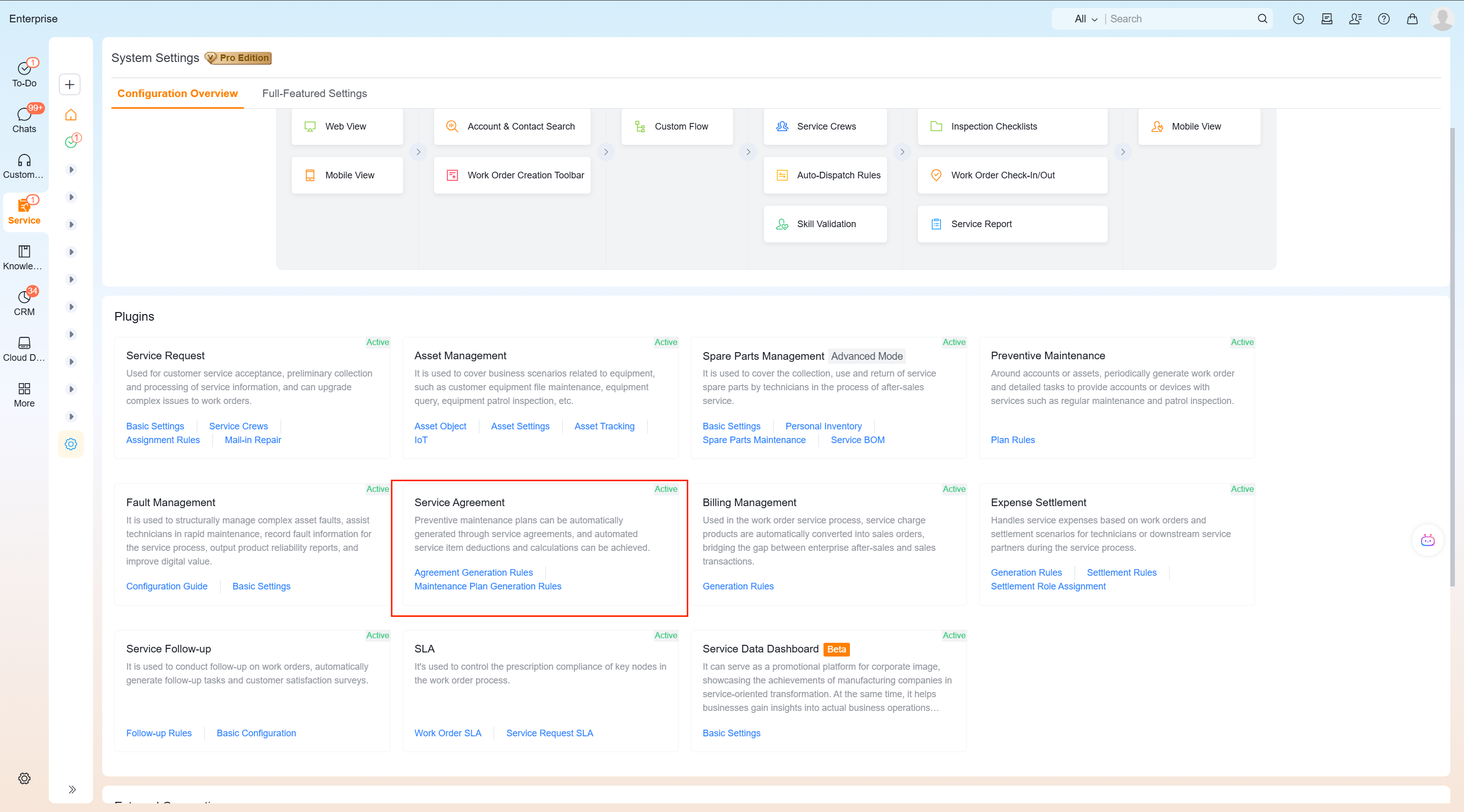
- Go to Service Pass > System Settings > Configuration Overview.
- Find the Service Agreement in the Business Plug-in area and confirm that the plug-in is enabled.
- Enter Automatically generate rules or Service plan rule matching settings according to subsequent scenarios.
Define service products
- Find the Service Product Definition on the Automatic Generation Rules page of the service agreement.
- Click Settings to maintain the service products used by the enterprise for the agreement.
- Define projects with clear service cycles as periodic service products, such as maintenance services twice a year.
- Define items that are consumed according to actual maintenance conditions and have no fixed period as non-periodic service products, such as spare parts.

IMPORTANT
Only service products support automatic conversion from order products to service agreement details. When ordinary products are not defined as service products, the corresponding agreement details cannot be automatically generated by the order.
Configure automatic agreement generation
There are two ways to generate a service agreement: business personnel create a new agreement directly, or it is automatically generated by an order. The rules in this section are only required when automatically generating orders.
- Go to Service Agreement > Automatically Generate Rules and click New Rule.
- Fill in the rule name, select the order as the original object, and set the applicable order range.
- Set the order product scope, generated service agreement business type, agreement subject and agreement type.
- Set the agreement owner and map order fields to service agreement fields.
- Save the rule, and check its priority and activation status.
After the rules take effect, only matching orders and order products generate service agreements and agreement details. The agreement can apply to an account or an asset.
Configure active maintenance
In the scenario where the customer reports for repair and then writes off the rights and interests, it is not required to generate a work order in advance according to time rules. When regular proactive maintenance is required, a service plan must also be connected.
- Go to Service Pass > System Settings > Configuration Overview > Service Plan > Service Plan Rules.
- Create a new service plan type, set the service plan object, and generate the work order business type and service process.
- Return to Service Agreement > Service Plan Rule Matching Settings.
- Establish a matching relationship between the service agreement and the service plan rules, and check the rule priority and activation status.
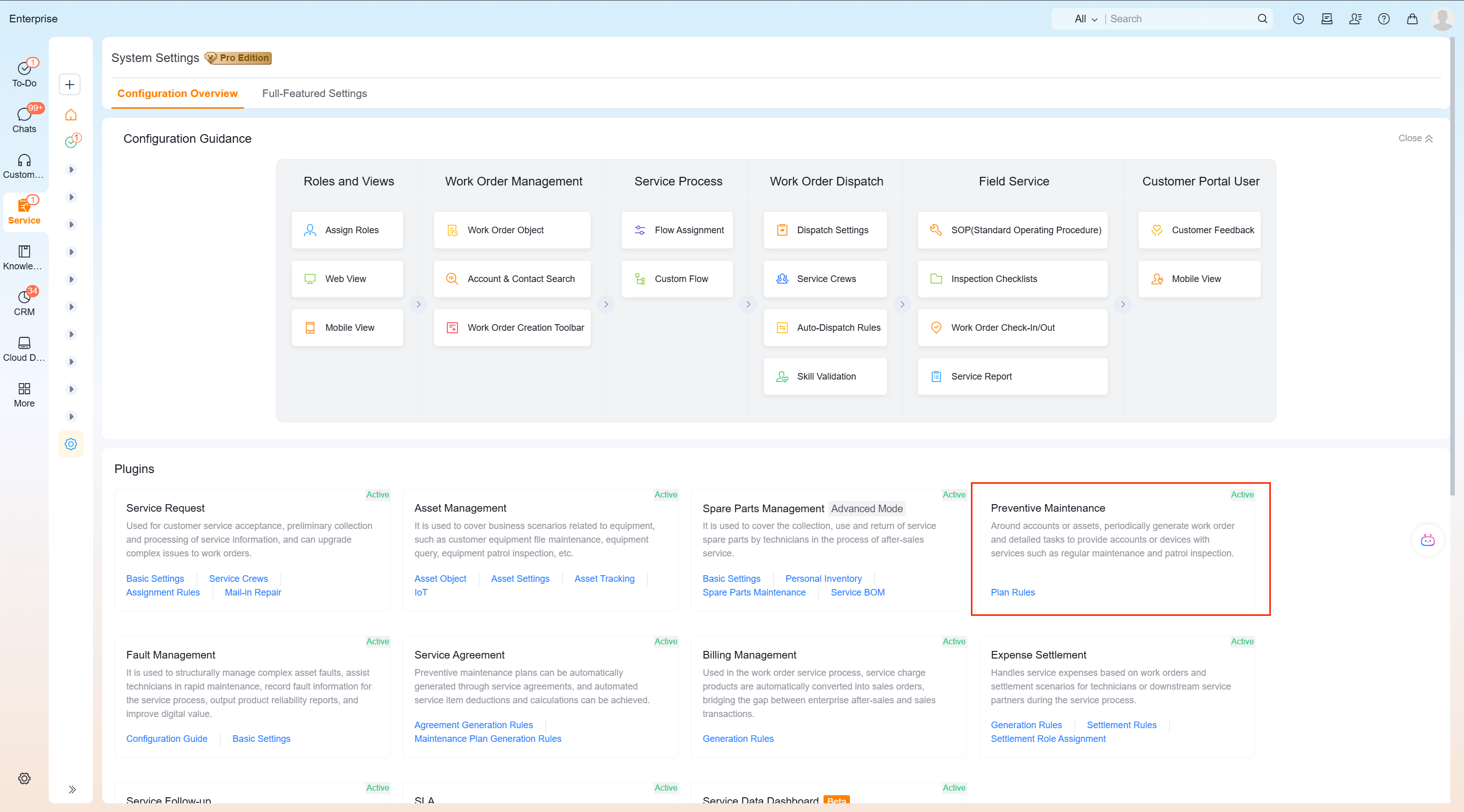
After completion, proactive maintenance will be run according to the link "Service Agreement > Service Plan > Work Order Execution". Matching rules determine which service plan rule the agreement uses.
Configure work order process nodes
- Open the work order business process using the service agreement.
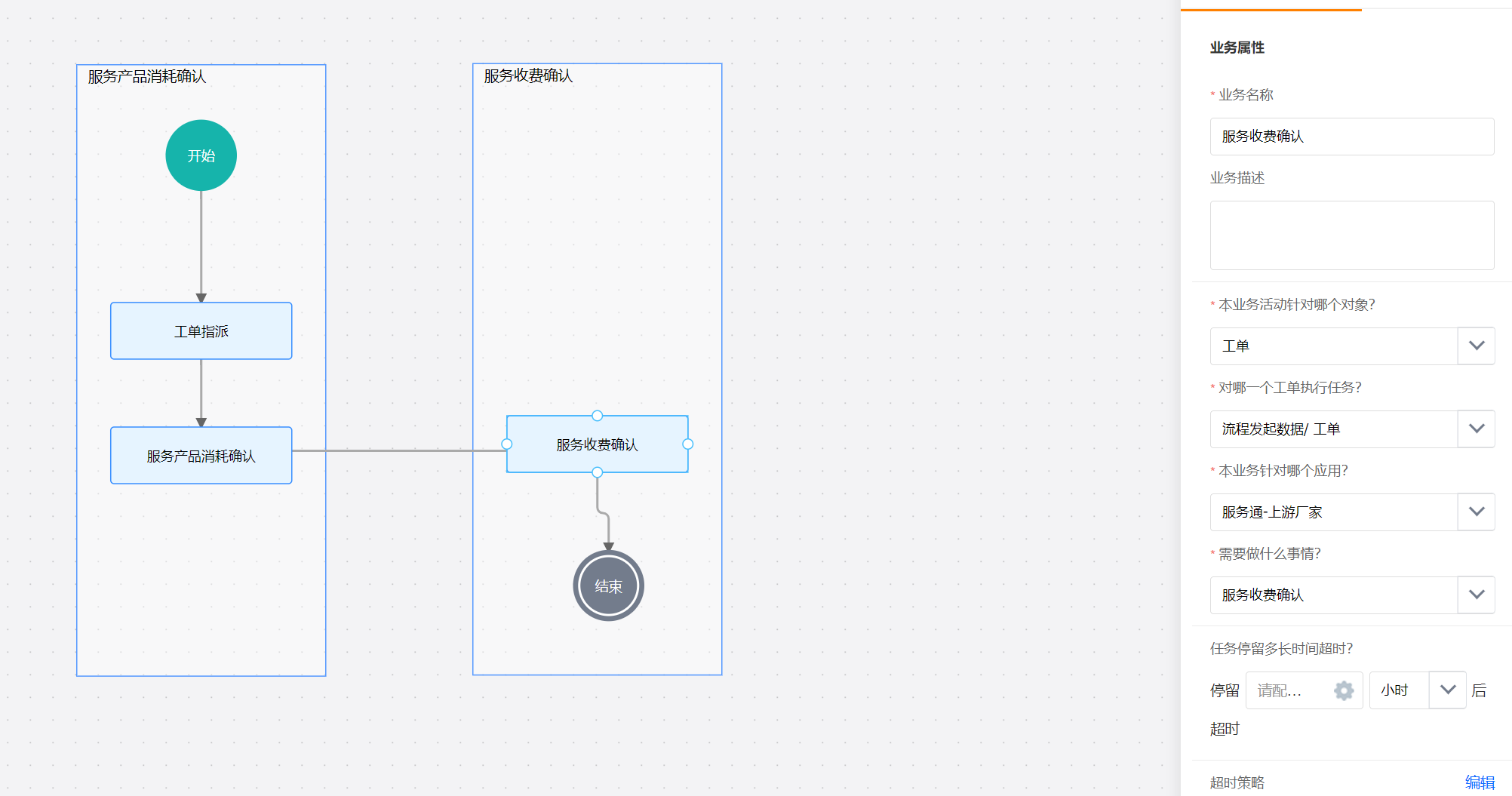
- Add the Service Product Consumption Confirmation business node in the work order execution link.
- If you need to charge, add the Service Charge Confirmation business node.
- Confirm that Service Charge Confirmation is located after Service Product Consumption Confirmation, and then save the process.
Business personnel: Create a new and effective service agreement
- Go to Service>Service Agreement Management>Service Agreement and create a new service agreement.
- Select Agreement Subject: Select the customer to indicate that the agreement is oriented to a batch of equipment of this customer; select the device to indicate that the agreement is oriented to specific equipment.
- Fill in the start date and end date. Only agreements within the validity period will participate in work order write-off; after the end date, the agreement status will automatically become invalid.
- Select the agreement type:
- Full coverage: All service offerings consumed within the validity period are free. You don't need to list non-periodic offerings in the agreement details.
- Partial coverage: Only specified service offerings are free. Add eligible non-periodic offerings to the agreement details.
- Maintain periodic service products and non-periodic service products respectively in the service agreement details, including the quantity and price information agreed in the agreement.
- Before saving the draft or submitting it, check the subject of the agreement, validity period, agreement type and details.
- In the agreement details, open More and click Confirm Effectiveness. The agreement status changes to Effective.
NOTE
Save Draft, Submit, and Confirm Effectiveness are different actions. Only Confirm Effectiveness activates an agreement for entitlement consumption.
Automatic generation rules create agreements for matching orders. Check the generated details and status before using the agreement.
Business personnel: Confirm work order service product consumption
The work order service product records the labor services, spare parts and other service products consumed by the work order, which may come from the following three methods:
- When the service agreement automatically generates a work order, the agreement details enable the automatic generation of work order service products, and the system creates records with the work order. The default quantity is
1, and business personnel can modify it according to the actual situation. - Business personnel manually add work order service products to the work order.
- After the engineer records the spare parts consumption, the system creates a work order service product based on the spare parts consumption details when the service product consumption is confirmed.
The confirmation steps are as follows:
- Open Work Order Service Product in the work order details and check the service product, quantity, unit and price.
- Enter Service Product Consumption Confirmation in the current work order process and execute confirmation.
- Check whether the system is associated with the effective agreement of the customer or device, and whether the service type is displayed as in-warranty or out-of-warranty.
- Check whether the price and agreement details written out results are consistent with actual consumption.
When confirming, the system automatically searches for the effective agreement of the customer or device. After successful matching, the system associates the agreement, determines whether it is in or out of guarantee, brings out the corresponding price, and writes off the service agreement details after confirming consumption.
Administrator: configure charging management
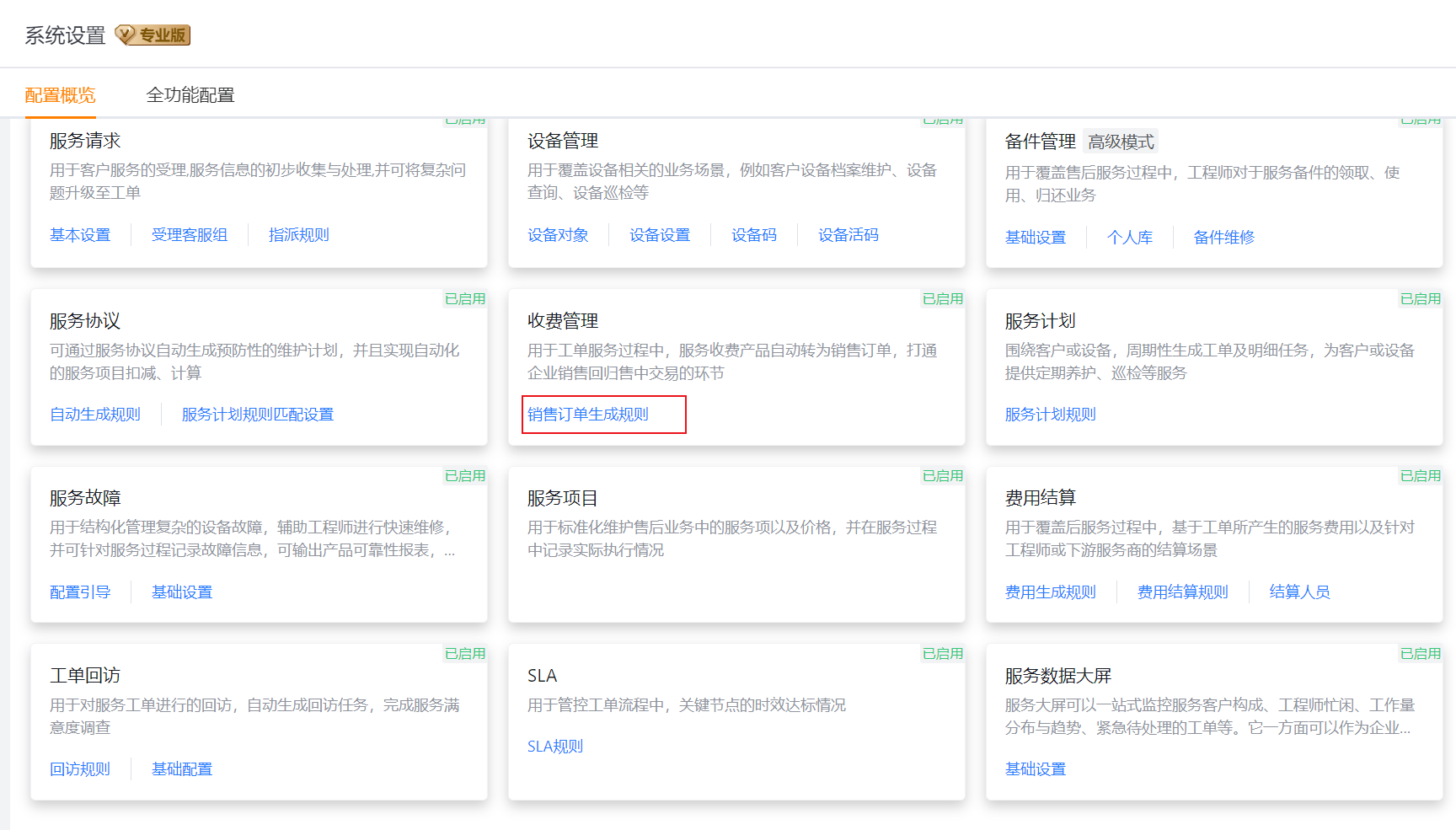
- Go to Service Pass > System Settings > Configuration Overview and confirm that Charge Management is enabled.
- Enter Sales Order Generation Rules in the charge management card.
- Create a new rule and set the rule name and applicable work order range.
- Set the work order service product range that participates in charging, and the generated sales order business type.
- If the enterprise has enabled the collection business and requires on-site QR code collection, set Allow direct payment to "Yes"; otherwise, keep it as "No".
- Save the rule and confirm again that the Service Charge Confirmation is located after the Service Product Consumption Confirmation in the work order process.
Business staff: generate orders and charge
- After completing the service product consumption confirmation, enter the service charge confirmation node of the work order process.
- Check the work order service products and amounts to be charged.
- Execute the charging operation on the page and generate an order according to the configured sales order generation rules.
- If the enterprise has enabled the collection business and the rules allow direct collection, use the QR code provided on the page to complete on-site collection.
- Return to the work order to check the order or charging results.
Expected results and verification
- The service agreement created directly or generated by the order contains the correct subject, validity period, agreement type and agreement details.
- The agreement will enter the effective state after execution confirmation of effectiveness; it will automatically become invalid after the end date.
- After the service product consumption is confirmed, the work order displays the associated agreement, in-warranty or out-of-warranty results, price information, and deducts the corresponding agreement details.
- When charge management is enabled and the records comply with the rules, the service charge confirmation can generate a sales order based on the work order service product.
- Only when the collection business is enabled and direct collection is allowed, on-site collection through QR codes is possible.
FAQ and troubleshooting
The order does not automatically generate a service agreement
Check whether the order and order products match the automatic generation rules, and confirm that the order products have been defined as service products. If the rule is not configured, the record is not within the scope of the rule, or the product type does not match, the agreement details will not be generated according to the rule.
The work order does not match the agreement
Check in turn whether the subject of the agreement is consistent with the work order customer or equipment, whether the agreement has been confirmed to be effective, whether the work order date is within the validity period of the agreement, and whether there are service products to be confirmed in the work order.
Active maintenance did not generate a work order
Check whether both service plan rules and service plan matching rules are configured. Simply creating and taking effect a service agreement is not enough to form the active maintenance link of "Service Agreement > Service Plan > Work Order Execution".
Service charge confirmation cannot generate orders as expected
Check whether charge management is enabled, whether work orders and work order service products comply with sales order generation rules, and confirm that service product consumption confirmation has been completed first. When the charging node is located before consumption confirmation, the administrator should adjust the work order process.
There is no on-site payment entrance on the page
Check whether the enterprise enables collection business and whether Allow direct collection in the sales order generation rule is "Yes". Only enabling charge management will not automatically enable QR code collection.