Appearance
Dispatch work orders from the Gantt chart
Overview
Gantt chart dispatch supports dispatchers to select engineers on the web, and can automatically generate planned service times according to the appointment time, or schedule engineers and planned time at the same time by dragging and dropping. It is different from a view-only Gantt chart of engineer distributions.
Before you begin
- The dispatcher or service group dispatcher has tasks to be assigned and a Gantt chart entry.
- It has been determined whether to use auto matching or manual drag and drop time mode.
- The work order has a scheduled service time or allows the dispatcher to arrange the planned time.
Procedure
1. Only assign engineers
Set the work order schedule to Automatch in the Gantt chart dispatch settings.
Set the scheduled service time
booking_time_range__cof the work order as required.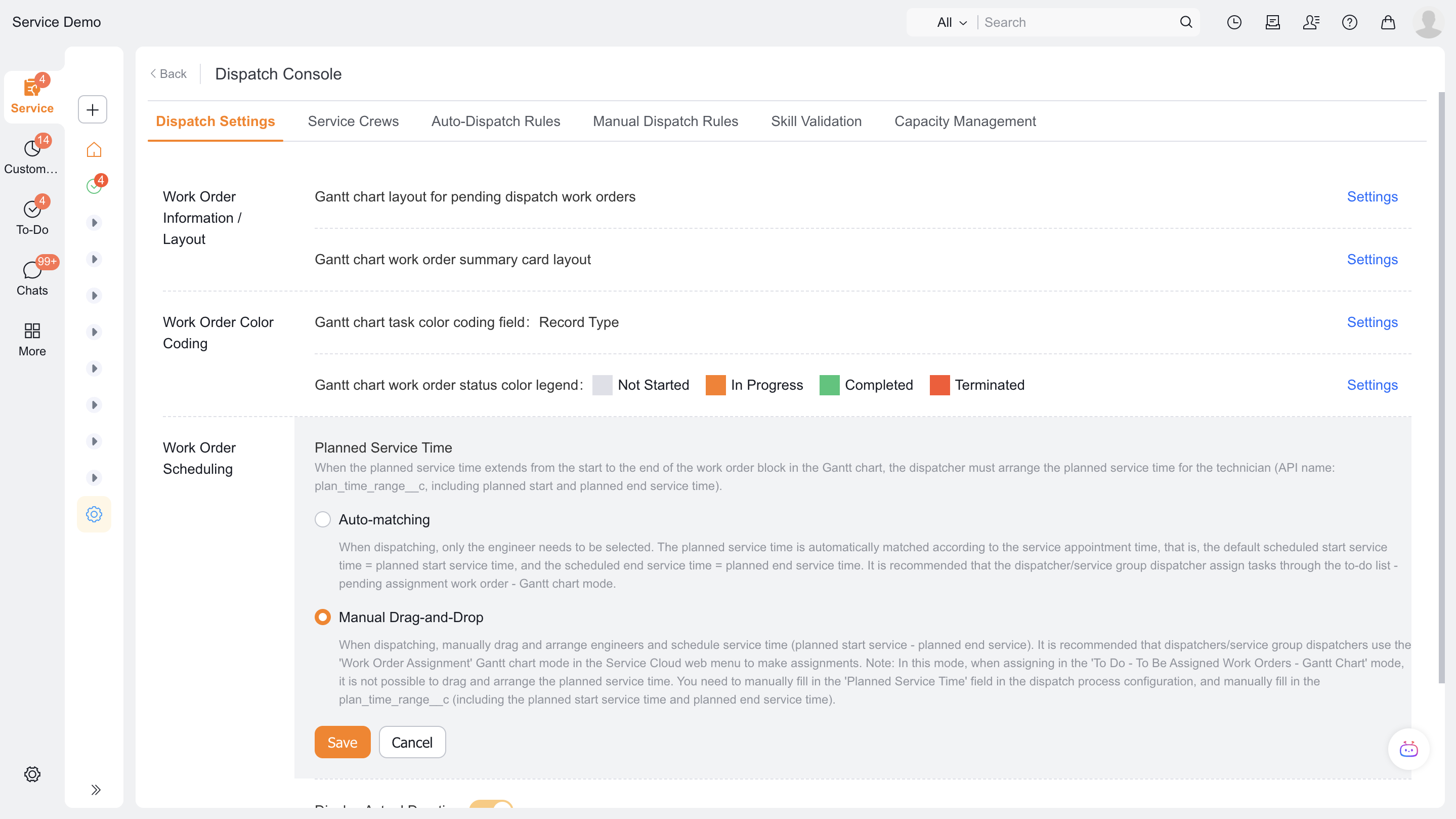
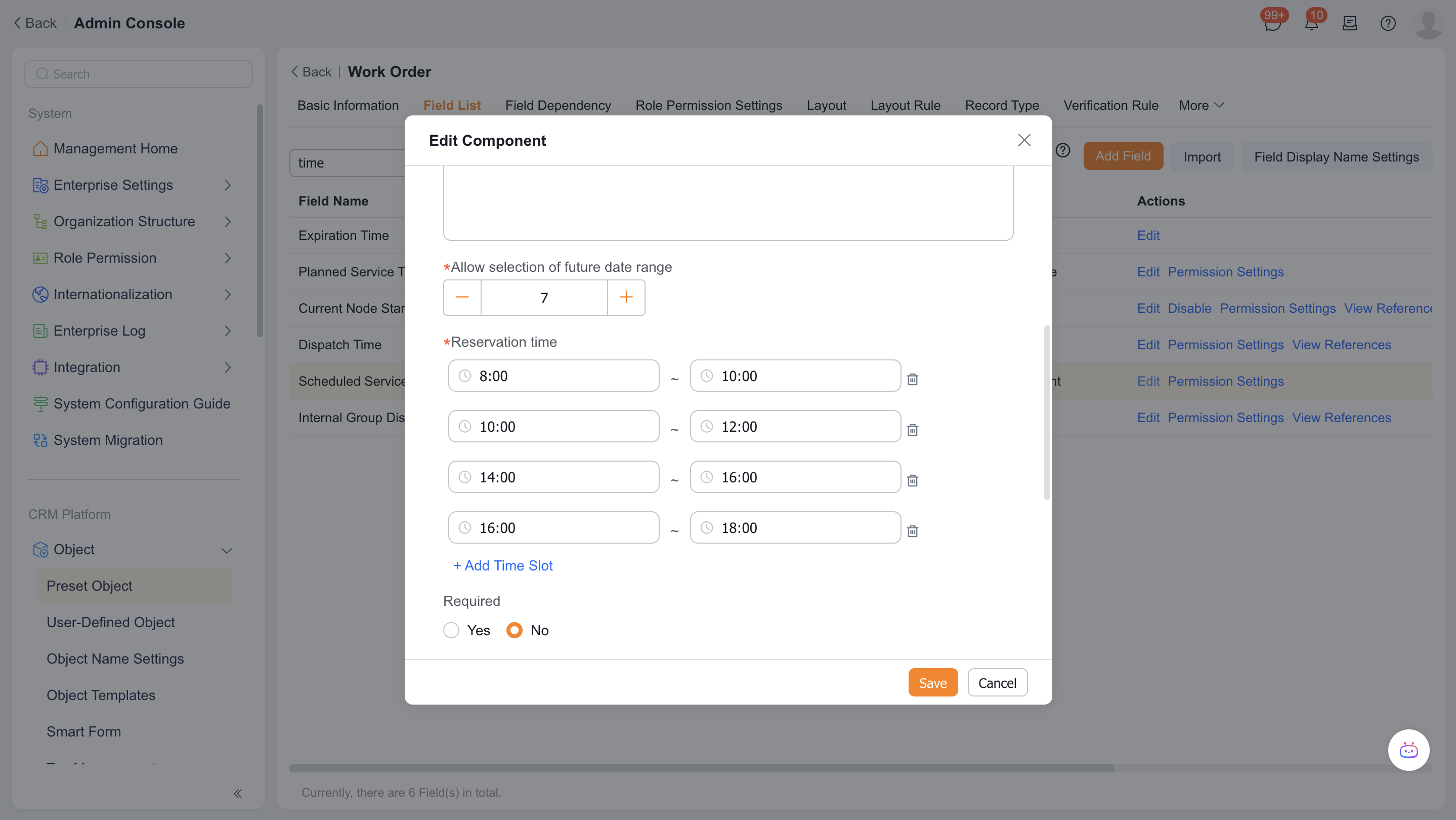
For existing enterprises that are not adapted to the new field type, use the reservation time
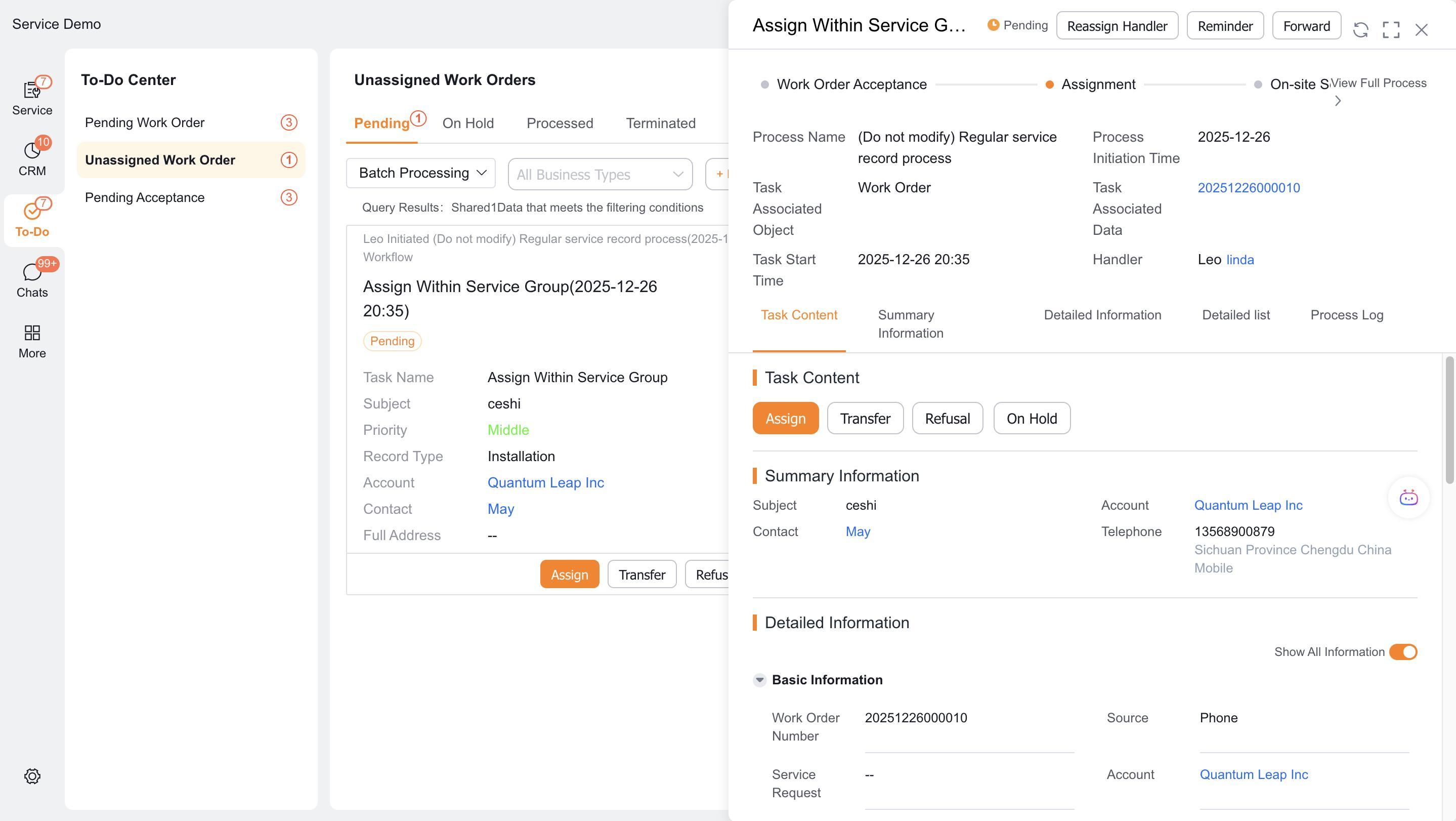
field_fwrq__caccording to the original configuration.The dispatcher enters To Do > Work Orders to be Assigned > Gantt Chart Mode and selects the engineer.
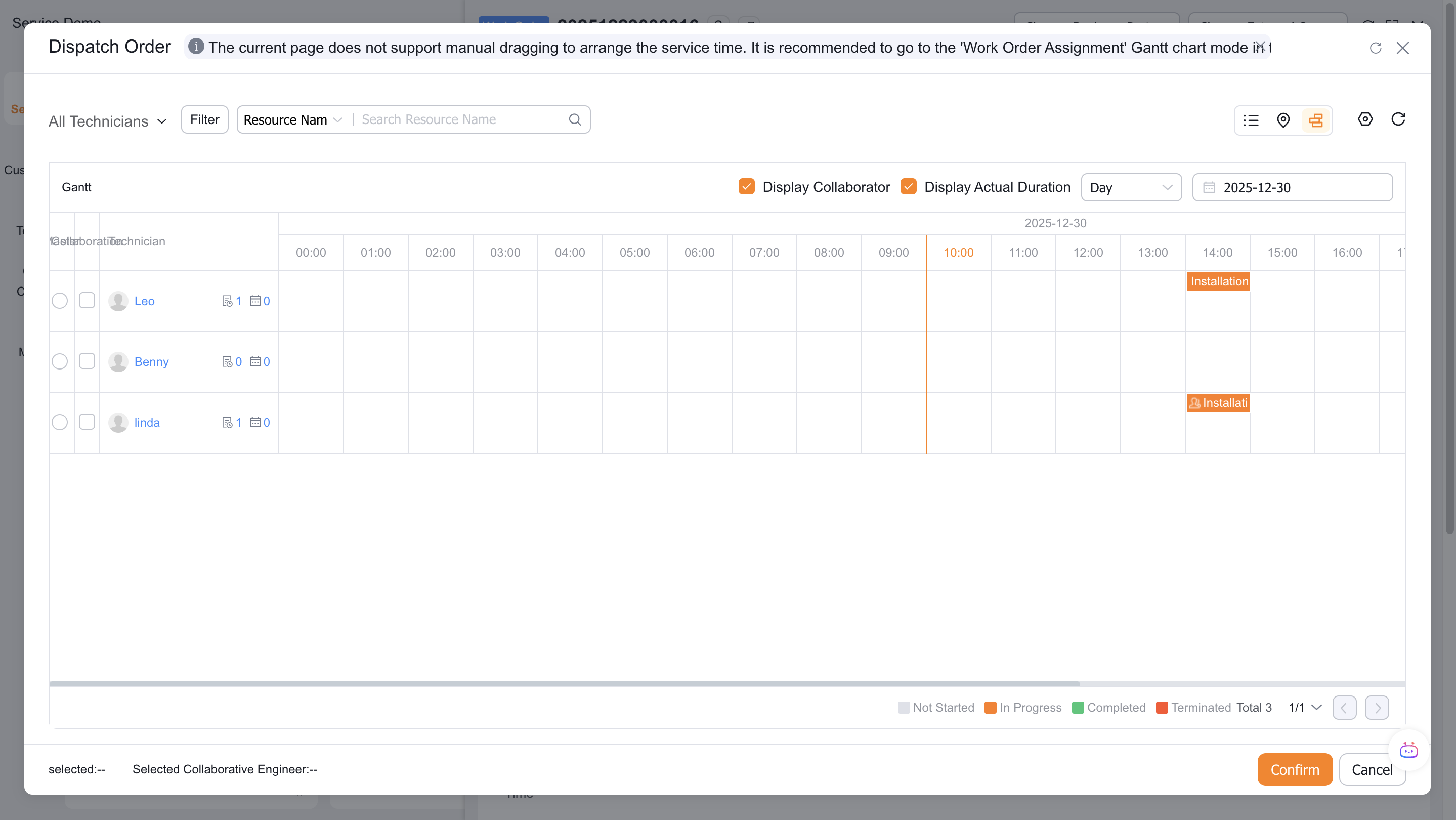
After completion, check that the appointment start/end time has been written into the planned service time
plan_time_range__c.
2. Arrange engineers and time at the same time
Set the work order schedule to manual drag and drop.
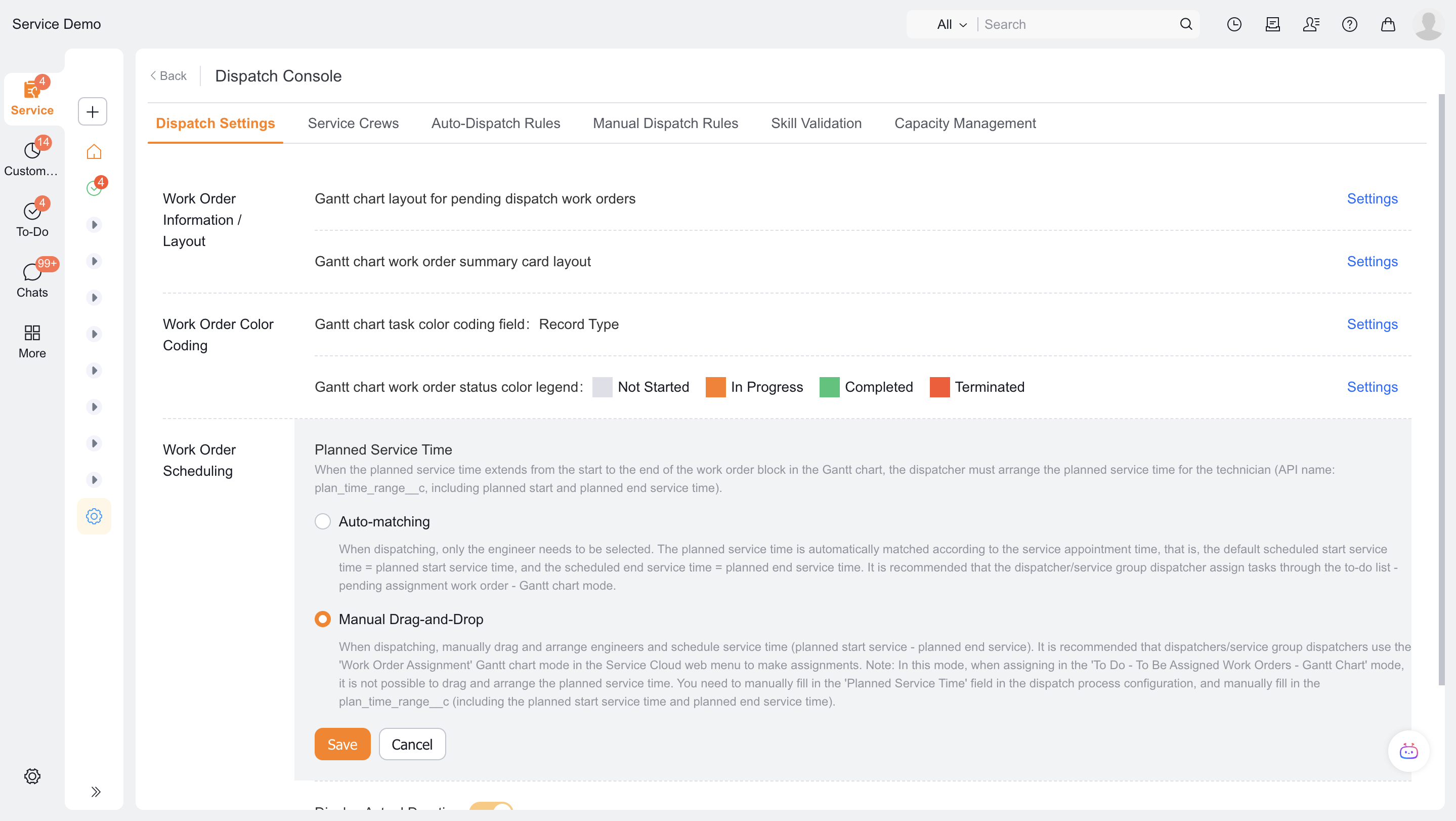
On the Field Service web Work Order Assignment > Gantt Chart Mode drag and drop the work order to the engineer time period.
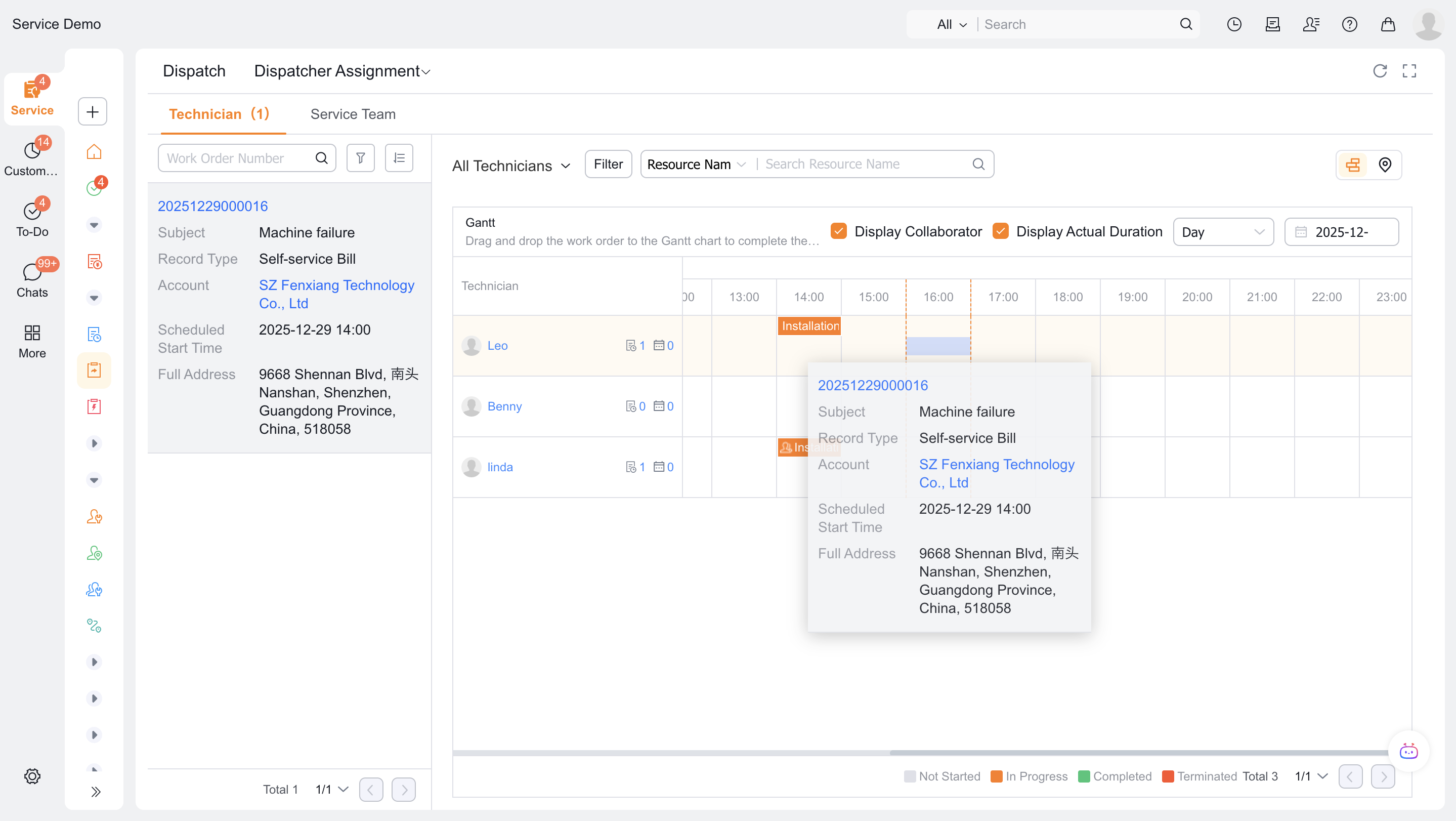
Complete the assignment and check the planned service time for writing the drag-and-drop interval.
3. Configure display information
Configure the work order list and work order card summary.
Set the work order color block display field and color.
Set the Engineer Summary field.
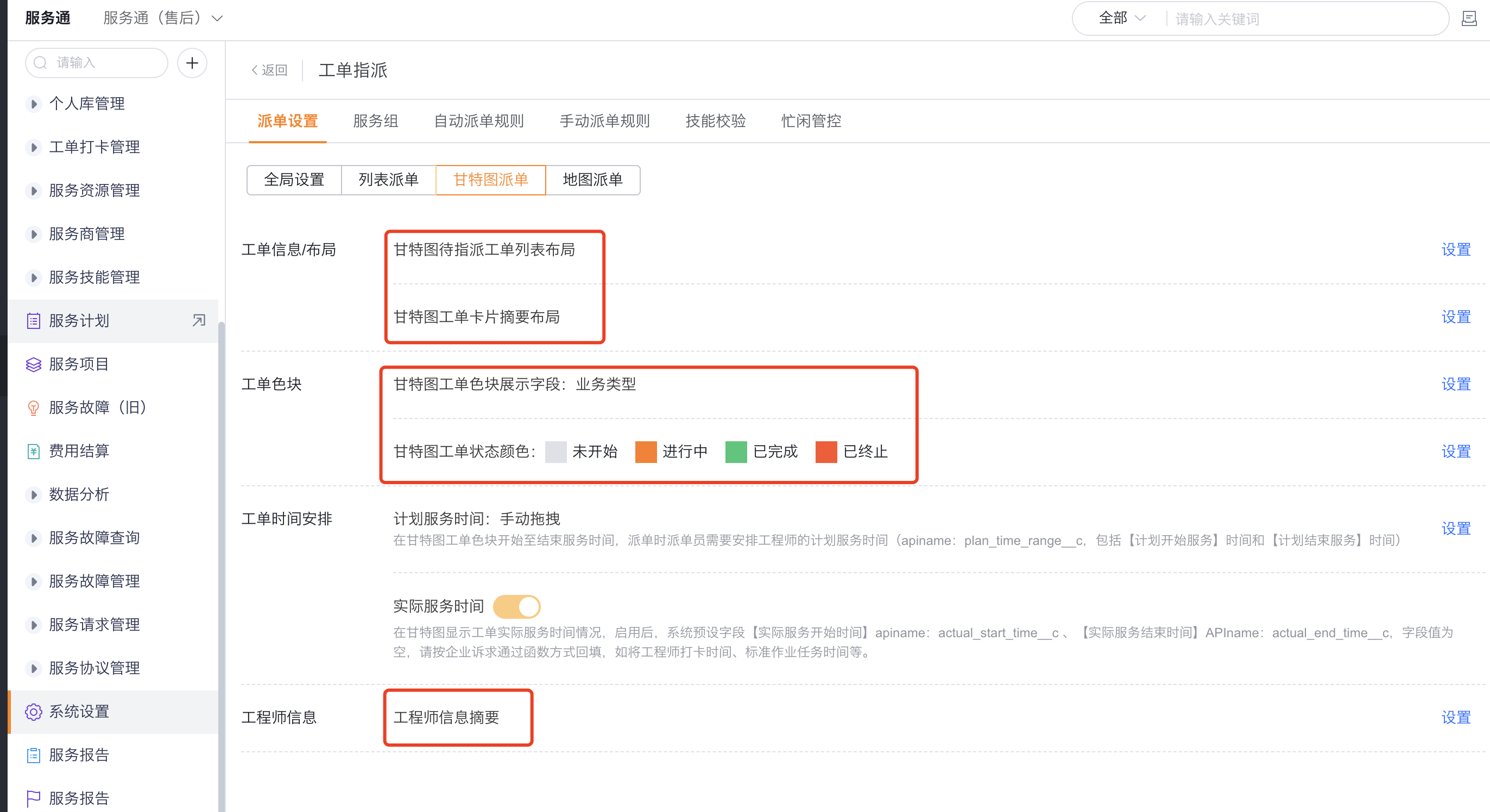
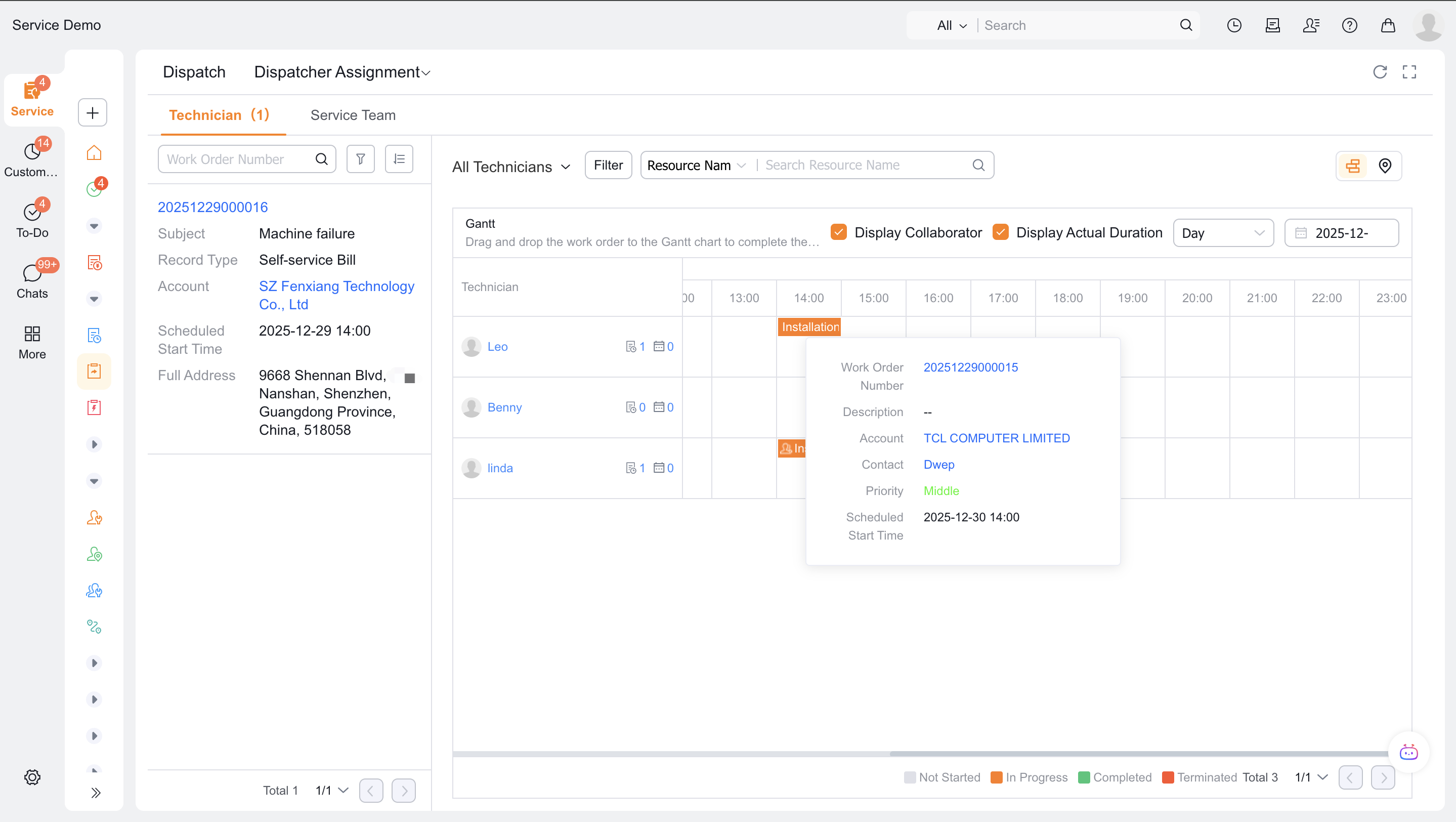
If you need to compare the planned and actual time, use the function to backfill the actual service start time
actual_start_time__cand end timeactual_end_time__c.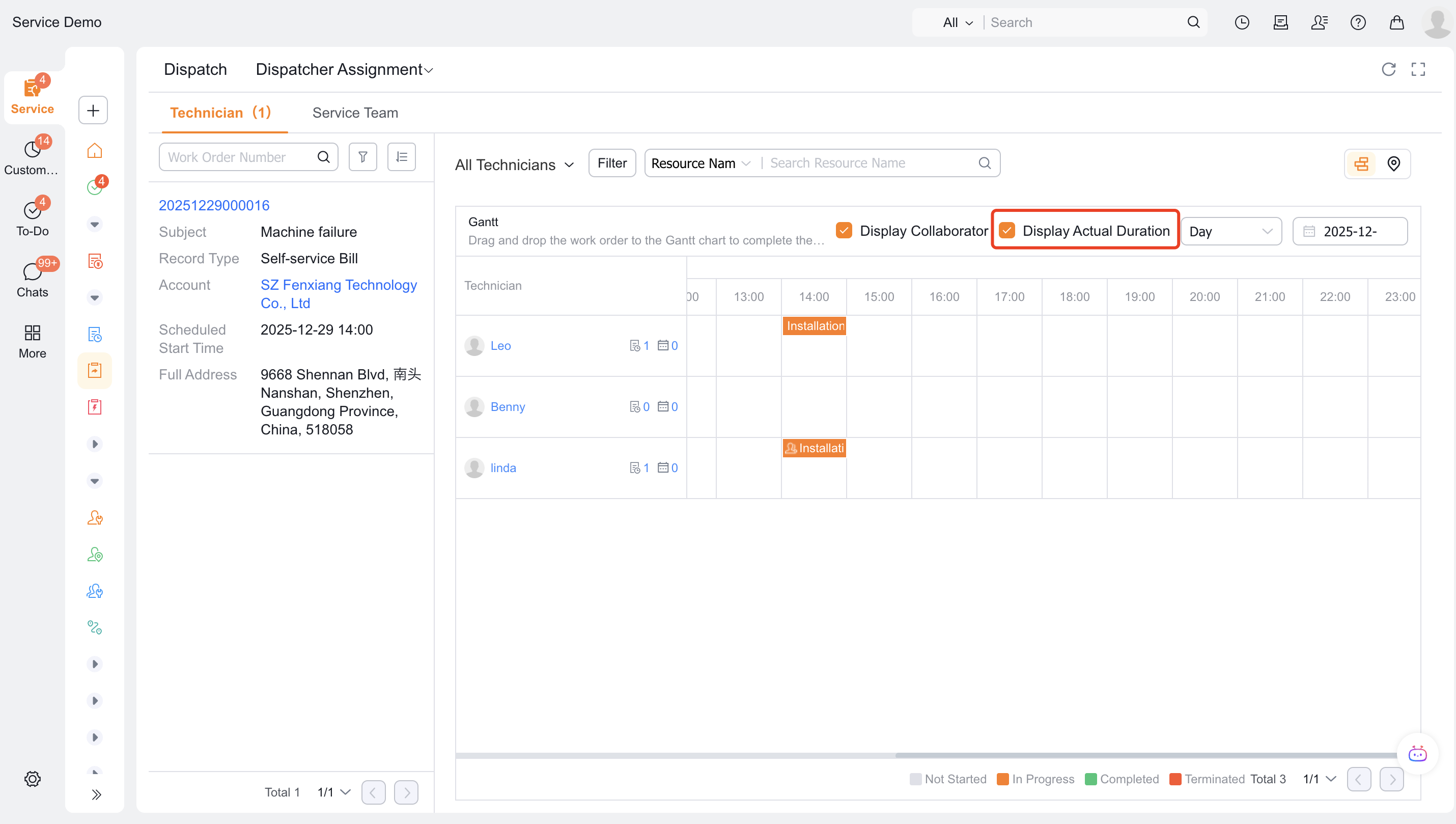
If multi-person services are required, the current engineer can be set as a collaborative engineer in the Gantt chart.
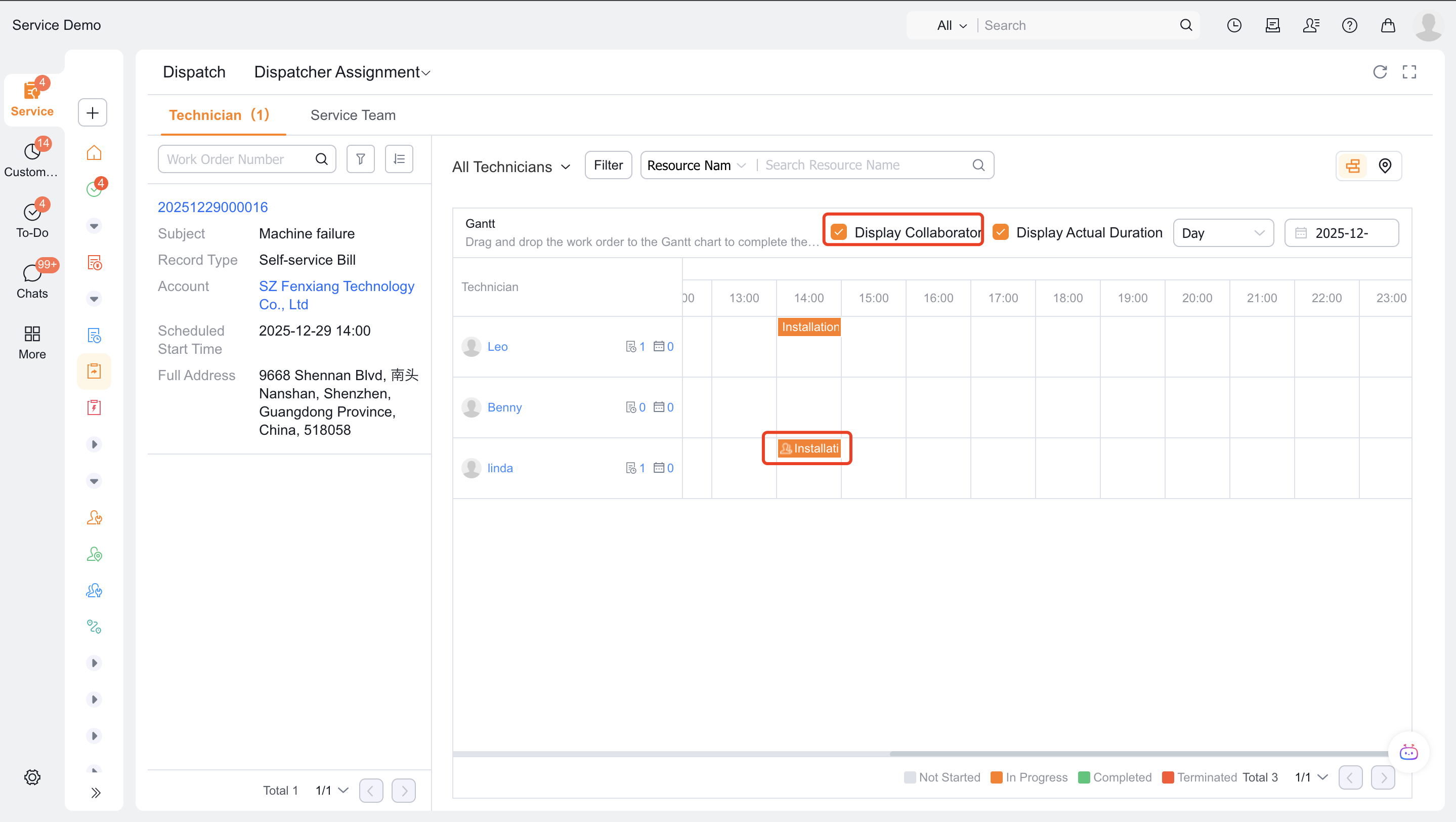
Verify the result
- In the auto matching mode, you only need to select the person, and the planned time is consistent with the appointment time.
- Manual drag-and-drop mode simultaneously writes the engineer and drag-and-drop planning intervals.
- After the actual service time is available, the Gantt chart displays the comparison between the plan and the actual time.
FAQ
There is no backfill in the planned time
The auto matching mode checks whether the appointment field is required and has a value; the manual mode checks whether a single Gantt chart is sent from the web to complete the drag and drop.
Notes
- Manual dragging of Gantt charts only supports Web.
- The engineer distribution Gantt chart is only for viewing, but not for dispatching.