Appearance
Configure emails to automatically create work orders
Overview
You can automatically convert valid emails received by service mailboxes into work orders or service requests. Generation rules define the mailbox, scope, target object, and field mappings. They can also notify the Service Pass administrator when conversion fails.
Before you begin
- Use a service pass administrator or an account with business plug-in configuration permissions.
- Bind and enable the receiving mailbox in the mailbox management of the management background.
- Make sure that the target mailbox has turned on precipitation for receiving and sending emails; after turning off precipitation, emails cannot continue to generate business data according to this function.
- Check the required fields of the target work order or service request business type and prepare the corresponding field mapping.
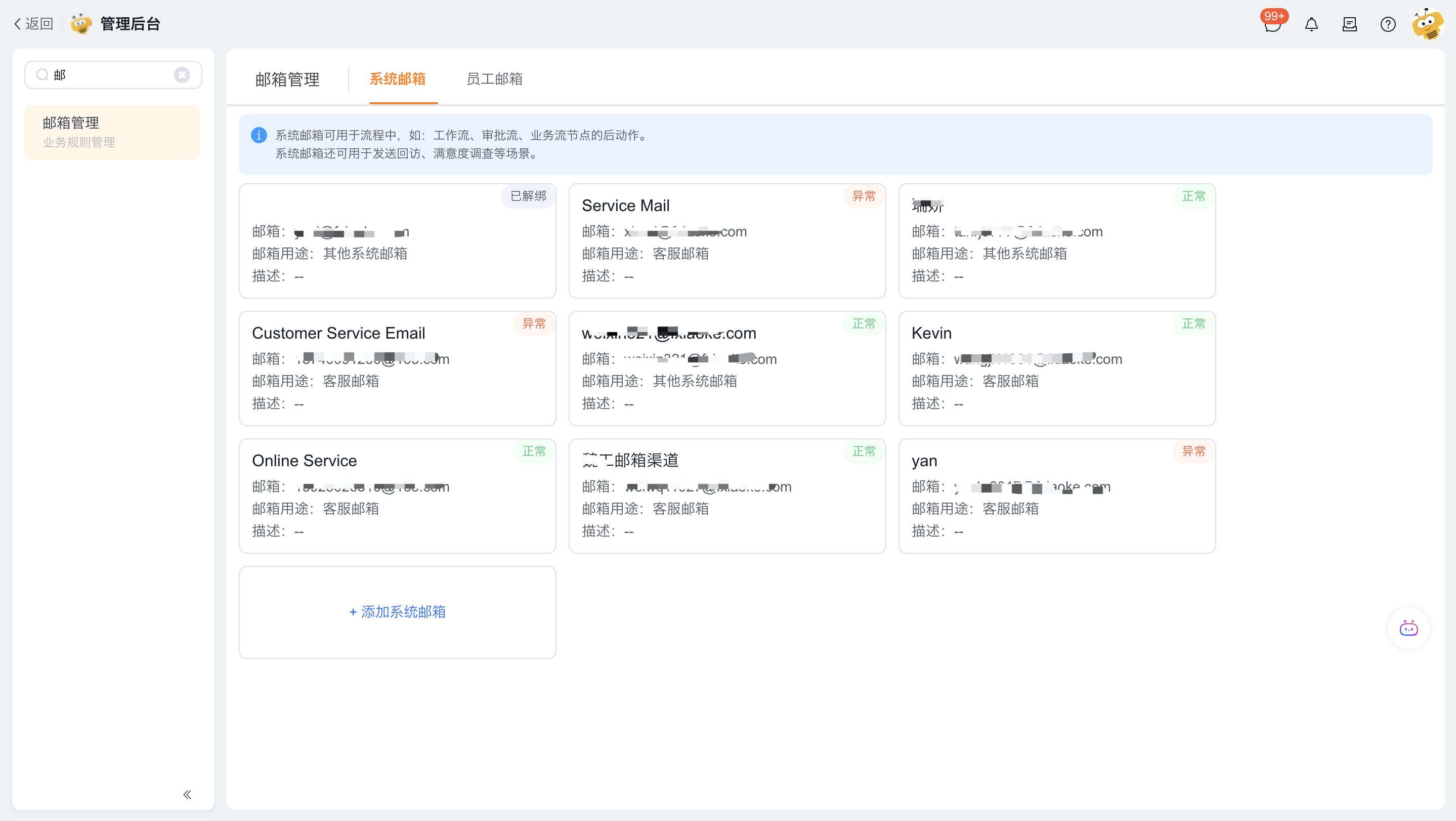
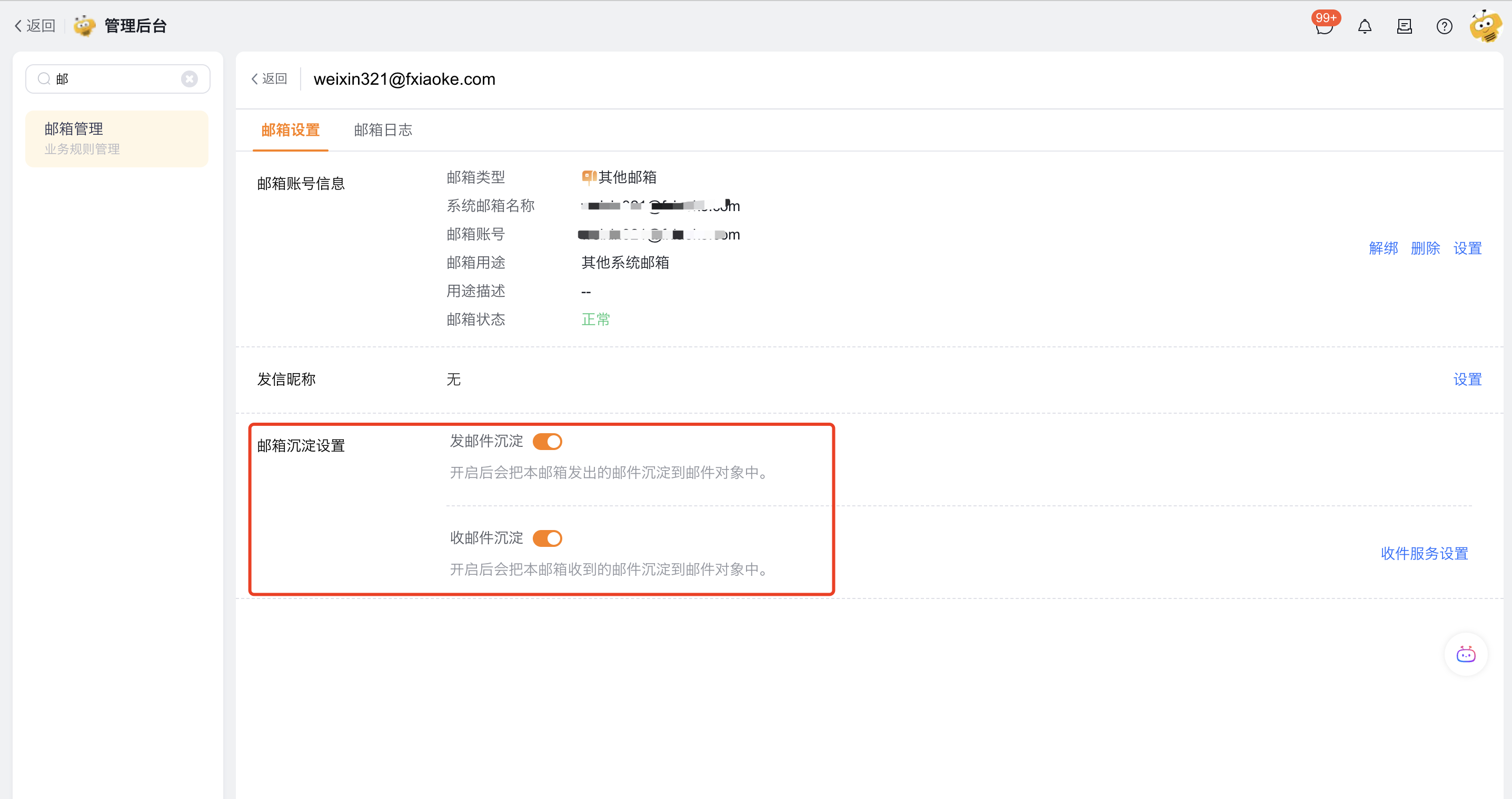
Create a new email generation rule
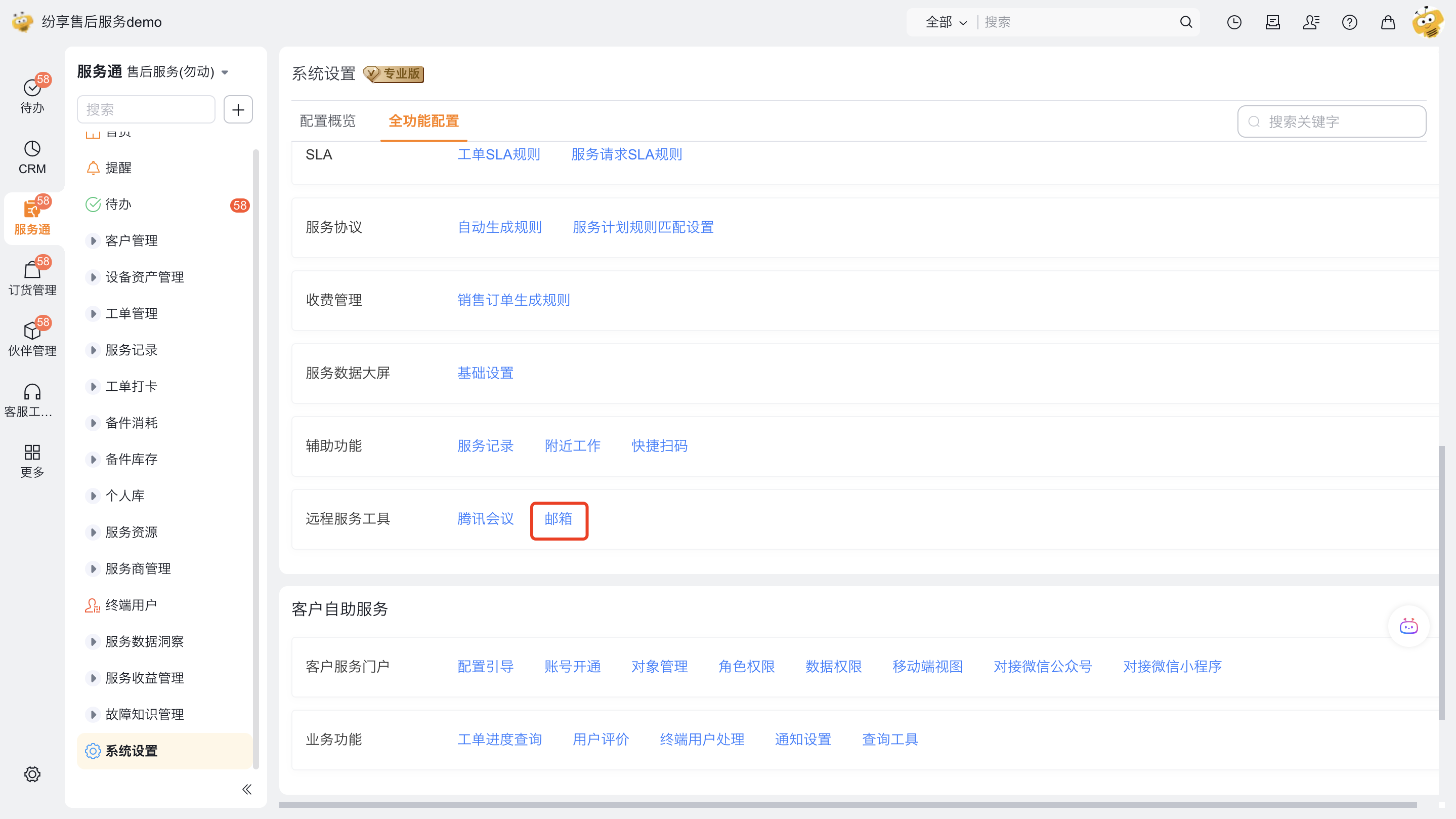
Enter Service > System Settings > Full Function Configuration > Business Plug-in > Remote Service Tool > Email.
Click New Generation Rule.
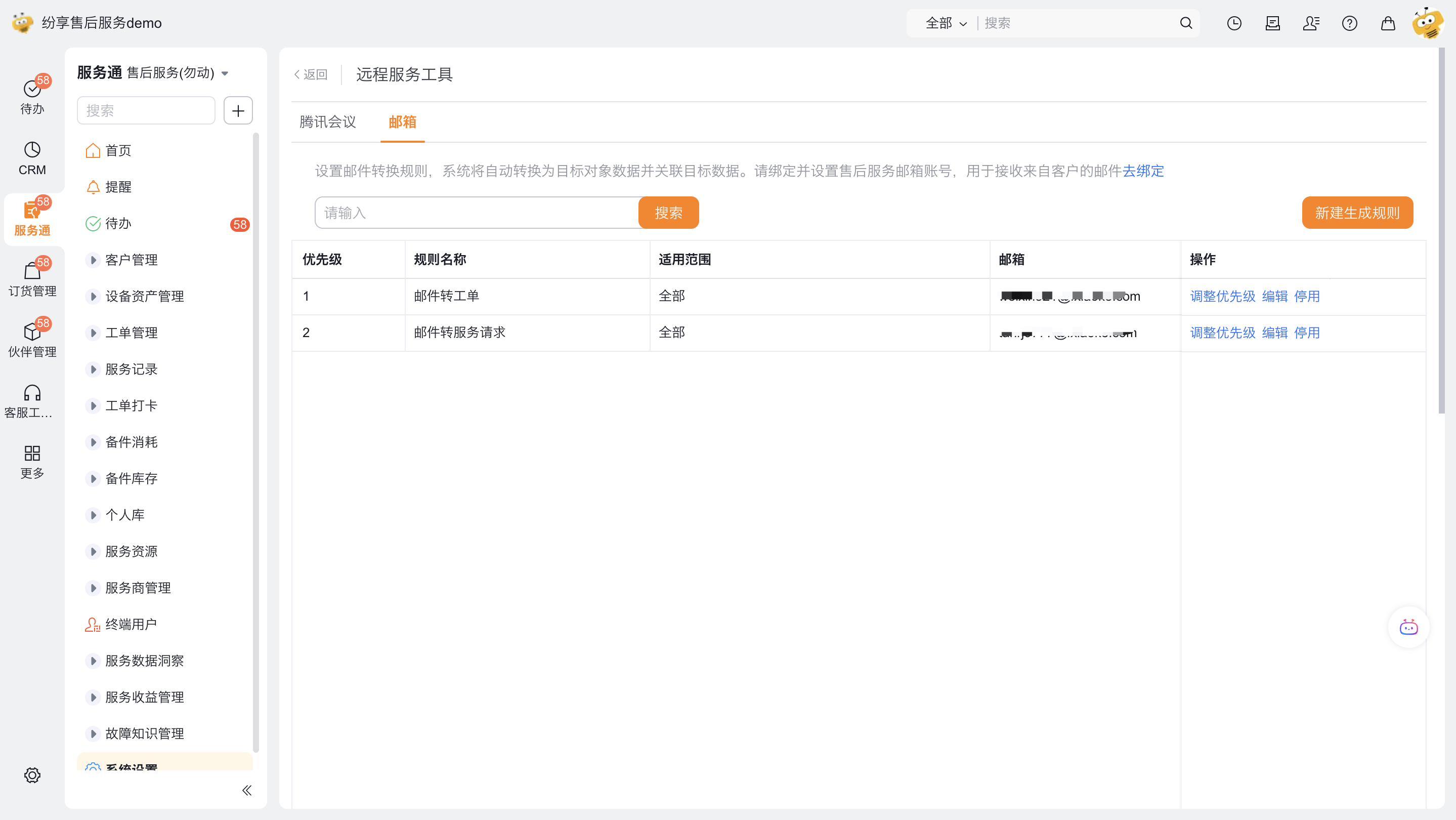
Configure rule fields:
Configuration item Description Rule Name Enter a rule name for easy identification Mailbox Only bound system mailboxes can be selected; emails received by this mailbox are used to generate target object data Scope of application Set the conditions that must be met when an email is converted into a work order or service request Automatically generated target object Only Work Order or Service Request can be selected Field mapping configuration Use the system default mapping and supplement other field mappings as required by the target object Abnormal reminder After enabled, a CRM reminder will be sent to the Service Manager administrator when the conversion fails Set the rule priority. When an email matches multiple rules at the same time, the system uses the rule with the highest priority; the smaller the priority number, the higher the priority.
Save the rule.
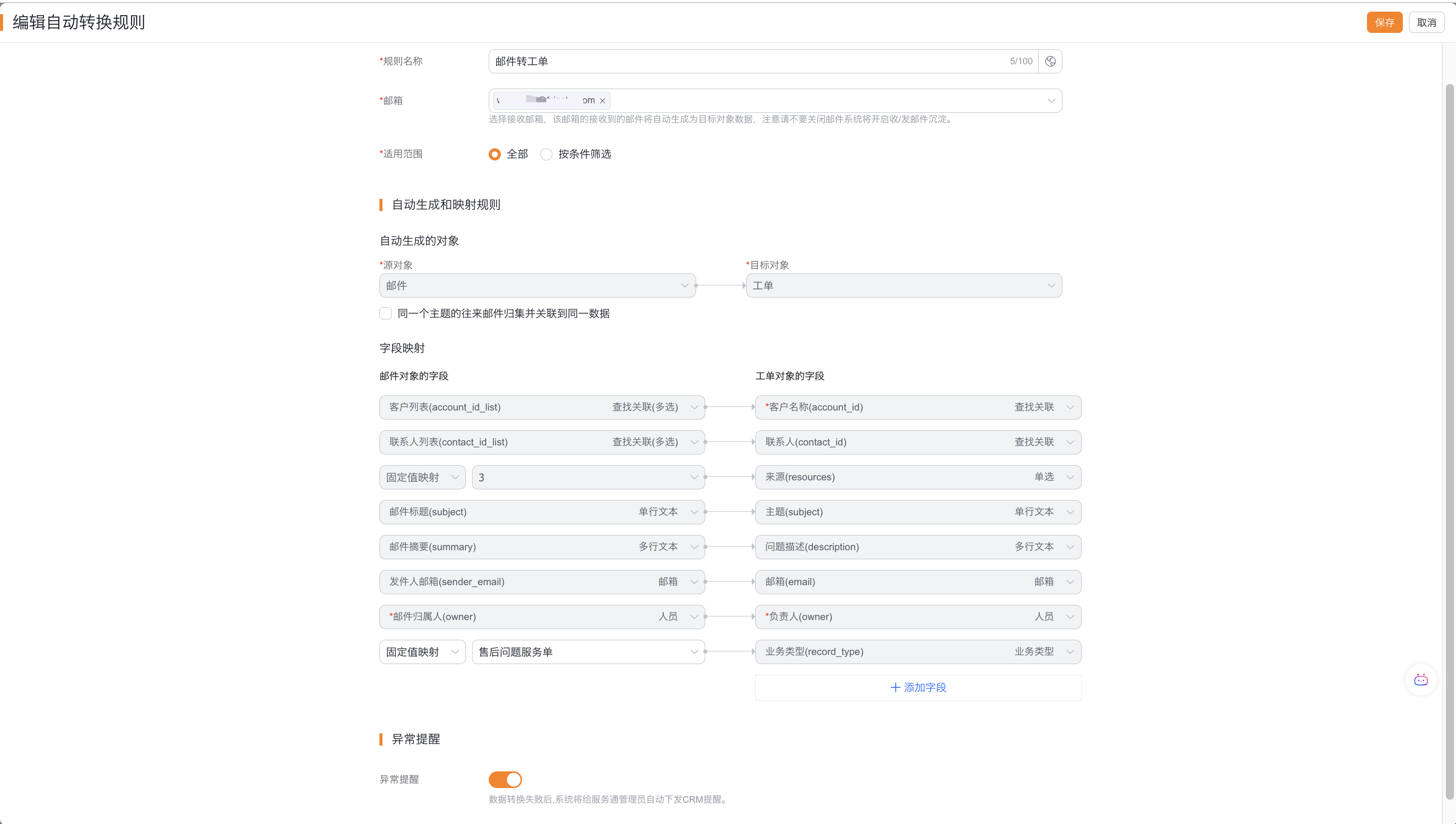
Conversion results and exception handling
The system monitors valid emails in the mailbox, extracts email information and generates work orders or service requests according to rules.
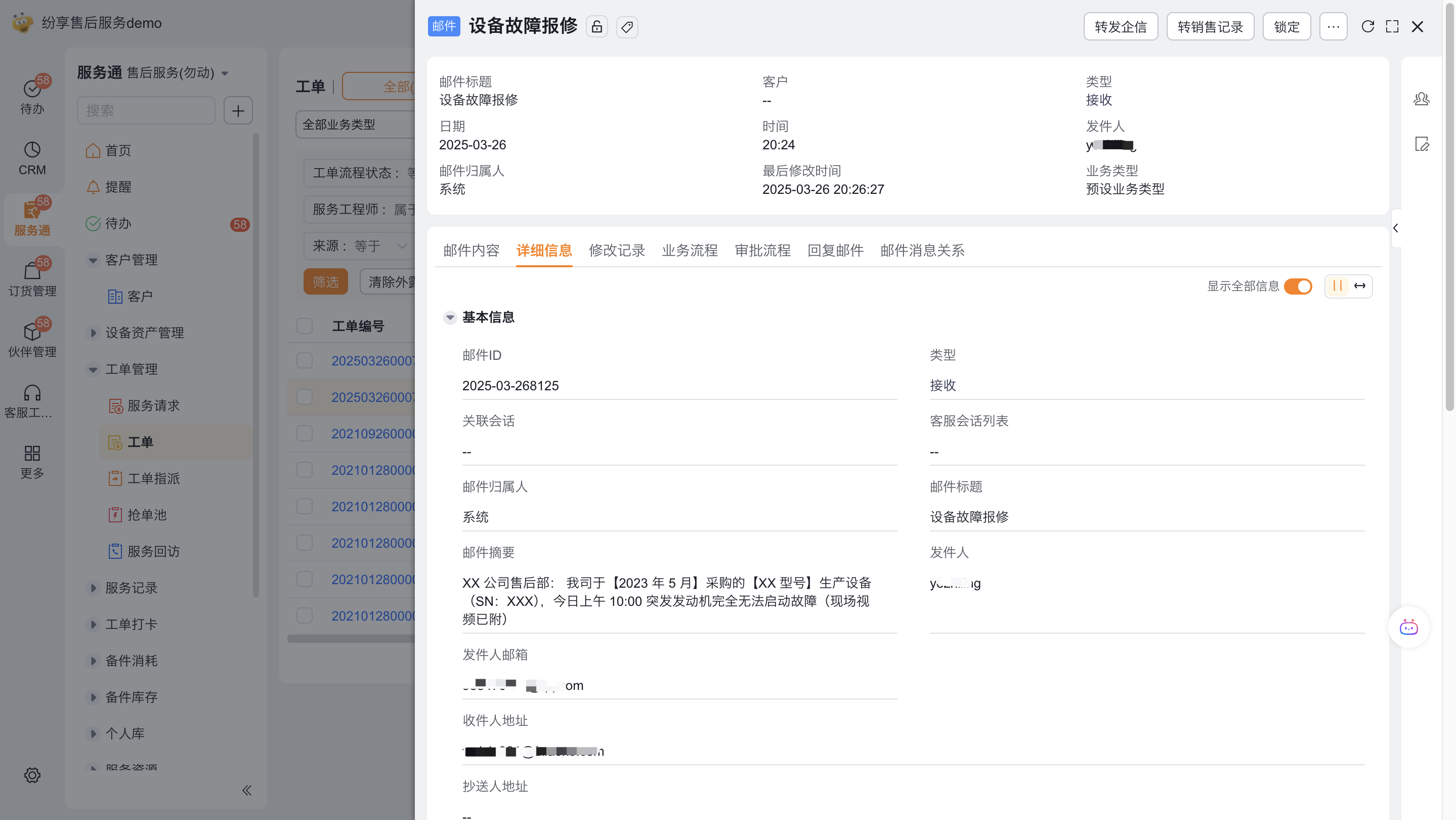
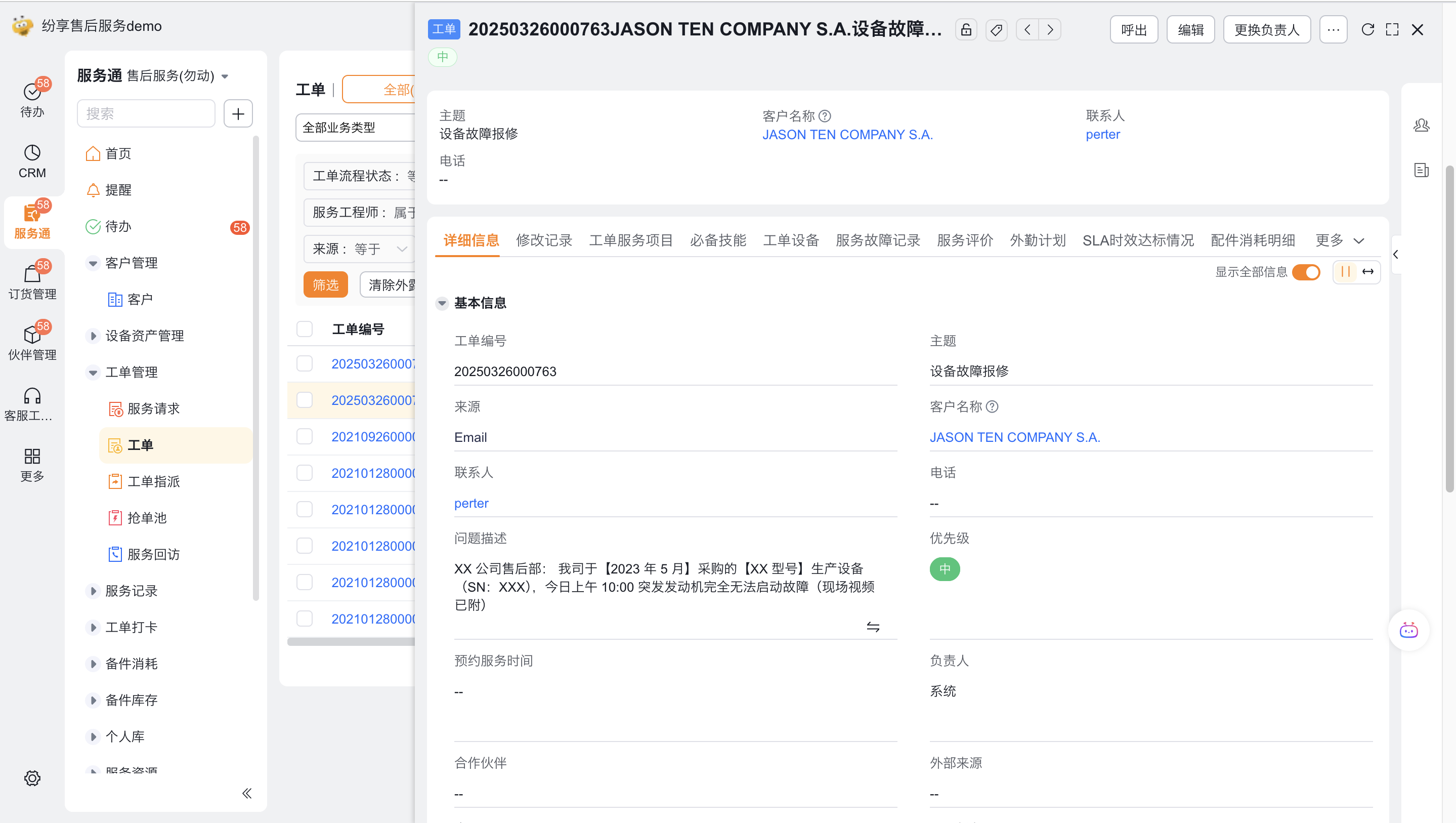
After you enable Exception Reminder, the system sends a CRM notification to the Service Pass administrator when creation fails. Use the notification to check email conditions, required target-object fields, and field mappings.
Expected results and verification
- Send a test email that meets the rule conditions to the bound mailbox.
- Check whether the corresponding work order or service request is generated in the target object, and check the mapping fields.
- Use a test email that can hit multiple rules at the same time to confirm that the high-priority rule with the smallest number is used.
- Construct the case of missing required mapping in the test environment, and confirm that the administrator can receive CRM reminders after enabling exception reminders.
Notes
- Rules can only select bound system mailboxes and rely on this mailbox to continue to open mail precipitation.
- Automatically generated target objects are limited to work orders or service requests.
- After adding or adjusting required fields for the target object, the field mapping should be checked simultaneously, otherwise the conversion may fail.
- This configuration is responsible for generating business data from emails; subsequent assignment and processing depends on the process configuration of the work order or service request.