Appearance
Configure service review templates
Configure review templates to unify customer review content and scoring methods.
Overview
The service review template consists of the business type and layout of the service review object, and is used to determine which fields to fill in and which page layout to use when making customer reviews. Enterprises can share the same template for multiple work orders, or configure different templates for different work orders, and then select them by service review nodes or review rules.
This page covers dependencies, Service Review fields, business types, layouts, and external-role permissions in End User Service Pass. For triggers, message channels, and completion conditions, see Configure review methods and messages.
Before you begin
- Use an administrator account with the authority to set up the Service Pass system, manage objects, and configure role permissions.
- Confirm whether reviews are limited to registered end users or whether guest submissions are also allowed. The two scenarios require configuring different role permissions.
- Sort out the correspondence between work order types and review templates, as well as the fields that need to be collected such as ratings, signatures, and supplementary explanations.
- If you need to invite customer reviews by text message, in addition to the end-user service pass, you must also prepare the text message service and available quota.
Purchase and activate End User Service Pass
External end users submit service reviews relying on End User Service Pass. Before activation, it should be confirmed that the enterprise has purchased the corresponding products:
- WeChat Official Accounts or WeChat Mini Program scenarios require connected application basic packages and end-user quotas. The original product description points out that each end user who activates will consume the corresponding quota.
- When you need to invite customer reviews via SMS, you also need to activate the SMS service; SMS sending is billed by the SMS provider.

- Enter Service Pass > System Settings > Configuration Overview.
- Find the End User Service Pass in the External Connections area.
- Confirm that the status is enabled; if it is not enabled yet, press the page entry to complete the activation.
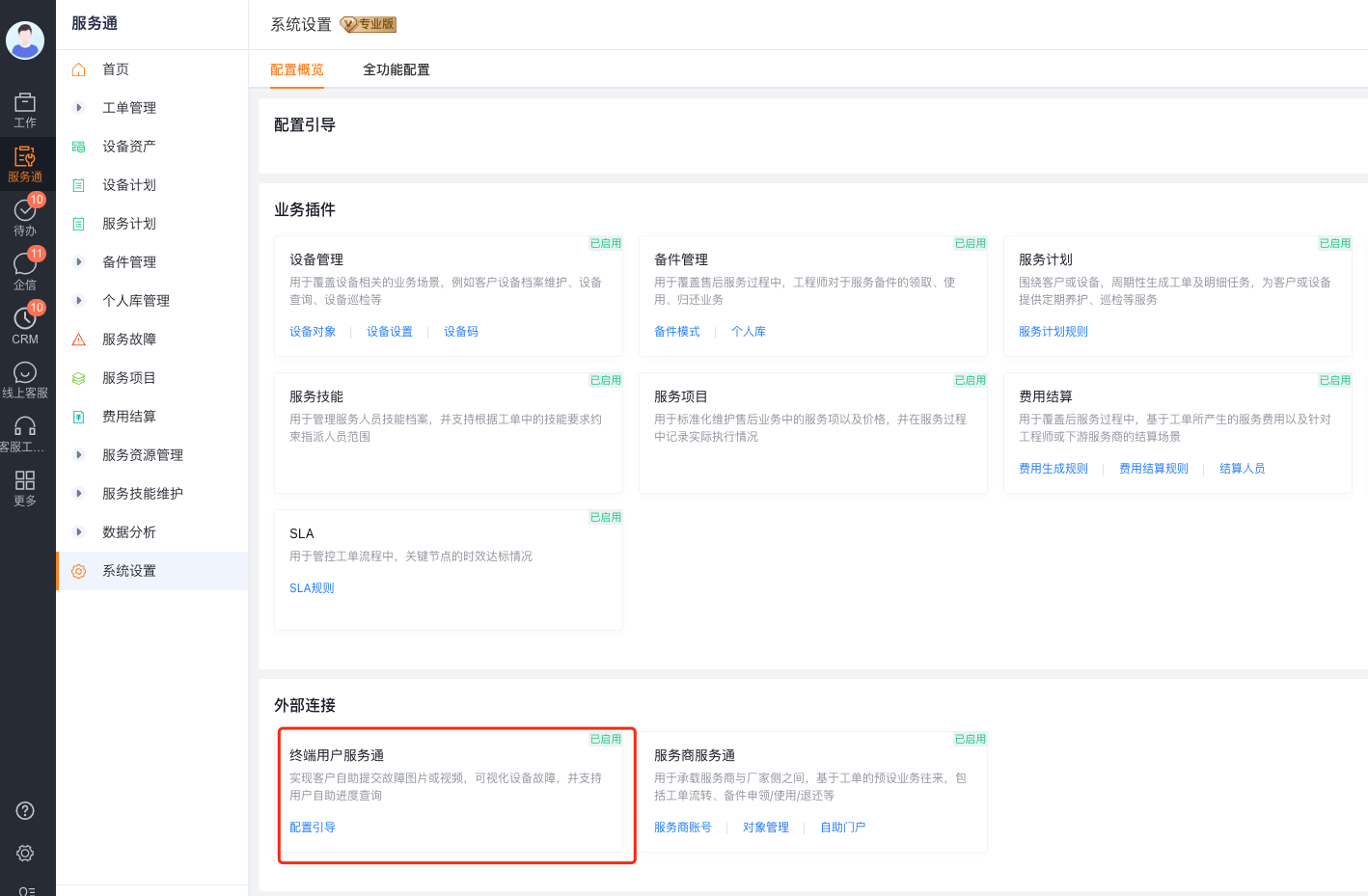
For related product information, see Enable the customer self-service portal. The source material also provides a service review configuration video.
Enter user review configuration
- Go to Service Pass>System Settings>End User Service Pass>User Review.
- Click the service review object on the user review page to set it, or enter the service review object in object management.
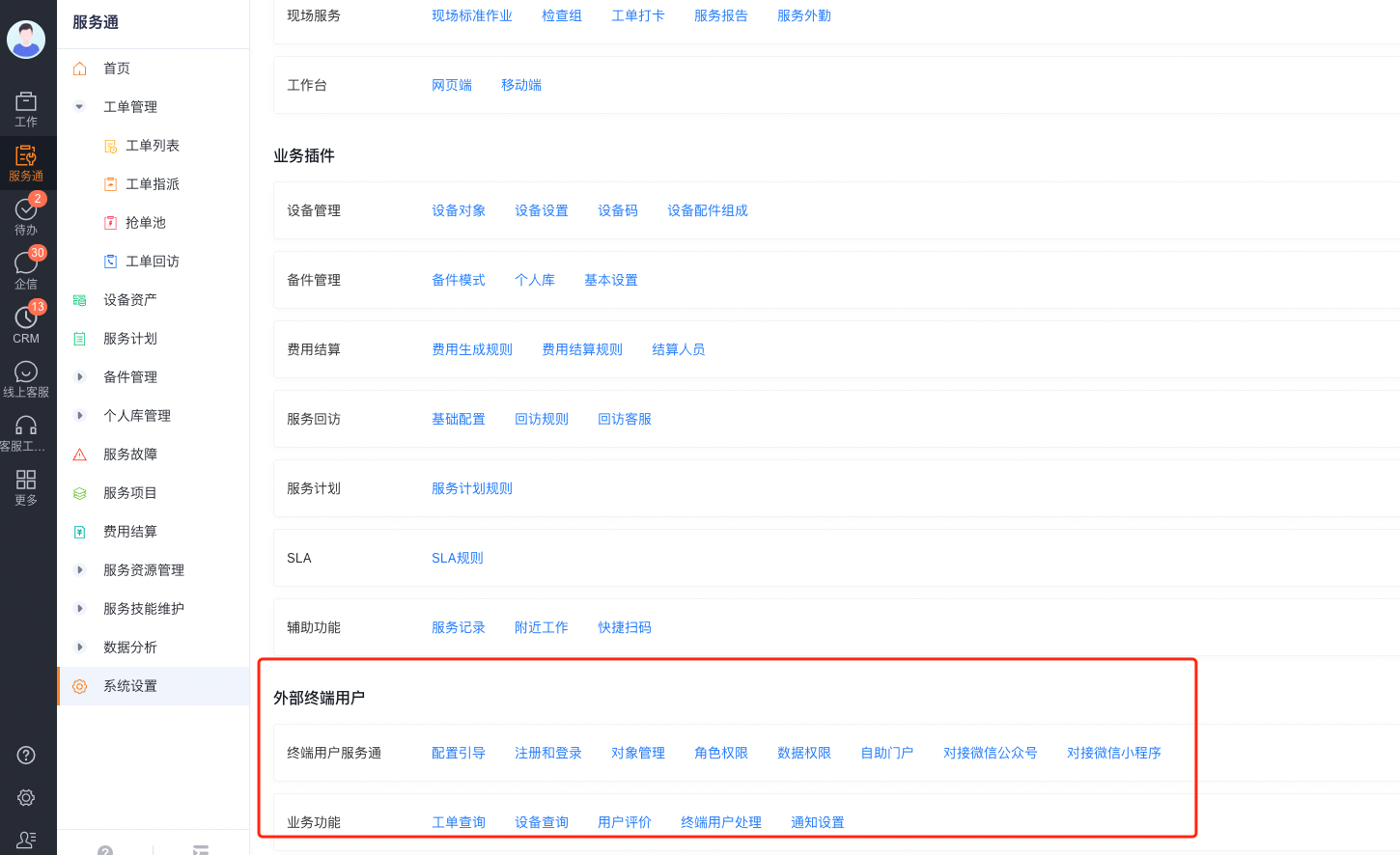 ## Configure service review object fields
Check system preset fields
Service review records are used for both end-user self-service review and manual return visits. Before configuring the layout, you should first identify the system fields and their automatic assignment logic to avoid configuring read-only fields as content that customers must fill in manually.
| Fields | API Name | Type | Autoassignment, usage and limitations |
|---|---|---|---|
| Service review number | name | Self-increasing number | System-generated review record number |
| Work order | cases_id | Find association | Associate the work order corresponding to this review |
| Service request | - | Find association | Associate the service request corresponding to this review |
| Source customer | cases_account_id | Find association | By default, the customer of the work order or service request is taken; some old versions are named "work order customer" |
| Source Contact | cases_contact_id | Find Association | The contact person of the work order or service request is taken by default; some old versions are named "Work Order Contact" |
| Service Engineer | internal_process_user | Personnel | Automatically filled in based on the work order; when the engineer field of the work order is empty, this field will also be empty |
| Service provider | external_process_user | Lookup | Populated from the work order; available only when service provider features are enabled |
| Customer signature | signature | Signature | Collects the customer's signature; the layout can display or require it |
| Review source | resources | Single choice | Values include WeChat official account, WeChat Mini Program, QR code, SMS and manual return visit; read-only, identified by the system |
| Creator customer | account_id | Find association (read-only) | Some old version names are "customers"; the system obtains the customers associated with the currently logged in connected user |
| Creator contact | contact_id | Find association (read-only) | Some old versions are named "Contacts"; the system obtains the contacts associated with the currently logged-in connected user |
| Creator identity verification | authentication | Single choice | Some old versions are named "Identity Verification"; the system compares the connected user corresponding to the work order contact with the actual submitter, and records matching, non-matching or visitor |
| Return Visitor Service | return_visit_customer | Personnel | Record the customer service personnel who perform manual return visits |
| Person in charge | owner | Personnel | When submitted by an external end user, the person in charge of the client associated with the submitter is taken; when filled in by an internal employee of the enterprise, the current logged in user is taken |
| External person in charge | out_owner | Personnel | When submitted by an external end user, the currently submitted connected user is taken; this field is also used to determine the recipient of the WeChat review invitation |
Add review field
- Enter the layout editing page in the Service Review object.
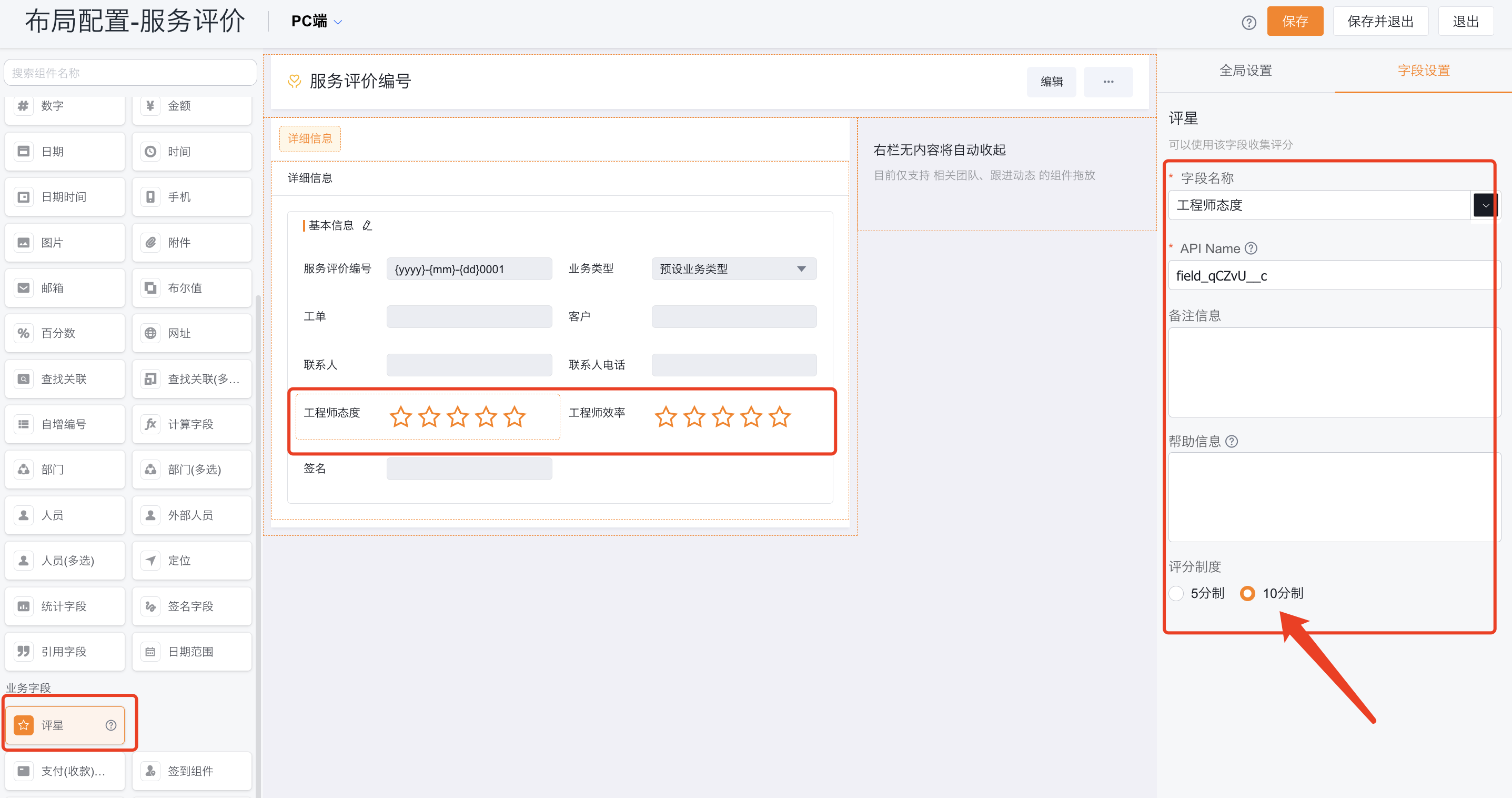
- Add fields such as rating, single select, multiselect, text, and signature as needed.
- When adding the Rating field, select a 5-point or 10-point scale. The system saves the star rating results in numbers, which can be used for statistics.
- Place the fields into the review layout and set the field name, required, read-only and help information.
- Save the layout.
Create review business type and layout
Create business type
- Enter Business Type in the Service Review object.
- Create or enable business types according to review scenarios, such as end-user review and satisfaction return visits.
- Decide whether to reuse the same business type or create multiple sets of business types based on the work order type and review content.
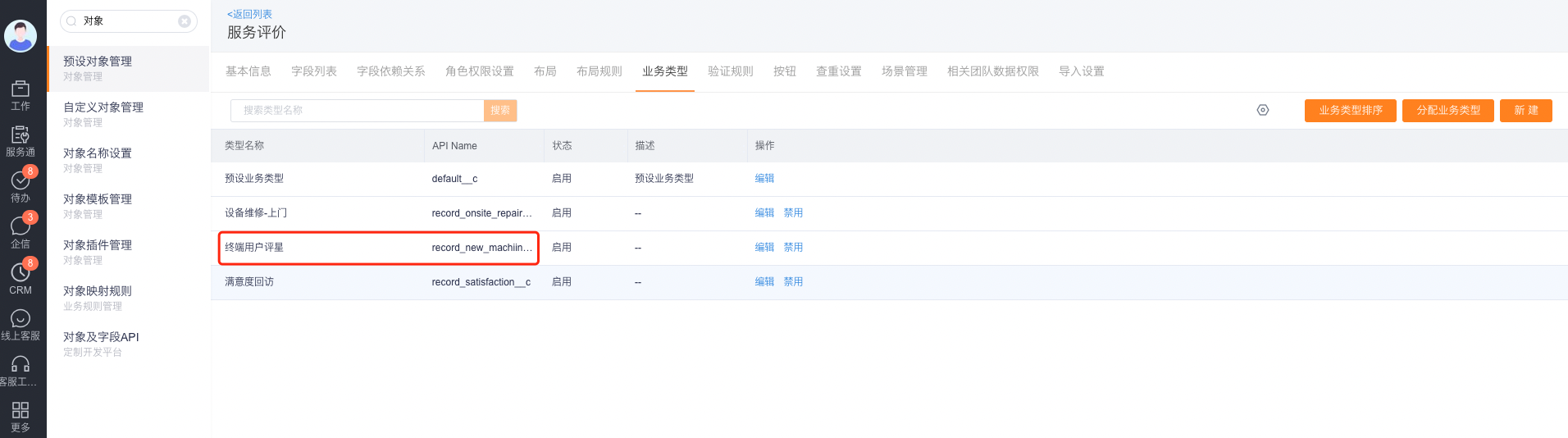
The business type only defines review data and layout. Which service type is ultimately used depends on the fixed template selected by the service review node or the matching results according to rules.
Configure web and mobile layout
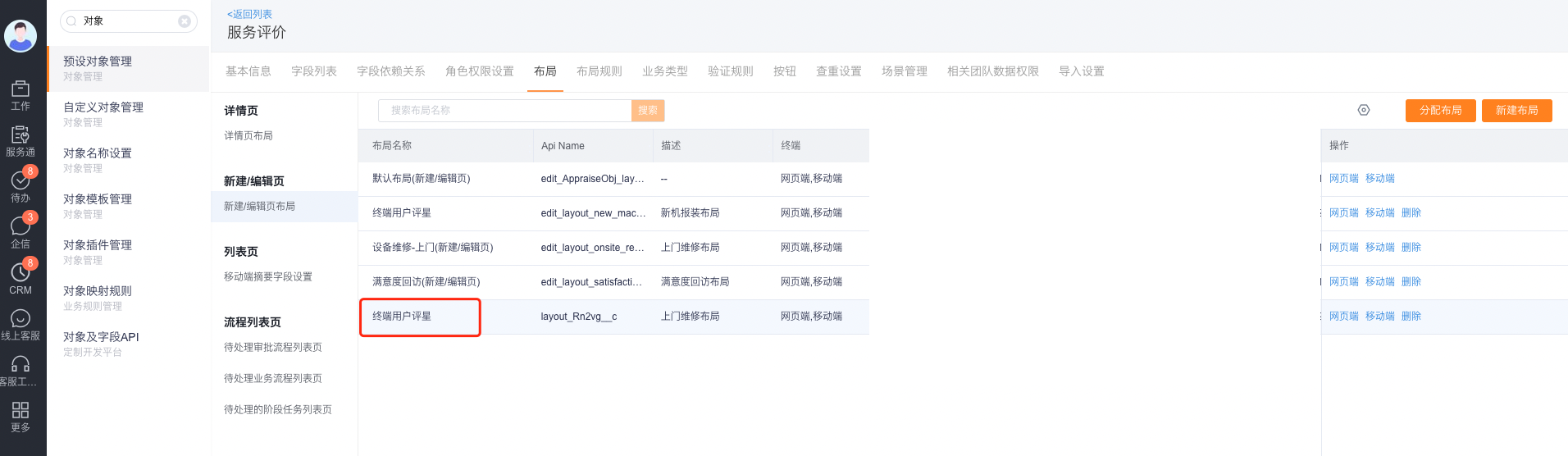
- Enter Layout in the Service Review object.
- Create or edit a new/edit page layout for the target business type.
- Check the terminals supported by the layout individually. The original configuration page can be edited for web and mobile layouts.
- Save the layout and assign it to an internal or external role.
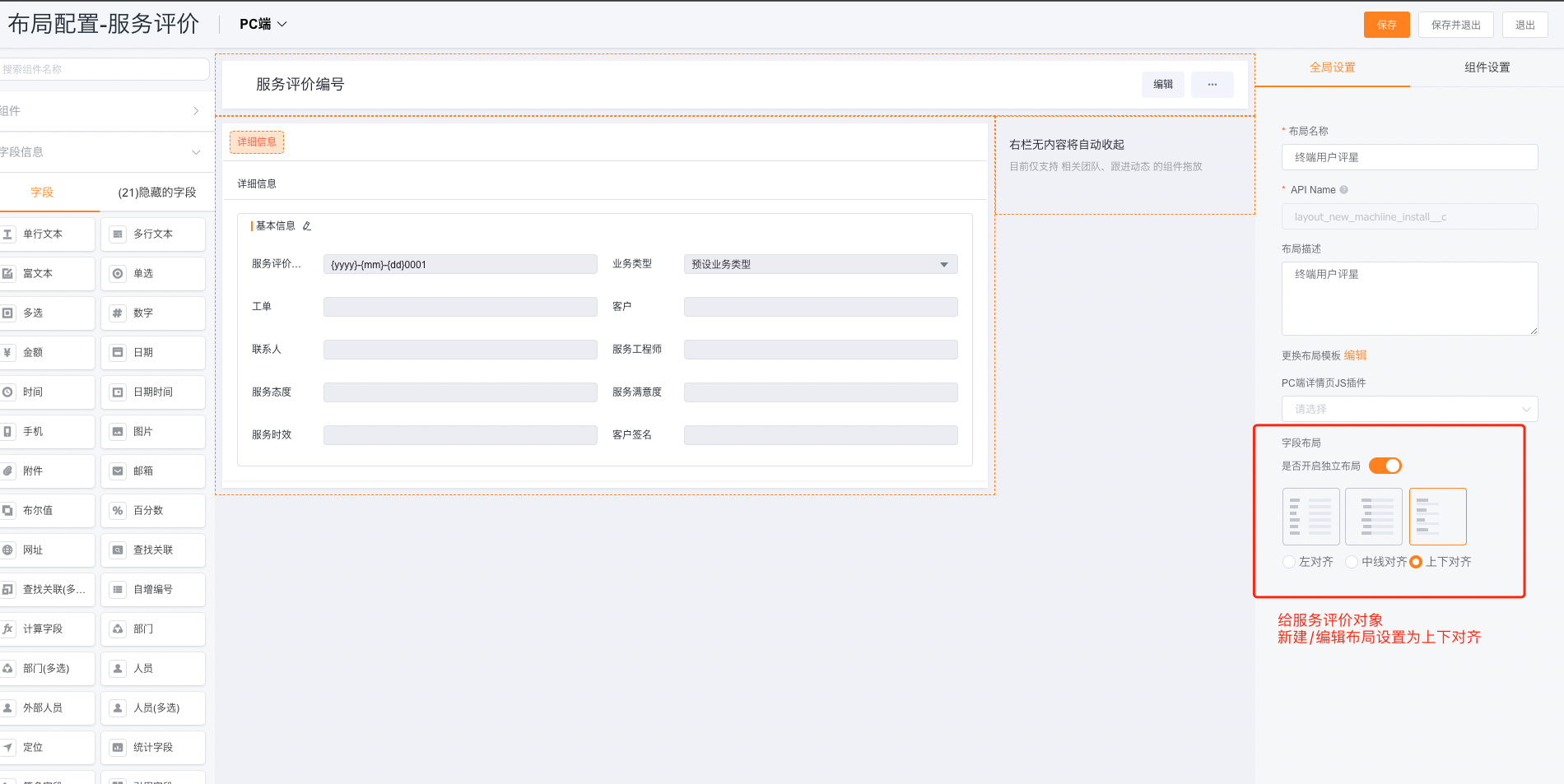
Layouts for end users can set field alignment. When there are many fields or the mobile label is long, you can use top and bottom alignment to reduce the field names from squeezing the input area.
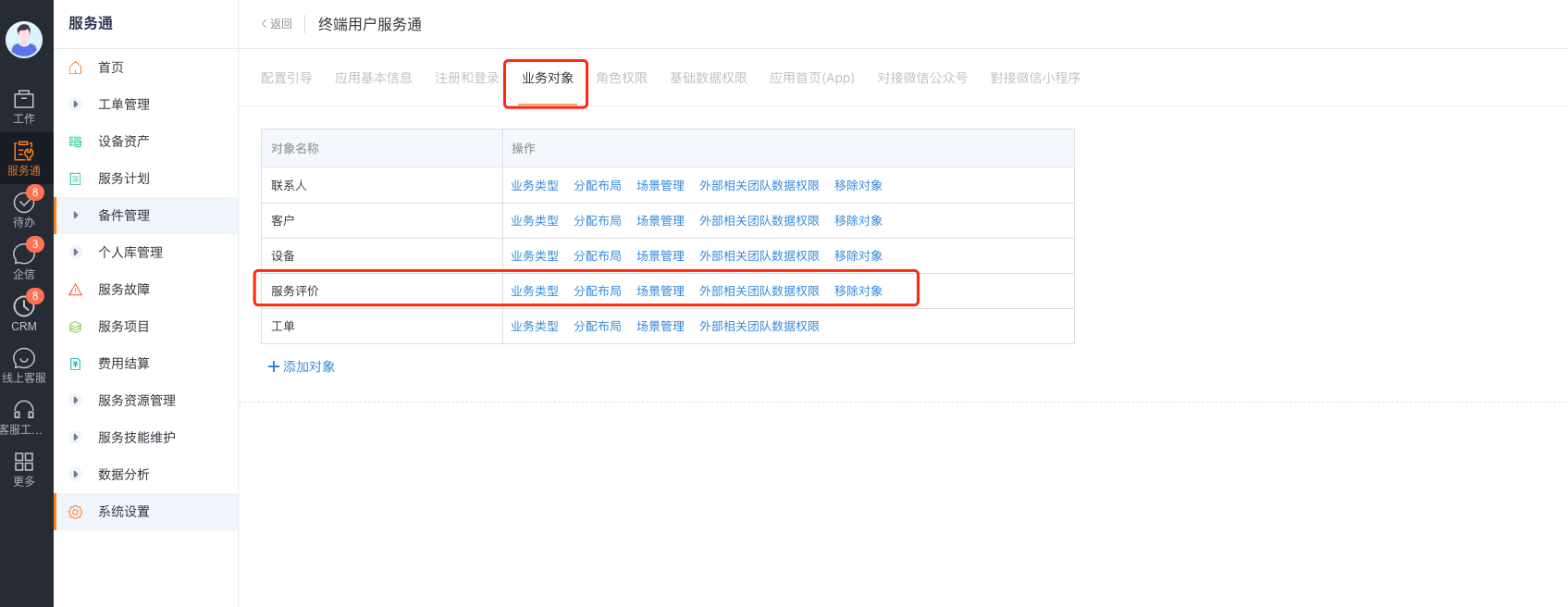
Configure the business type and layout of external roles
- Enter Service Pass > System Settings > End User Service Pass > Business Object.
- Find the Service Review object and confirm that the object has joined the End User Service Channel.
- Click Business Type to assign visible business types to end users, guests, or enterprise-defined external roles.
- Click Assign Layout to assign the new/edit page layout to each role and business type.
- Configure scenario management and external related team data permissions according to business needs.
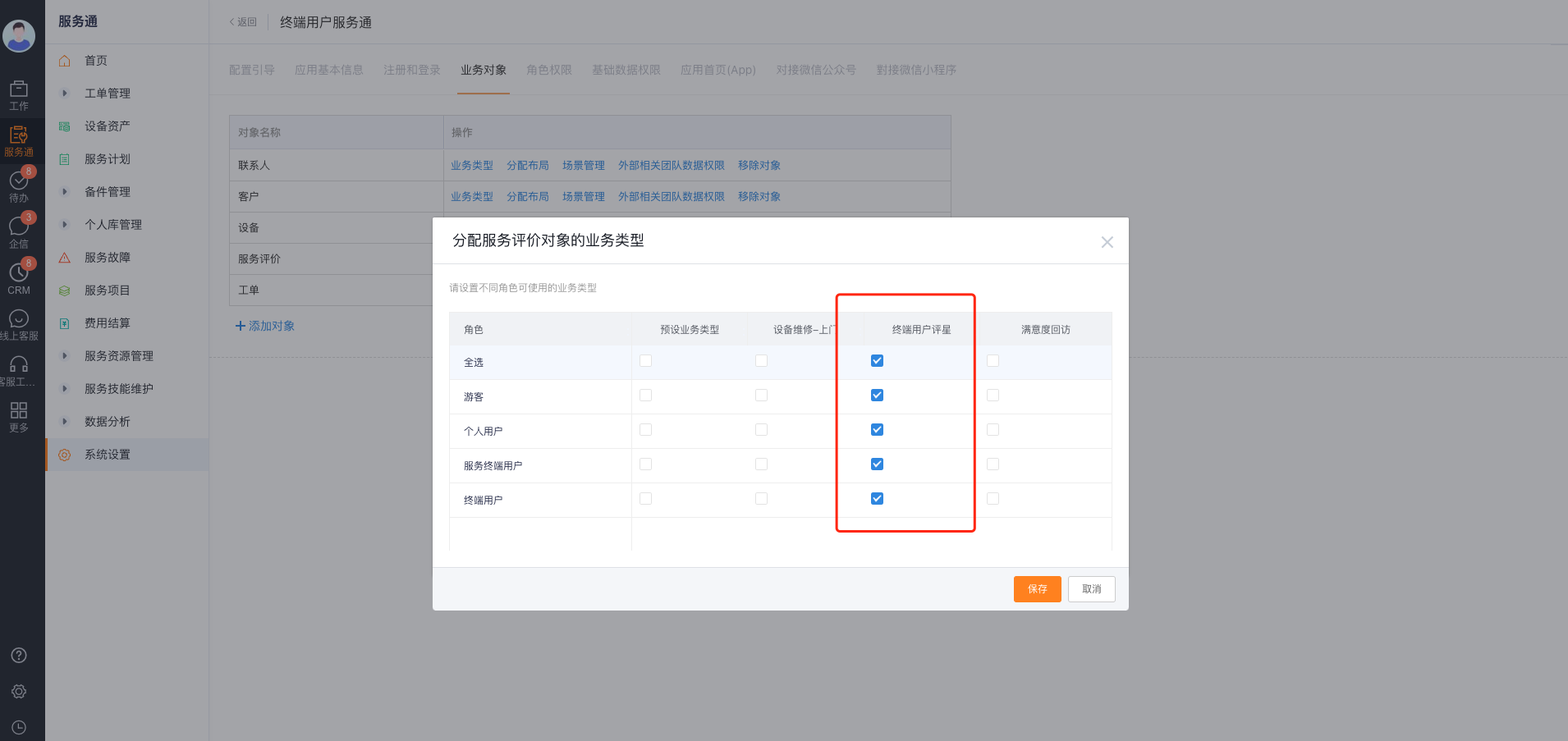
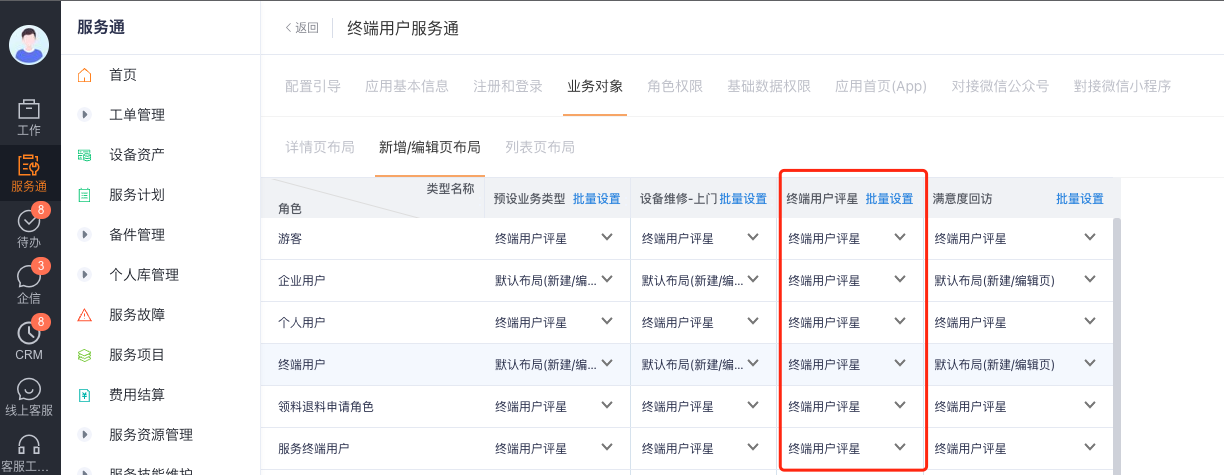
Business type, layout, and object permissions all apply. Assigning a layout without a business type or New permission does not allow external users to submit reviews.
Configure end user and guest permissions
Allow registered end users to rate
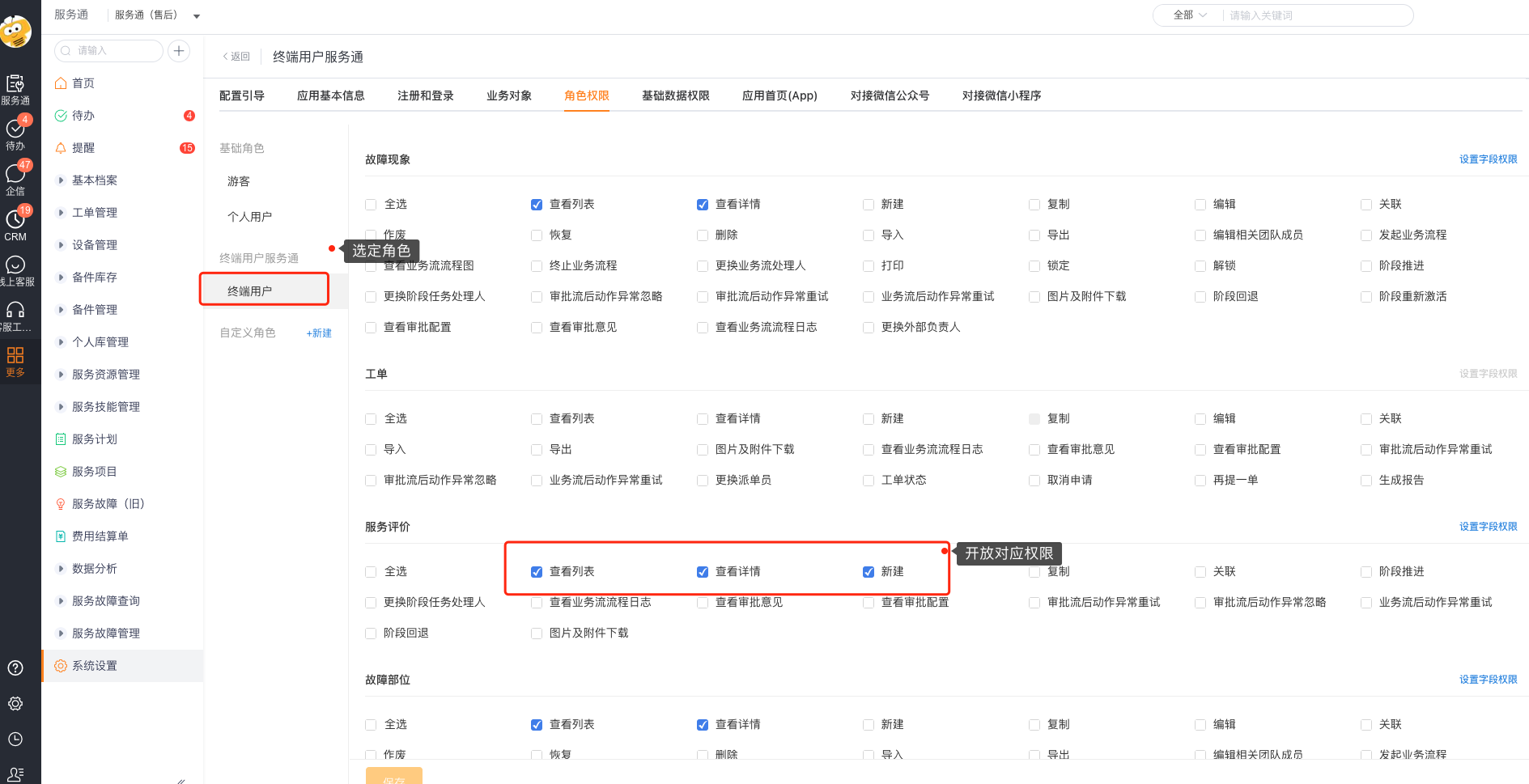
- Enter the role permissions of the End User Service Pass.
- Select the end user or enterprise-defined external end user role.
- Enable View List, View Details and New in the Service Review object permissions and save the settings.
Allow visitors to rate
Allowing visitor reviews is suitable for scenarios where you want to reduce registration and login steps, or where customers have not yet registered a connected identity.
- Confirm that guest mode is enabled in End User Service Pass. See Configure end-user accounts.
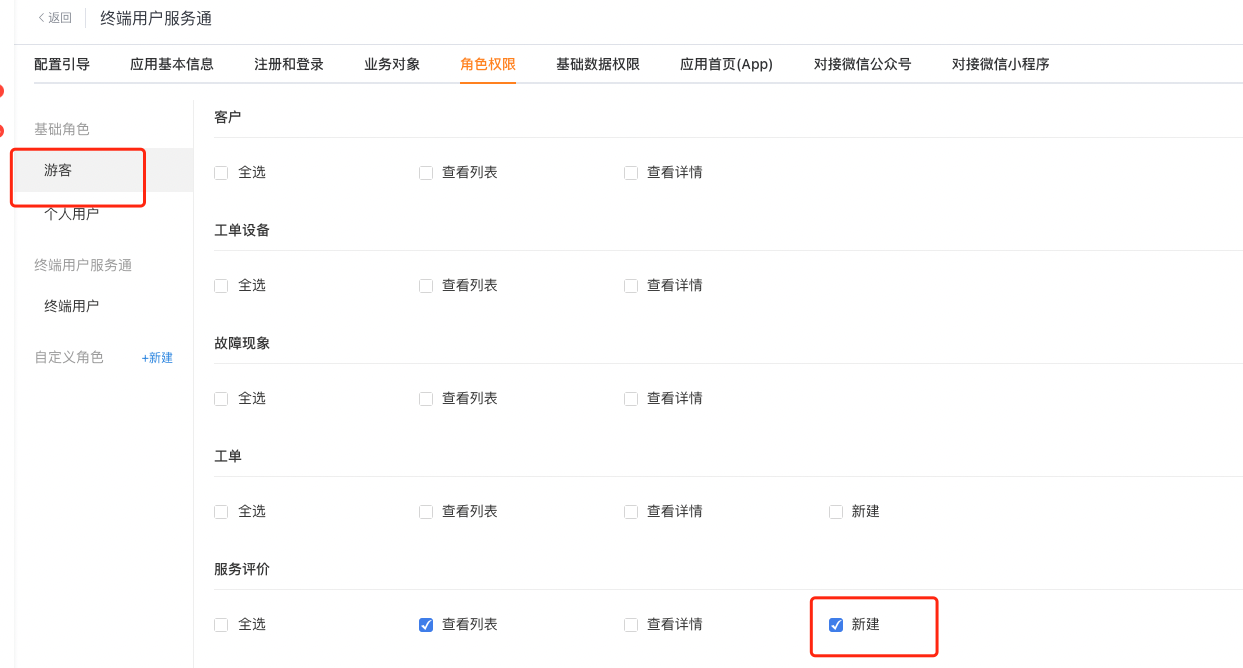
- Select Guest in Role Permissions.
- Open ** service review to tourists > create new ** permissions, and configure the viewing list and viewing details permissions as needed.
| Who to review | Required identities and permissions | User-side behavior | Key limitations |
|---|---|---|---|
| Registered users only | End users or designated external roles have Service Review > New permission | Users register or sign in before submitting; the system records the creator's identity | Users without a connected identity or permission cannot submit |
| Includes tourists | Enable guest mode, the guest role has Service Review>Create permissions | Customers can directly fill in the review without logging in | The external person in charge of the work order submitted by the visitor is empty and cannot only rely on WeChat message invitations |
For end-user sign-in, registration, and identity conversion rules, see Configure end-user accounts.
Expected results and verification
- Create a test work order matching the target work order type, and let the process enter the service review node.
- Use the target external role to open the review portal and confirm that the page uses the expected business type and web or mobile layout.
- Check the display, required, and read-only status of ratings, signatures, and other fields.
- Use registered end users and visitors to verify permission boundaries respectively; unauthorized roles should not have the permission to create new reviews.
- After submitting the review, check data such as work order association, review source, submitter identity, person in charge, and rating in the Service Review object.
Notes
- The review template itself does not trigger reviews. Service review nodes must be configured in the work order process; review rules must also be configured when multiple sets of review conditions and channels are required.
- Changes to a business type or layout affect subsequently opened review pages. Before changing fields, confirm the reporting requirements for historical review data.
- The service provider field only exists after activating the service provider service. Do not regard this field as a fixed field that all enterprises have.
- The identity verification, data attribution and message reception conditions of tourists and registered end users are different and should be verified separately.